
At a glance
Start with the facts on the product page, then prepare catalog assets, source visuals, ad ratios, copy angles and tracking checks before launch.
| Workflow step | What to confirm | Tool or asset |
|---|---|---|
| Store setup | Product page, price, variant and checkout work | Shopify admin |
| Meta connection | Catalog sync, pixel or customer events setup | Facebook and Instagram by Meta |
| Creative source | Clean product, model and lifestyle images | Snappyit |
| Ad packaging | Square, 4:5, 9:16 and carousel variants | Design/export workflow |
| Measurement | Events, landing-page views, purchase quality | Meta and Shopify analytics |
Shopify's Facebook and Instagram by Meta channel can connect eligible store products to a Facebook and Instagram catalog. Because those assets can appear across sales and advertising surfaces, product-page images and feed hygiene should be reviewed before creative production begins.
Start with the Shopify product page
The product page should be ready before the ad creative is made because the ad must match the product, variant, price and promise the shopper sees after clicking.
Check product details
Confirm title, variants, color names, price, sale status, shipping promise and return policy. Any mismatch between the ad and product page creates buyer hesitation.
Check image order
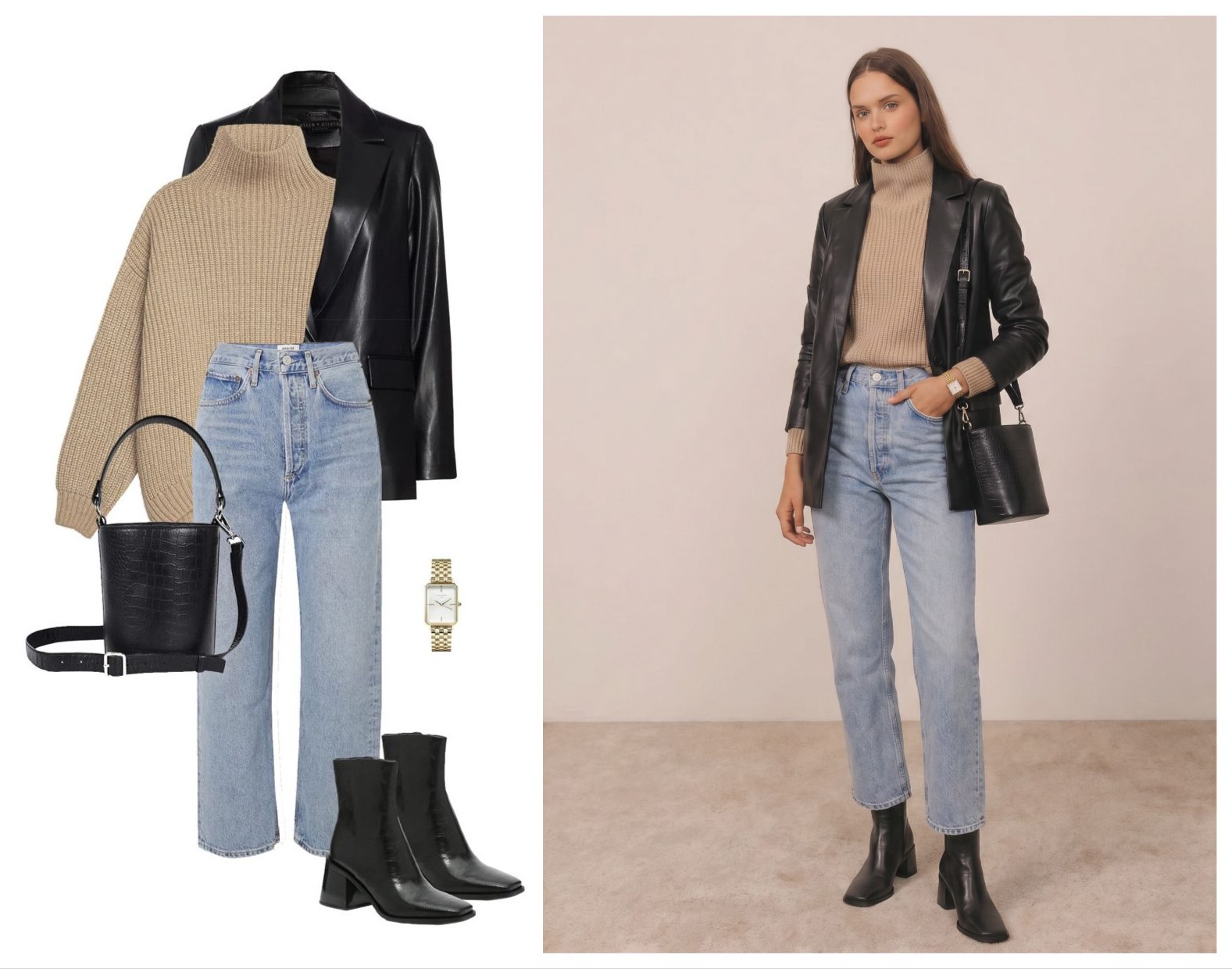
Use the best product image first, then detail, model, scale and lifestyle images. The same order can guide your ad creative set.
Check mobile readability
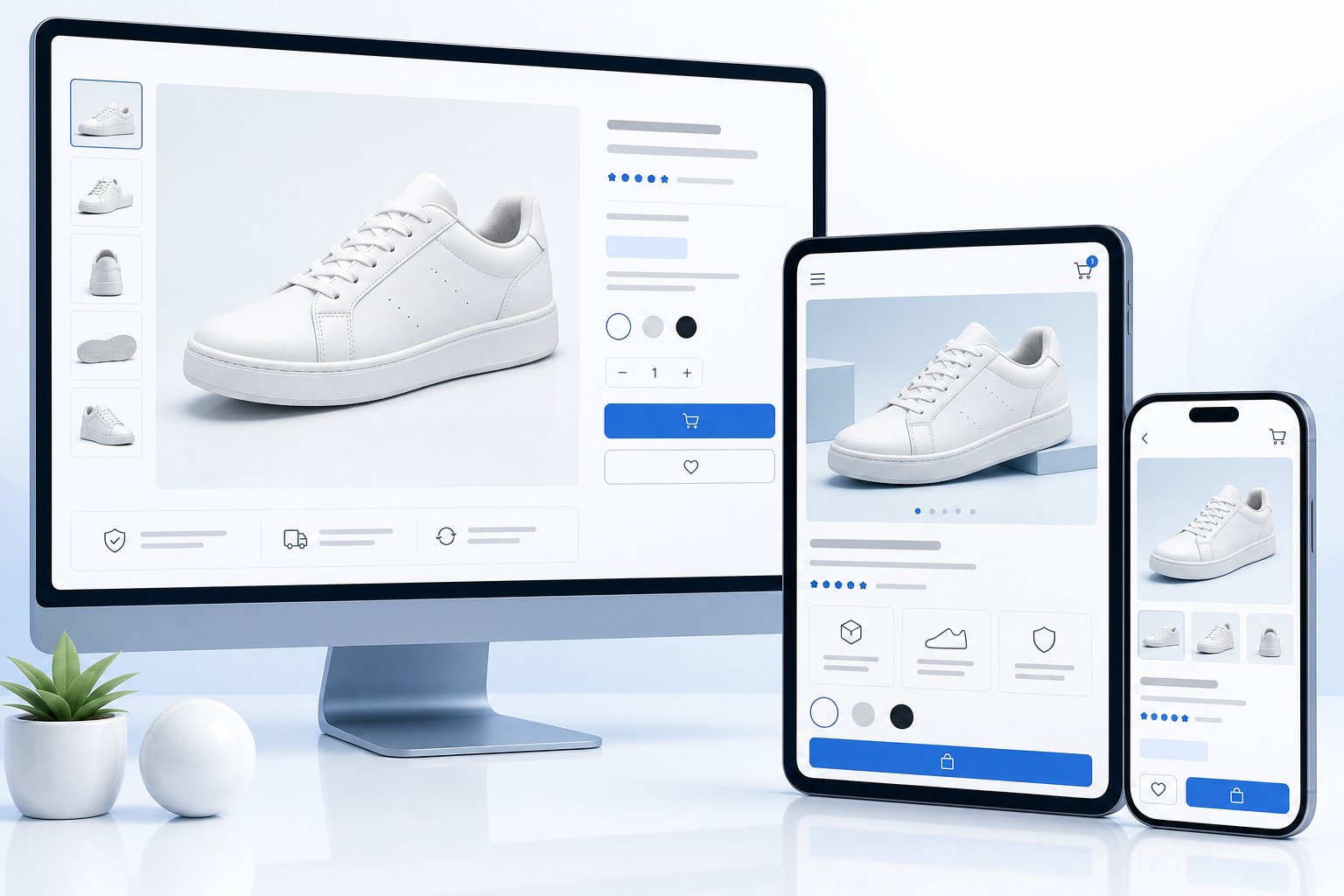
Most paid social traffic is mobile. If the PDP image gallery and variant selectors are hard to read, ad creative improvements will leak value after the click.
Connect the Meta catalog without treating it as creative strategy
The Meta catalog is a product-data and distribution layer, not a replacement for deliberate ad creative.
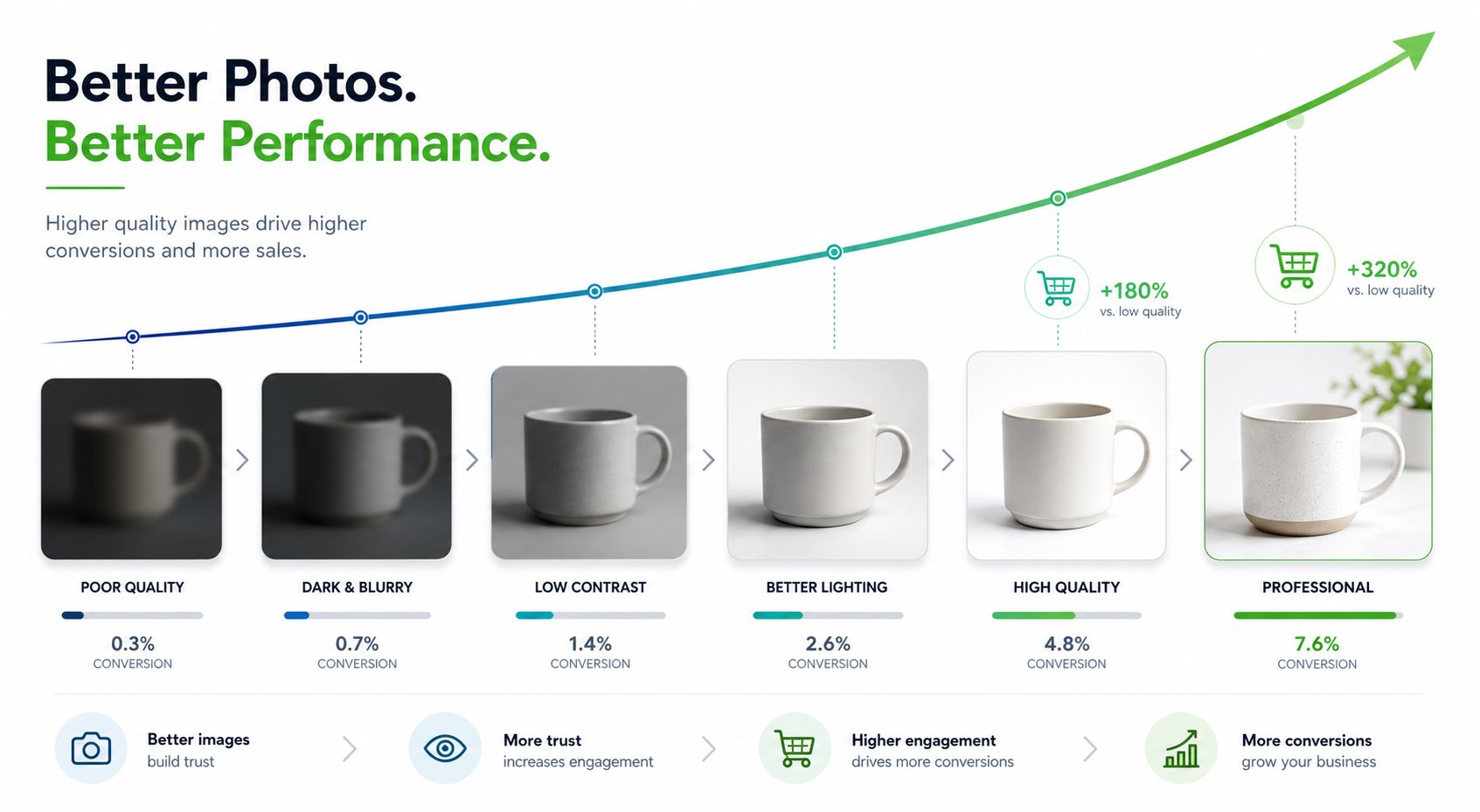
Catalog sync helps product information move from Shopify to Facebook and Instagram surfaces, but weak product images still limit performance. Clean catalog images support retargeting, while lifestyle and model creative support prospecting.
| Asset type | Use in Shopify or Meta | Creative note |
|---|---|---|
| Catalog image | Product feed, shop, dynamic ads | Exact SKU and clean background |
| PDP model image | Product page and retargeting | Show fit, scale or styling |
| Lifestyle image | Prospecting ad, email, social | Explain use case and brand mood |
| Short video | Reels, Stories, launch ads | Add motion without changing product truth |
| Detail crop | Carousel, PDP, retargeting | Show fabric, hardware or texture |
Pair this workflow with the Instagram Shop image requirements guide when your product feed images need cleanup.
Make the creative set from approved visuals
For most Shopify stores, the starter creative set should include a product-only image, a model or styling image, a lifestyle scene and a motion variant.
Product-only ad
Use the cleanest product image for retargeting and high-intent buyers who already know what they want.
Model or styling ad
Use on-model fashion, outfit, bag, shoe or accessory images to answer fit, scale and styling questions.
Lifestyle or motion ad
Use lifestyle scenes and short videos to create a stronger first impression for cold audiences.

Create the visual set first. Build product and model images before opening Ads Manager. Try Snappyit free
Build Meta ad variants without losing control
Meta ad variants should change one creative idea at a time so Shopify brands can learn what works instead of generating noise.
| Test axis | Version A | Version B |
|---|---|---|
| Image angle | Product-only | On-model or lifestyle |
| Ratio | Square feed | 4:5 mobile feed |
| Placement | Feed creative | Story/Reel creative |
| Offer | New arrival | Limited-time sale |
| Hook | Style benefit | Problem-solution benefit |
Keep the landing page constant during the first test. If product page, audience, copy and image all change at once, you cannot tell what moved the result.
Review and measure after launch
Review should continue after launch because creative performance can reveal product-page, image and offer problems.
Look beyond click-through rate
A high click-through rate with low add-to-cart may mean the ad is attractive but the landing page or offer does not match expectations.
Use Shopify and Meta together
Use Meta to understand creative and campaign behavior, then check Shopify for product revenue, variant conversion, returns and customer questions.
Feed learnings into the next creative set
If buyers respond to on-model images, create more fit and styling variants. If they respond to detail crops, make material and quality the next angle.
First 30 days of Shopify Facebook ad creative
The first 30 days should build a learning loop between Shopify product pages, Meta creative results and source image production.
| Week | Creative focus | Decision |
|---|---|---|
| Week 1 | Fix PDP images and catalog feed | Choose the products ready for traffic |
| Week 2 | Create product, model and lifestyle variants | Pick two visual directions per SKU |
| Week 3 | Launch a small Meta creative matrix | Find the image angle with best session quality |
| Week 4 | Iterate winner into new ratios and offers | Scale what matched Shopify revenue quality |
Creative troubleshooting for Shopify ads
Shopify ad troubleshooting should compare the ad, product page and checkout path before making more creative.
High clicks, low add-to-cart
The ad may be promising a look, price or product variant that the PDP does not immediately confirm. Align the hero image and first product-page image.
Add-to-cart, low checkout
Check shipping cost, delivery promise, payment options and trust signals. Creative got the shopper interested; checkout may be the issue.
Good sales, high returns
Review fit, color and material expectations. Add clearer model images, detail crops and product-page notes before increasing spend.
Creative assets that work on Shopify and Meta
A stronger asset workflow reuses the same approved visual direction across the product page, catalog surfaces and paid Meta campaigns.
| Asset | Shopify role | Meta role |
|---|---|---|
| Clean product image | Main gallery or variant image | Catalog and retargeting ad |
| On-model image | Fit and styling proof | Prospecting and social proof mood |
| Lifestyle image | Brand context and use case | Cold audience hook |
| Detail crop | Material, closure or texture proof | Carousel support card |
| Short video | Optional PDP media | Reels and Stories creative |
Handoff checklist for Shopify teams
A Shopify ad creative handoff should give the performance marketer everything needed to launch without guessing.
Product information
Include product URL, SKU, variant, price, sale period, margin notes and the target customer. This keeps the ad from promoting the wrong page or discount.
Creative information
Include the approved image set, ratio exports, usage rights and notes about what cannot be changed. If the visual came from AI, include any review notes about product accuracy.
Measurement information
Include the event you are optimizing toward, the first-week decision rule and how Shopify revenue quality will be checked against Meta campaign data.
Where Shopify data helps the creative workflow
Shopify data can guide which products deserve new Facebook and Instagram creative before the team spends time making assets.
| Signal | Creative action | Reason |
|---|---|---|
| High product-page views, low add-to-cart | Create clearer fit, scale or detail images | Interest exists but confidence may be missing |
| Strong sales from one variant | Make more ads for that color, size or bundle | Creative can amplify proven demand |
| High returns | Review whether ads overpromise fit or material | Creative may be setting the wrong expectation |
| New collection launch | Create a packshot, model image, lifestyle image and video clip | The campaign needs a full asset set from day one |
This turns the Shopify Facebook ads workflow into a feedback loop. Store data decides what needs better creative, Snappyit or another visual tool produces the approved assets, and Meta tests the variations against real audiences.
For fashion and product-heavy stores, the strongest loop is not “generate more ads.” It is “identify the product question, create a visual that answers it, then send that asset into the right campaign.”
Frequently Asked Questions
How do I run Facebook ads for a Shopify store?
Set up the product page, connect Facebook and Instagram by Meta if appropriate, prepare product and lifestyle creative, build campaign variants in Meta, and review tracking and landing-page match before launch.
Does Shopify sync products to Facebook and Instagram?
The channel can connect eligible products to a catalog, but sellers still need to validate titles, variants, prices, images and ad-specific creative before launch.
What images do Shopify Facebook ads need?
Prepare a clear product image, one model or lifestyle visual, one detail-focused crop and one motion or vertical asset for full-screen placements.
Can I use AI images in Shopify Facebook ads?
Yes, when the images accurately represent the product and comply with platform rules. Review color, materials, scale, logo, fit and included accessories.
Should Shopify brands use catalog ads or manual creative?
Use both. Catalog ads are strong for retargeting and product reminders, while manual creative is better for prospecting, storytelling and launch campaigns.
How many Facebook ad creatives should I test first?
Start with a small matrix: two image angles, two hooks and two ratios. Expand only after you know which direction is working.
What should I check if Shopify ads get clicks but no sales?
Check landing-page speed, product-page image match, price, shipping promise, variant availability, reviews and whether the ad promise overstates the product.
Where does Snappyit fit in a Shopify Meta workflow?
Snappyit creates the product, model, lifestyle and video-ready visuals before the assets are uploaded into Meta campaigns or used on Shopify product pages.
Prepare Shopify ad assets before Ads Manager
Use Snappyit to prepare visuals that match the Shopify product page, then bring those approved assets into Facebook and Instagram campaigns.
More Snappyit Resources