





Why image size, sharpness and zoom matter
A marketplace can accept a file and still show it poorly. Pixel dimensions affect eligibility and available detail, while aspect ratio, framing, compression and the storefront's own display behavior determine what buyers actually see. That is why an upload target, a hard requirement and a zoom setting should not be treated as the same thing.
This guide uses four labels consistently:
- Official requirement: a published minimum, maximum or content rule that can affect acceptance.
- Official recommendation: the platform's preferred value, not necessarily a rejection threshold.
- Snappyit working target: a practical export starting point where no single public pixel requirement applies.
- Theme-dependent: display behavior controlled by a storefront theme or app rather than the uploaded dimensions alone.
Keep the full-resolution original, create a separate working crop and export a fresh file for each destination. Reusing a small marketplace download as the next platform's source compounds compression and leaves less detail for large product views. If the background, lighting or composition also needs work, fix it before export; the product photography workflow covers those earlier steps.
Marketplace image size and zoom requirements
The chart separates the export target from the published rule and the way the image is displayed. A value in the second column is not automatically a platform-wide upload requirement.
| Marketplace | Practical export target | Published rule or guidance | Zoom or display behavior | Common failure |
|---|---|---|---|---|
| Amazon | 2000 × 2000 px* | Check current Seller Central image requirements and category-specific main-image rules [1] | A large, sharp source supports detail viewing, but pixel count alone does not guarantee acceptance or zoom | Thumbnail export, soft source or a separate main-image policy issue |
| eBay | About 1600 × 1600 px | 500 × 500 px minimum; about 1600 × 1600 recommended; files up to 12 MB [2] | 1600 px is the official quality recommendation, not a sole published zoom cutoff | Below-minimum file, enlargement blur or heavy compression |
| Etsy | At least 2000 px wide and high | Landscape is preferred for more control across thumbnail crops; square is supported [3] | Square, portrait and landscape thumbnails can frame the same upload differently | Soft original, tight crop or a previously compressed file |
| Shopify | 2048 × 2048 px* | Check Shopify's current product-media file and dimension limits before a large export [4] | Zoom is theme- or app-dependent; high pixel dimensions do not switch it on by themselves | Source smaller than the rendered view, inconsistent ratios or theme settings |
| Walmart Marketplace | 2000 × 2000 px* | Follow Walmart's image guide and the exact unpublished reason in Seller Center; no universal fixed pixel threshold is used here [5] [6] | Use the product-page preview and Seller Center status rather than assuming one zoom threshold | Wrong image field or URL, low-quality source, or a non-image unpublished reason |
| Poshmark | 1200 × 1200 px* | No public fixed pixel requirement used in this guide | Centered square framing is a practical cross-listing baseline | Edge-to-edge crop or reused compressed marketplace image |
| Mercari | 1200 × 1200 px* | No public fixed pixel requirement used in this guide | Centered square framing is a practical cross-listing baseline | Edge-to-edge crop or reused compressed marketplace image |
| Depop | 1080 × 1080 px* | No public fixed pixel requirement used in this guide | A square export suits the mobile-first listing workflow | Starting from a smaller derivative instead of the original |
| Facebook Marketplace | 1200 × 1200 px* | Meta's public listing guide explains photo upload but gives no mandatory pixel size [7] | Test the listing crop separately from Facebook post and link-share placements | Assuming a social-post size is an official Marketplace requirement |
* Snappyit working target: These dimensions are practical export starting points, not claims that the platform rejects every other size. Test one current listing before processing a full catalog.
Do not solve a detail problem with a number alone. Enlarging a small or blurry source can satisfy a pixel counter while leaving the product just as soft. Use the highest-quality original, keep the aspect ratio locked and inspect the saved export at 100% before upload.
Increase image resolution for an Amazon listing
For Amazon, first determine whether the problem is file size or source quality. A sharp master can be re-exported at the working target below; a soft or tightly cropped master needs a larger source, a looser crop or a reshoot.
- Inspect the original at 100%. Check focus, edge detail and the actual pixel dimensions of the file, not the size shown inside an editor or webpage.
- Return to the largest source. Use the camera original, photographer delivery or master edit. A less aggressive crop can preserve more pixels than enlarging a tight crop.
- Create a clean Amazon export. A 2000 × 2000 square is the working target in this guide. Keep the ratio locked, center the product and follow the current main-image and category rules in Seller Central [1].
- Inspect the saved file. Open the final JPEG or PNG at full size and confirm that compression has not softened edges or small product details.
If the source does not contain enough real detail, the reliable fix is a larger original or a new photograph. Upscaling may change the dimensions, but it cannot guarantee Amazon acceptance or buyer-visible detail.
Fix an Amazon image rejected as too small
An actual rejection needs a narrower diagnosis than a general quality upgrade. Start with the message attached to the affected SKU instead of assuming that every Amazon image follows one universal threshold.
- Read the exact Seller Central reason. Note whether it names dimensions, the main image, a category rule or another content issue.
- Verify the file that was uploaded. A CMS thumbnail, chat attachment or compressed export can be smaller than the master file with the same name.
- Confirm the image slot. Make sure the replacement reached the rejected SKU and the intended main or secondary image field.
- Replace the source when necessary. Use the higher-resolution workflow above; do not repeatedly enlarge and recompress the rejected file.
- Recheck all named rules. A larger image will not clear a background, prop, text, badge or category-specific main-image problem.
After resubmission, monitor the SKU until processing finishes and confirm the live product detail page uses the new asset. A successful upload response is not proof that the listing has cleared review.
Fix Etsy photos that look blurry after upload
Etsy recommends listing photos with both width and height at least 2000 px and recommends a horizontal or landscape first image for more control across its different thumbnail crops [3]. If the result looks blurry, work through the image chain in order:
- Compare the original and export at 100%. If both are soft before upload, Etsy cannot restore the missing detail.
- Export from the master. Avoid screenshots, downloaded marketplace copies and files that have already passed through messaging or repeated JPEG saves.
- Leave a thumbnail-safe margin. Tight framing can make Etsy's square, portrait and landscape crops feel inconsistent even when the file is sharp.
- Check the important placements. Review the listing image and the thumbnails buyers see rather than judging the file from only one crop.
If a sharp, correctly sized master still looks poor, publish one controlled test export before replacing the rest of the listing set. That separates a source problem from a crop or compression problem without reprocessing the whole catalog. Once the photos are ready, the Etsy listing guide covers titles, tags and the rest of the listing.
Fix a Walmart listing unpublished for a low-resolution image
Do not resize first. Walmart lists many possible unpublished reasons, so open the affected item in Seller Center and confirm that the current reason is actually tied to imagery [6]. If it is, compare the flagged field with Walmart's current image guidelines [5].
- Identify the affected image field. Confirm whether the primary image, an additional image or an image URL in a feed needs attention.
- Replace the source, not just the dimensions. Use a sharp master with clear product edges and enough real detail for the product page.
- Verify delivery. For URL- or feed-based updates, confirm that Walmart can retrieve the new asset and that the correct item receives it.
- Wait for processing, then recheck status. Confirm both Seller Center and the live listing after the update has been reviewed.
A 2000 × 2000 square is the Snappyit working target in this guide, not a claim that Walmart publishes one universal 2000 px acceptance rule. If the unpublished reason concerns price, policy, identifiers, inventory or another field, an image replacement will not republish the item.
Fix blurry Shopify product images, Retina display and zoom
A 2048 × 2048 square is a useful Shopify gallery working target because it leaves room for large product views; check the current product-media limits before a large export [4]. It is still possible for a 2048 px file to look blurry if the source is soft, the theme displays a small derivative too large or the file has been heavily compressed.
- Match the source to the rendered size. High-density screens need more source pixels than the same visual width on a standard display.
- Keep product sets consistent. Use the same ratio, product scale and surrounding space so the gallery does not jump between frames.
- Check the live theme on desktop and mobile. Shopify themes choose how media is cropped, sized and presented.
- Treat zoom as a separate feature. It depends on the theme's media settings or an installed app; uploading a 2048 px file does not enable it automatically.
If the master is sharp but the storefront is not, test the same image in an unmodified theme preview or review the theme's product-media settings. That helps separate an asset problem from a theme or app problem.
Fix an eBay image that is too small or does not show useful detail
eBay publishes a 500 × 500 px minimum, recommends images around 1600 × 1600 px and accepts files up to 12 MB. It also says 1:1 or 16:9 images generally look best across listings, search results and other placements [2].
- Replace files below 500 × 500 with a larger original rather than enlarging a thumbnail.
- Use about 1600 × 1600 as eBay's quality recommendation when a square crop suits the product.
- Keep a clear 16:9 image if forcing it into a square would cut off the item; do not stretch it.
- Inspect the live listing after processing to confirm the replacement is sharp and the intended image is active.
Treat 1600 px as eBay's recommended quality target, not as a guaranteed zoom threshold. Actual detail viewing also depends on source quality and the current listing experience.
Marketplace image preflight checklist
- Source: start from the sharpest master, not a screenshot or marketplace download.
- Dimensions: check the saved file's width and height after export.
- Ratio and safe area: keep the product centered and protect details near the edges.
- Main-image rules: review the current background, prop, text and category rules for the destination.
- Display behavior: test thumbnails, large product views and any theme-controlled zoom separately.
- One-item test: confirm one live listing before exporting or replacing the full batch.
Sizing is only one part of a strong listing. Also check for inconsistent framing, distracting backgrounds and inaccurate product color; the product photography mistakes guide covers these issues in more detail.
How to resize product images
Many image-editing tools can crop and resize product photos, including Photoshop and dedicated online resizers. The basic workflow is similar across most tools; Snappyit's Image Resizer serves as the example here. Its controls cover marketplace and social-media presets, Crop and Pad modes, output previews, and batch uploads and downloads. Custom dimensions also allow any width and height to be entered when platform recommendations change or a required size is not included in the presets. The interface below shows several destination sizes generated from the same group of source images.
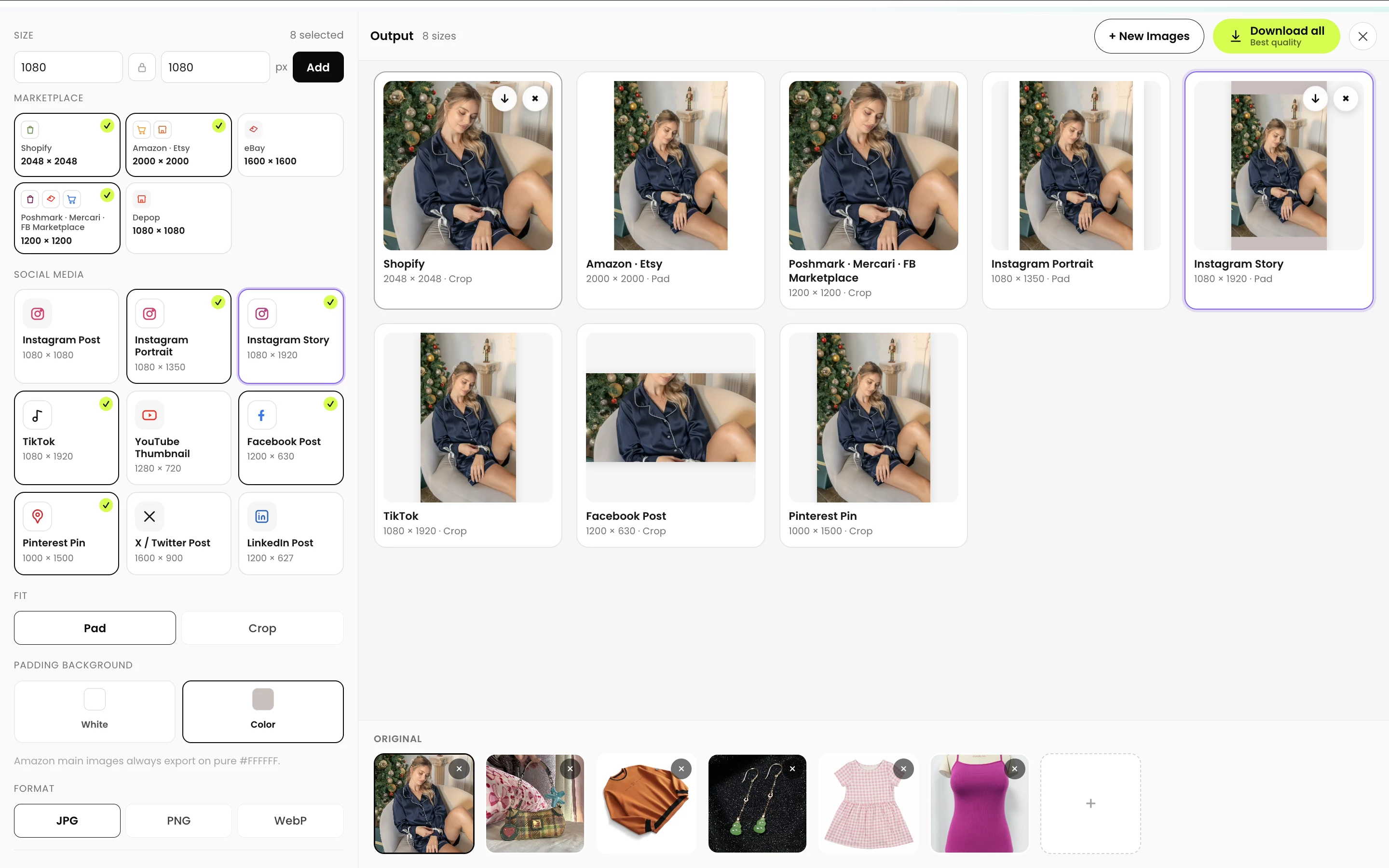
Required destinations can be selected, reviewed and downloaded together or one at a time.
- Destination selection. Marketplace and social-media presets cover common outputs, while custom width and height fields handle other dimensions. A square output uses the same value in both fields.
- Source upload. Snappyit's Image Resizer accepts multiple high-quality source files in one batch.
- Fit and format. Crop creates a fuller frame, while Pad preserves the complete product. JPEG is the usual choice for product photos; PNG or WebP is more appropriate when transparency or a specific workflow requires it.
- Composition review. The preview should show a product that is not stretched, cut off or pressed against the edges, especially when one source is exported to square, portrait and landscape formats.
- Download and test. A one-image test for each destination confirms that the final thumbnail appears as intended before the remaining batch is published.
Crop vs pad: how should the image fit?
Crop and pad can produce the same final pixel dimensions while handling the original composition differently. Crop fills the target canvas and removes content outside the new ratio. Pad keeps the complete image and adds background space in a selected color where the original ratio does not fill the canvas.


Crop — 1080 × 1920: fills the frame but trims the outer edges. It works best when the subject remains safely inside the crop.
Pad — 1080 × 1920: preserves the full image and adds background space. It is safer when no part of the product should be cut off.
For marketplace product images, crop usually creates a fuller thumbnail, while pad is safer for long garments, packaging, handles or other details close to the edge. Platform-specific main-image rules still apply; Amazon main images, for example, may require pure white [1]. A final preview check helps catch unwanted trimming before the batch is downloaded.
Repurpose marketplace images for social media
Once the marketplace exports are ready, the same master can be repurposed for social placements, but the marketplace files themselves are not universal social-media assets. Stories and short-form video covers use a tall 9:16 canvas, Pinterest favors 2:3, and several post or thumbnail placements use landscape formats. The table names each organic, paid, link-share or thumbnail placement so unlike formats are not treated as one universal social-media requirement.
| Social placement | Useful export size | Ratio |
|---|---|---|
| Instagram feed post | 1080 × 1080 px | 1:1 [8] |
| Instagram portrait feed ad | 1440 × 1800 px | 4:5 [9] |
| Instagram Story ad | 1440 × 2560 px | 9:16 [9] |
| TikTok in-feed creative | 1080 × 1920 px | 9:16 [10] |
| YouTube video thumbnail | 3840 × 2160 px | 16:9 [11] |
| Facebook link-share image | 1200 × 630 px | 1.91:1 [12] |
| Pinterest standard Pin/ad | 1000 × 1500 px | 2:3 [13] |
| X standalone image ad | 1200 × 628 px | 1.91:1 [14] |
| LinkedIn single-image ad | 1200 × 628 px | 1.91:1 [15] |
These are practical working exports tied to the placement named in each row, not universal upload requirements. Instagram's organic-photo help keeps supported uploads at up to 1080 px wide, while the current Meta Ads Guide recommends 1440 px-wide feed and Story ad assets [8] [9]. TikTok specifies vertical 9:16 creative at 540 × 960 px or larger, so 1080 × 1920 is a higher-resolution working export at the same ratio [10]. Preview each destination because platforms may display or crop uploads differently.
Frequently asked questions
- Can one image size work for every marketplace?
A centered 2048 × 2048 image is a convenient working file for several platforms. Use the table to choose a destination-specific starting point, then check the platform's current rules before publishing.
- Why does Amazon still reject an image as too small?
The uploaded file may be a thumbnail or compressed derivative rather than the intended export, or the image may fail another main-image or category rule. Check the exact Seller Central message, the dimensions of the saved file and the image slot that received it before replacing the source.
- Can upscaling fix a small Amazon listing image?
Upscaling can increase the pixel count, but it cannot restore product texture, edge detail or focus that the source never captured. A larger original, a less aggressive crop or a new photograph is safer when the source is genuinely low resolution.
- Why do Etsy listing photos look blurry after upload?
A soft original, a previously compressed file, enlargement from a small source or an unexpected thumbnail crop can all make an Etsy image look blurry. Start from the full-resolution original, follow Etsy's current size guidance and inspect the image in each important listing crop.
- Will replacing a low-resolution image republish a Walmart listing?
Only if the image is the actual unpublished reason and the replacement passes Walmart's current checks. Read the reason in Seller Center first; a price, policy, identifier or inventory issue will not be fixed by resizing the image.
- Does a 2048 × 2048 Shopify image automatically enable zoom?
No. A sharp 2048 × 2048 image is a useful product-gallery export, but zoom behavior depends on the Shopify theme, its media settings or an installed app. Test the live product page on desktop and mobile.
- Does eBay require 1600 px to enable zoom?
eBay publishes 500 × 500 px as the minimum resolution and recommends images around 1600 × 1600 px. Treat 1600 px as the official quality recommendation, not as a single guaranteed zoom threshold for every listing experience.
- When should Crop or Pad be used?
Crop is appropriate when the product remains safely inside the new ratio and should fill the frame. Pad is safer when trimming would remove part of the product because it preserves the complete image by adding background space.
- Which format works best for product images?
JPEG is the simplest default for ordinary product photographs because it is widely supported and keeps files relatively small. PNG is appropriate when transparency is required, while WebP should be used only where the storefront or publishing workflow supports it.
References
- Amazon Seller Central. Product image requirements help reference (sign-in or JavaScript may be required).
- eBay. Tips for taking photos.
- Etsy. Requirements and best practices for images in your Etsy shop.
- Shopify. Product media types: images (browser access may be required).
- Walmart Marketplace Learn. Product detail page: Image guidelines & requirements.
- Walmart Marketplace Learn. Troubleshoot unpublished items.
- Facebook Help Center. Sell something on Facebook Marketplace.
- Instagram Help Center. Image resolution of photos you share on Instagram.
- Meta Ads Guide. Image specifications for Instagram Feed and Instagram Stories.
- TikTok Ads Manager. TikTok Auction In-Feed Ads specifications.
- YouTube Help. Add custom thumbnails on YouTube.
- Meta for Developers. The Open Graph protocol: optimizing images.
- Pinterest Business. Creative best practices and standard image ad specifications.
- X Business. Standalone Image Ads specifications.
- LinkedIn. Single image ad specifications.







