Generative AI 16 min read

Which AI Can Convert Image to Video? Your Still Photos Deserve Motion

Runway, Kling, Pika, Luma, Adobe Firefly, Canva Dream Lab, and Stable Video Diffusion all promise to turn a still photo into a moving clip — but their strengths, pricing, and failure modes are wildly different. This guide compares every major AI image-to-video tool side by side, breaks down how diffusion-based motion synthesis actually works, walks through image prep and prompt structure, and matches specific platforms to specific use cases so you can pick the one that fits your workflow.

AI image-to-video conversion transforms a single still photo into fluid motion by generating entirely new frames

What AI Image-to-Video Conversion Actually Means

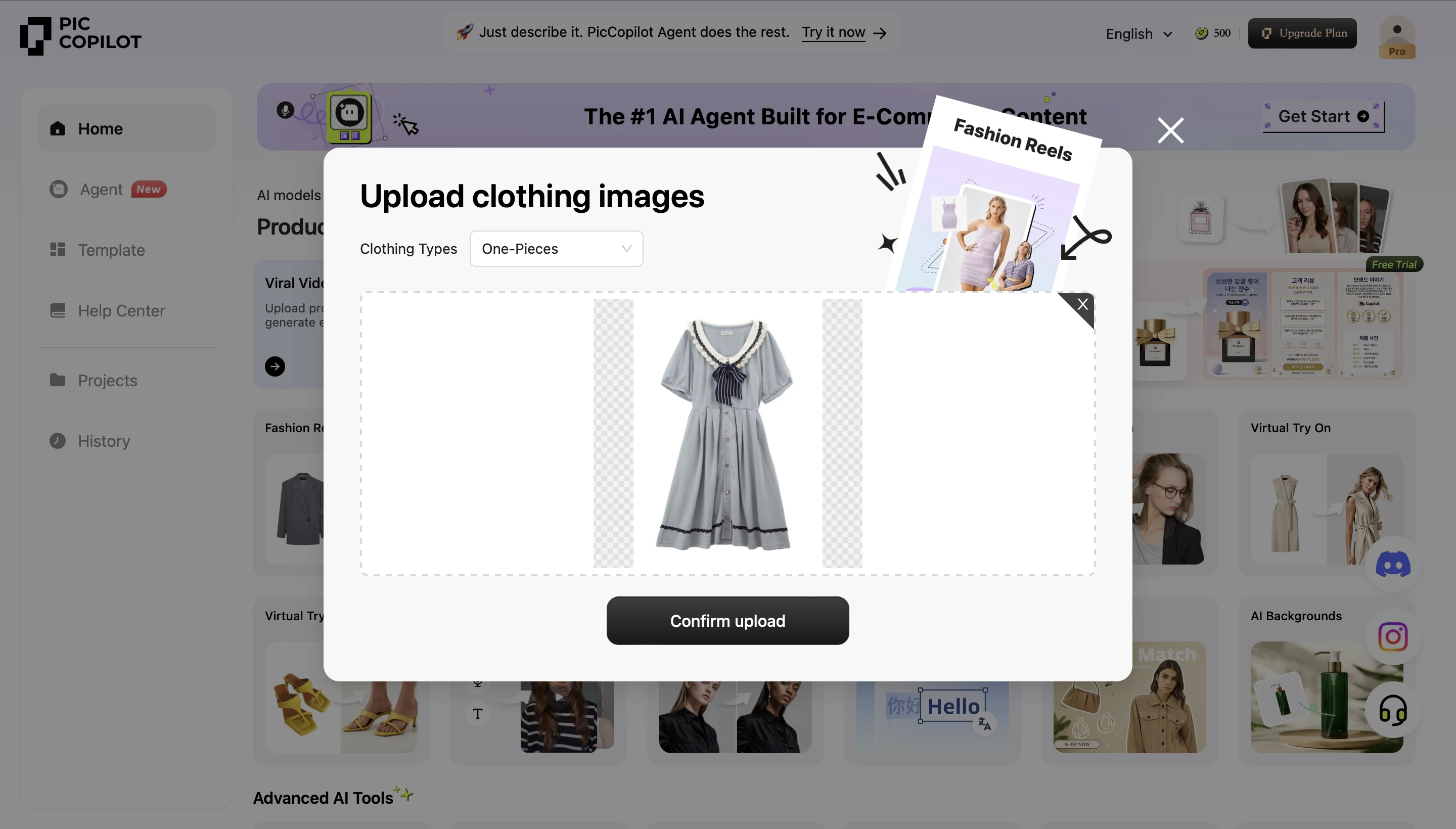
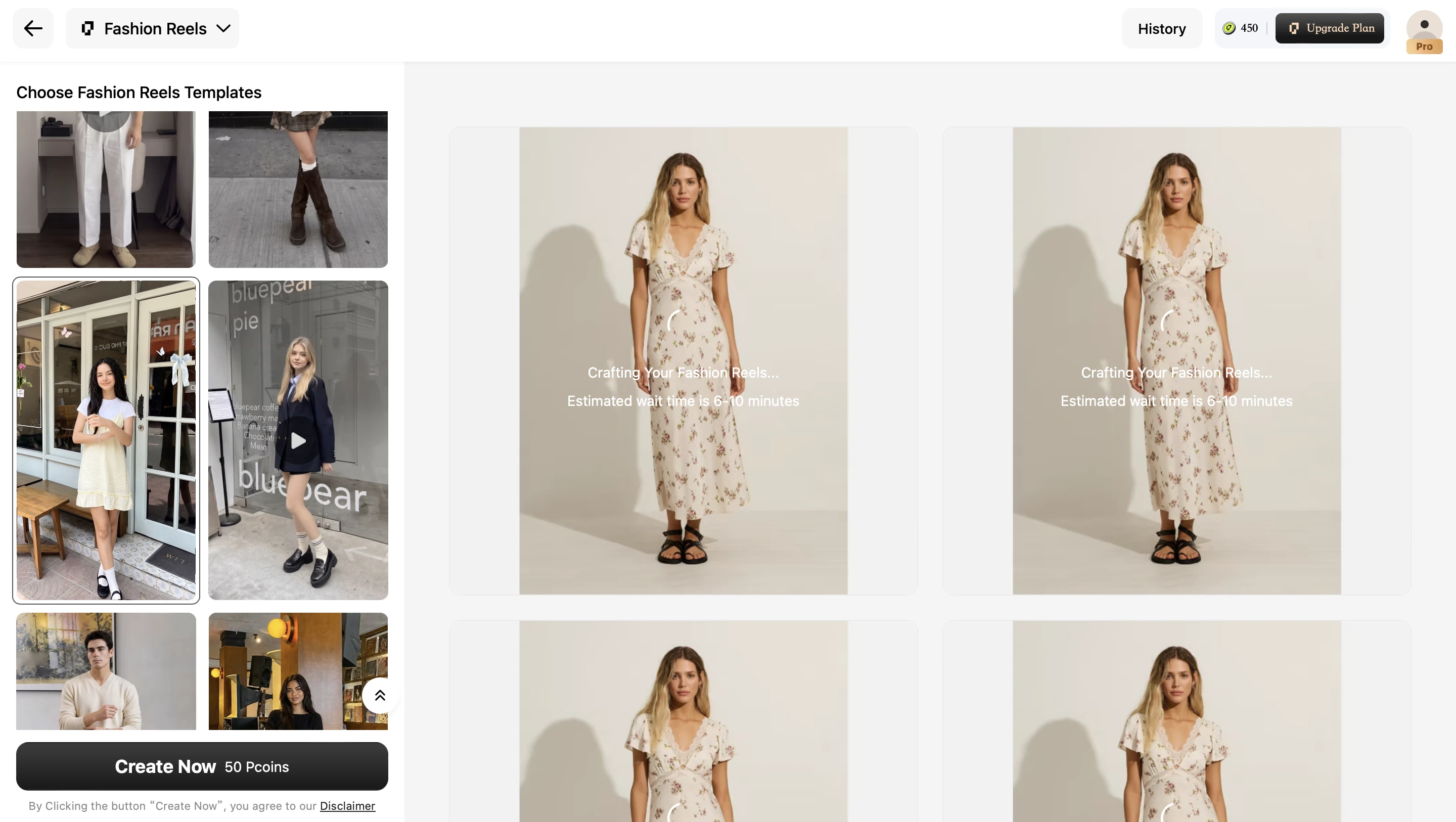
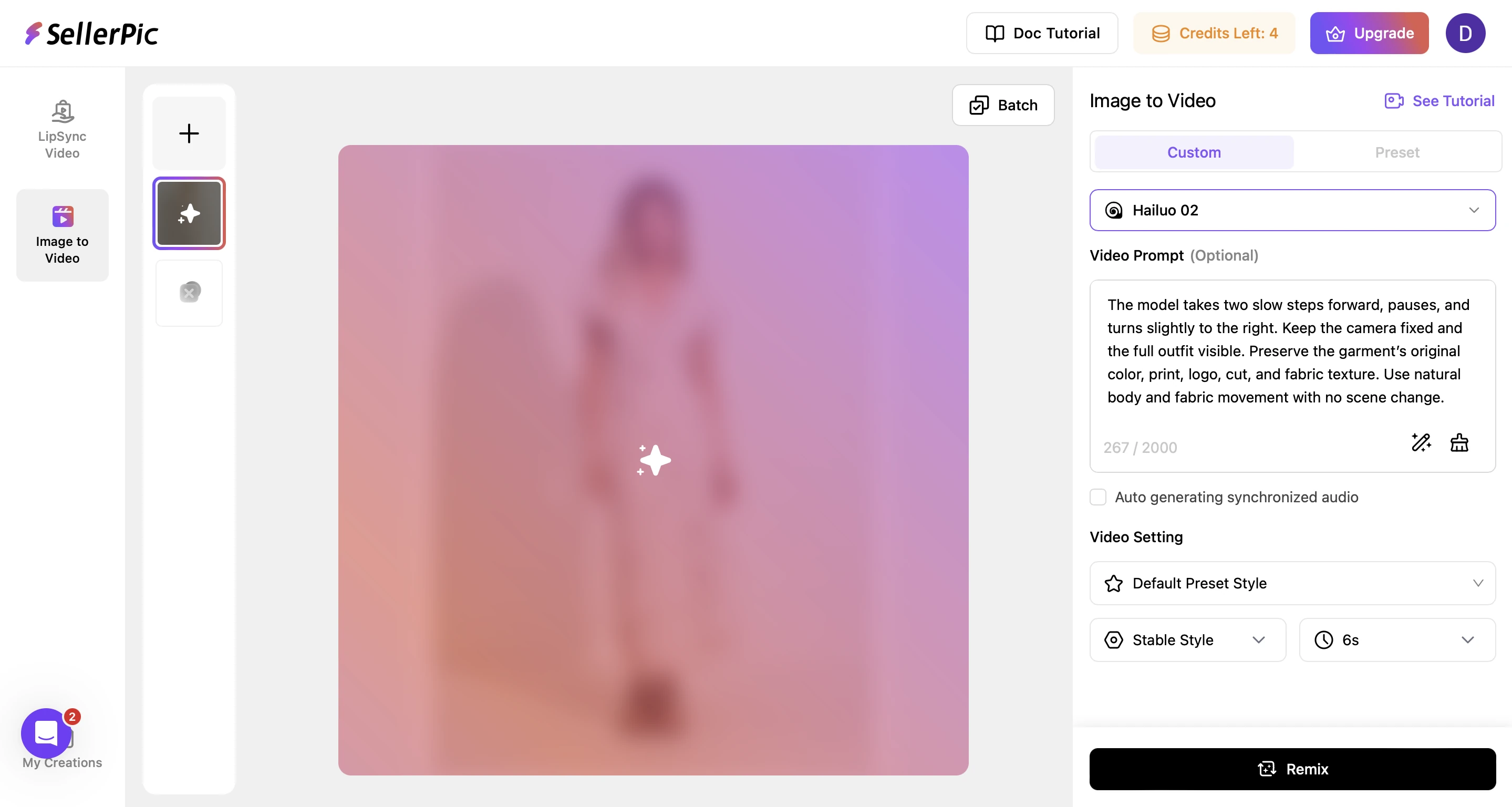
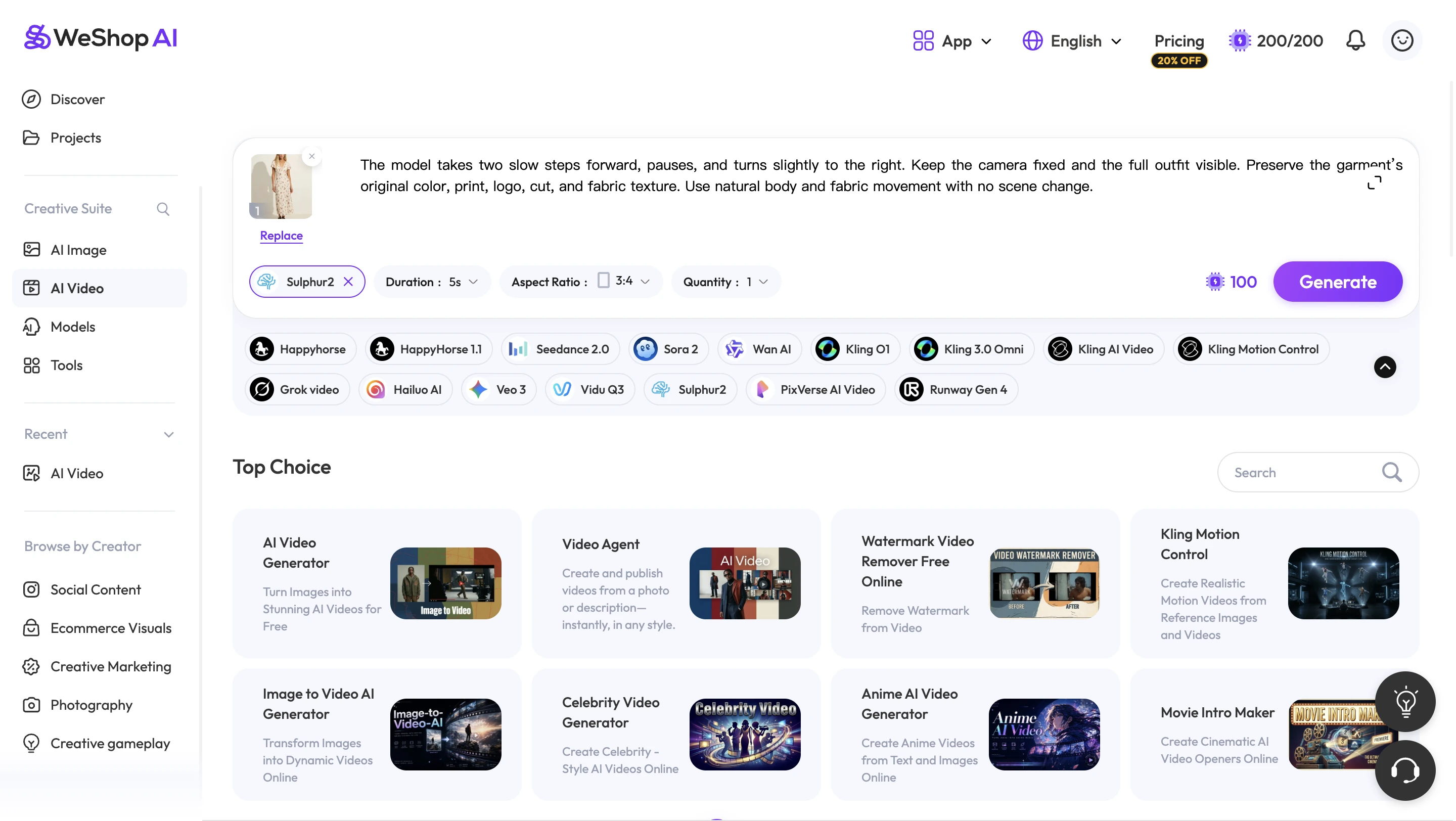
When you hear "image to video," you might picture a slideshow with crossfades or a slow zoom across a landscape photo. That is not what modern AI image-to-video conversion does. Today's tools use generative models to synthesize entirely new frames of motion from a single still photograph, creating realistic movement that never existed in the original file.

What AI Image-to-Video Conversion Actually Does

Imagine uploading a portrait and watching the subject's hair drift in a breeze, their eyes blink naturally, and the background shift with soft parallax depth. That is AI-generated motion. Unlike a Ken Burns pan or a basic slideshow maker, an ai video generator from image actually predicts what would happen next in the scene and renders those frames pixel by pixel. The AI analyzes composition, lighting, and subject matter, then produces a short video clip where objects move, textures respond, and cameras appear to glide through space.

Traditional tools reposition a static image within a frame. AI image to video generator free platforms and paid services alike go far beyond that by creating visual information that did not previously exist.

AI image-to-video tools generate entirely new visual information that did not exist in the original photo, predicting how subjects, lighting, and backgrounds would move naturally.

Why This Technology Matters Now

The landscape has exploded. Platforms like Runway, Pika, Kling AI, and Luma Dream Machine all offer some form of this capability, and many provide photo to video ai free tiers so you can test results before committing. With so many options available, relying on a single product page for guidance leaves you with a biased picture. Which AI can convert image to video most effectively depends on what you are creating, how much control you need, and whether you prioritize speed, quality, or cost.

Whether you are searching for an ai image to video free solution for social content or evaluating enterprise-grade tools for branded campaigns, the answer is not one-size-fits-all. Multiple platforms now deliver genuinely impressive results, and the differences between them matter more than marketing pages suggest.

Video diffusion models progressively refine random noise into coherent video frames guided by the source image

How AI Turns a Still Image Into Moving Video

So what actually happens between the moment you upload a photo and the moment a video clip appears? The process is not magic, though it can feel that way. Under the hood, these tools rely on deep learning architectures trained on massive video datasets, and understanding the basics helps you get better results from any ai photo to video generator you choose.

Diffusion Models and Motion Synthesis

Most modern tools that animate image ai use a class of generative models called video diffusion models. Think of it this way: the AI has watched millions of video clips during training, learning patterns like how water ripples, how fabric sways, and how a camera dolly creates parallax. When you feed it a still image, it draws on that learned knowledge to predict plausible motion for the scene.

The diffusion process itself works by starting with random noise and progressively refining it into coherent video frames, guided by the content of your source image. Each denoising step brings the output closer to a realistic sequence of motion. The model essentially asks: given this scene, what would the next few seconds look like?

Different platforms rely on different underlying architectures. Adobe's tools use the Firefly Video Model. Some open-source and independent platforms build on Stable Video Diffusion (SVD), which was trained using a carefully curated large-scale video dataset with distinct stages for image pretraining, video pretraining, and video fine-tuning. Others, like those powering Kling AI, use proprietary Diffusion Transformer (DiT) architectures that process video as spacetime patches for improved temporal understanding. The model behind the tool directly affects the quality, style, and type of motion you get from any ai image animator.

Frame Interpolation and Temporal Consistency

Here is where things get tricky. Each frame in a generated video is technically a separate output. The challenge is making sure frame 12 looks like it belongs right after frame 11, not like a slightly different image altogether. When this fails, you see flickering faces, warping objects, and backgrounds that shift unnaturally. Researchers call this problem temporal instability.

To solve it, video diffusion models incorporate temporal attention layers that look across the time dimension, not just the spatial content of a single frame. These layers help the model "remember" what it generated in previous frames and maintain consistency in subject appearance, lighting, and environment. The model balances two competing goals: staying faithful to your original image while generating motion that looks believable and physically plausible.

Complex scenes with multiple subjects, longer durations, and rapid motion all stress this consistency mechanism. A single character with gentle movement holds together far more reliably than three people interacting in a detailed environment. This is why most ai animation generator from image tools produce their best work in short, focused clips.

The Role of Text Prompts in Guiding Motion

Your source image tells the AI what the scene looks like. A text prompt tells it how the scene should move. When you type "slow camera pan left, wind blowing through trees," you are giving the model directional guidance that shapes its motion predictions. Without a prompt, the AI makes its best guess. With a well-crafted prompt, you steer the output toward specific camera behavior, subject actions, and environmental effects.

Text encoders within these models convert your description into numerical representations that condition the generation process. The richer and more specific your language, the more precisely the model can target the motion you want. This is true whether you are creating ai video from image for a social post or producing content for a professional campaign.

The full pipeline from image to ai video involves several coordinated stages working together:

  • Source image analysis — the model encodes your photo into a latent representation, identifying subjects, depth, lighting, and scene structure
  • Motion prediction — based on the image content and any text prompt, the model determines what types of movement are plausible for the scene
  • Frame generation — the diffusion process iteratively denoises random noise into a sequence of coherent video frames
  • Temporal smoothing — attention mechanisms and temporal layers enforce consistency across frames, reducing flicker and drift
  • Output rendering — the final latent sequence is decoded back into pixel space and exported as a playable video file

Each stage introduces decisions that affect your final result. An ai photo animator that excels at temporal smoothing might produce very stable but conservative motion, while one that prioritizes dynamic frame generation might deliver more dramatic movement at the cost of occasional artifacts. Understanding this tradeoff helps you pick the right tool, and more importantly, helps you troubleshoot when results do not match expectations.

Every Major AI Image-to-Video Tool Compared

Knowing how the technology works is useful, but the practical question remains: which platform should you actually use? The answer depends on your priorities, and the differences between tools are significant enough that a side-by-side comparison saves real time and money. Below is a neutral breakdown of the major players in this space, evaluated on the same criteria so you can make an informed choice rather than relying on each tool's marketing page.

Platform Overview and Key Differentiators

Each image to video generator targets a slightly different audience and workflow. Here is how the major platforms position themselves:

Runway currently leads quality benchmarks with its Gen-4.5 model, holding the top position on the Artificial Analysis Text-to-Video leaderboard at 1,247 Elo points. Its standout strength is physics simulation, producing realistic motion for liquids, fabric, and hair. Best suited for creators who prioritize raw output quality above all else.

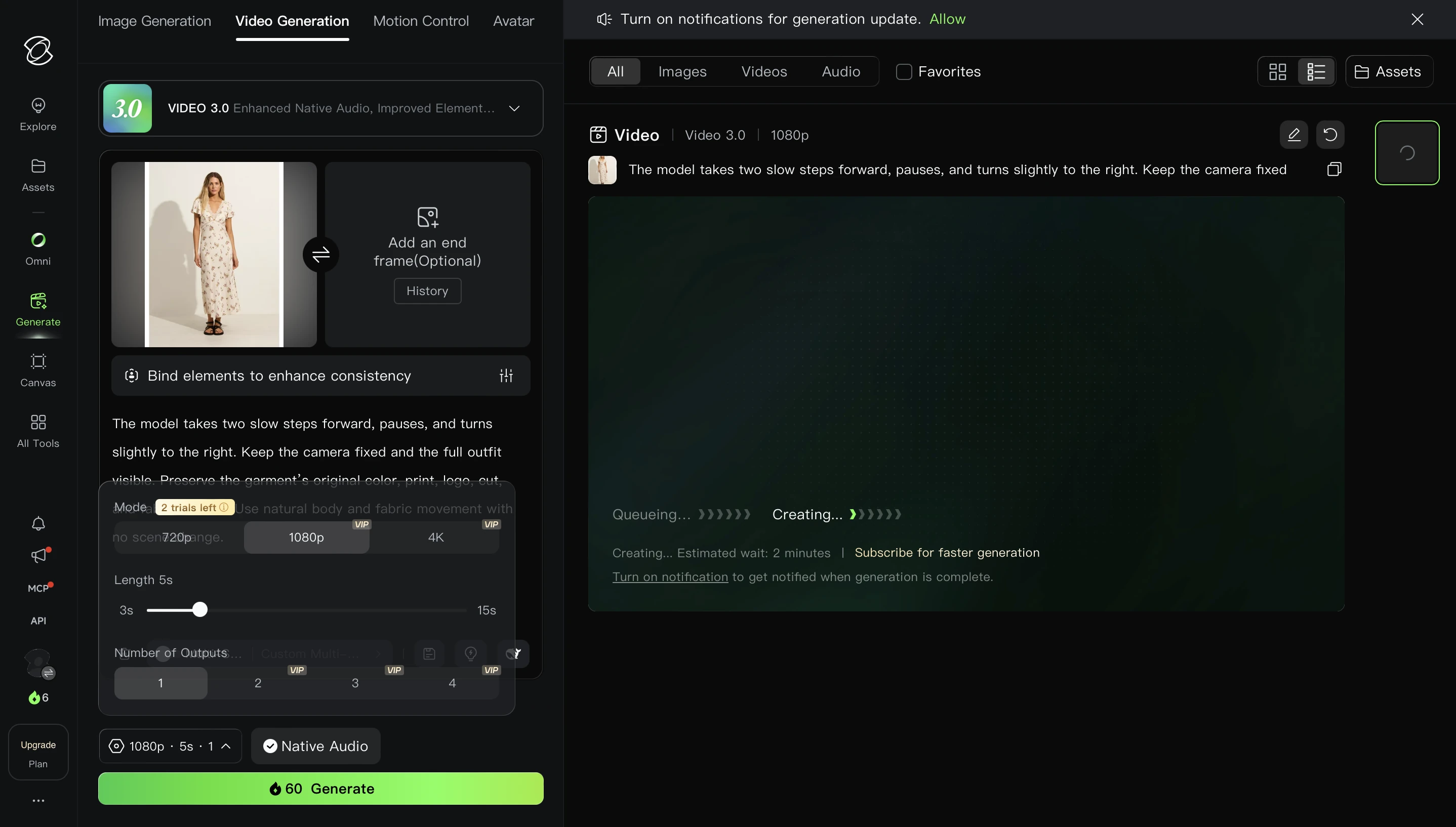
Kling AI (version 3.0) positions itself as a virtual director. It is the only tool in this group offering native 4K output, a built-in storyboard interface for multi-shot sequences, and lip-synced audio generation in a single pipeline. Ideal for narrative-driven content and product demos.

Pika (version 2.5) focuses on affordability and precision. Its flagship Pikaframes feature lets you define both a start and end image, giving you exact control over how a clip begins and ends. At $8/month for the Standard plan, it is the cheapest commercial entry point among dedicated AI video tools.

Luma Dream Machine runs two model tiers: Ray3 for studio-grade HDR output and Ray3.14 for fast, affordable drafts. The HDR color accuracy makes it a strong pick for fashion, brand, and film-adjacent work. Its "Modify with Instructions" feature lets you edit specific elements via text without regenerating the entire clip.

Adobe Firefly integrates image-to-video within the broader Creative Cloud ecosystem. For teams already working in Premiere Pro or After Effects, the workflow continuity is the main draw. Output quality is solid but not class-leading compared to dedicated platforms.

Canva Dream Lab brings AI video generation into Canva's design-first environment. It is built for non-technical users who want quick results without learning a new interface. The canva dream lab feature works well for social media teams already producing graphics on the platform.

Stable Video Diffusion (SVD) is an open-source model rather than a hosted platform. It powers various third-party tools and can be run locally with sufficient hardware. Best for developers and technical users who want full control over the generation pipeline without subscription costs.

Beyond these major platforms, you will find smaller tools like vidnoz image to video ai, clipfly ai video generator, and vheer ai image to video that serve niche audiences. Some users also search for options like video express ai, pixly ai video, or the fotor ai image to video generator, though these vary in capability and may not match the output quality of the dedicated platforms listed above. The fotor ai video generator, for instance, targets users who want simple animations within a broader photo editing workflow rather than full generative video.

Feature Comparison Across Tools

The table below compares key specifications across all major platforms. Where pricing or features have changed recently, the most current publicly available data is reflected.

Tool Name Free Tier Max Video Length Max Resolution Motion Control Options Camera Movement Support Platform
Runway (Gen-4.5) 125 one-time credits ~16 seconds 1080p Text prompts, video-to-video Yes (prompt-based) Web
Kling AI 3.0 66 credits/day (720p, watermarked) 3-15 sec per shot 4K native Storyboard tool, per-shot control, Motion Brush Yes (per-shot camera settings) Web, Mobile
Pika 2.5 80 credits/month (480p, watermarked) 10 seconds 1080p Pikaframes (start/end image), camera controls Yes (pans, zooms, tracking, orbital) Web
Luma Dream Machine (Ray3) Limited free generations 10 seconds 1080p+ (HDR) Text prompts, Modify with Instructions Yes (dolly, pan, smooth motion) Web
Adobe Firefly Limited monthly credits ~5 seconds 1080p Text prompts Basic (prompt-guided) Web, Creative Cloud
Canva Dream Lab Included in Canva Pro ~5 seconds 1080p Basic text prompts Limited Web, Mobile
Stable Video Diffusion Free (open-source, self-hosted) ~4 seconds (default) Depends on hardware Configurable via code Configurable Local / third-party apps

A few things stand out. Kling 3.0 offers the most generous ongoing free tier with daily credit replenishment, making it the best option for regular experimentation without payment. Pika provides the lowest-cost paid plan for commercial use. Runway delivers the highest quality per clip but charges the most per second of generated output. Luma's two-tier model approach lets you draft cheaply with Ray3.14 and finalize with Ray3 when quality matters.

Skip the tool roulette for product shots. If your goal is turning catalog photos into ad-ready clips, you do not need to A/B-test seven generators. Try Snappyit's image-to-video free →

Underlying AI Models

The generative model powering each tool directly affects what kind of motion it produces, how well it handles complex scenes, and where it struggles. Where publicly known, here are the architectures behind each platform:

  • Runway Gen-4.5 — proprietary model focused on "world consistency," trained to maintain coherent characters, environments, and objects across frames without additional prompting
  • Kling 3.0 — proprietary Diffusion Transformer (DiT) architecture from Kuaishou, processing video as spacetime patches with integrated audio synthesis
  • Pika 2.5 — proprietary model with specialized Pikaframes architecture for start-to-end image interpolation and effects pipeline (Pikadditions, Pikaswaps, Pikaffects)
  • Luma Ray3 / Ray3.14 — proprietary diffusion model with HDR-native color pipeline; Ray3.14 optimized for speed at 4x faster generation with 3x lower credit cost
  • Adobe Firefly Video — Firefly Video Model, trained exclusively on licensed and public domain content for commercial safety
  • Canva Dream Lab — uses a combination of proprietary and partner models integrated into Canva's design platform
  • Stable Video Diffusion — open-source latent video diffusion model from Stability AI, available in SVD and SVD-XT variants, trainable and customizable by developers

Understanding these model differences helps explain why the same source image produces dramatically different results across platforms. A tool built on a physics-focused architecture like Runway's will handle flowing water and fabric better than one optimized for speed. A model designed for narrative consistency like Kling's will maintain character identity across multiple shots more reliably than a general-purpose generator.

With this comparison as a foundation, the next question becomes more personal: which of these tools fits the specific type of content you are trying to create?

Different AI video tools serve distinct use cases from social media clips to professional cinematic production

Matching the Right Tool to Your Specific Use Case

Specs and benchmarks only matter if they connect to what you are actually building. A filmmaker needs different capabilities than a Shopify seller, and a TikTok creator has different priorities than a brand agency. Instead of forcing you to decode feature tables, this section starts with the work you need done and points you toward the tools that handle it best.

Social Media and Short-Form Content

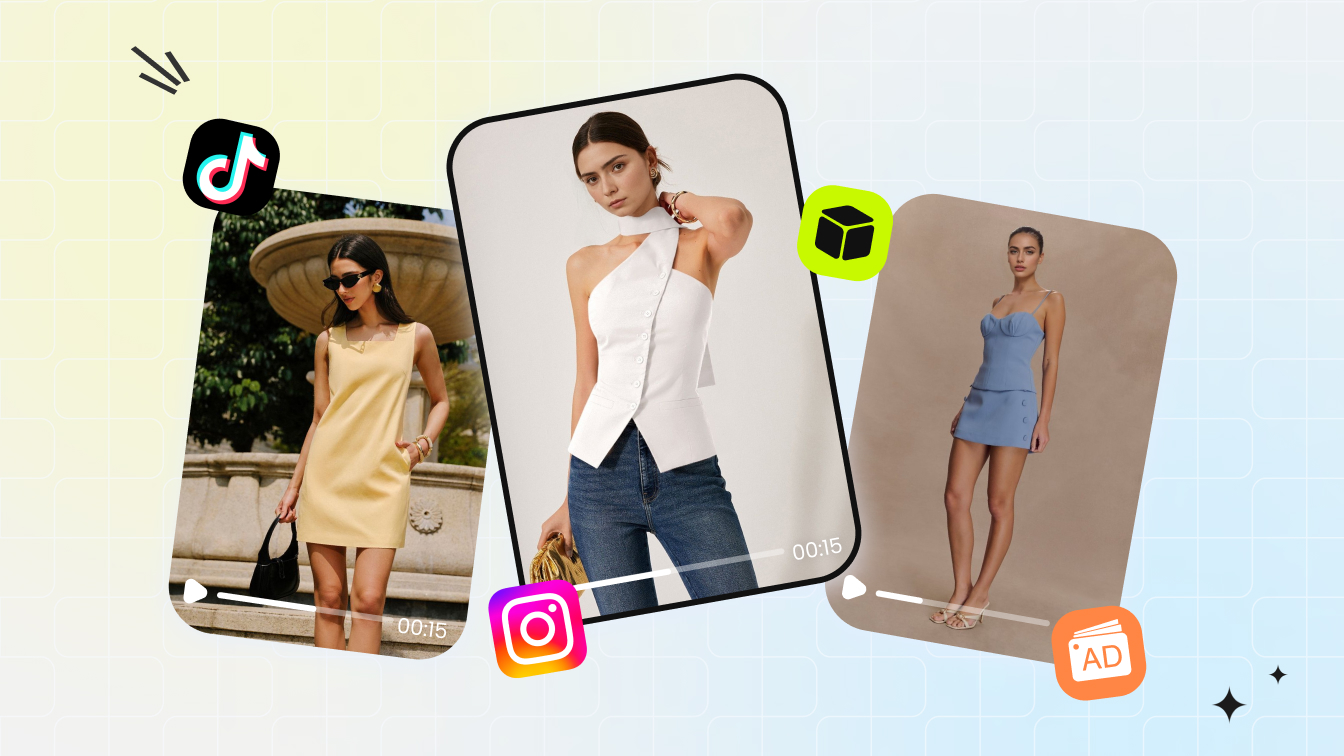
Speed and format flexibility matter most here. You need vertical output, quick turnaround, and results that grab attention in the first second of a scroll. If you are figuring out how to make a video out of photos for Instagram Reels or TikTok, tools optimized for short clips and trending visual styles will serve you better than cinema-grade generators with long render times.

Pika works well for this workflow. Its low cost, fast generation, and playful aesthetic suit viral-style content. PixVerse is another strong option with generation times under two minutes and native 1080p output sized for social feeds. For creators who want a free photo to video starting point, Kling AI's daily free credits let you experiment with vertical formats without committing to a subscription.

Ecommerce and Product Videos

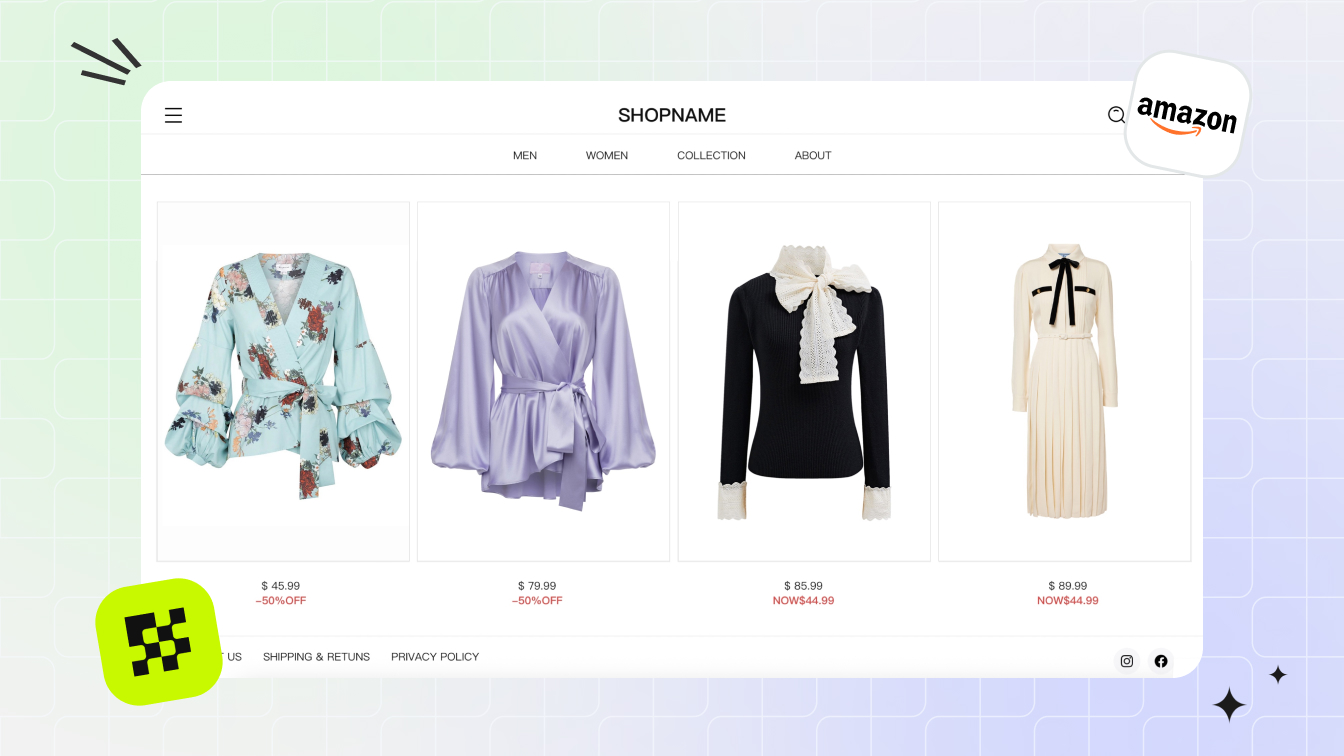
Turning static ai product photos into dynamic video content is one of the highest-value applications of this technology. Product pages with video are 80% more likely to convert than those without, and shoppers are 64% more likely to purchase after watching a product in motion. For ecommerce teams managing hundreds or thousands of SKUs, the challenge is not just quality but scalability and brand consistency.

This use case demands a tool that handles product imagery reliably, maintains color accuracy, and produces output you can use across listings, ads, and social commerce without extensive post-production. Whether you are creating content for amazon product photos or building video assets for a DTC brand, the generator for commercial use needs to be fast, repeatable, and visually consistent.

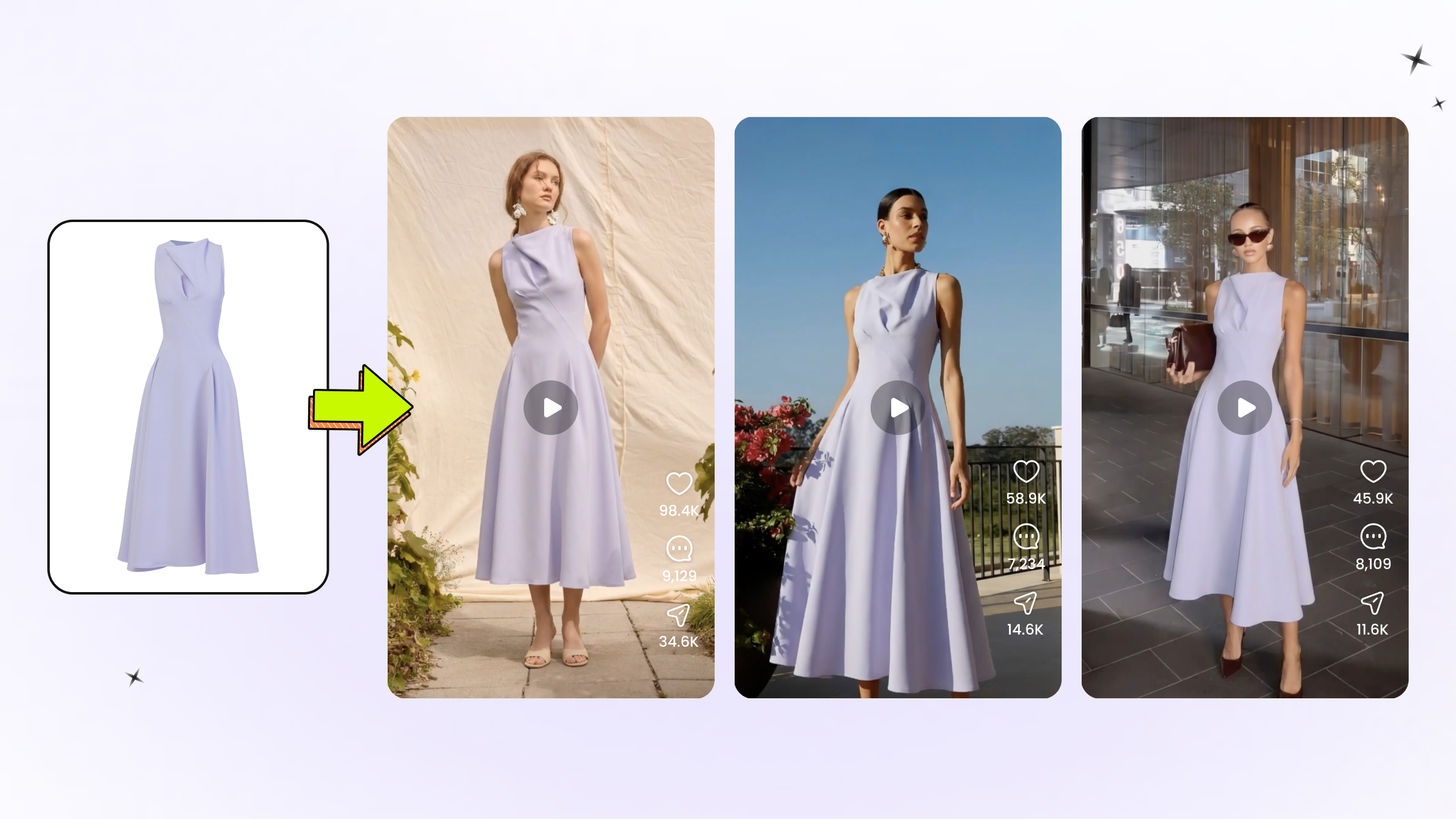
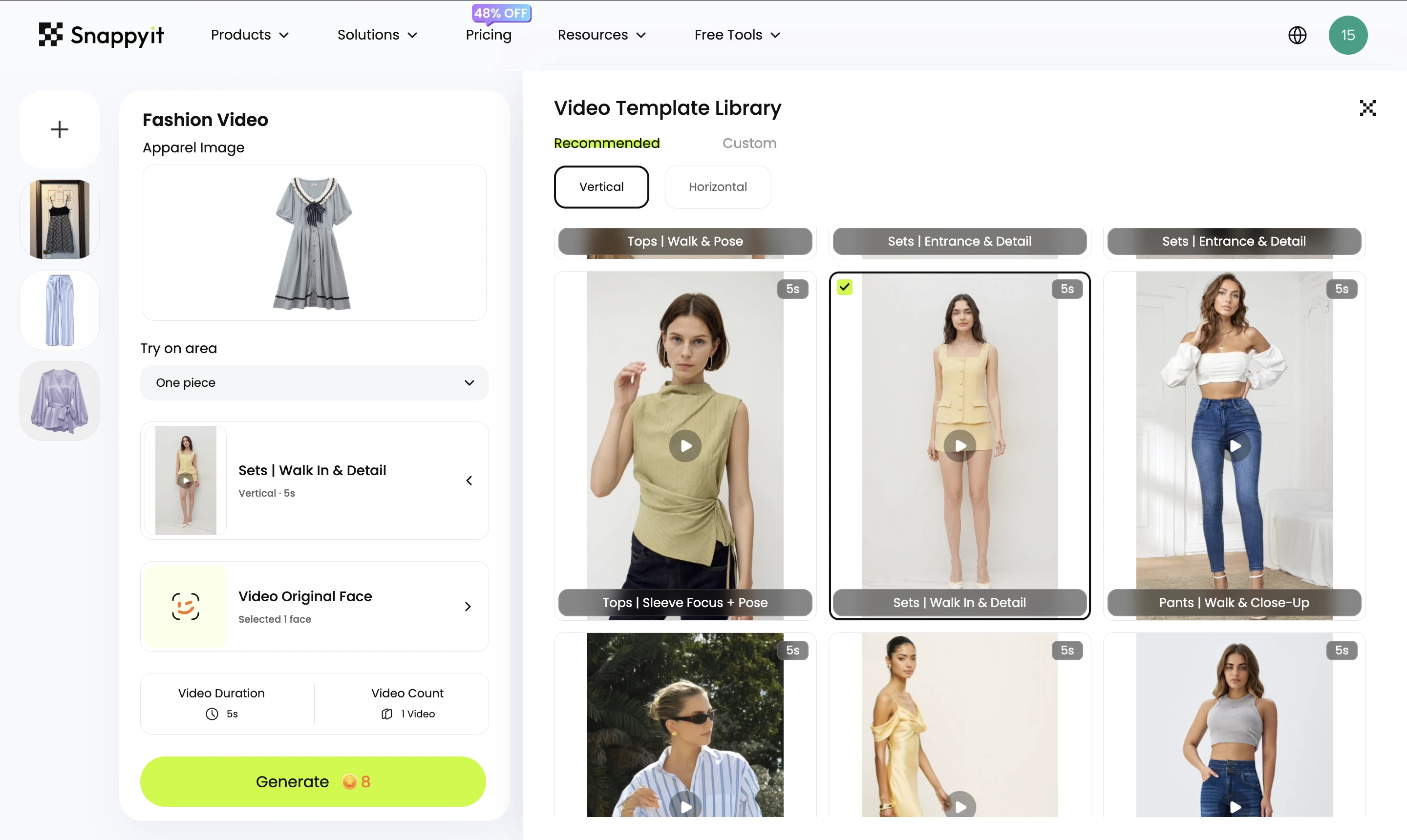
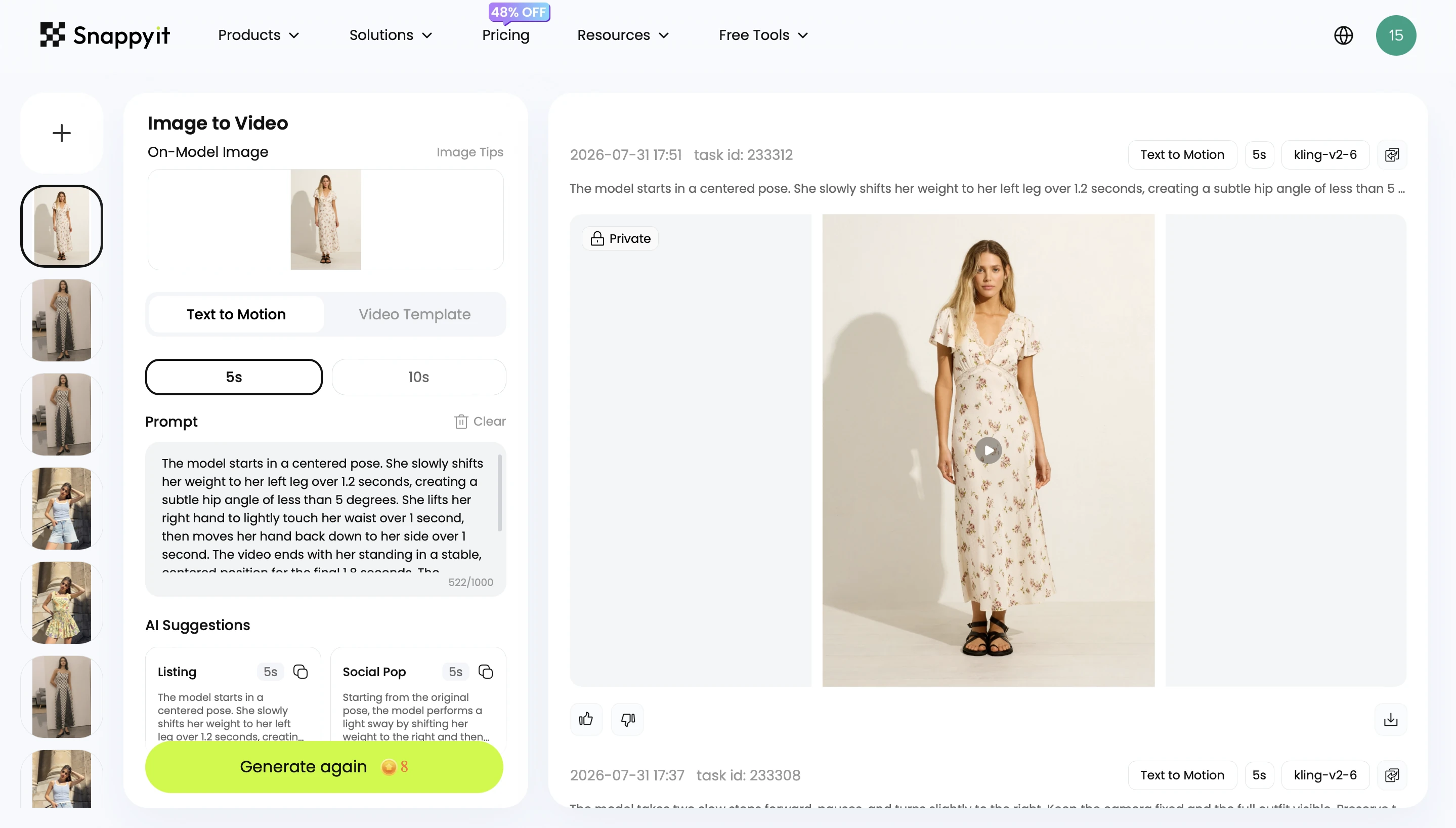
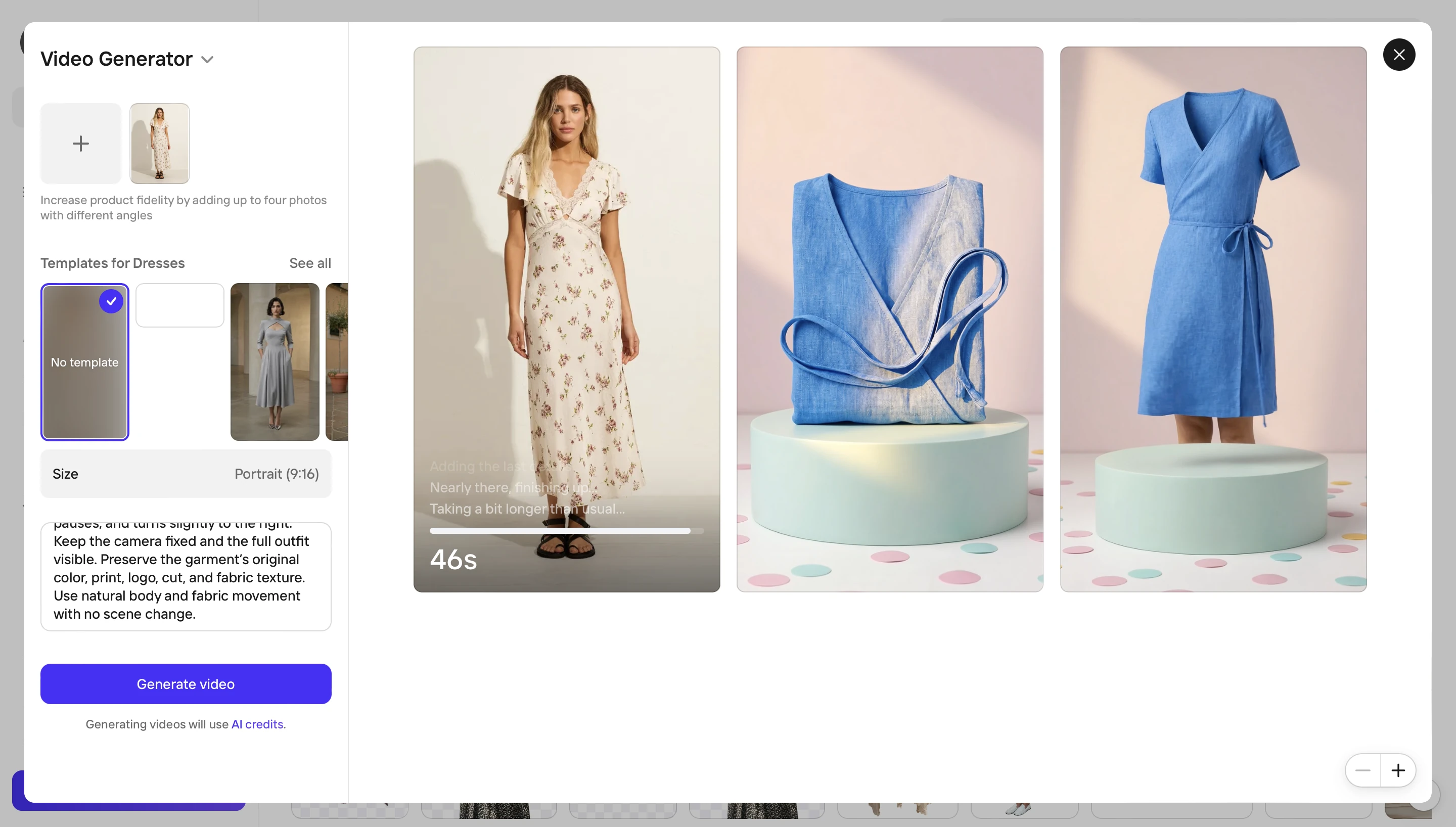
Snappyit is built specifically for this workflow, offering a direct image-to-video conversion pipeline designed for product and ecommerce teams who need to scale video creation from existing photography. For brands evaluating a photo to video ai generator that prioritizes product-focused output over cinematic experimentation, it provides a streamlined path from static catalog images to ready-to-publish video content.

Creative and Artistic Projects

Experimental work, music videos, narrative shorts, and artistic exploration call for tools that reward creative prompting and produce visually distinctive output. Here, unpredictability is a feature rather than a bug. You want a platform that interprets your vision in surprising ways.

Luma Dream Machine's HDR color pipeline and atmospheric strengths make it a natural fit for mood-driven pieces. Runway's creative ecosystem with restyling, scene expansion, and workflow chaining supports iterative artistic processes. For anyone looking to turn a picture into a stylized animation or explore surreal motion, these platforms offer the most expressive range. Grok Imagine also stands out for emotionally driven, imagination-first generation.

Professional Video Production

Filmmakers, agencies, and production houses need higher resolution, fine-grained motion control, and output that integrates into existing post-production pipelines. The best ai avatar solutions for product explainer videos and cinematic B-roll come from platforms that prioritize controllability over convenience.

Kling 3.0's native 4K output and storyboard interface give directors shot-by-shot control. Veo 3 delivers the strongest overall realism for premium branded visuals. Runway's timeline-like controls and integration with professional editing software make it the closest thing to a traditional post-production tool powered by AI.

Here is a quick-reference list matching use cases to recommended starting points:

  • Social media and short-form content — Pika, PixVerse, Kling AI (free tier)
  • Ecommerce and product videos — Snappyit, Creatify, Kling AI
  • Creative and artistic projects — Luma Dream Machine, Runway, Grok Imagine
  • Professional video production — Kling 3.0 (4K), Veo 3, Runway Gen-4.5
  • How to make a video out of pictures on a budget — Pika (from $8/mo), Kling free tier, Stable Video Diffusion (self-hosted)

The right tool is the one that matches your actual production needs, not the one with the most impressive demo reel. But regardless of which platform you choose, the quality of your source image has an outsized impact on what the AI can produce from it.

How to Prepare Your Images for Better AI Video Results

The quality ceiling of any AI-generated video is set before you click "generate." Your source image is the single biggest variable you control, and small preparation steps produce dramatically better output regardless of which platform you use. Even the best free image to video generator will struggle with a blurry, poorly composed input. Here is how to give the AI the best possible starting point.

Resolution and Aspect Ratio Requirements

Most platforms recommend a minimum of 1080p (1920x1080 pixels) for clean results. Feeding in a low-resolution jpg to mp4 pipeline often produces soft, pixelated motion because the AI lacks enough pixel data to generate convincing new frames. If your source image is below that threshold, upscaling it with an AI enhancement tool before conversion typically produces better results than letting the video generator handle the deficit internally.

For professional applications, 4K source images (3840x2160) give the model significantly more detail to work with. A 2k upload image or higher provides a comfortable middle ground between file size and output quality.

Aspect ratio matters too. Match your source image to your intended output format. A 16:9 landscape photo converted to a 9:16 vertical video forces aggressive cropping that can cut off important subjects. If you plan to create content for multiple formats, start with a slightly wider frame so you have room to reframe without losing key elements.

Composition and Subject Positioning

AI motion prediction works best when it can clearly distinguish your subject from the background. Images with distinct foreground, midground, and background layers give the model spatial information to produce parallax and depth-of-field effects that read as cinematic rather than flat.

Busy, cluttered compositions confuse the AI. When everything in the frame competes for attention, the model struggles to decide what should move and what should stay still. The result is often uniform, generic motion across the entire image rather than targeted, believable movement. A clean subject with breathing room around it gives the AI natural paths for camera movements and zoom effects without cropping important details.

Place key subjects slightly off-center when possible. This provides more natural motion paths for AI-generated camera pans and creates a more dynamic starting composition than a perfectly centered, static-looking frame.

Lighting and Contrast Considerations

Even, diffused lighting consistently produces the smoothest AI video output. Harsh shadows and blown-out highlights confuse motion algorithms because the model cannot recover detail in areas where information has been clipped. When you use images to video ai free tools or paid platforms alike, well-exposed source material with detail preserved in both shadows and highlights gives the AI maximum information to work with.

Avoid heavily filtered photos. Instagram-style presets that crush blacks or push saturation to extremes create color artifacts that get amplified during frame generation. Natural, balanced color with moderate contrast helps the AI maintain tonal consistency across every generated frame.

Before uploading to any image to mp4 conversion tool, run through this preparation checklist:

  1. Check that resolution meets the minimum 1080p threshold (higher is better)
  2. Ensure your subject is clearly defined with separation from the background
  3. Remove distracting background elements if possible, or crop to simplify the scene
  4. Verify lighting is even and natural, with no clipped highlights or crushed shadows
  5. Consider the intended motion when framing the shot — leave space in the direction you want the camera or subject to move

These steps take less than a minute per image but consistently improve output quality. Whether you are working with a free image to video tool for quick social content or a premium platform for branded campaigns, the principle holds: quality input drives quality output. The AI can synthesize motion, but it cannot invent detail that was never there to begin with.

Effective prompts combine camera movement terms with subject actions and mood modifiers to guide AI motion generation

Writing Effective Prompts for Image-to-Video AI

A well-prepared image gives the AI raw material to work with. But the text prompt you attach to that image determines what the AI actually does with it. The gap between a good prompt and a bad prompt is often larger than the gap between different models entirely. A precise, well-structured prompt on a mid-tier platform will consistently outperform a vague one-liner on the most advanced generator available.

When you start from a reference image, your prompt should focus on what changes rather than describing what is already visible. The AI can see your photo. What it needs from you is direction: how should the scene move, where should the camera go, and what energy should the clip carry? This is the key to learning how to make ai video of photo without looking strange — you guide the motion rather than leaving it to chance.

Describing Motion and Camera Movement

Specificity is everything. "The camera does something dramatic" gives the model nothing actionable. "Slow dolly forward toward the subject, slight low angle, smooth gimbal movement" tells it exactly what to produce. AI video models respond to cinematography terminology drawn from professional filmmaking, so learning a handful of camera terms immediately improves your results.

Here is the core vocabulary that works across most platforms:

  • Pan — a sideways sweep to reveal a scene or follow lateral motion
  • Tilt — a vertical shift, useful for showing scale or emphasis
  • Dolly in/out — smooth forward or backward camera movement that changes proximity to the subject
  • Tracking — the camera follows a subject across space, maintaining relative distance
  • Orbit — the camera circles around the subject, revealing different angles
  • Pull-back — starts close and rapidly reveals a wider scene for dramatic context
  • Static — the camera holds still while the subject moves within the frame
  • Crash zoom — a fast, punchy zoom for urgency or surprise

Directional language matters too. "Pan left" is clearer than "pan." "Slow dolly forward" is better than "zoom in." The more precisely you describe the camera behavior, the less the AI has to guess, and guessing is where artifacts and incoherent motion come from.

For subject motion, describe body mechanics with the same precision: "she turns her head slowly to the right" outperforms "she looks around." If you want to turn a picture into an anime-style animation or turn a photo into an anime aesthetic, pairing specific motion descriptions with style keywords like "anime style, cel-shaded, dynamic action lines" helps the model understand both the movement and the visual treatment you are after.

Controlling Speed and Intensity

Modifiers like "slow," "subtle," "gentle," "dramatic," or "rapid" directly shape how much motion the AI generates. A prompt reading "gentle breeze moves through her hair" produces a completely different clip than "strong wind whips her hair violently." The intensity language you choose acts as a volume knob for the generated movement.

Temporal guidance adds another layer of control. Instead of describing a single static action, tell the model what happens at the beginning versus the end of the clip. Structured prompting approaches like Hunyuan's method use transition words — "first... then... finally" or "she pauses, then begins to walk" — to create a sense of progression within a short clip. This technique helps you create ai image to video with audio and emotions that feel like intentional storytelling rather than random motion applied to a still frame.

Specifying frame rate or temporal effects also works on many platforms. Including "slow motion" or "timelapse" in your prompt triggers distinct generation behaviors. Wan 2.1, for example, responds well to explicit time-lapse instructions when you describe how time moves differently and what changes around the subject.

Common Prompt Mistakes to Avoid

The most frequent failure is overloading a single prompt with too many simultaneous actions. Asking for "the camera zooms in while simultaneously pulling back to reveal the room, rain falls outside while bright sunlight streams in" creates contradictions the model cannot resolve. The result is visual confusion — flickering styles, incoherent motion, and artifacts. Every instruction needs to be internally consistent.

Other common pitfalls include:

  • Vague subjective language — words like "cool," "interesting," or "cinematic" alone give the model no actionable direction
  • Describing what is already in the image — the AI can see your photo; focus your prompt on what should change, not what already exists
  • Requesting physically impossible scenarios — asking a seated person to simultaneously stand and run breaks the model's physics understanding
  • Ignoring atmosphere and lighting — without style cues, the model defaults to flat, stock-footage-looking output
  • Copying prompts without understanding them — a prompt that works for one model, resolution, and subject often fails when any variable changes

If you want to merge multiple images into one video prompt free of visual inconsistency, maintain anchor elements across each prompt in the sequence: repeat the same character description, style descriptors, and environmental details so the shots cut together cohesively.

Here are prompt structures that work reliably across most platforms, following the pattern of [camera movement] + [subject action] + [environmental detail] + [speed/mood modifier]:

  • "Slow tracking shot from behind" + "a woman walking through a market" + "colorful fabric stalls on both sides, morning light" + "relaxed, observational pace"
  • "Static camera, medium close-up" + "a man lifts a coffee cup to his lips" + "steam rising, warm kitchen background" + "gentle, intimate mood"
  • "Smooth orbit around the subject" + "a ceramic vase on a wooden table" + "soft directional window light casting long shadows" + "slow, elegant rotation"
  • "Dolly in toward the subject's face" + "her eyes widen slightly in surprise" + "blurred city lights in the background" + "gradual, building tension"
  • "Wide shot, camera slowly pans right" + "rolling hills covered in wildflowers" + "golden hour light, birds crossing the sky" + "peaceful, cinematic sweep"

Notice the pattern: each prompt gives the AI a clear camera instruction, a specific action or subject behavior, grounding environmental context, and an energy level. This structure works whether you are using image to prompt image fx workflows or typing directly into a generation interface. Keep your prompts between 60 and 100 words for the best balance of detail and clarity, and iterate by changing one element at a time rather than rewriting everything when results disappoint.

AI-generated video quality remains strong in short clips but gradually degrades as duration increases beyond five seconds

Current Limitations and Realistic Expectations

Great prompts and well-prepared images push these tools toward their best output. But even under ideal conditions, AI image-to-video generation has a ceiling — and knowing where that ceiling sits saves you from wasted credits, frustrating regeneration loops, and unrealistic client promises. No product page will tell you this honestly, so here is a grounded look at what the technology handles well and where every tool on the market still falls short.

What Works Well Today

The good news is genuinely impressive. Across platforms, certain types of motion have reached a level where output looks indistinguishable from real footage to a casual viewer. These are the sweet spots where AI video generation delivers reliably:

  • Camera movements — smooth pans, dollies, orbits, and slow zooms are the strongest capability across all current tools. The AI handles virtual camera motion with near-perfect consistency because it does not require generating new subject detail, just shifting perspective on existing scene content.
  • Simple environmental motion — water flowing, clouds drifting, leaves rustling, and grass swaying in wind all generate cleanly. These are repetitive, pattern-based motions the models have seen millions of examples of during training.
  • Subtle subject motion — hair blowing gently, fabric shifting slightly, a person breathing or blinking. Small, contained movements that do not dramatically alter the subject's shape or position hold together well.
  • Atmospheric effects — fog rolling, light rays shifting, dust particles floating, and rain falling in the background. These add life to a scene without requiring the model to track complex object interactions.
  • Short-duration clips (3-5 seconds) — within this window, most platforms maintain strong temporal consistency. The model has not yet had time to drift from its source image, so subjects stay recognizable and environments remain stable.

For social media content, product showcases, and creative B-roll, these strengths cover a wide range of practical needs. A static product photo with a gentle orbit and soft lighting shift looks polished and professional. A landscape with drifting clouds and swaying foliage feels alive. These are the use cases where the technology delivers real value right now.

Known Weaknesses Across All Tools

Here is where honesty matters. Regardless of whether you are using a premium subscription or testing an image to video ai no sign up option, certain failure modes appear consistently across every platform. These are not bugs specific to one tool — they reflect fundamental limitations in how current diffusion models understand the physical world.

Hands and fingers. This remains the most visible and persistent problem. AI models struggle to maintain correct finger counts, natural hand poses, and consistent proportions across frames. A hand that looks fine in frame one may sprout an extra finger by frame three or collapse into an amorphous blob during motion. Artlist's research on AI hallucinations identifies distorted hands and faces as the most tell-tale sign of AI-generated content.

Text and typography. Any text visible in your source image — signs, labels, logos, book covers — will almost certainly become garbled during generation. The model treats text as visual texture rather than meaningful symbols, so letters warp, rearrange, and dissolve as frames progress. Industry analysis confirms that text rendering remains surprisingly challenging even for the best models, with street signs, product labels, and on-screen text frequently appearing illegible.

Complex physics. Pouring liquid, draping fabric over objects, objects colliding and bouncing, or anything involving realistic weight and momentum pushes beyond what most models handle cleanly. Water might flow upward, cloth might pass through solid surfaces, and objects might float when they should fall. The AI predicts visual patterns rather than simulating actual physics, so anything requiring real-world physical understanding tends to break.

Identity consistency in longer clips. A character's face, clothing details, or accessories can subtly shift across frames. Earrings appear and disappear. Hairstyles drift. Facial proportions change just enough to feel wrong without being immediately obvious. This problem compounds with duration — the longer the clip, the more the subject drifts from the original image.

Multi-subject interactions. Two people shaking hands, a person picking up an object, or any scene requiring coordinated motion between multiple elements stresses the model's ability to track relationships. Research on temporal instability shows that the more elements the model must track simultaneously, the higher the chance something drifts or distorts.

Many users searching for an ai image to video free no sign up solution expect instant, flawless results. The reality is that even paid, top-tier platforms share these same weaknesses. The difference between tools is how gracefully they fail, not whether they fail at all.

Duration and Coherence Tradeoffs

Here is a counterintuitive truth about AI video generation: shorter is almost always better. Most tools produce their cleanest output in the 3-5 second range. Push beyond that, and quality degrades in predictable ways.

Why? Each generated frame introduces a tiny amount of drift from the original source image. Over 3 seconds, that drift is imperceptible. Over 10 seconds, it accumulates into visible inconsistencies — backgrounds shift, subjects morph, lighting changes without reason. Researchers describe this as temporal instability, and it affects every model architecture currently available. Even tools advertising image to video ai free unlimited generation cannot escape this fundamental constraint.

Some platforms offer clip extension features that let you generate beyond the initial duration limit. Kling allows multi-shot sequences through its storyboard tool. Runway supports extending clips by generating continuations. But these extensions often introduce visible seams where the model "resets" its understanding of the scene. A character might subtly change appearance at the extension point, or the camera motion might stutter as the new generation picks up where the previous one ended.

The practical workaround mirrors traditional filmmaking: generate multiple short, high-quality clips and edit them together with cuts. Each cut naturally resets any drift that was building, and you maintain creative control over pacing. Professional creators working with these tools treat them as a source of individual shots, not continuous takes. Even platforms like Veo 3 that push beyond 8 seconds of generation still show measurable quality degradation compared to their shorter outputs.

The table below summarizes how current-generation tools perform across key capability areas. These ratings reflect the general state of the technology rather than any single platform, since all tools share similar underlying strengths and weaknesses:

Capability Area Current Performance Notes
Camera motion (pans, dollies, orbits) Strong Most reliable capability across all platforms; virtual camera movement is well-solved
Simple subject motion (hair, breathing, blinking) Strong Small, contained movements generate cleanly within short durations
Environmental effects (water, clouds, wind) Strong Repetitive natural patterns are well-represented in training data
Complex subject motion (walking, gesturing) Moderate Works for simple actions; breaks down with fast or multi-joint movement
Multi-subject interaction Moderate Two subjects in proximity often cause drift; physical contact is unreliable
Physics simulation (liquids, collisions) Weak Models predict visual patterns, not actual physics; results often defy gravity or logic
Text and typography preservation Weak Text in source images garbles during generation; no current tool handles this reliably
Identity consistency (10+ seconds) Weak Subject features drift over time; accessories appear/disappear; proportions shift
Long duration (15+ seconds continuous) Weak All tools show measurable degradation; best results come from editing shorter clips together

These limitations are not permanent. Models improve with each generation, and areas rated "Weak" today were rated "Impossible" eighteen months ago. But for anyone evaluating these tools right now — whether through a free trial, an ai video generator no restrictions search, or a paid subscription — setting expectations around these boundaries prevents disappointment and helps you design workflows that play to the technology's actual strengths rather than its marketing promises.

Want to skip straight to results on product photos? Snappyit's image-to-video is tuned for ecommerce stills, not cinematic experimentation. Convert your first product photo free →

Picking the Best AI for Your Video Workflow

Knowing the strengths, limitations, and sweet spots of each platform is half the battle. The other half is matching those capabilities to what actually matters in your day-to-day work. Rather than defaulting to whichever tool has the flashiest demo reel, run your decision through a simple priority filter.

Decision Framework by Priority

Every team weighs tradeoffs differently. Rank these factors in order of importance for your situation, and the right tool becomes obvious:

  1. Budget — If cost is the primary constraint, start with platforms offering generous free tiers or low entry pricing. Kling AI replenishes credits daily at no cost, and Pika's paid plan starts at just $8/month. Several platforms function as a free ai image to video generator for light usage before requiring payment.
  2. Output quality — If visual fidelity matters more than anything else, Veo 3 and Runway Gen-4.5 consistently produce the most realistic motion and detail. Expect to pay more per second of generated video.
  3. Speed and volume — If you need dozens of clips per week, prioritize fast generation times and batch-friendly workflows. PixVerse renders in under two minutes, and tools with API access let you automate production at scale.
  4. Integration with existing tools — If your team already lives in Adobe Creative Cloud, Firefly's native integration eliminates export friction. If you work in Canva, Dream Lab keeps everything in one place. Workflow continuity often matters more than raw capability.
  5. Motion control precision — If you need exact camera paths and subject behavior, Kling's storyboard interface and Pika's start-to-end frame control give you the most directorial authority over output.

Most users find that two or three of these factors dominate their decision. A solo creator on a tight budget lands in a completely different place than an agency team prioritizing 4K output for client deliverables. Neither choice is wrong — they are just solving different problems.

Getting Started With Your First AI Video

If you have never generated video from a still image before, the best approach is low-commitment experimentation. Try two or three platforms using the same source image and compare results side by side. Every tool interprets motion differently, and seeing those differences firsthand teaches you more than any review can.

Most platforms offer enough free credits to run meaningful tests. Use them. Upload a well-prepared image (following the resolution and composition guidelines covered earlier), write a specific prompt with clear camera and motion direction, and generate. Evaluate not just whether the output looks good, but whether it fits the tone and format you actually need.

For readers looking for a picture to video ai free starting point, here are recommended entry paths organized by what you are building:

  • Product and ecommerce videosSnappyit provides a direct image-to-video conversion workflow built for product imagery, making it the fastest path from catalog photos to publishable video content at scale
  • Social media and short-form content — Kling AI's free daily credits or Pika's low-cost plan for quick vertical clips
  • Creative and artistic exploration — Luma Dream Machine's free tier for atmospheric, mood-driven generation
  • Professional and cinematic production — Runway's free credits to test quality, then evaluate whether the per-clip cost fits your project budget
  • Budget-first experimentation — Kling AI (free daily), Pika (free monthly credits), or Stable Video Diffusion (free, self-hosted) as the best free image to video ai options for learning the technology

The free photo to video ai landscape is generous enough that you can build real familiarity with the technology before spending anything. Start with the use case closest to your actual needs, generate a handful of clips, and let the results guide your next step. The best free image to video ai tool is whichever one produces output you can actually use — and the only way to find that is to test with your own images and your own creative goals.

AI image-to-video generation is not a single tool or a single workflow. It is a rapidly expanding category where the right answer depends entirely on what you are making, who it is for, and how much control you need over the result. The technology improves with every model update, and what feels like a limitation today may be solved within months. For now, pick the platform that matches your highest-priority factor, prepare your images well, write specific prompts, and let the AI handle the frames in between.

Frequently Asked Questions About AI Image-to-Video Conversion

Which AI can convert an image to video for free?

Several platforms offer free tiers for AI image-to-video conversion. Kling AI provides 66 credits daily at 720p with a watermark, making it the most generous ongoing free option. Pika offers 80 free credits per month at 480p. Luma Dream Machine includes limited free generations, and Runway gives 125 one-time credits to new users. For self-hosted options, Stable Video Diffusion is completely free but requires your own GPU hardware. Each free tier has tradeoffs in resolution, watermarking, or generation limits, so testing two or three with the same source image helps you find the best fit.

How long can AI-generated videos be from a single image?

Most AI image-to-video tools produce their best results in the 3-5 second range. Maximum durations vary by platform: Runway supports up to 16 seconds, Kling AI generates 3-15 seconds per shot, and Pika caps at 10 seconds. However, quality consistently degrades as duration increases due to temporal drift, where subjects and environments gradually shift from the original image. The practical workaround is generating multiple short, high-quality clips and editing them together with cuts, which resets any accumulated drift between shots.

What image resolution works best for AI video generation?

A minimum of 1080p (1920x1080 pixels) is recommended for clean results across all platforms. For professional applications, 4K source images give the AI significantly more detail to synthesize convincing motion. If your source image is below 1080p, upscaling it with a dedicated AI enhancement tool before feeding it into the video generator typically produces better output than letting the platform handle the low resolution internally. Match your source aspect ratio to your intended output format to avoid aggressive cropping that cuts off important subjects.

Can AI image-to-video tools handle text and logos in photos?

Text preservation remains one of the weakest capabilities across all current AI video generators. Signs, labels, logos, and any typography visible in your source image will almost certainly become garbled during generation. The AI treats text as visual texture rather than meaningful symbols, causing letters to warp, rearrange, and dissolve as frames progress. If your video requires readable text, the best approach is adding it in post-production after the AI generates the motion clip, or using a platform with overlay features that render text separately from the generated video.

Which AI video tool is best for ecommerce product videos?

For ecommerce teams converting product photography into video at scale, Snappyit (snappyit.ai/image-to-video) offers a direct conversion workflow designed specifically for product imagery. It prioritizes brand consistency, color accuracy, and scalable output across large catalogs. Kling AI is another strong option with its Motion Brush for targeted product movement, while Creatify focuses on ad-ready formats. The key requirements for ecommerce use are repeatable quality across hundreds of SKUs, accurate color reproduction, and output formats ready for marketplace listings and social commerce without extensive post-production.

Animate your first product photo in 90 seconds

You can absolutely sign up for Runway, Kling, Pika, and Luma, learn each interface, and chase a perfect cinematic clip — that path produces beautiful results, and many creators love it. But if you need a clean, ad-ready video from a single product photo today, without picking a new tool, learning a new prompt grammar, or burning a stack of credits, Snappyit's AI image-to-video turns a flat-lay or catalog photo into a 9:16 / 1:1 / 16:9 clip in about 90 seconds. Same motion appeal. No prompt engineering, no watermark, no surprise pricing tier. Free to try, no credit card.

Try Snappyit's image-to-video free →


More Resources for Ecommerce Sellers