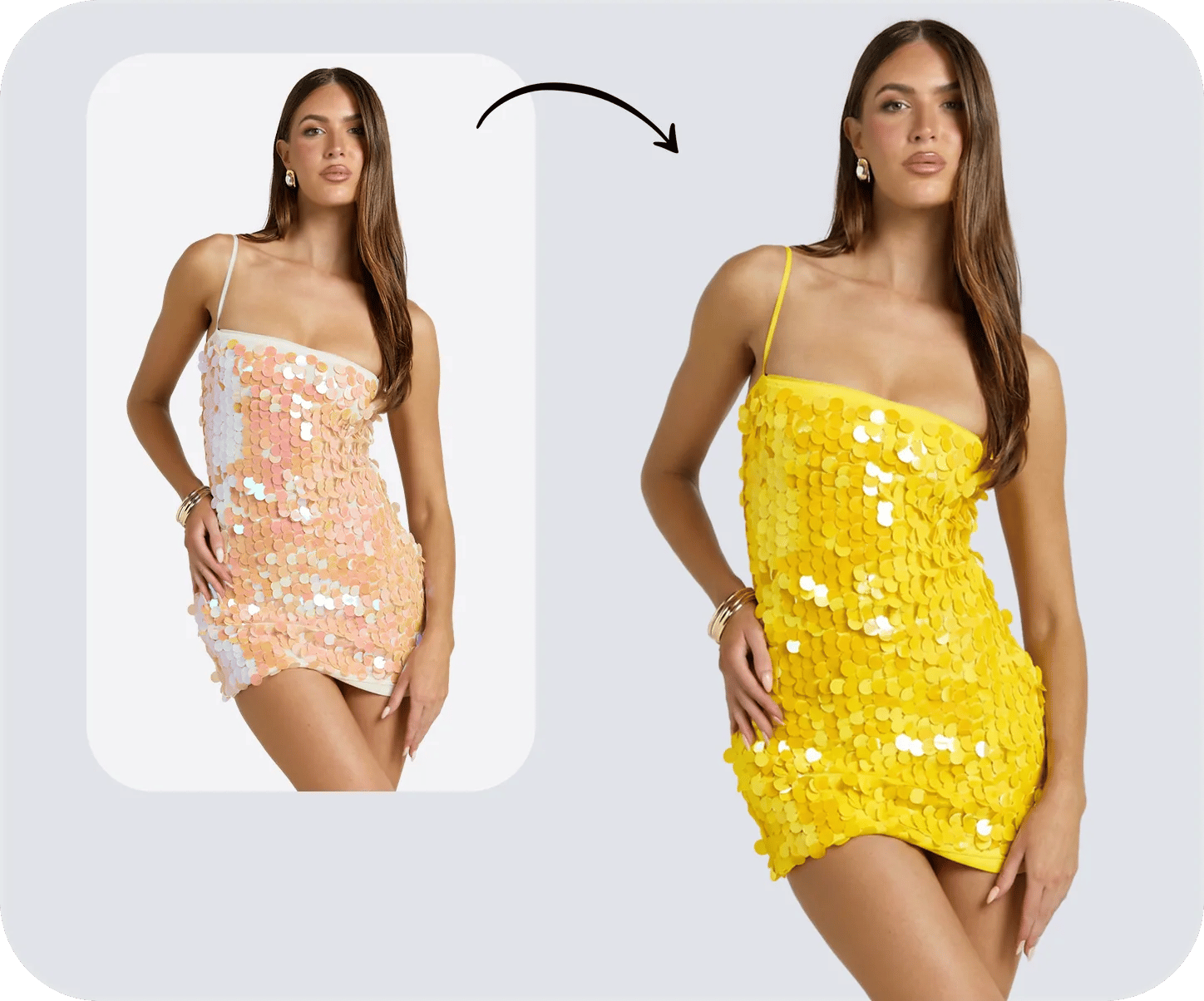

How to Change Color in Photoshop: Quick Answer
For an editable Photoshop recolor, select the object and apply the new color through an adjustment or fill layer. Choose the method from the image task below. If manual masks would slow a large catalog, a prompt-based AI image recolor can target an object, stripe, print, or background by instruction.
| Image task | Recommended route |
|---|---|
| Colored object or product | Select it, then use Hue/Saturation |
| White, black, or gray shirt | Combine a fill layer with Curves |
| Stripes, prints, or complex patterns | Build separate masks in Photoshop, or describe the pattern and target area in an AI prompt |
| Picture background | Mask the subject and add a new background layer |
| Many image types or catalog variants | Use a reusable layered file or a prompt-based AI workflow |
Choose a Photoshop or AI Recolor Method
Choose by material, starting color, edit volume, and where the image will appear. A colored cotton tee is straightforward; white merchandise needs added color, black merchandise needs added brightness, and reflective products may need manual correction. For shopping ads, Google requires the submitted image to accurately display the product and match the listed variant.[13]
| Method | What it does | Best use | Advantages | Limits |
|---|---|---|---|---|
| Hue/Saturation adjustment layer | Shifts the selected color; easy to edit later. | Colored apparel, shoes, bags, and packaging. | Fast revisions and reusable SKU variants. | White, black, and gray areas need other layers. |
| Replace Color dialog | Clicks one color and replaces it directly. | Quick internal drafts. | Everything in one dialog. | Harder to revise later; similar background colors may shift too. |
| Color Replacement Tool | Paints the new color on with a brush. | Small trims, piping, and irregular accents. | Precise local control. | Slow for a full garment or many products. |
| Solid Color fill on Color blend mode | Adds color while keeping the original brightness. | Gray and neutral products. | Texture and shading remain editable underneath. | White, black, and shiny products also need brightness work. |
| Color Range + adjustment layer | Selects by color, then applies an editable adjustment. | Prints and repeated colored details. | One mask can cover scattered areas. | Similar tones in skin, props, or backgrounds may be selected. |
| AI color changer | Uses a prompt to specify the image area, pattern, and target color. | Any image type, from clean product photos to stripes and complex patterns. | No manual masking; the prompt can preserve selected colors or recolor only part of a pattern. | Check that the result still matches the product, especially logos, texture, hardware, and approved color. |
| New photography | Photographs the real product in the new color. | Products whose sheen or texture changes with the color. | Shows exactly what customers will receive. | Costs more and takes longer. |
Use Hue/Saturation for an existing color, Color Range for repeated tones, and a brush for small accents. White, black, and gray products need a fill layer plus brightness work. Use AI when prompt control is faster than building several masks. Reshoot when the real color changes the material's appearance or your team has no physical sample for approval.
Step 1: Select the Object You Want to Recolor
Your selection decides what stays protected: the stitching, hardware, logos, and hems shoppers zoom into, plus the background. Check those areas up close before changing any color.
Select Subject, Object Selection, and Quick Selection
Choose Select > Subject, or press Select Subject in the Options bar, for an item with a clear outline. It grabs every main subject it finds, so when a prop or model shares the frame, use the Object Selection Tool instead: hover until the product lights up, then click it. For manual work, use the Quick Selection Tool (W): paint inside the item to add, hold Alt (Option on macOS) to subtract. A smaller brush helps around buckles, straps, labels, and the gaps between handles.
Refine Edges in Select and Mask
Open Select > Select and Mask for fuzzy knits, faux fur, lace, or flyaway fibers. Newer versions add Color Aware for plain studio backgrounds, Object Aware for busier scenes, and a Refine Hair button for stray strands. Keep the Refine Edge Brush on soft edges only, then adjust Feather and Shift Edge until the outline looks natural at full size and listing size. Save the output to a Layer Mask so you can fix the edge later.
Target a Color With Color Range
For a repeated pattern, a colored sole, or printed packaging, open Select > Color Range and click the color you want to change. Selected pixels preview in white. Adjust Fuzziness while watching skin, props, and the background for similar tones, and fine-tune with the plus and minus eyedroppers. Turn the result into a layer mask instead of deleting pixels.
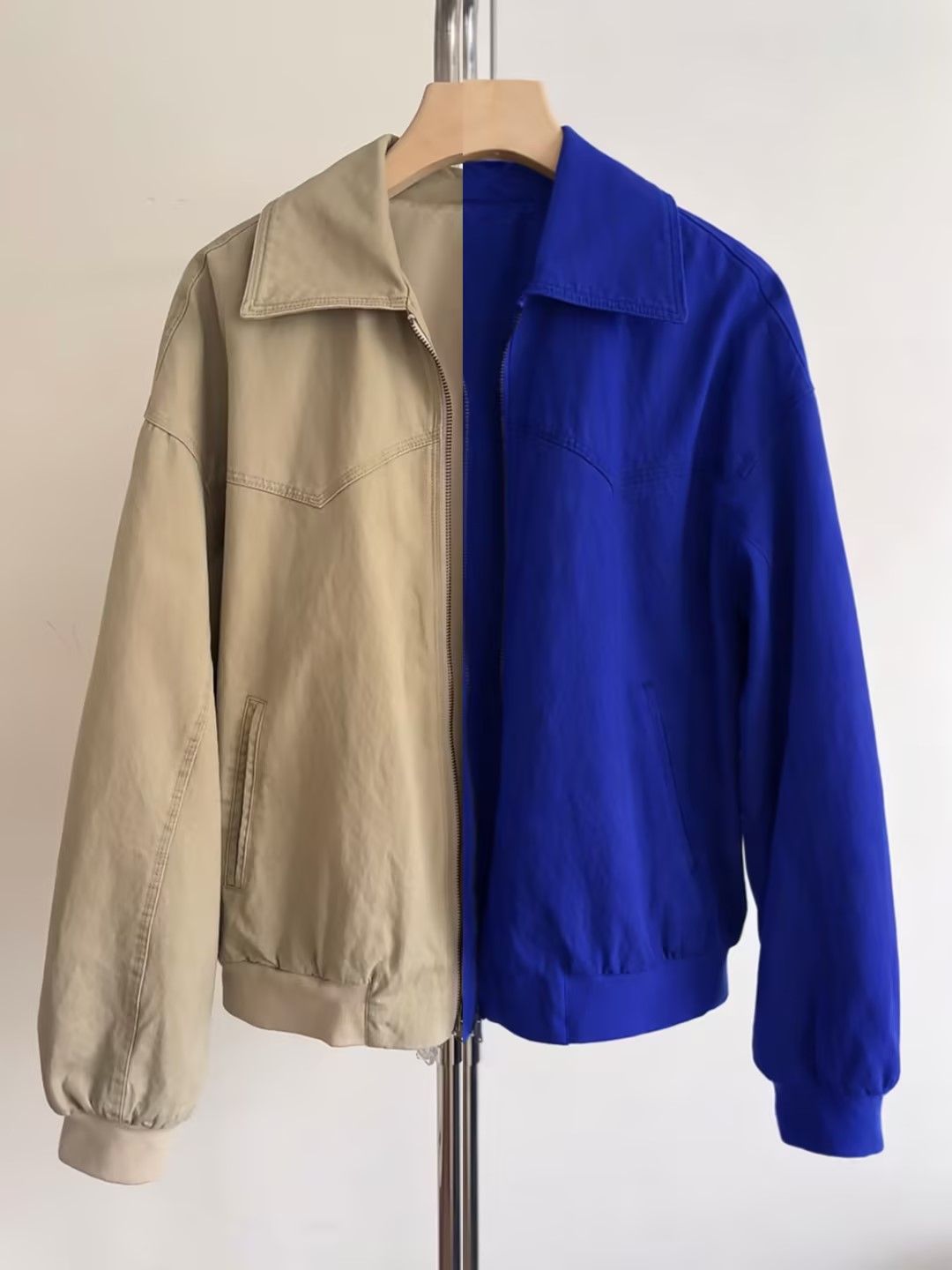
Step 2: Change Color With a Hue/Saturation Layer
Keep the product selected and choose Layer > New Adjustment Layer > Hue/Saturation, or click the Hue/Saturation icon under Single adjustments in the Adjustments panel. Photoshop turns your selection into the layer's mask: white areas take the new color, black areas keep the original, and gray blends the two.
The Contextual Task Bar now offers Adjust Colors too. Photoshop picks out the main colors in the photo; choose one, or sample another with the eyedropper, and drag the on-canvas Hue, Saturation, and Lightness sliders. The change lands on a new Hue/Saturation layer automatically. It's the fastest way to start, but check the layer and mask before the file reaches your store.
Target one color at a time
The Master option shifts every color inside your selection. For a multicolor item, pick Reds, Yellows, Greens, Cyans, Blues, or Magentas instead. The updated panel shows the range on a color wheel: the inner sliders set which colors change, the outer sliders soften the cut-off, and each color gets a before-and-after swatch. That can separate a blue panel from a warmer logo, though a second mask is often cleaner when shades overlap.
Adjust Hue, Saturation, and brightness
- Hue moves the sampled range around the color wheel.
- Saturation controls how strong the color is; compare it with your approved product swatch.
- Lightness brightens or darkens, but can flatten fabric detail; a Curves layer gives finer control.
Two tips from Adobe's help pages: if the old color still shows through the new shade, turn on Colorize and readjust. And leaving Lightness at 0, or setting the layer to the Hue blend mode, keeps the garment's original contrast.
Moving a blue jacket toward green? Select Blues, drag Hue, and keep an eye on shadow folds, zipper tape, and edges. Don't copy one slider value across every angle either; the lighting changes from shot to shot.
White, black, and gray contain almost no color, so a plain hue shift has nothing to grab. Step 4 covers those with a workflow that adds color and controls brightness separately.
Watch the clothing workflow
How to Change the Color of Clothing in Photoshop — PHLEARN
Watch how the edges, folds, and tones are handled, then apply the same checks to logos and trims.
Step 3: Swap a Color Fast With Replace Color
Image > Adjustments > Replace Color works for a quick mockup when one color is easy to click. Duplicate the layer first, then click the color you're swapping and add or subtract samples until the preview covers the right area without grabbing the background.
Fuzziness controls how much gets picked up, and Localized Color Clusters helps when a similar color appears elsewhere in the photo. Set the new shade with the sliders, or type a hex code into the Result swatch; expect the exported file to drift slightly off that code.
Replace Color changes pixels directly, so use it for quick drafts. For a reusable catalog master, keep the edit on an adjustment layer and mask. If Photoshop is too slow for your SKU volume, compare repeatable alternatives in this AI recolor tools guide for product photos.
Step 4: Recolor White, Black, Gray, and Metallic Objects
White, black, and gray products need two things handled at once: color and brightness. A Color-mode fill tints gray areas easily, but pure white and deep black barely take any color. Handle them separately.
Build the layer stack
- Select the object using any method from Step 1.
- Choose Layer > New Fill Layer > Solid Color; the active selection becomes its mask.
- Pick a target swatch, then test Color blend mode on gray material.
- For white or pale products, try Multiply and lower the opacity until highlights keep their shape.
- For a black item going lighter, add a Curves layer first and brighten the midtones without washing out the seams.
- Add one more Curves layer to match brightness across camera angles.
Color mode keeps the original brightness while adding the new color. Multiply darkens as it tints, which suits white-to-color changes; Soft Light is gentler. Compare modes at thumbnail size, where fine texture disappears long before it does on a big monitor.
Paint metallics by hand
Chrome, brushed steel, glass, satin, and jewelry carry reflections that shouldn't get one flat coat of color. Add a blank Color-mode layer, clip it to the mask, and paint at low opacity, leaving the brightest highlights and dark reflections mostly untouched. That's what keeps metal looking like metal in a close-up.
For white and pale products
Turn White into Any Color in Photoshop — PiXimperfect
This example shows why white products need more than a simple hue shift. Watch the highlights, where white clothing loses its shape first.
How to Change a Shirt Color in Photoshop
Start with the shirt's current color and construction rather than applying one recipe to every garment. Keep the neckline, seams, buttons, labels, artwork, and natural folds visible; those details help shoppers recognize the SKU.
Colored shirts
For a plain colored shirt, use the selection and Hue/Saturation workflow from Steps 1 and 2. Target the shirt's existing color range instead of Master when the photo includes a model, props, or a background with similar tones. Protect skin, printed artwork, contrast stitching, and labels on the layer mask. Finish with Curves if the new shade should be lighter or darker, because the Lightness slider alone can flatten the fabric.
White and black shirts
A white shirt has little color information to shift. Add a Solid Color fill clipped to the shirt mask, test Color or Multiply blend mode, then lower the opacity until highlights and folds look natural. A black shirt needs visible tonal detail before it can become a lighter shade: raise the midtones with Curves, add the target color, and retain enough dark structure to show the weave and seams. Turning black fabric white is a reconstruction of brightness as well as a color change, so compare it carefully with the real garment.
Striped, printed, and logo shirts
In Photoshop, isolate the base fabric and every design element that must stay unchanged. Color Range can collect repeated stripes, while separate masks protect logos, typography, embroidery, and contrast trim. If the pattern contains overlapping colors, build one adjustment group per target color instead of forcing the entire shirt through a single adjustment.
For faster variant work, use a prompt such as: “Change only the red stripes on the shirt to navy blue. Keep the white stripes, chest logo, buttons, fabric texture, skin, and background unchanged.” This gives the AI both the edit and its boundaries. Compare the result with the source and approved sample before assigning it to a SKU.
How to Change the Background Color of a Picture in Photoshop
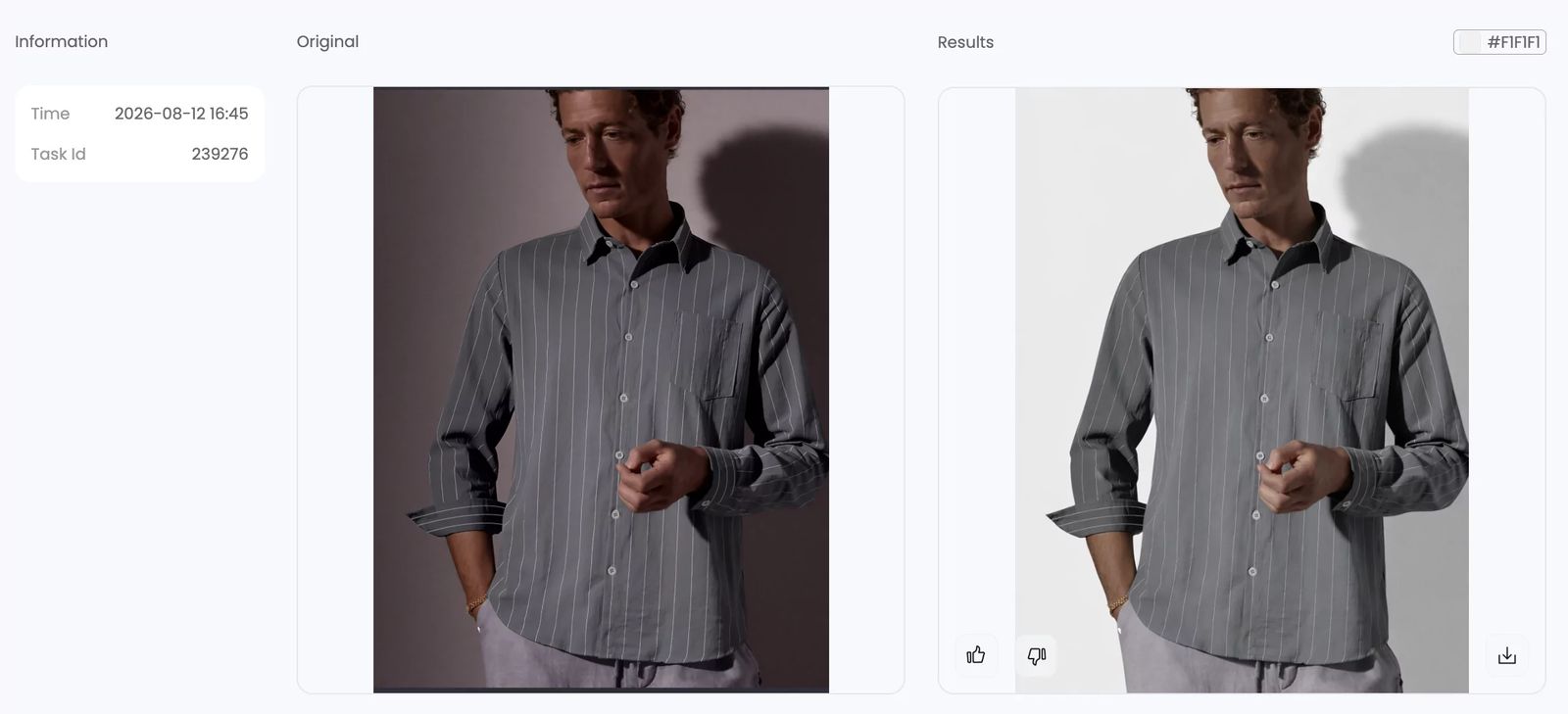
Use the selection and mask workflow above if you need Photoshop-level control; there is no need to repeat those steps here. For ecommerce, the real decision is how the new background should interact with the product. Preserve fine edges, transparent areas, reflections, and the contact shadow so the item does not look pasted onto a flat color.
An AI background-color change can handle this interaction more naturally. Instead of replacing only the pixels behind the subject, it can adapt the surrounding light, edge color, contact shadow, and environmental reflections to the requested background. This is especially useful for glossy packaging, jewelry, glass, and lifestyle images where a simple solid-color layer can look disconnected from the original lighting.
White ecommerce backgrounds
For a pure white Photoshop background, use #FFFFFF rather than brightening a gray studio backdrop. Keep natural edges and translucent material intact. Marketplace requirements vary by image position and category, so check the current destination rules instead of assuming every gallery image needs white.
Brand-color and campaign backgrounds
For a brand-color or campaign background, check pale garments, fuzzy fibers, transparent packaging, and reflective edges for halos or color spill. The product itself must remain consistent with the SKU even when the AI adjusts surrounding light to fit the new scene.
Step 5: Paint Color With the Color Replacement Tool
The Color Replacement Tool hides under the Brush Tool and works well on piping, small panels, and narrow packaging details. Start with Mode: Color, Sampling: Once, and Limits: Contiguous. Work on a duplicate copy, lowering Tolerance near logos and artwork and raising it when strokes leave gaps. Protect logos and label text with a saved selection.
Step 6: Refine and Export Ecommerce Product Images
Before export, check the edges, shadows, highlights, fabric texture, and printed logos.
Clean up the mask
Paint black on the mask to hide the new color, white to bring it back. Use a harder brush on packaging and a softer one on fuzzy fabric. Then compare the photo at 100% and at listing size.
Match the lighting
Add a Curves layer on top and compare with an approved sample. Keep the highlights readable without crushing the folds, and make sure the product's shadow matches the new brightness. Dark and pale variants may need different adjustments.
Keep the stack editable
Keep the original photo at the bottom, stack the color and brightness layers above it, and group them by shade. Save a PSD or layered TIFF and export web copies separately.
Prepare the file for storefront use
Edit in your normal color profile, then save web copies as sRGB when the platform asks for it. Recheck the exported JPEG or WebP; compression can push a brand color off target. Keep sizes, crops, backgrounds, and filenames consistent across the range.
How to Recolor Any Image With an AI Prompt
Snappyit's AI recolor accepts product, lifestyle, apparel, accessory, packaging, furniture, illustration, stripe, and multicolor-pattern images.[1] The prompt replaces manual selection work: name the object or pattern region, target color, and protected details. For example: “Change the green floral print on the dress to burgundy; keep the cream base fabric, gold buttons, skin, shadows, and background unchanged.”
This is useful when a design contains several colors or the same edit must be repeated across many SKUs. Before assigning the result to a variant, compare its shade, pattern geometry, logo, small text, and material finish with the item you sell.
How to recolor a product with an AI tool
- Choose a source image that clearly shows the details your team must preserve.
- Open Snappyit's Color Change tool and upload the image.
- Describe the object, stripe, print, background, or other area to recolor; state the target shade and list anything that must remain unchanged. Use the same approved color name or HEX value across angles.
- Generate options, then compare edges, labels, pattern geometry, folds, reflections, protected colors, and shadows with the original.
- Download the approved result and apply the same file naming rules used for photographed variants.
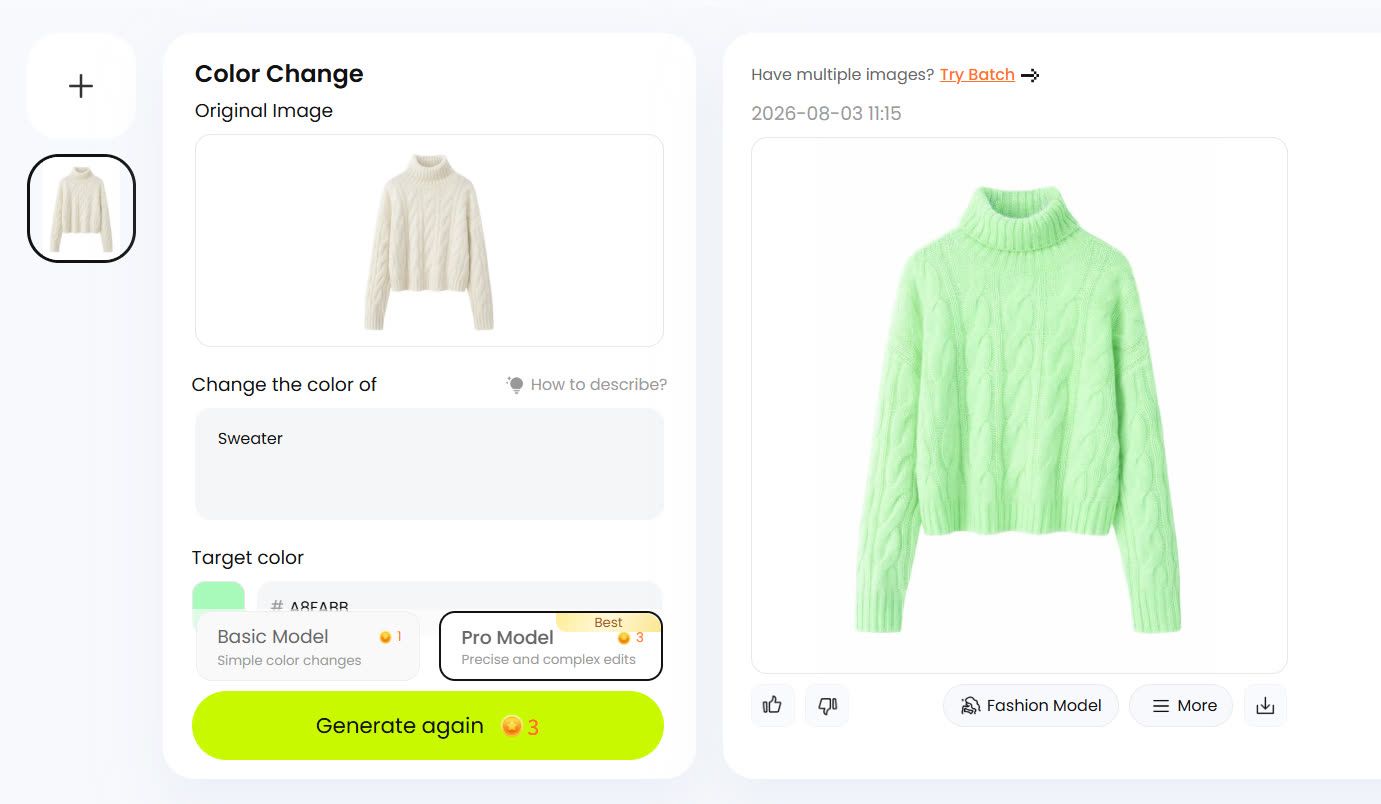
AI Recolor Quality Checks for Product Images
Review generated variants at full size and at the storefront crop. The three checks below cover the errors most likely to change how a shopper reads the SKU.
Color bleeding around trim and hardware
Look for the new color leaking into embroidery, fasteners, straps, labels, skin, or the background. Detailed products make this easier to judge than plain ones.
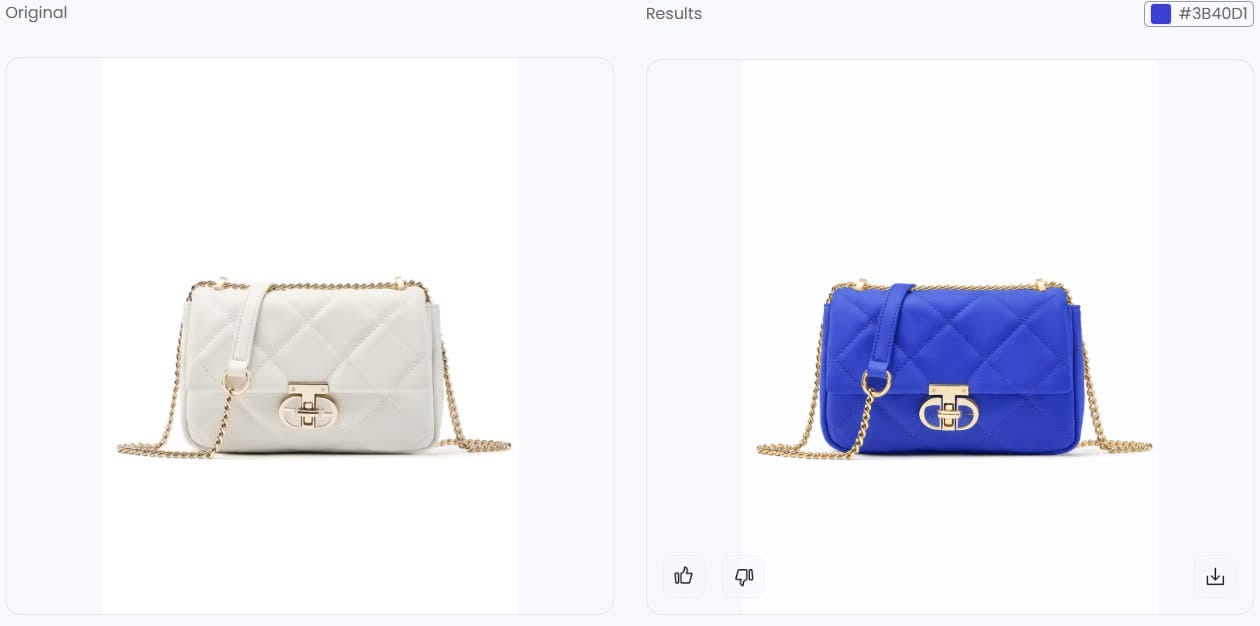
| Review area | What to verify |
|---|---|
| Hardware isolation | Compare the chain and clasp with the source for color spill. |
| Seam accuracy | Trace quilt lines across every recolored panel. |
| Shadow | Confirm that the contact shadow still follows the bag and light direction. |
| Listing crop | Inspect gaps around the chain and strap at the final storefront size. |
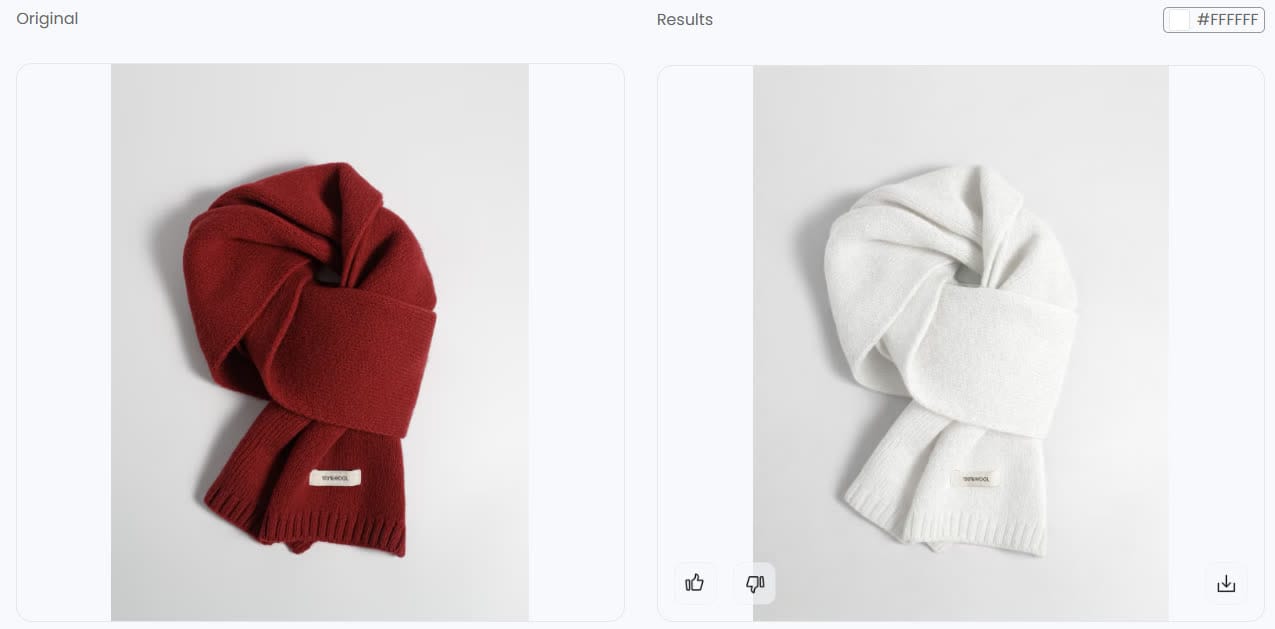
Lost fabric texture
Big brightness changes can flatten knitwear even when the outline looks right. Check the raised fibers, folds, ribbing, and small labels before approving.
Banding and material realism
Smooth leather and shiny metal can show sudden color steps, flat tinting, or fake-looking reflections. Check these surfaces at 100% and again after upload compression.
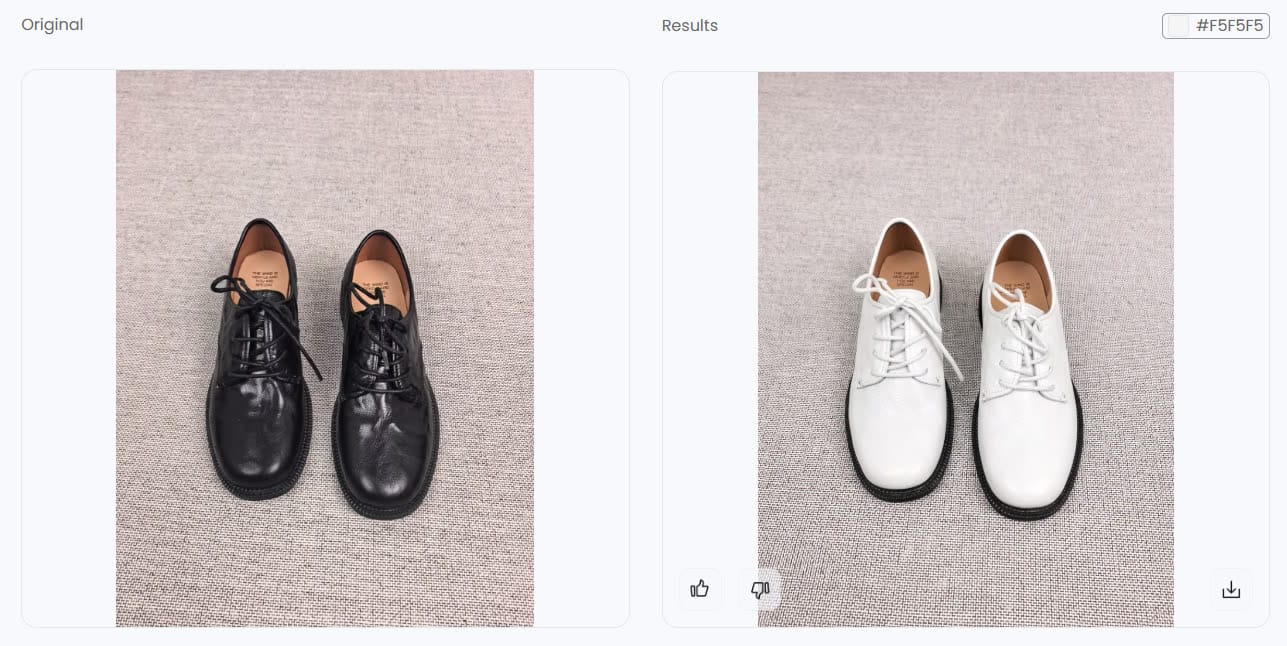
| Review area | What to verify |
|---|---|
| Tonal transitions | Look for abrupt bands between highlights and shadows. |
| Material cues | Compare leather highlights and grain with the source photo. |
| Protected parts | Confirm the soles, eyelets, and interior keep their intended colors. |
| Listing crop | Check that both shoes match and the laces remain distinct. |
Route each image by its approval risk: automate repeatable variants, and send results with color, pattern, edge, or material errors to Photoshop or a reshoot.
Review recolored images for each sales channel
Whether an image is ready depends on the product match, where it will appear, and the marketplace's current rules:
- Shopify: preview the theme's crop and zoom, then confirm that each swatch opens the correct variant image.[11]
- Amazon Seller Central: decide whether the image is for the main slot or gallery, then check the current category requirements.[12]
- Google Merchant Center: pair the image with the correct variant and make sure it accurately represents the submitted product.[13]
Shoppers also use photos to judge size, so keep one in-context shot next to the recolored views.
Scale Product Color Variants for Ecommerce
A launch with several shades, angles, and crops piles up fast. Name files style-color-angle-version, match groups to approved SKU names, and export from one reviewed master per view.
Build one reviewed Photoshop master per view when precise manual control matters. For repeatable catalog work, a prompt-based product color-change workflow removes repetitive masking. Test representative products first, record retries and approval time, then route exceptions to manual editing.
Frequently Asked Questions
How do I change the color of an object in Photoshop?
Select the object, add a Hue/Saturation adjustment layer, and refine its layer mask so the background and protected details remain unchanged. Use a Solid Color fill and Curves when the object is white, black, or gray.
How do I change a shirt color without losing fabric texture?
Use an adjustment or fill layer through a shirt mask instead of painting over the pixels. Preserve the original luminosity, protect seams, prints, and labels, and control brightness with Curves so the folds and weave remain visible.
How do I change a white shirt to another color or a black shirt to white in Photoshop?
For a white shirt, add a Solid Color fill and test Color or Multiply blend mode. For black fabric, brighten the midtones with Curves before adding color. Black to white requires rebuilding brightness as well as changing hue.
How do I change the background color of a picture in Photoshop?
Select the subject, refine it in Select and Mask, and output a layer mask. Place a Solid Color fill layer below the subject, then correct edge spill, reflections, and the contact shadow before exporting.
Can AI recolor stripes and complex patterns?
Yes. A prompt-based AI recolor can work on any type of image and can target specific stripes, colors, or pattern regions. State what should change, the target color, and which logos, pattern colors, people, objects, or background areas must stay unchanged.
Can I use recolored product photos on Amazon, Shopify, and Google Shopping?
Yes, when the image accurately represents the variant the buyer will receive. Match each file to the correct SKU, compare it with an approved physical sample, and follow the current image rules for the marketplace, category, and image position.
References
- Snappyit: AI Color Change. Official product reference for prompt-based recoloring across image types and complex patterns; reviewed August 12, 2026.
- Adobe Photoshop Help: Replace object colors with Hue or Saturation. Page updated February 23, 2026; workflow reviewed August 6, 2026.
- Adobe Photoshop Help: Adjust hue and saturation. Updated February 23, 2026; reviewed August 6, 2026.
- Adobe Photoshop Help: Adjust Colors on-canvas controls. Updated February 23, 2026; reviewed August 6, 2026.
- Adobe Photoshop Help: Make quick selections. Official reference for Select Subject, Object Selection, and selection refinement; reviewed August 12, 2026.
- Adobe Photoshop Help: Select and Mask workspace. Official reference for refining and outputting subject masks; reviewed August 12, 2026.
- Adobe Photoshop release notes: version 27.9.1, July 2026. Reviewed August 6, 2026.
- PHLEARN: How to Change the Color of Clothing in Photoshop. Checked August 6, 2026.
- PiXimperfect: Turn White into Any Color in Photoshop (Even Black!). Checked August 6, 2026.
- Shopify Help: Product media types.
- Amazon Seller Central: Product image requirements.
- Google Merchant Center Help: Image link requirements.
- Baymard Institute: Product Page UX 2026. Updated March 18, 2026.
Create Your Next Product Colorway
Test one representative SKU, review it against the approved product, and use the result to set your catalog workflow.