
Amazon Sellers8 min read

How to Make a White Background for Amazon Product Photos

Amazon’s main image needs a pure white background — RGB 255,255,255. Here’s how to remove the background, hit true white, pass the 85% rule, and fix a rejected or suppressed photo, free.

Amazon's pure white background rule (RGB 255,255,255)

If you sell on Amazon, the single most non-negotiable image rule is this: your main product image must sit on a pure white background — and "pure white" has a precise, mathematical definition. It means RGB 255,255,255, the exact value Amazon's catalog system treats as true white. Not cream, not light gray, not "looks white on my phone." A literal 255 on all three channels — red, green, and blue — across every background pixel. As the 2026 spec guides from Seller Labs and SellHound put it bluntly: not off-white, not light gray, exactly 255,255,255.

Amazon enforces this because the main image is what shoppers see in search results, and a uniform white background keeps the grid looking clean and makes every product comparable at a glance. The rule applies to the primary (MAIN) image specifically; your secondary images can use lifestyle shots, infographics, or other backgrounds. But the MAIN image has to be pure white, full stop.

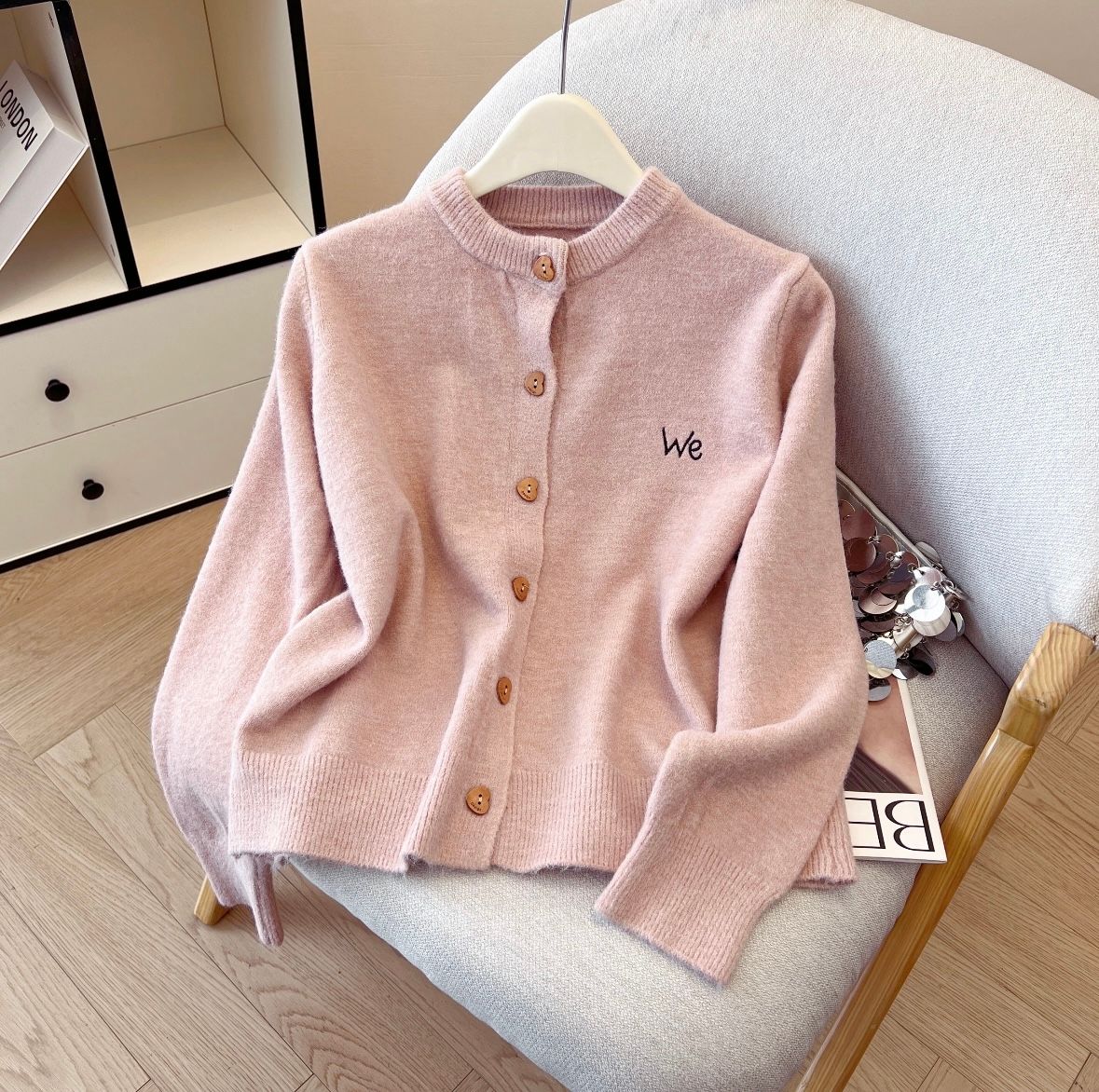
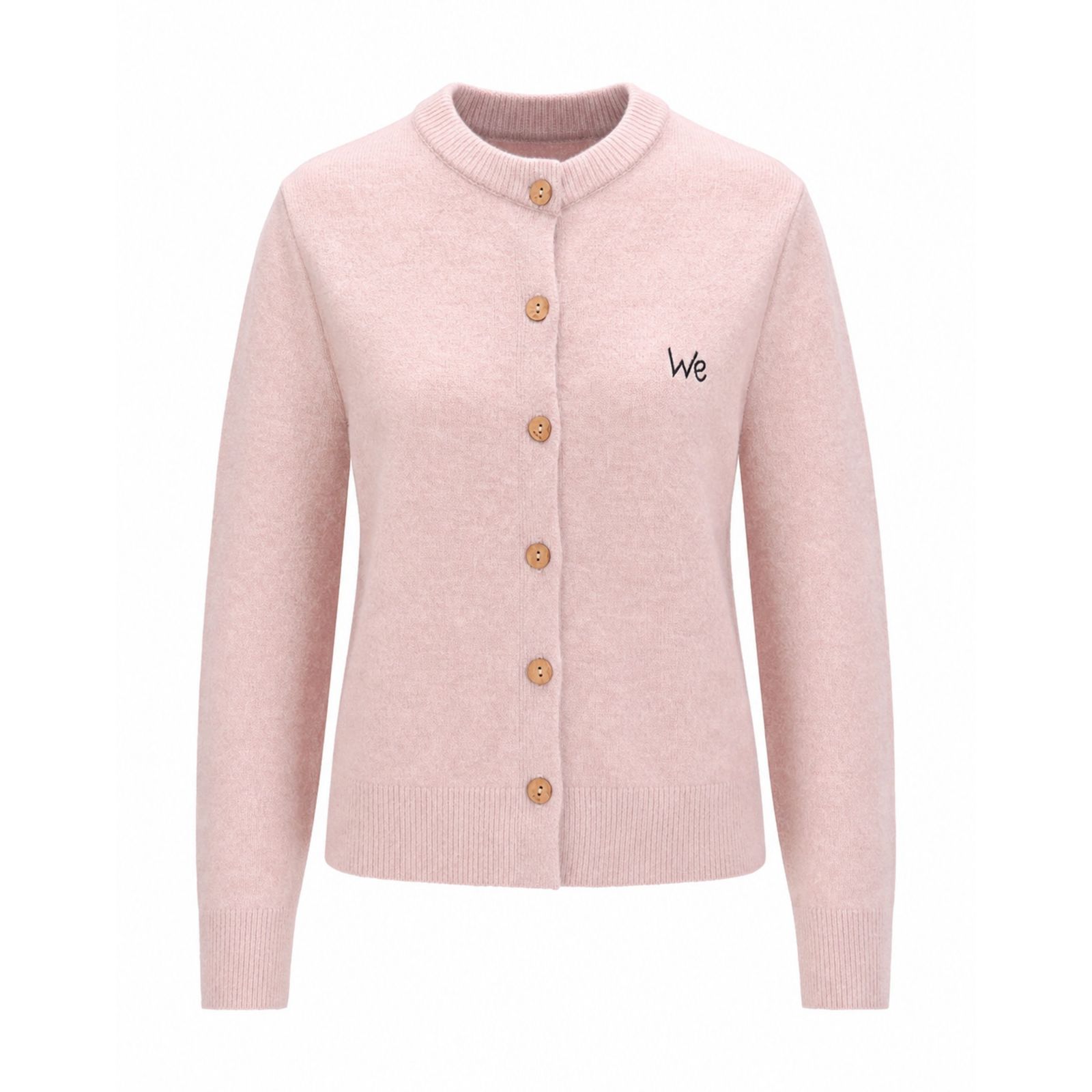
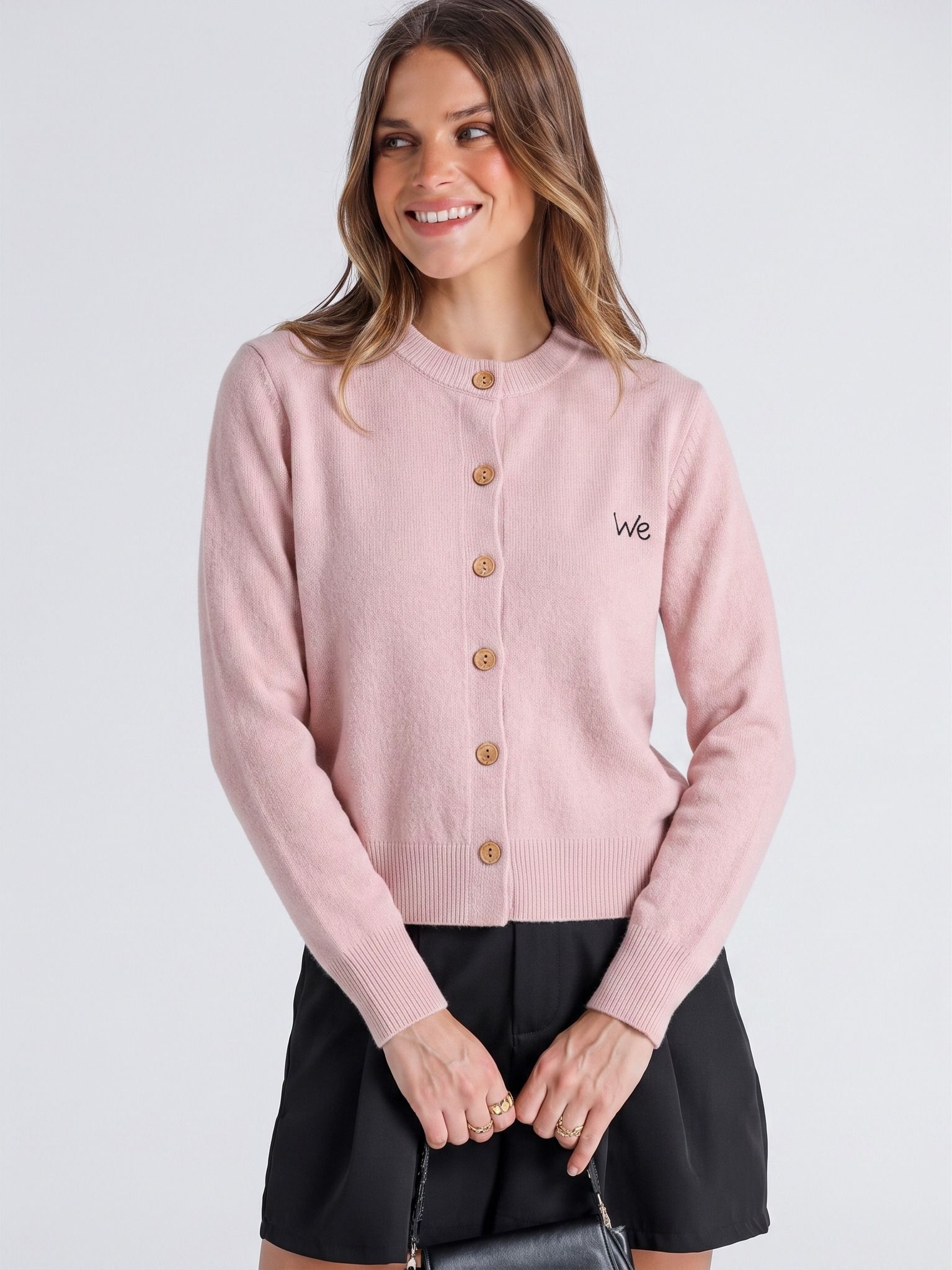
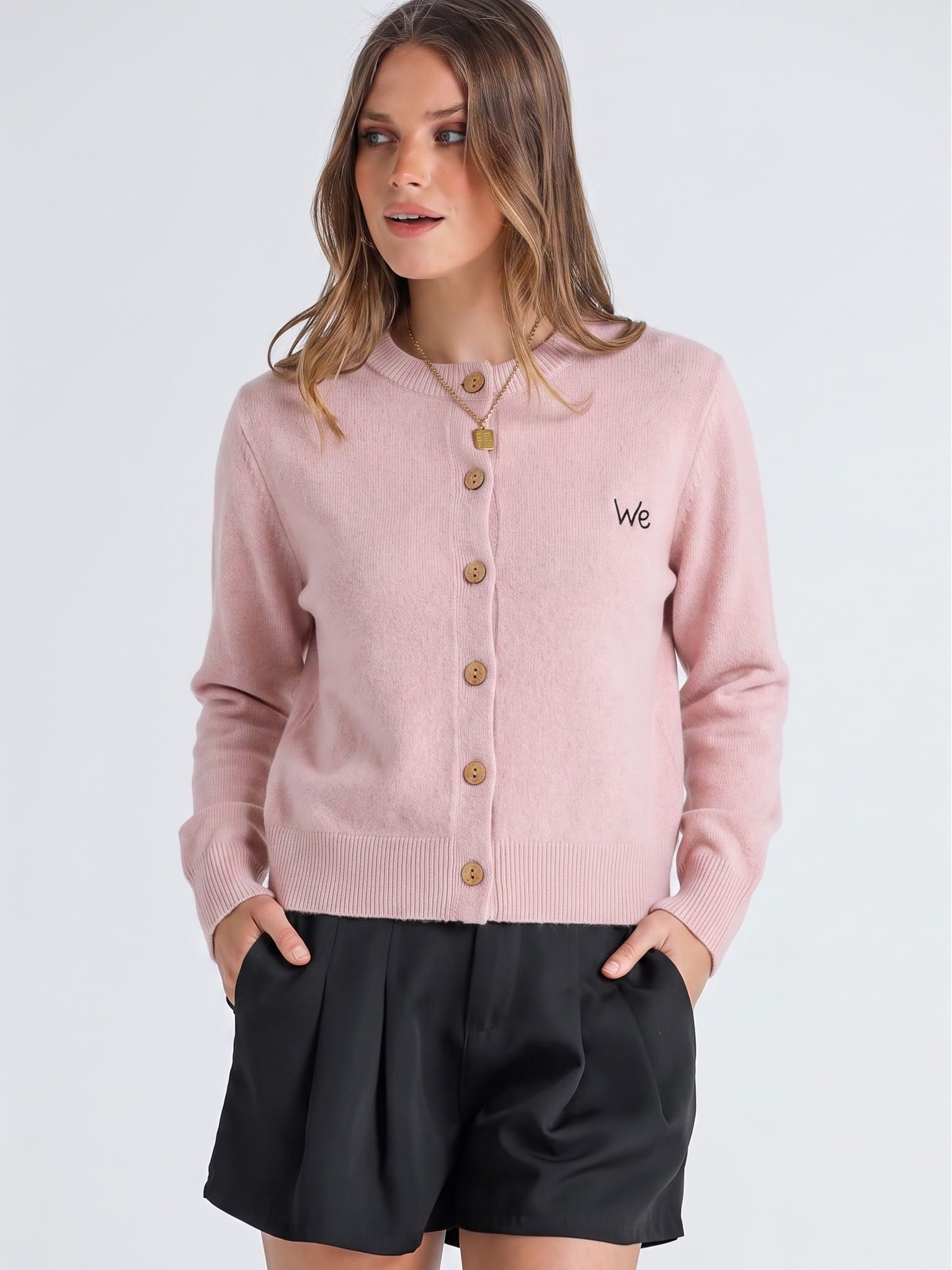
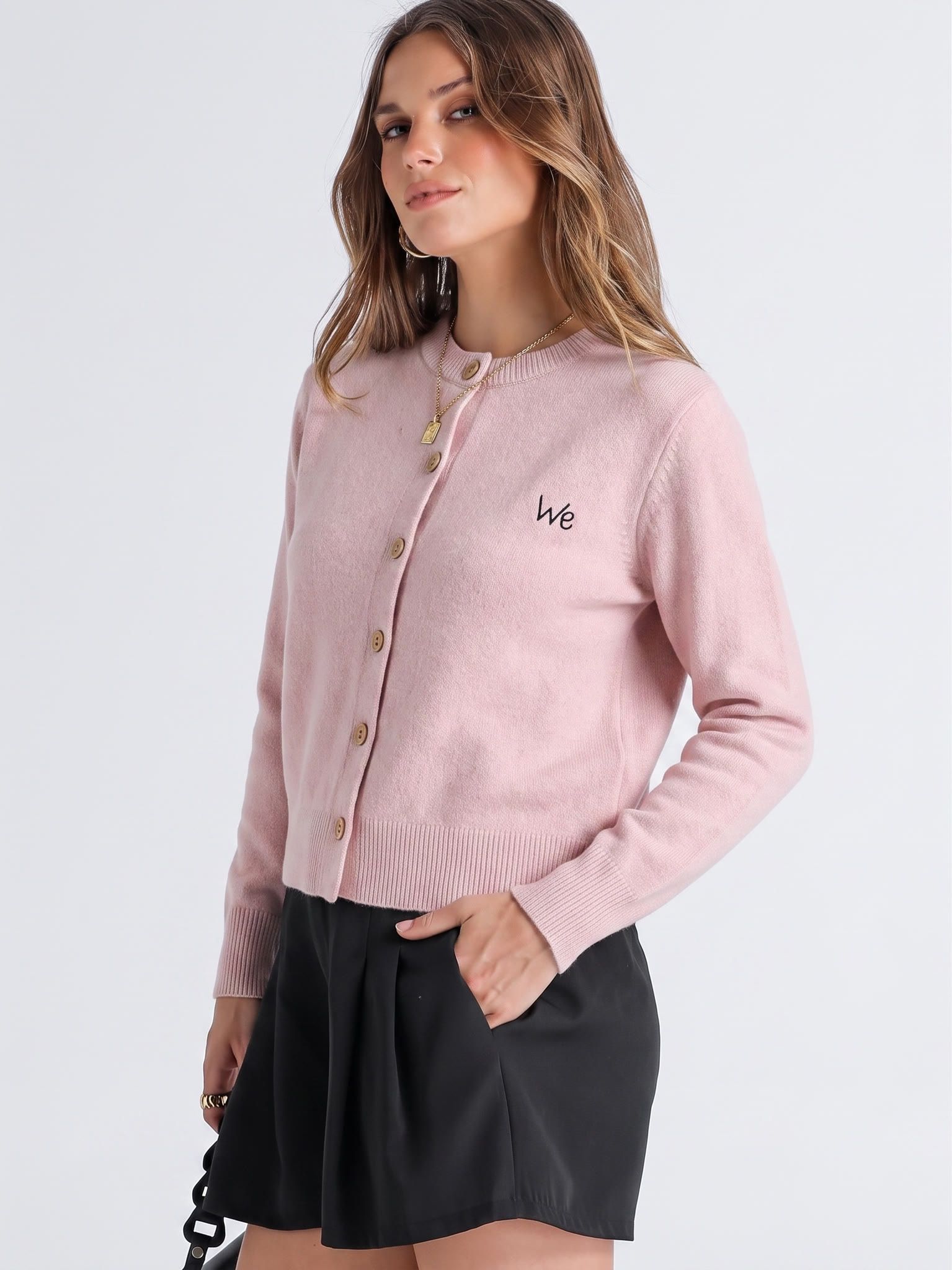
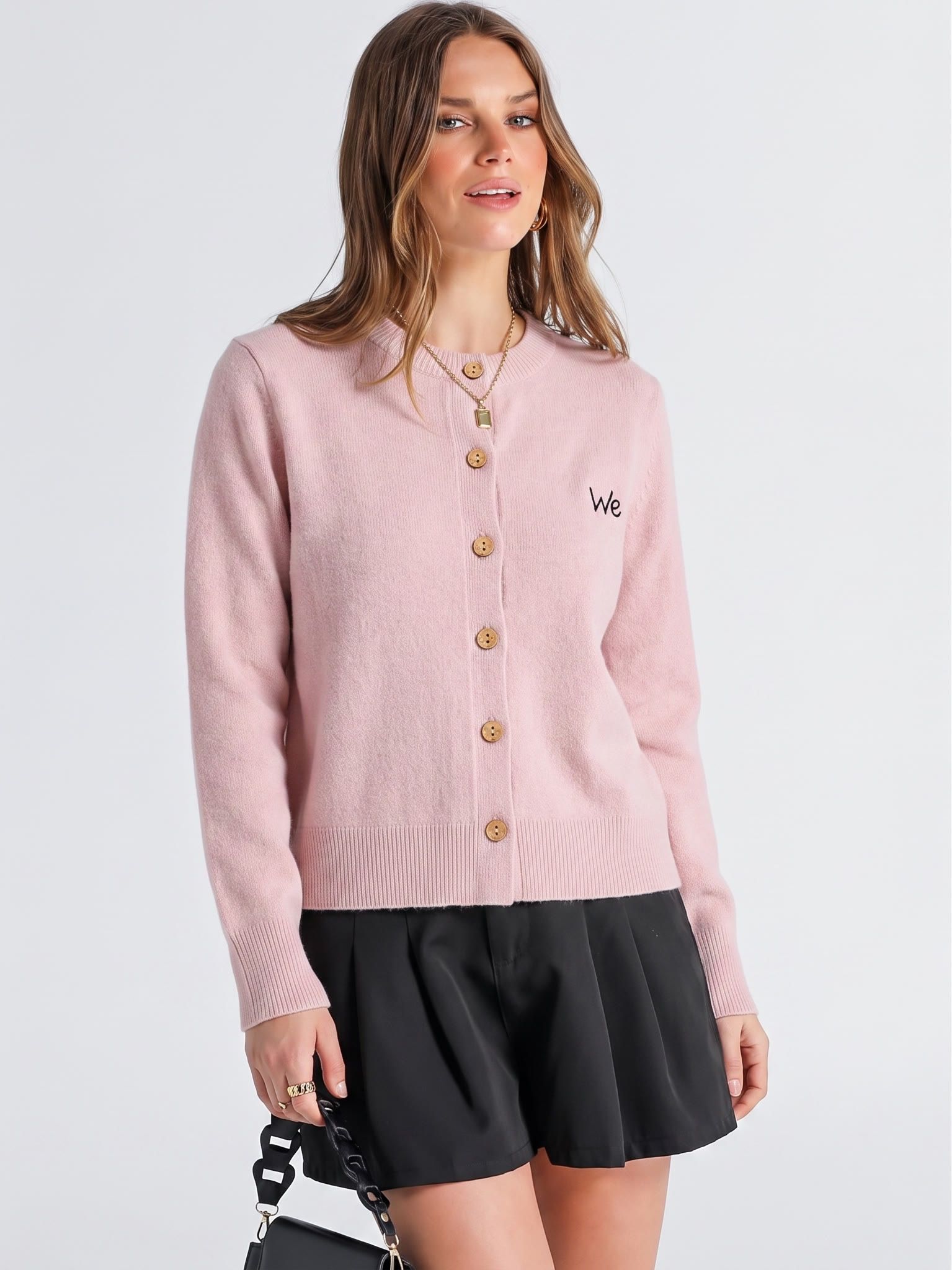
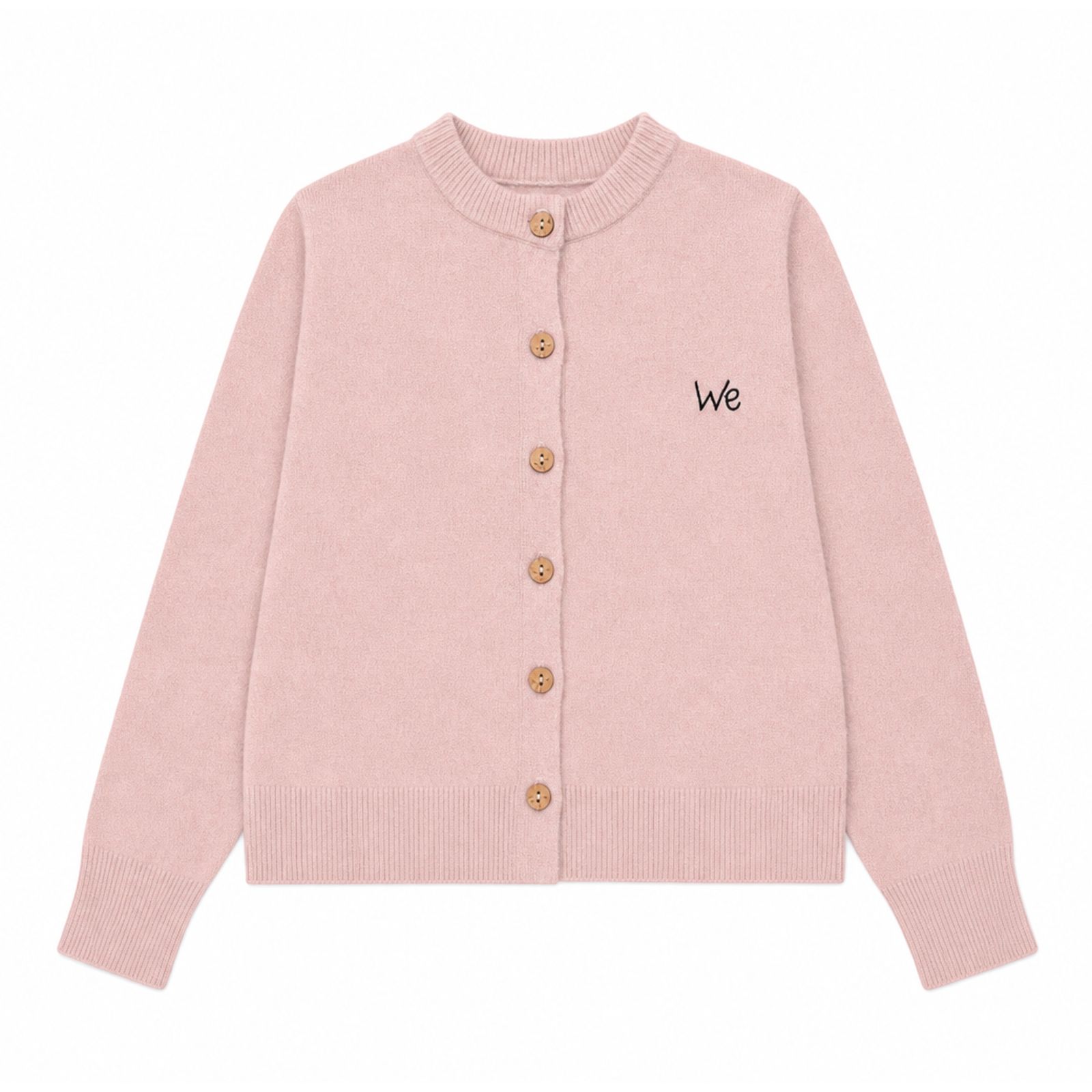
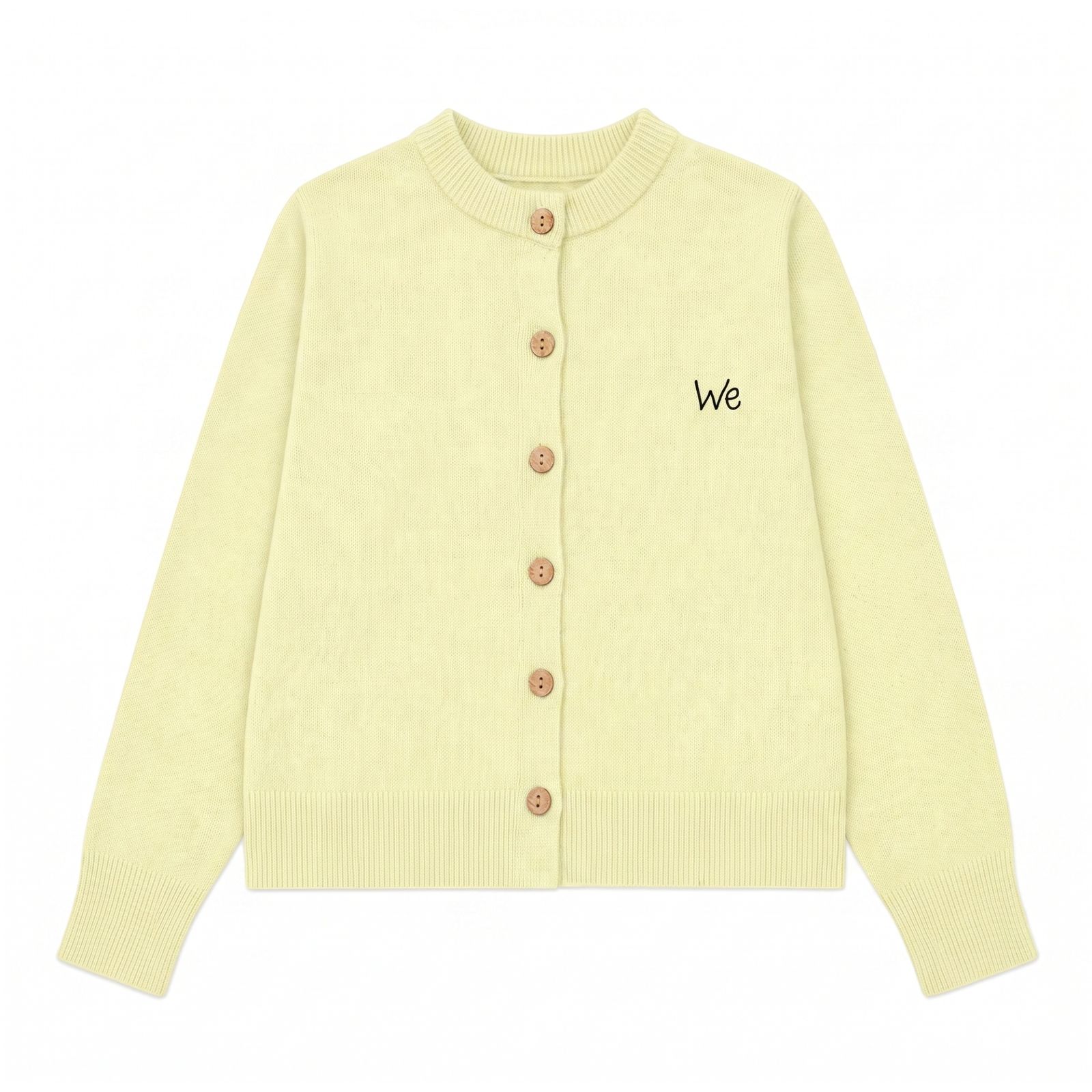
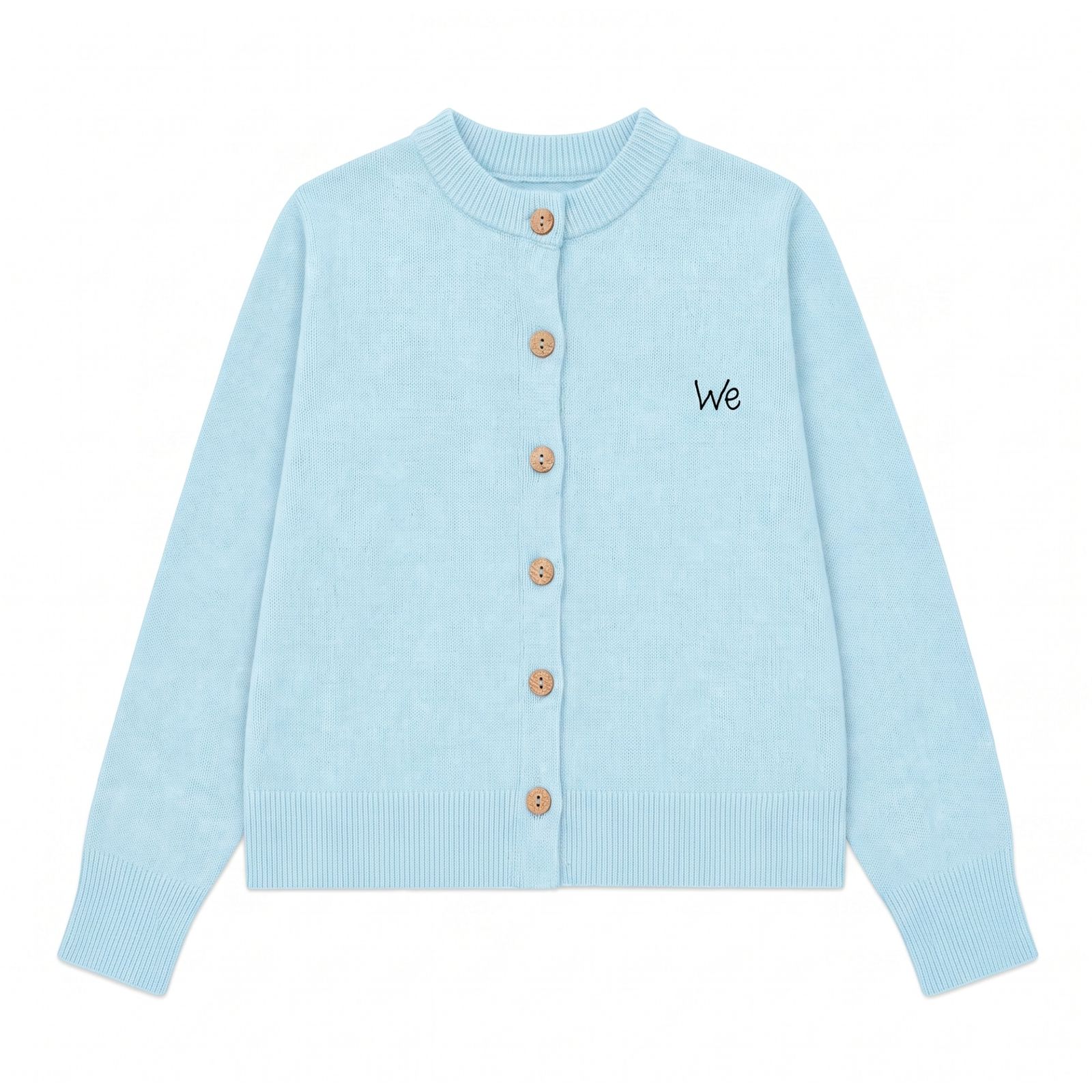
A garment shown on its original background beside the same garment on a clean pure-white background

The catch most sellers hit is that Amazon's image check is a machine, not a person. Its scanner reads the raw pixel values rather than judging "does this look white?" — so a background that looks white to the human eye is very often not 255,255,255. Studio lighting, a soft drop shadow, camera white balance, and JPEG compression all nudge those pixels off true white, typically into the 248–252 range. To you it's white. To the scanner it's gray, and that gap between "looks white" and "is white" is exactly where listings get into trouble. Before we get to the fix, it's worth seeing the entire spec the main image has to satisfy — because pure white is only rule number one of about eight.

Every Amazon Main-Image Rule (2026 Compliance Checklist)

The fastest way to stop fighting rejections is to treat the main-image spec as a checklist and mirror it exactly before you upload. The table below is the current MAIN (hero) image specification, drawn from Amazon's own seller guidelines and corroborated across the 2026 spec guides from Seller Labs, SellHound, Jungle Scout, soona, Dresma, and Rewarx. Match every row and the automated scan has nothing to flag.

RequirementThe exact spec to mirror
Background colorPure white, RGB 255,255,255. Off-white, cream, or light gray gets flagged because the scanner reads pixel values mathematically — not perceptually.
Frame fillProduct should fill about 85% or more of the frame. Too much white space shrinks the thumbnail and lowers click-through.
No extrasNo text, logos, watermarks, borders, props, inset/badge images, or packaging (boxes, bags, cases) — unless the package is the product being sold.
Product visibilityProduct shown fully, outside its packaging, and not cut off by the frame edge. (Jewelry and necklaces are the documented exception that may be cropped by the edge.)
File formatJPEG/.jpg (preferred), TIFF/.tif, PNG/.png, or GIF/.gif. No animated GIFs.
Color modesRGB (recommended) or CMYK. Use sRGB — CMYK uploads can shift color on conversion and are a documented suppression trigger.
DimensionsMinimum 1000px on the longest side (the threshold that turns on zoom). Recommended 1600px+, with about 2000px the practical sweet spot. Max 10,000px longest side. Keep the file under 10MB.
Aspect ratioSquare 1:1 (preferred) or portrait 5:6.

A few of these rows carry category nuance that trips up sellers who assume one spec fits everything (per Amazon's Fashion/Apparel Imaging Guidelines, Merchize, and Jungle Scout):

  • Shoes: the main image shows a single shoe (not a pair), facing left at a 45-degree (three-quarter) angle.
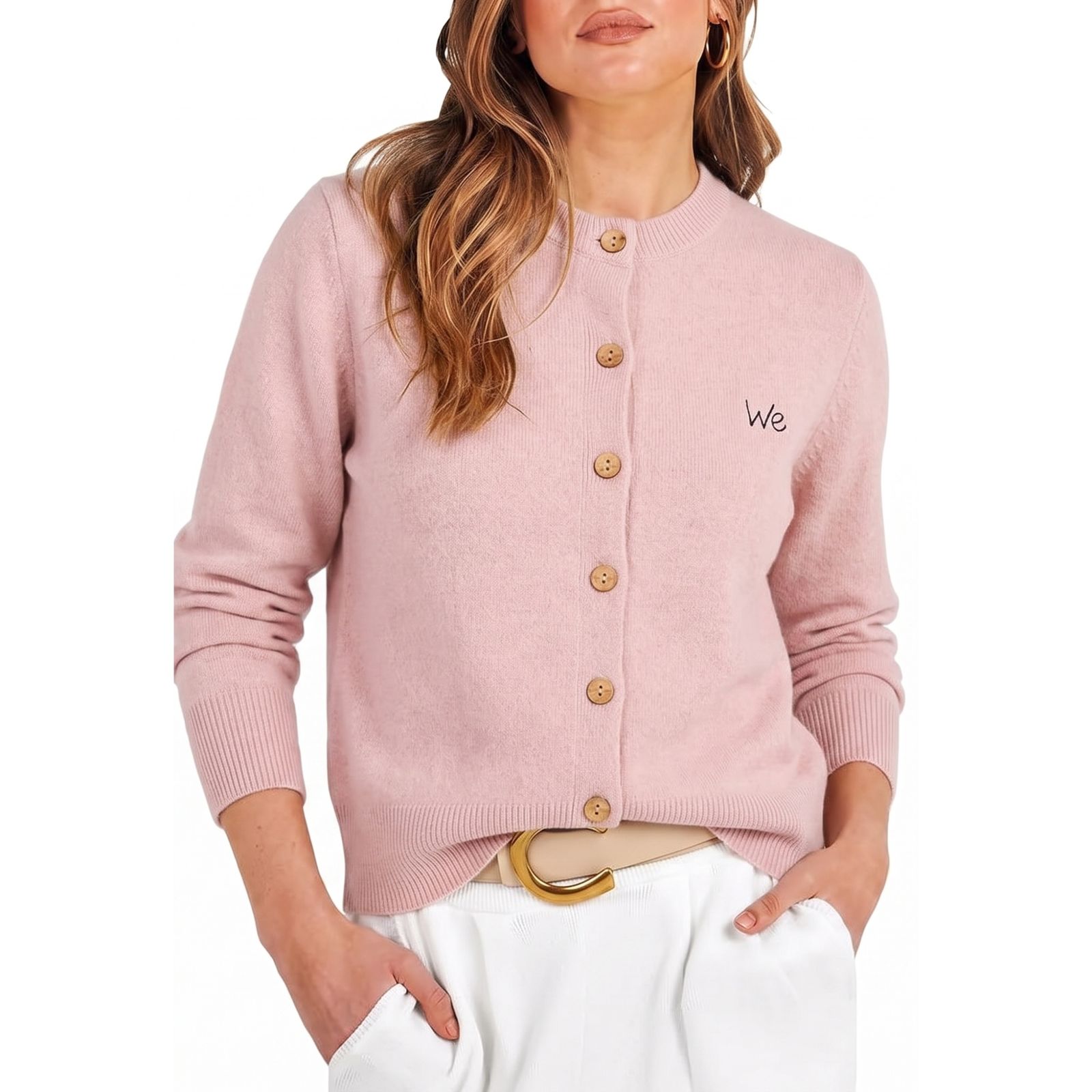
  • Apparel: Women's and Men's clothing main images must be shown on the body — on a live human model or via a ghost-mannequin (invisible-mannequin) effect; both are accepted, and a flat/off-model shot is not. Kids & Baby, multi-packs, and accessories must be shot flat (off-model), and accessory main images must not show any part of a mannequin.
  • Jewelry: necklaces and similar items are the documented exception allowed to be cut off by the frame edge.

One honest note on scope: a free background-removal tool like Snappyit's covers exactly one row of this table — it gives you a clean cutout placed on a true-white canvas at full resolution, with no watermark, no credits, and no sign-up. The 85% crop, the model angle, the square aspect ratio, and the format and color-mode settings are still your job. A cutout tool produces a compliant background; you produce the compliant image. (When you see A+ conversion uplift numbers later in this guide, treat them as directional vendor benchmarks, not guarantees.)

Why Amazon rejects or suppresses "white" images

Here is the part that frustrates sellers most. You shoot on a white sweep, the photo looks perfectly white, you upload it — and Amazon rejects it or quietly suppresses the listing in search. The reason is almost always the same: your background pixels aren't actually 255,255,255.

A background that reads as 250,250,250 or 248,249,250 looks white to you, but to Amazon's automated scanner it is off-white or faintly gray, and that fails the pure-white requirement (Seller Labs and SellHound 2026 spec guides both stress this point). The same thing happens with soft drop shadows under the product, slightly blue-tinted lighting, a gradient where the white fades to gray toward the edges, or a file saved in CMYK instead of sRGB. Any of these can flag the image as "not pure white."

The most common main-image suppression reasons sellers actually see, according to ListingForge's 2026 "avoid suppression" guide and SellerSprite's listing-suppression breakdown, are a short, predictable list:

  • Non-white or off-white main background (the headline cause).
  • Text, watermark, or logo placed on the main image.
  • Product filling less than 85% of the frame.
  • Main image under 1000px on the longest side.
  • File uploaded in CMYK instead of sRGB.

What follows depends on Amazon's mood and your listing's history. Sometimes you get an outright rejection with a "main image must have a pure white background" notice, and the image simply won't go live. Other times it goes live, then days or weeks later your Amazon listing suppressed status appears — the product stops showing in search and your sales fall off a cliff with no obvious warning. Suppression is the worse outcome because it's silent; many sellers don't notice until they check why traffic dried up.

The good news is that the amazon main image rejected not white background fix is straightforward once you understand it's a pixel-value problem, not a "take a better photo" problem. You don't need a new shoot. You need to make the background a true 255,255,255 and verify it. But first it pays to understand the difference between a rejection and a suppression — because the recovery path is not the same.

Rejected vs. Suppressed: Decode the Error and Lift the Listing

"Rejected" and "suppressed" sound interchangeable, but they are two distinct failure modes with different symptoms and different fixes. Getting the diagnosis right saves you from chasing the wrong problem.

RejectedSuppressed
What happensThe upload itself bounces. The image never goes live on the listing.The image uploaded and went live, then Amazon's automated scan later flagged it.
Typical triggersWrong format, file over 10MB, image under 1000px, an animated GIF, or dashes/spaces/special characters in the filename.Non-white/off-white main background, text or watermark on the main image, product under 85% of frame, image under 1000px, CMYK instead of sRGB.
Business impactAnnoying, but contained — no listing exists to lose traffic.The entire listing drops out of search results, Sponsored ads auto-pause, organic rank decays, and sales stop until you fix it. Suppression commonly hits within 24–72 hours of listing or editing (amzprep, SellerSprite).

The filename detail under "rejected" catches more sellers than you'd expect. Amazon expects image filenames built as the product identifier (ASIN, UPC, or EAN) plus a four-character variant code, separated by periods — for example B012345678.MAIN.jpg for the hero, and B01BH7759G.PT01.jpg / B01BH7759G.PT02.jpg for additional views. Dashes, spaces, or special characters in the name will prevent the file from processing (Amazon Seller Forums file-naming discussion; Amalytix). If a perfectly compliant image keeps bouncing, rename it before you blame the pixels.

To lift a suppressed listing, follow this path in Seller Central (SellerSprite; SupplyKick):

  1. Go to Inventory > Manage All Inventory.
  2. Open Fix Blocked Listings (sometimes labeled "Fix Your Products").
  3. Click the Listing Quality tab to read the exact per-SKU error — it will usually say something like "Main image needs to have a pure white background."
  4. Choose Edit, replace the non-compliant main image with your corrected one, and Save.
  5. Wait for re-review. Reactivation typically completes within about 24 hours once the compliant image is accepted.

Here's the trap that creates a frustrating loop: re-uploading an image that "looks white to my eye" but is actually 250–252 gets re-suppressed on the next scan. The scanner doesn't soften its judgment because you tried twice. Verify true 255 white before you resubmit (see the verification section below) and you break the cycle on the first try instead of the third.

How to check your background is pure white

Before you upload anything, verify the background value yourself — it takes ten seconds and saves you a rejection cycle. The tool you need is an eyedropper (also called a color picker), which reads the exact RGB value of whatever pixel you click.

Here's how to check if image background is pure white 255 in any common editor:

  • Photoshop: select the Eyedropper tool, open the Info panel, then hover over the background near a corner and near the product edge. Both spots should read R 255, G 255, B 255.
  • GIMP / Photopea (free): use the Color Picker tool and check the foreground color swatch — it should show ffffff in hex, which is 255,255,255.
  • Preview on Mac / Paint on Windows: Paint's color picker and the eyedropper in most free apps both report RGB values directly.

Click several points, not just one: a corner, an area beside the product, and a spot near a soft shadow. Shadows are the usual culprit — the open background reads 255 but the area under the product reads 240-something. If any sampled pixel comes back below 255 on any channel, that region is not pure white and Amazon can flag it. Sampling near the edges and under the product is how you catch the off-white pixels before Amazon does.

If your eyedropper confirms true white everywhere, you're clear. If it doesn't, you'll need to rebuild the background — covered below. And if you're processing more than a handful of SKUs, a quick spot-check on each one isn't enough; the next section shows a faster diagnostic that exposes hidden off-white instantly and scales to a whole catalog.

How to Confirm You Actually Hit 255 White (and Batch a Whole Catalog)

The eyedropper is the right starting point, but it only checks the pixels you happen to click. For a main image you're betting a listing on — and for a catalog where re-suppression costs you real money — here are three layered methods, from quick to bulletproof (techniques from imageworkindia's "force perfect 255 white" guide and PhotoshopEssentials' histogram tutorial).

Method 1 — Eyedropper, sampled wide

Sample multiple background points, not just the center: the four corners and several spots right next to the product edge. Confirm each reads R=255, G=255, B=255 — not 254/254/254 and not a faint gray. The product edge is where camera lighting and anti-aliasing quietly drop the value, so that's exactly where to look.

Method 2 — Histogram / Levels

Open the Levels (or histogram) display. Pure white reads as a spike at the far right (255) of the histogram. If your white sits just short of the edge, drag the white-point slider inward to push the near-white pixels to true white. This is faster than clicking dozens of points because it shows the whole tonal distribution at once.

Method 3 — The Threshold diagnostic (best for hidden off-white)

Add a Threshold adjustment layer and set its level near 255. Every pixel that is 254 or lower instantly flips to stark black, while true-white pixels stay white. This is the trick that exposes the 250/252 "looks white but isn't" zones in one glance — especially soft drop-shadow halos and the anti-aliased fringe around the product, the two regions an eyedropper sample is most likely to miss. If the background lights up black anywhere, you found your suppression cause before Amazon did.

Why 250/252 fails — and the color-space gotcha

It's worth internalizing why a near-white background fails when it looks perfect to you: Amazon's scanner is mathematical, not perceptual. A background your eye reads as white can sit at 248–252 from camera lighting or JPEG compression and still get flagged. There's also a color-space gotcha — an image saved in a wide-gamut profile or CMYK can render an off-target white once it's converted on Amazon's side, even if it looked fine on your screen. Keep your working files in sRGB to avoid that drift.

Batching a whole catalog

For sellers running dozens or hundreds of SKUs, standardize the pipeline: one true-white canvas size, one consistent filename convention (ASIN + variant code with periods), and the same cutout-and-place step run across every product. Then before bulk upload, drop a Threshold layer over a batch and spot-check for any black — a five-minute pass that catches the off-white outliers that would otherwise come back as suppressions one by one. A point worth being candid about: free background-removal tools — Snappyit's manual cutout, Adobe Express, Erase.bg — all output a cutout, not a guaranteed-compliant Amazon main image. They isolate the subject cleanly; verifying 255 white, cropping to 85%, and following the category rules remain on you.

The 85% frame-fill rule

Pure white isn't the only main-image requirement. Amazon also wants the product to fill roughly 85% of the image frame (Rewarx's 2026 "85% frame fill" guide, echoed across the spec guides). A tiny product floating in a sea of white looks unprofessional in search results and works against you on the thumbnail, where shoppers decide in a fraction of a second whether to click. Excessive white space literally shrinks the product in the thumbnail grid, and a smaller-looking product gets fewer clicks.

The 85% frame-fill rule means: after you've isolated your product on white, crop and scale so the longest dimension of the product reaches close to the edges, leaving only a slim white margin. Don't crop so tight that the product touches the frame edge — Amazon doesn't want that either (jewelry/necklaces being the documented exception) — but get it close. The product should be the obvious hero of the frame.

Three practical notes. First, fill to about 85%, not 100%; a small consistent margin reads as intentional and clean. Second, your final file needs to meet Amazon's pixel dimensions too — at least 1000px on the longest side so zoom works (1600px+ recommended, ~2000px the sweet spot per Dresma and Jungle Scout). Third, the 85% is measured after the crop, so do the cutout first, then size the canvas to a square 1:1 (or portrait 5:6) and scale the product into it. Once your product is cut out and placed on white, use a tool like the image resizer to set the canvas dimensions and dial in the margin so the product hits that 85% sweet spot without distorting the aspect ratio. Get the fill right and verify the white together, and you've satisfied both halves of the main-image spec in one pass.

How to make a pure white background, free

Now the core of it: turning a real-world product photo into an Amazon-ready pure white image without paying for software or losing quality. The workflow is three steps, and you can do all of them for free.

Step 1 — Remove the existing background. Upload your photo to a background remover and let it cut the product away from whatever it was shot on — your messy desk, a gray sweep, a window sill. You get the product isolated on transparency. If the auto-cut leaves a stray pixel or shaves a sleeve, use a manual brush (KEEP / REMOVE / ERASE) to clean the edges by hand. This matters most on hair, fur, fuzzy fabric, and thin straps — exactly the edges where leftover anti-aliasing later shows up as off-white halos in a Threshold check.

Step 2 — Drop the product onto a pure-white canvas. Place the cutout on a background filled with exactly 255,255,255. This is the step that guarantees the value Amazon wants — you're not hoping the lighting was perfect, you're setting the background to true white by definition, so it can't drift to 250 the way a photographed sweep does. (If you're weighing whether to keep the cutout as a transparent PNG instead, this comparison of transparent PNG vs white background product photos walks through when each is the right call — for an Amazon MAIN image, flattened white is what you want.)

Step 3 — Export at full resolution, free. Download the finished image at full resolution as a JPEG in sRGB, with no watermark, no credits charged, and no sign-up. That last part matters for sellers running dozens of SKUs: many "free" tools cap your resolution below the 1000px zoom threshold, stamp a logo on the download (an instant suppression trigger on a main image), or make you create an account and buy credits after the first image. Snappyit's background remover is genuinely free, gives you the full-resolution file, and never adds a watermark — so you can process a whole catalog without hitting a paywall. It's not the only free option, either; Adobe Express and Erase.bg also export cutouts at full resolution, and the honest framing is that all of them hand you a clean subject, not a finished compliant image.

That's the entire process for how to make a pure white background on a budget: cut, place on 255 white, export clean. Sellers managing big catalogs can see how this fits a full listing workflow on the Amazon sellers use case page.

From a messy background to Amazon-ready pure white:

A product photo on a cluttered background beside the same product on a clean pure-white background

Make a pure white background free →

Your 7-9 Image Slots: A Secondary-Image Strategy That Converts

The white-background main image gets you compliant. The other slots get you sales. Amazon allows up to 9 image slots per listing, and slot 1 is the white-background hero you just built. The mistake most sellers make is stopping there — but Amazon's listing media/quality score awards points for each filled slot, and Jungle Scout's 2025 data (cited by bebold, adverio, and soona) shows listings with seven or more quality images convert better than ones with only one or two. The recommendation: fill at least 7 slots, plus a video where you're eligible.

Here's the part that surprises sellers: only slot 1 must be pure white. Secondary images (slots 2–9) are allowed — and encouraged — to set aside most main-image styling rules. They can use text, props, models, and colored or lifestyle backgrounds (gotrellis; adverio), though Amazon's general content prohibitions (no nudity, no pricing/shipping or contact-info overlays, no other sellers' watermarks/logos) still apply. That freedom is where you actually persuade the shopper. A slot plan competitors skip:

SlotImage typeJob it does
1White-background heroCompliance + the search thumbnail (pure 255 white, 85% fill).
2Lifestyle / in-context shotProduct in real use, on a model or in a setting — the emotional sell.
3Infographic with feature calloutsText labels pointing to key features and benefits.
4Scale / dimension shotShows real-world size so buyers don't return "smaller than expected" items.
5Detail / macroClose-up of materials, stitching, or finish that proves quality.
6What's-in-the-boxEverything the buyer receives, laid out clearly.
7Comparison / size chartVariant or competitor comparison, or a sizing table.
8–9 + videoBenefits-with-text image + product videoReinforce the top reasons to buy and demonstrate the product in motion.

A+ Content (brand-registered sellers): if you're enrolled in Brand Registry, A+ modules sit below the gallery and follow their own rules. A+ images must be different from your gallery images, the modules accept JPEG/PNG/BMP/static GIF under 2MB in RGB (Amazon specifies a 72 DPI minimum), and any text overlay should stay readable on mobile (roughly 24px minimum). A+ Content delivers a directional conversion lift of roughly 5–10% — Amazon's own materials describe a sales uplift of up to about 10% (the often-cited ~5.6% figure is a third-party estimate from sources like imagine.io and SellerApp, not Amazon's own number) — so treat any single figure as directional, not a promise for your specific listing.

The honest Snappyit tie-in: the free cutout tool is for producing the clean, isolated subjects you then composite into your infographics, lifestyle scenes, and comparison images — it isn't generating the lifestyle scene itself. Cut the product out once at full resolution, and you can reuse that clean subject across slots 1 through 9.

How to fix a rejected or suppressed main image

If you've already got a listing that came back rejected — or one that's been suppressed and you just figured out why — here's the practical fix. You don't need a new photoshoot; you need to rebuild the background and prove it's true white before you reupload.

Work through these steps in order:

  • Read the exact error first. In Seller Central go to Inventory > Manage All Inventory > Fix Blocked Listings, then open the Listing Quality tab to see the per-SKU reason. Don't guess — the message tells you whether it's the white background, the 85% fill, a watermark, or dimensions.
  • Diagnose with the eyedropper and Threshold. Open the current main image and sample the background at the corners, beside the product, and under any shadow. Drop a Threshold layer set near 255 to expose hidden off-white in one glance. You'll almost always find pixels reading below 255 — that's the cause.
  • Re-cut the product. Run the photo through the background remover to isolate the product cleanly, brushing the edges by hand (KEEP / REMOVE / ERASE) if the auto-cut misses anything.
  • Re-export on true white, in sRGB. Place the cutout on a 255,255,255 canvas and export the new file at full resolution as a JPEG in sRGB with no watermark — a clean, flattened image with genuinely white pixels everywhere, at least 1000px (ideally ~2000px) on the longest side.
  • Verify 255 again. Before uploading, eyedropper and Threshold-check the new file. Every background sample must read 255,255,255. This is the step that breaks the rejection loop — verify, don't assume. Re-uploading a "looks white" file that's actually 250–252 just earns you another suppression.
  • Reupload and confirm. Replace the main image in Seller Central and Save. A rejection usually clears within a processing cycle; for a suppressed listing, reactivation typically completes within about 24 hours after re-review, and the product returns to search with its Sponsored ads resuming.

If it bounces a second time, recheck three things: a faint drop shadow you left in, the frame-fill (an image that's compliant on white but oddly cropped can still draw a flag), and the filename (dashes, spaces, or special characters will stop the file from processing regardless of how perfect the pixels are). Fix all three, verify 255 one more time, and reupload.

The whole fix comes down to a simple discipline: make the background true white, confirm it reads 255 with your own eyedropper and a Threshold check, crop to 85%, name the file correctly, and only then upload. Do that and rejected or suppressed main images stop being a recurring tax on your time.

Fix your main image now →

Selling apparel? Pair the white background with a ghost mannequin

A pure white background is required, but for clothing a flat, empty garment on white can look lifeless and hide the fit. That is where the ghost mannequin (invisible mannequin) effect helps: the garment is shown holding its three-dimensional shape — collar, shoulders, sleeves, and drape intact — with the mannequin digitally removed, all on the same pure-white (255,255,255) backdrop Amazon requires.

Before and after: a flat-lay supplier photo transformed into a ghost mannequin result with the 3D shape and draping preserved

It pairs naturally with background removal: shoot the item on a mannequin, cut the background to pure white, then erase the mannequin so the garment "floats." You satisfy the main-image rules while showing shoppers how the piece actually sits on a body — something a flat-lay cannot. Snappyit has a dedicated ghost mannequin tool for exactly this, plus an apparel walkthrough in ghost mannequin for Amazon sellers. For the rest of your image stack — lifestyle, recolors, and video — see the full AI product photography hub.

Frequently Asked Questions

What background does Amazon require for the main image?

Amazon requires a pure white background — RGB 255,255,255 — for the main product image, with the product filling about 85% of the frame.

Why did Amazon reject my main image for not being pure white?

The background looked white to you but contained off-white or gray pixels (for example 250,250,250). Amazon reads the actual RGB values, so anything short of 255,255,255 can be rejected or suppressed.

How do I check if my background is pure white (255,255,255)?

Open the image in any editor and use the eyedropper / color-picker on the background — it should read R255 G255 B255. If it reads lower, the background isn't pure white yet.

What is the 85% rule?

Amazon recommends the product occupy at least about 85% of the image frame on the main image, so the item is clearly visible in search results and thumbnails.

Can I make a white background for free?

Yes. Remove the existing background, place the product on a pure-white (255,255,255) canvas and export at full resolution — Snappyit does this free with no watermark or credits.

Does Amazon's main-image background have to be EXACTLY RGB 255,255,255, or is there a tolerance?

Treat it as exactly 255,255,255. Amazon's automated image scanner reads pixel values mathematically, not perceptually, so a background your eye sees as white but that sits at 248-252 (from lighting or JPEG compression) can still be flagged. Multiple seller-facing guides describe it bluntly: 'Not off-white. Not light gray. Exactly 255, 255, 255.' There is no documented near-white tolerance, so verify with an eyedropper or a Threshold layer before uploading rather than relying on your eyes.

What's the difference between my listing image being rejected and my listing being suppressed?

Rejected means the image file itself fails at upload and never goes live — usually a wrong format, a file over 10MB, an image under 1000px, an animated GIF, or a filename with dashes/spaces/special characters. Suppressed means the image uploaded fine but Amazon's automated scan later flags the live listing for a content violation (most often a non-pure-white main background, text/watermark on the main image, or the product filling under 85% of the frame). Suppression is more damaging: the whole listing drops from search, Sponsored ads auto-pause, and sales stall until you fix it via Inventory > Fix Blocked Listings > Listing Quality and Amazon re-reviews (typically within about 24 hours).

Do all my secondary images also need a pure white background?

No. Only the main (slot 1) hero image must be pure white RGB 255,255,255 with no text, logos, or props. Secondary images (slots 2-9) are where lifestyle shots, infographics with feature text, scale and detail shots, comparison charts, and models are allowed and actively recommended. Aim to fill at least 7 slots — most listings allow up to 9 image slots (with about 7 shown by default on desktop) — Amazon's listing media score rewards filled slots, and listings with 7+ quality images convert better than ones with only 1-2.

More Resources for Amazon Sellers