


Build the Product Gallery Your POD Listing Needs
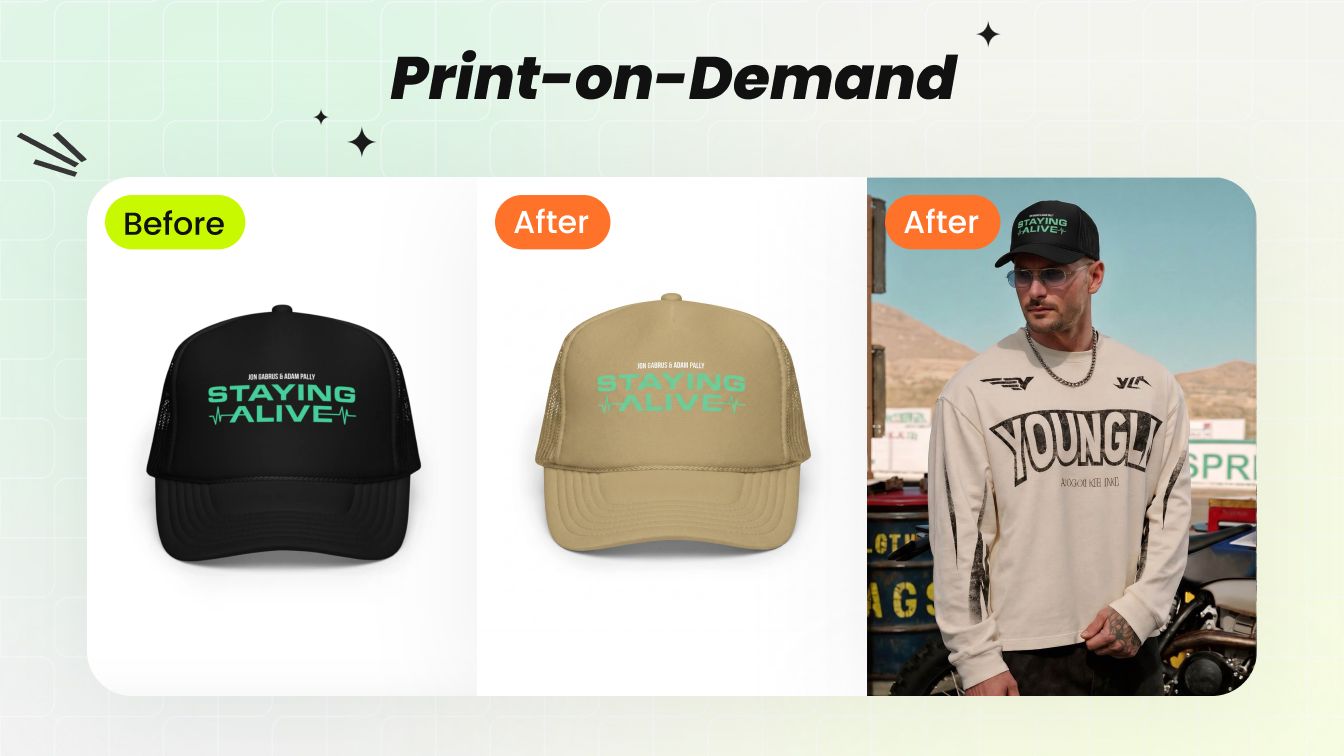
Use each image for a specific job: establish the product, add context, show real variants and give non-apparel products a consistent setting.
Clean Product View
Show the garment shape and construction clearly before lifestyle imagery adds context.
Lifestyle Context
Help shoppers understand how apparel looks when worn, including scale, styling and silhouette.
Real Color Variants
Create candidate images only for blank colors available from your fulfillment catalog.
Non-Apparel Scenes
Present bags, mugs, phone cases, posters and home goods in clean or contextual scenes.
From Verified Product Image to POD Listing Content
Start from an accurate source, choose the visual the listing needs and inspect the product and artwork before publishing.
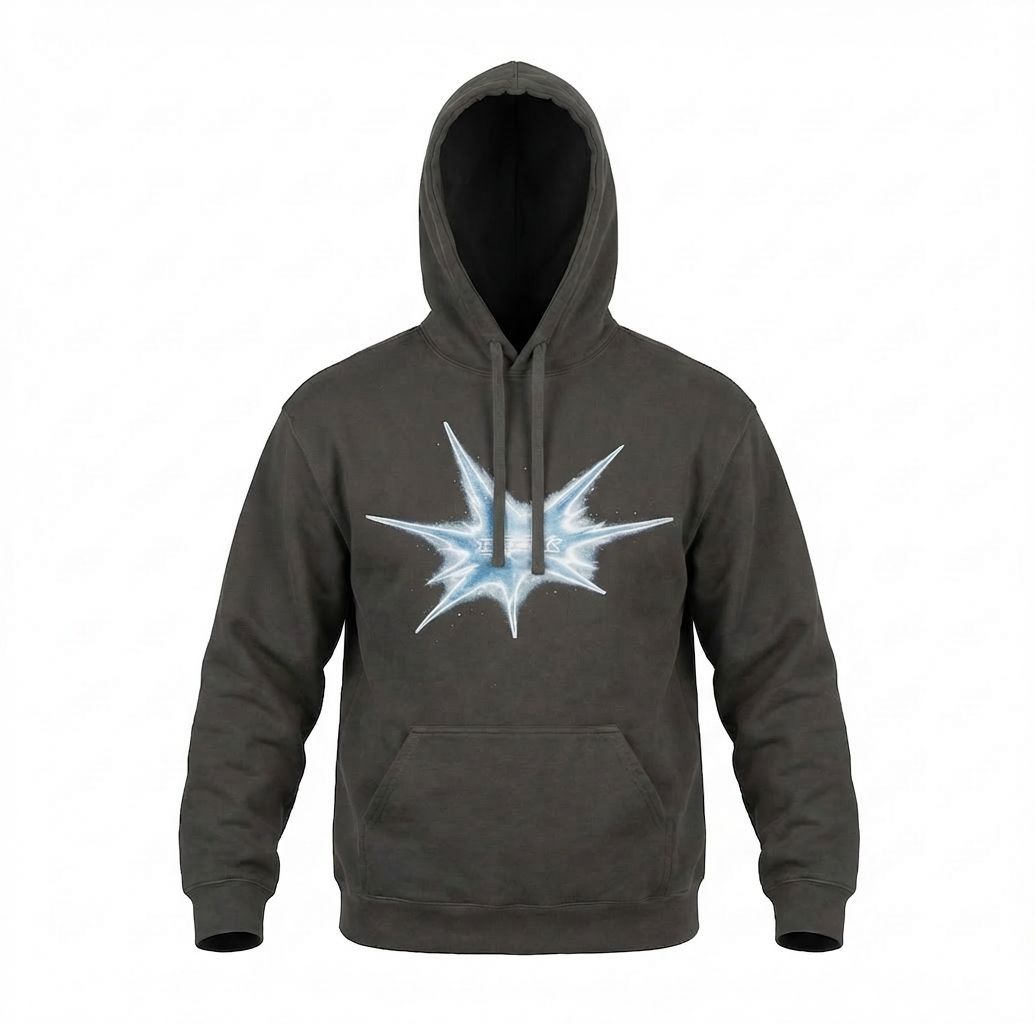
Create a Clean Ghost Mannequin View
Remove the visible mannequin while keeping the garment’s neckline, sleeves, construction and silhouette clear. This works especially well for hoodies, sweatshirts and other structured apparel.
Open Ghost Mannequin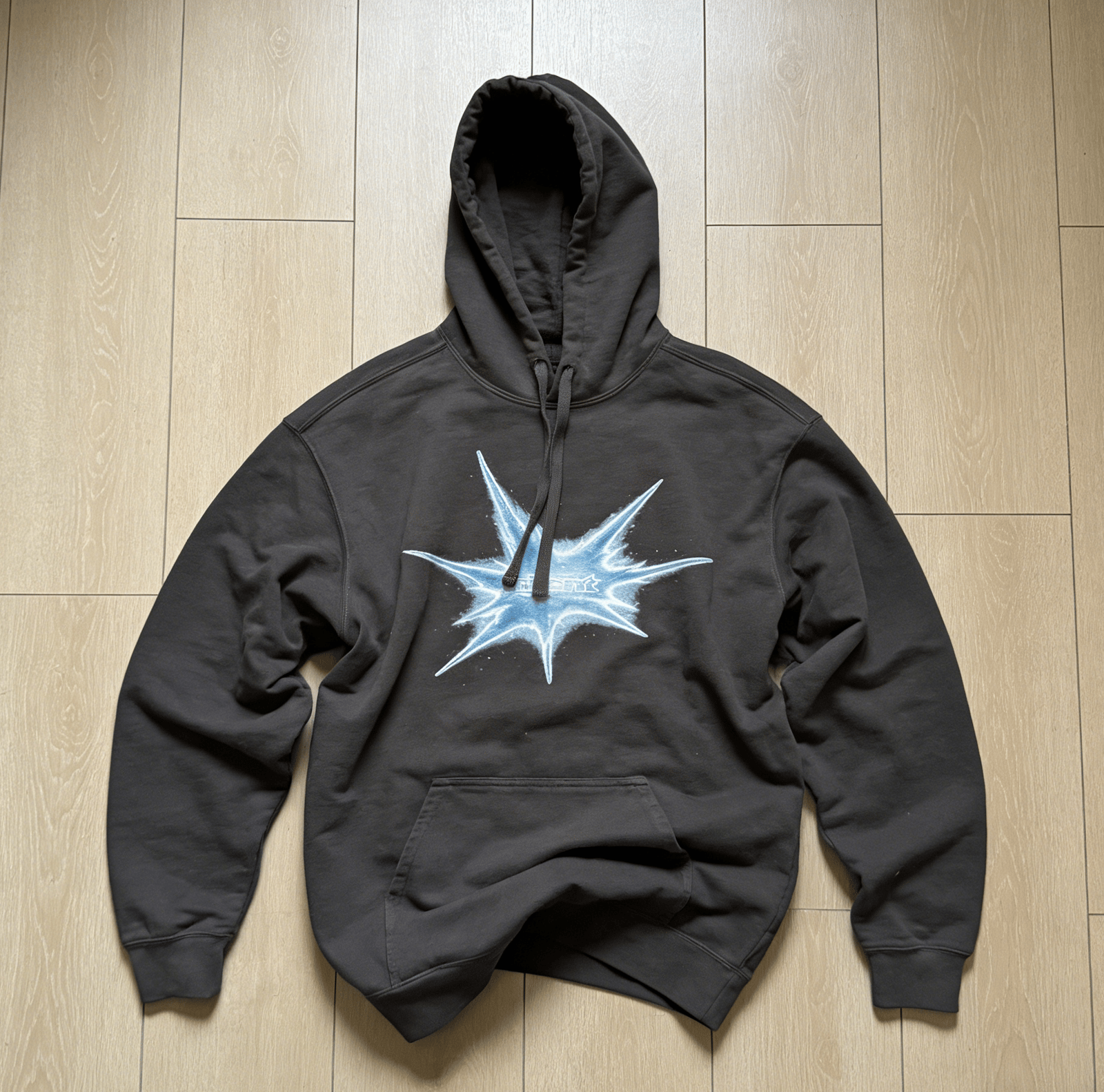
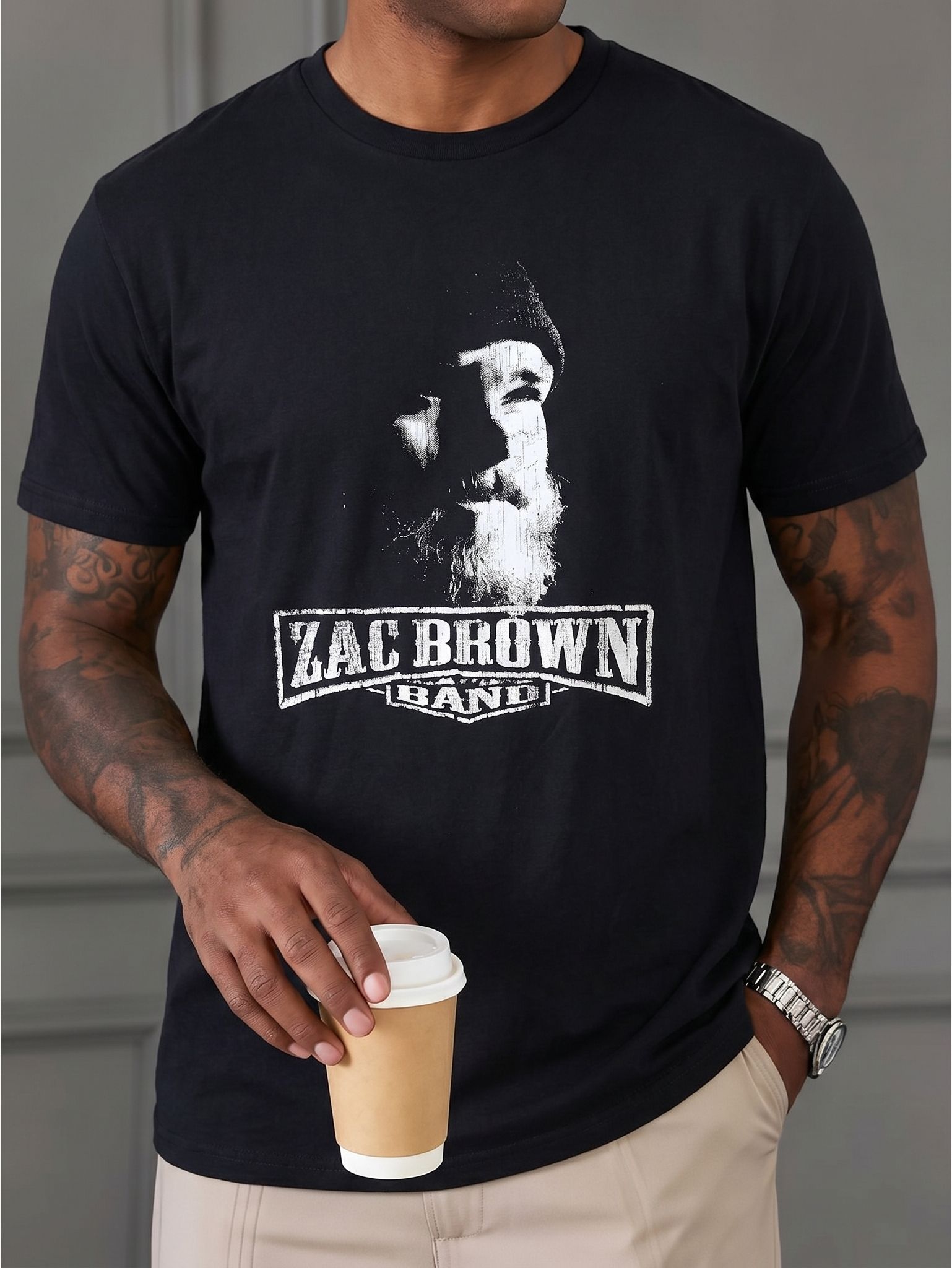
Add an On-Model Lifestyle Image
Turn a clear apparel image into a wearing-context visual for a listing gallery, storefront or campaign. Check the artwork, print placement and garment proportions against the approved product.
Open Fashion Model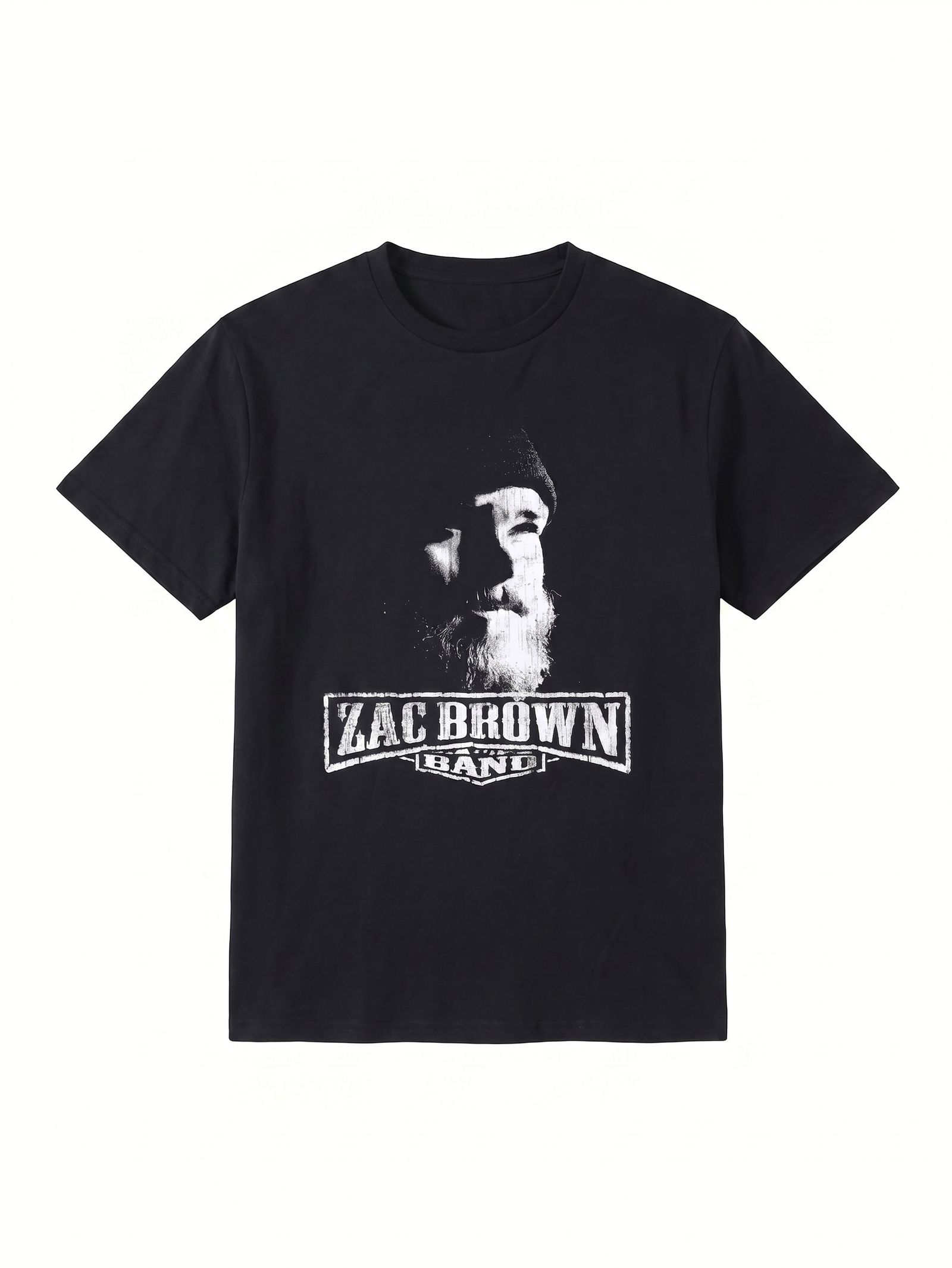
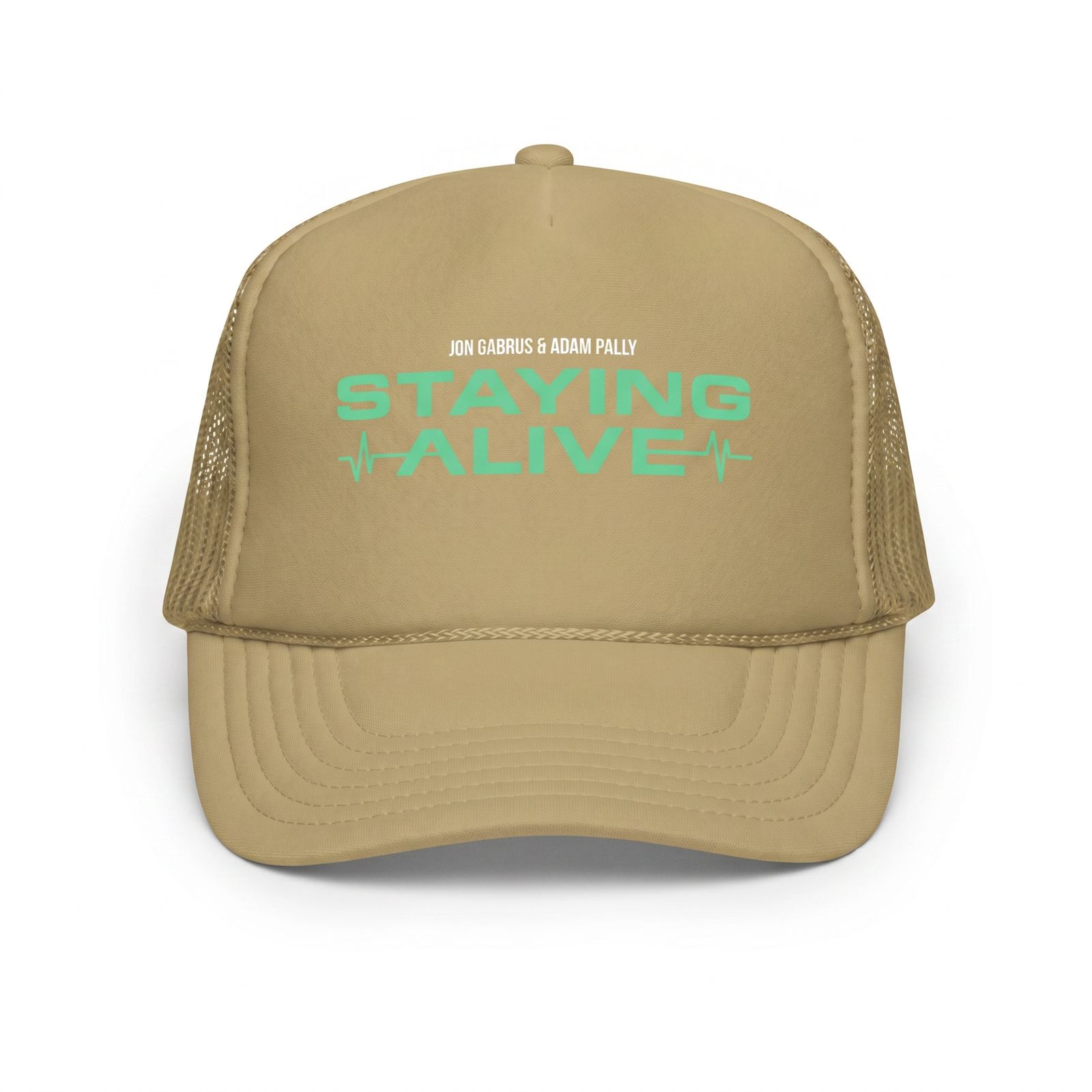
Create Images for Real Blank Colors
Prepare candidate images for colorways you actually sell. Compare every result with the fulfillment blank and inspect artwork edges, text, logos, seams, shadows and fabric texture at full size.
Open Color Change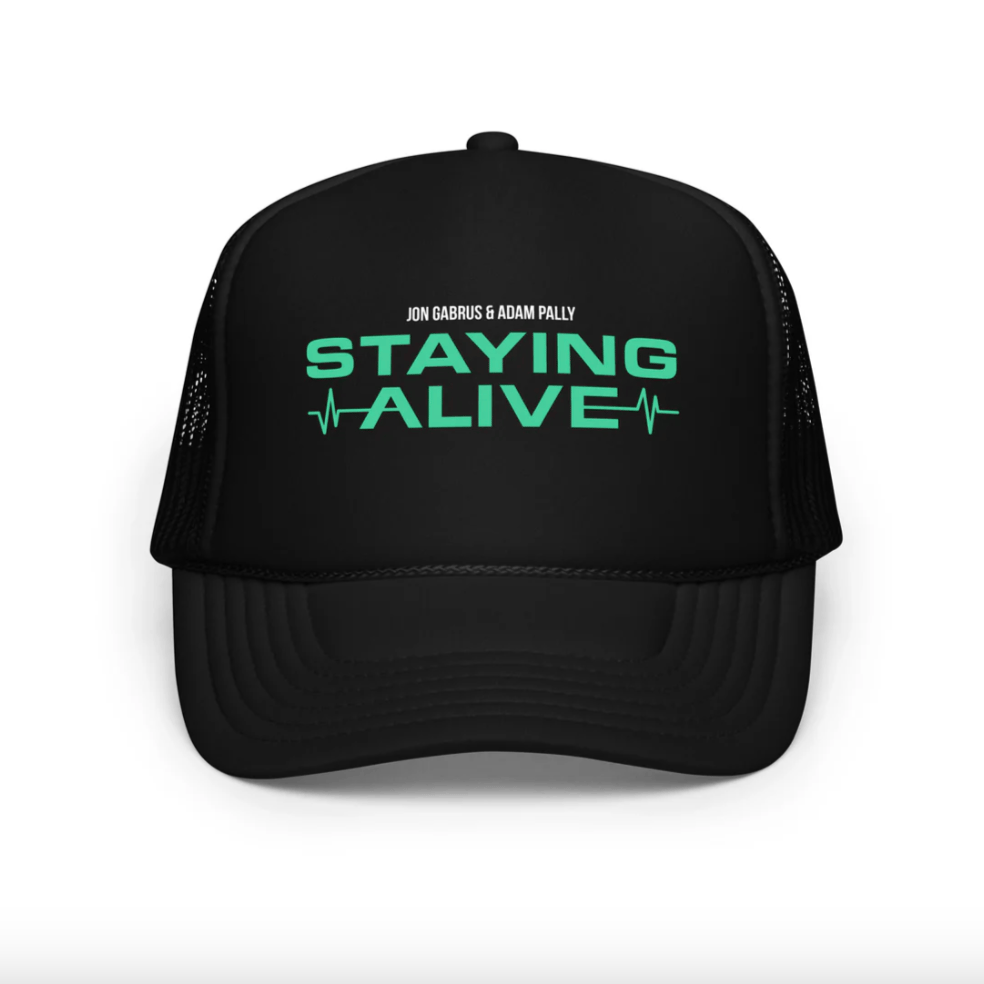
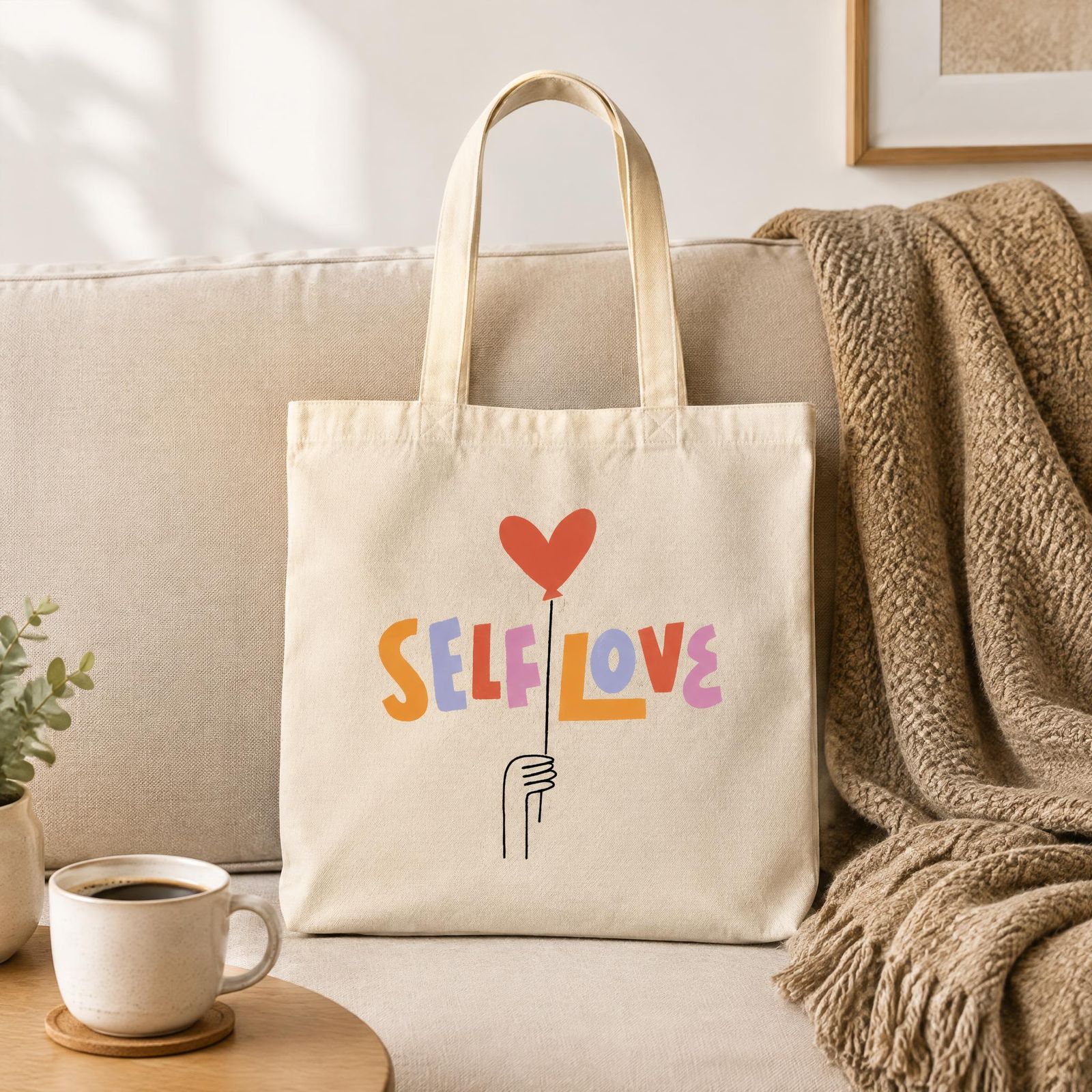
Stage Non-Apparel Products with Product Studio
Create clean or contextual scenes for tote bags, mugs, phone cases, posters and home goods. Begin with an image where the approved artwork is already placed correctly, then verify that the result preserves it.
Open Product Studio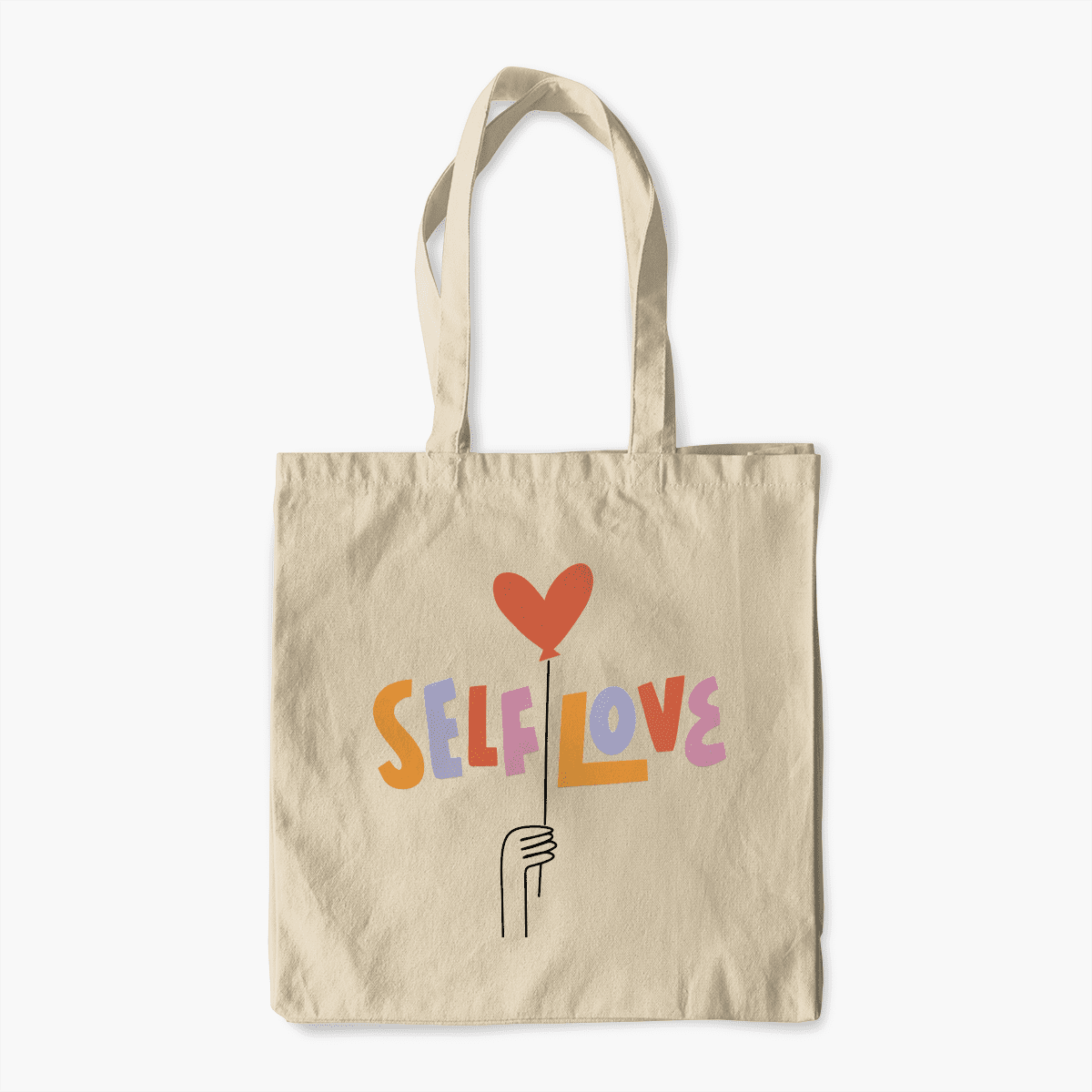
Create Across Your POD Catalog on Your Phone
Photograph or upload an approved product, choose the workflow your next listing needs and review the result from your phone.


Start with the approved artwork, blank color and print placement.
Use the tool that matches the image’s job in the listing.
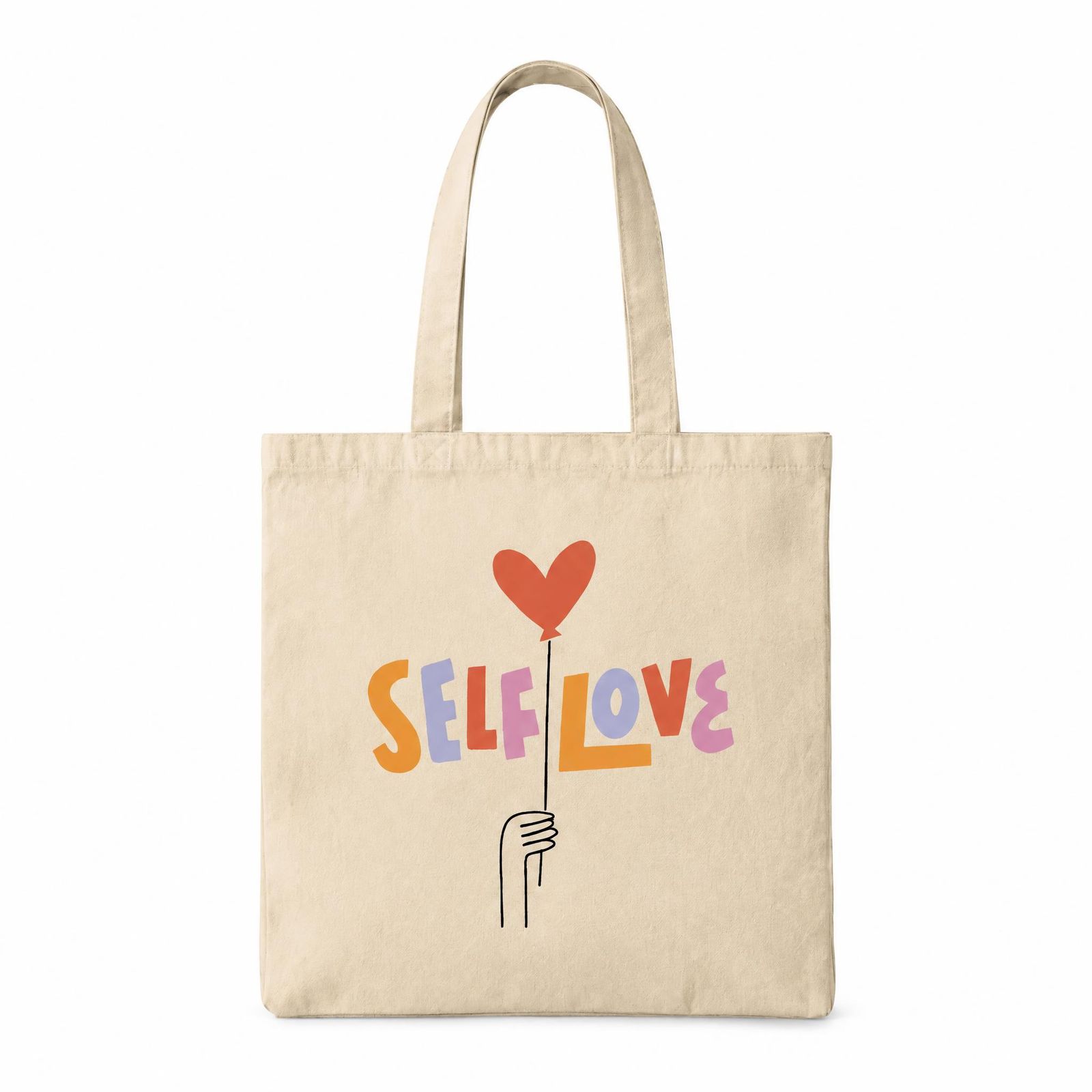 Catalog
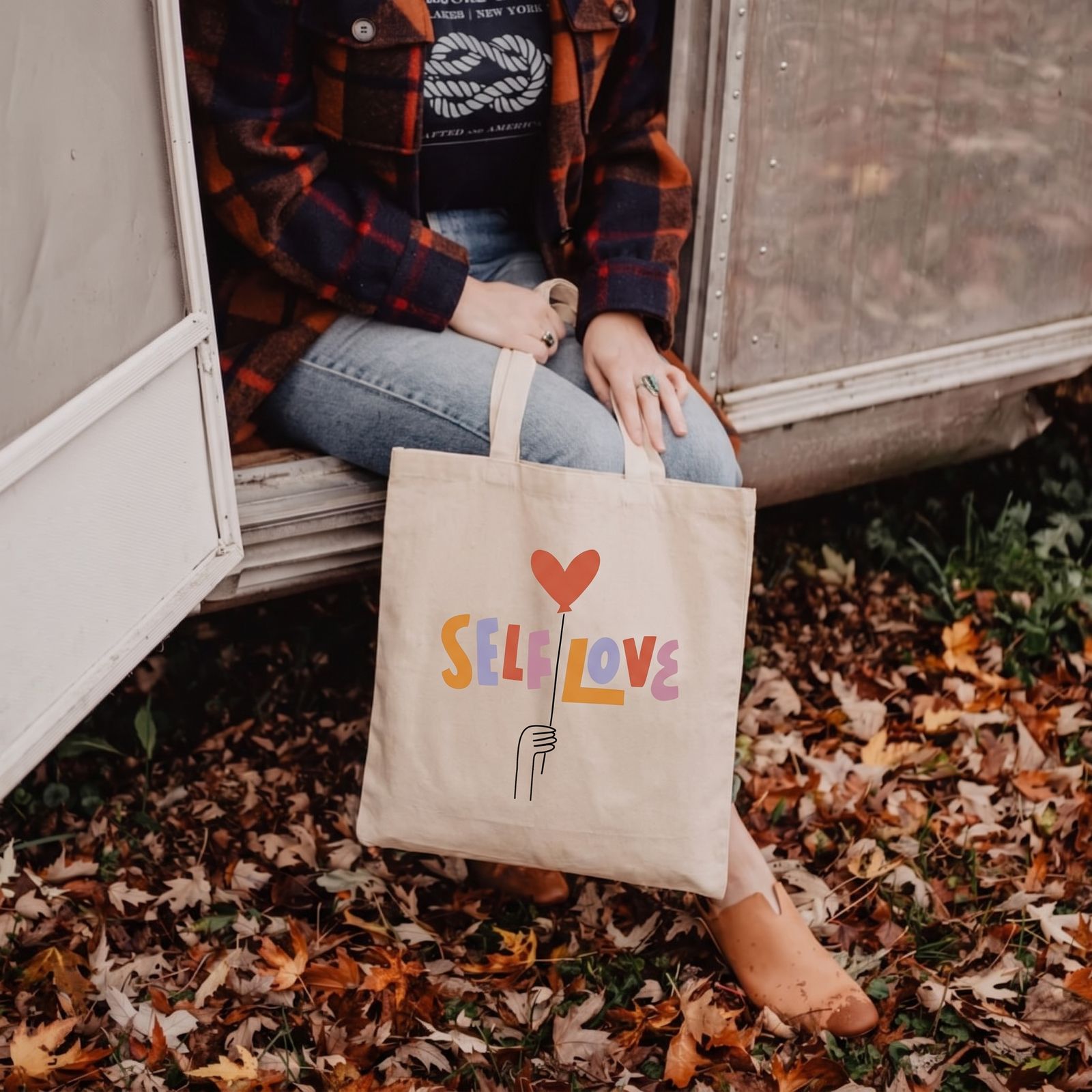 On model
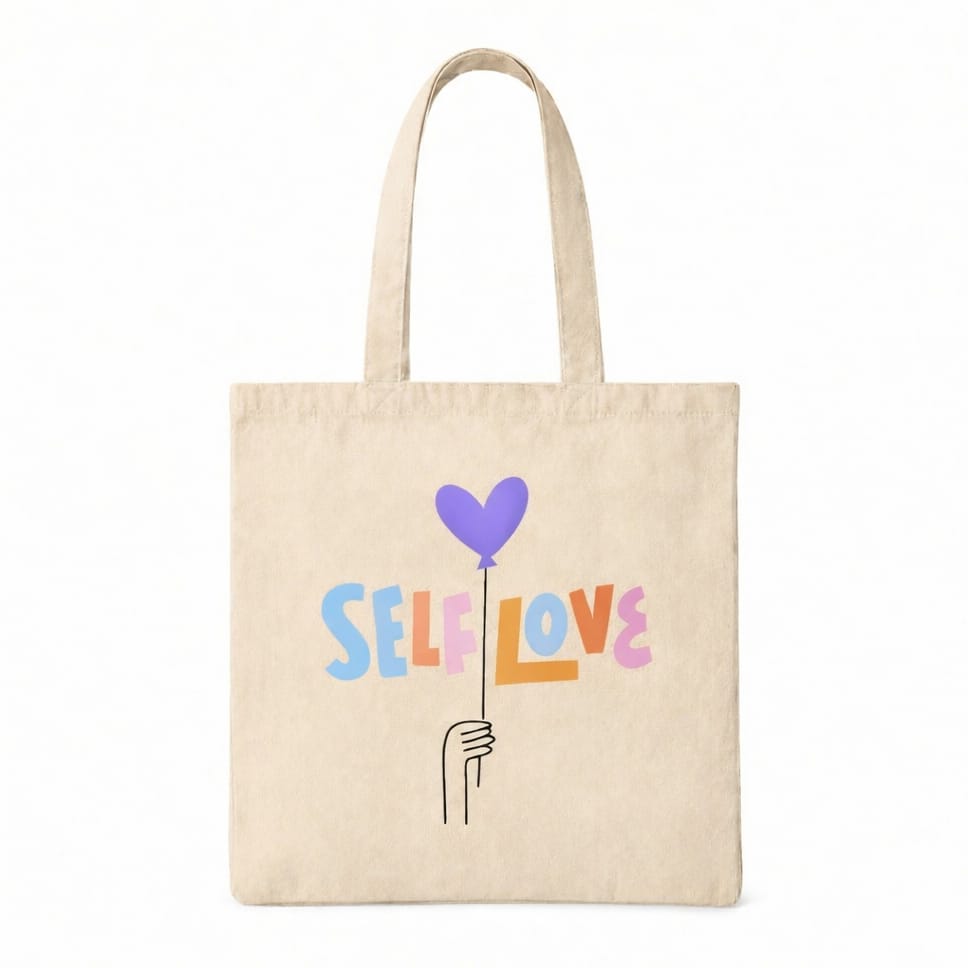 Color variantStudio scene
Compare every result with the production proof before publishing.
How to Create Print-on-Demand Product Photography with Snappyit
Keep the production reference close throughout the workflow so polished visuals still represent the product you fulfill.
Verify the Source
Start with an accurate product photo or fulfillment-provider mockup.
Choose the Output
Select the tool for the catalog, model, color or studio view you need.
Review Accuracy
Check the blank, artwork, text, color, placement, seams and proportions.
Export for Placement
Download the approved visual for its listing or campaign placement.
What Ecommerce Sellers Say About Snappyit
Public reviews from merchants who used the Snappyit Shopify app.
Chutzpah Store
Running my women’s apparel store for 2 years, photo costs were cutting into profits. I tried several AI tools, but most gave unrealistic results. Snappyit stood out the fit, drape, and fabric (especially knits) look much more natural. It’s also very easy to use.
MtJacksongifts and Memorabilia
We run 10+ colorways per style, and recoloring used to take days. This tool gets it right it keeps seams, shadows, and fabric texture realistic.
Flat lay is also solid. Details like stitching and labels come out accurate, not generic.
Linssan Inc
We've been using Snappyit for our apparel store and it's saved us a huge amount of time on product photography.
The Ghost Mannequin feature is surprisingly good. We can turn flat lay clothing photos into clean, professional ghost mannequin images without arranging expensive photo shoots. This has helped us keep our product pages consistent and launch new items much faster.
Print-on-Demand Product Photography FAQs
What is print-on-demand product photography?
Print-on-demand product photography includes the catalog, on-model, lifestyle, color variant and detail images used to present products that are printed after purchase. The images should show the product and artwork accurately while helping shoppers understand shape, scale and context.
Can I use a fulfillment-provider mockup as the source image?
Yes, when the mockup is clear, high quality and accurately represents the blank, artwork and print placement. Review the generated result against the provider proof and a physical sample whenever possible.
Can AI product images replace Printful or Printify print-position proofs?
No. Keep the fulfillment provider's proof as the production reference for print position, scale and printable area. Snappyit can help create listing and marketing visuals, but those visuals should be checked against the approved production proof.
Which Snappyit tools are useful for POD apparel?
Use Ghost Mannequin for a product-first hollow-body view, Fashion Model for wearing context and Color Change for real blank colors that you actually offer.
When should I use Ghost Mannequin for a POD product?
Ghost Mannequin works well when a hoodie, sweatshirt, jacket or structured garment needs a clean view of its shape and construction without a visible model.
Can Fashion Model create lifestyle images from a T-shirt image?
Fashion Model can turn a clear apparel image into an on-model visual. Check that the garment, artwork, text, logo, print position and proportions still match the product before publishing.
Can Color Change create images for different blank colors?
Yes. Use Color Change to prepare candidate images for blank colors you actually sell, then compare each result with the real variant for color, texture, seams and artwork contrast.
How do I protect artwork, text and logos during recoloring?
Use a sharp source image and inspect the result at full size. Check every letter, logo edge, line, gradient, print boundary and small detail, and reject any image that changes the approved artwork.
What non-apparel POD products can I use with Product Studio?
Product Studio can create clean or contextual scenes for non-apparel products such as tote bags, mugs, phone cases, posters, cushions and other home goods. The source image should show the real product clearly.
Does Product Studio automatically place my artwork on a product?
Treat Product Studio as a scene-building tool, not a production-proof tool. Start with an image in which the approved artwork is already placed correctly, then verify that the scene result preserves it.
Can I use generated POD images on Etsy, Shopify or Amazon?
Generated images can be used when they follow the marketplace's current listing and media policies and accurately represent the item being sold. Check the rules for your category and market before publishing.
What should I review before publishing a POD image?
Compare it with the production proof and physical sample. Review the blank, garment construction, artwork, spelling, logo, color, print position, scale, seams, edges, shadows and included accessories at full size.
Build Your POD Product Image Workflow
Start with one verified product image, create the listing views you need and publish only the results that match the product you fulfill.
Try Snappyit Free