


Which Fashion Product Video Do You Need?
Start with the question the video has to answer. A try-on video shows how a piece looks when worn. A spin or close-up shows exactly what the shopper is buying. An animated model photo brings a shot you already approved to life.
| You want to show | Start with | Use | Example templates |
|---|---|---|---|
| How clothes look when worn, or several pieces styled into one outfit | Product photos of each item, including every angle the template shows | Fashion Video | Armful Try-on Haul, OOTD Reveal, Outfit Swap Transition |
| Shoes or bags worn or carried by a model | Product photos of each item | Fashion Video | On-Feet Showcase, Stair Step Showcase, Hand Wipe Reveal |
| Shoes, bags or jewelry on their own: spins, close-ups and hand-held shots | A photo of every side the video shows | Product Video | Handheld Showcase, Shopping Bag Drop |
| Motion for a model or lookbook photo you already approved | One on-model photo | Image to Video | Text to Motion or Video Template |
Shoes, bags and jewelry work in both video tools. The difference is whether a model is in the shot.
Fashion Video
Try-On Videos from Product Photos
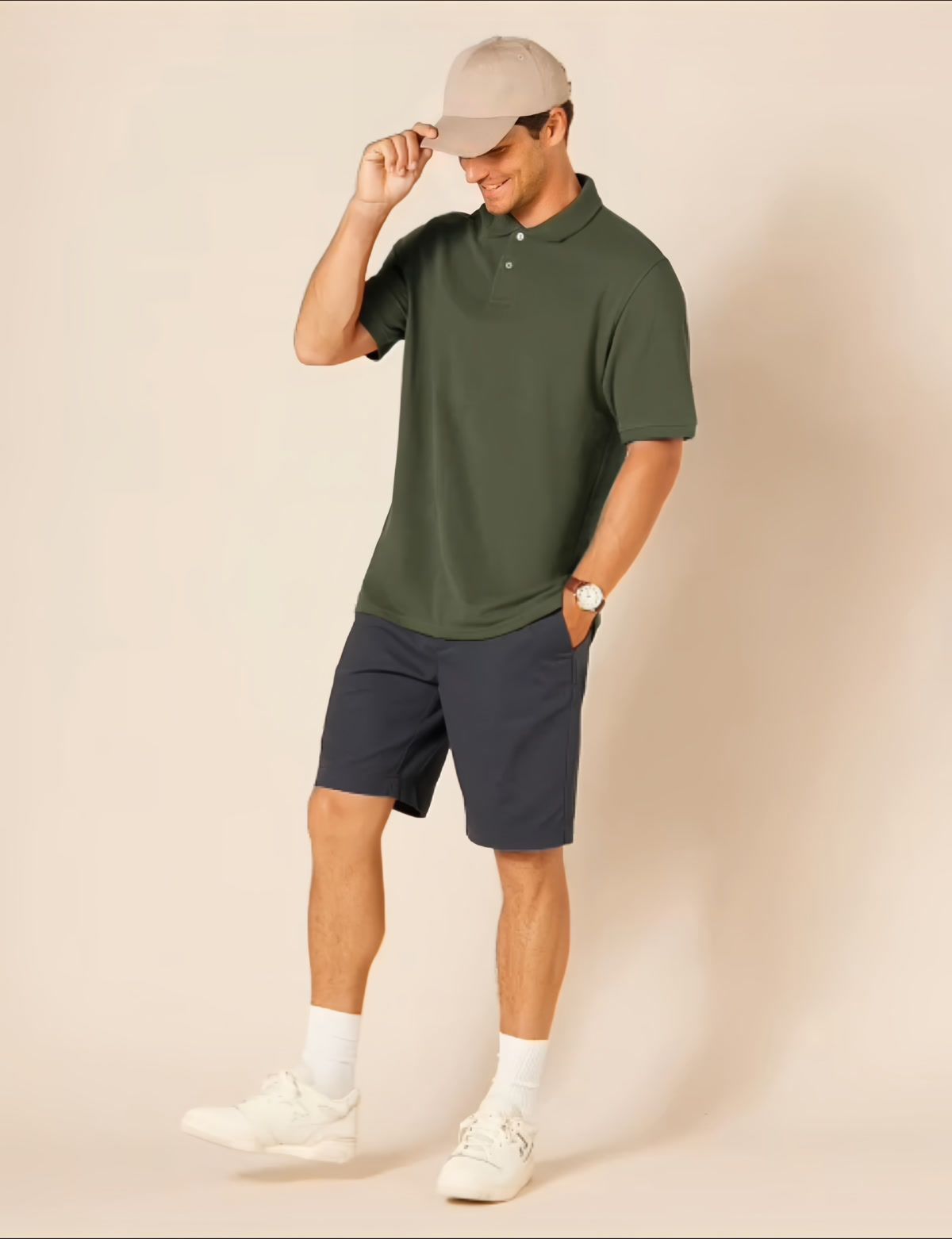
Most clothing brands have product photos long before they have a model shoot. Fashion Video puts those products on an AI model. Each template comes with the model, the scene and a shot plan, and shows which photos it needs before you start.
- Start from the photos you have. Upload a flat lay, ghost mannequin shot, hanger photo, clean cutout or on-model image. Add a photo for every angle the template shows, such as the front, side or back, so the AI doesn't have to guess.
- Style a full outfit. Add up to nine product images in order to build try-on hauls, outfit changes and lookbooks with several pieces.
- Keep a collection consistent. Reuse a template to present new arrivals with the same model and scene. Template models are fixed, so to feature your own model, start from your model photo in Image to Video.
- Prefer your own shot? Switch to Write my own, describe the video you want and add optional image or video references.
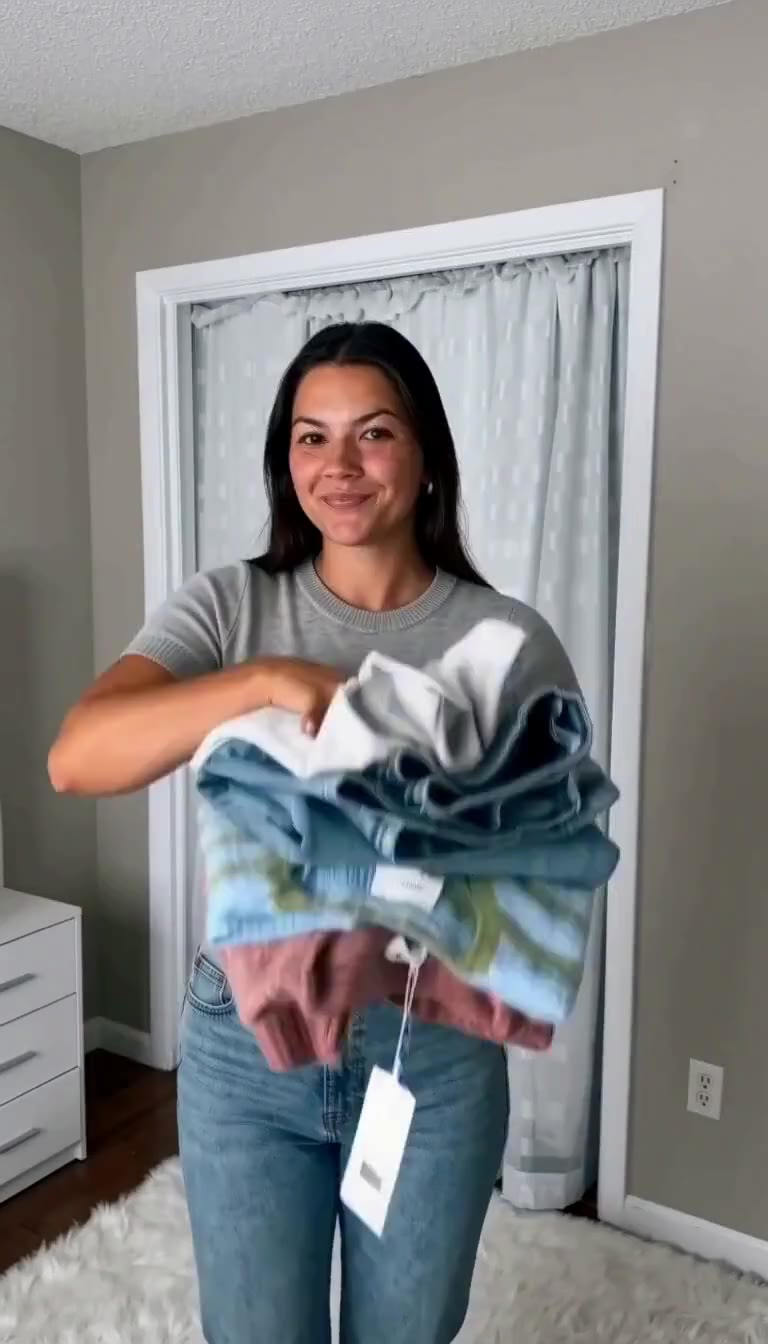
Armful Try-on Haul
Try Armful Try-on Haul →OOTD Reveal
Try OOTD Reveal →Hand Wipe Reveal
Try Hand Wipe Reveal →Sample videos generated with Snappyit. Explore the AI fashion video generator →
Product Video
Spins and Close-Ups Without a Model
For shoes, bags and jewelry, shoppers often want to study the product itself: its shape from every side, the finish of the hardware, the texture up close. Product Video creates those shots from your product photos, with the product as the subject rather than a model wearing it.
- 360° spins. Upload photos that cover the front, sides and back. Any side without a photo is left to the AI to interpret.
- Macro close-ups. Move in close on texture, stitching, hardware and finish. Add a photo of each detail and angle you want the close-up to show.
- One look across your catalog. Use the same template for each product so a collection shares one camera move, length and framing.
Handheld Showcase
Try Handheld Showcase →Shopping Bag Drop
Try Shopping Bag Drop →Product Video templates are grouped by category, including Shoes and Jewelry. Explore the AI product video generator →
Image to Video
Animate a Model Photo You Already Have
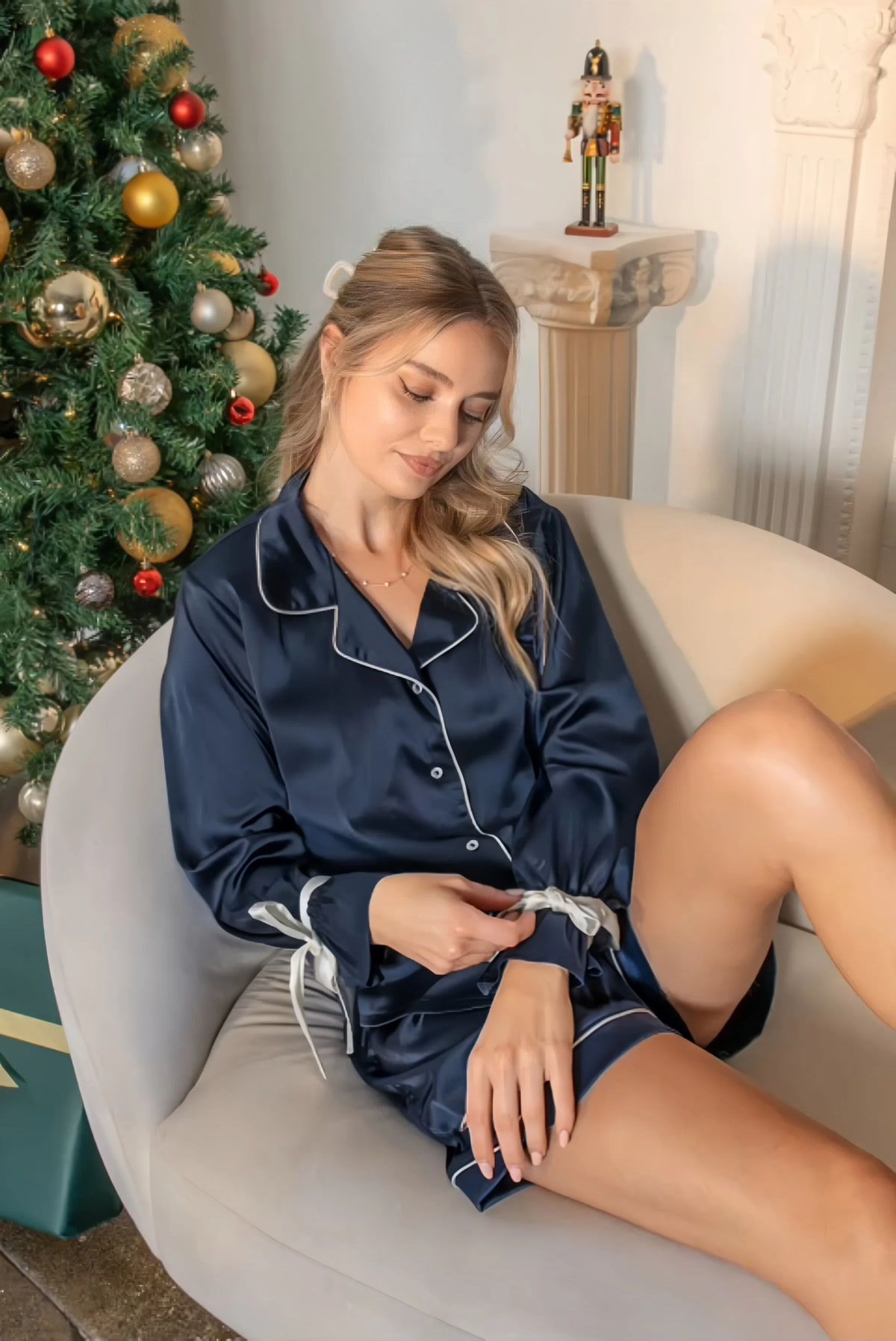
If your team has already approved an on-model or lookbook photo, Image to Video adds controlled, lifelike movement to that exact image. The person, outfit and setting come from your photo. Compare the clip with the source so material texture, drape, sheen and construction stay faithful to the original.
How to Turn a Fashion Photo into a Video
Upload an On-Model Fashion Image
Open Image to Video and add a clear on-model fashion image. Keep the garment fully visible so you can compare color, seams, zippers, logos and fit in the generated clip.
Choose Text to Motion or Video Template
Text to Motion: use a prompt to control actions, pose changes, camera movement and transitions. Based on your image, Snappyit writes two prompts, Listing for product listings and Social Pop for social media ads. Use either as written or edit it before generating. Video Template: open the Video Template tab and choose a ready-made action and transition template that fits your product.
Set the Length, Generate and Review
Choose 5s or 10s, generate, then play the result next to the source photo. If product details or motion drift, edit the prompt or choose another template and generate again. Download only the approved clip.
Only have flat lays and want your own model image first? Create one with the AI fashion model generator, then animate it here. New to single-image video? Read how to make a video from a single image. Open Image to Video →
Fashion Product Videos by Channel
Make one reviewed video, then prepare a version for each destination. Choose the aspect ratio for where the video is going, and confirm the platform's current media rules before you upload.
Add Motion Beside Product Photography
Place a short video next to your gallery images. A try-on clip shows fit and fabric movement; a square spin or close-up shows the shape and finish of shoes, bags and jewelry. See the Shopify fashion store workflow.
Prepare a Reviewed Product Listing Video
Confirm seller eligibility, placement and current media requirements first. A short spin or close-up helps shoppers check shape and finish. Publish only a clip that accurately represents the listed SKU. More on Amazon listing images and video.
Make Item-Specific Details Easier to Review
Start from photos of the actual item and keep condition, color, materials and identifying details faithful to what you are selling. See the Etsy listing guide and the marketplace seller photo workflow.
Adapt Reviewed Product Motion for Campaigns
Use a vertical format for TikTok, Reels and Shorts. Try-on hauls and outfit changes suit social feeds. Adjust ratio and pacing for each placement without turning the clothing or accessory into a different product or an unsupported variant. Plan your platform cuts.
Announce New Drops with One Look
Present a new collection with one template, so every piece appears with the same model and scene, and use the video's cover frame as your email image. Plan the rest of the launch with the fashion brand visual workflow.
Review Every AI Fashion Product Video Before Publishing
A smooth clip is not enough. Compare the full sequence with the source image and real clothing or accessory so the motion asset remains useful, consistent and publishable.
| Review area | What to inspect | Why it matters |
|---|---|---|
| Product identity | Color, shape, silhouette, materials, trim, hardware, logos and prints. | The video should still represent the same sellable product shown in the source. |
| Material behavior | Drape, folds, texture, shine, reflections and how those cues change during movement. | Fabric and accessory materials should look dimensional and consistent instead of flickering or melting. |
| Human details | Face, hands, fingers, limbs, body proportions and contact with the garment. | Distortions distract from the product and can make the clip unusable. |
| Scene continuity | Background edges, lighting, shadows, camera stability and frame-to-frame warping. | A stable scene keeps attention on the fashion product and makes edits easier to reuse. |
Continue Building Your Fashion Product Content Workflow
AI Fashion Video
Turn product photos of clothes, shoes, bags and jewelry into try-on videos with an AI model and scene from the template.
AI Product Video
Create spins, close-ups and hand-held shots of shoes, bags, jewelry and other products without a model shoot.
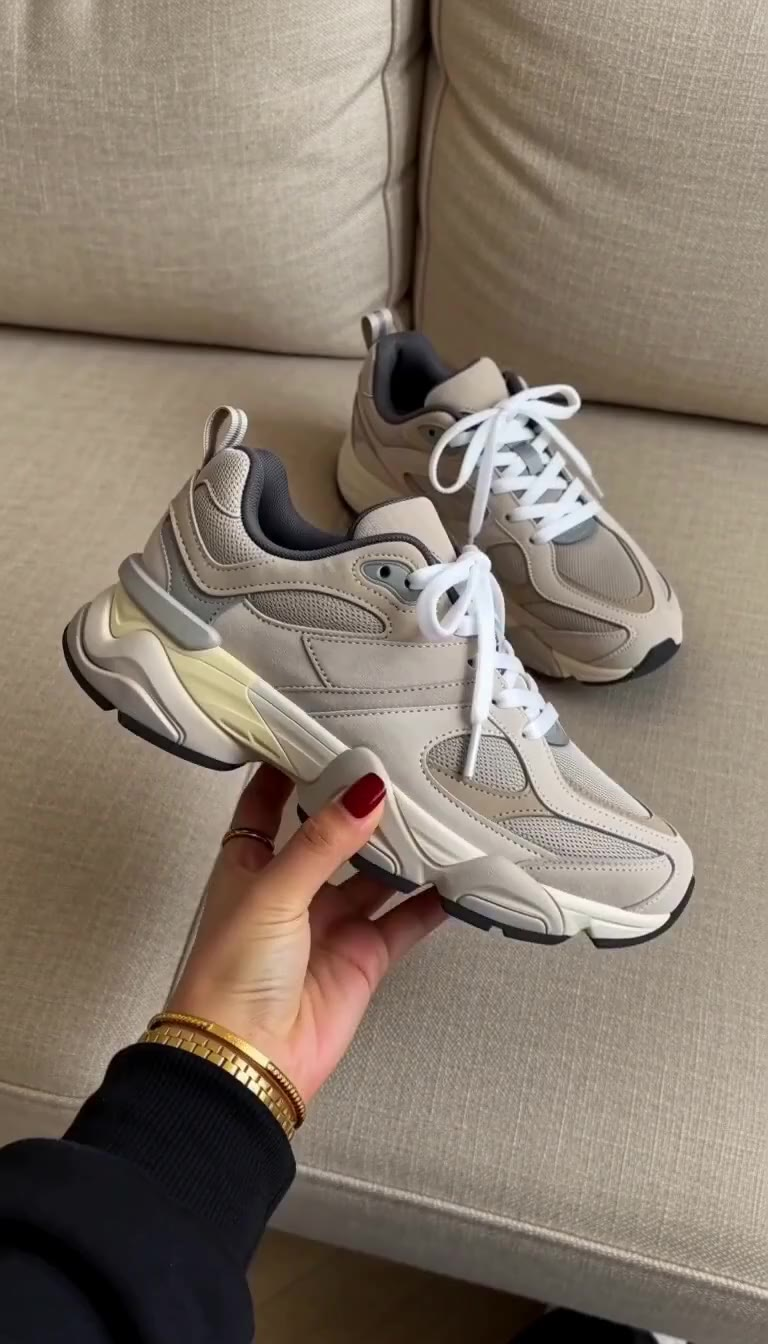
AI Fashion Model
Create an on-model source image from product photography before moving into an image-to-video workflow.
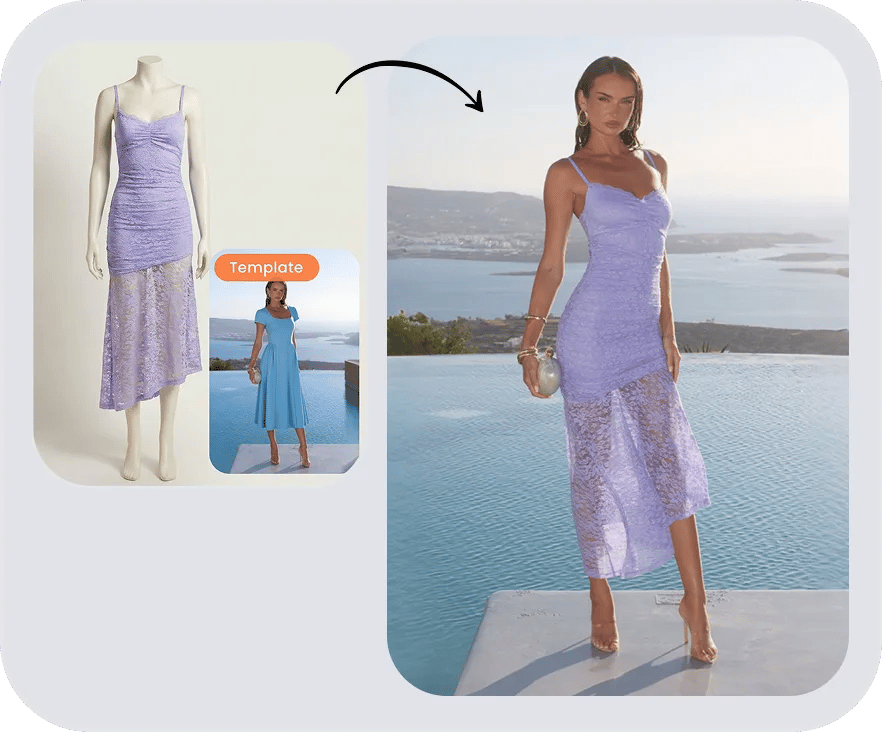
AI Flat Lay
Prepare a clean garment-first image for listing galleries, catalogs and later creative production.
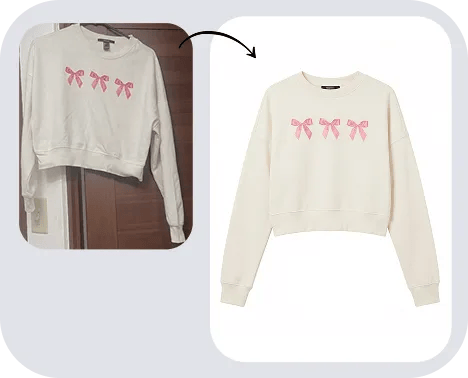
Ghost Mannequin
Create shape-focused apparel photos that complement model imagery and listing videos.
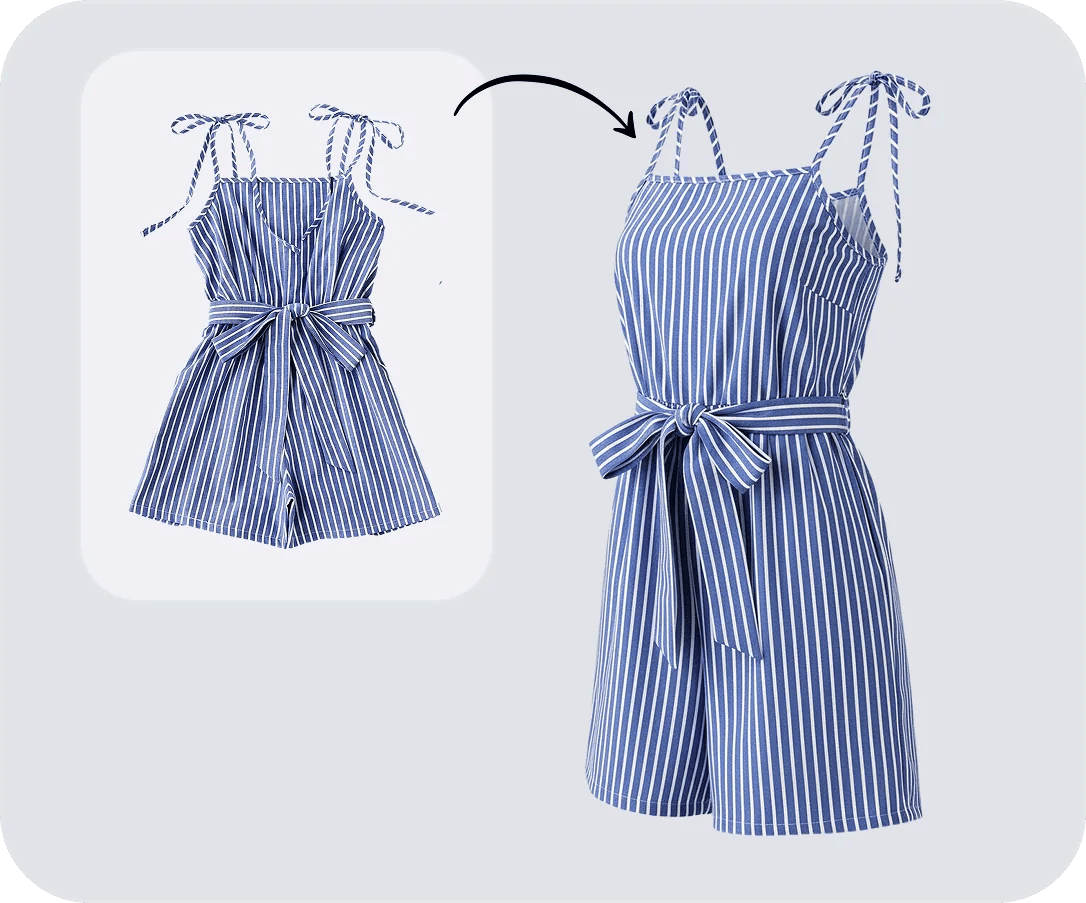
Fashion Product Video Guides
Learn how to prepare a source photo, choose an AI fashion video workflow and adapt short clothing or accessory clips for ecommerce listings and social campaigns.
AI Fashion Video vs. Image to Video
Compare both workflows by source photo, approval needs, creative control and product accuracy checks.
Read comparison →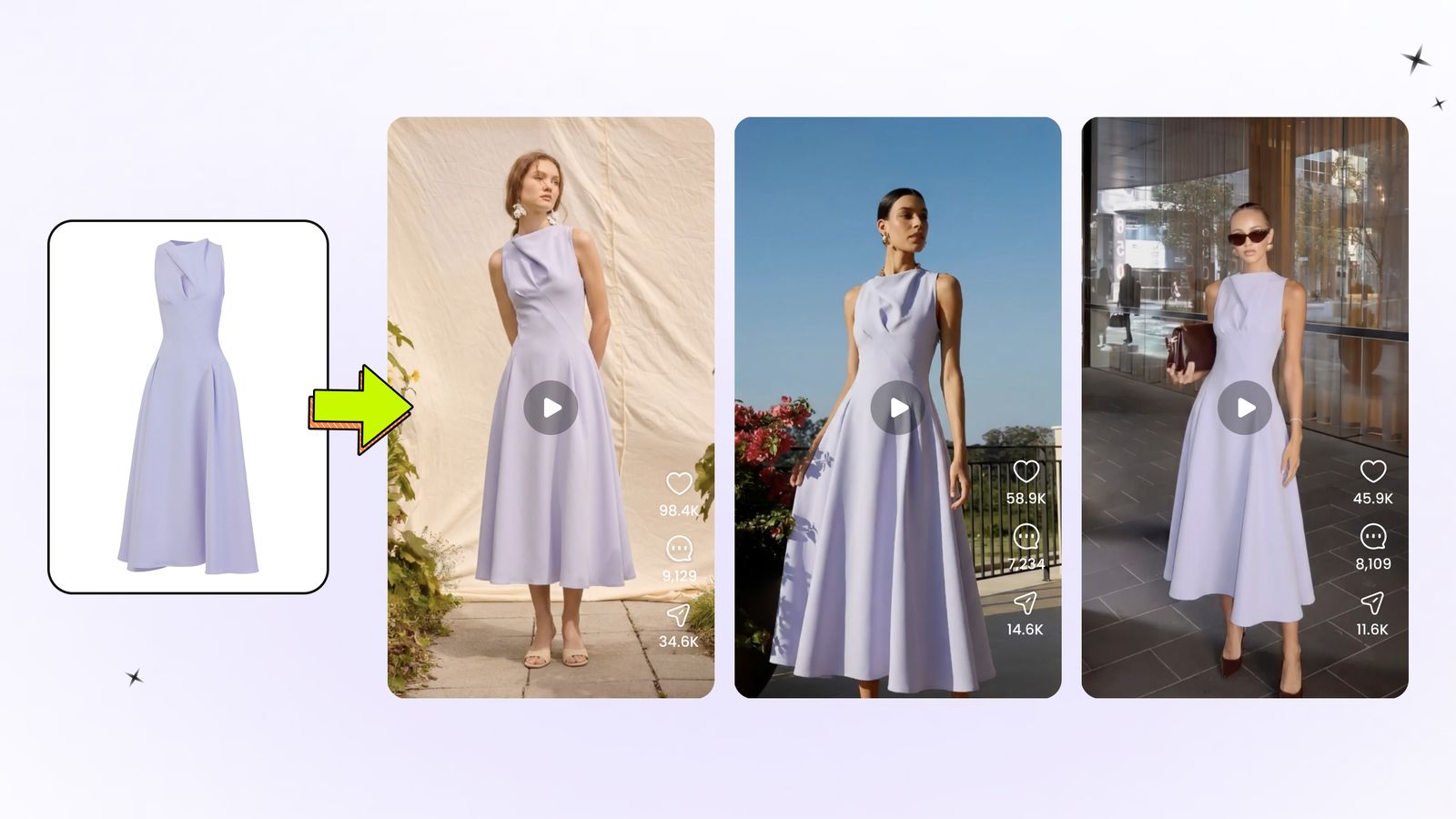
7 AI Fashion Video Generators Tested
See how seven AI fashion video generators handled the same clothing inputs, from garment-only support to motion quality.
Read the test →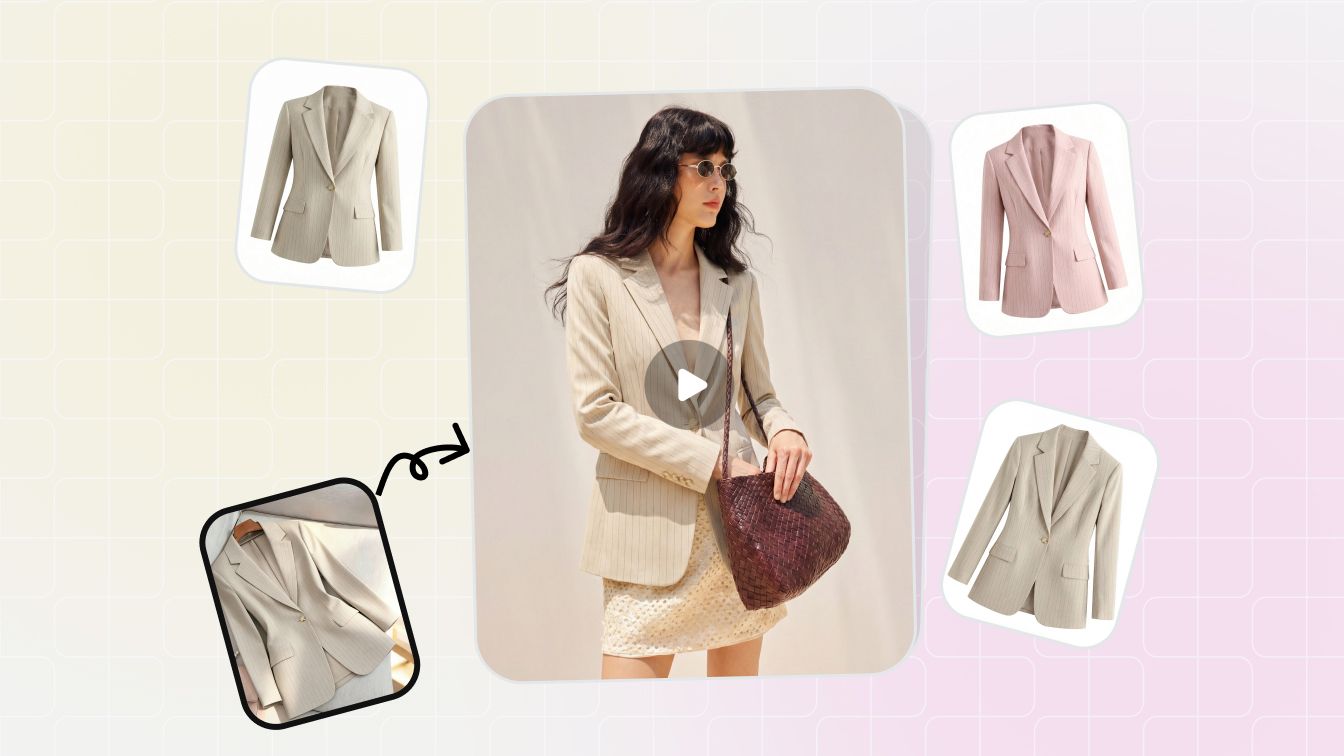
Build a Repeatable Fashion Video Workflow
Connect source-image approval, motion generation, quality review and channel exports in one manageable production process.
Read guide →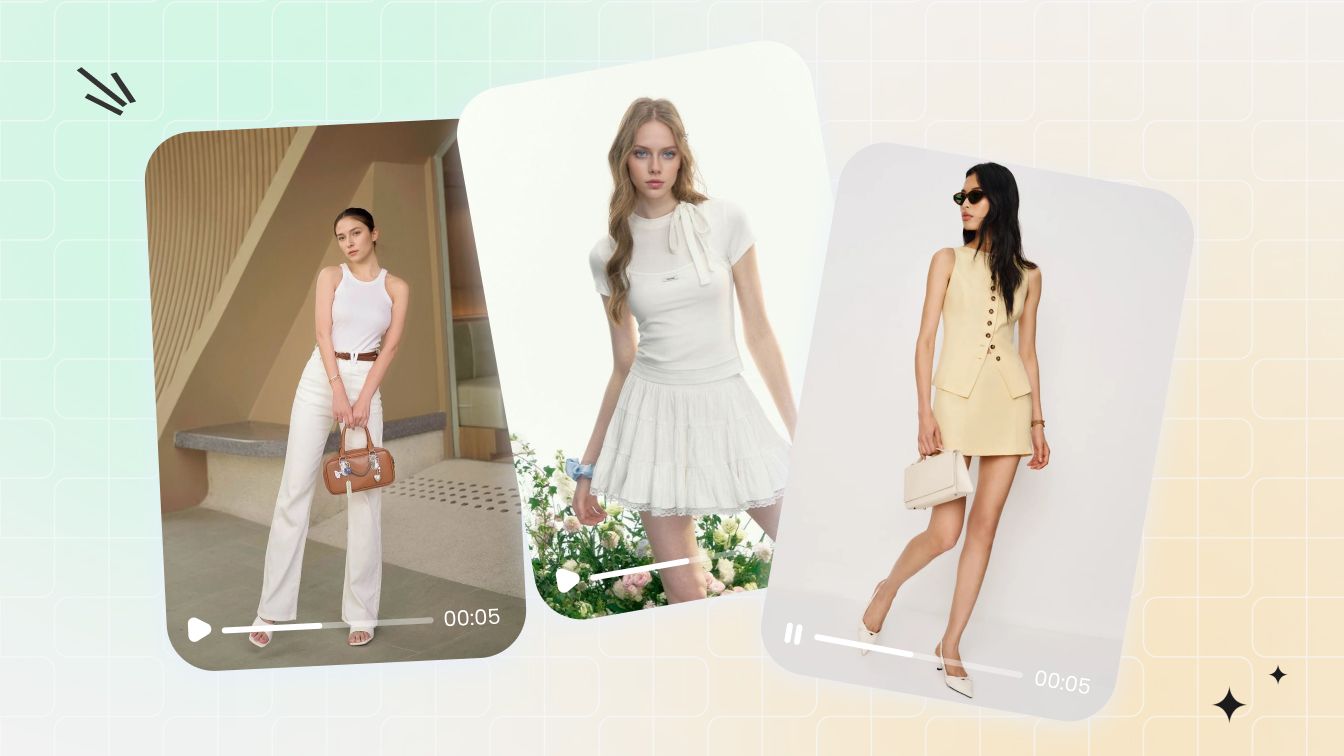
Turn Product Photos into Facebook and Instagram Ads
Plan short-form variants from approved product visuals while keeping product truth and campaign requirements in view.
Read guide →What Fashion Sellers Say About Snappyit
Public feedback from fashion and apparel sellers using Snappyit in ecommerce visual-production workflows.
“As a Shopify apparel seller, Snappyit has completely changed our product photography workflow. We no longer need expensive studio shoots or professional retouchers. It greatly cuts our visual production cost and speeds up our listing launch speed. Highly recommended for fashion brands and online clothing stores”
“This Snappyit is such an amazing ai software! I have been using it for a few weeks now, and it's a total game-changer for my fashion business. The AI tools are intuitive, fast, and produce professional and high-quality visuals—from 3D mannequins to model videos— without needing expensive photoshoots. I especially love the Ghost Mannequin and Color Change features. They save me so much time! The credit system is straightforward and the results are consistently impressive. For anyone in fashion—brands, designers or sellers—this platform is worth every penny. Highly recommend!”
“I run a small clothing company and couldn’t afford high shooting costs, so I only use flat lay images for online sales. Then I met Snappyit. It transforms my photos into 3D with just one click!”
AI Fashion Product Video FAQs
What is an AI fashion product video?
An AI fashion product video is a short clip generated from photos of clothing, shoes, bags, jewelry or accessories for an ecommerce listing, product page or social media ad. It can show a garment worn by an AI model, a product spinning or shown up close on its own, or movement added to a model photo you already have.
Do I need a model photo to make a fashion product video?
No. Fashion Video uses product photos of clothes, shoes, bags, jewelry or accessories, and the template provides the AI model and setting. Template models are fixed, so if you want your own model in the video, start from an approved model photo in Image to Video.
How do I turn a fashion product photo into a video?
Choose by the photo you start with. Product photos go into Fashion Video (worn by an AI model) or Product Video (the product on its own); a model photo goes into Image to Video. Pick a template or write your own prompt, choose your video settings and generate, then compare the clip with the real product before publishing.
Which Snappyit tool should I use for shoes, bags and jewelry?
Both video tools support them. Use Fashion Video when you want the item worn or carried by a model, and Product Video for spins, close-ups and hand-held shots with the product on its own.
Can I make a fashion video from a flat-lay product photo?
Yes. Upload your flat-lay or product photos to Fashion Video and choose a try-on template, including a photo of every angle the template shows. If you want a specific model image first, turn the flat-lay garment into an AI fashion model image and animate it with Image to Video.
What photos work best for a fashion product video?
Follow three guidelines. Use clear photos where the product and details such as fabric, prints and logos are easy to see. Include a photo of every angle the template shows, such as the side or back, so the AI does not have to interpret a missing view. Choose a template made for your product category, or add references that match the result you want when you write your own prompt.
How should I prompt motion for a fashion product video?
Describe one small action that supports the product, such as a subtle model turn, light fabric or chain movement, or a restrained camera move around an accessory. Keep motion controlled when product readability matters, and avoid stacking several actions into one short clip.
Can AI fashion video preserve clothing and accessory details?
AI fashion video can retain visible color, fabric, trim, logos, prints and accessory hardware, but details may still change between frames. Compare the clip with the source and real product, paying special attention to seams, buttons, clasps, stones, chains, hands and moving edges.
Can I use AI fashion product videos on Shopify, Etsy, Amazon or social media?
Yes. AI fashion product videos can be used on Shopify product pages, marketplaces such as Etsy or Amazon, and social media ads when they accurately represent the product and follow the channel's current media, rights and disclosure rules. Compare the result with the real item before publishing.
How long should a fashion product video be?
There is no single length for every channel. Start with a short clip that communicates one product benefit quickly, then export a version that meets each channel's current duration, aspect-ratio and file-size requirements. You choose the length in each tool before generating.
What should I review before publishing an AI fashion product video?
Check product color, shape, materials, texture, hardware, logos and prints across the full clip. Also review hands, face, body geometry, background movement, flicker, edge warping and frame-to-frame continuity, then confirm the video still represents the item being sold.
Create a Fashion Product Video from Your Photos
Start from product photos for a try-on video, or animate a model photo you already approved. Review the clip against the source and the real item before you publish it to a listing or ad.
Need a spin or close-up without a model? Try Product Video →