


What This AI UGC Video Generator Makes
Snappyit's AI UGC video generator makes short, phone-style try-on, haul and unboxing-style videos from your product photos, with an AI model or AI hands supplied by each template. The clips show the product being tried on, revealed or worn; they do not include a talking presenter or voiceover.
| At a glance | Details |
|---|---|
| Video styles | Try-on hauls, OOTD reveals, shoe and jewelry try-ons, haul reveals |
| What you upload | Product photos: templates ask for 1–5 items, and you can add up to 9 reference images |
| People in the video | An AI model or AI hands, included with the template |
| Length | 4–15 seconds; each template starts with its own default |
| Aspect ratio | 9:16 by default; 3:4, 1:1, 16:9, 4:3 and 21:9 also available |
| Quality | 768P or 2K |
| Sound | Optional background music for extra credits; no voiceover or lip-sync |
| Download | MP4 video plus a cover image |
UGC-style describes how the clip looks. The person in it is AI-generated, not a real customer, so present the video as product content rather than a customer review.
UGC Try-On Haul Videos for Clothing, Shoes and Jewelry
A try-on haul shows new pieces being put on one after another, the way creators film a haul on their phone. These four templates cover clothing, shoes and jewelry.
Try-on haul · Fashion Video · Armful Try-on Haul
Try-On Haul Video for a New Clothing Drop
The AI model starts with an armful of new pieces, then appears wearing each one in turn. It suits a weekly drop, a restock or a set of matching pieces.
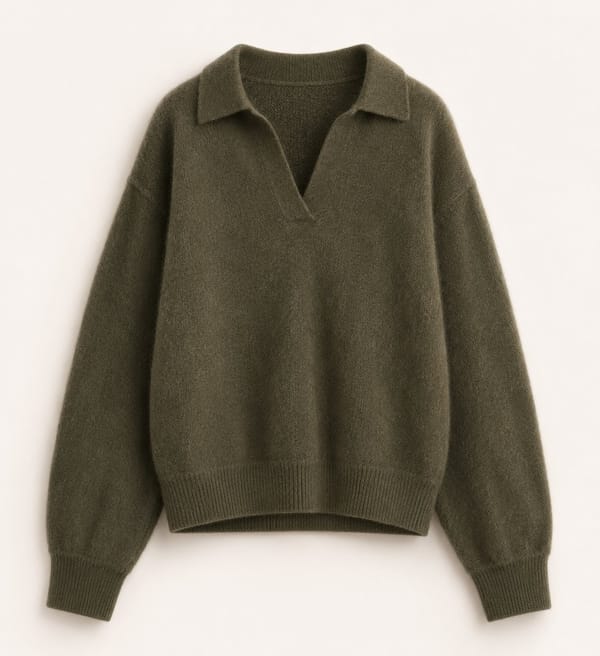
Upload: 3–4 clothing items, one photo each, in the order you want them tried on.
Check: Each piece keeps its pattern, color and neckline from your photos.
Use Armful Try-on Haul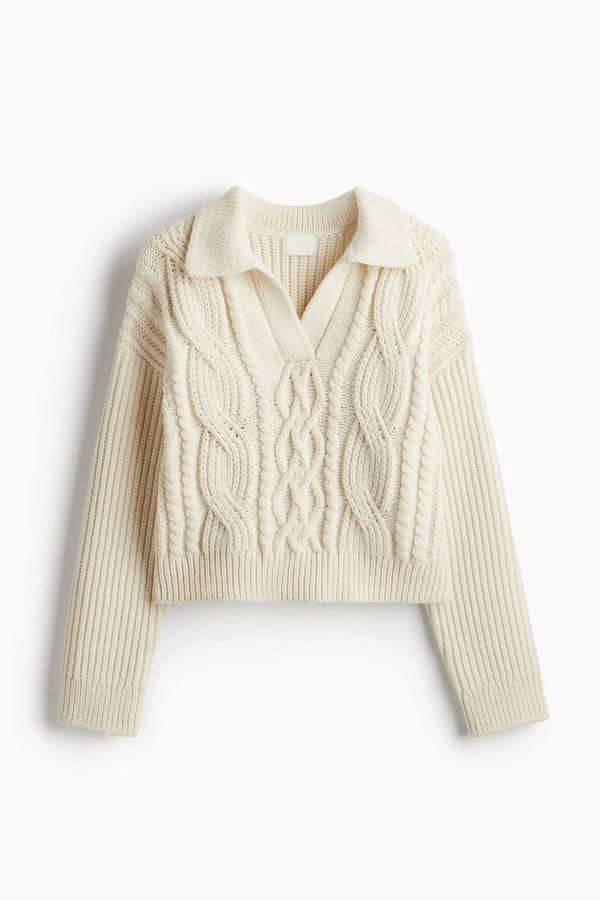
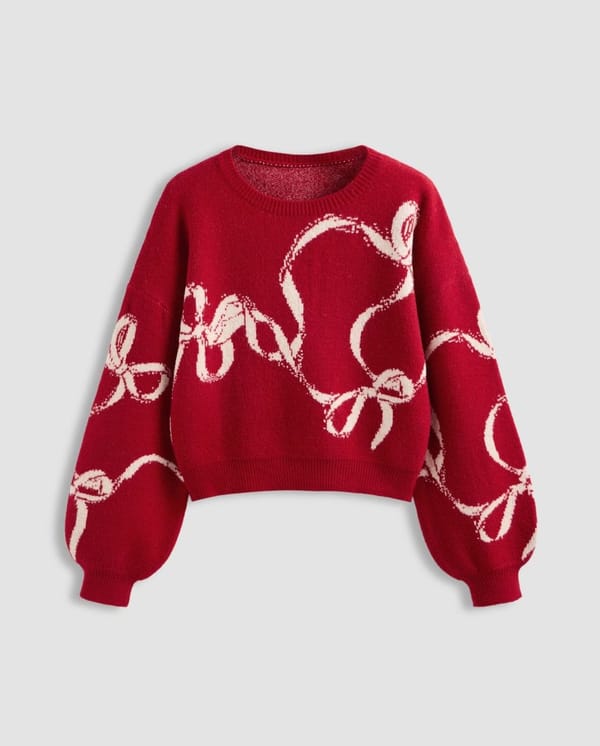
Clothing: two of the four product photos → Armful Try-on Haul sample
OOTD · Fashion Video · OOTD Studio View
OOTD Video for One Featured Piece
In a bright studio, the AI model wears your garment with the template's white trousers, then the camera moves in on the fabric and details and catches the back as she turns. Use it to show one hero piece styled for everyday wear.
Upload: 1 clear photo of the garment.
Check: Prints, trims and the neckline match your product photo.
Use OOTD Studio View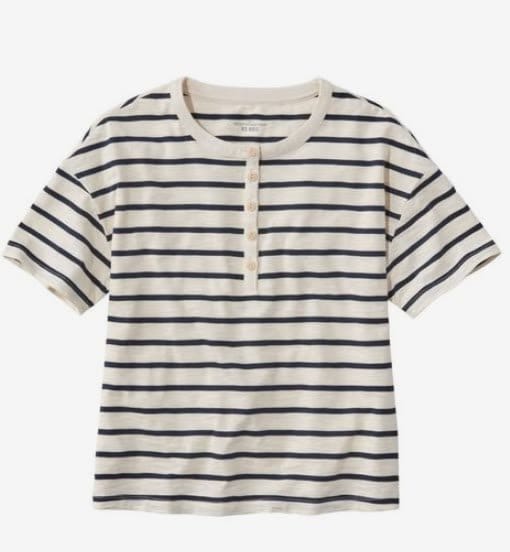
Clothing: product photo → OOTD Studio View sample
Shoe try-on · Fashion Video · Crossed-Leg Try-on
Shoe Try-On Video with Pair Swaps
Filmed at seat level, the clip starts on bare feet and swaps from one pair to the next, so viewers can compare colors and styles side by side.
Upload: 3–4 pairs, one clear photo each.
Check: Look at the toe shape, straps and trims on every pair.
Use Crossed-Leg Try-on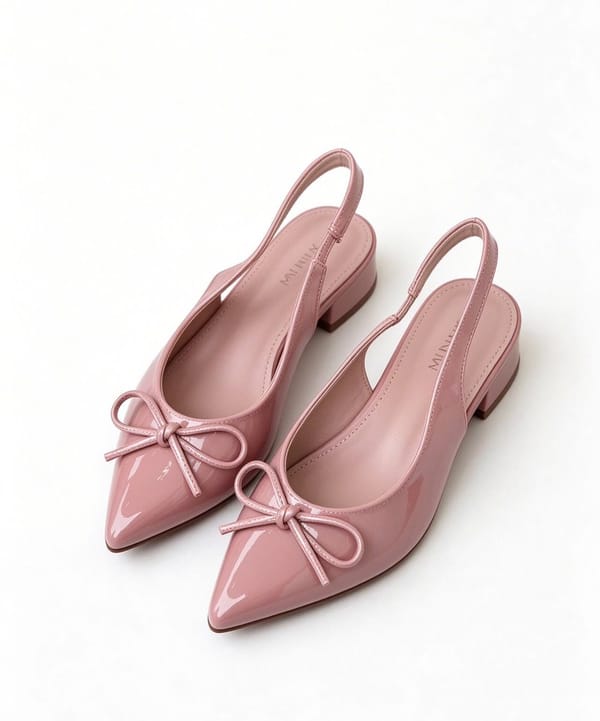
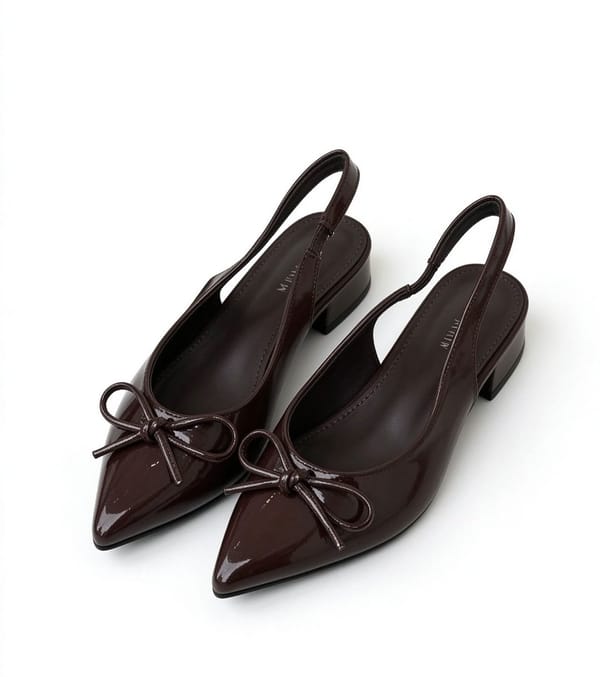
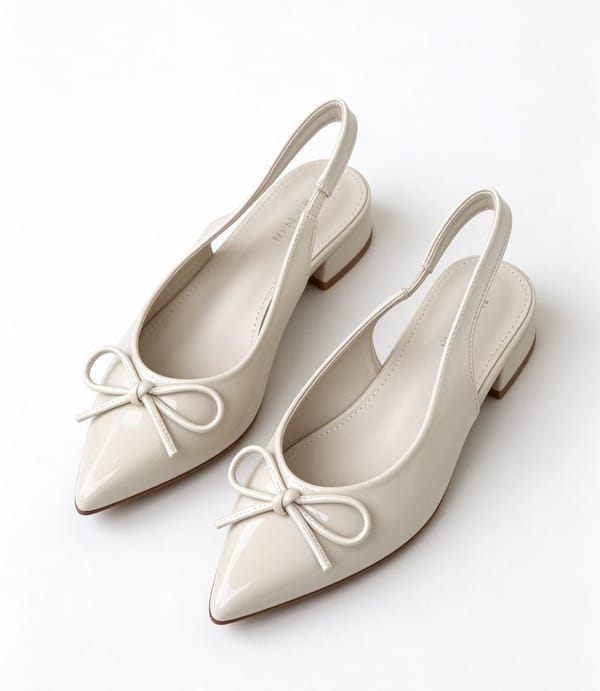
Shoes: product photos → Crossed-Leg Try-on sample
Jewelry try-on · Fashion Video · Reveal Try-on
Jewelry Try-On Video
Hands hold each piece up to the camera, then the last one is shown being worn. Jewelry gets the close, personal look of a creator's try-on without a photoshoot.
Upload: 3–4 jewelry pieces, one photo each.
Check: Compare stone shapes, settings and metal tone with your product photos.
Use Reveal Try-on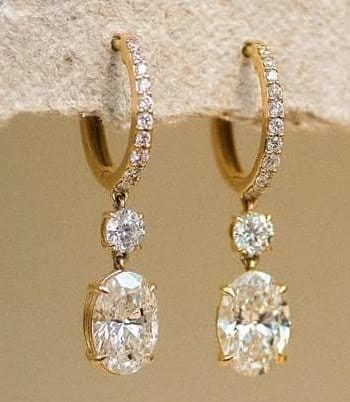
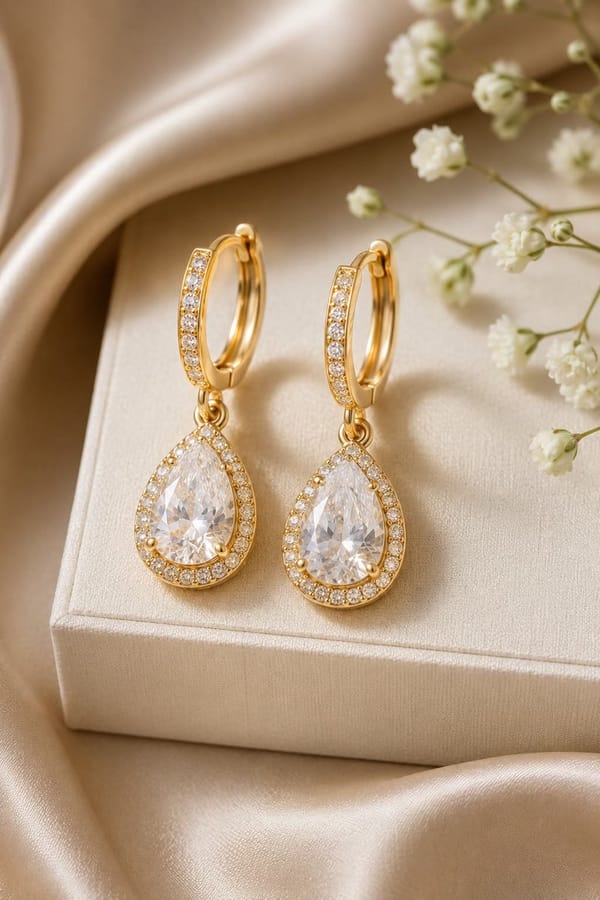

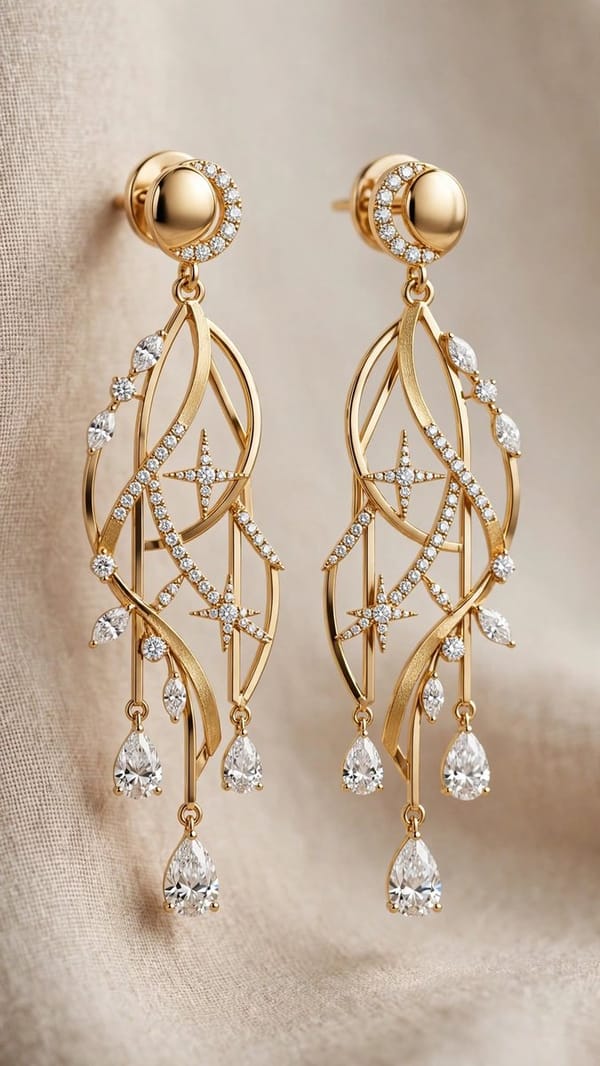
Jewelry: product photos → Reveal Try-on sample
UGC Unboxing and Haul Reveal Videos
Unboxing-style videos capture the moment a new item arrives: it appears from a phone screen, drops into a shopping bag or is revealed by the person carrying it. Use them for new arrivals, restocks and gift guides.
Haul reveal · Fashion Video · Phone Reveal Haul
“What I Ordered vs. What I Got” Reveal
A hand holds up a phone showing your product photo while the real bag appears below it, in the style of the ordered-versus-arrived trend. Shoppers see the listing photo and the item side by side.
Upload: 3–4 bags, one photo each.
Check: The real bag matches the photo on screen in color, hardware and shape.
Use Phone Reveal Haul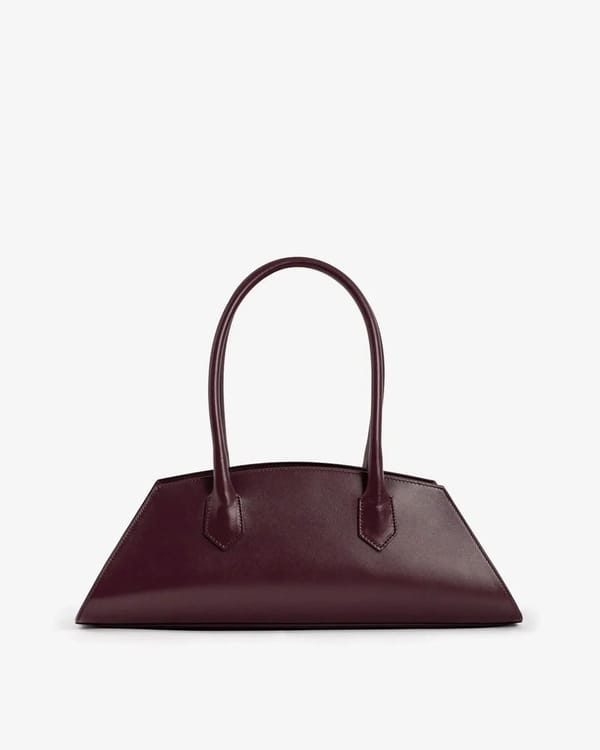
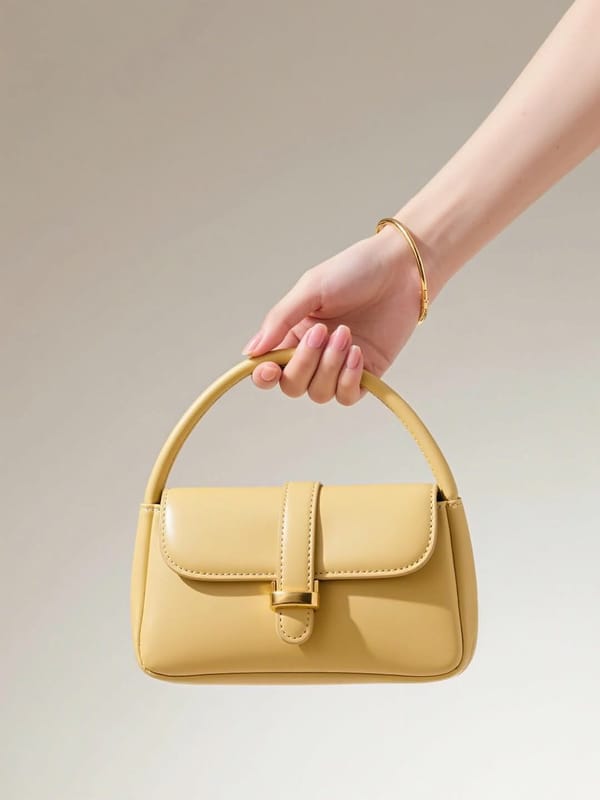
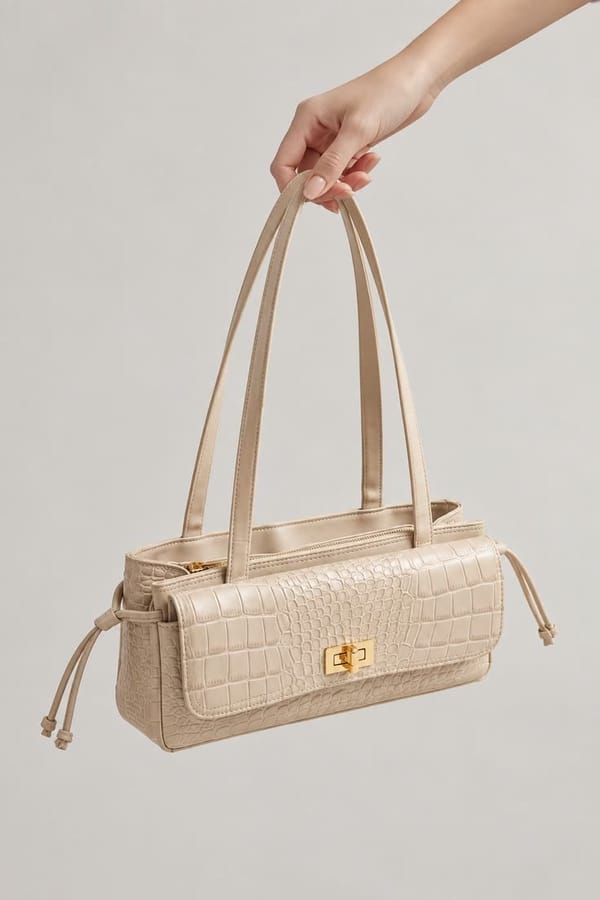
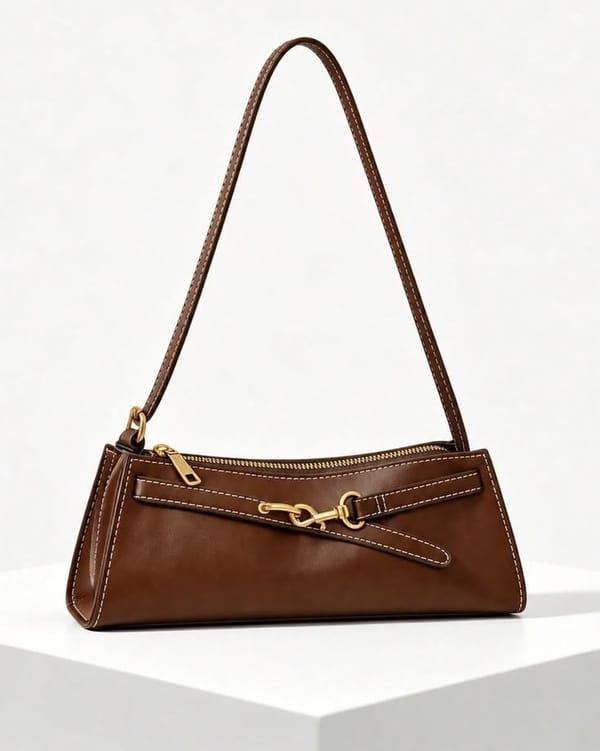
Bags: product photos → Phone Reveal Haul sample
Shopping haul · Product Video · Shopping Bag Drop
Shopping Haul Video with a Bag Drop
A hand drops each new bag into a paper shopping bag, one after another, for a short haul-style opener. It works for gift guides and new-season bag edits.
Upload: 4–5 bags, one clear photo each.
Check: Handles and straps keep their real shape as each bag drops.
Use Shopping Bag Drop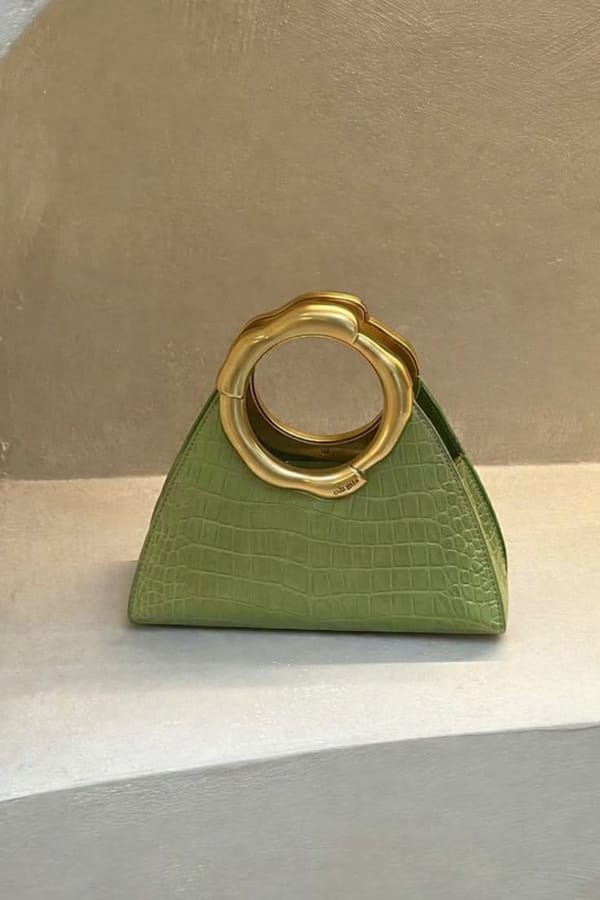
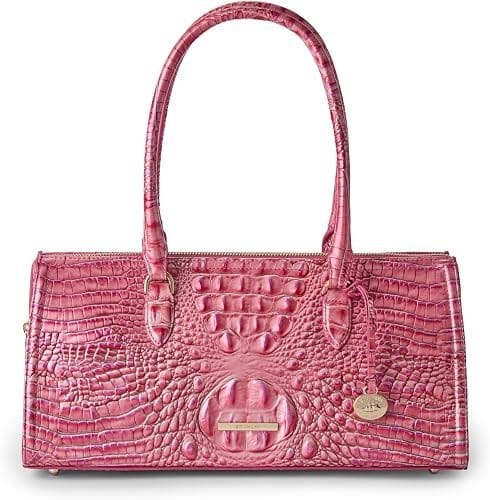
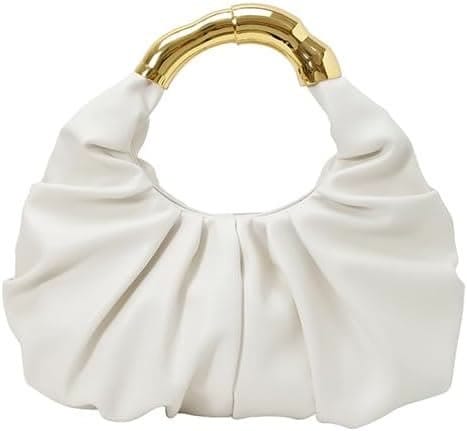
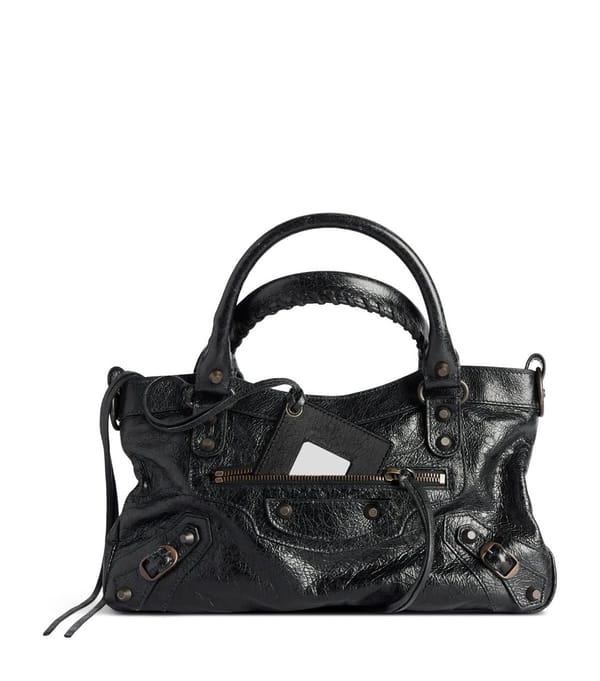
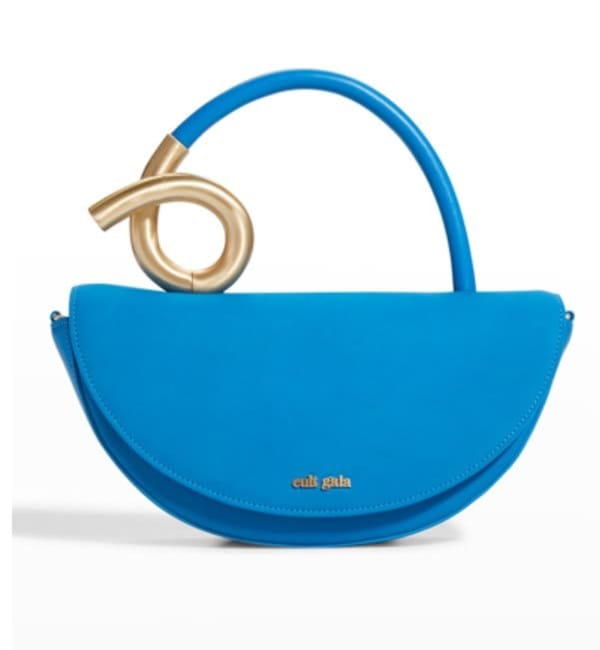
Bags: product photos → Shopping Bag Drop sample
Bag reveal · Fashion Video · Hand Wipe Reveal
Bag Reveal Video with a Hand-Wipe Transition
The model wipes a hand across the lens, holds the bag up to the camera, then steps back in a full outfit carrying it. The transition gives a single new bag its arrival moment.
Upload: 1–3 photos of the bag, including the front and a side view.
Check: Strap length, buckles and color match the real bag.
Use Hand Wipe Reveal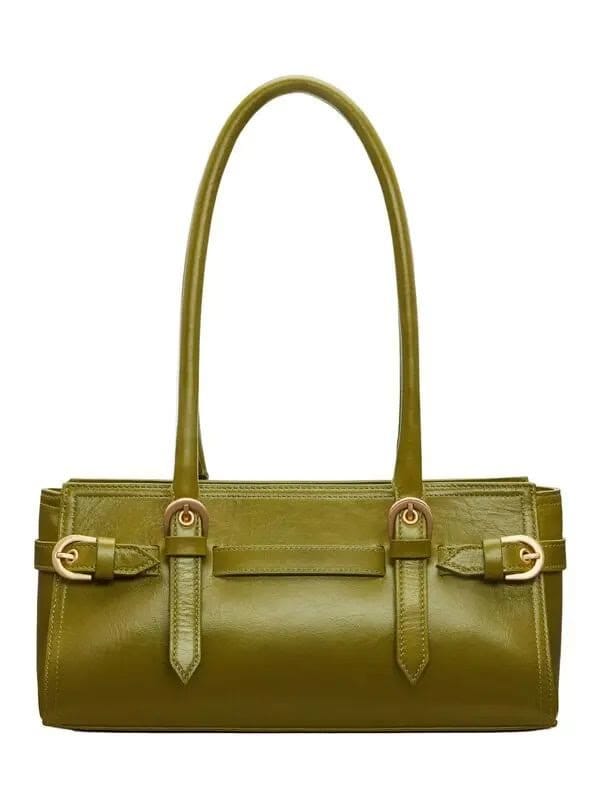
Bag: product photo → Hand Wipe Reveal sample
Need a box-opening shot of your own packaging? Choose Write my own in Product Video and describe the lid, insert and product; the unboxing prompt examples show how to word it. Check printed packaging text closely, because AI can change lettering.
How to Make a UGC Try-On or Unboxing Video
Make a UGC-style video in three steps: pick a try-on or haul template, upload your product photos and set the output, then review and download the clip.
Pick a Try-On or Haul Template
Open Fashion Video for try-ons, OOTD clips and bag reveals, or Product Video for the shopping-bag haul. Each template preview shows the moves and how many items it takes.
Upload Your Product Photos
Add one clear photo per item, in the order the template lists them. Keep 9:16 for TikTok and Reels or pick another ratio, set the length and quality, and turn on background music if you want it.
Review and Download
Watch the clip next to your product photos and check color, pattern and hardware. Download the MP4 and cover image, then add captions or a voiceover in your editing app if the post needs them.
Already have a photo of your own model wearing the product? Image to Video animates that photo instead of using a template model.
Use AI UGC Videos in TikTok, Reels and Paid Social Ads
AI UGC videos give organic posts and paid social ads a creator-style opening built around your real product. Make two or three versions of the same product with different templates, then keep the one that performs. Sizes and AI labels for each app are on the TikTok video generator and AI Reel generator pages.
| Ad angle | Template | What viewers see first | Good fit |
|---|---|---|---|
| Try-on haul | Armful Try-on Haul | An armful of new pieces | TikTok and Reels posts for a new drop |
| Ordered vs. arrived | Phone Reveal Haul | The listing photo on a phone | Ads that answer “does it look like the photo?” |
| Outfit idea | OOTD Studio View | The garment on a model in a bright studio | Reels, Stories and paid social |
| Accessory try-on | Reveal Try-on | Jewelry held up to the camera | Jewelry ads and Shorts |
To build the finished ad, add hook text, the offer and a call to action in your editor; the AI video ad maker covers ad formats and structure. For creative that avoids fake testimonials, see UGC-style ecommerce ad creatives.
Is AI UGC Allowed in Ads? Disclosure and Real Customer Content
AI UGC can be used in ads when it is presented as product content, not as a real customer's experience. Label it as AI-generated wherever a platform asks for that, and keep reviews and fit feedback for real customer footage.
| Content source | What it shows | Use it for | Don't use it for |
|---|---|---|---|
| AI UGC-style clip | Your product on an AI model or in AI hands | Try-on, haul and reveal footage for posts and ads | Reviews, testimonials or “I bought this” claims |
| Real customer or creator video | A person's own experience with the product | Reviews, fit feedback and real wear | Claims the person did not make |
Avoid first-person review captions such as “I love this” on an AI clip, and check each platform's current rules for labeling AI-generated content before you post or run ads.
Continue Your Fashion Content Workflow
Video Ad Maker

AI Fashion Video
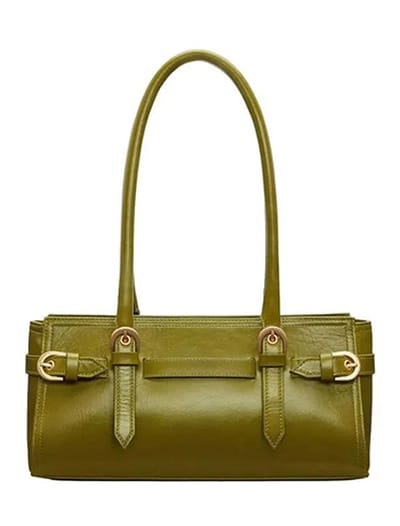
AI Product Video
Image to Video
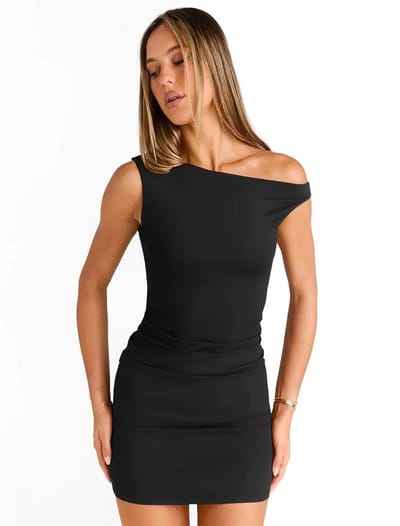
Guides for Fashion Video Content
 AI Fashion Product Videos for Clothing BrandsChoose between try-on videos, product spins and image-to-video for one clothing listing.
 7 AI Fashion Video Generators Tested (2026)See how seven tools handled motion, garment accuracy and prompt adherence.
 AI Fashion Video vs. Image-to-VideoPick the workflow that fits your source photos, approvals and accuracy checks.
 Fashion Video Workflow for EcommerceTake a fashion video from the brief to platform cuts for TikTok, Reels and Shorts.
FAQs About AI UGC Video Generation
What is a UGC-style video?
A UGC-style video looks like something a shopper or creator filmed on a phone, such as a try-on haul, an unboxing or an outfit-of-the-day clip. Snappyit creates that look from your product photos with an AI model or AI hands. The video is generated; it is not a recording of a real customer.
Can I make a try-on haul video without filming or hiring a creator?
Yes. Try-on templates such as Armful Try-on Haul and Crossed-Leg Try-on include an AI model, so you only upload product photos. To animate a specific person from a photo you already have, use Image to Video instead.
Can I make an unboxing video with AI?
Yes. Phone Reveal Haul, Shopping Bag Drop and Hand Wipe Reveal show the moment a new item arrives. For a box-opening shot of your own packaging, choose Write my own in Product Video and describe the lid, insert and product, then check the packaging text in the result.
Do the videos include a talking presenter or voiceover?
No. The templates show the product being tried on, revealed or worn, and you can add optional background music for extra credits. If a post needs narration or captions, add them in your editing app.
Is the AI UGC video generator free to try?
Your first video is free. After that, each video uses credits, and the generator shows the cost of your chosen settings before you create it.
Can I use AI UGC videos in ads and on my store?
Yes, as product footage. Review every clip against the real product, label it as AI-generated wherever a platform requires it, and never present the AI model as a real customer or use the clip as a testimonial.
Create Your Next Try-On or Unboxing Video
Pick a try-on or haul template, add your product photos, and generate a UGC-style clip for your next drop.