


Try-On Reels with an AI Model
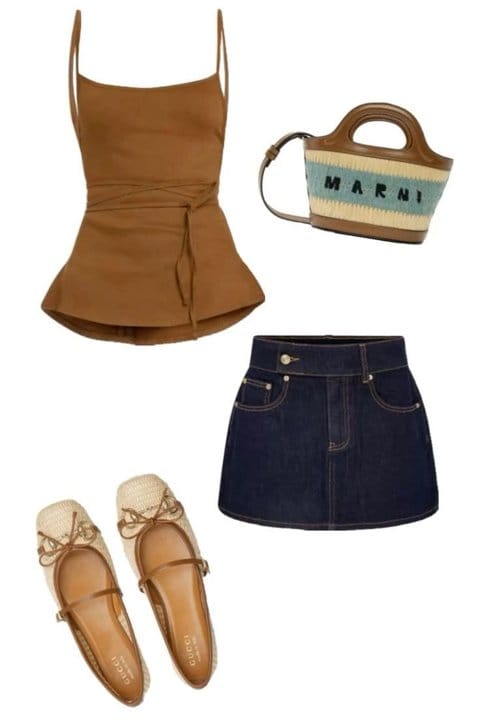
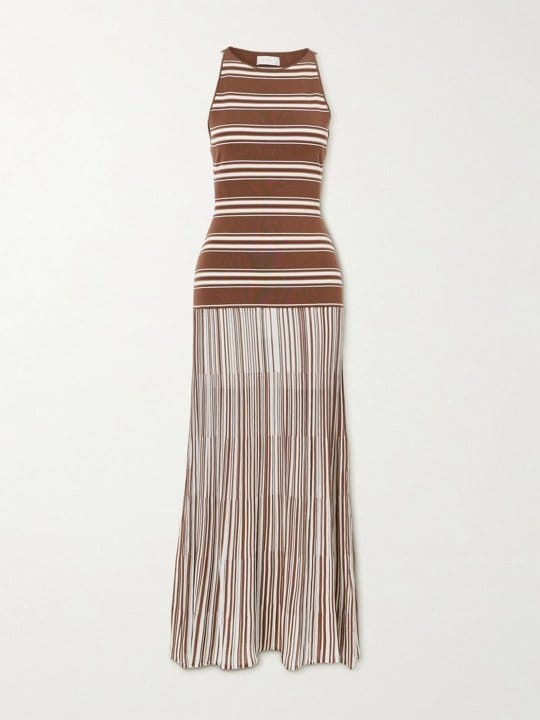
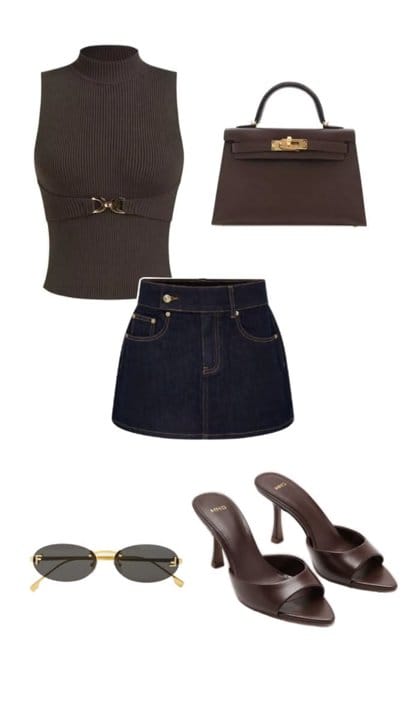
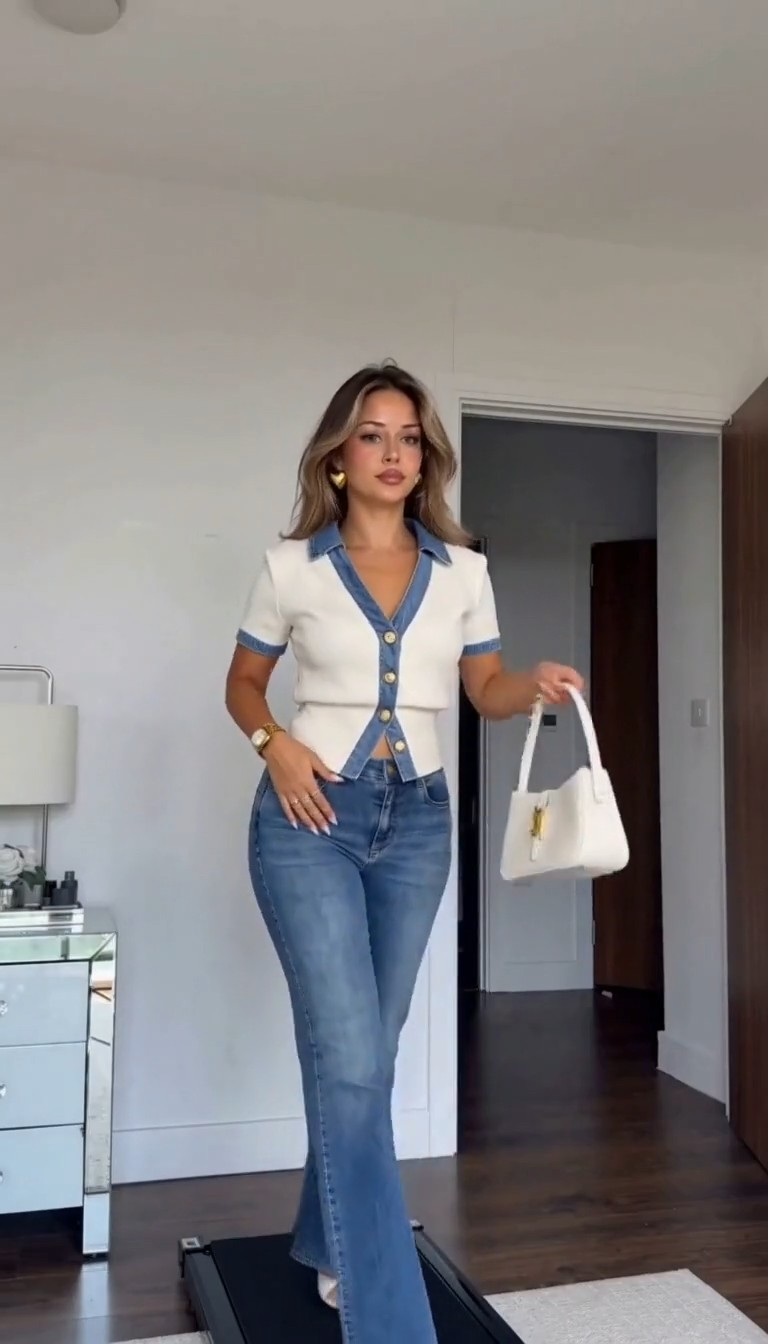
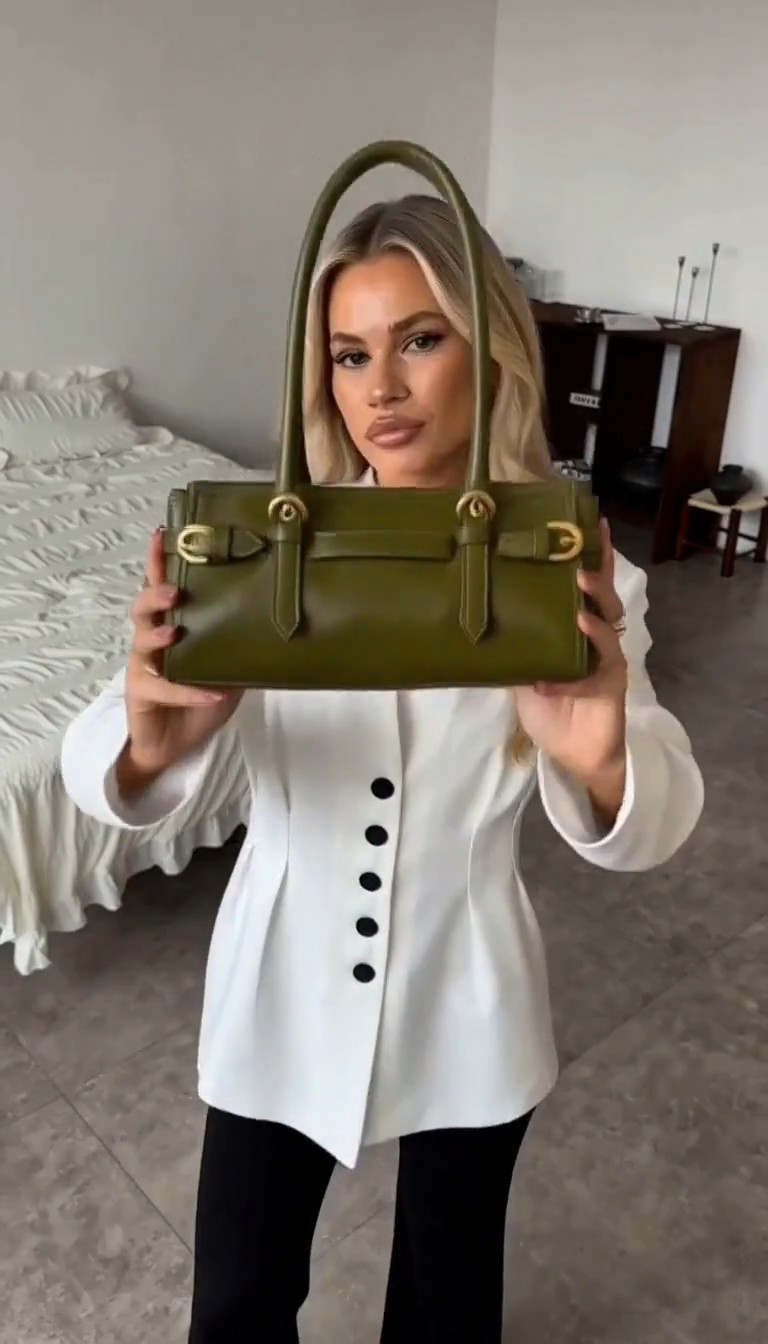
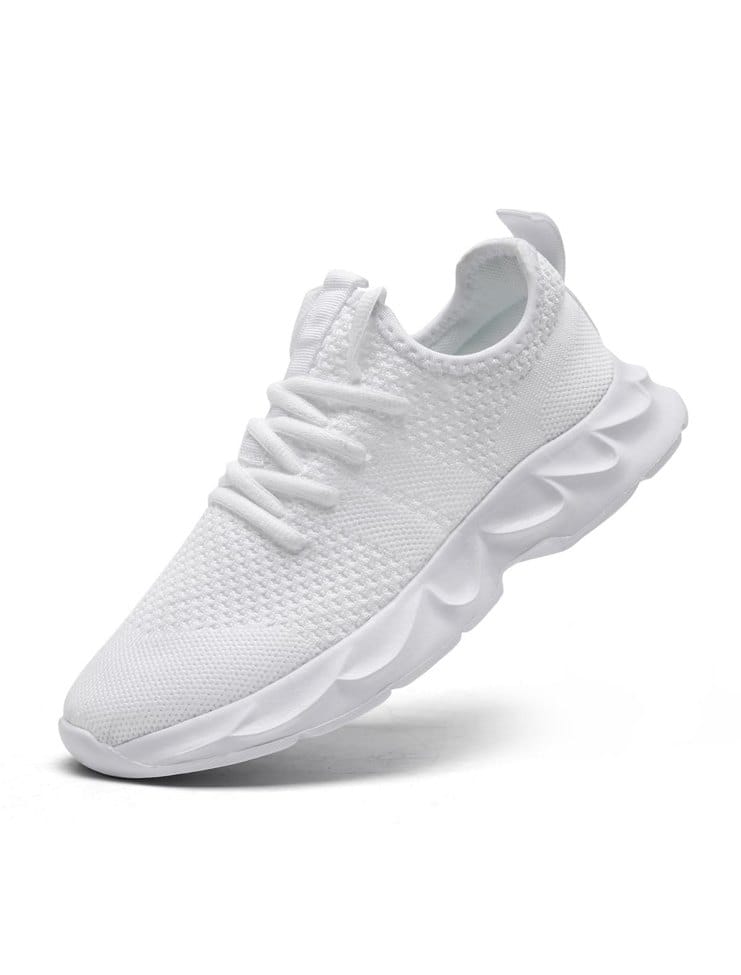
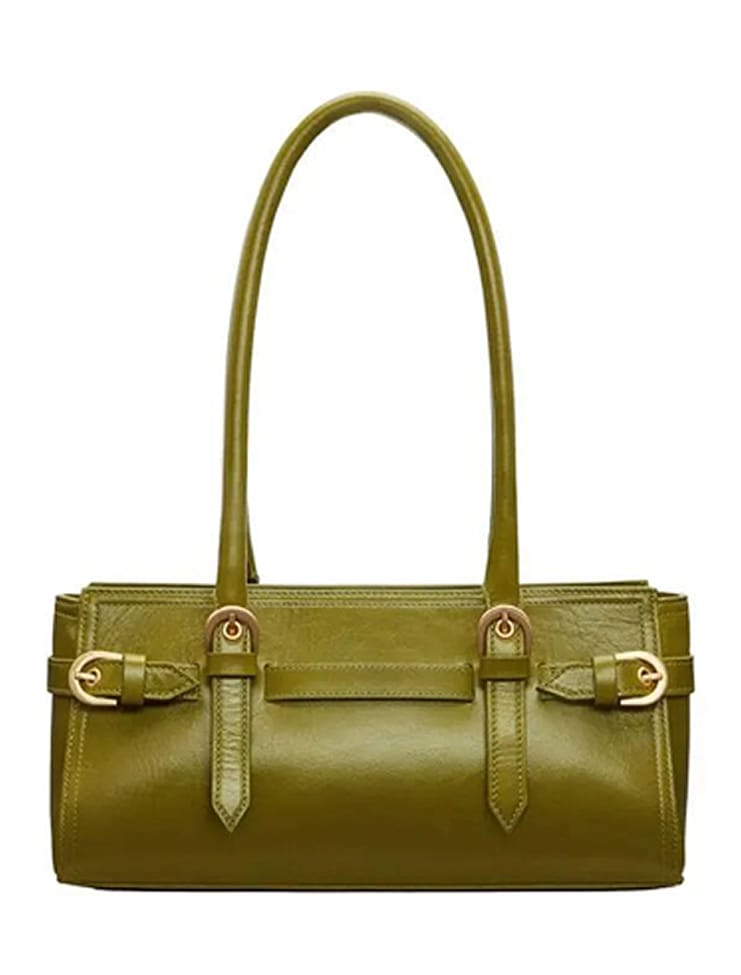
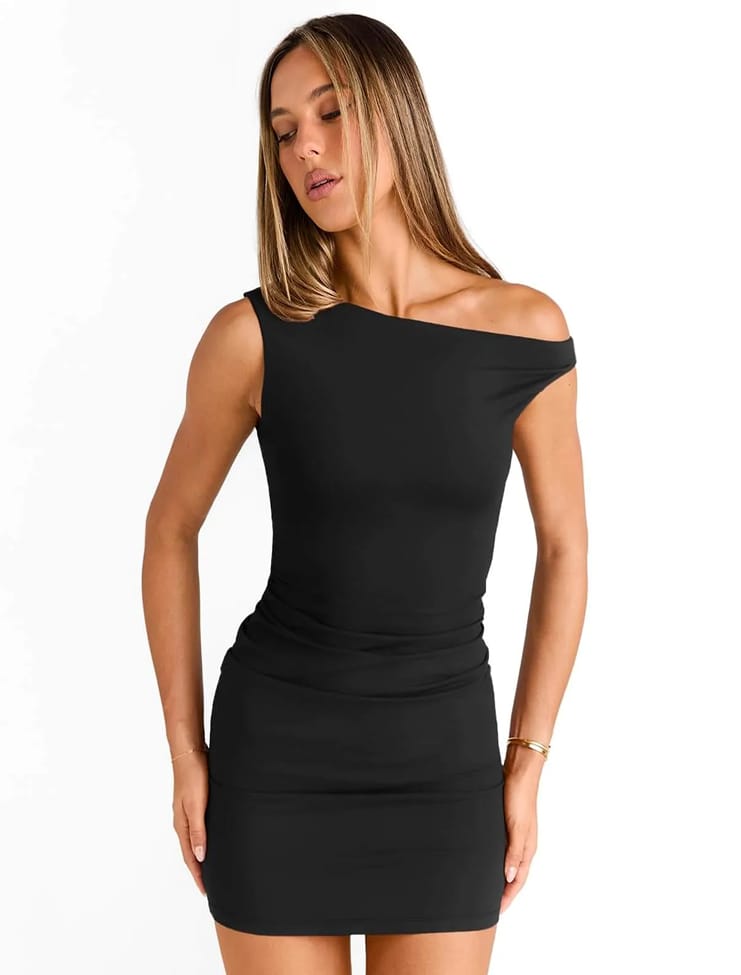
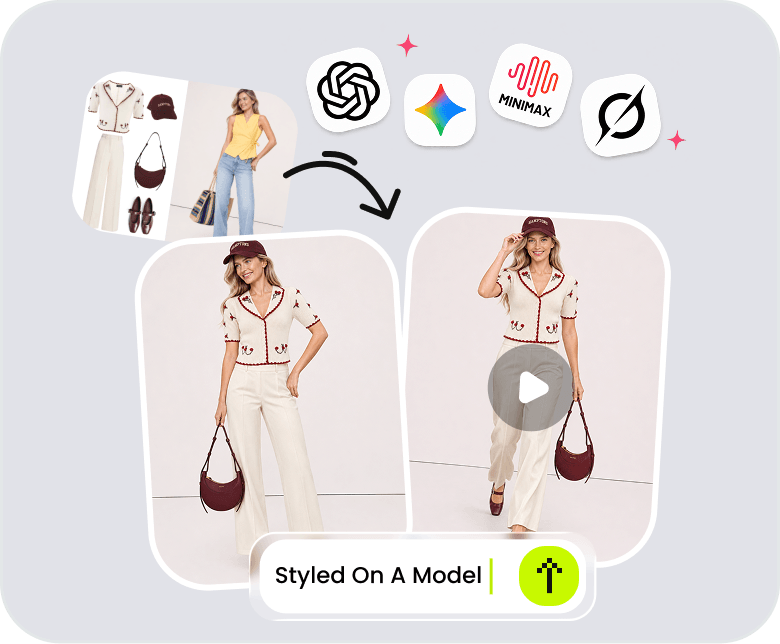
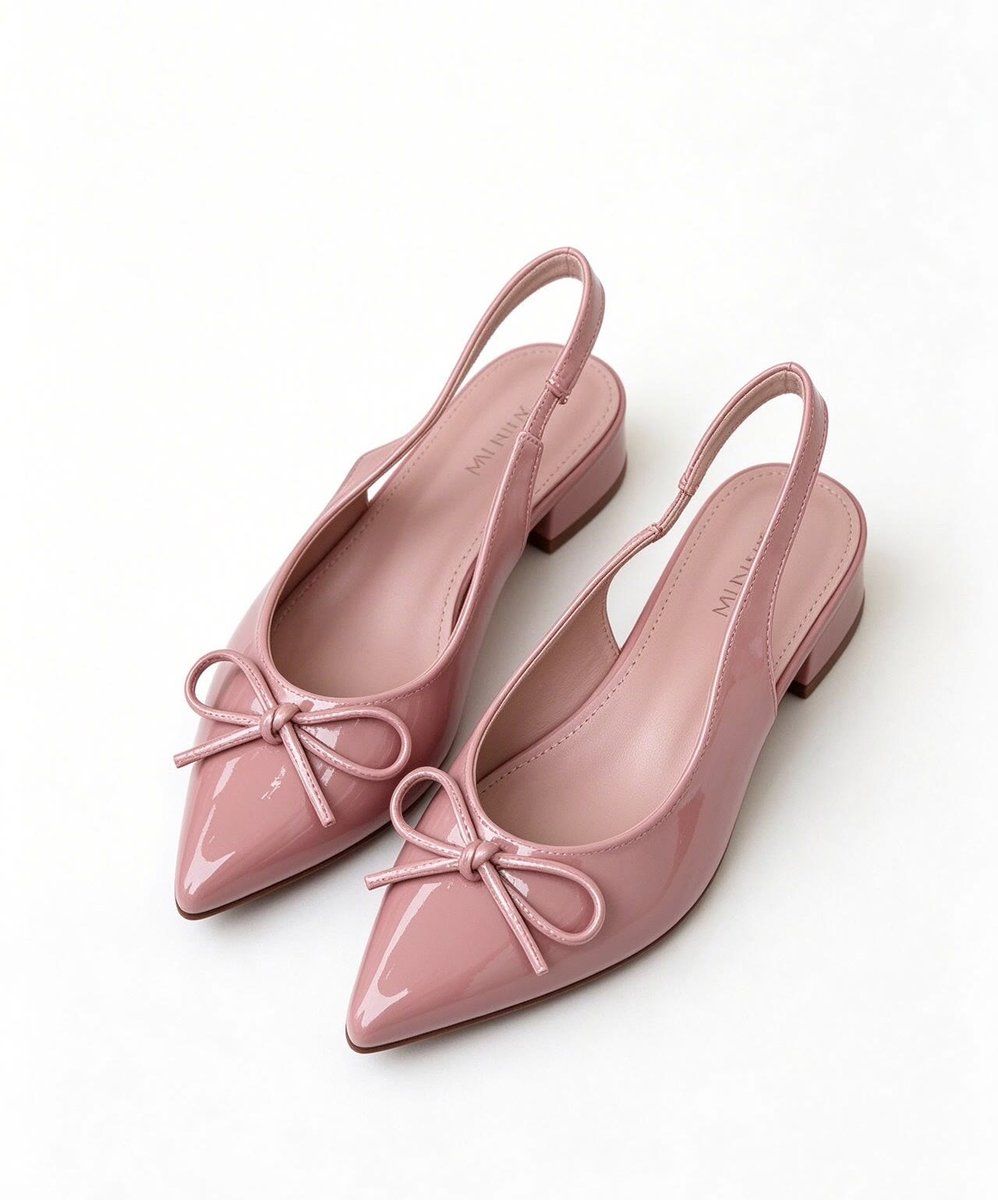
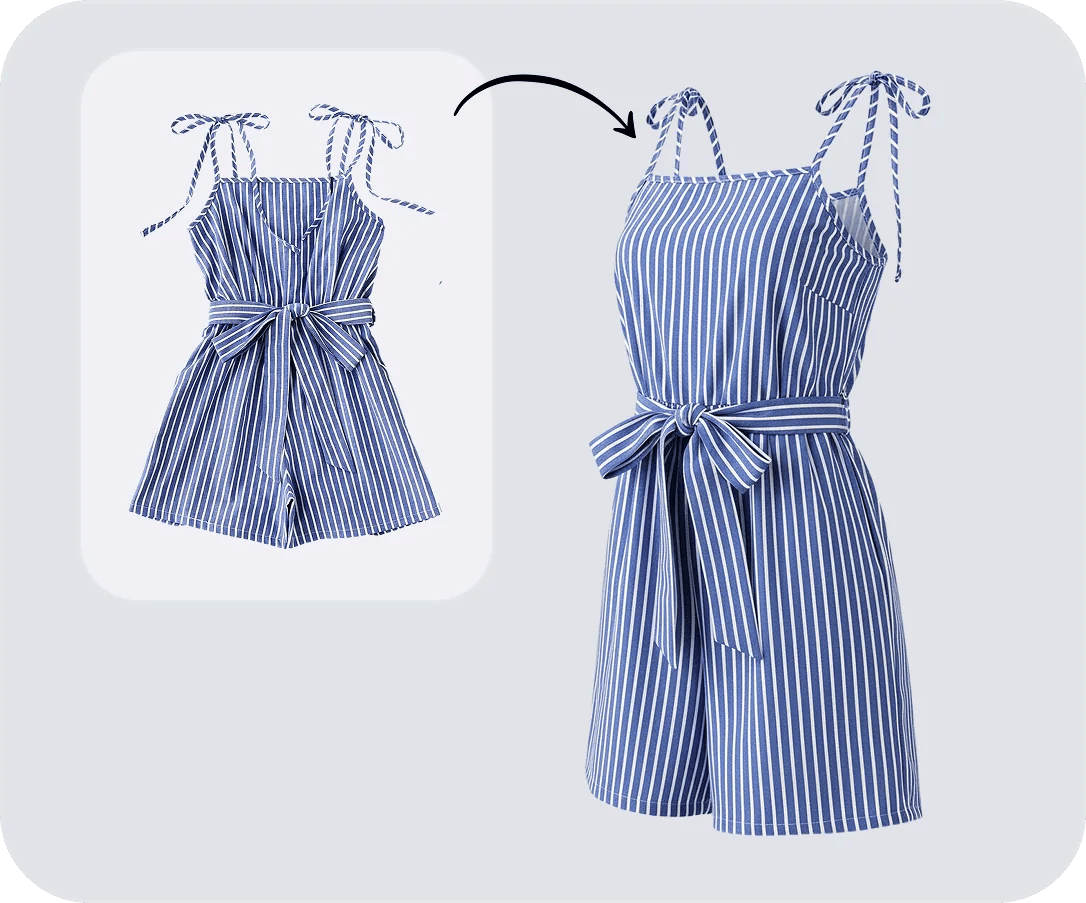
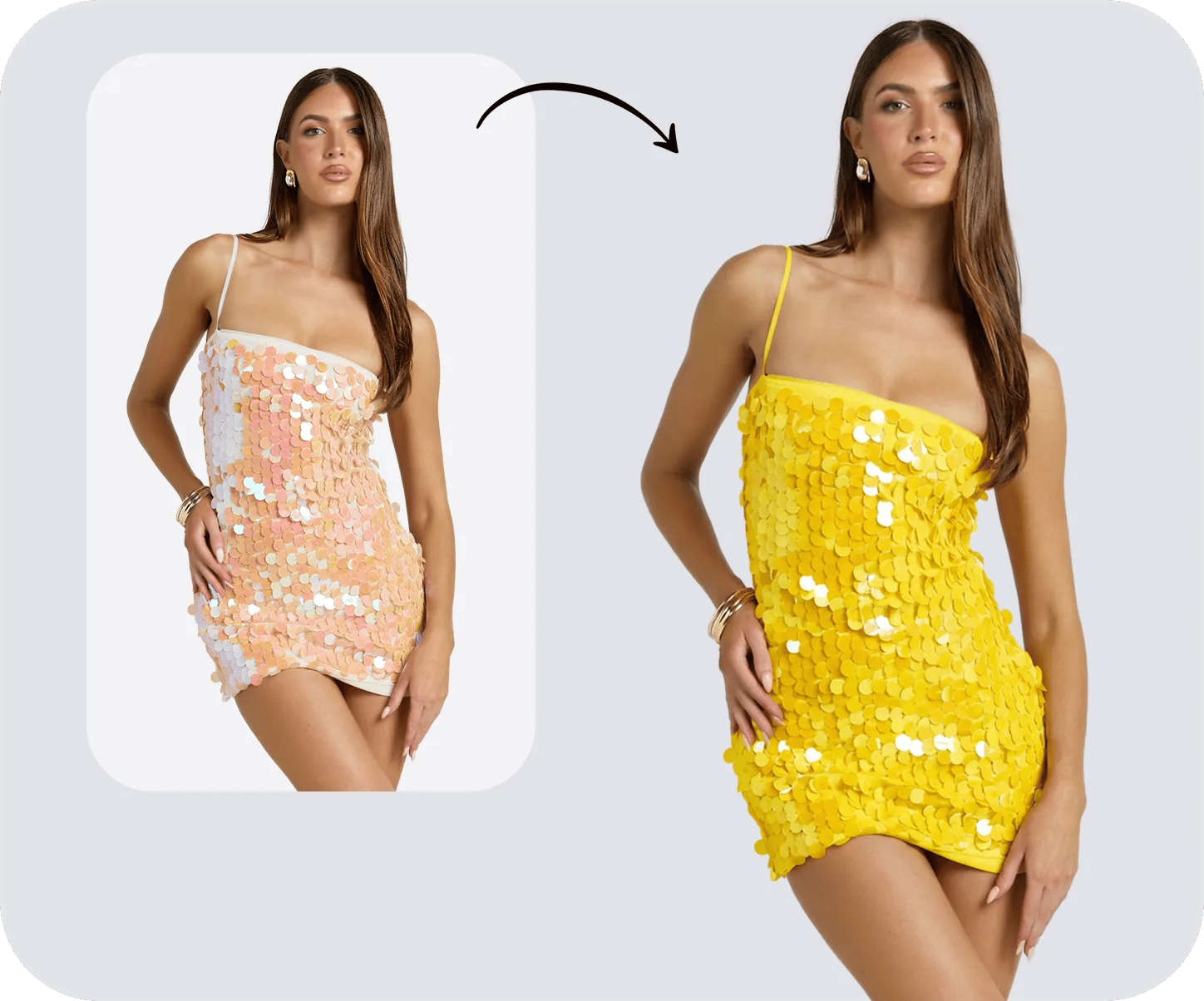
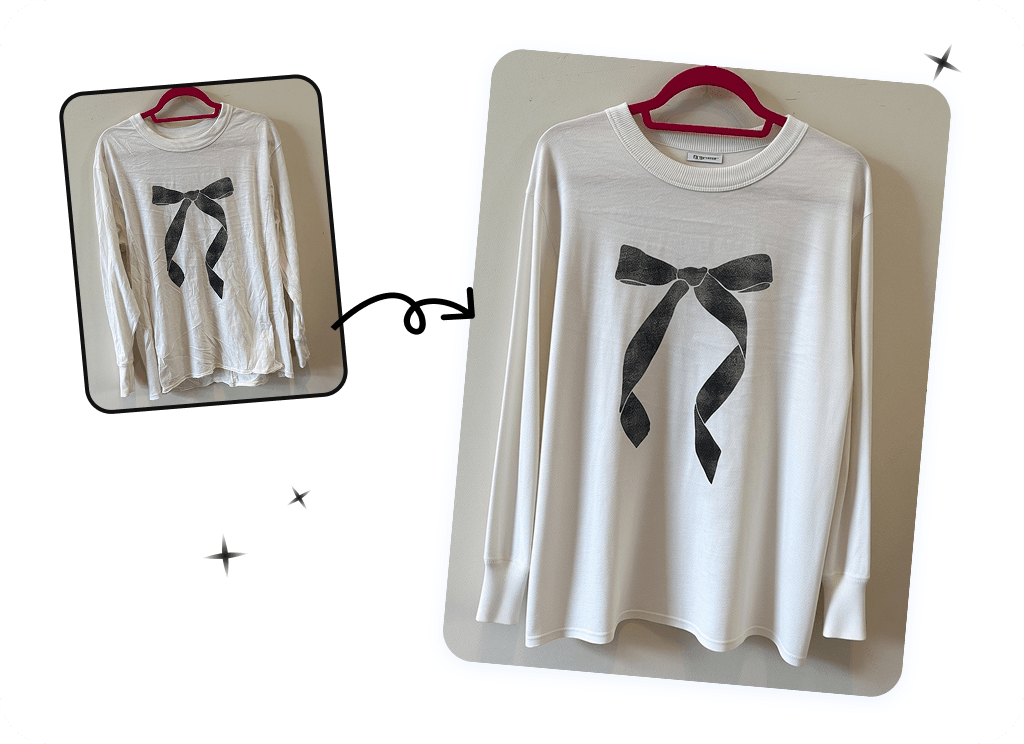
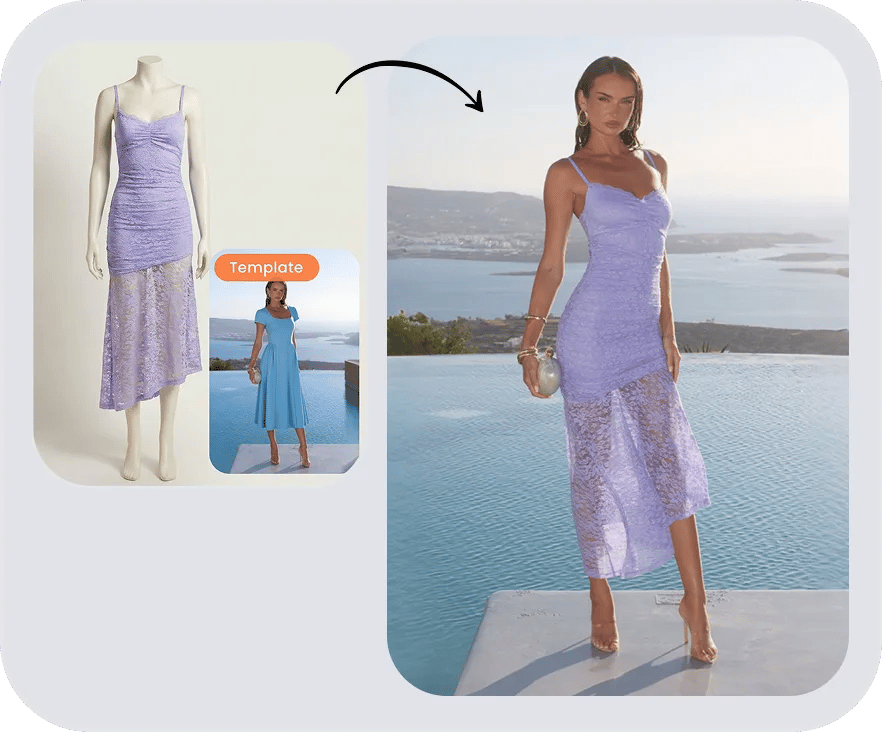
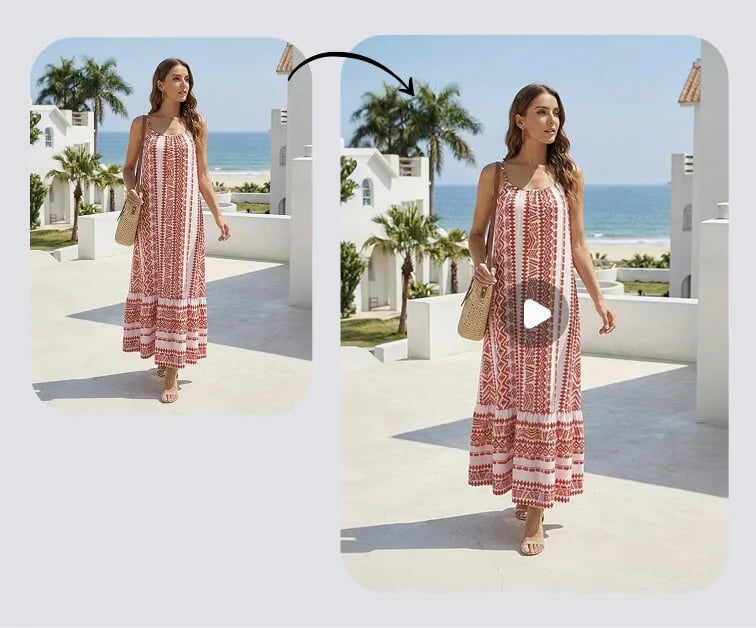
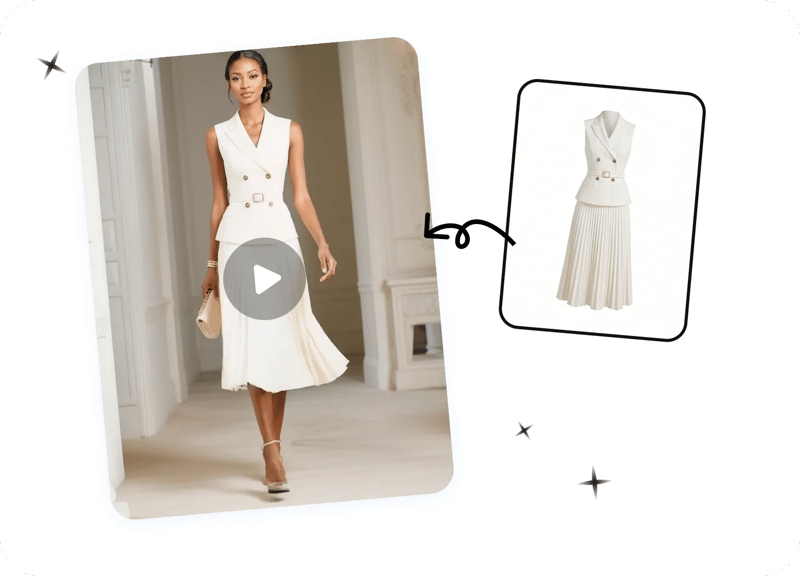
Fashion Video makes outfit and try-on Reels from photos of your clothing, shoes, bags or jewelry, worn by the AI model built into each template. Templates cover outfit changes, lookbook cuts, UGC-style hauls and jewelry try-ons. Upload each item as a flat-lay, hanger or ghost mannequin photo; the model and scene are fixed by the template.
Make a try-on Reel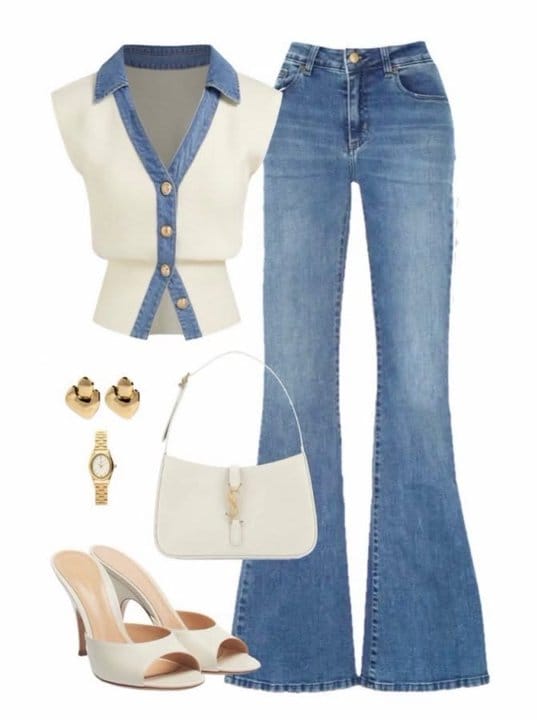

Product Reels from Your Product Photos
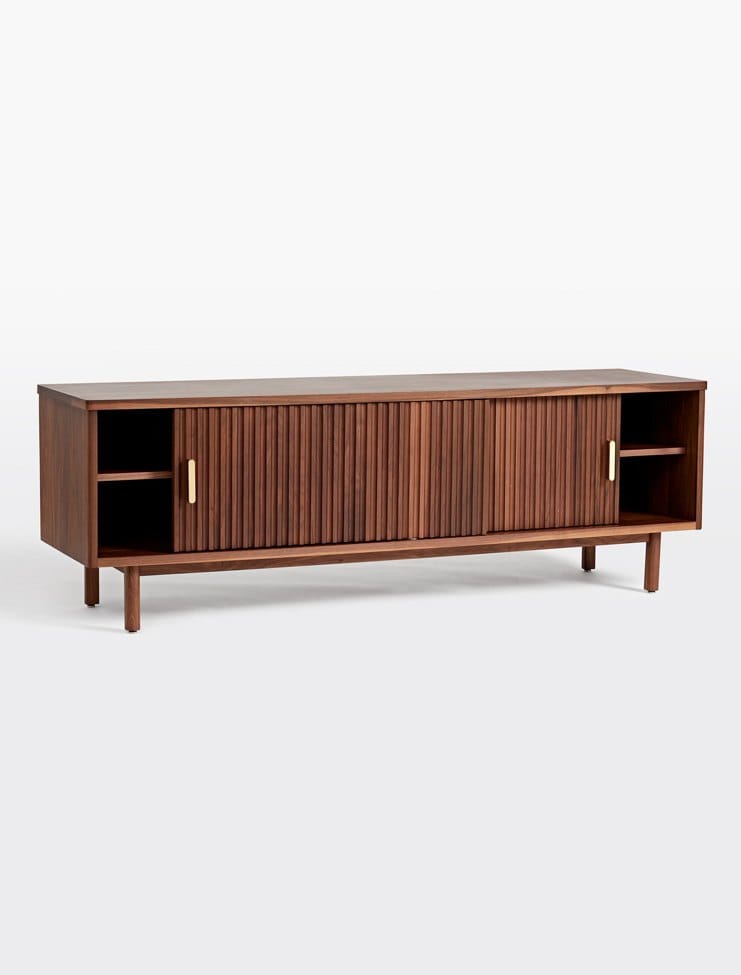
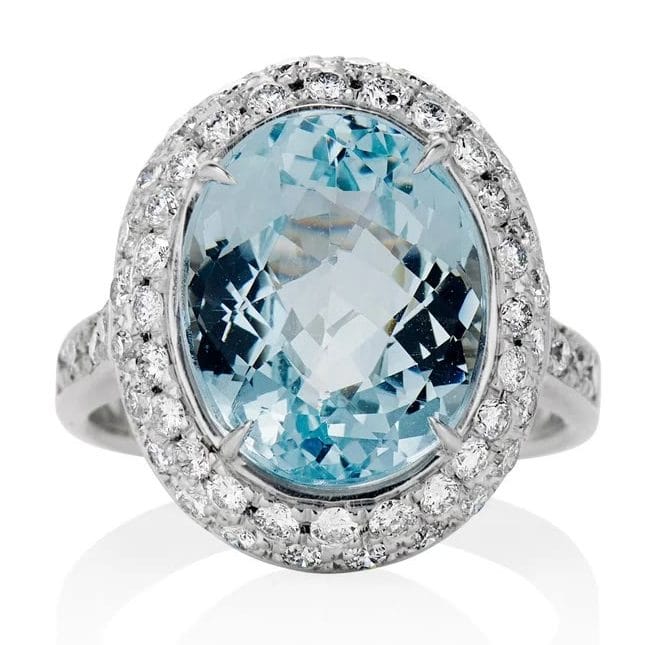
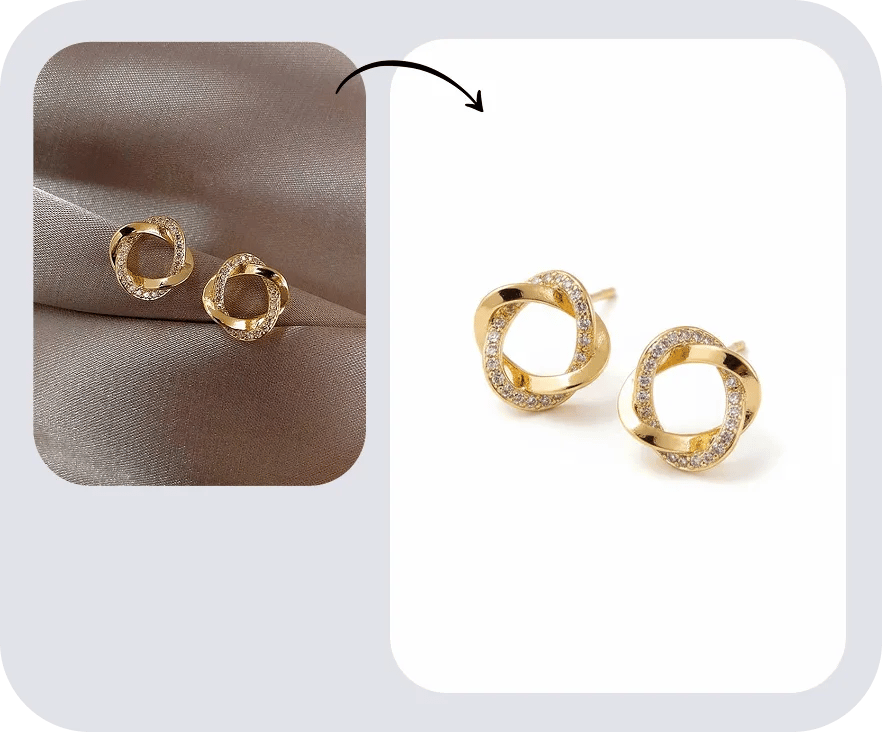
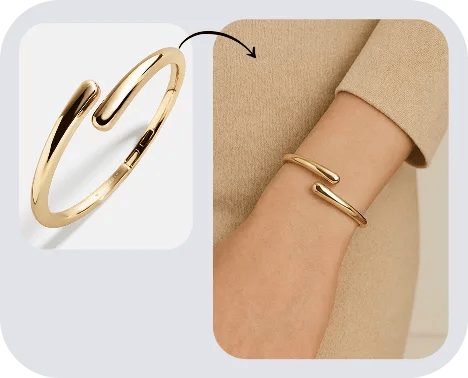
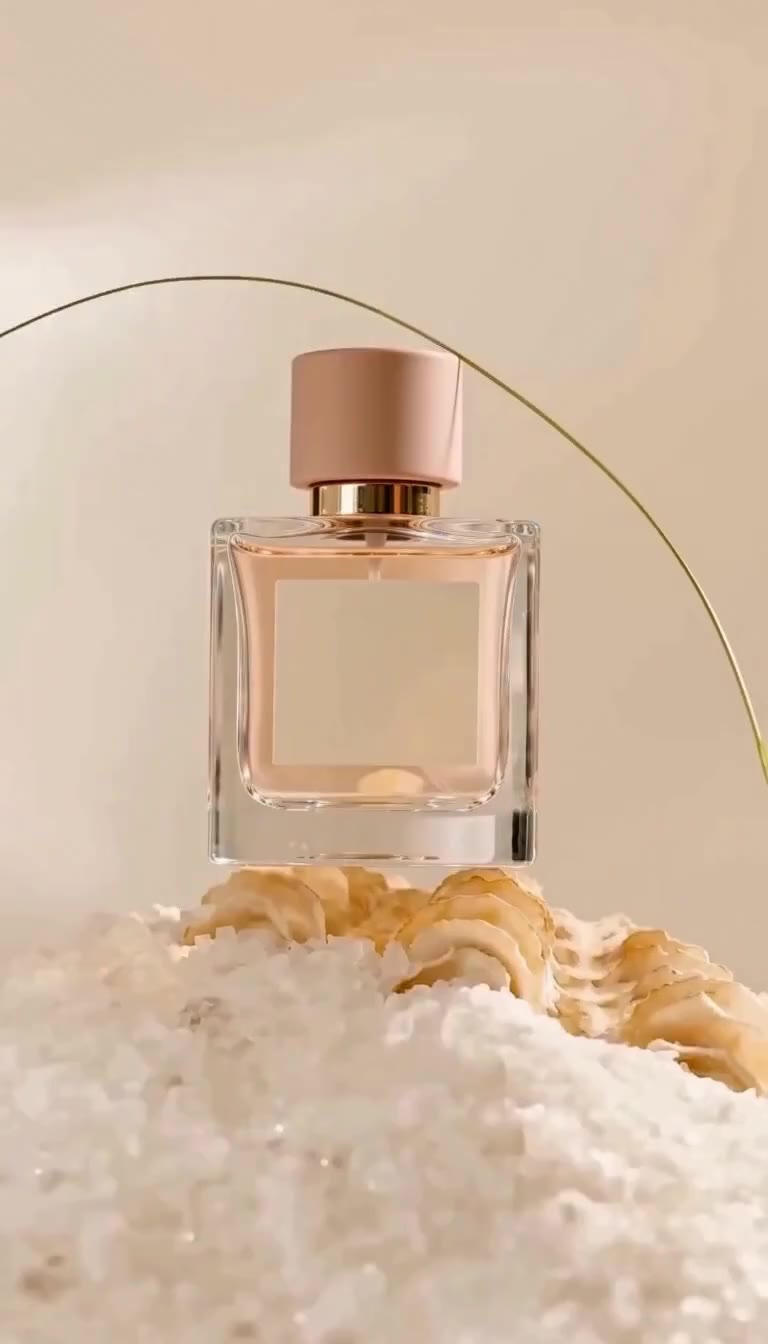
Product Video makes product-only Reels: jewelry close-ups, perfume and skincare still lifes, shoes in motion and home pieces in a room. No model appears unless the template shows a hand or a worn detail. Give the template a photo of every side it shows so the details stay close to your real product.
Make a product Reel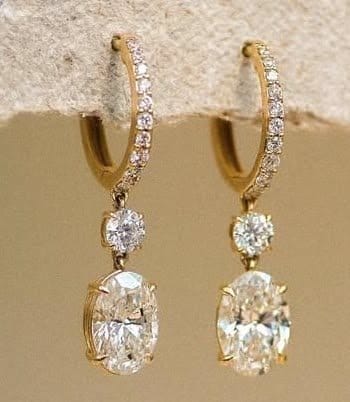
Instagram Reels Size, Length and Safe Zones
Instagram accepts Reels with an aspect ratio between 1.91:1 and 9:16, according to Instagram Help, and its publishing documentation recommends 9:16 to avoid cropping or blank space (Meta for Developers). Export 9:16 from Snappyit for Reels and Stories.
| Requirement | What Instagram says | Snappyit setting |
|---|---|---|
| Aspect ratio | Between 1.91:1 and 9:16; 9:16 recommended. | Choose 9:16 |
| Length | Up to 20 minutes; Reels over 3 minutes are not recommended to new audiences. | 4 to 15 seconds |
| Shortest Reel | 3 seconds when published through the API. | 4 seconds or more |
| Resolution | Minimum 720 pixels. | 768P or 2K |
| Stories | A video of up to 60 seconds posts as one clip. | Choose 9:16 |
| Reels ads | 9:16, MP4 or MOV, up to 4GB; 1440 x 2560 pixels recommended. | Choose 9:16 and 2K |
For Reels ads, Meta suggests leaving at least 14% of the top, 35% of the bottom and 6% on each side free of text, logos and other key elements (Meta Ads Guide). The Instagram interface covers those areas, so check that your product sits in the middle of the frame. For a feed post, 3:4 and 1:1 exports also fall inside Instagram’s accepted range.
Sources, checked November 2026: Instagram Help: Reels aspect ratio and resolution · Instagram Help: Reels length · Meta for Developers: Reels specifications · Instagram: Stories · Meta Ads Guide: Instagram Reels.
Reel Templates by Product Type
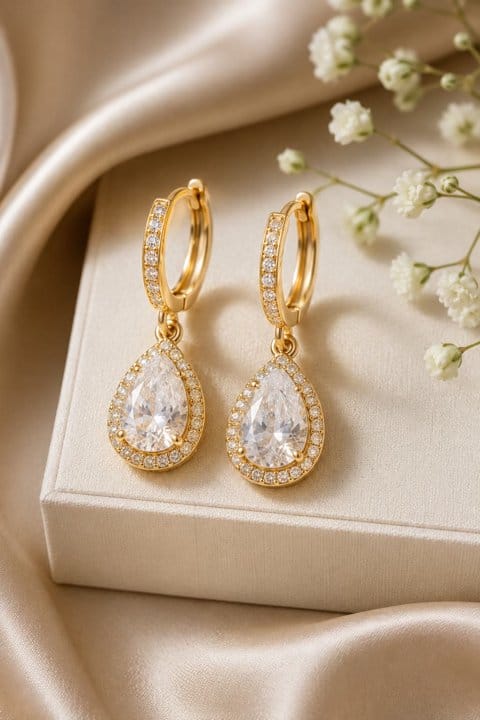
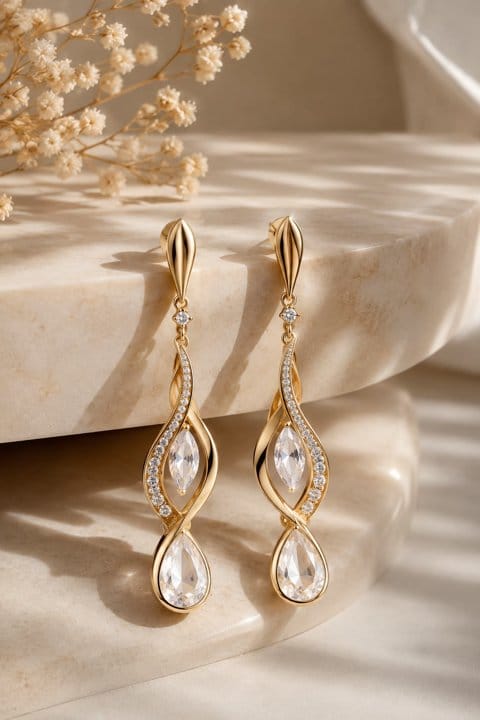
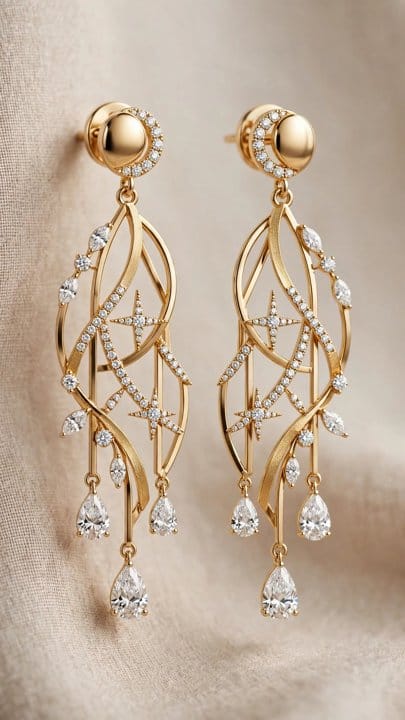
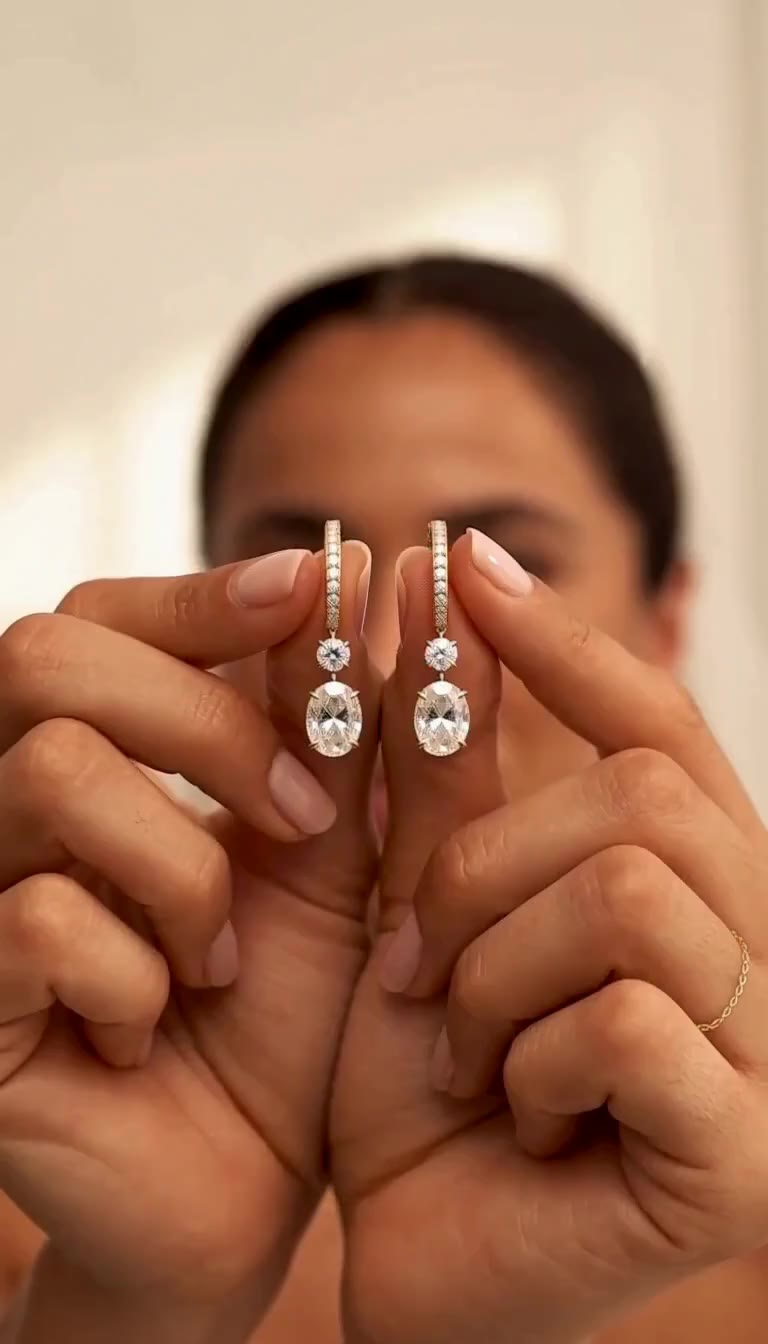
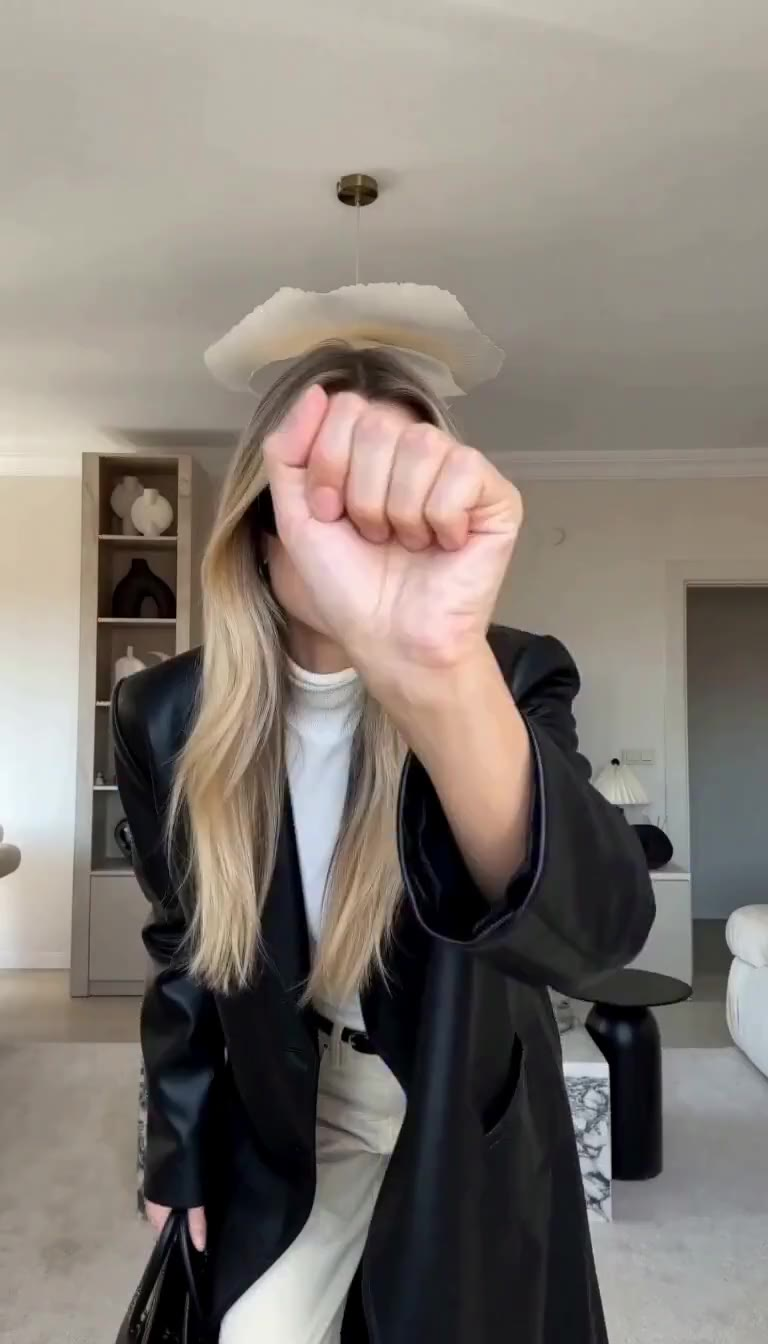
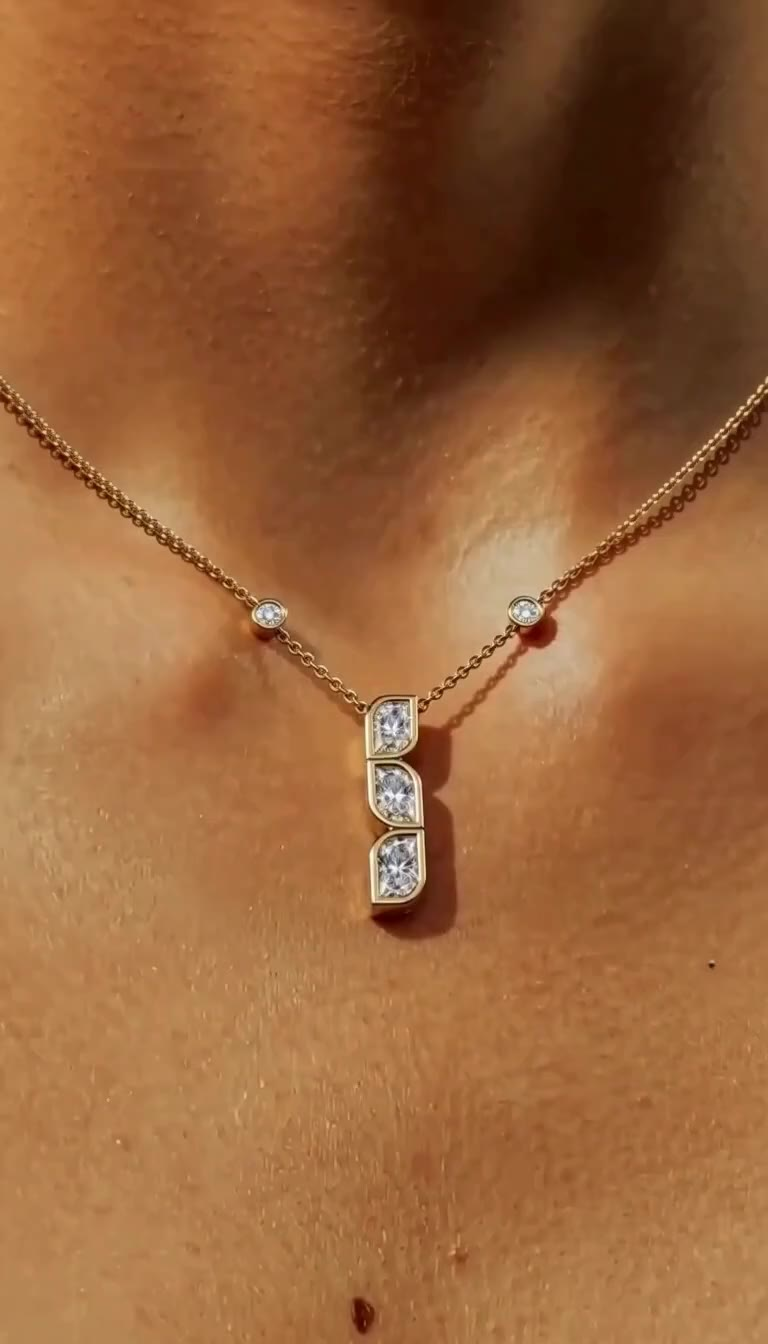
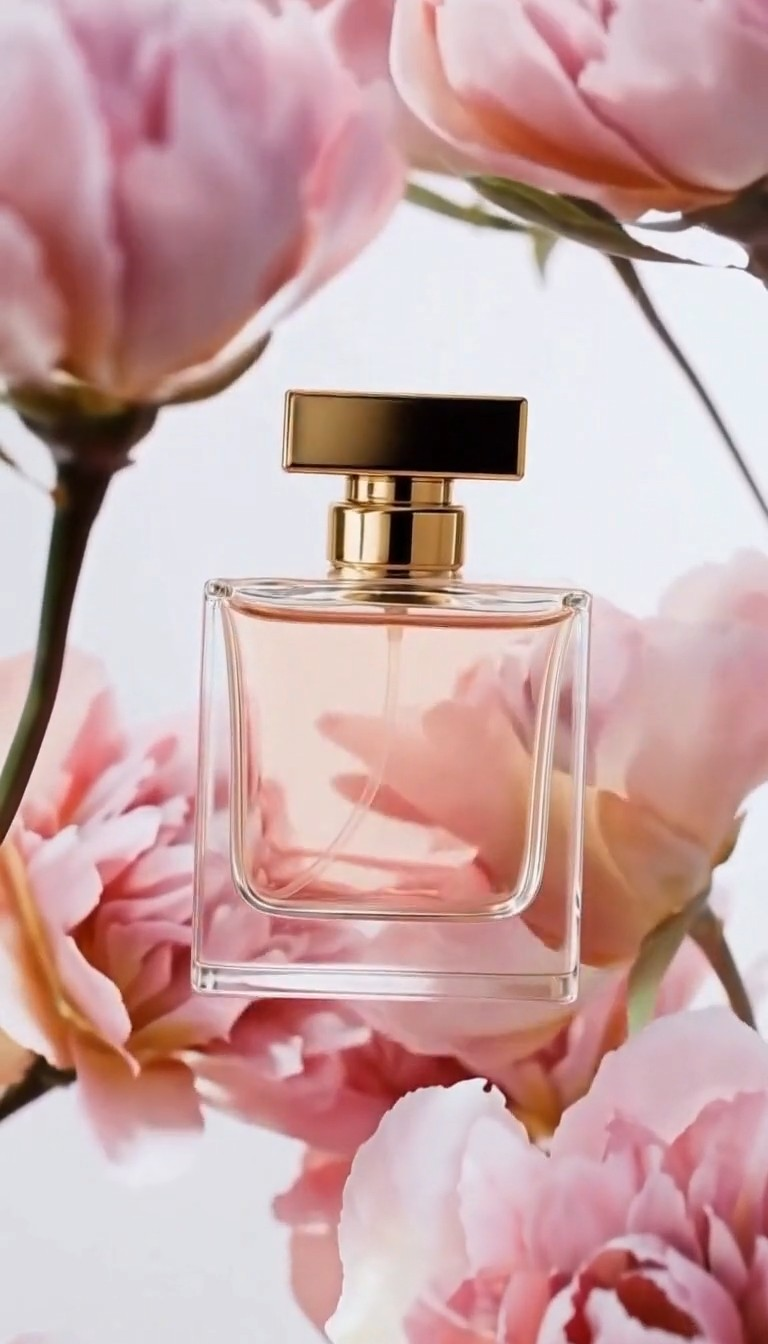
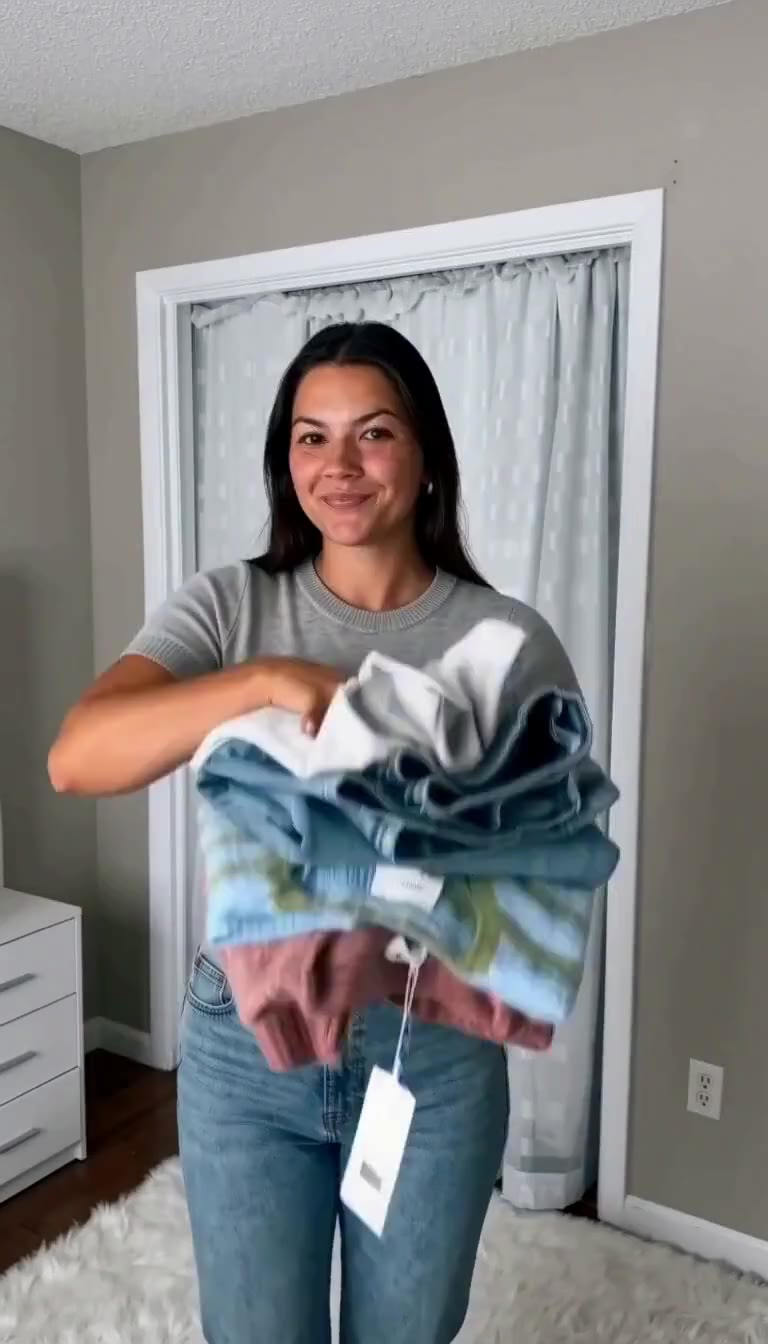
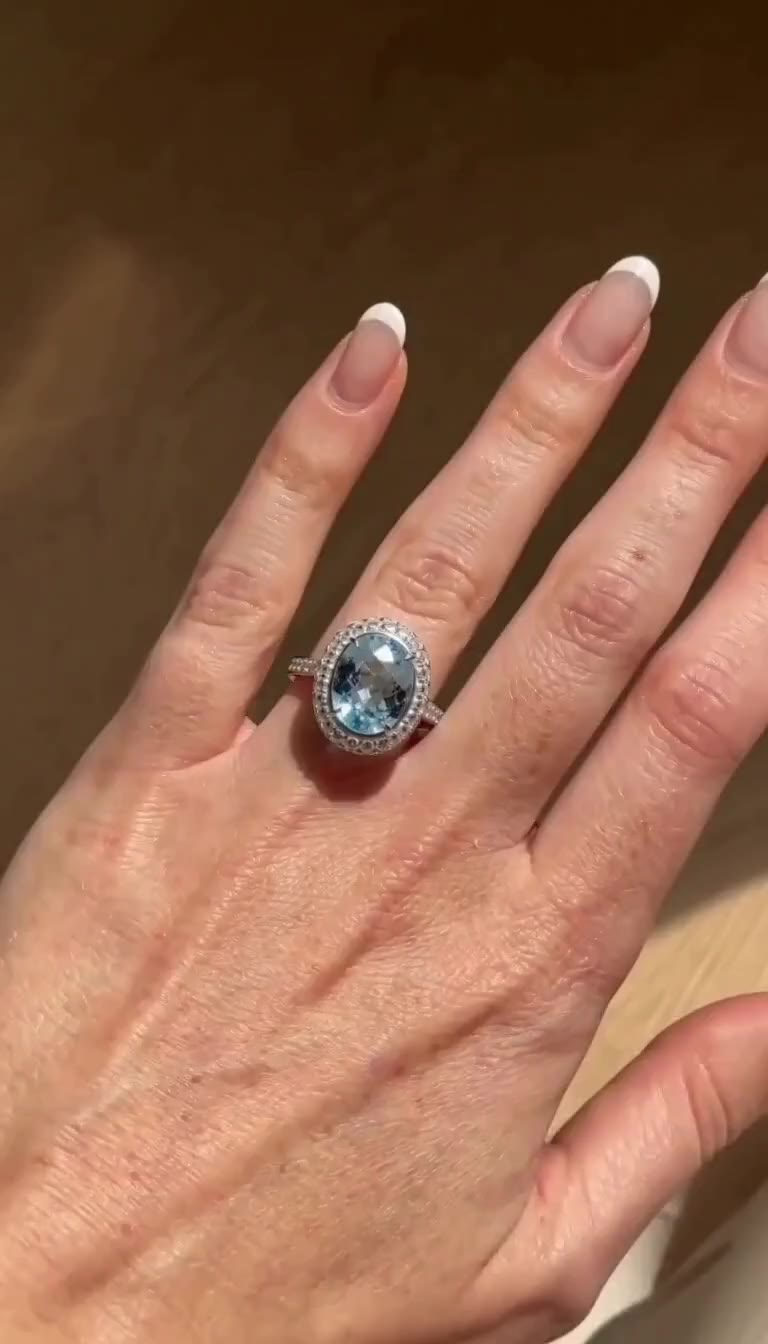
Each template is a finished shot plan with its own sample video. The ones below cover formats sellers often post as Reels: outfit changes, lookbooks, jewelry try-ons and beauty still lifes. Pick one to open it in the video generator.
How to Make a Reel with AI
Making a Reel with AI from product photos takes three steps: pick a template, add your photos, then generate and post.
Pick a template
Open Fashion Video for try-on Reels or Product Video for product-only Reels, then choose a template whose sample matches what you sell.
Upload your product photos
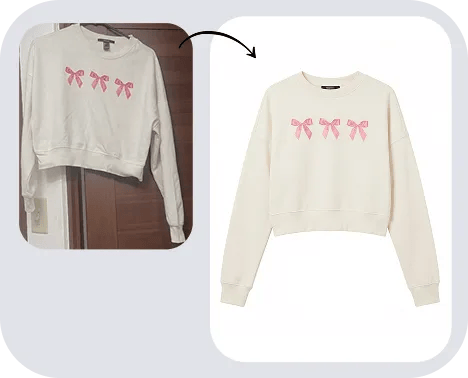
Add the photos the template asks for. Use clear, well-lit shots that show the whole item, and include each angle the video shows.
Generate, download and post
Choose 9:16 for Reels and Stories, or 3:4 or 1:1 for a feed post, then set the length and quality and generate. Download the video and post it from the Instagram app.
Does Instagram Label AI-Generated Reels?
Meta requires people to label organic content that contains photorealistic video or realistic-sounding audio that was digitally created or altered, and says it may apply penalties when they do not, as stated in Meta’s announcement. On Instagram you add the label yourself with the “Add AI label” option when you post (Instagram Help).
What needs a label
Photorealistic video and realistic-sounding audio made or altered with AI. An AI model wearing your product in a realistic scene falls under that wording. Source
Where the setting is
Turn on “Add AI label” while creating the Reel. Instagram’s help page says the feature is available in the mobile apps, not on computers. Source
Automatic labels
Meta also shows an “AI info” label on content it detects was generated by an AI tool. Source
Watermarks reduce reach
Instagram lists Reels that contain borders, logos or watermarks among those you may see less often. Snappyit downloads have no Snappyit watermark. Source
Original content
The same list includes Reels that are not original videos, so post your own generated video once and avoid reposting other accounts’ clips. Source
Music in your video
Templates include background music. Listen to the audio before you post, as you would with any video made outside the Instagram app.
Which Reel Maker Fits What You Start With
The right AI reel maker depends on what you start with: product photos, a finished photo or an idea. Templates come with music and no narration, so generate from a text prompt when the Reel needs spoken audio.
| You have | You get | Use |
|---|---|---|
| Photos of clothing, shoes, bags or jewelry | A try-on Reel with an AI model | Fashion Video |
| Photos of a product | A product-only Reel: close-ups, still lifes, in-room shots | Product Video |
| A model or lifestyle photo | The same photo with motion added | Image to Video |
| An idea without photos, or a script that needs speech | A 3 to 15 second Reel from a text prompt, sound optional | AI Image & Video Generator |
What Sellers Post as Reels
Fashion, jewelry and beauty sellers use AI Reels to show products in motion between photo shoots.
- New arrivals. Announce a drop with a try-on Reel made from the same flat-lay photos you use for the listing. See the workflow for fashion brands.
- Outfit and lookbook posts. Combine several pieces into one outfit-change or lookbook Reel to show how they style together.
- Detail close-ups. Show a necklace, ring or pair of earrings up close; the jewelry seller guide lists which templates suit each piece.
- Ad creatives. Make several versions from one set of photos and test them as Reels ads, keeping the product inside the safe zone. The video ad maker covers hooks and formats for each ad placement.
More AI Video Tools
YouTube Shorts Generator

TikTok Video Generator
AI Fashion Video
AI Product Video
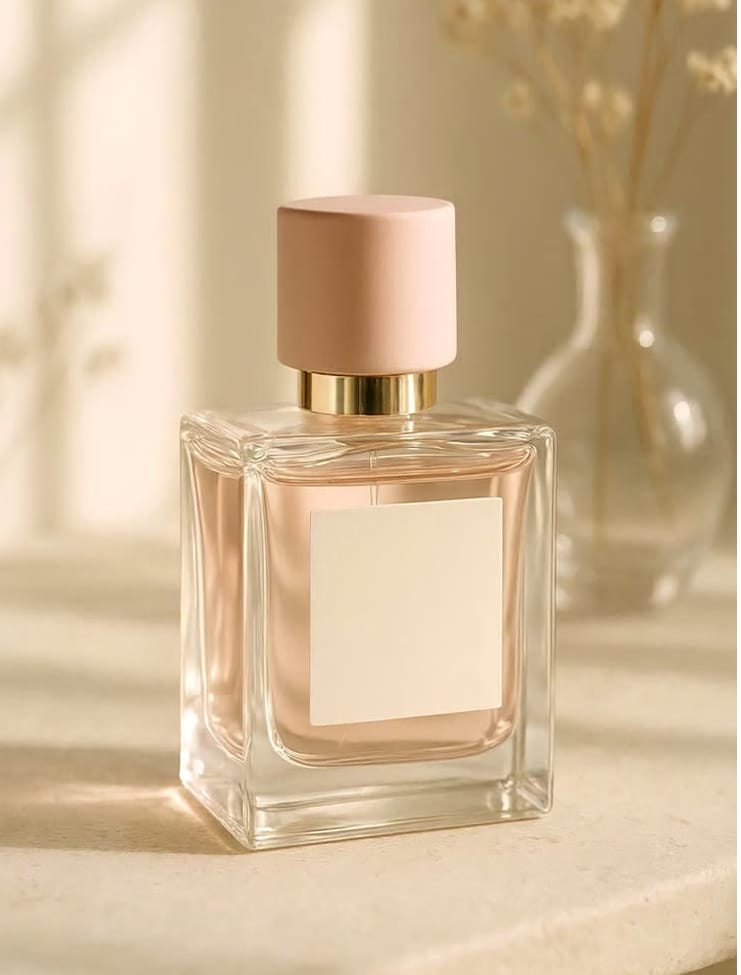
Image to Video
Edit with Prompt
Video Ad Maker
AI UGC Video Generator
360 Product Video Generator
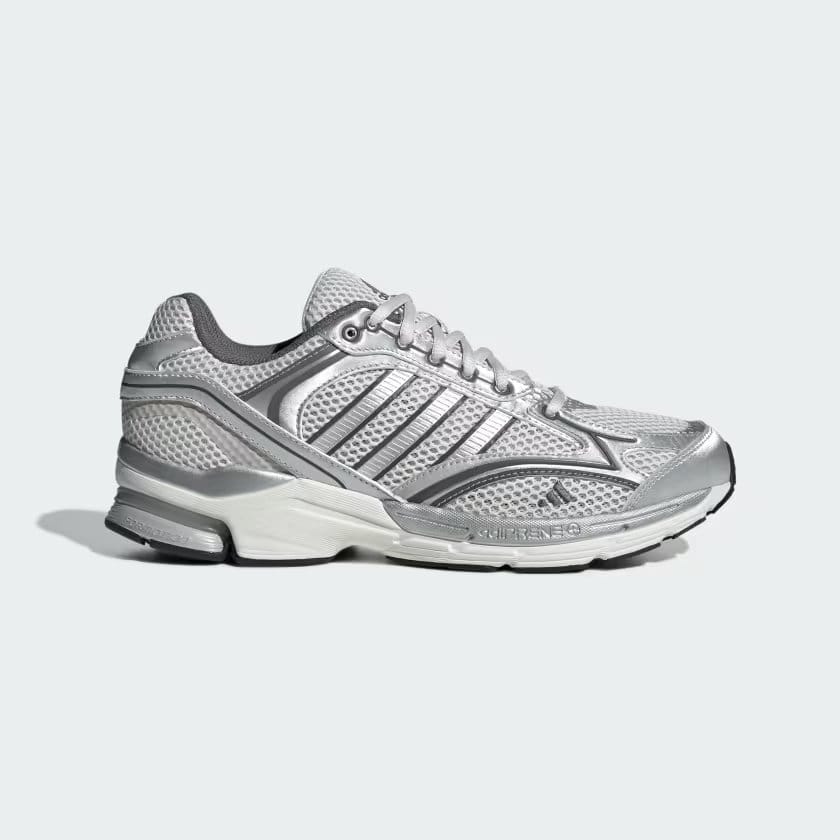
Guides for Fashion and Product Videos
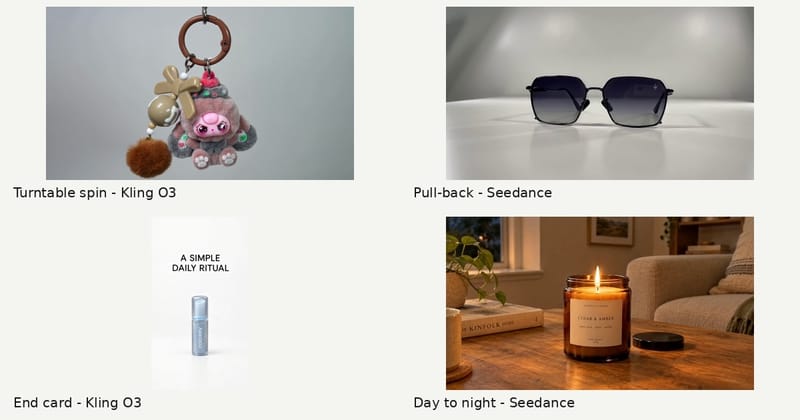 AI Product Video Prompts: 20 Tested ShotsTwenty product video prompts tested with Kling O3 and Seedance, with settings and reference-image inputs.
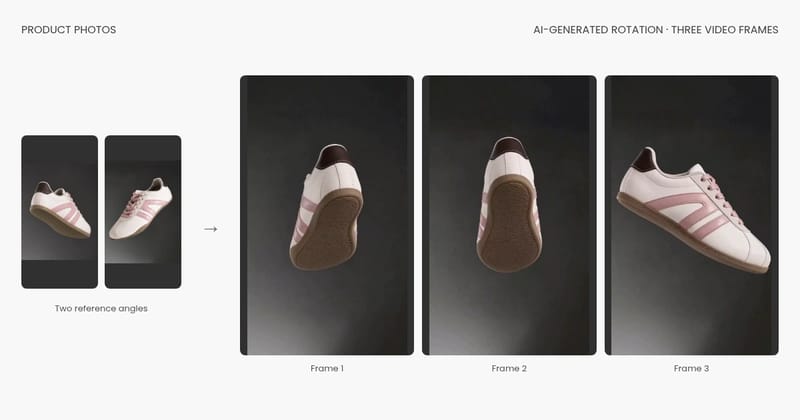 360 Product Video: 3 Ways to Make OneCompare turntable and AI methods and see how many photos each one needs.
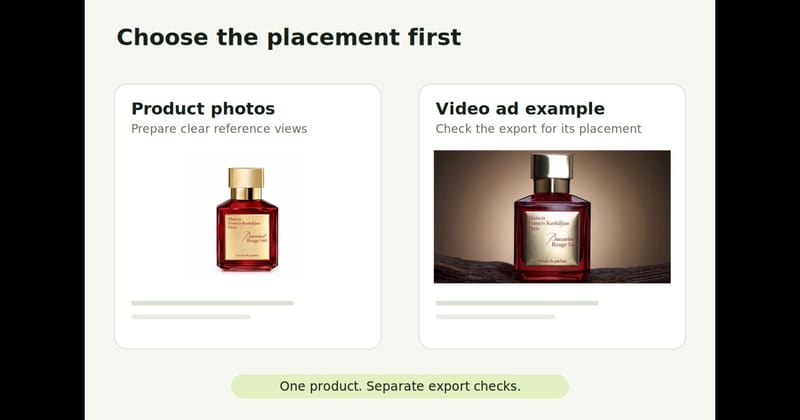 Amazon Product Video Requirements (2026)Format, length, file size and aspect ratio for listing, Sponsored Brands and Premium A+ videos.
 Etsy Listing Video Requirements (2026)Length, file size, formats and aspect ratio for Etsy listing videos, plus upload steps.
AI Reel Generator FAQs
Is there an AI that makes Reels for me?
Yes. Snappyit generates a 4 to 15 second vertical video from your product photos and a template, or from a text prompt in its AI Image & Video Generator. You download the video and post it as a Reel yourself.
Is the AI reel generator free?
New users can generate one video free. Later videos use credits, and the credit cost for your chosen length and quality appears on the Generate button. Generating requires an account.
Can I use my own product photos to make a Reel?
Yes. Upload photos of your product and pick a Fashion Video template for a try-on Reel or a Product Video template for a product-only Reel. Add every angle the template shows.
What size should an Instagram Reel be?
Instagram accepts aspect ratios between 1.91:1 and 9:16 and recommends 9:16 for Reels. Export 9:16 from Snappyit. The same file also works for TikTok and YouTube Shorts.
Can I make a Reel from just an idea, without photos?
Yes. Open the AI Image & Video Generator at snappyit.ai/generate, describe the Reel in a prompt and choose a video model. Switch on Generate sound for audio. A clip lasts 3 to 15 seconds.
Does Instagram label AI-generated Reels?
Meta requires you to label photorealistic video made or altered with AI, using the Add AI label option when you post. Meta may also add an AI info label to content it detects as AI-generated.
Explore More AI Product Photography Tools
Make Your First Reel from Product Photos
Start with the product photos you already have. Pick a template, generate a 9:16 video and post it from the Instagram app.