


 Sophia Ma
Key takeaways
A 360 product video is useful when buyers need to see the shape, sides and back of an item before they choose it.
- A video plays; an interactive spin responds to dragging. A 3D model is a third format with different file and hosting needs.
- Turntable capture records the real surfaces. AI uses your references, but can change details even on sides you supplied.
- Give AI a photo of every side the video will reveal. A single front photo cannot verify what the back looks like.
- Check shape, label text and color before upload. Keep clear product photos alongside the video.
What is a 360 product video?
A 360 product video is a short recording or animation that turns a product through a full rotation so viewers can see it from all sides. The viewer watches a fixed sequence rather than choosing the viewing angle.
A product spin video and a product rotation video describe the same motion. Check the output format: a playable video, an interactive photo sequence and a 3D model work differently.
| Format | What the shopper does | What you publish | Where it fits |
|---|---|---|---|
| 360 product video | Watches a set rotation; playback may start automatically or require a tap. | A video file, such as MP4. | Product galleries, social posts and supported video ad placements. |
| Interactive 360 spin | Drags or swipes to turn the product. | An ordered set of photos plus a viewer. | Your store, with compatible viewer software. |
| 3D model / AR | Rotates a digital model; supported AR experiences can place it in a room. | A model file. Shopify accepts GLB and USDZ. | Product pages and platforms with specific 3D support. |
This guide covers playable videos. A turn around one axis can still leave the sole, top or interior out of view.
Keep the still images. In Baymard’s usability testing, 83% of users did not try an available 360 feature, and 59% consistently skipped product videos. Place video alongside a useful photo set.
3 ways to make a 360 product video
You can make a 360 product video by recording a turntable, turning a photo sequence into a video, or animating product photos with AI. Choose based on the surfaces you need to show and the assets you already have.
| Method | Equipment and input | How it shows the back | Best fit / main limit |
|---|---|---|---|
| Turntable + video | Turntable, phone or camera, tripod and soft lights; one continuous recording. | The camera records the real back. | A small batch of physical products. Centering and rotation speed need care. |
| Turntable + photos → video | The same setup, plus evenly spaced captures and editing software. | Each angle is photographed. | Producing both a spin viewer and video. Exposure and alignment must match. |
| AI from product photos | Clear reference photos covering the sides that will appear. | Uses supplied references; unseen surfaces are inferred. | Working from an existing photo library. Shape, text and material need checking. |
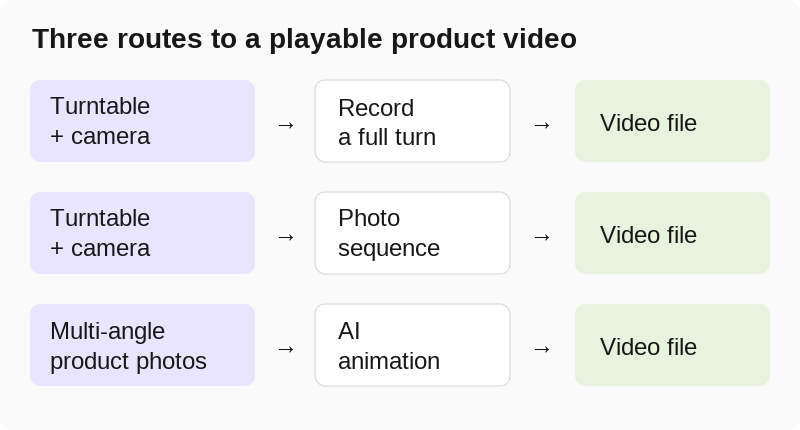
Turntables and lights need an equipment purchase and setup time; a service may charge per product. AI can use existing photos, with time set aside to review the output.
The photo-sequence route preserves angles for an interactive viewer too. PhotoRobot describes a standard spin as 24 or 36 photos; 36 gives one image every 10 degrees. This capture count is separate from AI reference-photo requirements.
How to make a 360 product video with a turntable
To make a turntable product video, hold the camera still and rotate a centered product under even light. Record continuously, or capture a sequence of still photos and assemble it in an editor.
What equipment do you need?
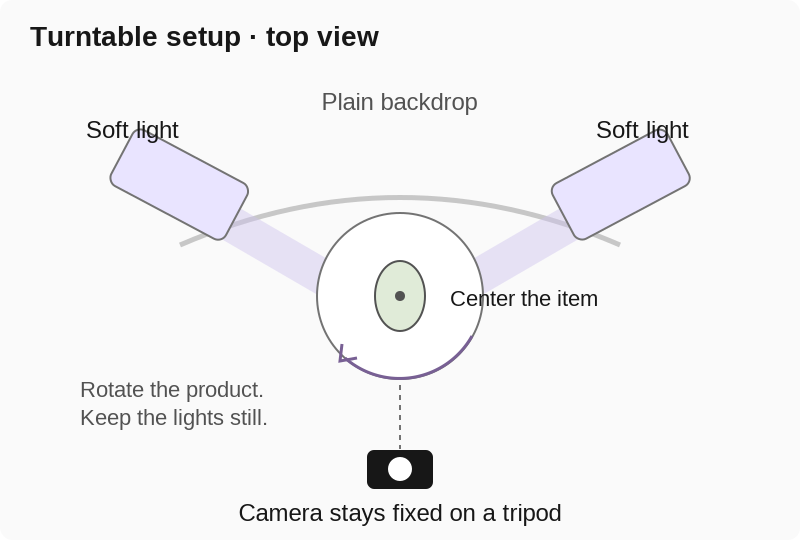
Use a manual or motorized turntable, a camera or phone, a tripod, soft lights and a plain background. Check the turntable’s load capacity. A motorized unit helps keep the movement steady.
These DIY product photography tips cover the wider setup. Keep lighting and white balance consistent across the capture session.
Set up, capture and export the rotation
- Center the product. Rotate it by hand before recording. If its position swings from side to side, adjust it on the platform.
- Fix the camera position. Place the lens around the product’s middle, or slightly above it. Leave enough room for the item’s widest angle.
- Soften the light. Use diffusers and white cards to reduce hard highlights. Lock focus, exposure and white balance where your camera allows it.
- Record a steady turn. Capture extra rotations so you can choose one without the start or stop. Keep hands and supports out of view.
- For a photo sequence, use equal angle steps. Keep the camera and editing settings fixed. Import the numbered images in order and give each frame equal time.
- Trim and export. Remove the speed changes at the ends. Check the loop seam and export the aspect ratio your destination accepts.
Check reflections throughout the turn. A bottle may look well lit from the front but catch a hard highlight at the side. Adjust the lights before shooting the next item.
How to make a 360 product video with AI
AI can turn product photos into a rotating video without a turntable. Supply photos for every angle shown in the chosen template, then compare the result with the item.
How many photos do you need?
The number of photos depends on the angles in your chosen template. Use clear product photos with visible details, and provide a corresponding image for each angle the template shows.
One front photo leaves the back unknown. AI may fill it with the wrong stitching, logo placement or sole pattern.
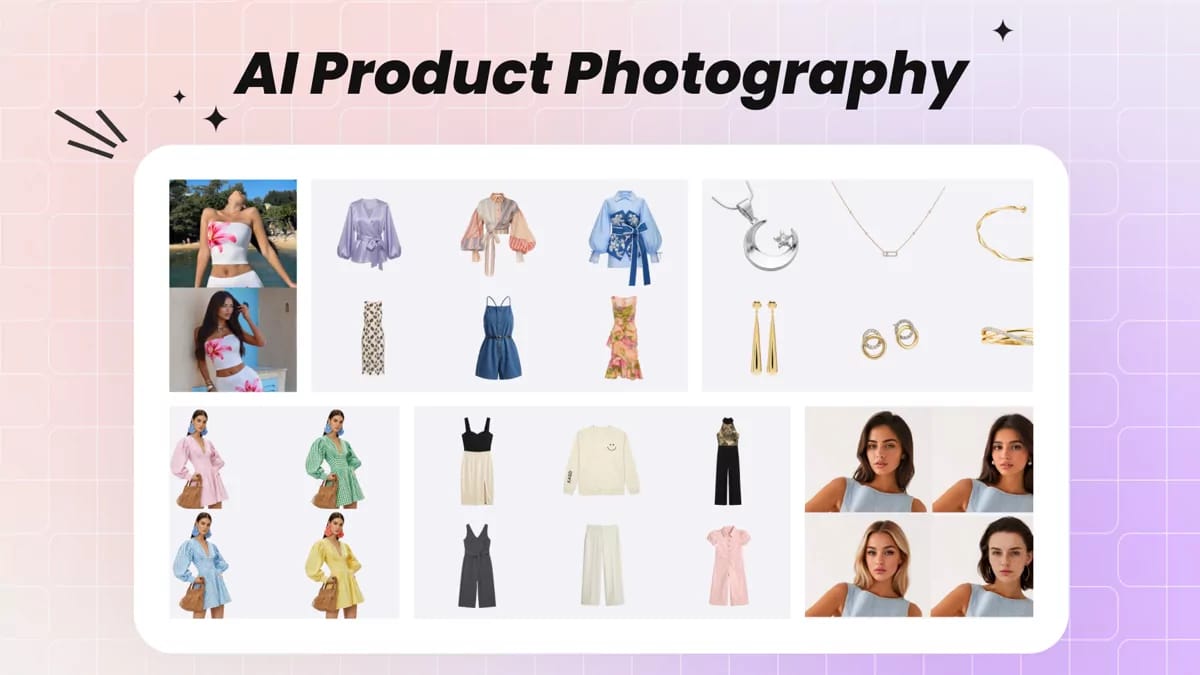
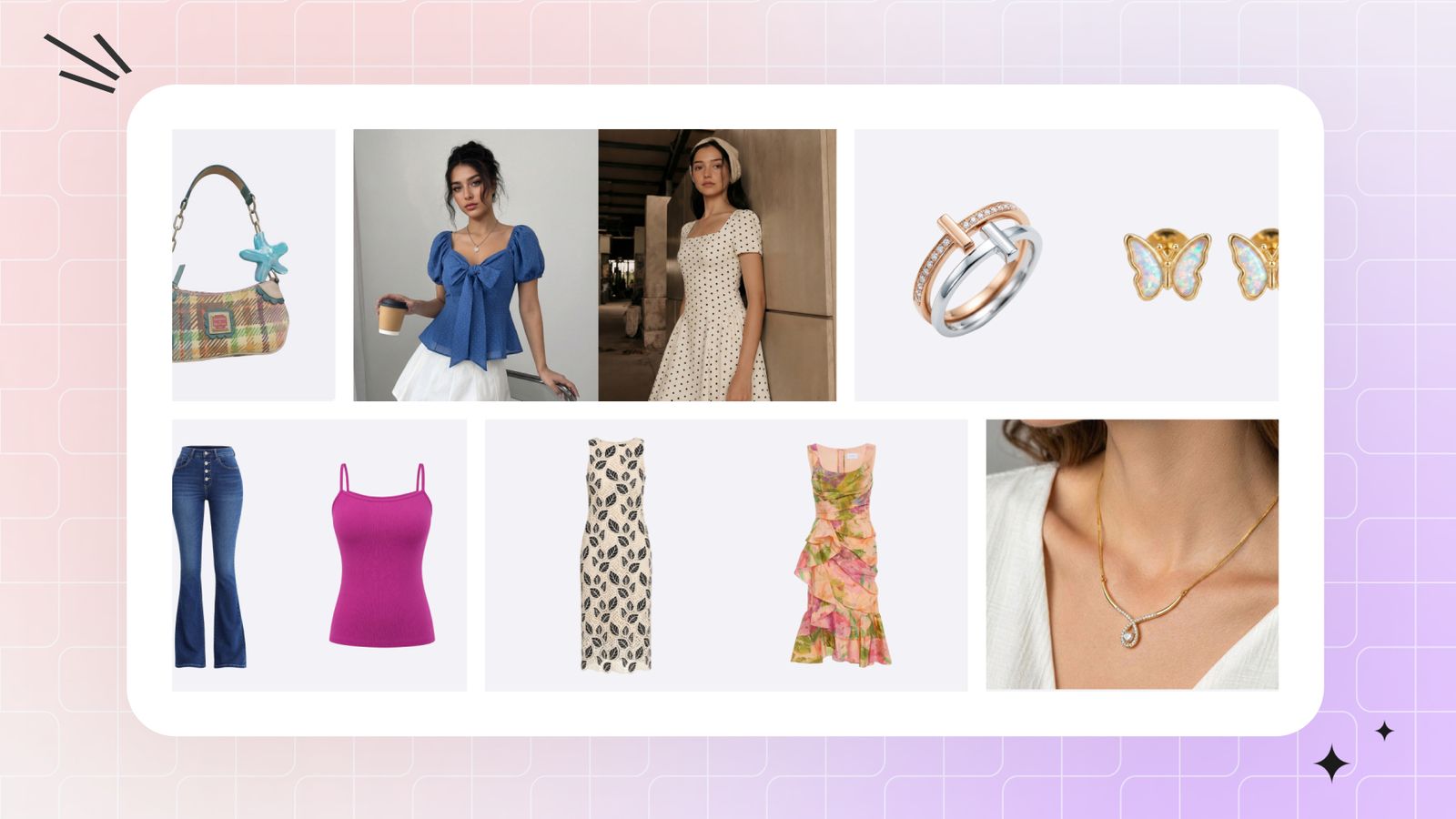
The 360 product video generator shows sample turns for shoes, clothing, jewelry and furniture next to the photos and prompt each one started from.
Which angles might a rotation reveal?
This table shows possible views to plan for, rather than a fixed upload checklist. Follow the photo requirements of the template you select.
| Product | Angles the movement may reveal | Details to check in motion |
|---|---|---|
| Shoes | Front, inner side, outer side and heel; top and sole if revealed. | Laces, side panels, heel shape and tread. |
| Bags | Front, back and both sides; top, base or interior when visible. | Strap attachment, fasteners, seams and pockets. |
| Beauty / perfume | Front label, rear label, sides and cap. | Lettering, bottle shape, liquid color and cap. |
| Jewelry | Front, side profile and reverse; clasp or setting close-up. | Stone count, setting, engraving and metal tone. |
| Home accessories | Front, sides and back; top or underside when shown. | Handles, openings, feet and surface pattern. |
Prepare the photos and generate the shot
- Choose clear product photos. Keep details visible and cover each angle the selected template shows.
- Open Snappyit’s AI product video generator. Choose a template for your product category, or add references from the same category when writing your own prompt.
- Set the output. Choose duration, aspect ratio and resolution. Check the credits before generating. Enable background music if you want a soundtrack; it costs additional credits.
- Review and download. Pause at each angle and inspect the transitions. Reject a result that changes the product.
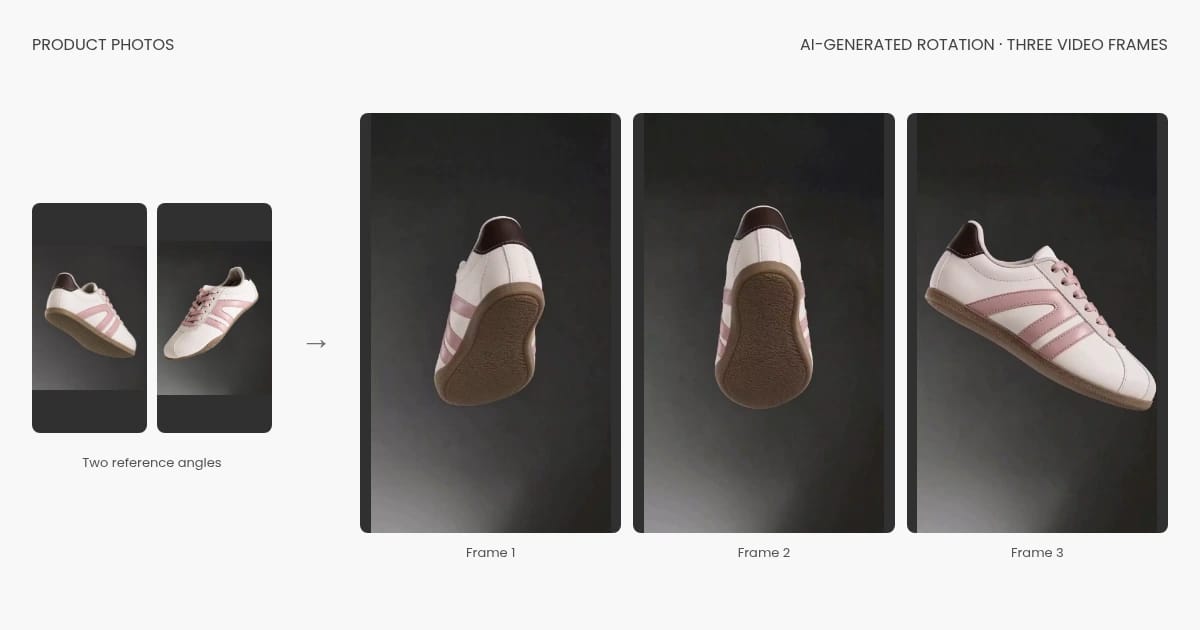
Two side photos, one floating showcase. This example uses two outer-side views. The sneaker tilts and turns, revealing its sole as well as its sides.
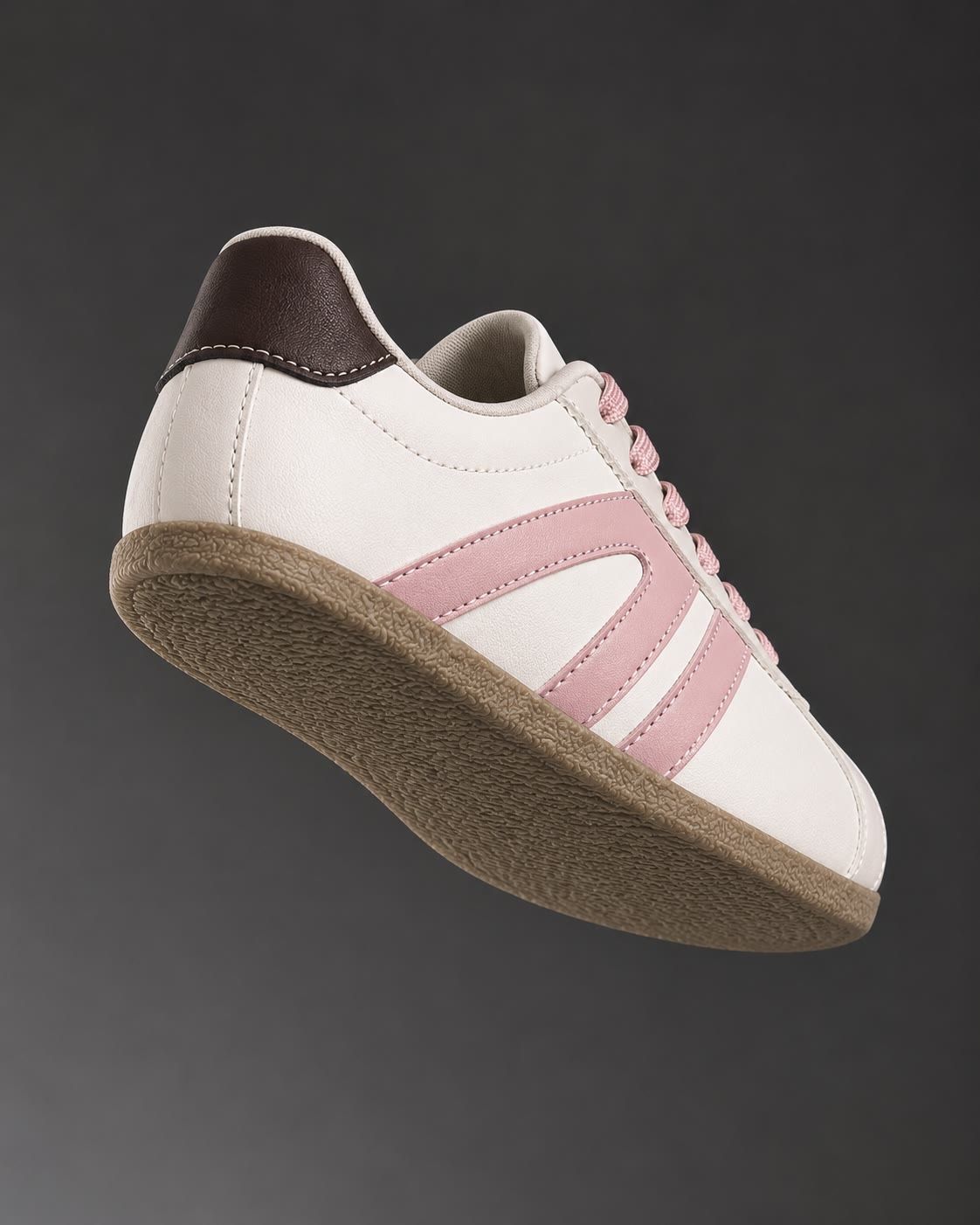
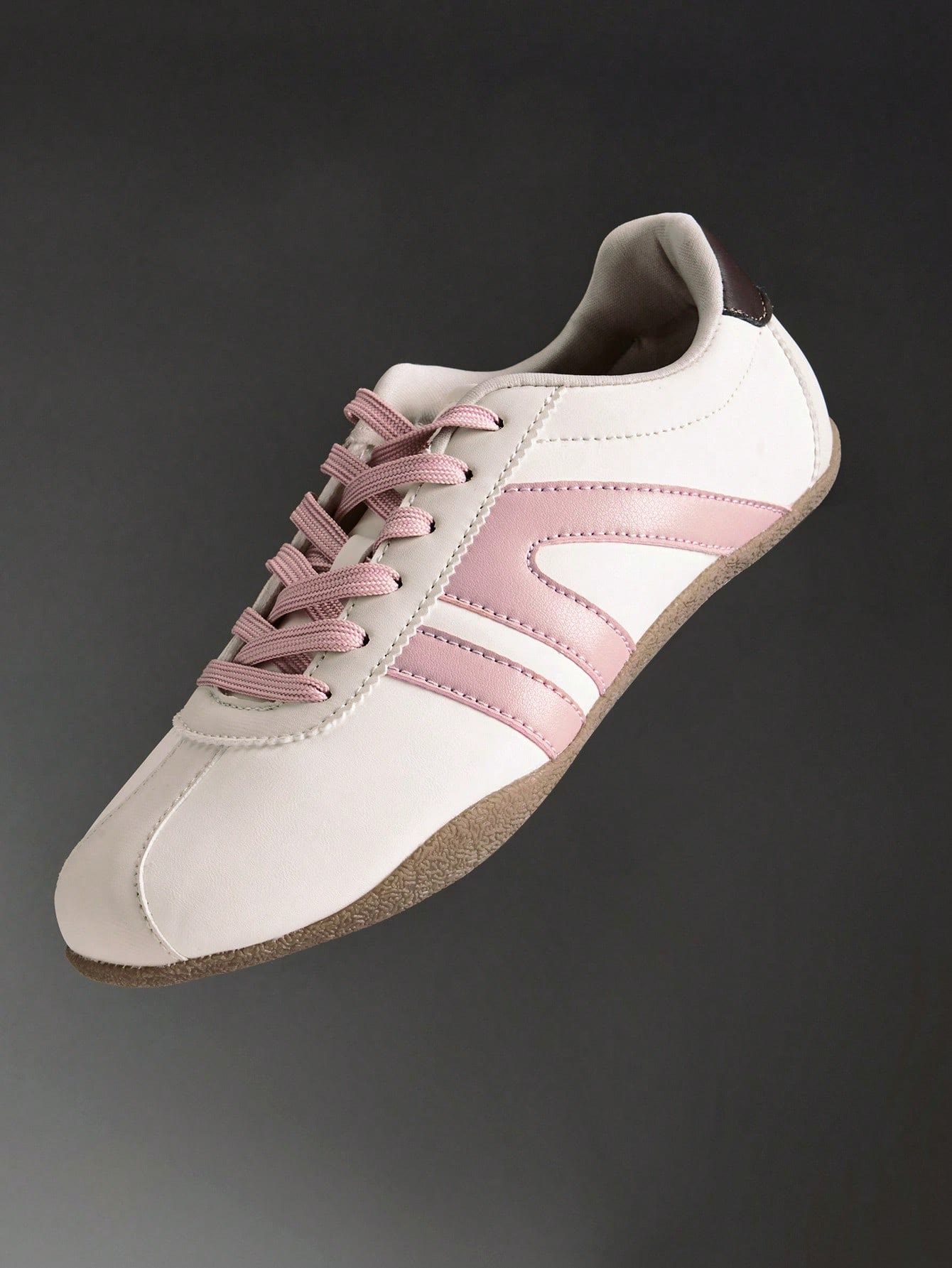
AI-generated floating showcase on a dark background. Audio is muted for this page.
A 360 degree product video prompt for a level turn
For a level turn rather than the floating motion above, use this prompt with front, side and back photos:
Show this same product making one slow, complete 360-degree turn on a plain background under soft, even studio light. Keep the camera fixed and the product centered at the same size. Use the supplied front, side and back photos as references. Preserve its shape, proportions, color, seams, logo and label text. End at the starting angle. No cuts, extra objects or on-screen text.
With only a front photo, choose movement within that view. See how to make a video from a single image.
How long should a 360 product video be?
A 360 product video should allow time to inspect the turn and meet the destination’s duration rules. Extend a rushed rotation or reduce its movement.
The product video page lists outputs from 4–15 seconds. A supported generation length is not the same as an accepted upload length: Google Merchant Center requires 6–240 seconds, while Amazon Sponsored Brands video requires 6–45 seconds. A four-second clip would need editing for either placement.
Plan a square crop for a product gallery, a vertical crop for Reels or TikTok, and a landscape crop for wide page areas. Check each destination’s requirements and the marketplace image-size guide for accompanying photos.
Where to use a 360 product video
Use a 360 product video where the sides and back help buyers judge the design. On your store, place it in or beside the product gallery.
Official specifications checked November 9, 2026. Listing videos, video ads and 3D models have separate rules. The links in each row lead to the relevant platform guidance.
| Placement | Video requirements | Spin / 3D distinction |
|---|---|---|
| Shopify product media | Up to 10 minutes, 1 GB and 4K. Accepts MP4, MOV and WebM. | Interactive spins need a viewer. GLB / USDZ models are separate media, up to 500 MB. |
| Amazon listing video | MOV / MP4; up to 1080p; maximum 5 GB. The guide lists 1–12 minutes for shoppable videos. | The former 360-image experience has ended. A rotation uploaded as video remains a video. |
| Amazon Sponsored Brands video | 6–45 seconds; 500 MB maximum; MP4 / MOV; 16:9 only. | This is an ad specification, separate from listing videos. |
| Google Merchant Center video_link | 6–240 seconds; 500 MB maximum; at least 720p. 9:16, 16:9 or 1:1. YouTube URL or direct supported video-file URL. | 3D uses virtual_model_link for eligible US products, not video_link. |
Use video and 3D as separate Amazon assets
Amazon ended its 360-degree image experience on January 20, 2025, after stopping new uploads in December 2023. Its announcement directs sellers to 3D models.
Amazon’s video guide currently lists 1–12 minutes for shoppable videos. Use a short spin as part of a longer product overview, and check your account’s upload requirements. Prepare the photo set using the Amazon product image requirements.
Keep the product visible in store and social versions
In a social cut, show the item from the opening frame and keep it inside the crop. For email clients without inline video support, link a poster image to the clip.
Google needs a public video URL that points directly to the file when self-hosted. Its separate 3D model guidance accepts glTF / GLB and recommends 10 MB or less, with a 15 MB limit.
Common 360 product video problems and how to fix them
Unstable capture, missing views and generation errors cause most 360 product video problems. Check each angle before export.
The product wobbles from side to side
Recenter the item and secure the tripod. Preview a full turn: the product should rotate in place rather than travel around the platform.
The rotation moves in jumps
Steady the turntable. In a photo sequence, check for missing images and equal frame timing. More captures can smooth movement; inspect interpolated frames for distorted edges.
The back does not match the real product
Add that surface’s photo and regenerate. If the workflow cannot accept enough references, reduce the movement or use turntable capture.
The label or logo changes during the turn
Try slower movement with less occlusion and inspect the lettering. Read why AI gets product text wrong. Separate captions cannot repair a distorted label on the item.
The color shifts between angles
For turntable footage, lock white balance and exposure. For AI, inspect the export against the product photos and regenerate if its color changes.
Glass or metal flickers
Use larger diffused lights. For AI, choose a same-category template and inspect highlights. This jewelry photography comparison covers reflective details.
Do you need a 360 product video or a model video?
A 360 product video shows the item itself; a model video shows it worn or carried. A shoe spin reveals its panels and heel; an on-foot view adds styling context.
For worn or carried views, Fashion Video turns product photos into try-on videos with an AI model. The template provides the model. Image to Video starts from an existing image, including an on-model photo.
360 product video FAQ
A 360 product video is a playable rotation whose inputs and output depend on the workflow you choose.
Can AI make a 360 product video from one photo?
AI can generate a rotating clip from one photo, but it must infer the surfaces that photo does not show. A plausible back may differ from the real item. Supply photos of every side the movement reveals, or choose a smaller movement that stays within the photographed view.
How many frames do you need for a 360 product spin?
A standard product spin usually uses 24 or 36 photos, according to PhotoRobot. With 36 photos, each angle is 10 degrees apart. More captures can smooth the movement but increase the file count. These are turntable capture counts; follow your selected template’s photo requirements for an AI video.
What equipment do you need for 360 product videography?
Turntable capture needs a turntable, a camera or phone, a tripod, soft lighting and a plain background. Photo sequences also need software to assemble the frames. An AI workflow can use existing product photos instead of that capture setup, provided the photos cover the surfaces the video will reveal.
Is a 360 product video the same as a 3D model?
A 360 product video is a fixed recording or animation that plays through a rotation. A 3D model contains digital geometry that a compatible viewer can rotate, and some platforms support augmented reality. Exporting an MP4 rotation does not create a model file or an interactive product viewer.
Can I add a 360 view to an Amazon listing?
Amazon discontinued its former 360-degree image experience on January 20, 2025. Its announcement directs sellers to supported 3D model experiences instead. A rotating product video is a separate asset and may be uploaded through an eligible video workflow. Confirm the current requirements for your account and placement before uploading.
How do I stop a product rotation video from wobbling?
For turntable footage, place the product at the center of rotation and keep the camera fixed on a stable tripod. Check a full turn before recording. For AI output, simplify the movement and use consistent reference angles; if the shape still changes, reject that result or use direct capture.
Choose the method, then prepare the angles
Choose turntable video for direct capture, a photo sequence for both spin and video, or AI when suitable reference photos are available. For AI, follow the template’s angle requirements. Inspect shape, text and color before upload, and keep useful still photos alongside the video.
Make a 360 product video from your product photos →
References
Platform documentation and research consulted November 9, 2026. Official upload limits apply to the specific placements described above.
- Shopify Help Center: Product media types.
- Amazon: Product videos and technical requirements. Lists 1–12 minutes for shoppable videos while also discussing shorter high-performing videos; confirm the requirements for your upload workflow.
- Amazon Ads: Sponsored Brands video specifications.
- News_Amazon: 360-degree image experience discontinued.
- Google Merchant Center: Video link and 3D model link.
- Baymard Institute: Video & 360-Views. The public summary omits the sample size and test date for these findings; its percentages describe usability behavior, not conversion uplift.
- PhotoRobot: 360° product photography. Equipment-vendor guidance on capture formats and frame counts.