


 cheese Yuan
DIY product photography starts with an accurate source photo: a clean product, a steady phone or camera, soft light, and a background that does not compete with the item. That photo can be published as it is or used as the starting point for careful post-shoot improvements.
What DIY Product Photos Need to Show
A useful DIY product photo shows the whole item clearly, keeps its color and shape believable, and gives shoppers enough detail to understand what is included. The image set should answer specific buying questions rather than repeat the same view.
Each view should answer a different buying question. The main image identifies the product; alternate angles show its shape and components; close-ups reveal details such as seams, closures, finishes, or labels; and scale or in-use photos help explain size and context. In category grids and marketplace results, the main image may appear small beside similar listings, so clear framing helps shoppers scan; the rest of the gallery can provide the closer views needed to evaluate a product. Each image should add useful information instead of repeating nearly the same view.
Clear, accurate photos can build confidence by helping shoppers understand what they are considering before they order. Missing views, poor lighting, or edits that change a product's color, texture, shape, or included items can leave questions unanswered or create expectations the delivered item cannot meet. Strong ecommerce photography balances visual appeal with accurate product information; it can support a purchase decision, but it cannot guarantee a sale.
Prepare the Product and a Simple Home Setup
Dust, fingerprints, loose threads, and untidy packaging are harder to fix after the shoot. Clean the item, smooth fabric where practical, arrange included accessories, and position labels so they are readable.
Place the product near a large window or one diffused lamp. Stabilize the phone with a tripod, stand, or firm stack of books, then use the timer to reduce movement. Mark the product and camera positions with removable tape if several items need the same framing.
A short shot list helps a seller capture every necessary view before the product is packed away.
| Product type | Details worth showing |
|---|---|
| Clothing | Front and back, fabric, labels, seams, buttons, and zippers |
| Jewelry | Size, clasp, surface, finish, and appearance when worn |
| Beauty products | Packaging, shade, texture, ingredient label, and included items |
| Home goods | Size, material, construction, and everyday use |
DIY Lighting, Backgrounds, and Useful Product Views
Simple lighting for visible detail
Soft light helps show the product's shape, color, and texture. A window and a sheer curtain offer a simple setup. A white board opposite the window can reflect light onto the darker side of the product.
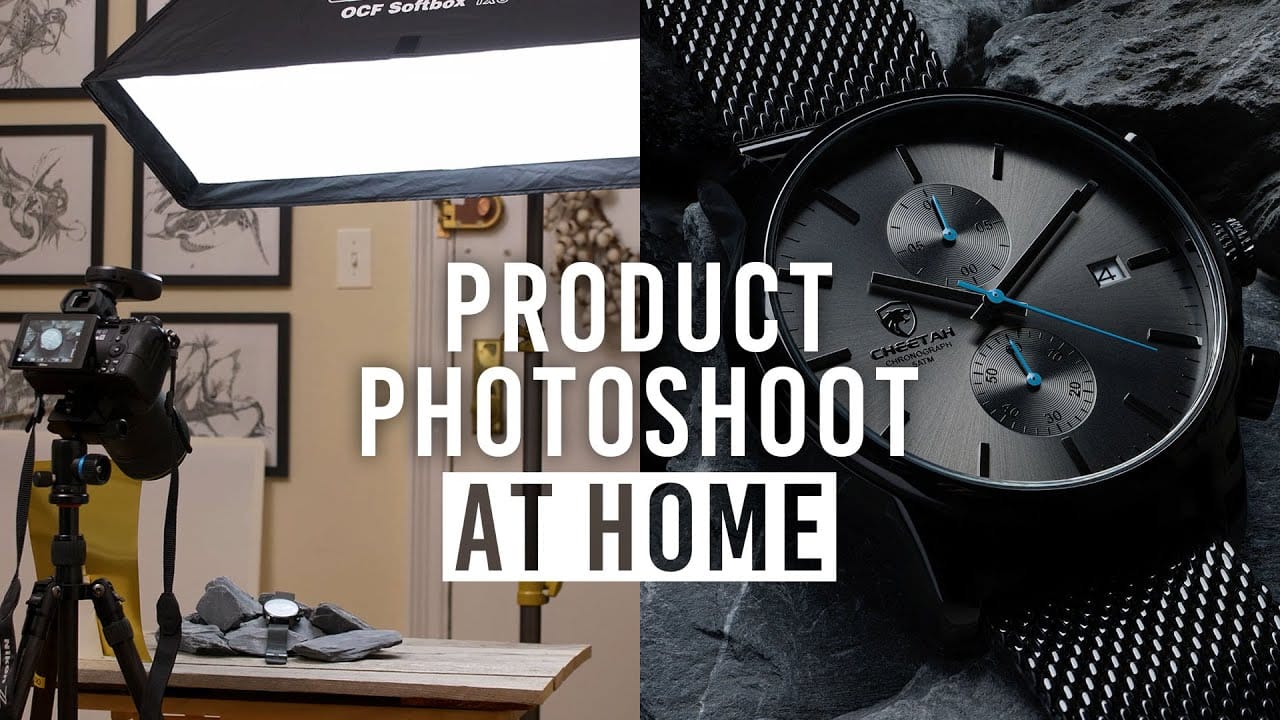
Start with one main light, either a window or a diffused studio light, placed slightly above and to one side of the item. Take a test photo before shooting the full set: check whether the label is readable, fabric texture is visible, and the shadow side still has detail. Move the light or the product a little at a time, then use a white board on the opposite side to lift dark areas without removing every shadow. Adorama's ecommerce lighting walkthrough shows how a larger diffusion panel can spread one light across a tabletop scene.
Light direction changes what shoppers can see. A side angle can bring out seams or a woven surface; for glossy packaging, inspect the test image for bright reflections that cover text, then change the light angle or add diffusion. Turn off warm room bulbs when using daylight so the product is not lit by two different colors of light. If the color still looks wrong, use a neutral card to set white balance and compare the photo with the product under the same light. Nikon's white-balance guide explains the white-card method.
| Problem | Likely cause | Possible adjustment |
|---|---|---|
| Hard shadows | Direct light or a small light source | A sheer curtain or another light-softening material |
| One side looks too dark | Light comes from one direction | A white board on the darker side |
| Colors look yellow or blue | Different types of light are mixed | One type of light, such as daylight alone |
| Texture is hard to see | Light points straight at the surface | Light placed slightly to the side |
| Glare hides a label | A bare light reflects in a glossy surface | Move the light or place diffusion between it and the item |
A little shadow helps show shape. Heavy shadows become a problem when they hide details or make a light-colored product look dirty.
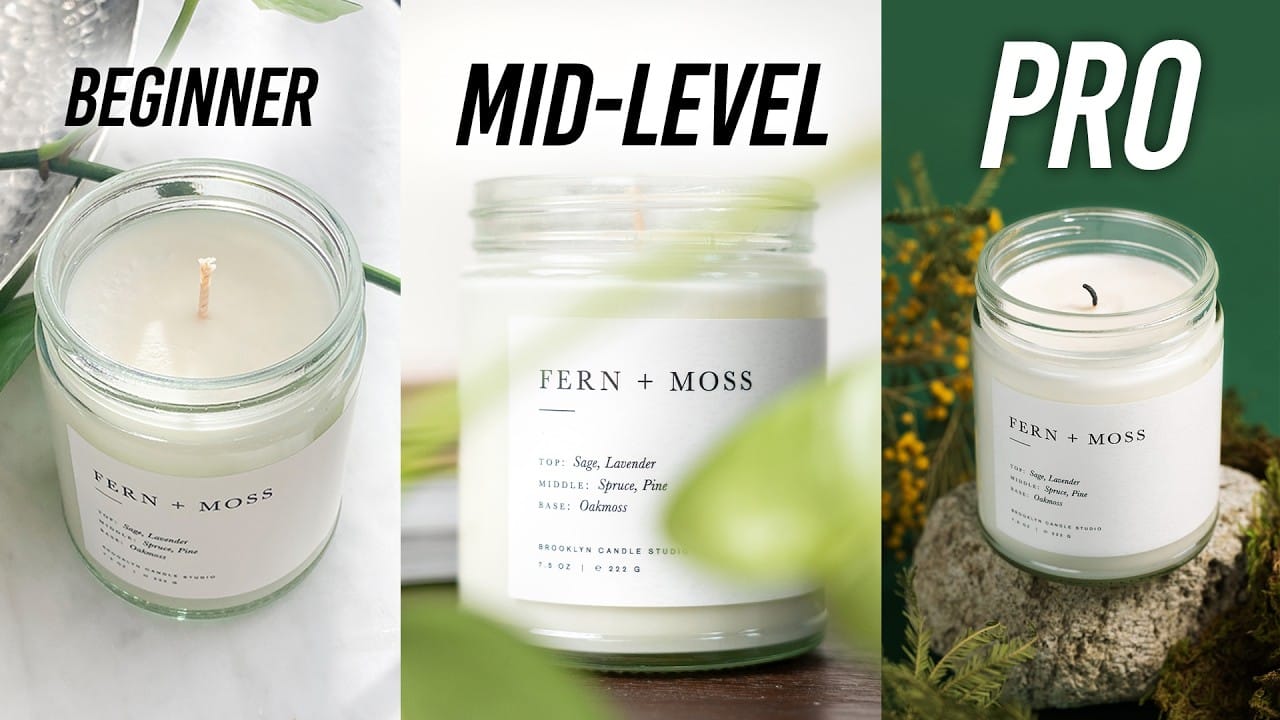
Watch the lighting setups: These two B&H tutorials show how the same principles work with different equipment. Select a video to watch it on YouTube.
A background that keeps the product visible
- White background: A simple choice for main product photos and store listings.
- Light neutral background: A pale gray or beige background can help a white product stand out.
- Everyday setting: A room, outfit, or other familiar setting can show size and use.
Busy patterns and strong background colors can distract from the item. The setting works best when the product remains easy to see.
A different purpose for each photo
Each image should add information rather than repeat the same angle.
- Main photo: The complete product, clearly visible.
- Other angles: The back, sides, or underside.
- Close-up: Material, stitching, finish, and other small details.
- Size reference: The product beside a familiar object or with measurements.
- Product in use: How the item looks when worn or used.
- Packaging and accessories: What comes with the order.
Build a Repeatable DIY Photo Setup
Consistency is easier when the setup can be repeated. Keep a note or quick reference photo of the camera height, product position, light direction, background, and distance between each part of the setup.
A side-by-side review helps sellers spot differences in:
- Image shape and cropping.
- The space each product occupies in the photo.
- Background color, lighting, and shadows.
For example, a tightly cropped item can look larger than a similar product shown with wide margins. Matching the framing makes the store page feel more orderly and reduces the amount of correction needed later.
Improve DIY Product Photos After the Shoot
Post-shoot tools work best when the source photo is already sharp, evenly lit, and fully visible. They can improve presentation, but they should not be used to replace missing product information or hide the item's real condition.
Reduce distracting clothing wrinkles
For apparel, steam or smooth the garment before shooting whenever possible. If small creases still distract from the listing, Remove Clothes Wrinkles can create a cleaner presentation from the home photo. Compare the result with the original and check seams, cuffs, hems, prints, texture, color, and any real wear that shoppers need to see.
Create a studio-style setting with Product Studio
A clear home photo may still have an uneven wall, limited floor space, or lighting that does not suit every sales channel. Product Studio can place the product in a cleaner studio-style or lifestyle setting and improve the overall presentation. It is useful for products such as bags, shoes, beauty items, eyewear, and homeware, but the original photo should remain the reference for product shape, color, labels, and included parts.
| After-shoot need | Possible next step | Check before publishing |
|---|---|---|
| Small distracting creases on clothing | Remove Clothes Wrinkles | Seams, texture, prints, color, and real condition |
| Uneven or unsuitable home background | Product Studio | Product edges, proportions, labels, shadows, and included items |
| Another presentation for the listing | Flat Lay or Fashion Model | Color, construction, garment details, and whether the view is illustrative |
Editing should preserve the product's color, shape, material, and included parts. Added buttons or accessories, hidden damage, and unrealistic proportions can mislead shoppers.
Resellers preparing the same item for several sales channels can follow this product photography workflow for marketplace sellers, which connects phone capture, cleanup, and listing-ready presentation.
Workflow illustration: more listing views from one home photo
The illustration below shows how a light-blue shirt photographed at home could lead to a cleaner AI Flat Lay presentation or a styled AI Fashion Model concept. It explains possible workflow choices; it is not a controlled product test. The original photo remains the reference for checking the shirt's actual details.
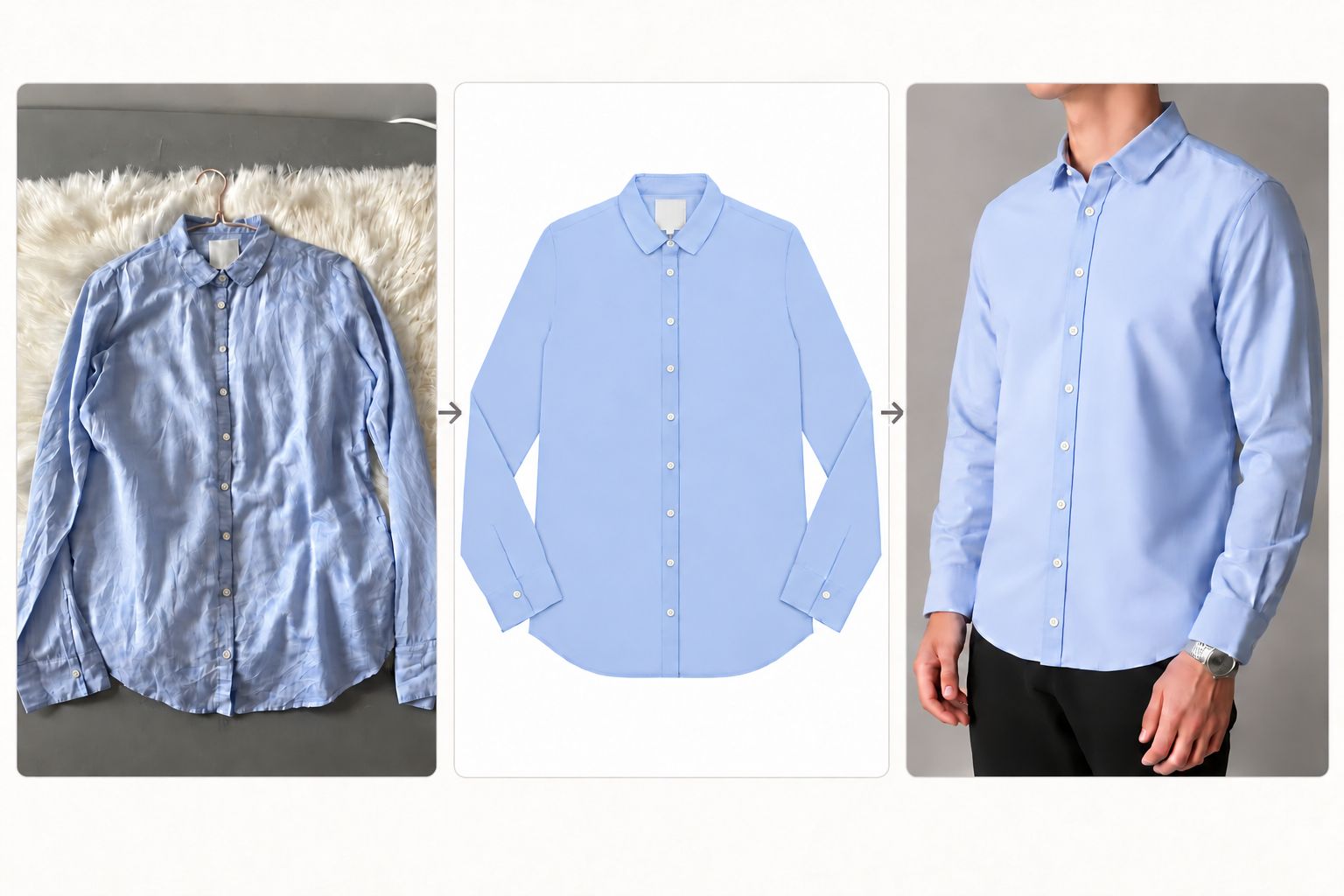
- Source photo: The collar, buttons, sleeves, hem, color, and visible condition provide details for comparison.
- Flat lay concept: A front-facing white-background presentation can provide a product-first view.
- Model concept: A styled model image can suggest an outfit, but it does not prove the garment's actual fit.
The illustrated alternatives look lighter and smoother than the source photo. Color, buttons, cuffs, and fabric texture would therefore need a close check before publication. The model concept suggests styling; it does not establish the shirt's actual fit or how the fabric hangs on a person.
A Final Check Before Publication
Product details
- Does the photo match the actual item, including color, shape, and accessories?
- Are important details and any damage visible?
Consistency
- Do the framing, background, and lighting match related photos?
- Does each image add useful information?
Mobile display
- Is the product easy to see on a phone?
- Are the files small enough to load quickly without losing important detail?
If customers keep asking about the same product detail, consider adding a photo that shows it clearly.
FAQ: DIY Product Photography
1. What is the best background for DIY product photography?
White or light neutral paper, foam board, or a plain wall works well for a main product photo. The background should be large enough to fill the frame and simple enough to keep attention on the item.
2. What equipment do ecommerce sellers need for DIY product photos?
A phone or camera, a stable support, soft window light or one diffused lamp, a plain background, and a white board are enough for many products. A remote shutter or timer can reduce camera movement.
3. How should a product be lit at home?
Place one soft light slightly above and to one side of the product. Use a white board on the darker side, turn off lights with a different color, and check labels, texture, and reflections before shooting the full set.
4. Can clothing wrinkles be removed after a home photo shoot?
Distracting creases can be reduced with a wrinkle-removal tool after the shoot. The edited photo should still preserve the garment's seams, edges, texture, color, and actual condition.
5. When should an ecommerce seller use Product Studio?
Product Studio is useful when a clear home photo needs a cleaner background, more controlled lighting, or a studio-style setting. The original photo should remain the reference for checking product accuracy.
6. How do you make DIY product images look consistent?
Keep the camera position, light direction, background, image shape, crop, and product size in the frame consistent. Mark the product and tripod positions so the setup can be repeated.
7. What should you avoid when editing DIY product photos?
Avoid changing product colors or shapes, adding accessories that are not included, removing real damage, or creating a setting that suggests features the product does not have.
8. Can a phone take good ecommerce product photos?
Yes. A recent phone can produce useful ecommerce images when the product is clean, the camera is steady, the light is soft, and the seller checks focus, color, and important details before publishing.
References
- Shopify — Product Photography: How to Take Beautiful Product Pictures.
- BigCommerce — Ecommerce Product Photography.
- Google Merchant Center — Product data specification: image link.
- Amazon Seller Central — Product image requirements.
- Adorama — Lighting a Scene: Ecommerce Product Photography.
- Nikon — Setting White Balance.
- B&H Photo Video — Product Photography at Home (video).
- B&H Photo Video — Product Photography at EVERY LEVEL (video).