


One Product, Multiple Amazon-Ready Views
Build the workflow around the catalog files you already have. Use each tool for a different merchandising job across the listing gallery and brand content.
Start with a Source
Upload a clear product photo from a phone, supplier folder or existing catalog.
Create Product Views
Generate white-background scenes, flat lays or ghost mannequin images.
Add Context
Create styled scenes and on-model visuals for secondary images and brand content.
Move into Video
Animate a finished still for supported placements, advertising and social channels.
From Product Photo to Amazon Listing Gallery
Use only the outputs a product needs, or move the same catalog through all five tools as a repeatable Amazon seller workflow.
Create Catalog Images with Product Studio
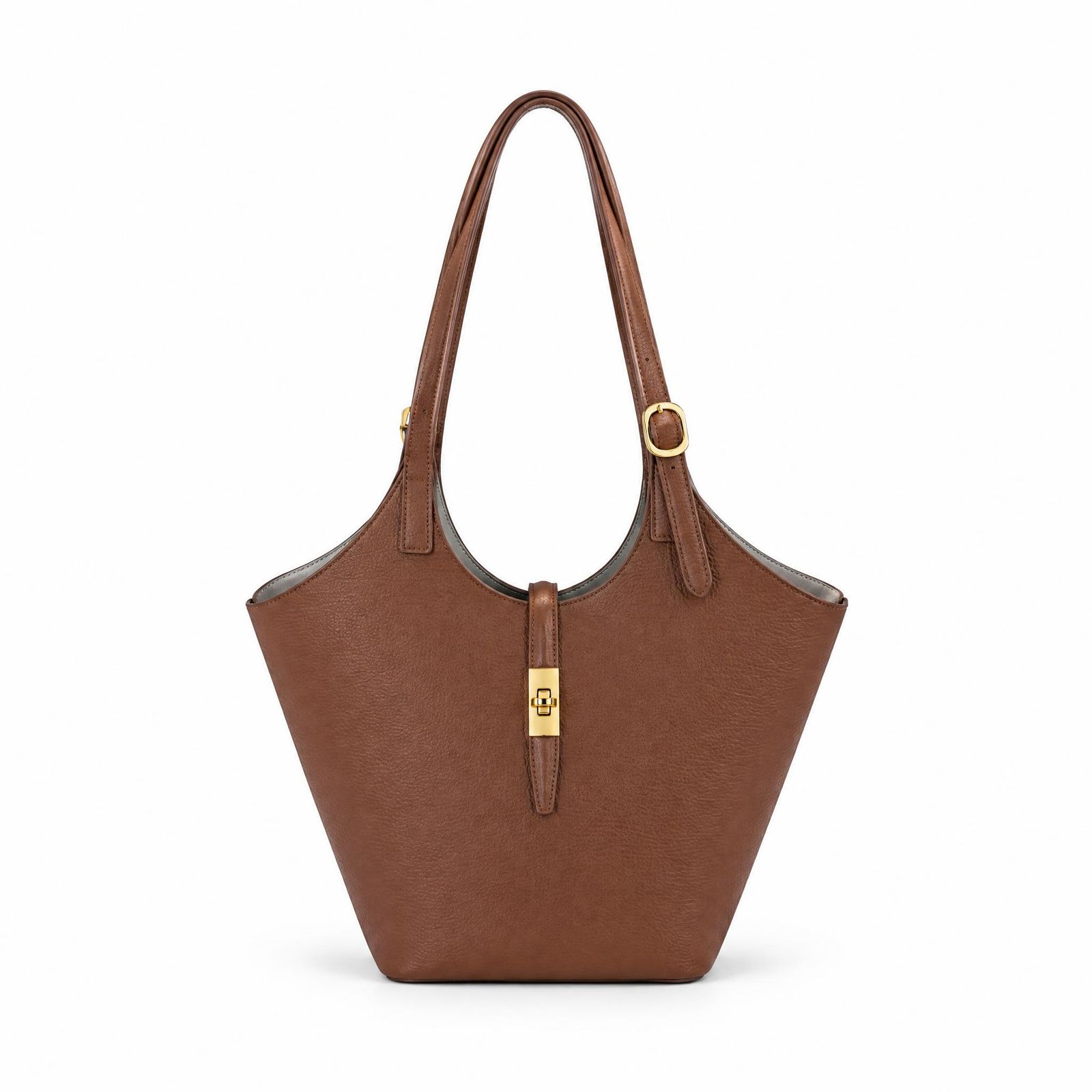
Upload an existing product photo and create a clean white-background version or a styled scene across categories such as electronics, beauty, bags, furniture and footwear.
Open Product Studio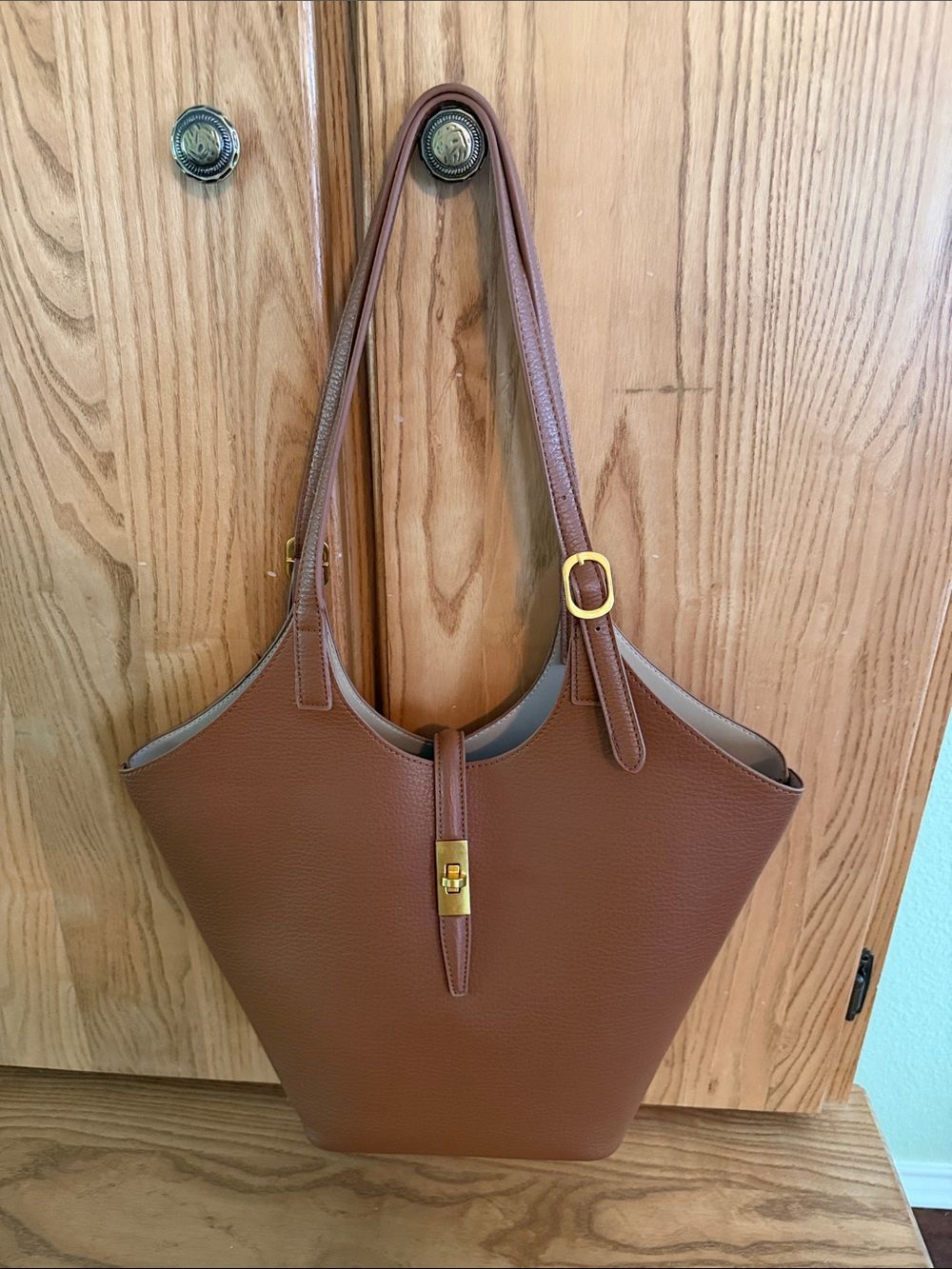
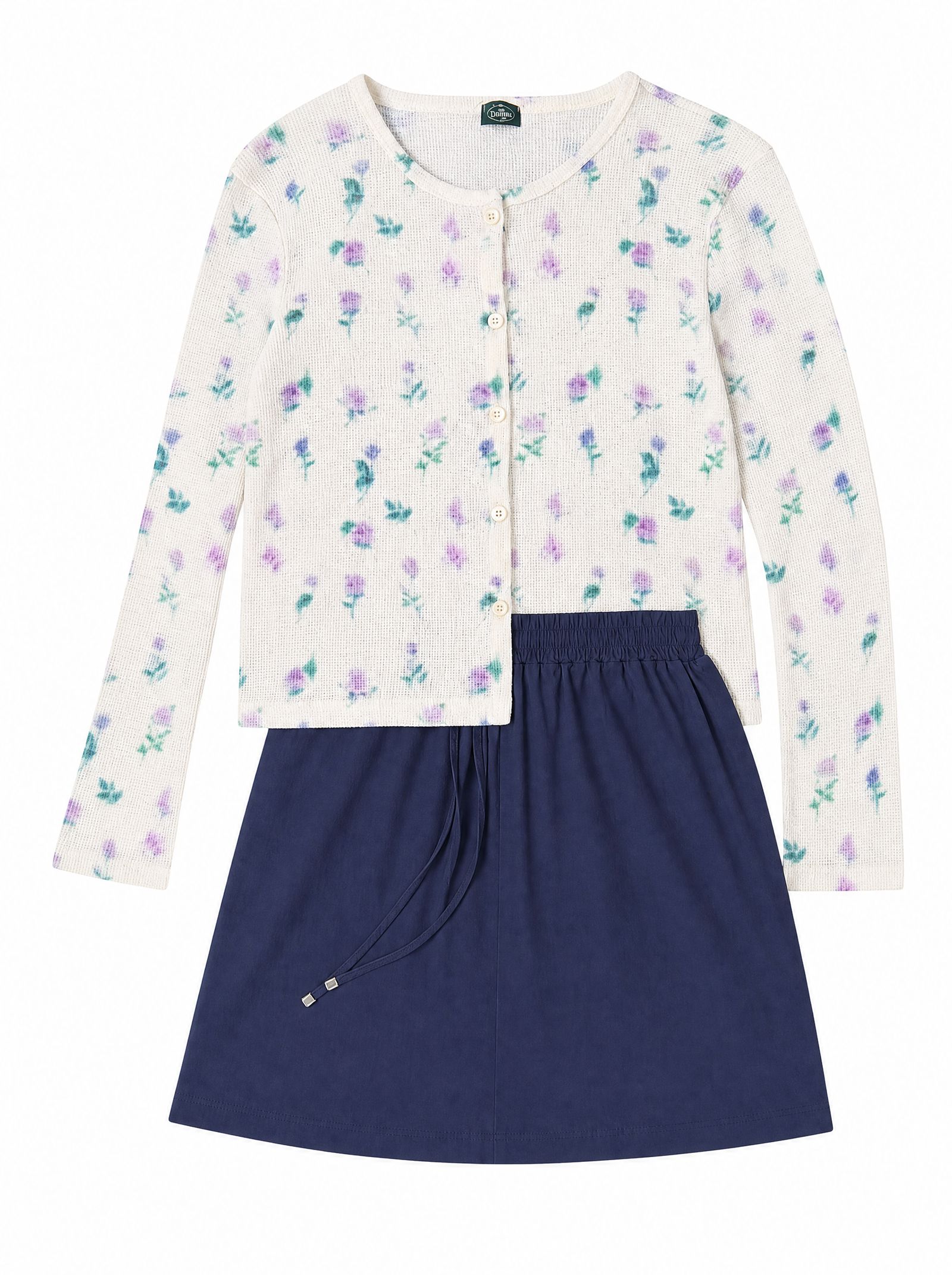
Create a Clean Flat Lay
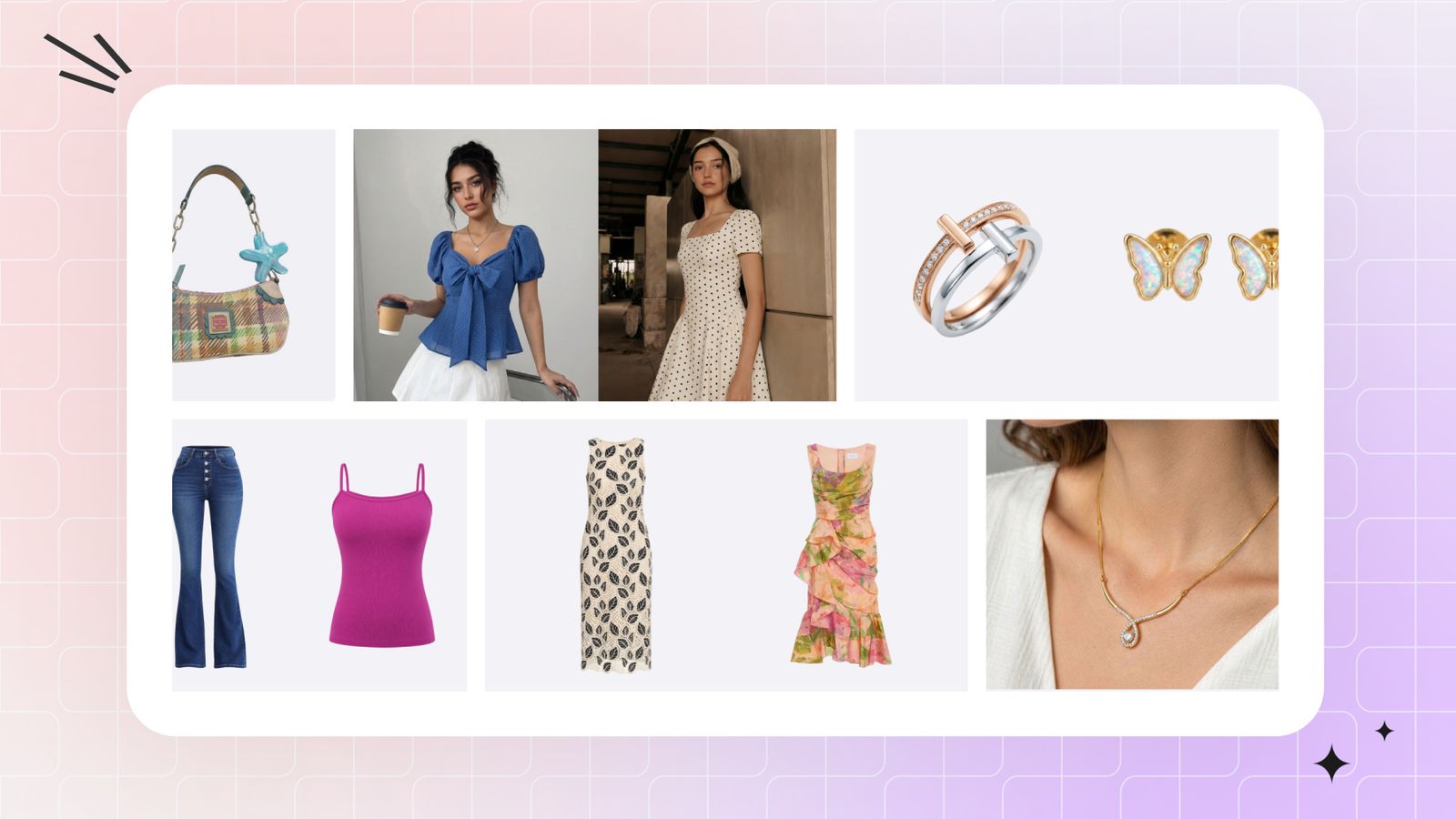
Turn a hanger or everyday apparel photo into a consistent overhead view so color, pattern and overall shape read quickly in the image gallery.
Open AI Flat Lay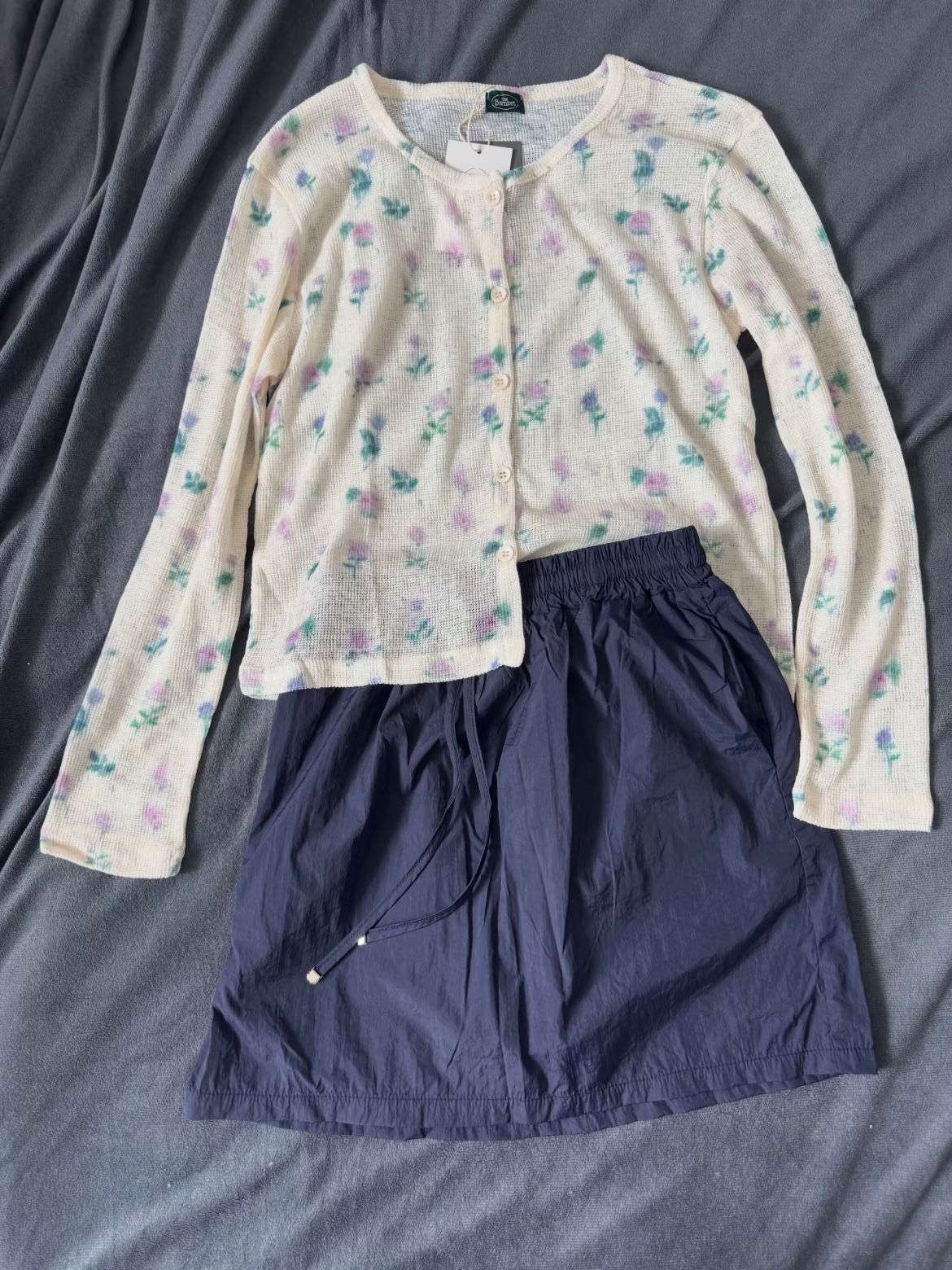
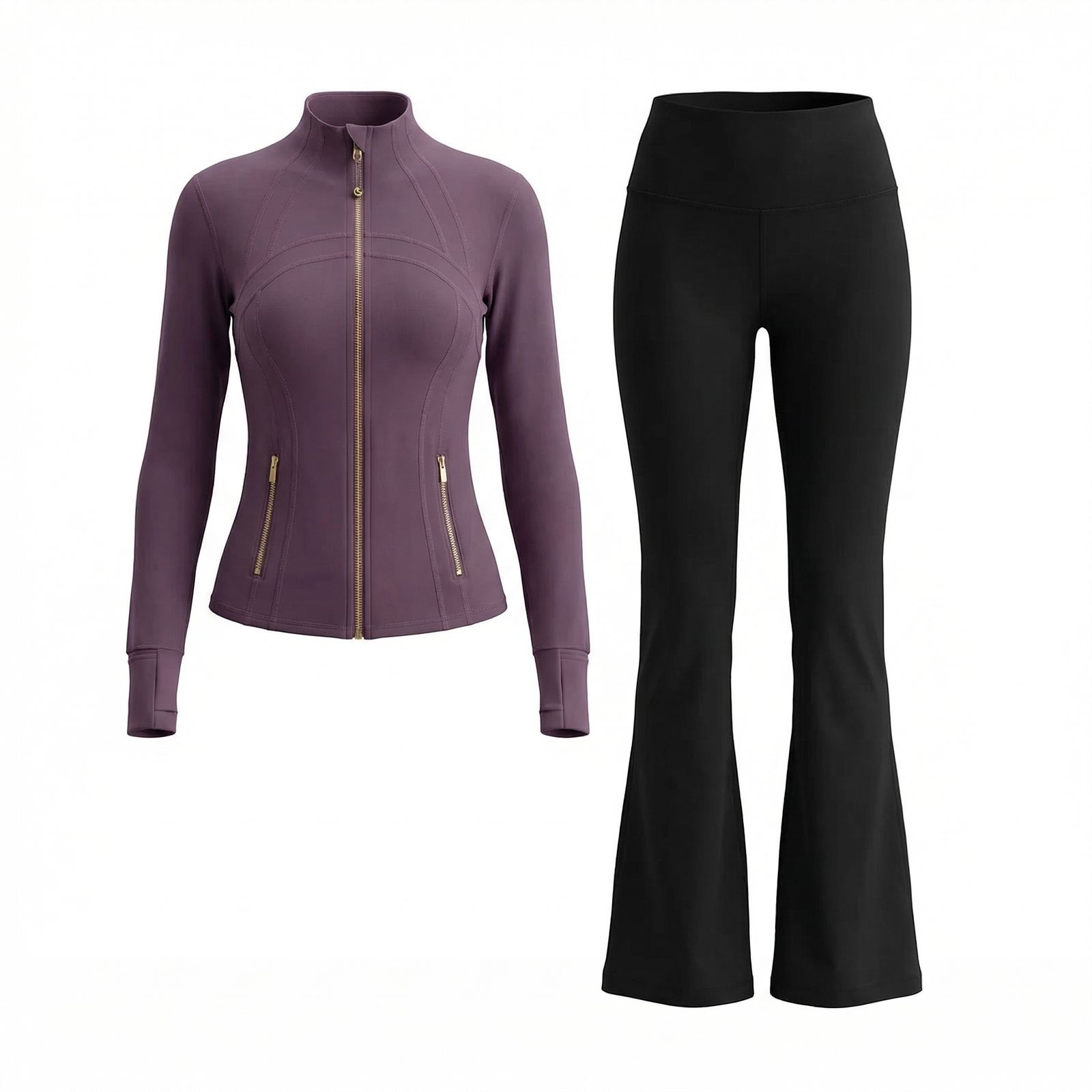
Show Shape with Ghost Mannequin
Create a hollow-body apparel view that brings more structure to the neckline, sleeves, construction and silhouette while keeping the garment at the center.
Open Ghost Mannequin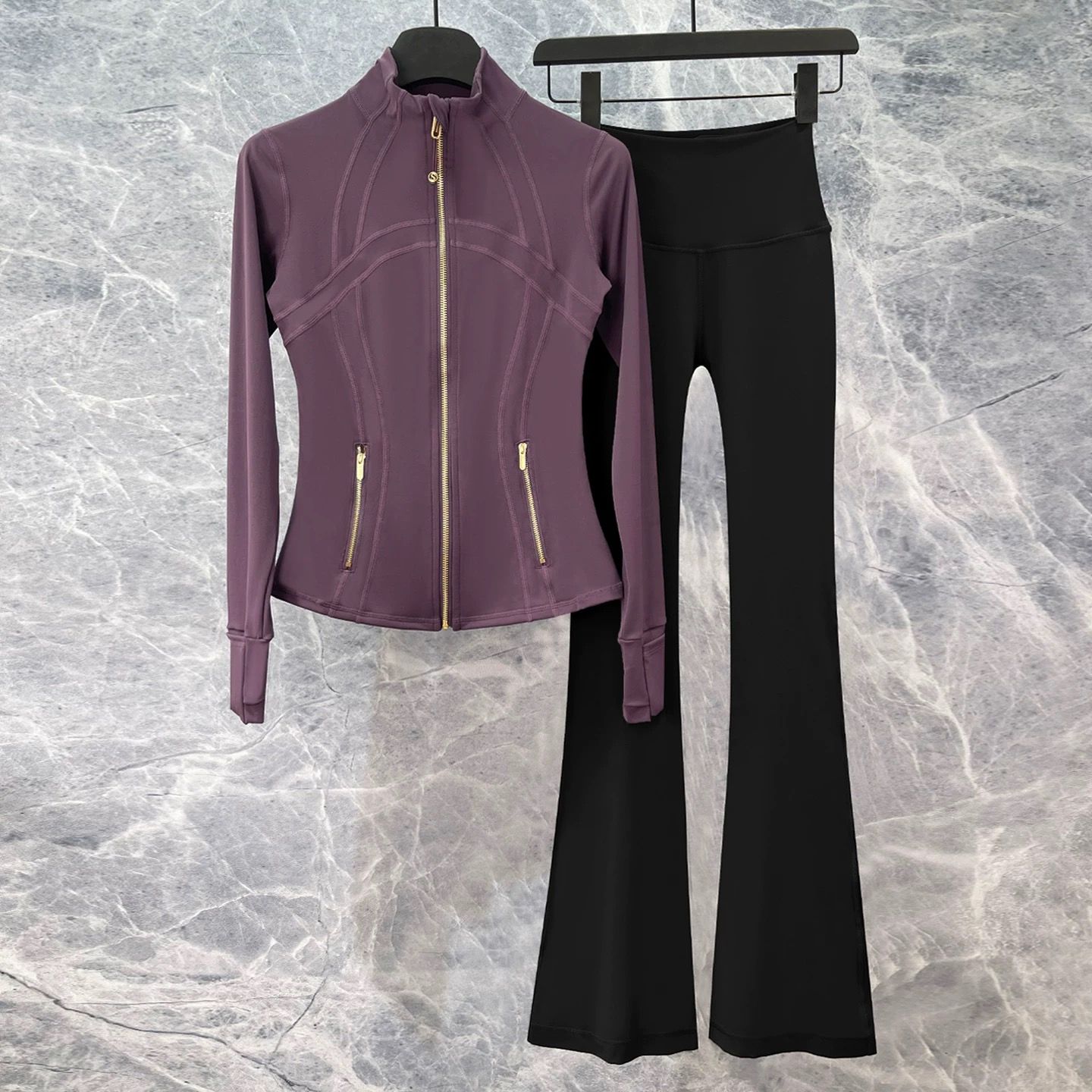
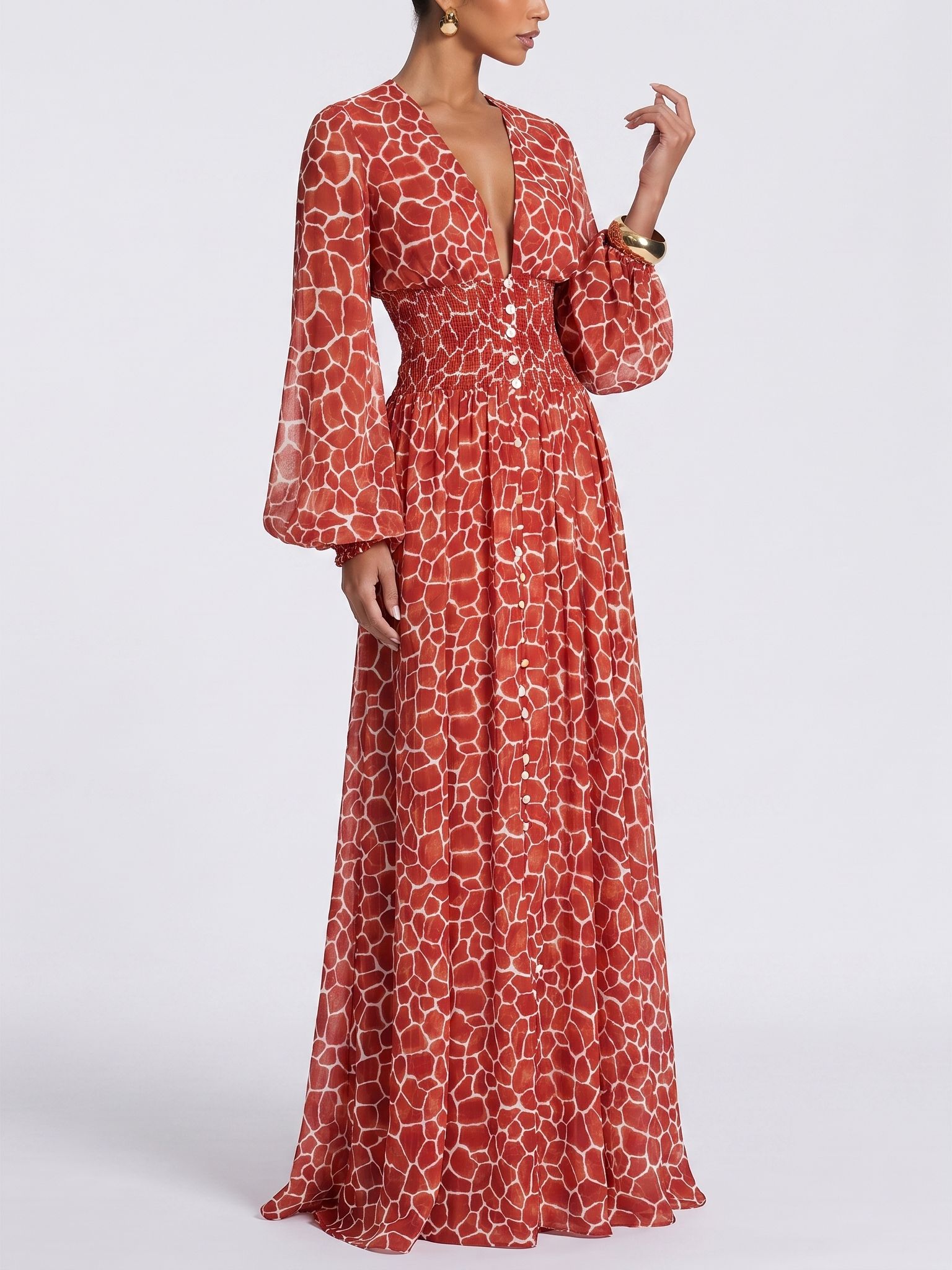
Add an AI Fashion Model Image
Create an on-model view for secondary gallery images and brand content, adding styling context after the product-first images establish the item clearly.
Open Fashion Model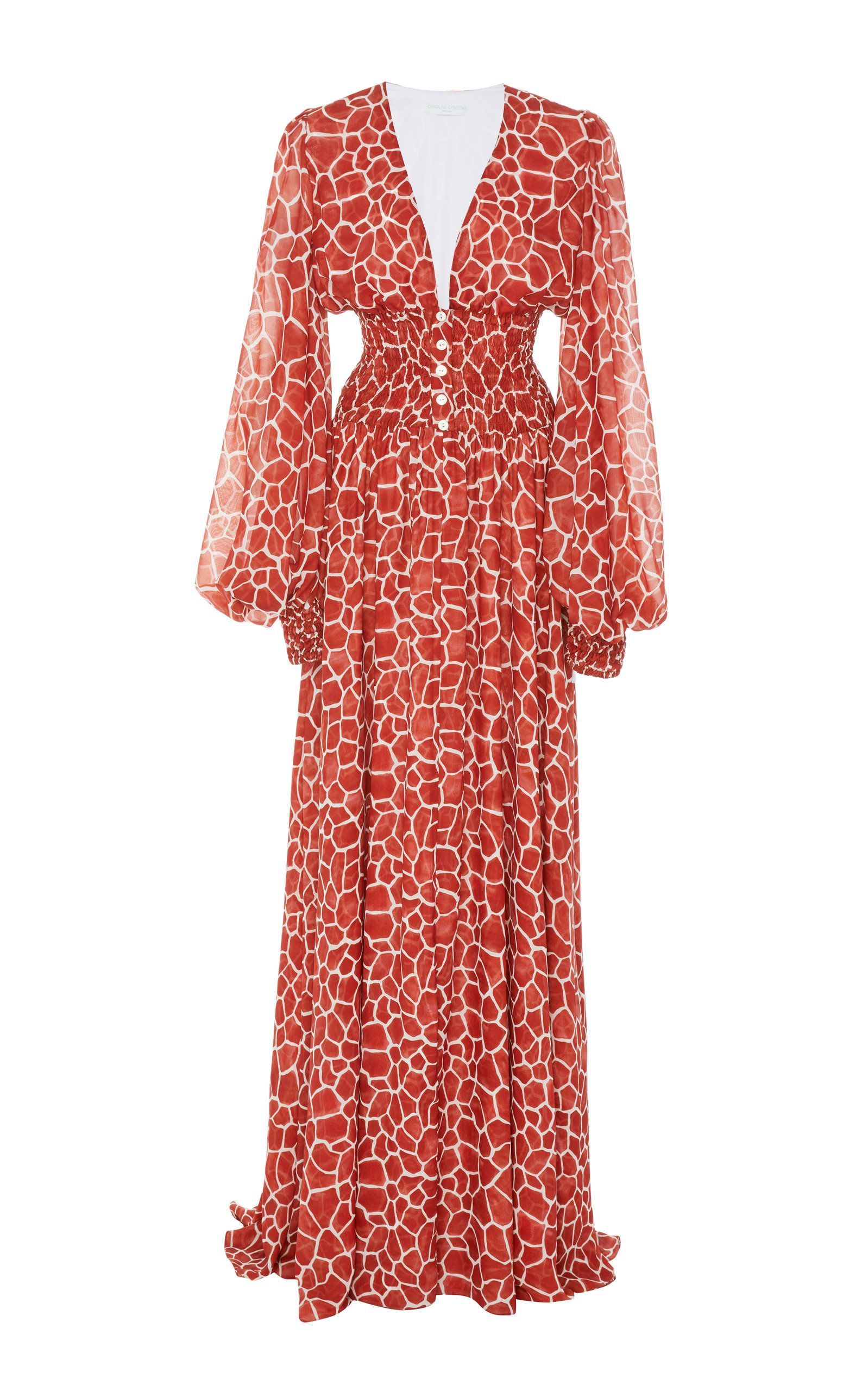
Turn a Finished Image into Video
Animate a product or on-model still into a short clip for supported Amazon placements, advertising or off-Amazon social content.
Open Image to Video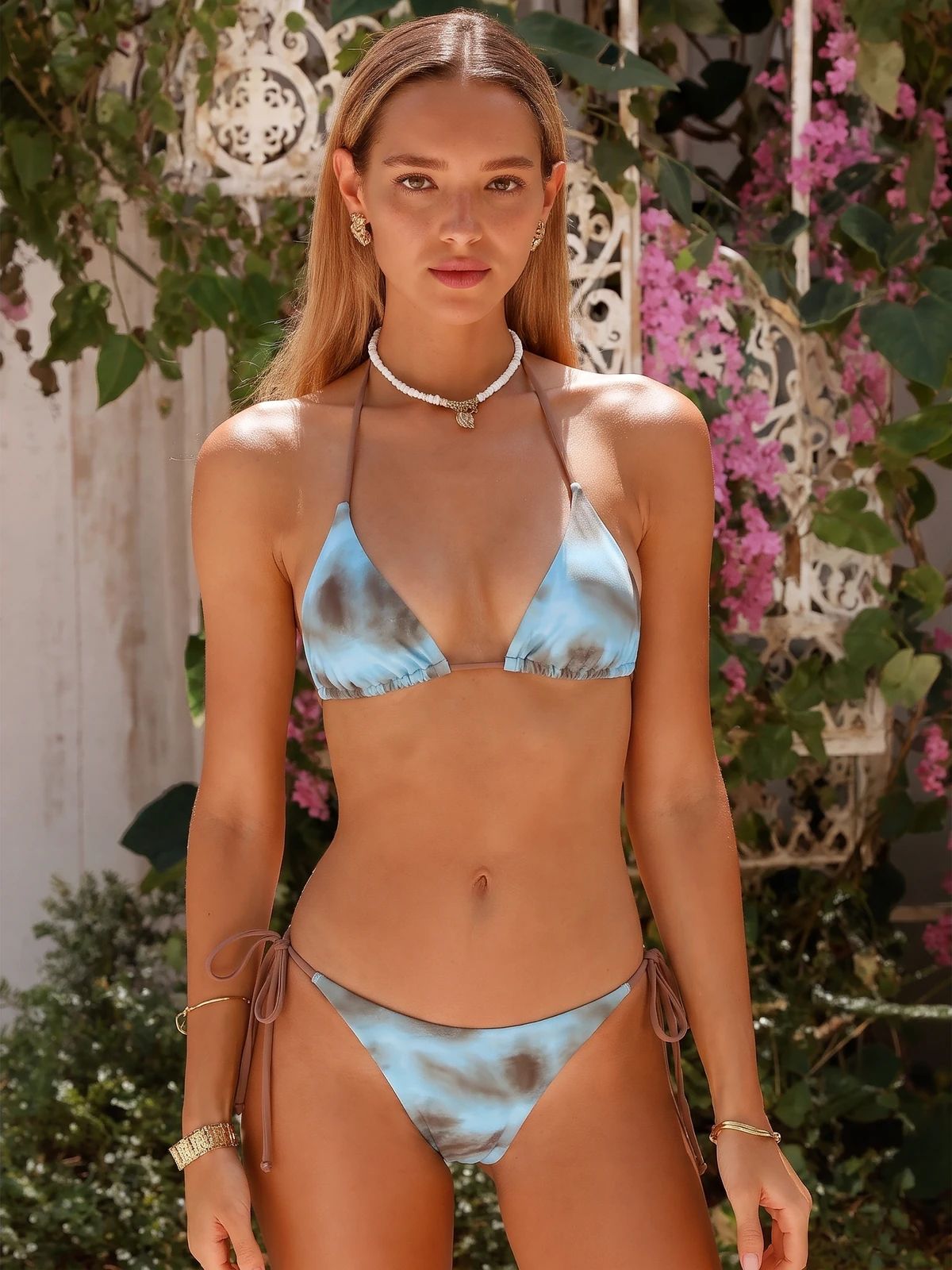
Create Where Your Catalog Already Is
Start in the Snappyit app when you photograph inventory on a phone, then build product views and listing assets without transferring files first.
- 1Photograph or choose a clear product image on your phone.
- 2Select Product Studio, Flat Lay, Ghost Mannequin, Fashion Model or Image to Video.
- 3Generate, choose the strongest result and save it to your catalog.


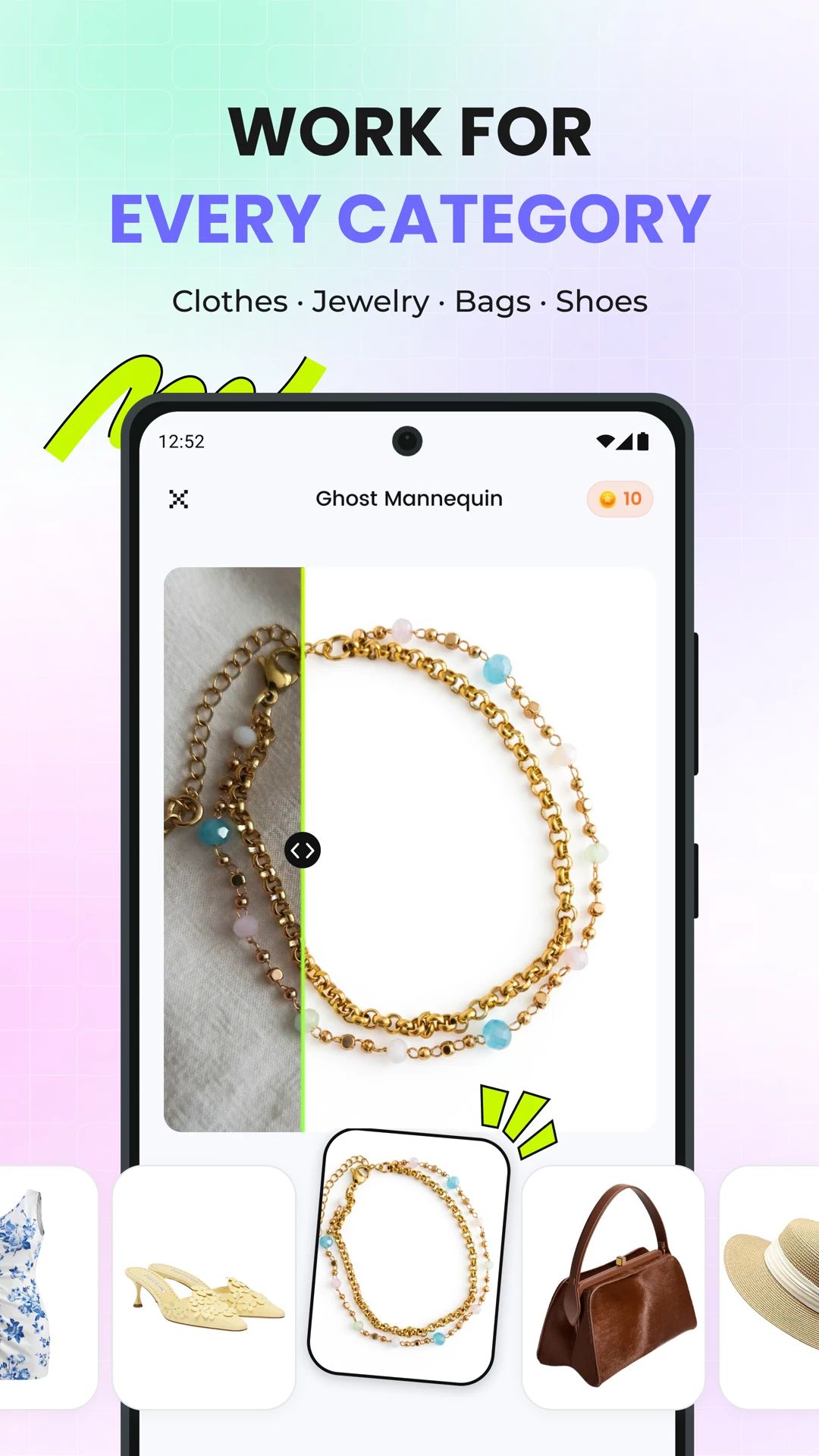 Work across product categories
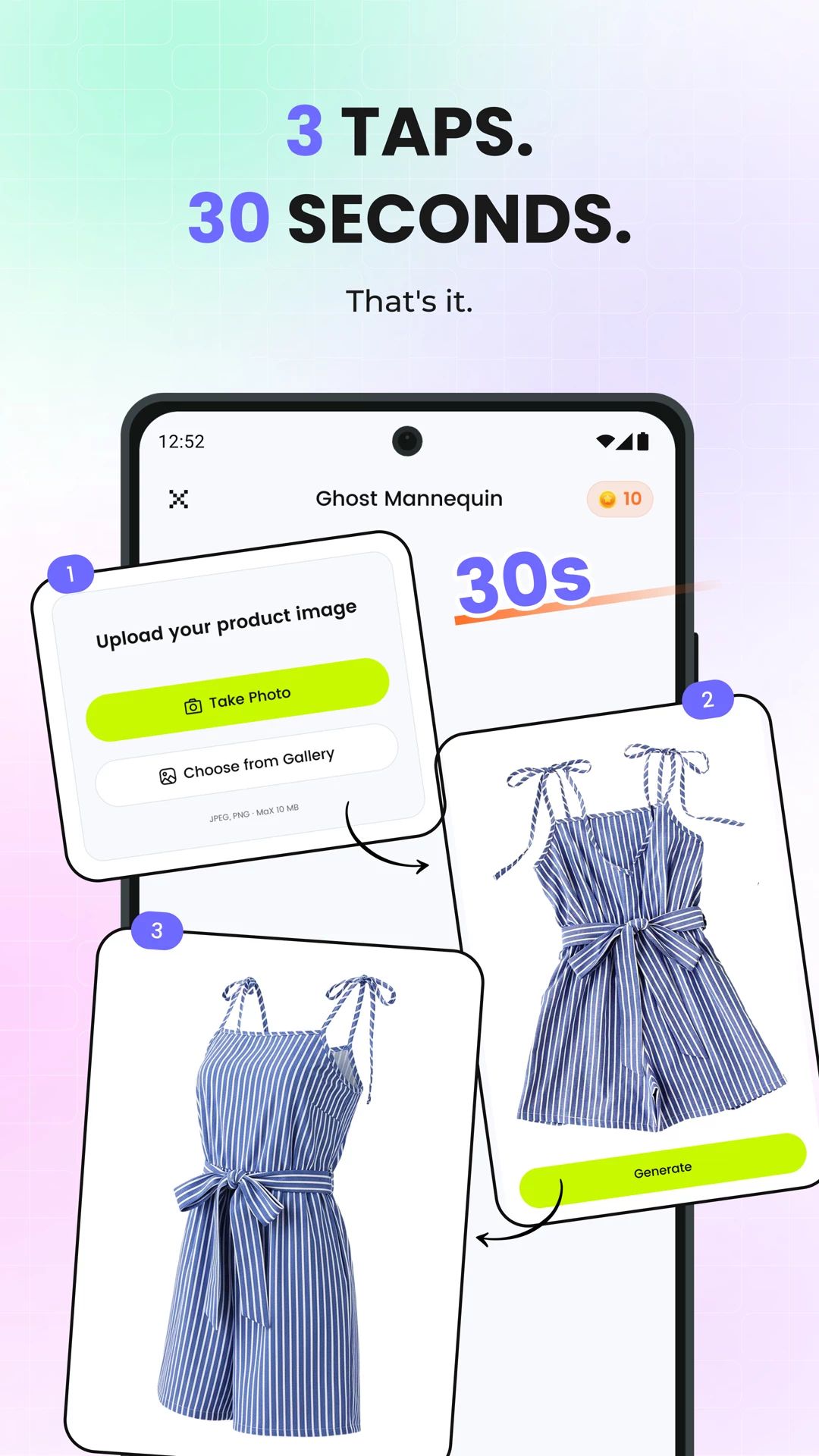 Upload, generate and save
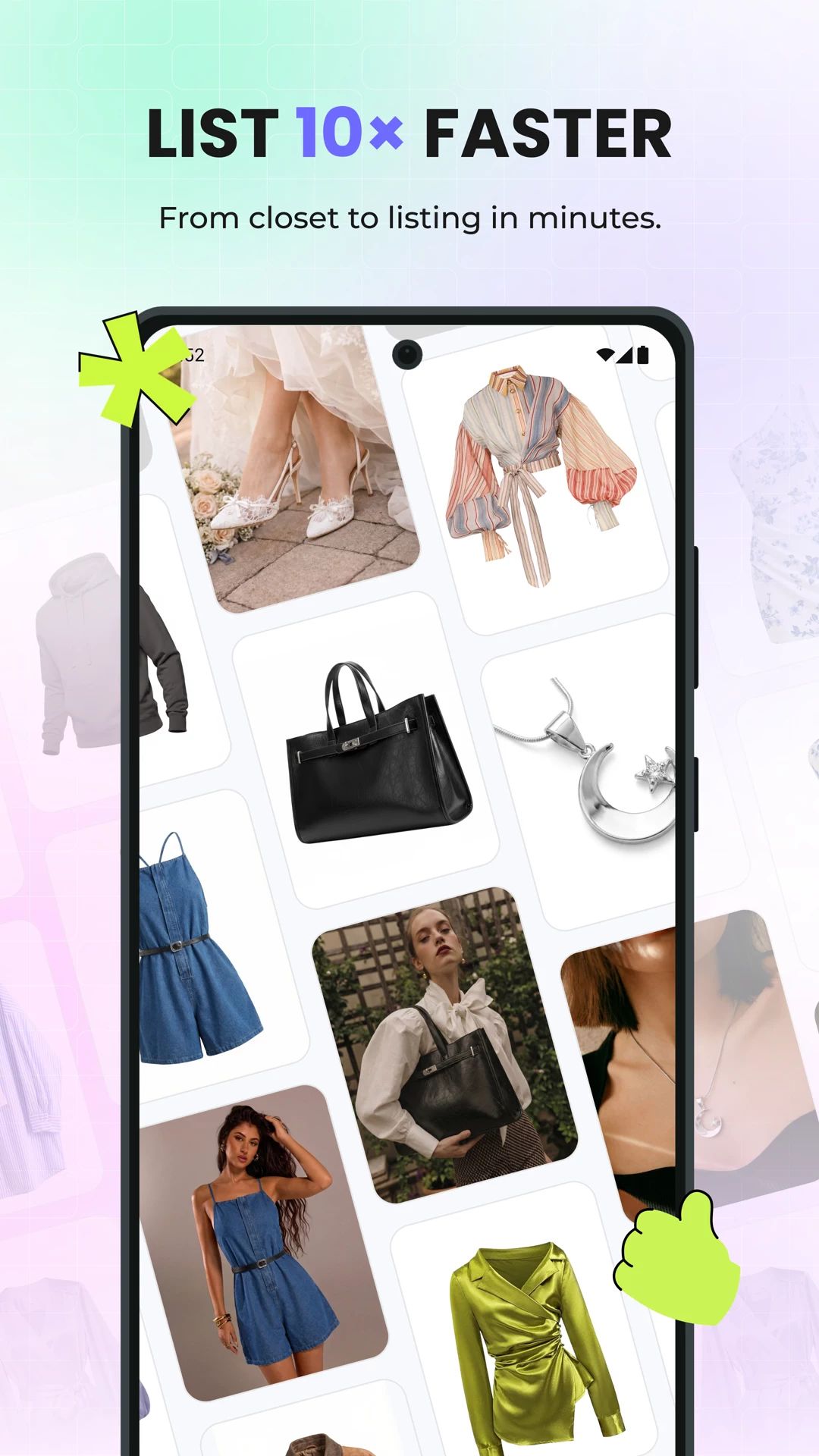 Build more listing assets
How to Build Amazon Product Photography with Snappyit
Use all five tools for a complete catalog workflow, or choose only the outputs the product needs.
Product Studio
Create white-background candidates and styled product scenes.
Flat Lay
Build a clean product-first apparel view.
Ghost Mannequin
Show garment shape and construction.
Fashion Model
Add wearing and styling context.
Image to Video
Turn a finished still into motion content.
Build a Complete Amazon Listing Gallery
Give every visual a specific merchandising job instead of asking one image to explain the whole product.
Lead with the Product
Use a clean product-first image and confirm the current main-image requirements for the category and marketplace.
Add Shape and Context
Use flat lay, ghost mannequin, styled-scene and on-model views as supporting gallery content.
Extend into Motion
Reuse approved stills for supported video placements, advertising and social channels.
What Ecommerce Sellers Say About Snappyit
Individual public experiences linked to their original Trustpilot reviews.
“Amazing Product for eBay sellers”
“Being able to put my product on ghost mannequins, models, and even videos. It has dramatically increased my sales.”
“A total game-changer for my fashion business”
“The AI tools are intuitive, fast, and produce professional and high-quality visuals—from 3D mannequins to model videos—without needing expensive photoshoots.”
“Efficient Product Image Editor”
“As a Shopify apparel seller, Snappyit has completely changed our product photography workflow. We no longer need expensive studio shoots or professional retouchers.”
Amazon Product Photography FAQs
Can I use AI-generated product photos on Amazon?
Yes, provided the image accurately represents the product being sold and follows the current image rules for the category and Amazon marketplace. Treat the physical SKU as the source of truth and review generated details before publishing.
Can Snappyit create images for an Amazon main image?
Product Studio and Flat Lay can create clean white-background product images that may work as main-image candidates. Check the current Amazon requirements for your category, product type and marketplace before publishing.
What background should an Amazon product photo use?
Amazon main images generally use a pure white background, while secondary gallery images can add scenes, scale, fit or usage context where the category allows it. Product Studio can create both product-first white-background images and styled secondary images.
What size should Amazon product photography be?
Start with the highest clean resolution available, keep the product sharp and leave enough room to reframe for the destination slot. Confirm the current pixel, file-type and zoom requirements in Seller Central for the target category and marketplace before export.
Which Snappyit tools are useful for Amazon apparel listings?
Use Flat Lay for a product-first view, Ghost Mannequin to emphasize shape, Fashion Model for styling context and Image to Video when a supported placement needs motion.
Can Snappyit create Amazon product images for categories other than clothing?
Yes. Product Studio can create clean catalog images and styled scenes for products such as bags, footwear, beauty items, electronics and home goods. The apparel-specific tools are optional parts of the wider workflow.
Can I use one source photo across the workflow?
Yes. A clear source photo can move through more than one Snappyit tool, so sellers can build several listing views without organizing a separate shoot for every image type.
Can Amazon sellers create product videos with Snappyit?
Yes. Use Image to Video to animate a finished product or on-model image into a short clip for supported Amazon placements, ads or off-Amazon social content.
Can I use this workflow on mobile and desktop?
Yes. Start from the Snappyit app when the product photo is on your phone, or open the tools in a browser when your catalog files are already on a computer.
Can I reuse the same product images across Amazon US, UK and other marketplaces?
You can reuse the same approved source assets, but image rules can vary by category and marketplace. Keep a clean master set, then confirm the destination marketplace requirements before publishing or reframing each export.
What should I check before publishing an AI product image on Amazon?
Compare the output with the physical SKU and check color, logos, text, patterns, hardware, seams, shape and included accessories. Then verify the background, framing and technical requirements for the exact Amazon category and marketplace.
Build Your Amazon Product Image Workflow
Start with one product photo, choose the views the listing needs and create a more complete catalog with Snappyit.
Explore AI Product Photography