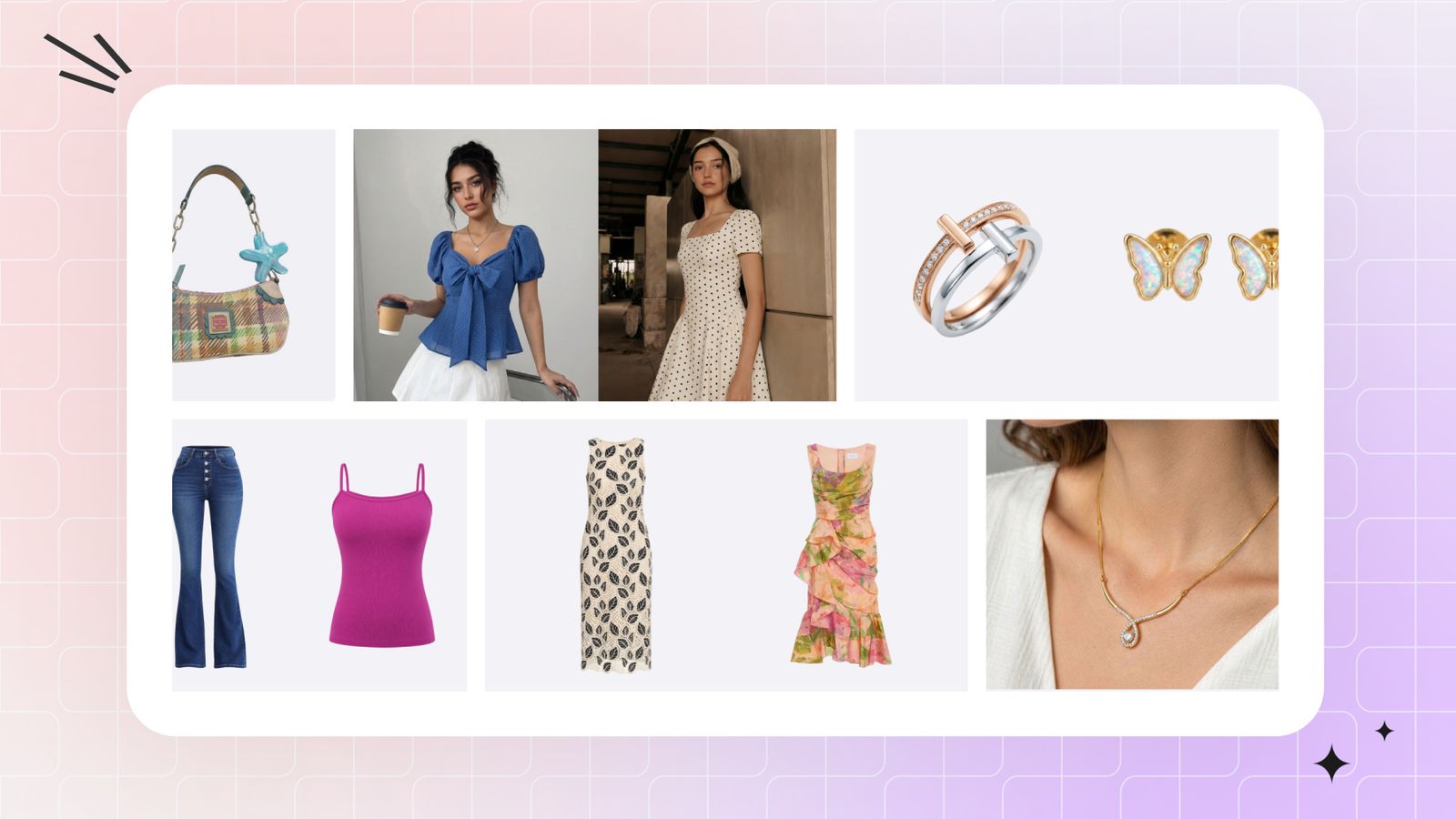

Amazon product image requirements at a glance
For an ecommerce catalog, separate compliance from merchandising. First make the main image eligible; then use each alternate to answer one buyer question about fit, construction, color, scale, or use.
- Minimum image count: every product must have at least one image.
- Main background: pure white, RGB 255, 255, 255.
- Main-image content: the exact sellable item in the presentation permitted by its product-type guide—no added promotional text, badges, borders, watermarks, inset views, or unrelated props.
- Frame fill: the product should occupy 85% or more of the image without being clipped.
- Dimensions: 500–10,000 pixels on the longest side. For zoom, Amazon says it prefers images larger than 1,000 pixels on each side.
- Formats: JPEG is preferred; TIFF, PNG, and non-animated GIF are also accepted.
- Image quality: images must be clear and unpixelated, with no jagged edges.
- SKU accuracy: every image must match the selected color, construction, and included pieces.
Amazon’s Product Image Requirements and Clothing Image Guidelines are the compliance sources. Its public product-photo guide confirms the dimension, format, quality, frame-fill, and image-count figures above; Amazon’s listing guide says sellers can upload up to nine photos. Product-type rules can be more specific, so check the current guide for the exact category and marketplace before publishing.
A practical Amazon apparel image set for ecommerce listings
The main image is required. In this merchant workflow, Recommended marks a useful starting set—not an Amazon-mandated mix—and Optional marks assets to add only when they supply new information.
| Asset | Status | Suggested image | Purpose |
|---|---|---|---|
| Main | Required | Presentation permitted by the product-type guide, on pure white | Identify the exact item in search. |
| Alternate 1 | Recommended | Front or full on-model view | Show the overall fit. |
| Alternate 2 | Recommended | Source-supported side, back, or second-pose model view | Show fit from another angle. |
| Alternate 3 | Recommended | Ghost or flat-lay view not used as the main | Show silhouette and construction. |
| Alternate 4 | Recommended | Real fabric or construction close-up | Show texture, stitching, print, or closure. |
| Alternate 5 | Recommended | Size, fit, or feature infographic | Explain information a photo cannot. |
| Alternate 6 | Optional | Lifestyle image or another useful supporting view | Show styling, use context, or other missing information. |
| Video | Optional | Short product clip from an approved still | Show how the garment moves. |
Use the six-image core as a template, then remove any alternate that does not answer a new question. Add lifestyle or video only when it closes a remaining information gap, and give every color child SKU an accurate main image.
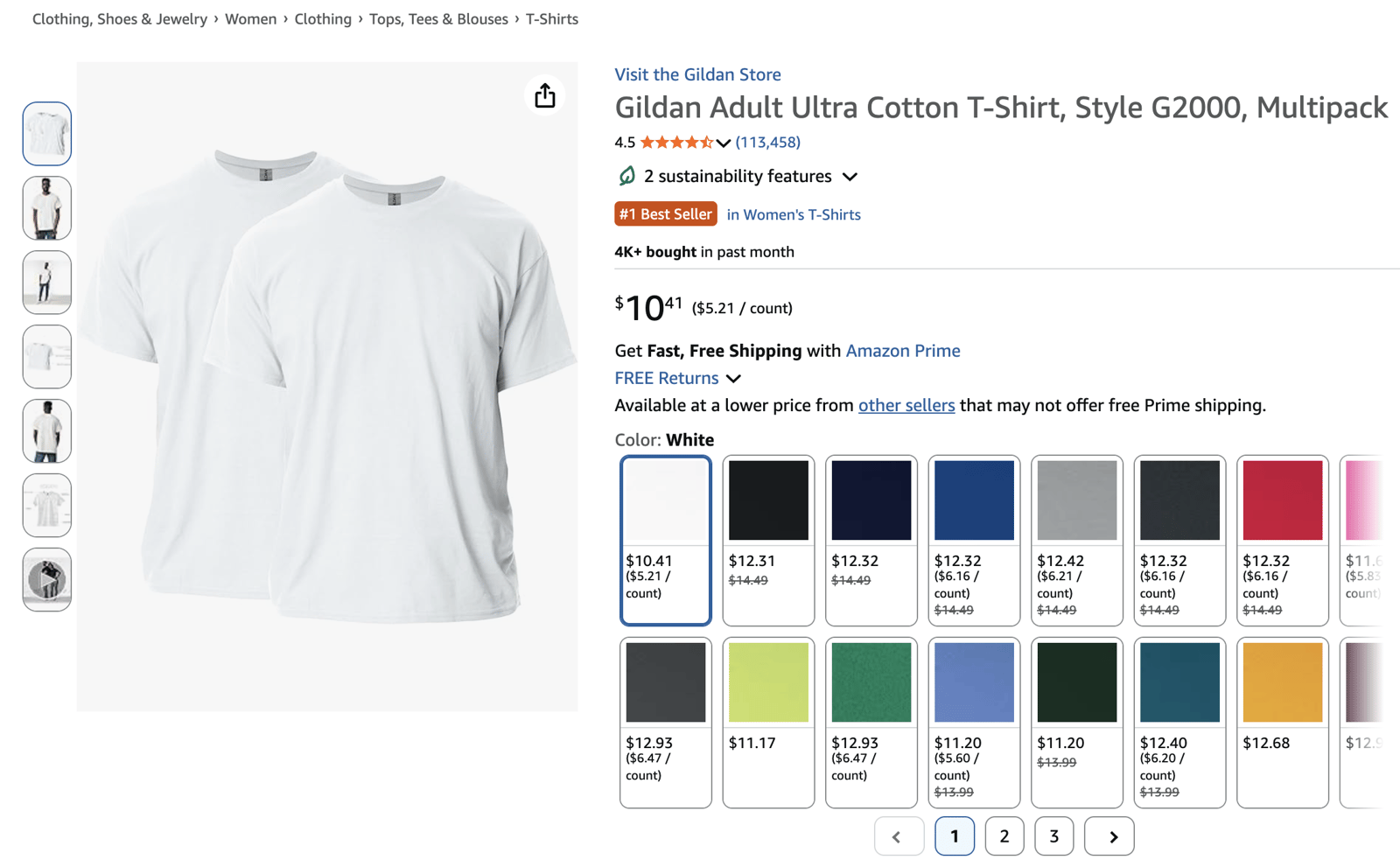
The public apparel listing below illustrates a main image, thumbnail rail, and color controls. The interface and media shown can vary by product, device, marketplace, and date.
How to make a white background for Amazon product photos
For merchants starting with a supplier photo or phone shot, the goal is a complete, accurate product on RGB 255, 255, 255 that fills at least 85% of the frame without clipping. Keep promotional text, badges, borders, watermarks, inset views, and unrelated props off the main image.
Step 1: start with a complete product photo
Use a sharp, evenly lit source that shows every visible edge. Capture separate source photos for any back view, hidden construction, texture, or measurement you need to publish.
Step 2: remove the original background
Isolate the product with a background remover. Inspect fine edges, fuzzy fabric, sleeve gaps, and any area where the old background may remain. For a fuller walkthrough, see how to make a white background for Amazon product photos.
Step 3: place, scale, and crop on pure white
Place the cutout on an RGB 255, 255, 255 canvas. Center it, keep the complete product visible, and crop to at least 85% frame fill without stretching the item.
Step 4: verify the exported file
Sample the exported corners and the background near the product. Reject gray pixels, halos, leftover shadows, clipped edges, or shifted whites, then compare seams, closures, embroidery, included pieces, and color with the physical item.
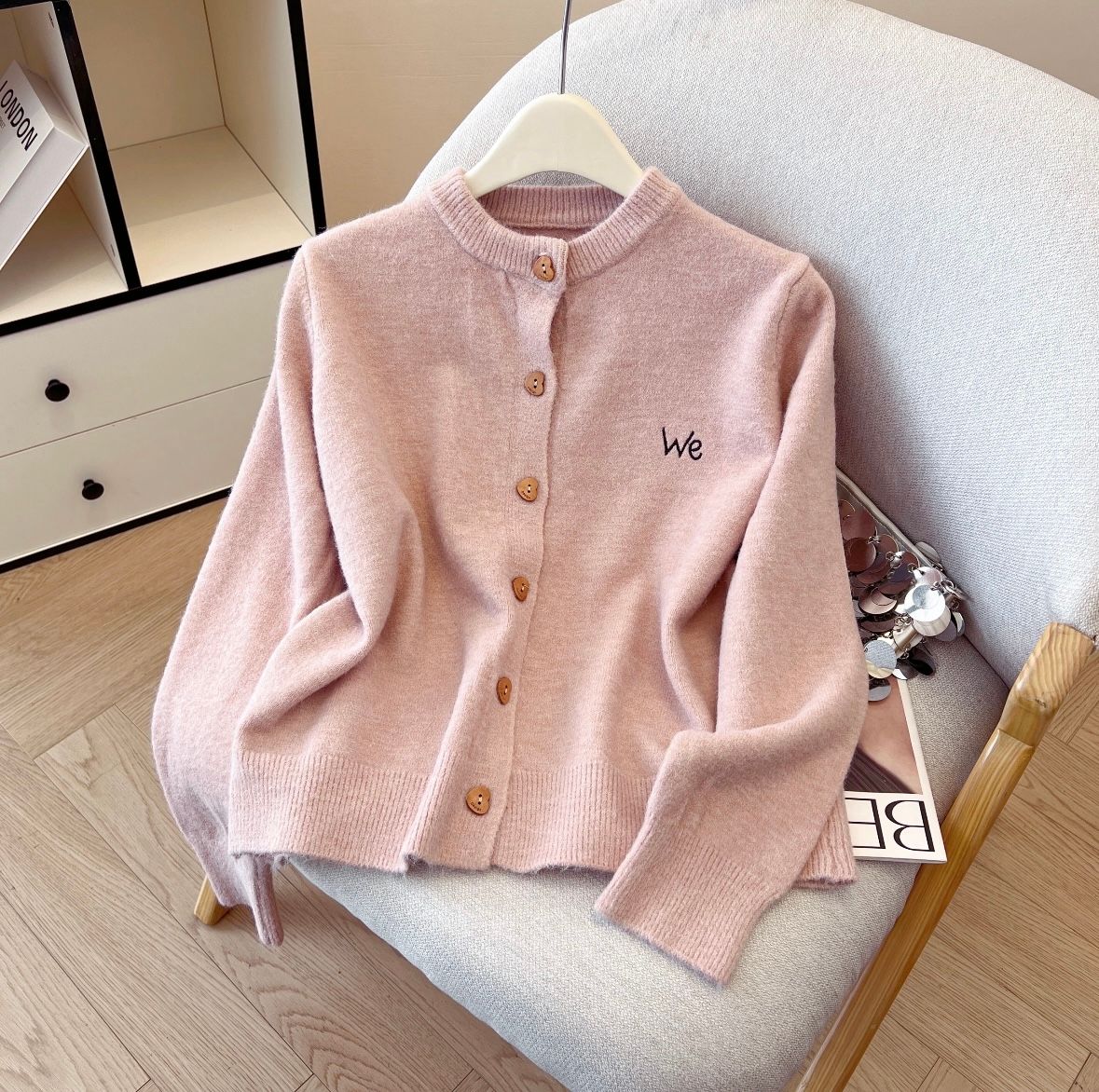
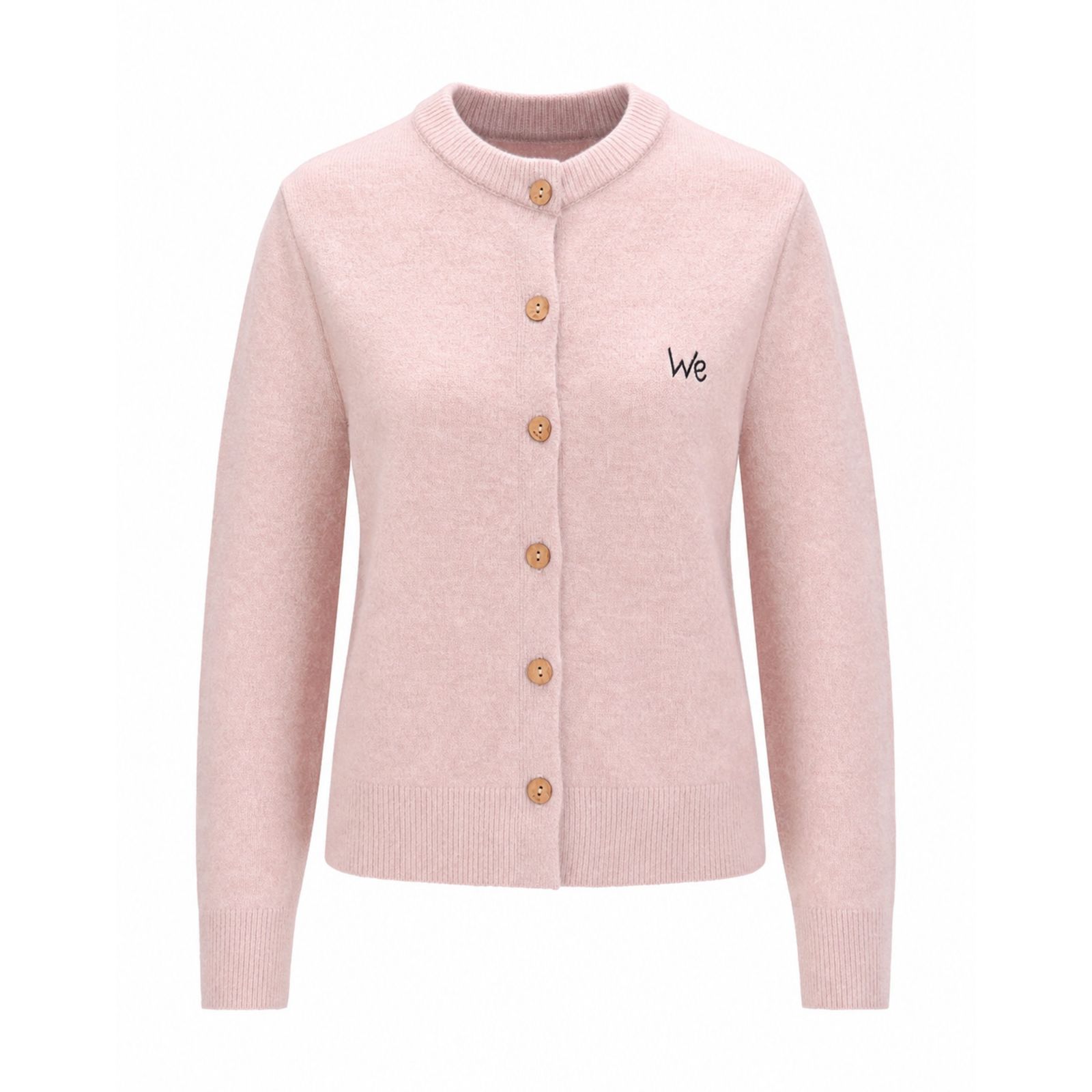
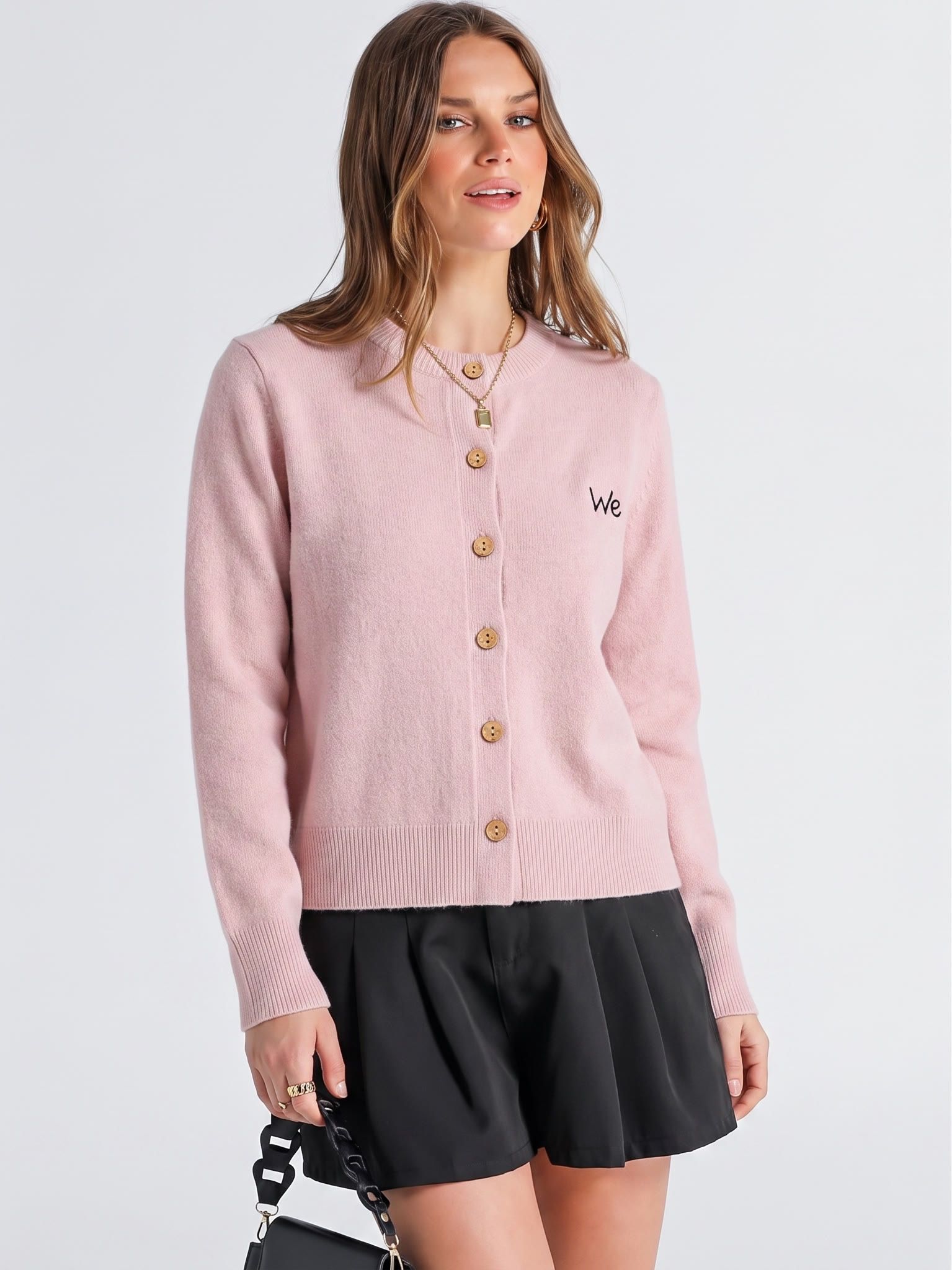
For apparel, the permitted presentation depends on the current product-type guide. This example uses Ghost Mannequin for a product-only candidate and AI Fashion Model for a category-dependent on-model candidate.
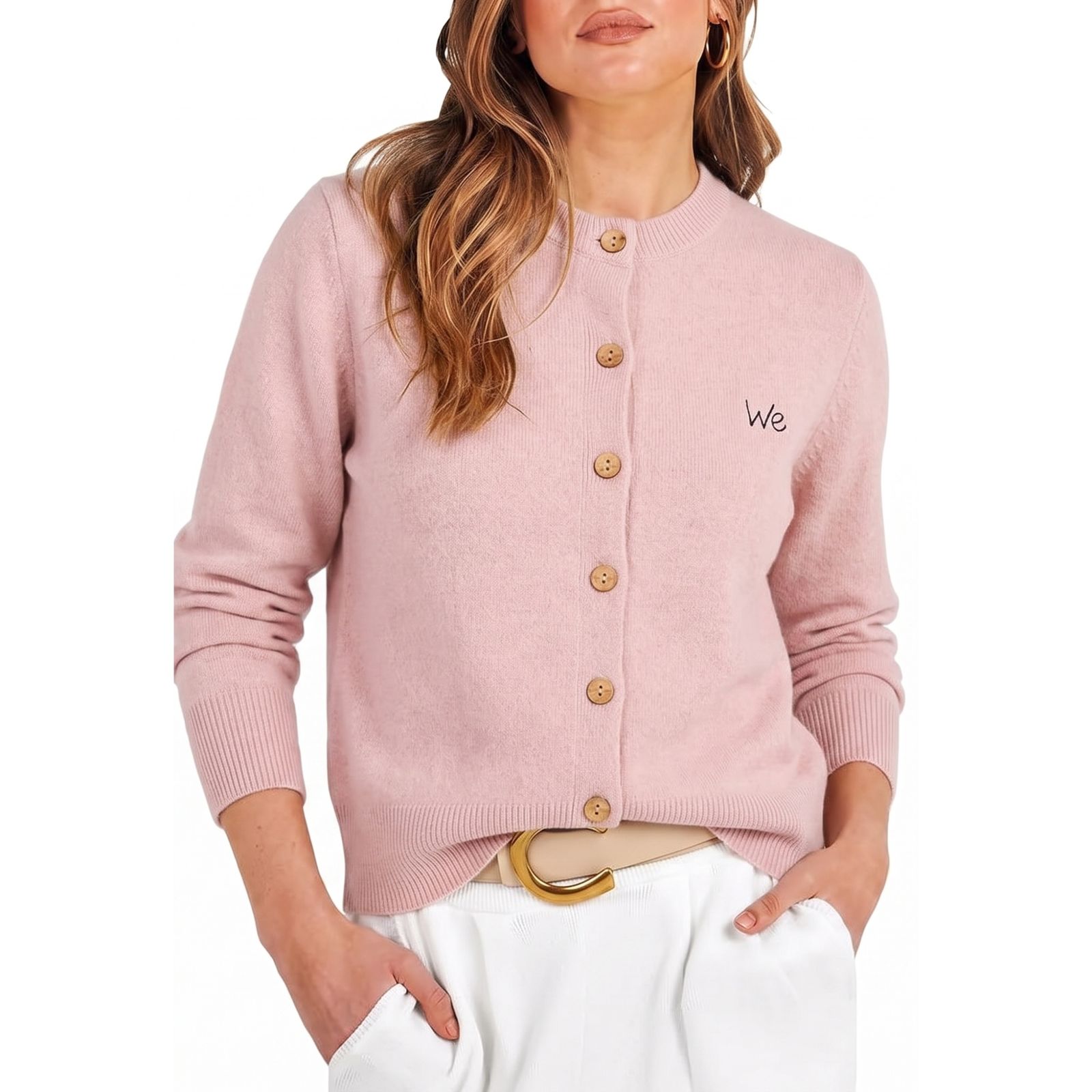
Amazon apparel model images: choose angles that add information
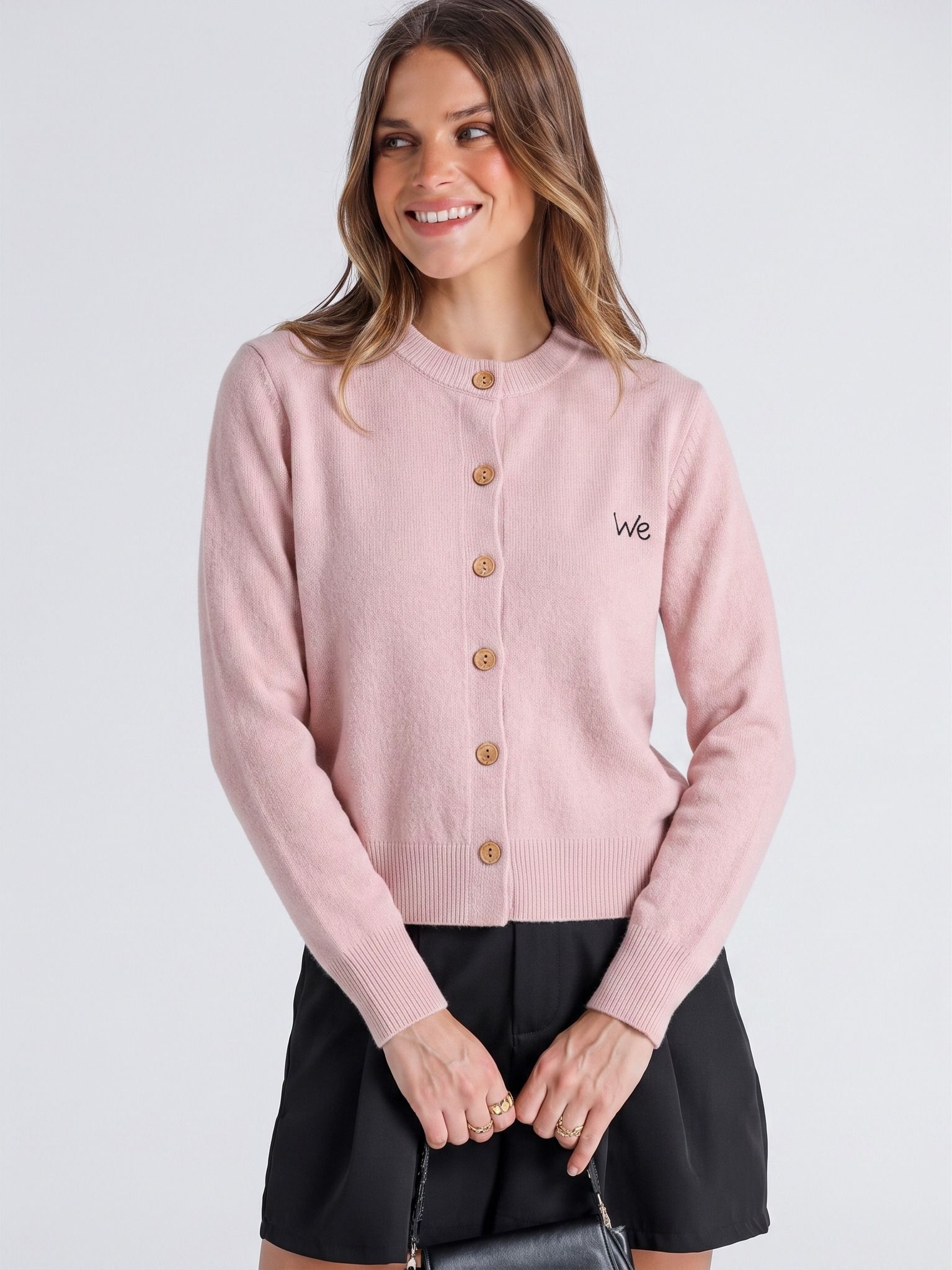
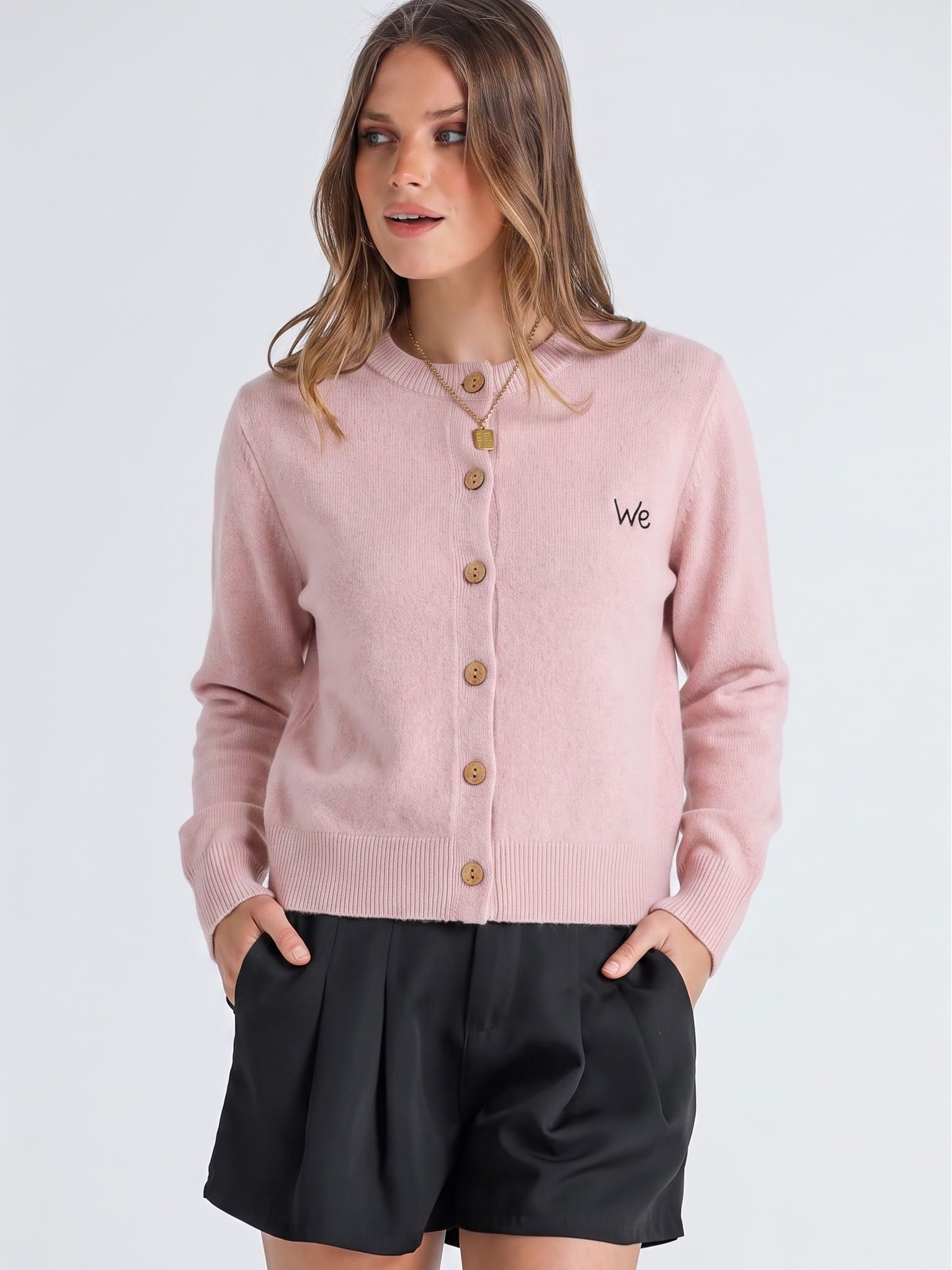
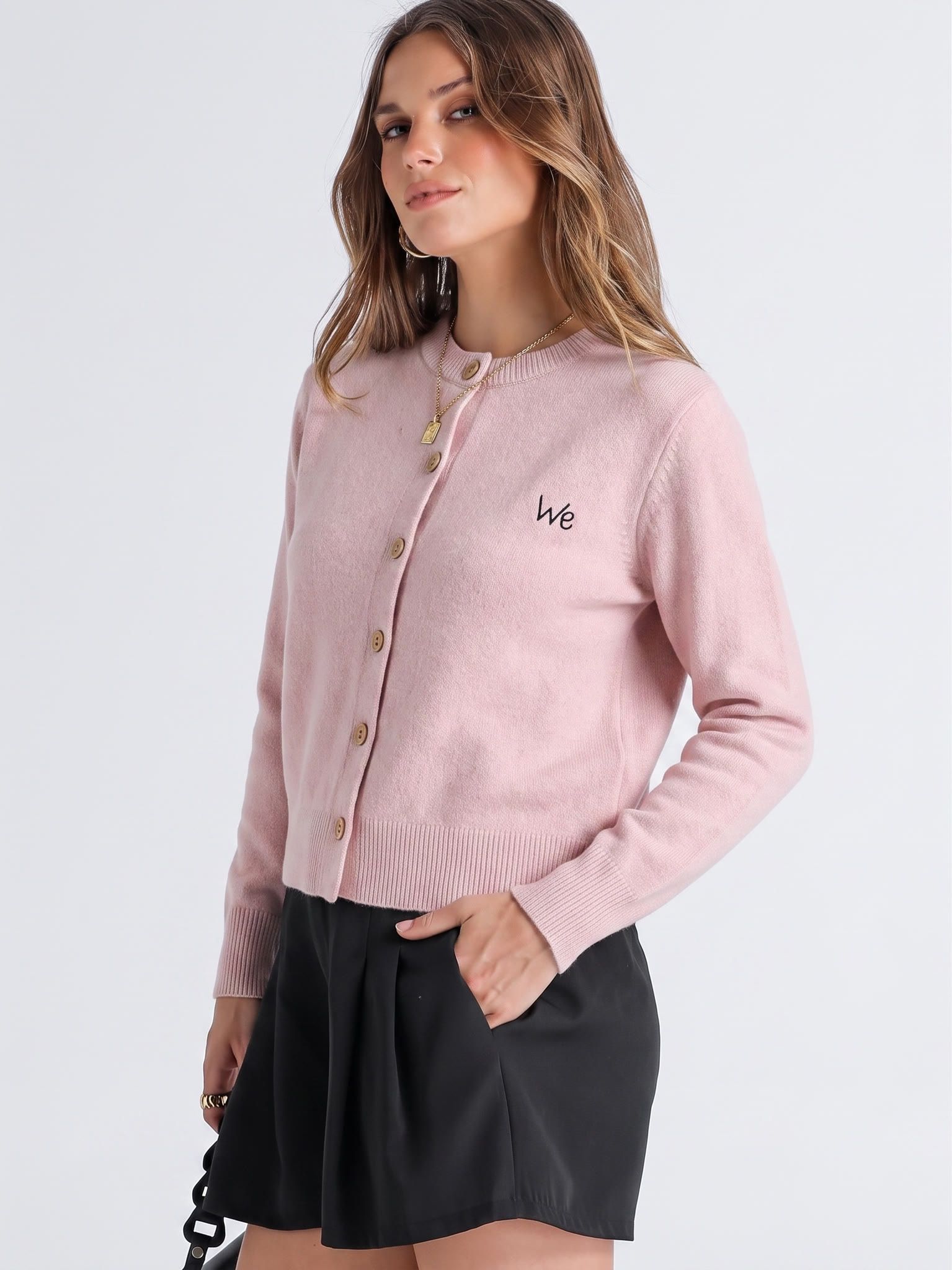
Amazon’s general image rules do not prescribe one front view plus one back view. For each SKU, choose the smallest set of angles that explains fit and drape without inventing details the source material does not show.
- Overall fit: show the garment’s length, neckline, sleeves, and closure clearly.
- Additional construction: use a three-quarter or side view when it is supported by the source; capture a real back photo before publishing a back view.
- Styling or movement: add another pose only when it helps buyers understand drape, proportion, or use.
Alternate images may use neutral or contextual backgrounds when the applicable rules allow them. The four AI Fashion Model results below are candidates, not four required deliverables. Keep the front view as the useful core. Retain a three-quarter result only when a real source photo confirms the side construction; otherwise treat it as a styling draft. Reject any output that changes drape, length, neckline, sleeves, embroidery placement, button count, or color, and never substitute a generated back view for a real back source.
Amazon supporting images: detail, infographic, and lifestyle
Use supporting slots only for information the main and model views leave open.
Add a second product-only view
If ghost mannequin is the main image, consider a flat lay here; if flat lay is the main image, consider the ghost result. Keep it only when the second presentation reveals silhouette or construction more clearly.
Use a real product-detail close-up
Crop a genuine source photo of the fabric, stitching, print, closure, lining, or trim. A Product Photo Upscaler can enlarge an approved crop, but it cannot recover detail that was never captured; reject any result that changes texture, print, stitching, or edge shape.
Explain size, fit, or features
Use an infographic for measurements, fit notes, fabric composition, care instructions, or one construction feature. Put text and graphic callouts in an alternate slot, never on the main image.
Add lifestyle context only when useful
Use lifestyle photography when it clarifies styling, movement, environment, or scale. Otherwise, give the slot to a more useful angle or detail.
Adapt the gallery for non-apparel Amazon products
Replace fit views with alternate angles, scale, packaging, included components, and the product in use. Start with a compliant white-background main image, then add only the media that helps a shopper evaluate the SKU.
Amazon color variation image requirements for child SKUs
Each color child SKU needs a main image that represents that sellable variation. The permitted presentation—on-model, ghost mannequin, or flat lay—depends on the applicable product-type guide; Amazon does not require every variation to reuse one composition.
Photograph each real color when possible. If you use Color Change, treat the output as a candidate, not proof of a real SKU: compare hue, texture, trim, and lighting response with the physical sample before publishing. Consistent scale and framing help shoppers compare sibling colors, but they do not replace color validation.
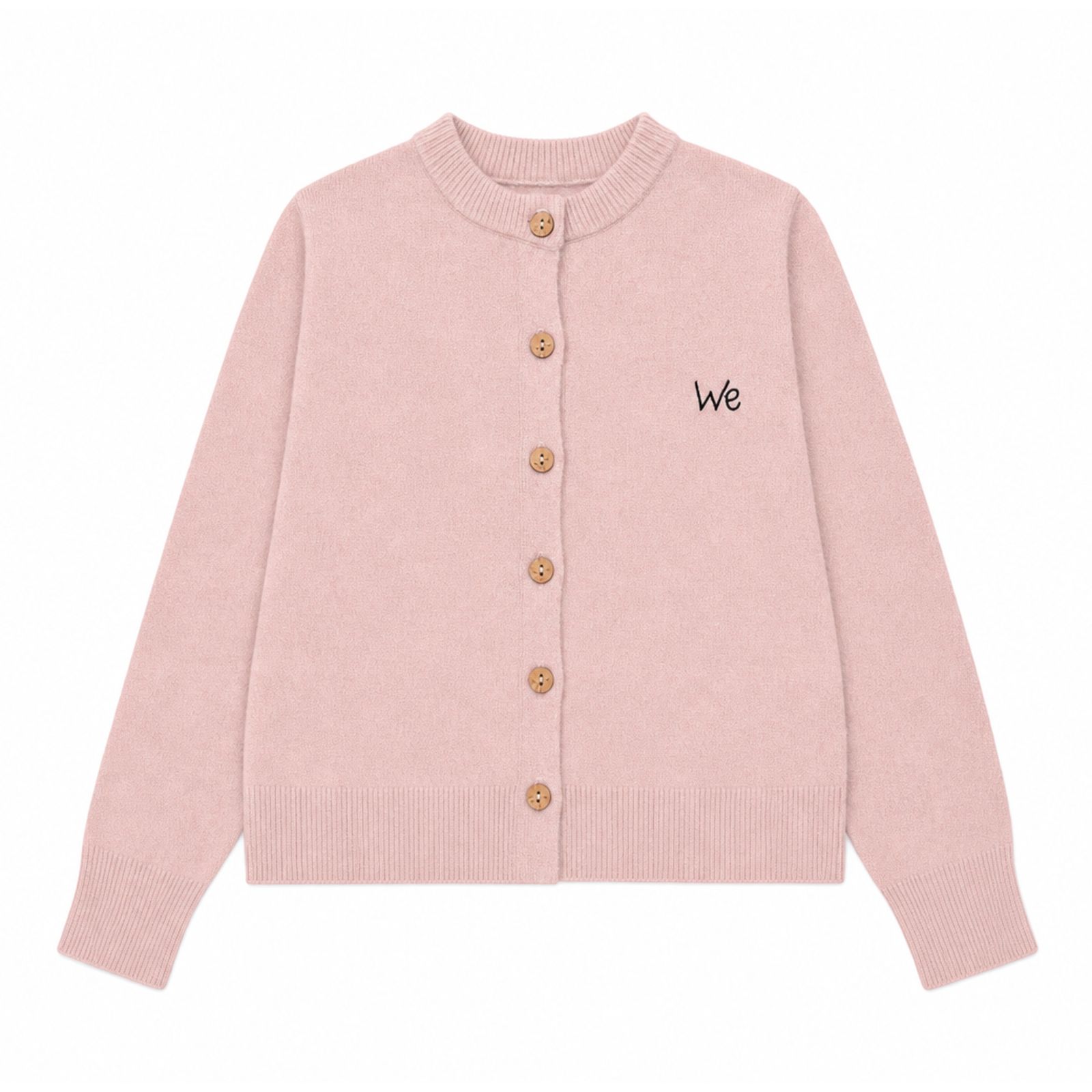
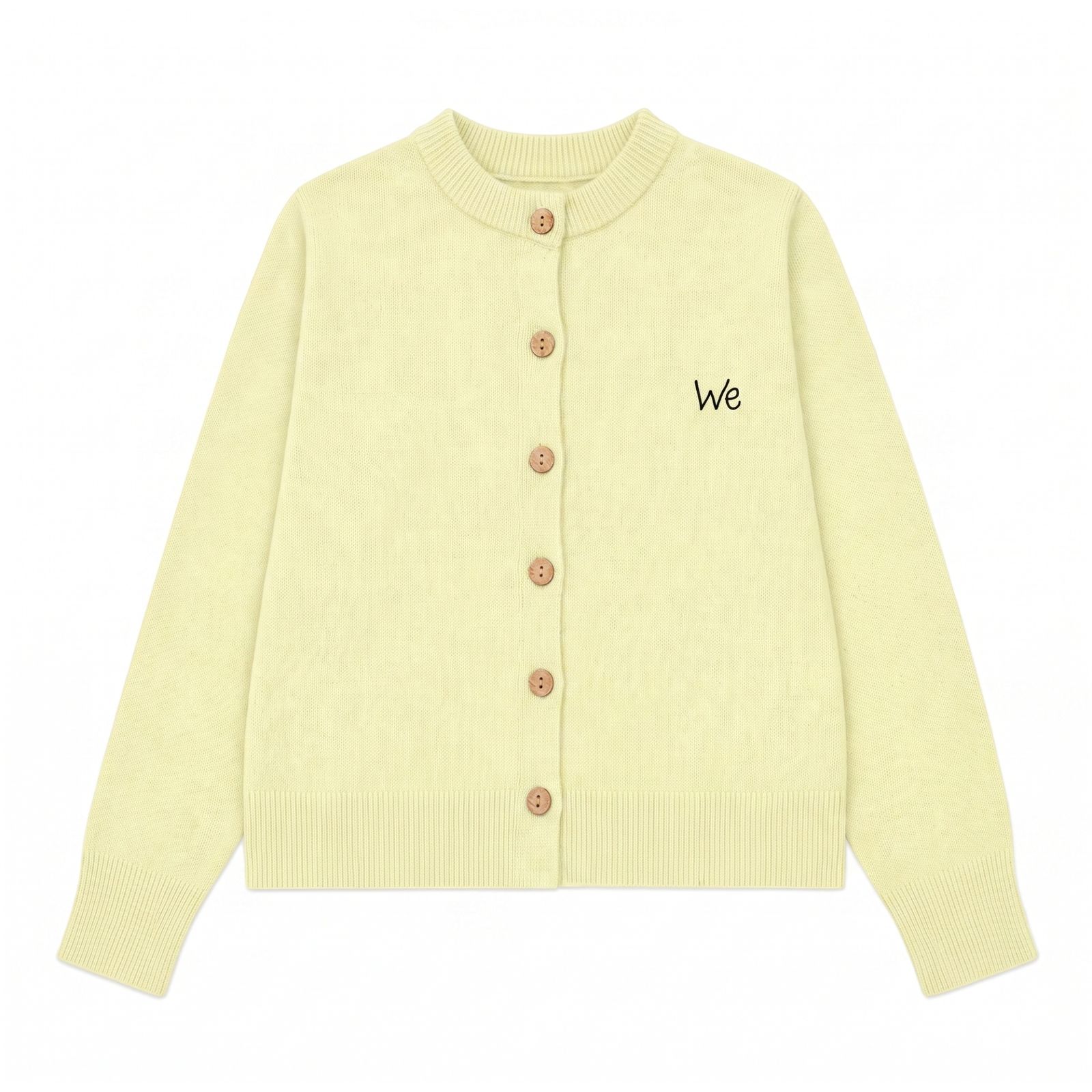
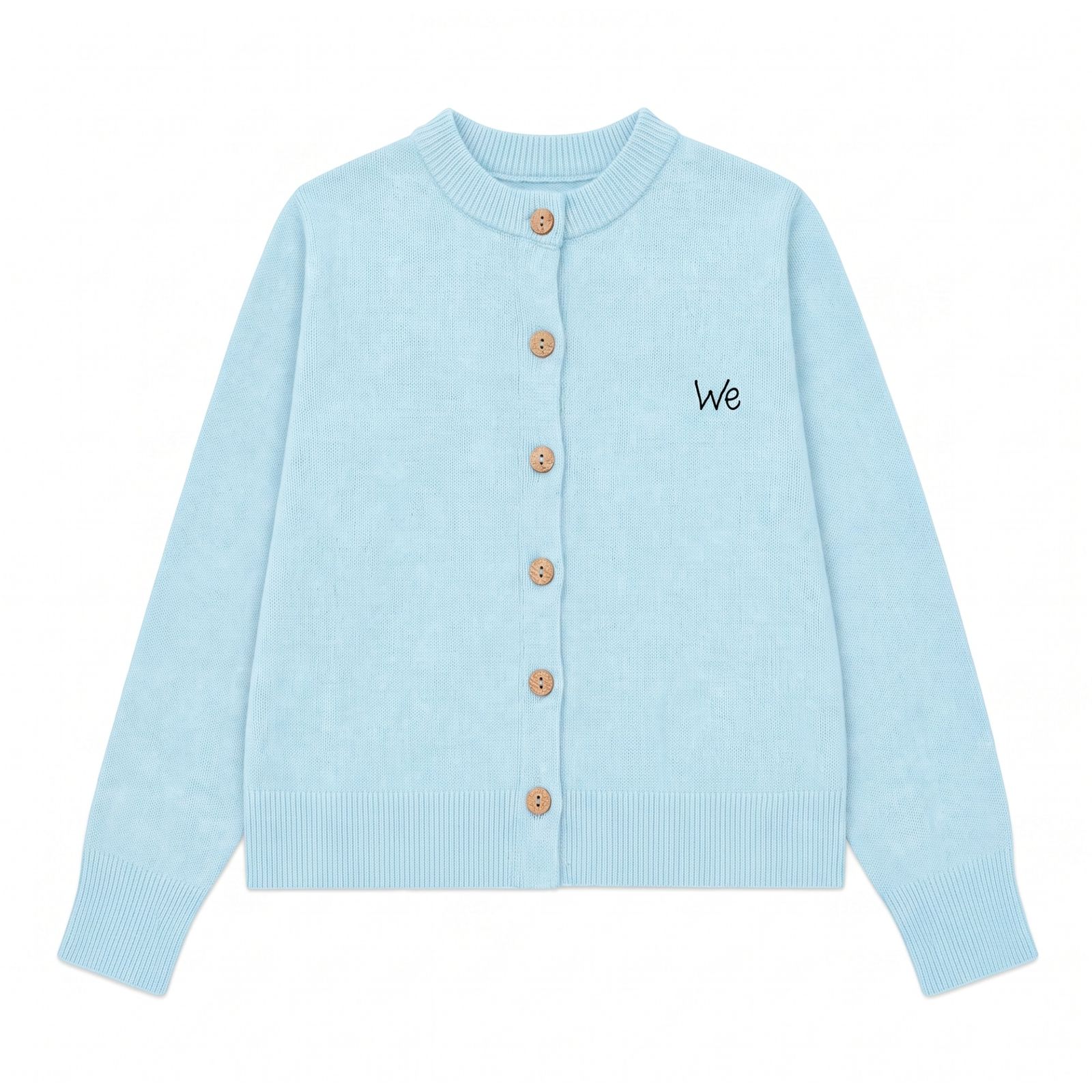
The matching angle makes these candidates easier to compare; it does not prove that the blue and yellow SKUs exist or that their hues are inventory-accurate.
Amazon product video: add motion only when it helps
Use video when it answers a question still images cannot—how a garment moves, drapes, or changes as the model turns. Amazon’s public product-video guide covers planning and publishing but does not provide one universal export size for every placement, so follow the current upload requirements for the target marketplace and listing.
Start from an approved still with accurate shape, buttons, print, texture, proportions, and color. This example uses Image-to-Video and keeps the original 1,244 × 1,664 portrait framing so the full garment remains visible.
Review the export frame by frame for changing hems, buttons, prints, hands, fabric texture, body proportions, or color.
Amazon product image export checklist
Export only after the creative is approved. Amazon accepts JPEG, TIFF, PNG, and non-animated GIF; Amazon says it prefers JPEG. The Image Resizer can prepare final dimensions, but do not stretch the item or crop out product details to reach a target size.
The 60-second Amazon product image check
- Main: pure white; exact product; 85% or more frame fill; no added text, props, borders, watermarks, or inset views.
- Alternates: each image answers a different buyer question and matches the same SKU.
- Variants: each child SKU has an accurate variation-specific main image.
- Files: accepted format, 500–10,000 pixels on the longest side, and preferably more than 1,000 pixels on each side for zoom.
- Claims and motion: measurements and text are proofread; video is checked frame by frame.
- After upload: inspect the selected child SKU on desktop and mobile to confirm that the intended assets appear.
Frequently asked questions
-
How many images should an Amazon clothing listing have?
Amazon requires at least one image, recommends at least six, and says sellers can upload up to nine photos. Use the main image for product identification, then add only the views that answer buyer questions about fit, construction, detail, scale, or use.
-
How do I make a white background for Amazon product photos?
Remove the original background, place the complete product on an RGB 255, 255, 255 canvas, and crop it to occupy at least 85% of the frame without clipping. Before upload, inspect the edges for gray pixels, halos, shadows, text, borders, watermarks, or props.
-
What image size should I use for Amazon?
Amazon accepts product images from 500 to 10,000 pixels on the longest side and says it prefers more than 1,000 pixels on each side for zoom. Choose dimensions that keep the complete product visible and retain useful detail.
-
Can a ghost mannequin or flat-lay image be an Amazon clothing main image?
Check the current product-type guide. A ghost-mannequin or flat-lay main image is suitable only when that presentation is permitted; some clothing categories or listing types require an on-model image. The image must always represent the exact sellable item.
-
Are lifestyle and infographic images required for Amazon listings?
No. Lifestyle and infographic images are optional alternates. Use them when they add useful context, sizing, or feature information. They may include contextual backgrounds or helpful text, while the main image must follow the stricter product-type rules.
-
Do Amazon product images have to be square?
Amazon’s cited general requirements specify a 500–10,000-pixel range on the longest side rather than a universal square aspect ratio. Square images can standardize a catalog, but the chosen crop should keep the complete product visible.
-
Does each Amazon color variation need its own main image?
Yes. Each color child SKU needs a main image that accurately represents that sellable variation. Amazon does not require every variation to reuse one angle, but consistent scale and framing can make sibling colors easier for shoppers to compare.
-
Can I add a product video to an Amazon listing?
Amazon supports product videos for eligible sellers and listings. Use video when it shows movement, scale, setup, or use that still images cannot, and follow the current upload requirements for the target marketplace and placement.
References and data sources
All Amazon figures and rules in this article were checked against the following official pages on August 20, 2026. Seller Central guidance may require sign-in and can vary by product type and marketplace.
- Amazon Seller Central, Product Image Requirements — pure-white main image, 85% frame fill, accepted dimensions, and file formats.
- Amazon Seller Central, Clothing Image Guidelines — clothing presentation, preferred apparel proportions, alternate views, and parent/child SKU image guidance.
- Amazon, “How to take product photos” — at least one image required, at least six recommended, file dimensions and formats, image quality, and the zoom-size preference.
- Amazon, “How to create Amazon product listings” — ability to upload up to nine photos.
- Amazon, “7 steps for making a product video” — product-video use cases, planning, editing, and publishing guidance.