

At a glance
Amazon says your product image is too small or suppressed your listing? Decode the error, then upscale past the 1000px floor and re-upload free, no login.
| Need | What to do |
|---|---|
| Get oriented | Read the short summary, then use the checklist below. |
| Create a test image | Try Product Photo Upscaler Free |
"Too Small" Means Two Different Things — Find Yours First
Before you touch the file, figure out which wall you actually hit, because Amazon uses the phrase "too small" for two technically separate mechanisms and the fix order depends on which one fired. Sellers waste hours re-shooting when all they needed was more pixels on the long edge.
The first state is a hard upload reject. Amazon runs a technical validation the instant you submit the file: if the image is below roughly 500 pixels on its longest side, the classic popup appears — "The image you are trying to upload is too small. Please upload an image that is larger than 500 pixels on its longest side." The file never attaches to the listing at all. Nothing changes on the live product page because nothing got through.
The second state is a listing suppression or quality alert. Here the image is large enough to upload (it cleared the ~500px floor) but falls short of Amazon's 1,000-pixel quality threshold on the long side. The picture attaches, but Amazon's post-upload quality check later flags it — zoom won't engage, and the main image can trigger a quality alert that temporarily pulls the listing out of search. You won't see a popup for this one; it shows up in Seller Central's "Fix your products" / listing quality dashboard (amzprep, EasyChannel).
So the single biggest accuracy trap is assuming Amazon rejects everything under 1,000px at upload. It does not. The hard reject floor is lower (around 500px); the 1,000px line is the quality, zoom, and suppression line. Knowing which one you're on tells you whether you're fighting an upload popup or a dashboard suppression — and the good news is that one fix, adding pixels, clears both.
The Exact Error Codes: 20009, 20008, 20012
If you upload through a flat file or feed rather than the web form, Amazon returns a numeric error code instead of a popup, and quoting the right one saves a support-ticket round trip. For "too small" problems there are three codes that matter, and they are easy to confuse with unrelated product-ID errors.
| Code | What it means | Fix |
|---|---|---|
| 20009 | The longest side doesn't have enough pixels — the core "too small" code | Upscale the long edge to clear 1,000px (aim 2,000px) |
| 20008 | The short side falls short of the required pixels | Upscale; both dimensions scale together |
| 20012 | Submitted image exceeds the maximum allowed dimension (over 10,000px) | Downsize, not upscale — you went too far the other way |
A common mix-up: 8005 and 8541 are not image-size errors. 8005 relates to changing an identity attribute on a SKU, and 8541 is about UPC/EAN/GTIN reuse. If you see those, your image dimensions are fine and you're chasing the wrong problem (amzsellerforum, EasyChannel). For the pixel-size errors — 20009 and 20008 — the cure is the same: more pixels on the relevant edge.
The Immediate Fix: Upscale Past the Floor, Then Re-Upload
Here is the part you came for. Because this block is a pure pixel-dimension failure and not a content failure, you do not need to re-photograph anything. You need to add pixels to the long side of the file you already have. A clean 600-to-900px product shot becomes a ~2,000px file in one pass, which clears the ~500px upload floor and the 1,000px zoom/suppression threshold simultaneously.
The free Product Photo Upscaler is built for exactly this rescue: it sharpens, denoises, and deblurs, lifting a soft supplier shot to the ~2,000px Amazon sweet spot in one pass, with no login, no watermark, and no usage cap. Drop the rejected file in, target around 2,000px on the long side, download the result, and re-upload to your listing or re-submit the feed.
The honest steps:
- Confirm the original is a normal product-on-white-ish shot with no text, logos, or watermark baked in.
- Upscale the long edge to roughly 2,000px — comfortably above the 1,000px floor and the commonly cited sweet spot for desktop and mobile zoom.
- Re-upload. The upload popup disappears, or the suppression clears once Amazon re-runs its quality check on the larger file.
One caveat worth stating plainly: upscaling fixes a size rejection. If your original also breaks a content rule — wrong background, embedded text, a watermark — adding pixels won't lift that suppression, because the listing was flagged for content, not dimensions. White-background and watermark issues are a separate topic; we cover them elsewhere and link out rather than muddy this fix. If you're unsure which problem you have, our hub on how to make product photos clearer walks through diagnosing image quality versus compliance.
The Exact Amazon Pixel Spec to Aim For
Re-uploading blind is how sellers get rejected a second time. Match these numbers before you submit. The canonical source is Amazon Seller Central's "Technical image file requirements" (reference G9FUUH87RBNXGKB7); the page is JS-gated to crawlers, but its figures are reproduced verbatim across 2026 third-party guides such as SellerLabs and Squareshot.
Minimum
1,000px on the longest side — the zoom and quality floor. (Hard upload reject sits lower, around 500px.)
Maximum
10,000px on either side; over this throws error 20012.
Recommended
2,000-3,000px on the longest side; 2,000x2,000 is the widely cited sweet spot.
Max file size
10 MB.
Formats
JPEG (.jpg, preferred), PNG, TIFF, non-animated GIF.
Color
RGB/sRGB; main-image background pure white (RGB 255,255,255).
Framing
the product should fill at least 85% of the frame on the main image.
Note the long-side wording carefully: the requirement is 1,000 pixels on the longest side, so a landscape file at 900x600 still fails because its longest side (900px) is under the 1,000px zoom floor. When you upscale, the whole image scales proportionally, so taking the long side to 2,000px brings the short side up with it. For a fuller, non-emergency walkthrough of the spec, see our reference on increasing image resolution for an Amazon listing.
If the Listing Is Already Suppressed, Not Just Rejected
An upload reject is annoying but harmless — the listing was never live with a bad image. A suppression is worse: a product that was selling has been temporarily pulled from search because Amazon's quality check flagged the main image as too small for zoom. Sales stop until you supply a compliant image.
The mechanism is different from the upload popup. Suppression is a post-upload quality check, and you'll find it in Seller Central under "Fix your products" or the listing quality dashboard rather than as an error at submission time (amzprep). The remedy is the same upscale-and-replace, but the sequence matters: replace the main image with your upscaled ~2,000px version, then either wait for Amazon to re-run the check or trigger a re-evaluation from the dashboard. Reinstatement is usually quick once a compliant image is in place, because you've resolved the exact condition that caused the flag.
If the listing stays suppressed after you've cleared the 1,000px line, the flag was probably never about size — it's content. Re-read the alert text: "too small" language points to dimensions; "image compliance" or background language points to content rules upscaling can't fix.
What Upscaling Honestly Can and Cannot Do
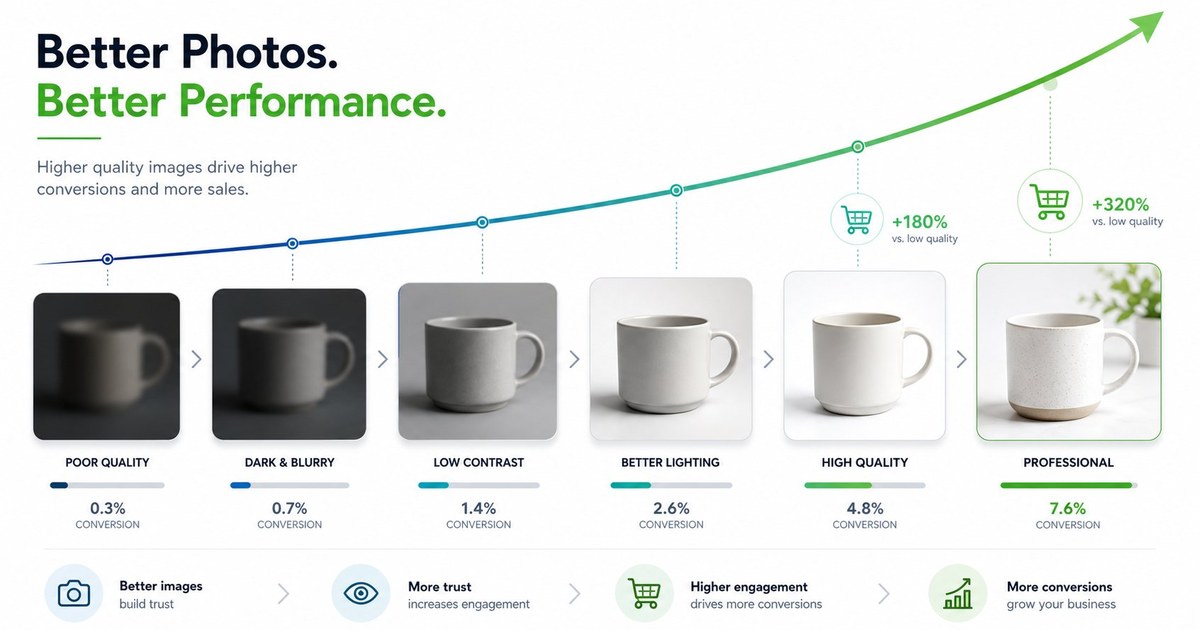
We'd rather you re-upload once than twice, so here's the truthful boundary. An AI upscaler can sharpen, denoise, deblur, and predict plausible texture, which is exactly what a slightly soft 800px supplier file needs to clear Amazon's floor. What it cannot do is recover detail the camera sensor never captured. There is no hidden information to restore — the model is making an educated reconstruction.
Industry consensus for 2026 puts the reliable ceiling around 4x linear (16x area). At 2x the results are excellent; at 4x they're good; beyond that, models begin to hallucinate structure — invented edges, fake text, fabricated grain — which is unacceptable for a product photo that must stay faithful to the real SKU a buyer receives (Lovart, technology.org). For Amazon's purposes this is plenty: lifting a 700px file to 2,000px is a 2.85x jump, well inside the safe zone. It's also why we recommend 2,000px rather than chasing 8,000px — past ~4x you're adding artifacts, not clarity. The Upscaler also runs a marketplace pixel-spec check so you confirm you've cleared 1,000px before you re-submit.
Upscale your rejected image free
Stop Hitting the Floor on Future Uploads
Once you're unblocked, a little process keeps you off this page. The most common source of too-small files is supplier and dropship imagery: AliExpress and similar listings often hand you 600-900px shots that look fine on a phone but die at Amazon's quality check. Upscale them proactively before they ever reach a listing — our guide on fixing low-quality AliExpress supplier photos covers that exact workflow.
A few habits that prevent repeat rejections:
- Treat 2,000px on the long side as your house minimum, not 1,000px. The extra headroom means a borderline file never lands in the suppression zone.
- Audit incoming catalogs in bulk rather than one rejection at a time — see batch-upscaling a product photo catalog.
- Confirm zoom actually engages after re-upload. If it doesn't despite a 1,000px+ file, the issue may be the zoom feature itself, not size — our piece on Amazon zoom not working diagnoses that separately.
For the strategic view of why resolution underpins conversion across every channel, our AI product photography pillar ties image quality to discoverability and trust. Clearing Amazon's floor isn't just compliance — a zoomable, crisp main image is what turns a click into a sale.
Frequently Asked Questions
Amazon says my image is too small but it looks fine on my screen — why?
Screen appearance is misleading. Amazon judges the file by pixel dimensions, not how it renders on your monitor. A photo that fills your phone screen can still be only 800px wide, which is below Amazon's 1,000px quality floor on the long side. Check the actual pixel dimensions in your file properties, and upscale the long edge to about 2,000px if it falls short.
What's the difference between an upload reject and a suppressed listing?
An upload reject happens at submission: the file is bounced immediately (typically below ~500px on the long side) and never attaches to the listing. A suppression happens after the image uploads successfully but fails Amazon's later quality check at the 1,000px threshold — the listing goes live, then gets pulled from search until you replace the image. Both are fixed by upscaling, but suppression also requires replacing the live main image and letting Amazon re-run its check.
Do I need to re-photograph the product to fix a too-small error?
No, not if the only problem is size. A too-small error is a pixel-dimension failure, so adding pixels by upscaling the existing file to ~2,000px on the long side clears it without a reshoot. You'd only need to reshoot if the image also violates a content rule — wrong background, embedded text, or a watermark — because upscaling fixes dimensions, not content compliance.
My listing is still suppressed after I upscaled the image. What now?
If the listing stays suppressed once you're past 1,000px, the flag was likely never about size. Re-read the alert: dimension language means size, while compliance or background language means a content rule. Suppressions for content reasons — non-white background, text, logos, watermarks — won't lift from upscaling. Those belong to a separate fix path; address the specific content rule named in the alert.
How big should I upscale to — is 1,000px enough?
Hitting exactly 1,000px clears the minimum but leaves no margin, so a slightly soft file can still flag. Target 2,000px on the longest side. It's the commonly cited sweet spot for both desktop and mobile zoom and sits safely above the floor. Avoid going past roughly 4x your original or beyond a few thousand pixels, because extreme upscaling adds artifacts rather than usable detail, and over 10,000px triggers a separate maximum-dimension error (20012).
Does the free upscaler add a watermark or require login?
No. Snappyit's Product Photo Upscaler is free with no login, no watermark, and no usage cap, and it handles single images or batches. It also runs a marketplace pixel-spec check so you can confirm you've cleared Amazon's 1,000px floor before you re-submit the file.
What error codes mean my Amazon image is too small?
In feed and flat-file uploads, code 20009 means the longest side lacks enough pixels — the core too-small code — and 20008 means the short side falls short. Both are fixed by upscaling. Code 20012 is the opposite problem: the image exceeds the 10,000px maximum. Don't confuse these with 8005 or 8541, which are product-identity and GTIN errors unrelated to image size.
Can upscaling restore detail my original photo lost?
Only up to a point. An AI upscaler sharpens, denoises, deblurs, and predicts plausible texture, but it cannot recover detail the camera never captured. Below about 4x the results stay faithful; beyond that, models start inventing structure, which is risky for product photos that must match the real item. For Amazon's floor, the modest 2-3x jump you typically need is well within the safe, faithful range.