

At a glance
Amazon flagged your photo as too small? Here are the real pixel specs (500/1000/1600/2000px) and how to upscale a below-spec listing image to 2000px…
| Need | What to do |
|---|---|
| Get oriented | Read the short summary, then use the checklist below. |
| Create a test image | Try Product Photo Upscaler Free |
Start with a clear source image
Use the clearest source image available, because input quality controls how much the AI has to infer.
Make the result easy to review
The final image should make the product, person, crop or platform requirement easier to evaluate at a glance.
Compare details before publishing
Compare color, shape, edges, scale, text and small details against the original before using the image commercially.
The Moment You Realize Your File Is Below Spec
It usually happens at the worst time. You are halfway through building a listing, you drag your best product shot into Seller Central, and Amazon either rejects it or quietly strips the hover-zoom because the file is too small. Or you open a competitor's detail page, mouse over their image, watch it magnify into crisp detail — and then check your own and realize buyers cannot do the same with yours. That is the trigger moment for this guide: you have just learned that Amazon has hard pixel requirements, and the photo you already have falls short.
The frustrating part is that the photo often looks fine on your screen. A 600x600px supplier image renders perfectly in a thumbnail and even at small sizes in a slide deck. Amazon, however, measures the raw pixel count, not how good it looks scaled down. If the longest side is under the threshold, the listing tools treat it as low resolution regardless of how sharp it appears at 25% size. This page lays out exactly what those thresholds are, then walks through the practical fix — increasing the resolution of the file you already have so it clears the bar with margin to spare.
This is the single resolution-and-pixel reference for Amazon in our library. If your real symptom is that the magnifier itself disappeared, the dedicated Amazon zoom not working walkthrough drills into re-enabling that feature specifically. For the broader cross-platform picture of how this fits into product photography, see our AI product photography hub.
Amazon's Pixel Spec Ladder: 500, 1000, 1600, 2000
The single most useful thing you can understand here is that Amazon does not have one image-size rule — it has a ladder of thresholds, each unlocking a different level of quality. Most sellers only ever hear about one rung and miss the others. Here is the full ladder, with the numbers Amazon publishes in its own image guidelines (quoted by seller-tool research site Jungle Scout):
| Longest side | What it unlocks |
|---|---|
| 500px | The absolute floor. Per Amazon, "the smallest your file can be for the site is 500px." Below this your image may not display at all. |
| 1000px | The zoom-activation threshold. Amazon states "the smallest your file can be for zoom is 1000px." This is the rung that actually matters for conversions. |
| 1600px+ | Amazon's recommended standard. Their guidance: files "1600px or larger on the longest side" deliver the optimal zoom experience. |
| ~2000px (square) | The widely-cited 2026 best practice. 2000x2000px leaves comfortable headroom above the 1600px recommended standard and serves crisp pixels on high-DPR (Retina) displays. |
| 10,000px (max) | The ceiling. Amazon caps the longest side at 10,000px and file size around 10MB. |
The honest nuance that most blog posts blur over: 500px is the display floor, not the goal. Clearing 500px only means your image shows up. It is 1000px that turns on the magnifier, and 1600px-plus that Amazon itself recommends for a sharp zoom. So if you only chase the 500px minimum, you technically pass — and then quietly lose buyers who cannot inspect your product. Aim for the top of the ladder, not the bottom.
Why the 1000px Zoom Bar Is the One That Costs You Sales
It is worth dwelling on why 1000px — not 500px — is the threshold to design around. Amazon's hover-zoom lets a shopper magnify your image to inspect stitching, texture, finish, screw threads, or fabric weave before buying. When your file is under 1000px on the longest side, that magnifier never appears. The shopper sees a static image they cannot interrogate, and on a marketplace where they cannot physically touch the product, the inability to look closely is a quiet conversion killer.
This matters disproportionately for certain seller types. If you sell anything where the buyer's decision hinges on detail — jewelry, apparel, electronics with ports and buttons, tools, anything with a texture or a logo — losing zoom means losing the exact reassurance that closes the sale. The buyer who would have zoomed in, confirmed the leather grain looked real, and added to cart instead bounces to a competitor whose image magnifies. You did not lose because your product was worse; you lost because your file was 800px wide.
So when you read "500px minimum" anywhere, mentally upgrade it. The compliance floor keeps you on the page. The 1000px zoom bar — and ideally Amazon's recommended 1600px-plus — keeps you competitive. Every fix in this guide targets the zoom bar and beyond, not the bare minimum.
Square or Not? What Amazon Requires vs. Recommends
Alongside resolution, you will see the advice to make your images square (1:1), often phrased as a hard rule. Let us be precise, because precision here saves you from over-cropping a good photo. Amazon strongly recommends a 1:1 square aspect ratio, but it does not strictly require it — the platform accepts aspect ratios up to roughly 5:1. As image-specs reference Squareshot documents, square is best practice rather than an absolute mandate.
Why is square the recommendation anyway? Because the gallery grid, the thumbnail, and the zoom frame are all designed around a square, so a 1:1 image fills the space cleanly and magnifies predictably. The practical sweet spot that satisfies every rule at once is 2000x2000px, square: it clears the 500px floor, the 1000px zoom bar, and the 1600px recommended standard simultaneously, and the 1:1 ratio matches Amazon's preferred layout. Some sources, including Soona and SellerSprite, even point to 3000x3000px "wherever possible" for future-proofing — but 2000px square is the reliable target for the vast majority of catalogs.
For your main image there is also a pure-white-background requirement (RGB 255,255,255) with the product filling about 85% of the frame. That is a separate compliance topic from resolution, so we only flag it in passing here — if your main image needs its background cleaned to pure white, handle that with a dedicated background tool rather than treating it as a pixel problem.
"Just Reshoot It" — Why That Advice Is Half Right
Search for how to fix a low-resolution Amazon image and you will hit a wall of the same advice: don't upscale, reshoot at higher resolution instead. We want to engage with that honestly, because it is partly correct and partly outdated — and getting the distinction right is what separates trustworthy guidance from spam.
The valid core of the advice: AI upscaling cannot invent detail that was never captured. As ecommerce-imaging resource Autophotos puts it plainly, upscaling "cannot recover information that was never captured." If a product photo was shot so small or so degraded that a logo is an unreadable smear, an upscaler may return that smear as something sharp — but possibly sharp-and-wrong, because the model is reconstructing rather than retrieving. For genuinely destroyed source detail, a reshoot is still the better answer.
The outdated part: the advice assumes upscaling means crude pixel-doubling that produces a soft, blocky mess. Modern AI upscaling does not work that way. It raises resolution while actively denoising, deblurring, and sharpening — which is precisely the deficit Amazon's pixel requirement is asking you to fix. And critically, reshooting is often impossible. Dropshippers, POD sellers, and resellers frequently do not physically hold the inventory; the supplier photo is all they have. Telling someone with no product in hand to "just reshoot" is not advice, it is a dead end. For those sellers, AI upscaling is the only practical path to spec — and a legitimate one, as long as you respect what it can and cannot do.
How to Increase Your Image to 2000px Square
Here is the actual fix. The free Snappyit Product Photo Upscaler is built for exactly this job: it raises a below-spec product file toward 4K while sharpening, deblurring, and denoising, so you can then confirm the longest side has cleared the marketplace pixel bar before you upload. There is no login, no watermark, and no usage cap. The workflow is short:
Upload your current file
— the supplier image, the old listing photo, whatever you have that is under spec.
Upscale toward 2000px on the longest side
The tool raises resolution and cleans up softness, noise, and compression artifacts in the same pass.
Confirm against the Amazon spec
Check that the longest side now sits at or above 1600px — 2000px is the comfortable target — so zoom activates with margin.
Crop to 1:1 square
if your image is not already square, keeping the product centered and filling roughly 85% of the frame for the main image.
One workflow detail worth respecting, confirmed by upscaling research at Lovart: the correct order is denoise and de-artifact first, then upscale, then sharpen. Doing it in the wrong order bakes artifacts permanently into the larger file. A good upscaler handles this sequence internally so you do not have to think about it.
How Far Can You Realistically Push It?
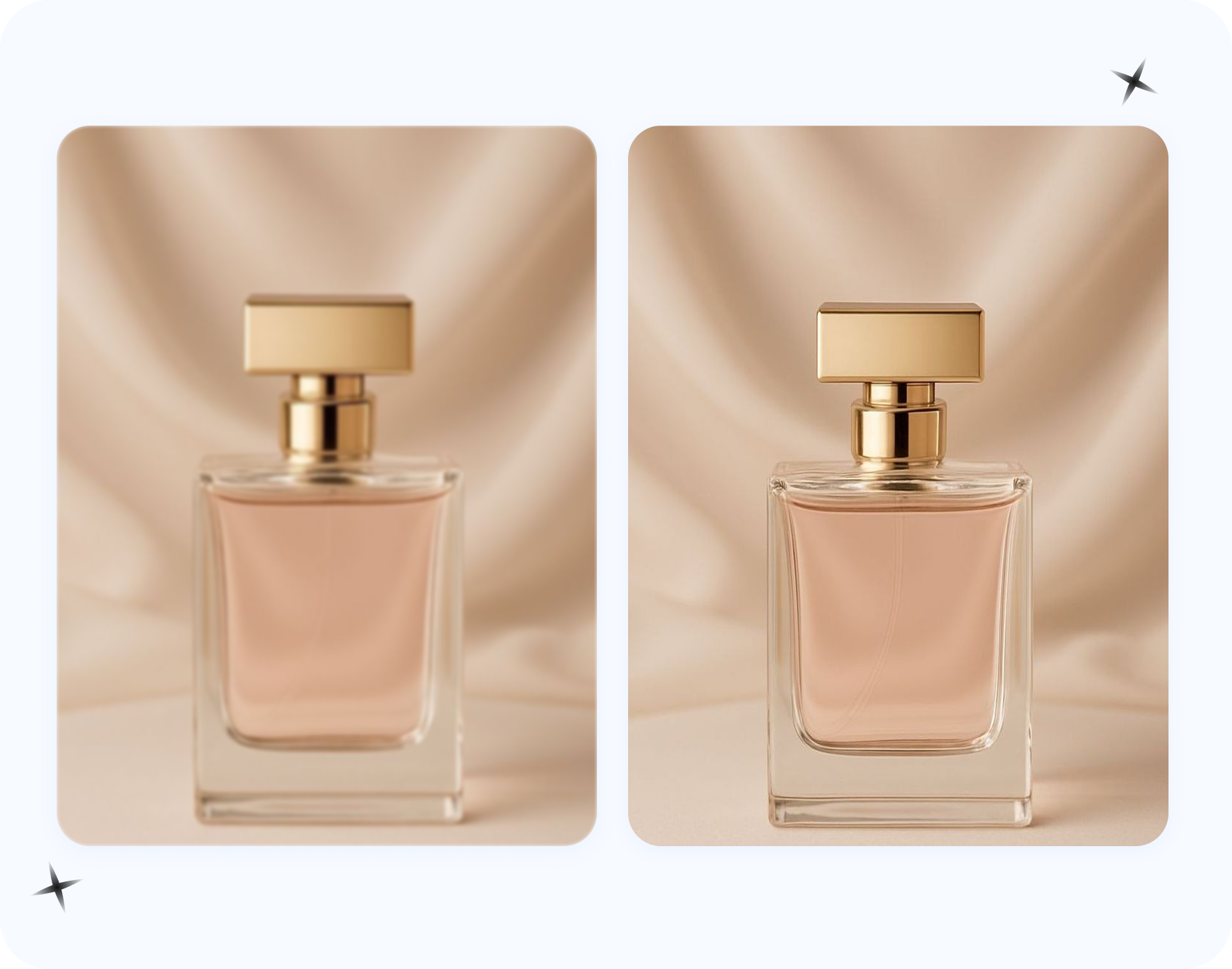
Honesty about limits is what keeps you out of trouble, so here is the math. AI upscaling has a reliable practical ceiling around 4x linear (which is 16x the pixel area). As Lovart's upscaling guide notes, "4x linear (16x area) is the reliable ceiling for most tools" — push past that and models start inventing structure: wrong text, distorted logos, averaged-out details that were never there.
Translate that to Amazon's target of 2000px:
- A 600–800px source → 2000px is roughly a 2.5x–3.3x jump — comfortably inside the reliable range. Expect a clean, sharp, spec-compliant result.
- A 500px source → 2000px is 4x — right at the edge. Usually fine for textures and shapes, but scrutinize any fine text or logo in the output.
- A 400px source → 2000px is 5x — past the safe ceiling. It may clear the pixel bar, but inspect closely; this is where a reshoot becomes the better call if critical detail is involved.
This is also why products with text, brand logos, or known geometry (a barcode, a measurement scale, a model number) deserve extra caution. The upscaler will happily fill in plausible-looking characters, but plausible is not the same as correct. For these, cap your ambition at the conservative end of the range and verify the readable elements by eye before publishing.
If You Have a Whole Catalog (and Other Resolution Fixes)
One Amazon image is a five-minute job. A catalog of 200 below-spec SKUs is a different problem — and a common one, especially for dropshippers who inherited an entire range of small supplier photos at once. Rather than upscaling each file by hand, you can run the whole set through a batch upscale workflow and get every image lifted to spec together. That sibling guide covers bulk processing, ZIP handling, and keeping your catalog consistent.
Two more pointers depending on your exact situation. If your source images came from AliExpress or Alibaba suppliers and are both small and rough, the supplier-photo rescue guide is tuned for that scenario specifically — and notes the real strategic catch that most dropshippers reuse the same supplier images, so clearing the bar is necessary but not sufficient. And if your symptom is the missing magnifier rather than a rejected upload, the Amazon zoom troubleshooting page diagnoses why hover-zoom vanishes and how hitting the 1000–2000px range brings it back.
For the methodology behind all of this — the general principles of raising product-photo clarity and resolution across any platform — start at our how to make product photos clearer guide. If you are still comparing which tool to use, our best free AI image upscaler for ecommerce roundup weighs the options.
Frequently Asked Questions
What is the minimum image size for an Amazon listing?
Amazon's absolute floor is 500px on the longest side — below that your image may not display at all. But 500px is just the display minimum, not the goal. The threshold that actually matters is 1000px, which is the smallest a file can be to activate Amazon's hover-zoom. Aim higher than the floor: 1600px is Amazon's recommended standard and 2000px square is the comfortable best-practice target.
What size should an Amazon product image be in 2026?
The widely-cited 2026 best practice is 2000x2000px, square (1:1). That single spec clears every Amazon requirement at once: the 500px display floor, the 1000px zoom-activation bar, and the 1600px-plus that Amazon recommends for the optimal zoom experience. Some sources suggest 3000x3000px wherever possible for extra headroom, but 2000px square is reliable for almost any catalog.
Does my Amazon image have to be exactly square?
No — square is strongly recommended but not strictly required. Amazon accepts aspect ratios up to roughly 5:1. That said, the gallery, thumbnail, and zoom frame are all built around a 1:1 square, so a square image fills the space cleanly and magnifies predictably. If you can crop to square without cutting off the product, it is the safest choice.
Can I just upscale a small image instead of reshooting it?
Often yes, with one honest caveat. Modern AI upscaling raises resolution while sharpening and denoising, which is exactly what Amazon's pixel requirement asks for — so it reliably takes a below-spec file up to 1000/1600/2000px. What it cannot do is invent detail that was never captured: a smeared, unreadable logo may come back sharp but wrong. For moderately small photos (600–800px) upscaling is the right fix; only severely degraded sources truly need a reshoot.
Why did Amazon remove the zoom from my listing image?
Almost always because the file is under 1000px on the longest side — that is the threshold that turns zoom on. If your image is between 500px and 1000px it will display but will not magnify. Upscaling the file to at least 1600px (2000px square is ideal) restores the magnifier. Our Amazon zoom not working guide covers this symptom in detail.
How large can I upscale my product photo before it looks fake?
The reliable ceiling for AI upscaling is about 4x linear (16x area). A 600–800px source going to 2000px (around 2.5x–3.3x) is comfortably safe. A 500px source to 2000px is exactly 4x — usually fine but worth inspecting. Going beyond 4x, the model starts inventing structure like distorted text or logos, so for tiny sources or images with critical readable detail, a reshoot may be the better call.
What file formats and maximum size does Amazon accept?
Amazon accepts JPEG (preferred), PNG, TIFF, and non-animated GIF. The maximum is 10,000px on the longest side, with file size capped around 10MB. For listing images, JPEG at 2000x2000px is the practical sweet spot — well within every limit and small enough to upload without trouble.
Will upscaling fix a blurry image as well as a small one?
Yes, to a point. A good product upscaler doesn't just add pixels — it denoises, deblurs, and sharpens in the same pass, in the correct order (clean up artifacts first, then upscale, then sharpen). That means it handles both low-resolution and mild blur together. Severe motion blur or focus that completely missed the subject is a different problem that upscaling can improve but not fully cure.