What Actually Broke: Zoom Is a Trigger, Not a Toggle You Control
The frustrating part of amazon zoom not working is that there is no setting in Seller Central labeled "turn zoom on." Hover-zoom (the feature that magnifies a region of your main image when a shopper moves their cursor over it, or pinches on mobile) is something Amazon switches on automatically when your listing meets specific conditions. You never enable it directly; you qualify for it. So when it disappears, nothing on your dashboard tells you why, and the listing looks otherwise healthy.
That ambiguity is exactly why sellers flood the Seller Central forums with this question. The image still displays. The product still sells. But the little magnifying-glass interaction that lets buyers inspect stitching, texture, or fine print is gone, and conversion quietly suffers because shoppers can no longer scrutinize the product the way they expect to on Amazon.
There are really only two root causes worth your time, and they require completely different responses. The first is a category-level block Amazon imposes regardless of your image quality. The second is a resolution shortfall where your main image's longest side dropped under Amazon's zoom threshold. The next two sections walk each one, in the order you should check them. This post is part of our wider AI product photography resource for marketplace sellers.
Check Your Category First (This Is the One Sellers Miss)
Before you touch a single pixel, confirm whether your product even qualifies for zoom anymore. This matters because the most common advice online ("just make your image bigger") is flatly wrong for a large slice of sellers, and following it wastes hours.
Across 2024-2026, multiple Seller Central forum threads document that Amazon silently removed hover-zoom for entire categories with no announcement: Apparel and Clothing, Shoes, Watches, Jewelry, and Handmade detail pages stopped offering zoom regardless of how large or sharp the images were. In one thread titled around clothing items no longer being zoomable, sellers compared notes and confirmed the behavior was account-agnostic and category-wide. An Amazon employee eventually acknowledged "changes... in specific categories [that] make certain features unavailable while work is ongoing" (sellercentral.amazon.com seller forums, 2024-2026).
The practical takeaway is blunt: if you sell apparel, shoes, watches, jewelry, or handmade goods and your zoom vanished, uploading a 2000px image will not bring it back. The block is at the policy and UI layer, not the resolution layer. Spending money on photography or fighting with file sizes will not move the needle. Your realistic options are to open a case with Seller Support referencing those forum threads, and to compensate inside the image itself by composing tighter shots and adding close-up detail frames in your secondary image slots, since shoppers cannot zoom to find the detail you want them to see.
If you are not in one of those categories, good news: your problem is almost certainly resolution, and it is genuinely fixable. Move to the next section.
The 1000px Rule: Why Zoom Switches Off Below the Threshold
For zoom-eligible categories, the dominant cause (more than nine in ten cases) is simple: your main image's longest side fell under 1000 pixels. Amazon's image standards activate the zoom function only when the longest side reaches at least 1000px; below that, zoom is disabled entirely and the image renders at a fixed size with no magnify-on-hover (Seller Labs, "Amazon Product Image Requirements 2026"; ResizeMyImg, "Why Your Amazon Images Aren't Zoomable"). A handful of sources phrase the cutoff as 1001px (strictly greater than 1000), but "at least 1000px on the longest side" is the canonical figure and the one to design around.
This is the answer to amazon image must be at least 1000 pixels: that number is not an arbitrary upload minimum, it is the literal switch for the zoom feature. Hit it and zoom turns on; miss it and zoom stays dark. Here is the nuance most articles skip, though: clearing 1000px only activates zoom. It does not guarantee the zoomed view looks sharp. A 1000px image magnified shows visible softness and pixelation the moment a shopper leans in.
| Longest side | What happens to zoom |
|---|---|
| Under 1000px | Zoom disabled entirely |
| Exactly 1000px | Zoom activates, but magnified view looks soft |
| 1600px+ | Recommended for a genuinely crisp zoom |
| ~2000px | Practical sweet spot: clears every spec with margin |
Sources consistently recommend 1600px as the floor for good zoom quality, with roughly 2000px on the longest side cited as the sweet spot that satisfies everything while keeping file size manageable (ResizeMyImg; Squareshot, "Amazon Product Image Dimensions"; Seller Labs, 2026). Amazon allows up to 10,000px and files under 10MB, so 2000px is a comfortable target, not a ceiling. For the full size-spec breakdown and how to hit exact pixel counts, see our companion guide on increasing image resolution for an Amazon listing.
Why Your Image Dropped Under 1000px in the First Place
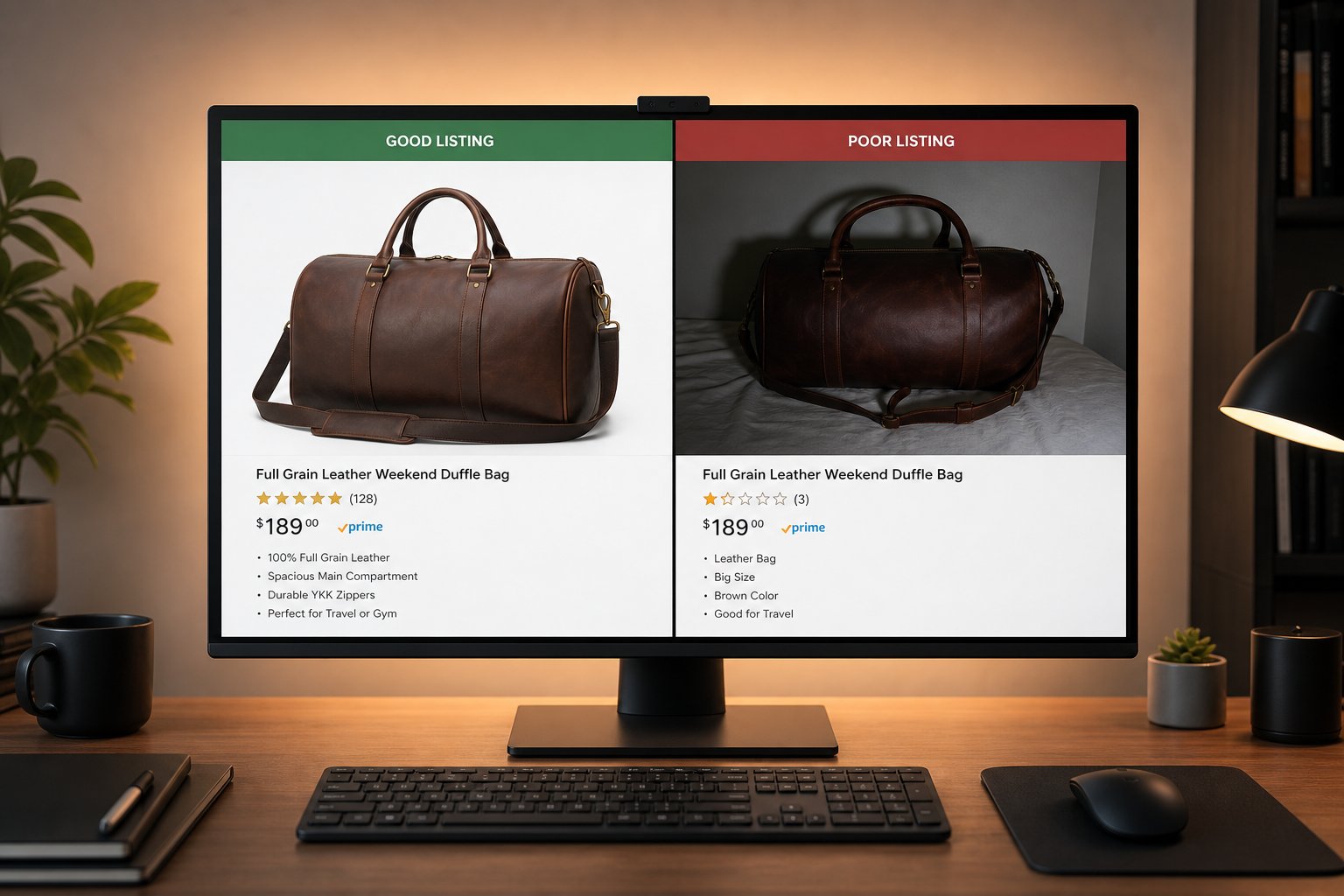
Listings rarely lose zoom on their own. The trigger is almost always a swapped-in image that happened to be smaller than the one before it. The single biggest source of this, especially for dropshippers, resellers, and print-on-demand sellers, is supplier photography.
Supplier and marketplace images are frequently low-resolution, heavily compressed, or cropped out of a larger composition, which routinely leaves sellers with files in the 300-800px range, well under the 1000px zoom threshold (AutoDS, "Product Images Tips"; MyImageUpscaler, 2026). The moment you pull a 600px image off a supplier portal and set it as your main image, Amazon re-evaluates the listing and switches zoom off. The listing was zoomable yesterday because the old image cleared the bar; today's replacement does not.
Other culprits worth ruling out: an image you exported at the wrong size from a phone or a design tool, a screenshot pasted in as a placeholder, or a thumbnail saved instead of the full-resolution original. A rarer but real cause is file format. Amazon prefers JPEG for product photos and also accepts PNG, TIFF, and non-animated GIF, but does not use WebP for uploads, so an unsupported or mishandled format can occasionally break rendering and zoom (Seller Labs; Jungle Scout, "Amazon Image Requirements", 2026). If you are diagnosing softness rather than missing zoom specifically, our broader breakdown of why product photos turn out blurry and which fix to use covers the decision tree in depth.
The Fix: Upscale Your Main Image to the 1600-2000px Sweet Spot
Once you have confirmed you are in a zoom-eligible category and your main image is under threshold, the fix is to raise the longest side into the 1600-2000px range and re-upload. If your only copy of the image is the small supplier file, you cannot simply demand a bigger original, so you upscale the one you have.
Snappyit's free Product Photo Upscaler is built for exactly this: it enlarges, sharpens, deblurs, and denoises low-res product photos toward 4K resolution, with no login, no watermark, and no usage cap. Lifting a typical 700-900px supplier image to 1600-2000px is only about 2 to 2.5x enlargement, which sits squarely in the safe, high-quality zone for AI upscaling and reliably restores both zoom eligibility and a sharp magnified view.
Upscale your product photo free
The tool also checks your output against marketplace pixel specs, so you can confirm you have cleared the 1000px activation point and reached the 2000px sweet spot before you ever open Seller Central. For the methodology behind enlarging marketplace images cleanly across platforms, our hub on how to make product photos clearer is the place to start.

Don't Just Overwrite: Delete and Re-Upload to Force a Refresh
Here is a step most sellers get wrong and then conclude the upscaling "didn't work." Meeting the pixel spec does not always refresh Amazon's zoom state on its own. Sellers report that overwriting an existing image sometimes leaves zoom stuck off, and that the reliable fix is to delete the existing image in Seller Central and upload the corrected, upscaled file as a fresh asset, which forces Amazon to re-evaluate the listing and re-enable zoom (ResizeMyImg, 2026).
So the full sequence is:
- Upscale the main image to ~2000px on the longest side and export as JPEG.
- In Seller Central, delete the old main image rather than overwriting it.
- Upload the upscaled file as the new main image.
- Allow time for Amazon to reprocess; zoom may not appear instantly.
One caution from the forums: even high-resolution, zoomable images have been documented spontaneously reverting to non-zoom, which points to Amazon-side caching and processing delays rather than anything wrong with your file (Seller Central forum thread, "High-res zoomable images keep reverting to non-zoom"). If your correctly-sized image loses zoom days later with no change on your end, that is an Amazon-side issue to raise with Support, not a reason to re-upscale.
Fixing Zoom Across a Whole Catalog at Once
One listing is a quick fix. The real pain is discovering that dozens or hundreds of SKUs all inherited sub-1000px supplier images and lost zoom at scale. Resizing those one at a time is not realistic for a catalog of any size, which is why batch upscaling is an established e-commerce workflow rather than a niche feature; bulk tools are positioned specifically for sellers and dropshippers fixing entire SKU sets in a single pass, with ZIP-download delivery (MyImageUpscaler; Pixelcut, 2026).
The Snappyit Product Photo Upscaler handles batch jobs free, with no cap, so you can drop your whole catalog in, upscale every image to the zoom sweet spot, and download the results together rather than re-running the tool per file. This is the difference between fixing your catalog's zoom this afternoon and grinding through it for a week.
If your catalog problem started with low-grade supplier imagery in particular, our dropshipper-focused walkthrough on rescuing low-quality AliExpress supplier photos covers the batch rescue end to end. And to compare the free batch upscalers built for sellers, see our roundup of the best free AI image upscalers for e-commerce.
What Upscaling Can and Can't Do (Read Before You Try to Rescue a Thumbnail)
Honesty matters here, because over-promising on a product listing creates returns and complaints. AI upscaling is clarity-only: it sharpens, denoises, and cleanly enlarges detail that the camera actually captured, but it cannot recover detail that was never there. A fundamentally blurry or information-starved source keeps its blur faithfully at a higher resolution (Let's Enhance; Lovart, 2026).
The reliable ceiling is about 4x linear enlargement (16x in area). Push past that and models begin fabricating plausible-but-wrong structures: invented text on packaging, smeared logos, fake textures. On a product photo that is genuinely dangerous, because it misrepresents what the buyer receives (artsmart.ai; Lovart, 2026). This is why lifting a 700-900px image to 2000px is safe, but trying to blow a 200-300px thumbnail up to 2000px (well over 4x) is not. The thumbnail may technically clear the 1000px zoom threshold, yet the magnified view could show invented detail that does not match the actual item. If that is your only source, source a larger original instead.
Two more things upscaling deliberately does not do, by design: it does not relight or recolor your product (so your colors stay accurate), and it does not handle Amazon's separate compliance rules. In particular, your main image must also use a pure white background with the product filling about 85% of the frame; a 2000px image can still be suppressed for a non-white background (Seller Labs, 2026). That is a different problem with a different fix, so just make sure your main image meets the white-background rules using a background remover; we do not solve it in this post.
Frequently Asked Questions
Why did Amazon zoom suddenly stop working on a listing that used to have it?
Two likely causes. Either you swapped in a new main image whose longest side is under 1000px (Amazon disables zoom below that threshold), or your product is in a category where Amazon quietly removed hover-zoom entirely, such as Apparel, Shoes, Watches, Jewelry, or Handmade. Check your category first, because if zoom was disabled category-wide, no image change will bring it back.
How do I enable zoom on Amazon product images?
You can't toggle it directly, there's no on/off setting. Amazon activates zoom automatically when your main image's longest side is at least 1000px. To qualify, upscale your image to roughly 1600-2000px on the longest side, delete the old image in Seller Central, and re-upload the corrected file so Amazon re-evaluates the listing.
What does 'amazon image must be at least 1000 pixels' actually mean for zoom?
That 1000px figure is the literal trigger for the zoom feature, not just an upload minimum. When the longest side reaches at least 1000px, zoom switches on; below it, zoom is off and the image displays at a fixed size. But 1000px only activates zoom, it doesn't guarantee a sharp magnified view, which is why 1600-2000px is recommended.
I uploaded a 2000px image and zoom still isn't appearing. Why?
Most often it's because you overwrote the existing image instead of deleting it. Overwriting can leave the zoom state stuck; delete the old image in Seller Central and upload the upscaled one as a fresh asset, then allow time for reprocessing. If you sell apparel, shoes, watches, jewelry, or handmade goods, the zoom block is category-wide and uploading any size won't restore it.
Can I just upscale a tiny supplier thumbnail to 2000px to get zoom back?
Lifting a 700-900px image to 2000px is safe and works well. But a 200-300px thumbnail blown up to 2000px is more than 4x enlargement, where AI starts inventing detail like fake textures or smeared logos. It might technically pass the 1000px threshold, but the magnified view could misrepresent the product and drive returns. Source a larger original instead.
Does upscaling change my product's colors or background?
No. The Product Photo Upscaler is clarity-only, so it sharpens, denoises, and enlarges without relighting or recoloring, keeping your colors accurate. It also doesn't handle Amazon's separate white-background rule, your main image still needs a pure white background with the product filling about 85% of the frame, which is a different task handled by a background remover.
How do I fix missing zoom across hundreds of SKUs at once?
Use batch upscaling. Instead of resizing one image at a time, drop your whole catalog into the free Product Photo Upscaler, enlarge every image to the 1600-2000px zoom sweet spot, and download them together as a ZIP. There's no cap, so a catalog that lost zoom from low-res supplier photos can be fixed in a single pass.
What file format should I re-upload after upscaling?
Export as JPEG. Amazon prefers JPEG for product photos and also accepts PNG, TIFF, and non-animated GIF, but does not use WebP for uploads. An unsupported format is a rarer cause of rendering and zoom problems, so sticking with JPEG avoids that whole class of issue.