
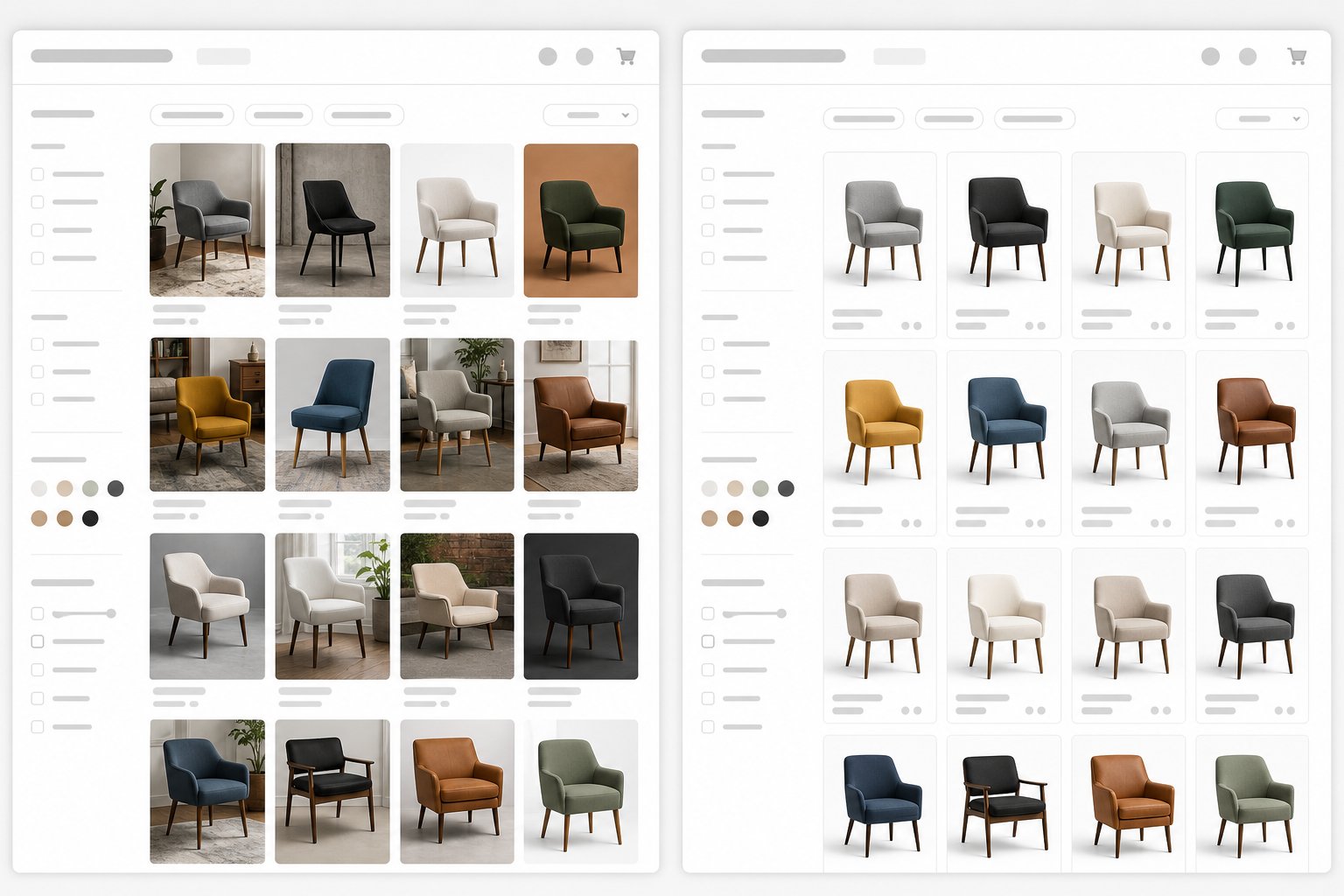

At a glance
Bulk-upscale a whole product catalog free, no cap, no watermark, no login. Upload a set, AI sharpens and denoises every SKU, download as a ZIP.
| Need | What to do |
|---|---|
| Get oriented | Read the short summary, then use the checklist below. |
| Create a test image | Try Product Photo Upscaler Free |
Why "batch" is the line that separates seller tools from consumer toys
If you sell on more than one channel, your image problem is almost never a single photo. It is a folder. A store migration dumps every old listing image at once; a quarterly catalog refresh re-shoots half the range; a new supplier hands you 300 product shots that all look soft. The bottleneck is volume, and that is precisely where the consumer-grade image upscaler falls down. A one-at-a-time tool is fine when you are rescuing a single hero shot, but it turns a catalog job into an afternoon of uploading, waiting, and re-downloading one file at a time.
A batch image upscaler for product photos flips that math. CraftShift, walking through bulk Shopify image handling, notes that for stores with hundreds or thousands of products manual handling simply is not viable and automation becomes the only reliable option, turning a three-hour-plus manual slog into minutes. That is not a marketing flourish; it is the difference between a task you actually do and one you keep postponing. The honest competitive reality, though, is that batch itself is no longer rare. Pixelcut markets bulk processing of up to 10,000 images with a ZIP download, Fotor offers batch capped at 50 images, and SellerPic, Upscale.media, and PhotoGrid all advertise multi-image upscaling aimed at sellers. So the question is not whether a tool can do batch — it is what it charges you to do it at catalog scale.
Free, no cap, no watermark, no login: where the wedge actually is
Read the fine print on most "free" upscalers and the same pattern repeats: batch and bulk live behind a Pro tier or a credit meter. Pixelcut's unlimited use and 10,000-image bulk runs are gated behind Pixelcut Pro. Fotor's free batch tops out at 50 images. Credit systems quietly throttle you after a handful of files, or stamp a watermark you then have to pay to remove. None of that is hostile — it is just a business model — but it is murder on a seller who needs to run a 600-SKU catalog through once and move on.
Snappyit's free Product Photo Upscaler is positioned exactly against that friction. There is no per-day cap, no credit drip, no watermark on the output, and no account to create before you can start. You upload a set, the AI upscales, sharpens, and denoises every file, and you download the results — including as a ZIP for larger runs. For a bulk image upscaler the wedge is no longer the existence of batch; it is genuinely free batch at catalog scale, which is rarer than the word "free" plastered on every landing page would suggest.
Batch-upscale your catalog free
If you are still comparing tools rather than committing to one, our comparison of the best free AI image upscalers for ecommerce breaks down the batch caps, watermark policies, and login walls tool by tool so you can see exactly where each one stops being free.
The whole-catalog workflow: upload a set, upscale, download a ZIP
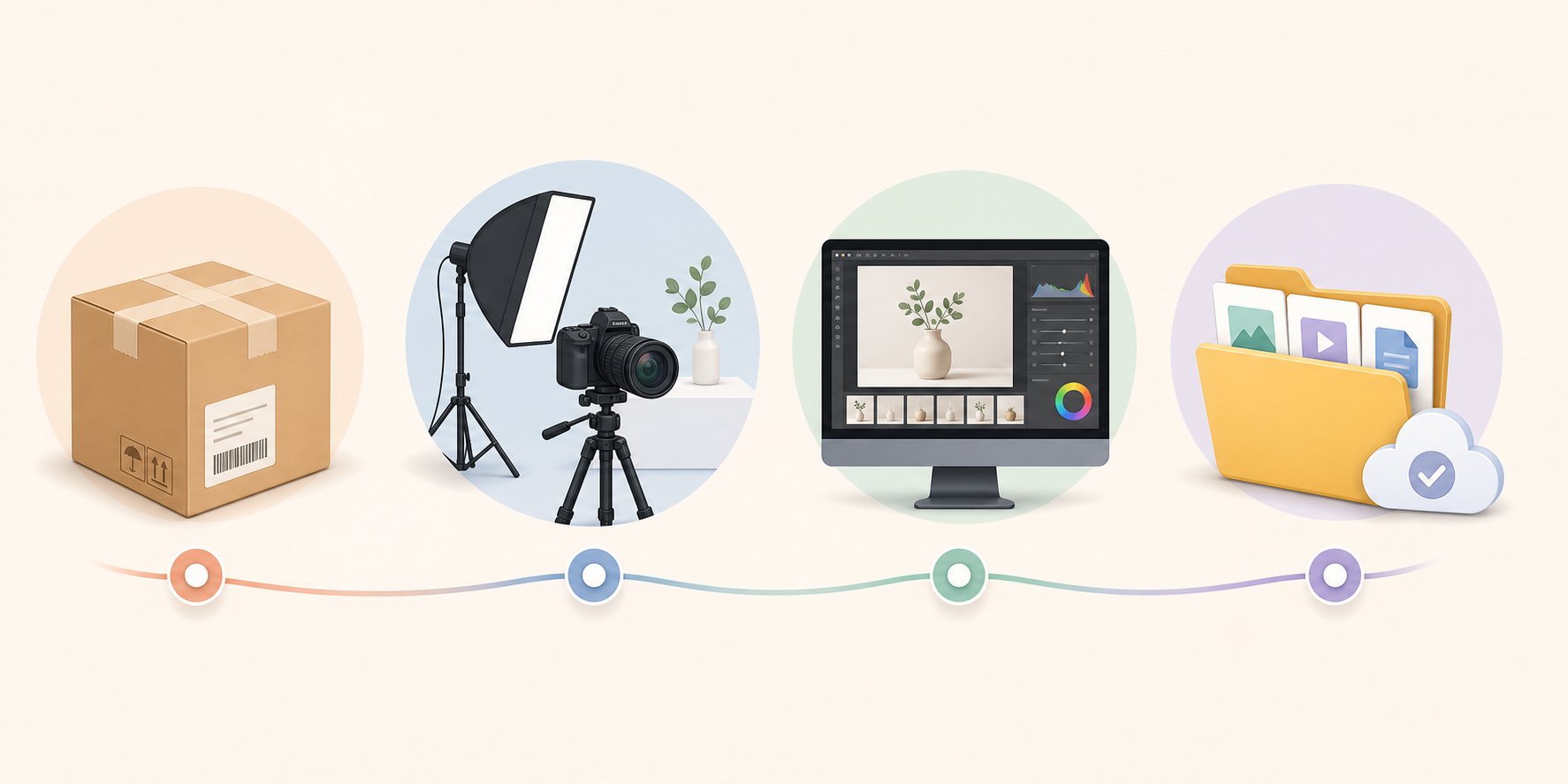
The batch UX that has become standard across the category is simple, and Snappyit follows it deliberately because sellers already know the rhythm: select a set of files, let the AI process them in one pass, pull down the finished images. Here is how that maps to a real catalog job, end to end.
Gather the set
Pull every image that needs work into one folder — the migration export, the supplier dump, the SKUs flagged as soft. Mixing categories is fine; the model handles clothing, jewelry, and packaged goods in the same run.
Upload as a batch
Drag the whole set in rather than feeding files one at a time. This is the step the credit-gated tools punish you for; here it is the intended path.
Let the AI upscale, sharpen, and denoise
Each file is enlarged toward 4K, with noise reduction and edge sharpening applied so the result reads crisp rather than merely bigger. Pick a target scale (2x is cleaner; more on why below).
Download the ZIP
For a large catalog you get the whole batch back in one archive, ready to re-import or upload to your channel.
One practical note for migrations specifically: Shopify has no native bulk image export, so most store moves rely on apps or a CSV-with-image-URLs re-import. That means your images often arrive in a folder already divorced from the new theme — which is the ideal moment to run them through a batch upscale images pass before re-import, rather than discovering on the live store that half your shots no longer trigger zoom.
Check the pixel spec for each channel before you batch
Batch upscaling is only useful if you upscale to the right target. Every marketplace publishes a minimum and a recommended size, and the recommended figure almost always exists because that is where the buyer-facing zoom feature switches on. Run your catalog to the recommended number, not the bare minimum, and you fix resolution and zoom in the same pass. Here is the 2026 landscape across the five channels most B2B sellers touch:
| Channel | Minimum | Recommended (enables zoom) | Notes |
|---|---|---|---|
| Amazon | 500px longest side (hard reject); 1000px = zoom floor | 2000×2000px | Optimal zoom needs 1600px+ on the longest side; max 10,000px (per Jungle Scout's restatement of Seller Central) |
| Walmart | 500×500px (hard gate) | 2200×2200px (zoom from 1500×1500px) | Below 500×500px the listing is auto-unpublished; hover-zoom activates at 1500×1500px and a newer 3:4 aspect rule applies to fashion (Walmart Marketplace Learn) |
| Etsy | 635px (thumbnail floor) | 2000px shortest side | 2000px is a recommendation, not a rejection floor (Etsy Help) |
| eBay | 500px longest side | 1600px+ | 1600px activates buyer zoom/magnify (img.vision) |
| Shopify | 800×800px (zoom floor) | 2048×2048px | Hard max 4472×4472px / 20MP, but that is overkill and slows the storefront (Shopify) |
The takeaway for a batch run: 2000px on the shortest side is a safe universal target — it clears Amazon's ~2000px sweet spot, nears Walmart's 2200x2200px recommendation, hits Etsy's shortest-side recommendation, and comfortably exceeds eBay's 1600px and Shopify's 800px zoom floors. Walmart is the one to watch because its 500x500px floor auto-unpublishes the listing and hover-zoom only activates at 1500x1500px, which makes batch-upscaling supplier photos to 2000px+ especially worth doing before you expand onto it. If you are selling primarily on Amazon and want the spec walked through in depth, our sibling guide on how to increase image resolution for an Amazon listing covers the 1000/2000px rules and the new AI-based image enforcement Amazon began in 2025.
The dropshipper's catalog: rescuing supplier photos in bulk
Dropshippers and resellers live the batch problem in its purest form, because they do not control the source photos at all. AutoDS, writing on product-image best practices, documents what anyone importing from AliExpress, Alibaba, or CJ already knows: the images frequently arrive small, low-resolution, and pixelated — variation images especially look fine as thumbnails and then fall apart at full scale. The same piece notes that customers associate blurry, pixelated images with low-quality products, and that listings without zoom-capable resolution convert noticeably worse. The practical target it cites — at least 1000×1000px, 1500–2000px for hero shots — lines up neatly with the marketplace table above.
You cannot re-shoot a supplier's catalog, so the realistic fix is a upscale multiple images pass across the whole import: upscale, sharpen, and denoise every photo at once, then re-import. This is the use case batch was built for. Because variation thumbnails are the sneaky failure point — they pass casual inspection and collapse on zoom — running the entire set rather than spot-fixing the obvious offenders is the move. We cover the supplier-photo angle in detail, including the variation-thumbnail trap, in our guide to fixing low-quality AliExpress supplier product photos.
What batch upscaling honestly cannot do
A catalog tool that overpromises will burn you at scale, because every artifact gets multiplied across hundreds of files. So here is the honest boundary. AI upscalers reconstruct and infer detail; they do not recover information the camera never captured. As the 2026 industry consensus (summarized by Lovart's guide) puts it, an extremely blurry, heavily pixelated, or motion-blurred source has a hard floor — no model can read a label that was never legible. Push past roughly 4x linear enlargement and models begin inventing structure: text that resolves into "almost letters," fabric that locks onto a repeated texture prior, faces averaging toward a statistical mean. 2x produces cleaner results than 4x precisely because the model has to invent less.
There is a second trap that matters more for product photos than for snapshots: over-processing. Let's Enhance has written candidly about how aggressive denoise and sharpening can strip high-frequency detail and leave a waxy, plastic surface — pores gone, fabric weave smoothed away, food and metal looking fake — plus halos around edges and artificial micro-contrast in flat areas. For a batch run that is dangerous because you are applying one setting to a whole catalog. The win is recovering genuine clarity at 2x–4x, not cranking sharpening to maximum. A textile or jewelry shot that looks artificially plasticky can hurt conversion as badly as the blur you were trying to fix.
Snappyit's upscaler is deliberately clarity-only: it raises resolution and recovers sharpness, but it does not relight, recolor, or fabricate detail that was never there. If you want the diagnostic side — figuring out why a photo is soft and whether upscaling is even the right fix — start with our hub on how to make product photos clearer before you run a thousand files through anything.
Choosing batch settings that survive a thousand files
The mistake at scale is treating a batch like a single image and reaching for the most aggressive option. When one setting applies to your entire catalog, conservative wins. A few rules of thumb:
Prefer 2x over 4x when the source is already decent
A 1200px supplier photo upscaled 2x lands near 2400px — past every marketplace's recommended size — with far fewer invented-detail artifacts than a 4x push would create.
Reserve 4x for genuinely small sources
A 600px thumbnail needs the bigger jump to clear the zoom floor, but inspect a sample of the output before trusting the whole run; 4x is where waxiness and false texture creep in.
Aim for 2000px on the shortest side as a universal target
so one run satisfies Amazon, Walmart, Etsy, eBay, and Shopify at once, rather than re-batching per channel.
- Spot-check a representative sample, not just the first file. Pull one clothing shot, one jewelry close-up, and one packaged-goods image from the ZIP and zoom in. Fabric, fine engraving, and printed text are where over-processing shows first.
One more note for the migration and refresh crowd: white-background compliance for main images is a separate job from upscaling — Amazon and Walmart both require pure white RGB 255,255,255 on the primary shot. Don't expect an upscaler to handle that; pair it with a dedicated background remover when you need a clean main image. This article stays in the clarity lane on purpose.
Where a batch upscaler fits in your product pipeline
Zoom out and a batch image upscaler is one stage in a repeatable catalog pipeline, not a one-off rescue. The three moments it earns its keep are the three the data keeps pointing to: store migration (export dumps images at the wrong size for the new theme's zoom), catalog refresh (a quarterly pass to bring legacy SKUs up to current spec), and supplier onboarding (every new dropship import arrives soft). Build the upscale step into each of those routines and you stop firefighting blurry-image complaints reactively.
Because the tool is free with no cap, no watermark, and no login, there is no reason to ration it — run the whole set every time rather than triaging which files "deserve" a slot. That is the entire point of a catalog-scale tool. For the broader strategy of how clarity, resolution, and channel specs fit together across your storefront, the pillar on AI product photography ties the upscaling stage to the rest of your image workflow.
Run your whole catalog free, no login
Frequently Asked Questions
How many images can I batch upscale at once for free?
Snappyit's free Product Photo Upscaler has no per-day cap and no credit meter, so you can run a whole catalog — dozens to thousands of SKUs — in batches and download the results, including as a ZIP for larger sets. This is the main differentiator: many "free" rivals like Pixelcut gate bulk runs behind a Pro tier, and Fotor caps free batch at 50 images.
Will batch-upscaled images have a watermark?
No. The output carries no watermark and you don't need to create an account to download. That matters at catalog scale, where some credit-based tools stamp free output and then charge to remove the mark across every file.
What size should I upscale my whole catalog to?
Aim for 2000px on the shortest side as a universal target. That clears Amazon's recommended 2000x2000px and Walmart's recommended 2200x2200px (Walmart zoom turns on at 1500x1500px), and because it is measured on the shortest side it also hits Etsy's 2000px shortest-side recommendation for non-square photos — while exceeding eBay's 1600px and Shopify's 800px zoom floors, so one run satisfies every major channel instead of re-batching per marketplace.
Can a batch upscaler fix images that are too blurry or too small?
Only up to a point. AI upscalers reconstruct and infer detail; they cannot recover information the camera never captured. A heavily pixelated, motion-blurred, or extremely tiny source has a hard floor, and pushing past roughly 4x makes the model invent false detail. For a clean result, prefer 2x when the source is already decent and reserve 4x for genuinely small files.
Why does my batch output look waxy or plastic on some files?
That is over-processing — aggressive denoise and sharpening can strip fine texture and leave surfaces looking artificial, with pores, fabric weave, and grain smoothed away. Because one setting applies to the whole batch, use a conservative scale (2x where possible) and spot-check a sample. Snappyit is clarity-only and tuned to recover genuine sharpness rather than maximize sharpening.
Does this also remove or whiten the background for Amazon main images?
No — this tool is clarity-only and does not change backgrounds. White-background compliance (pure white RGB 255,255,255 for main images on Amazon and Walmart) is a separate job; pair the upscaler with a dedicated background remover when you need a compliant main shot.
I'm migrating my store. Should I upscale before or after import?
Before. Shopify has no native bulk image export, so migrations usually arrive as a folder of files via app or CSV re-import — that's the ideal moment to batch-upscale to the new theme's zoom spec. Doing it before re-import avoids discovering on the live store that half your shots no longer trigger zoom.
How is this different from a one-image consumer upscaler?
Consumer tools are built to rescue a single photo; this is built for folders. Sellers, dropshippers, and POD shops process whole catalogs during migrations, refreshes, and supplier onboarding, and a one-at-a-time tool turns that into hours of repetitive uploading. The batch workflow — upload a set, upscale, download a ZIP — is the seller-practical fit, and it stays free at that scale.