



360 Product Video Examples by Category
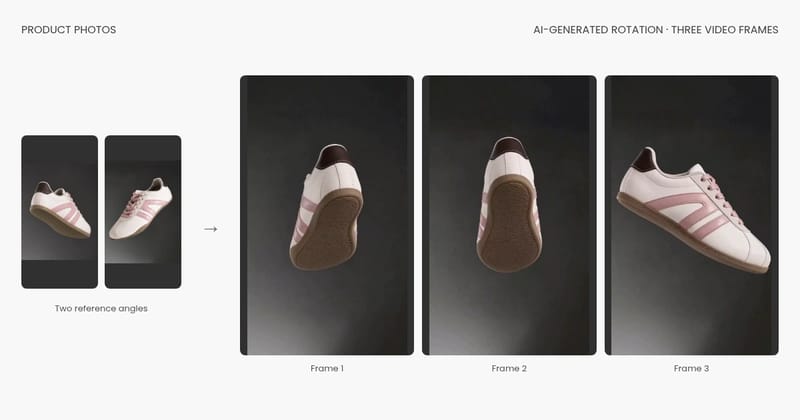
Each example below was made with Write my own in Product Video from photos of the product taken from different angles, with the prompt shown under it. Shoes also have a ready-made Floating 360 Showcase template.
Shoes · Write my own · Product Video
Full 360° Turn for Shoes
Four photos of one shoe, from the side, the top and both three-quarter angles, give the AI a real reference for the upper, the sole and the heel as it turns a full circle. For a floating, tilting look instead, use the Floating 360 Showcase template.
Starting photos: Side, top, front three-quarter and back three-quarter views of the same shoe and colorway.
Prompt: “Show this shoe making one slow, complete 360-degree turn on a plain light-gray background. Keep the camera fixed and the upper, laces and sole unchanged.”
Write a Shoe Turn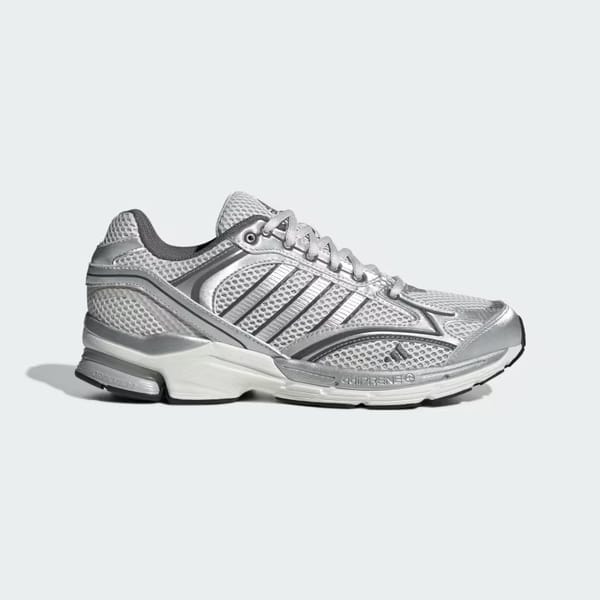
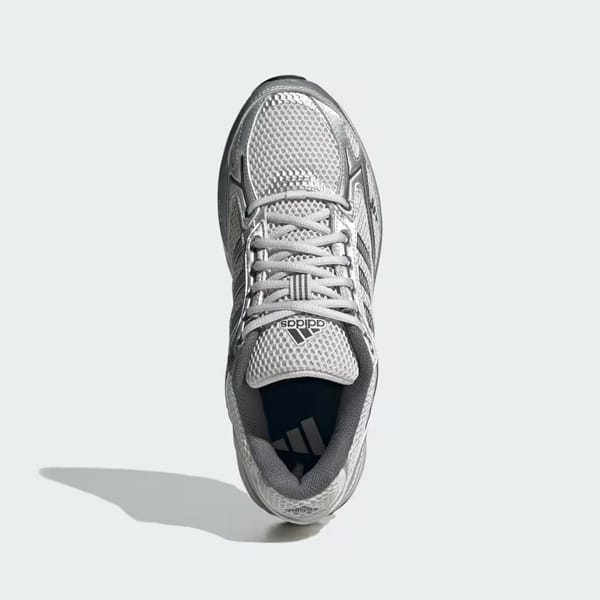
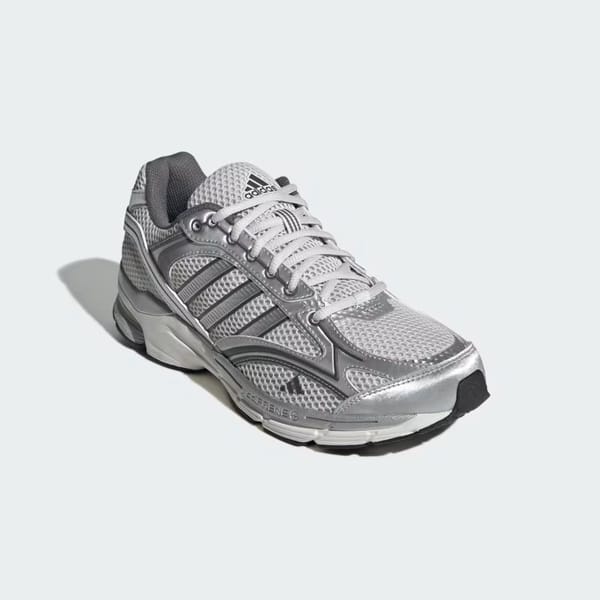
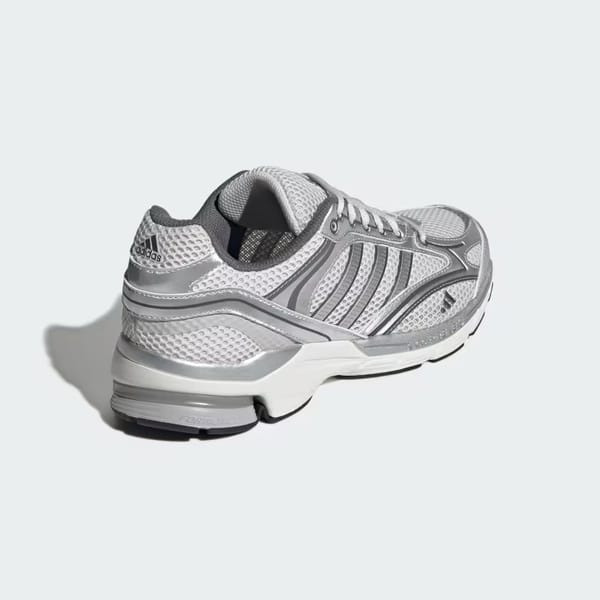
Shoes: four product photos → full turn
Clothing · Write my own · Product Video
Full 360° Turn for Clothing
Describe one slow, complete turn on an invisible form so the front, the sleeves and the back each face the camera. A plain background keeps attention on the fabric, the neckline and any print.
Starting photos: Front and back photos, plus a side view if the sleeves or side seams carry details.
Prompt: “Show this garment on an invisible form making one slow, complete 360-degree turn on a plain light background. Keep the camera fixed and the prints, fabric texture and shape unchanged.”
Write a Clothing Turn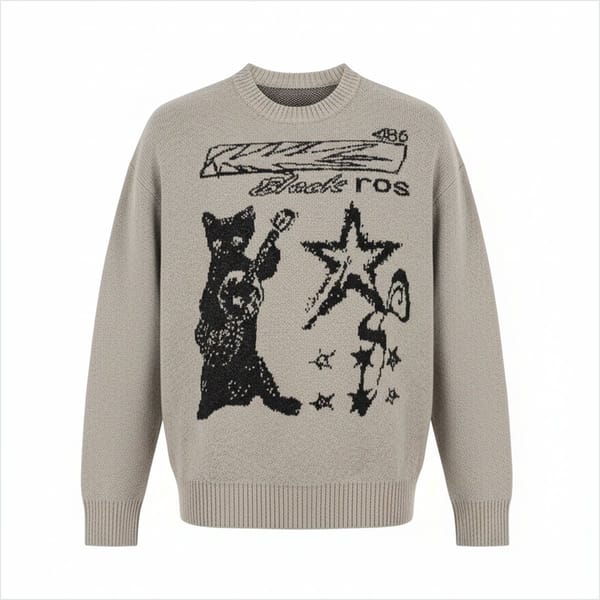
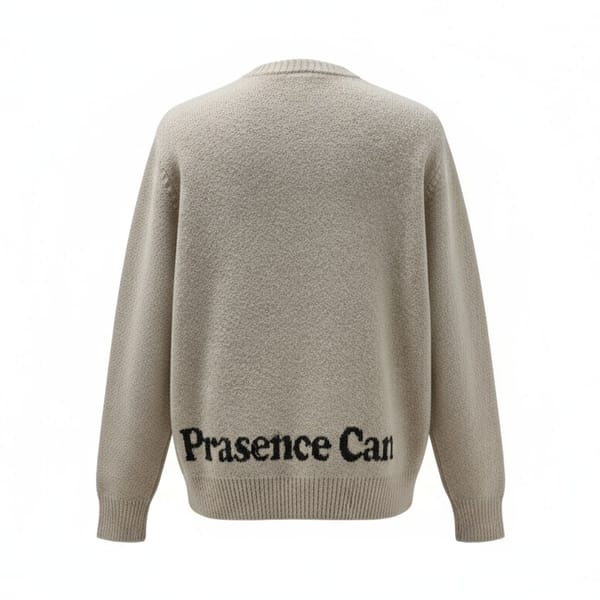
Clothing: front and back photos → full turn
Jewelry · Write my own · Product Video
Close 360° Turn for Jewelry
A tight, slow turn shows how the stones sit in their settings and how the piece looks from the side. Keep the whole piece in frame so the shape stays easy to follow.
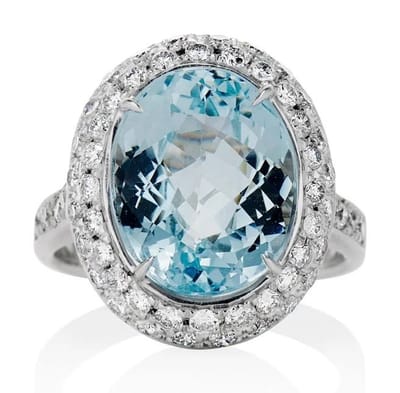
Starting photos: This sample used one close-up, so the AI had to fill in the sides and back. Add a side profile and a back view so the metalwork and settings stay accurate as it turns.
Prompt: “Show this piece of jewelry turning one full circle on a small stand against a plain dark background. Keep the camera close and fixed, and keep the stone count, settings and metal color unchanged.”
Write a Jewelry Turn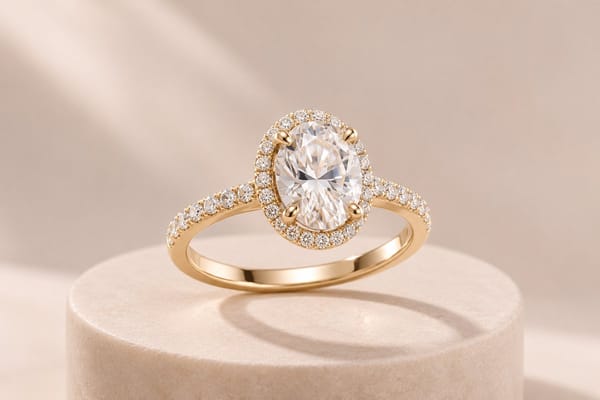
Jewelry: one product photo → close turn
Furniture · Write my own · Product Video
Full 360° Turn for Furniture
A full turn shows the sides, the back and the base that a front photo misses, so shoppers can picture the piece from any side of the room. Leave space around the widest point so nothing is cropped as it turns.
Starting photos: Front, three-quarter and back views; add a side view if the piece changes shape from the side.
Prompt: “Show this piece of furniture making one slow, complete 360-degree turn on a plain light floor. Keep the camera fixed, the piece centered, and its materials and proportions unchanged.”
Write a Furniture Turn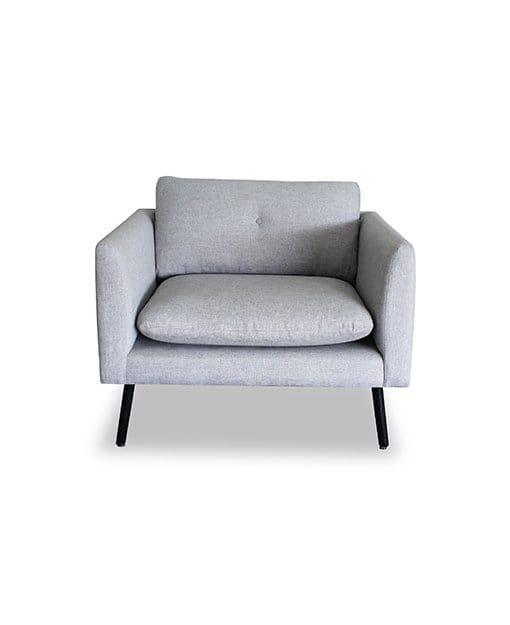
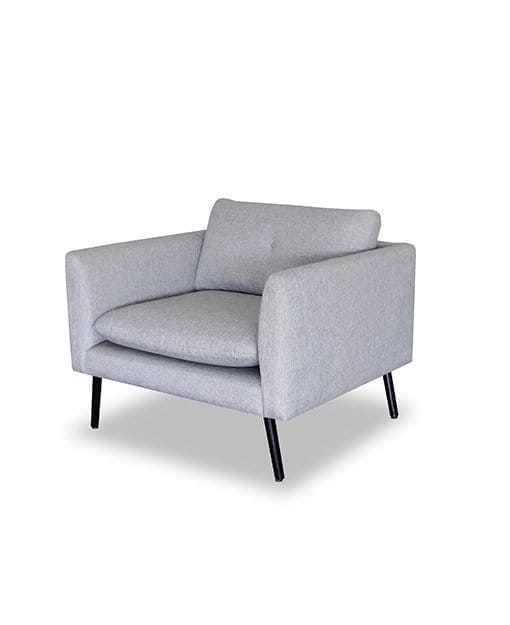
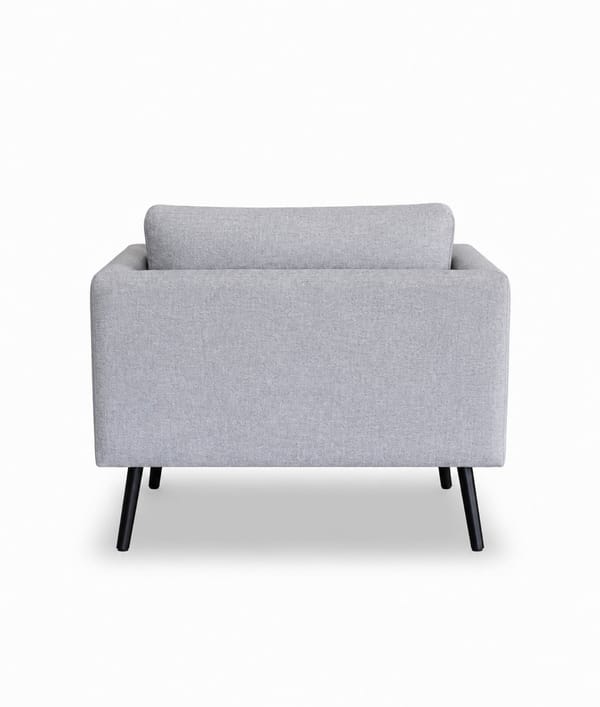
Furniture: front, angled and back photos → full turn
How Many Photos Do You Need for a 360 Product Video?
Use two to three photos for the Floating 360 Showcase template, and front, side and back photos for a full turn you describe yourself. Any side you do not photograph is filled in by AI, so check those surfaces before you publish.
| Shot | Photos to upload | What AI has to fill in |
|---|---|---|
| Floating 360 Showcase (shoes) | 2–3: both outer sides, plus the sole if possible | The sole or inner side when you leave them out |
| Level 360° turn (Write my own) | 3 or more: front, side and back | The top, base or any side you did not photograph |
| Small turn from one photo | 1: the front | Everything beyond a slight angle, so keep the movement small |
For the angles to photograph by product type, use the 360 angle checklist in our production guide.
Choose the Movement for Your Product Rotation
Pick a complete 360° turn to show every side, a limited turn to feature one detail, or a floating rotation for a campaign look. Choose the movement around the views you want the shopper to see.
| Shot direction | Movement to request | What to emphasize |
|---|---|---|
| Complete 360° turn | A full rotation with a steady camera | The exterior design around the item |
| Limited product turn | A smaller turn between selected views | A profile, fastening or other photographed feature |
| Floating rotation | A turning showcase with a tilt or suspended presentation | The silhouette within a campaign scene |
A 360° video completes a full turn; a partial turn or floating showcase may not. Supply reference images for the surfaces the motion reveals, and check the generated clip before describing it as a full rotation.
How to Make a 360 Product Video in Snappyit
Make a 360 product video in three steps: choose the 360 template or describe the turn, upload photos from as many angles as you can, then review the full rotation before you download it.
Choose the Template or Describe the Turn
Open Product Video. For shoes, select Floating 360 Showcase. For other products, choose Write my own and describe one slow, complete turn with the camera fixed.
Upload Photos from as Many Angles as You Can
Add as many angles of the same item as you have, up to nine: front, both sides, back, and the top or base if the turn shows them. Each extra angle gives the AI a real reference, so logos, seams, prints and stones stay accurate through the whole 360° turn. Then choose 4 to 15 seconds, 1:1 or 9:16, and 768P or 2K.
Review the Full Rotation and Download
Pause at the front, side and back and compare each view with your photos, including logos, seams and stones. Download the MP4 and cover image, or adjust the photos or description and generate again.
AI can change details, including on photographed surfaces. Keep your original product images alongside the result during review. More spin wording is in the 360° spin and turntable prompts.
AI 360 Video vs Turntable vs Interactive 360 Spin
An AI 360 video is generated from product photos, a turntable video is filmed, and an interactive 360 spin is a photo sequence that shoppers drag to rotate. Snappyit makes the first; the other two need a turntable and a camera.
| Method | How it is made | What you get | Best for |
|---|---|---|---|
| AI 360 video (Snappyit) | Generated from two or more product photos | An MP4 that plays the turn | Listings, ads and social posts from an existing photo library |
| Turntable video | Filmed on a turntable with a camera and lights | An MP4 of the real product turning | Small batches where every surface must be exact |
| Interactive 360 spin | A sequence of photos taken around the product | A viewer shoppers drag to rotate | Stores whose platform supports a 360 viewer |
Snappyit's output is a video: it does not add drag-to-rotate controls or export a 3D model. Compare the methods in detail in 3 ways to make a 360 product video.
Make the Rotation Fit Its Placement
A product rotation can sit beside listing photos or become a shot within a campaign edit. Choose the framing for that role before generating.
| Placement | Role of the rotation | Framing choice |
|---|---|---|
| Product gallery | Add changing views beside the still photos on Amazon, Shopify or Etsy | Keep the full item visible through its widest angle; a square crop suits most galleries |
| Collection presentation | Give individual products a shared visual treatment | Reuse a compatible template and a similar starting view |
| Social or campaign edit | Introduce the item's form within a larger sequence; use the spin in a video ad as the product moment | Allow room for the crop and any copy added during editing |
Marketplaces set their own length and format rules. Check the Amazon product video requirements and Etsy listing video requirements before uploading, and see how Amazon sellers build a complete listing gallery.
Continue Your Product Video Workflow
AI Product Video



Video Ad Maker
AI UGC Video Generator
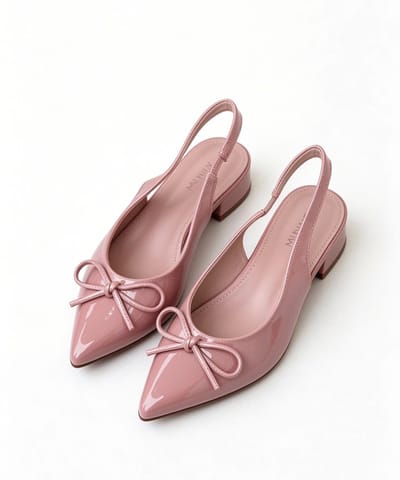
AI Fashion Video
Image to Video
Guides for 360 and Product Videos
 360 Product Video: 3 Ways to Make OneRead about turntables, photo sequences, reference angles and common problems.
 AI Product Video Prompts: 20 Tested ShotsSee tested wording for 360° spins and turntable shots before you write your own.
 Amazon Product Video Requirements (2026)Listing, Sponsored Brands and Premium A+ video specs, checked against Amazon's own pages.
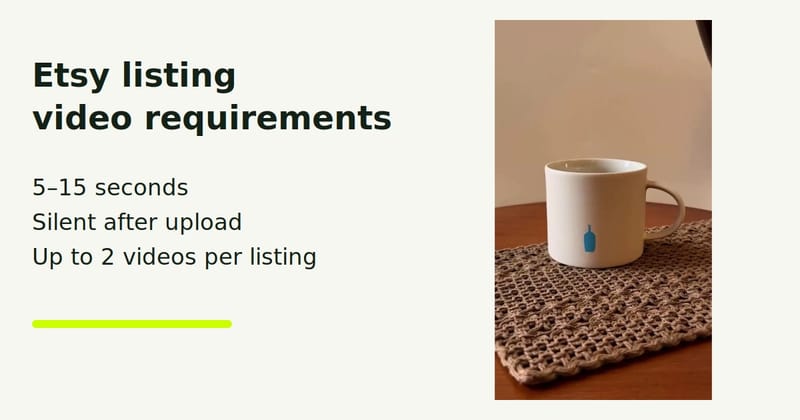 Etsy Listing Video Requirements (2026)How long an Etsy listing video can be, which files upload and what to film.
360 Product Video Generator FAQs
Can I make a 360 product video from one photo?
You can start from one photo, but the AI has to invent every side it cannot see, so keep the movement to a small turn. For a full rotation, upload front, side and back photos; the Floating 360 Showcase template for shoes takes two to three.
Which products have a ready-made 360 template?
Shoes, with the Floating 360 Showcase template in Product Video. For clothing, jewelry, furniture and other products, choose Write my own and describe one slow, complete turn, using photos of every side the turn will show.
Can I choose the direction and pace of the rotation?
Yes, within limits. In Write my own you can describe the direction, pace and framing, such as one slow clockwise turn with a fixed camera. These are instructions to the AI, not frame-by-frame controls, so review the motion before you use it.
How long can a 360 product video be, and what do I download?
A 360 clip can last 4 to 15 seconds. Pick 1:1 for a product gallery, 9:16 for TikTok or Reels, or 16:9 for wide page areas, at 768P or 2K; the download is an MP4 video plus a JPG cover image. Check the length rules of the marketplace or ad placement before you upload.
How much does a 360 product video cost?
Your first video is free. After that, each video uses credits; the generator shows the cost for your chosen length, quality and optional background music before you create it.
Is an AI 360 video the same as an interactive 360 spin?
No. Snappyit creates a video that plays a turn; shoppers cannot drag it to rotate, and it does not export a 3D model. An interactive spin needs a sequence of real photos and a 360 viewer on your store.
Create Your Next 360 Product Video
Bring photos of every side, choose the 360 template or describe the turn, and generate the rotation in Product Video.