



Product-Led Video Ads, Not Talking Avatars
Snappyit's AI video ad maker turns your product photos into 4–15 second product footage: an AI model wearing the item, or the item itself revealed, turned or shown up close. It does not create talking avatars, scripts, voiceovers or captions, so you add the hook text, offer and call to action when you edit the ad.
| You want to show | Video style | Start with | Use |
|---|---|---|---|
| The product worn or styled on a person | Outfit changes, try-on hauls and on-model accessory shots | Photos of each wearable item the template asks for | Fashion Video |
| The product as the subject of the shot | Reveals, 360° spins, scene showcases and close-ups | Photos covering every side and detail the shot shows | Product Video |
| A person speaking to camera about the product | Spokesperson or talking-avatar ads | A script and a recorded creator | Film the spoken part, then cut in Snappyit product shots |
Compared with AI video ad generators built around avatars, Snappyit is product-led: the product is the hero of every shot, which also makes it a practical AI commercial generator for product footage. Shoes, bags and jewelry work both ways, on a model in Fashion Video or on their own in Product Video.
Product Video Ads by Category
Each category below pairs a ready-made template with the kind of ad it suits. Open the template, replace the sample products with yours, and generate the footage for your next campaign.
Clothing · Fashion Video · Street Style Texture
Clothing Ads with Street-Style Close-Ups
The AI model wears your garment on a city street, then the camera moves in on the fabric and finishing details. Use it when the ad needs to sell the material and fit of one hero piece.
Start with: 1 clear front photo of the garment.
Ad direction: Open on the close-up of the detail you want to sell, then cut to the full look and your offer.
Use Street Style Texture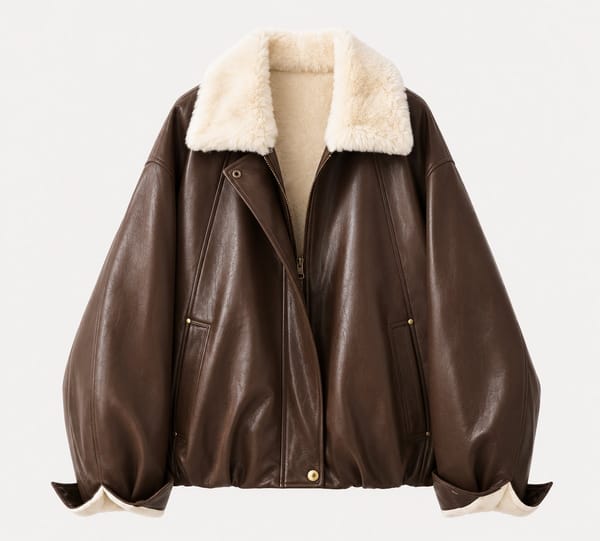
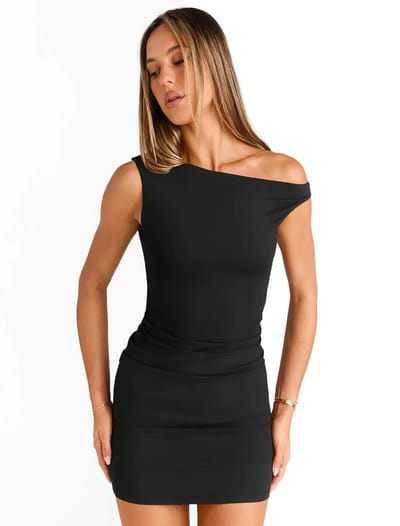
Clothing: product photo → Street Style Texture sample
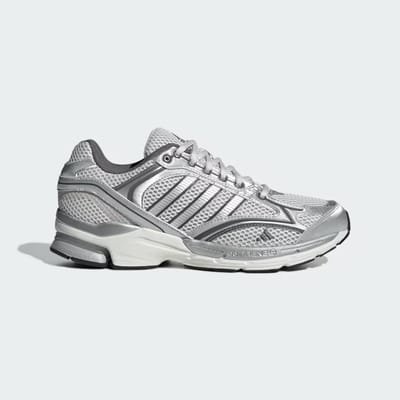
Shoes · Product Video · Floating 360 Showcase
Shoe Ads with a Floating 360° Spin
The shoe floats against a dark backdrop and tilts as it turns, showing both sides and the sole. It suits launch ads where the silhouette and tread are the selling point. For a level, full turn, see the 360 product spin options.
Start with: 2–3 photos of the same shoe and colorway, including both outer sides.
Ad direction: Hold the frame where the sole is visible long enough to read, and check it against the real outsole.
Use Floating 360 Showcase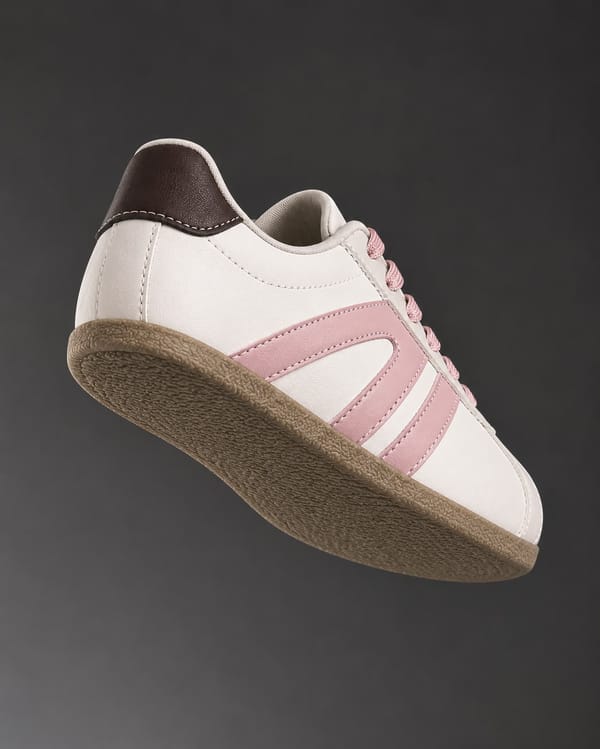
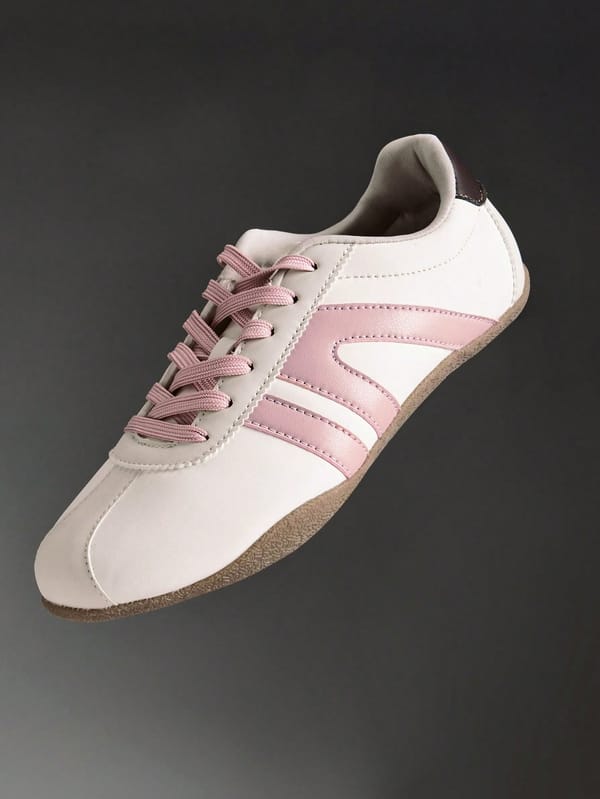
Shoes: product photos → Floating 360 Showcase sample
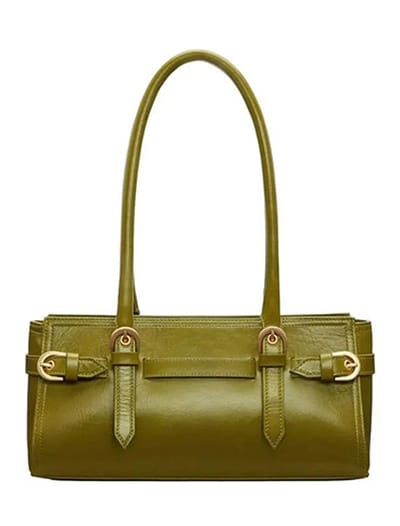
Bags · Product Video · Shopping Bag Drop
Bag Ads with a Shopping-Haul Drop
A hand drops each bag into a paper shopping bag, one after another, in a short haul-style sequence. It works as a fast-moving opener for a new-arrivals or gift-season ad.
Start with: 4–5 bags, one clear photo each.
Ad direction: Put the bag you are promoting last so the ad ends on it, then add the offer as text.
Use Shopping Bag Drop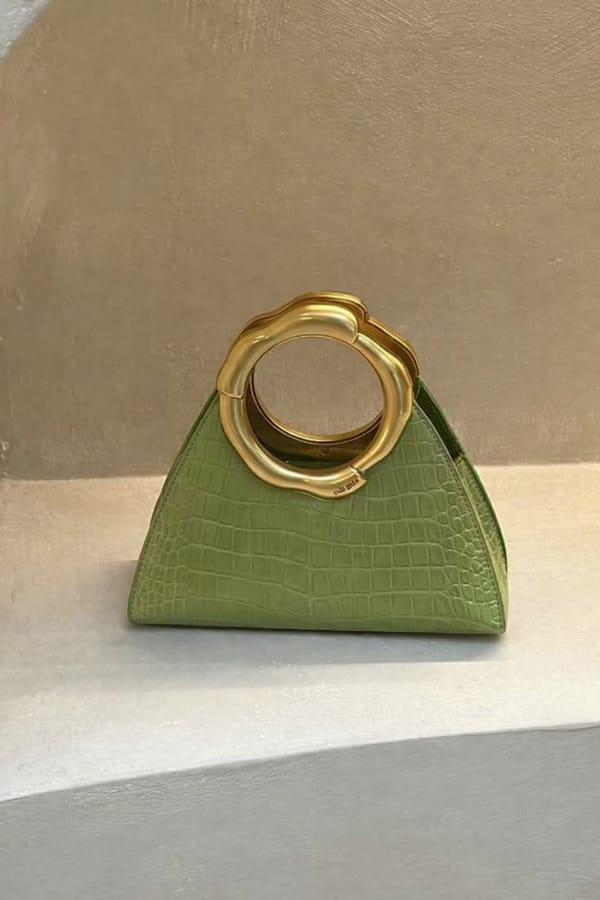
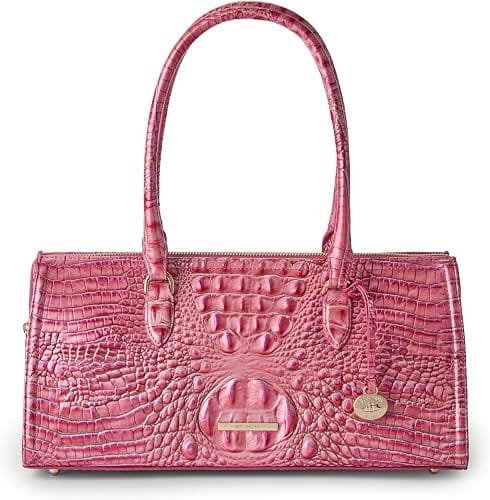
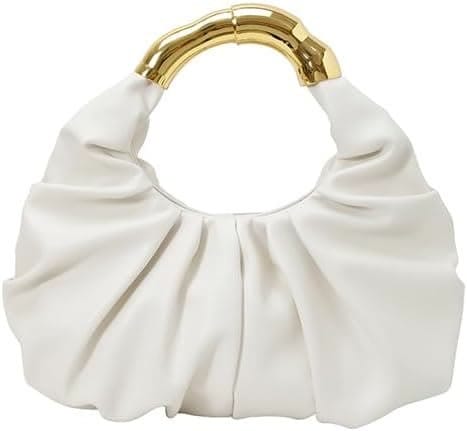
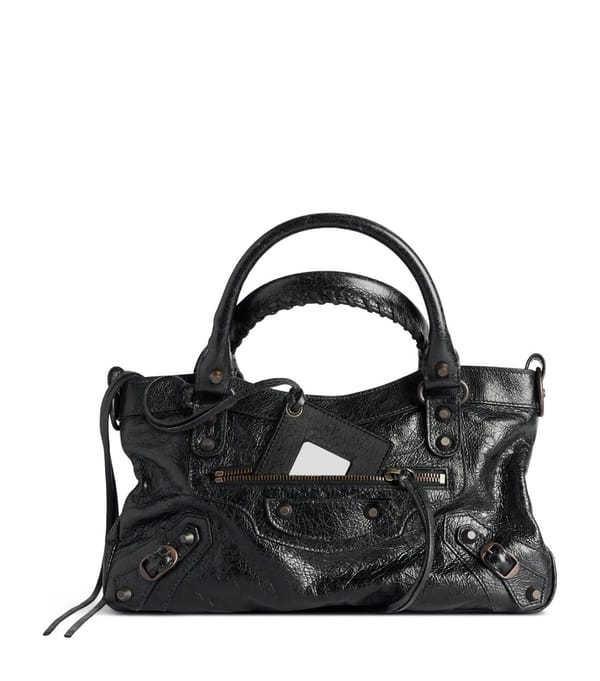
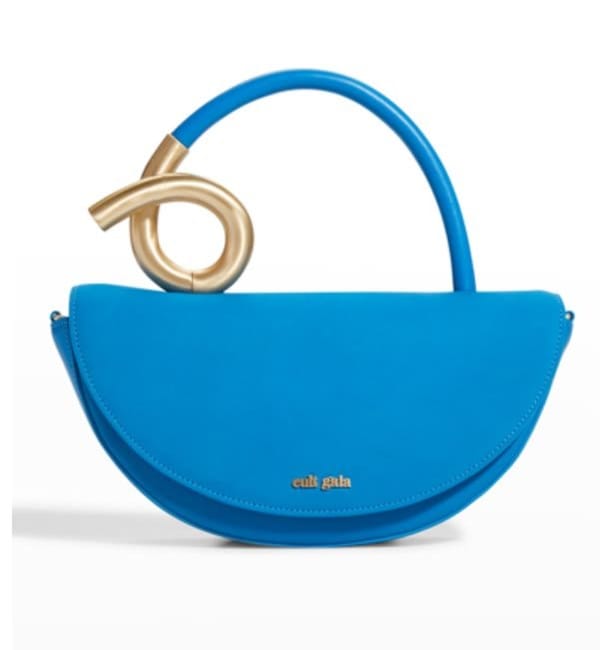
Bags: product photos → Shopping Bag Drop sample
Jewelry · Product Video · On-Hand Close-up
Jewelry Ads That Show the Piece Being Worn
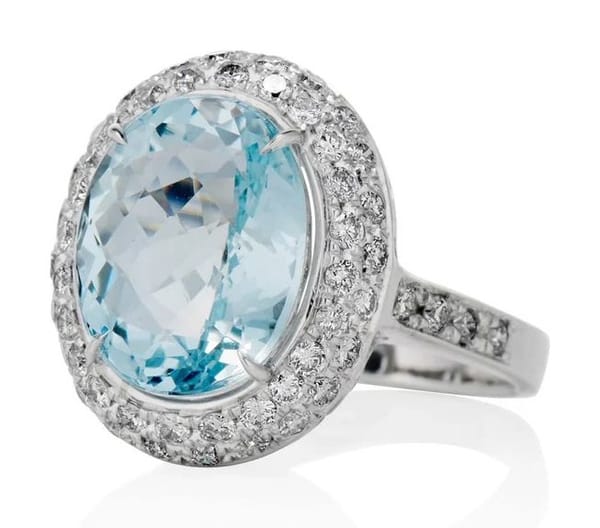
The camera moves close around a piece worn on the hand in natural light, from the whole hand to the stones and setting. Shoppers can judge size and sparkle before they click.
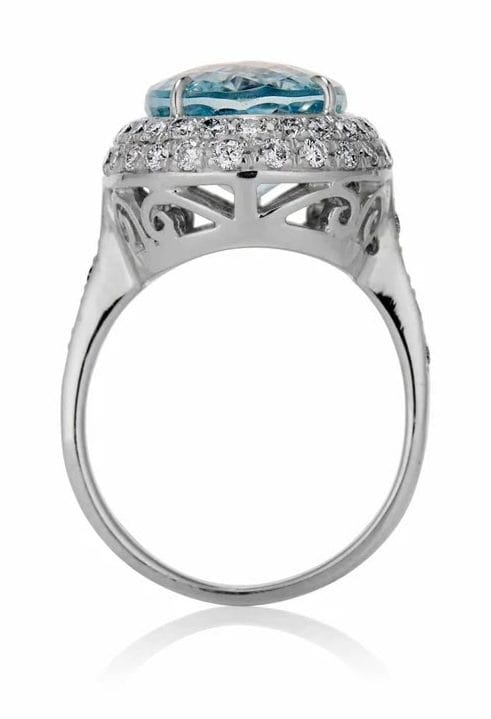
Start with: 3 photos of the piece, including a side view of the setting.
Ad direction: Compare the stone count, prongs and metal tone with your photos before you publish.
Use On-Hand Close-up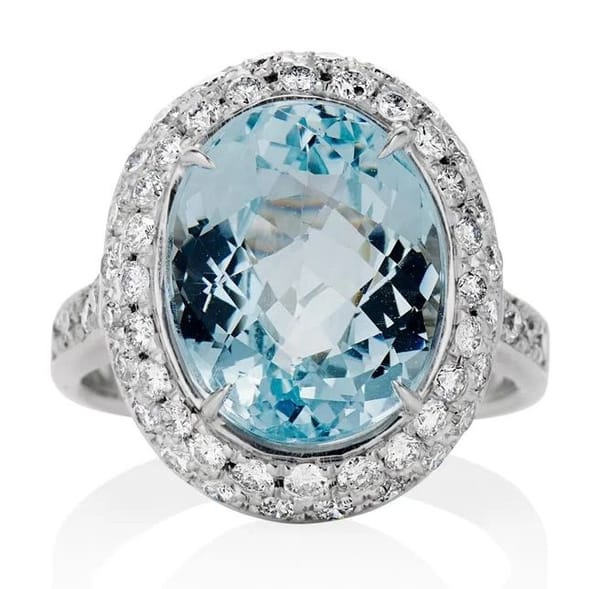
Jewelry: product photos → On-Hand Close-up sample
Beauty · Product Video · Floral Still Life
Beauty Ads with a Still-Life Scene
The product stands among soft flowers while the camera drifts through the arrangement, giving beauty products a styled campaign look from a single packshot.
Start with: 1 clear packshot with readable label text.
Ad direction: Pause on a frame where the label faces the camera and check every letter.
Use Floral Still Life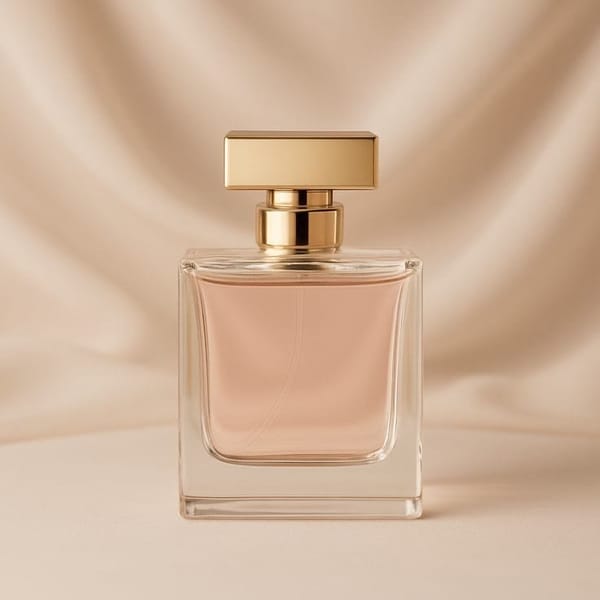
Beauty: packshot → Floral Still Life sample
Home · Product Video · In-Room Showcase
Home Product Ads in a Furnished Room
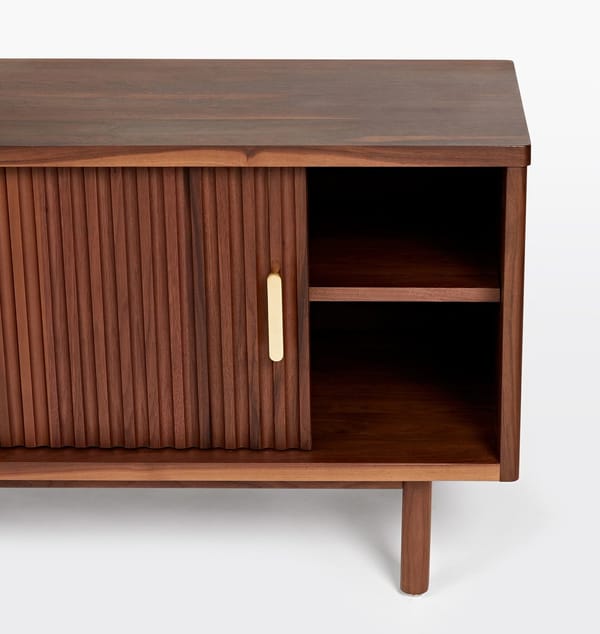
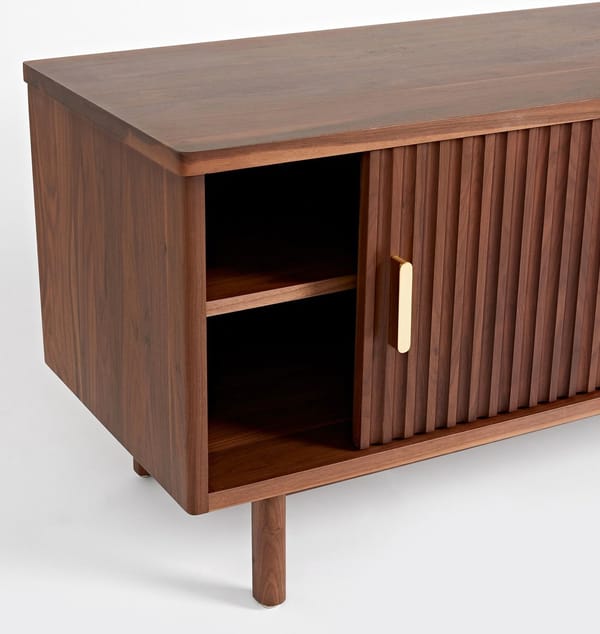
The furniture or decor piece sits in a sunlit room, then the camera moves in to a detail such as a handle or surface finish. One shot shows both scale and material.
Start with: 3–4 photos: the full piece plus close-ups of the details you want shown.
Ad direction: Use the wide frame as the hook and the detail as the closing shot.
Use In-Room Showcase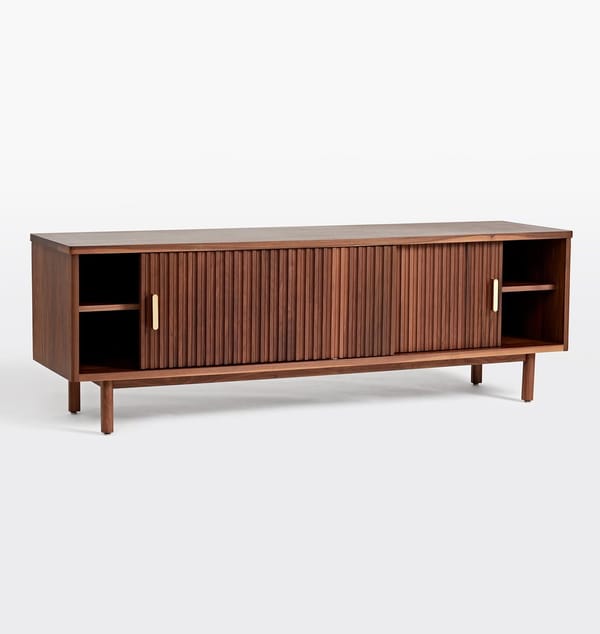
Home: product photos → In-Room Showcase sample
How to Make a Video Ad from Product Photos
Make a product video ad in three steps: choose a template, upload your photos and set the output, then review the clip and finish the ad in your editor.
Choose the Tool and Template
Pick Fashion Video for an on-model scene or Product Video for a product-only shot, then choose a template from your product category. To describe a shot of your own, select Write my own in Product Video.
Upload Photos and Set the Output
Add the product photos the template asks for, up to nine reference images. Choose a length from 4 to 15 seconds, an aspect ratio such as 9:16 or 1:1, and 768P or 2K quality. Background music is optional and uses extra credits; the total cost appears before you generate.
Review the Clip and Finish the Ad
Compare the clip with the real product, then download the MP4 and its cover image. In your editing app, add the hook text, offer, captions and call to action that the ad placement needs.
Writing your own shot? The ad hook prompts for TikTok and Reels show openings that put the product on screen early.
Plan the Ad: Hook, Product Moment, Next Step
A product video ad works when the opening shows the product, the middle gives it one clear moment, and the ending tells the viewer what to do next.
| Ad beat | On-model direction | Product-only direction | Snappyit example |
|---|---|---|---|
| Hook | A close-up of the fabric or the model walking into frame | The product drops, floats or appears in frame | Street Style Texture, Shopping Bag Drop |
| Product moment | The featured piece stays recognizable in the look | The turn or close-up lands on one detail | Floating 360 Showcase, On-Hand Close-up |
| Next step | Text points to the collection | Text points to the product page or offer | Added in your editing app |
To test creative, keep the product and offer fixed and change one thing per version: the template, the opening frame or the aspect ratio. Generate each version separately and note what changed, so ad results show which choice made the difference.
Video Ad Formats for TikTok, Instagram, Facebook and YouTube
Choose the aspect ratio in Snappyit before you generate, because each placement frames video differently: 9:16 fills full-screen placements, 1:1 suits feeds, and 16:9 suits landscape video.
| Placement | Ratio to choose in Snappyit | Framing tip |
|---|---|---|
| TikTok In-Feed ads | 9:16 | Keep the product clear of the caption area at the bottom |
| Instagram and Facebook Reels and Stories | 9:16 | Leave room at the top and bottom for on-screen buttons |
| Instagram and Facebook Feed | 1:1 (Snappyit does not export 4:5) | Keep the product centered so it survives a square crop |
| YouTube Shorts | 9:16 | Show the product in the first shot |
| YouTube in-stream | 16:9 | Use wide scenes such as room showcases |
Ad specifications change, so check each platform's current requirements before launch. For Meta placements, the Facebook and Instagram ad size guide explains a simple ratio system. For organic posts on the same apps, see the TikTok video generator, AI Reel generator and YouTube Shorts generator.
Continue Your Video Ad Workflow
AI UGC Video Generator

360 Product Video Generator
AI Fashion Video
AI Product Video
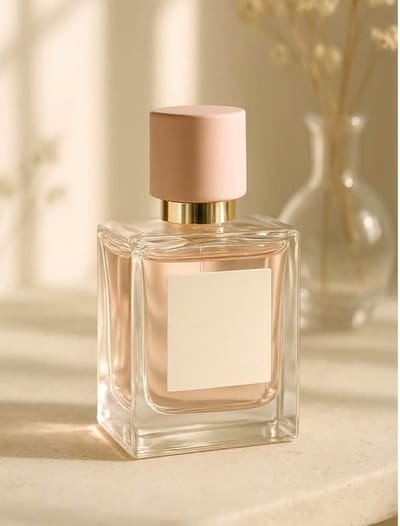
Image to Video
Guides for Video Ad Creatives
 Best AI Tools for Facebook and Instagram Ads (2026)Compare tools for ad images, UGC-style creative and video, plus a Shopify-to-Ads Manager workflow.
 AI Product Video Prompts: 20 Tested ShotsTested wording for unboxing, hook and reveal shots when you write your own.
 AI Fashion Product Videos for Clothing BrandsCompare try-on videos, 360° spins and animated model photos for each sales channel.
 Fashion Video Workflow for EcommercePlan, edit and repurpose fashion videos for product pages, ads, TikTok, Reels and Shorts.
Video Ad Maker FAQs
How do I make a video ad from product photos?
Choose Fashion Video for an on-model shot or Product Video for a product-only shot, pick a template and upload the photos it asks for. Set the length, aspect ratio and quality, generate the clip and review it against the real product. Then add your hook text, offer and call to action in your editing app.
Can Snappyit make a video ad with a talking presenter?
No. Snappyit's video ad maker creates product-led footage: an AI model wearing the item, or the item itself in motion, without speech or lip-sync. If the ad needs a spokesperson, record that part separately and cut the Snappyit product shots into the same edit.
Should I use Fashion Video or Product Video?
Use Fashion Video when the ad needs a model wearing or carrying the product. Use Product Video when the product itself should fill the frame, such as a reveal, spin or close-up. Shoes, bags and jewelry work in either tool, depending on the scene you want.
Which lengths and aspect ratios can I export for TikTok, Instagram and YouTube ads?
Clips run from 4 to 15 seconds in 9:16, 3:4, 1:1, 16:9, 4:3 or 21:9, at 768P or 2K quality. Use 9:16 for TikTok, Reels, Stories and Shorts, 1:1 for feeds and 16:9 for landscape video. Each download includes an MP4 and a cover image.
Can I add music, text and a call to action?
You can turn on background music before you generate; it uses extra credits. The clip has no voiceover, captions or on-screen text, so add your offer, captions and call to action in your editing app. If you prefer a track from your ad platform's music library, leave background music off and add it while editing.
Is Snappyit’s video ad maker free to try?
Your first video is free. After that, each video uses credits, and the generator shows the cost of your chosen length, quality and music before you create it.
Create Your Next Product Video Ad
Start with your product photos, pick an on-model or product template, and generate the footage for your next campaign.