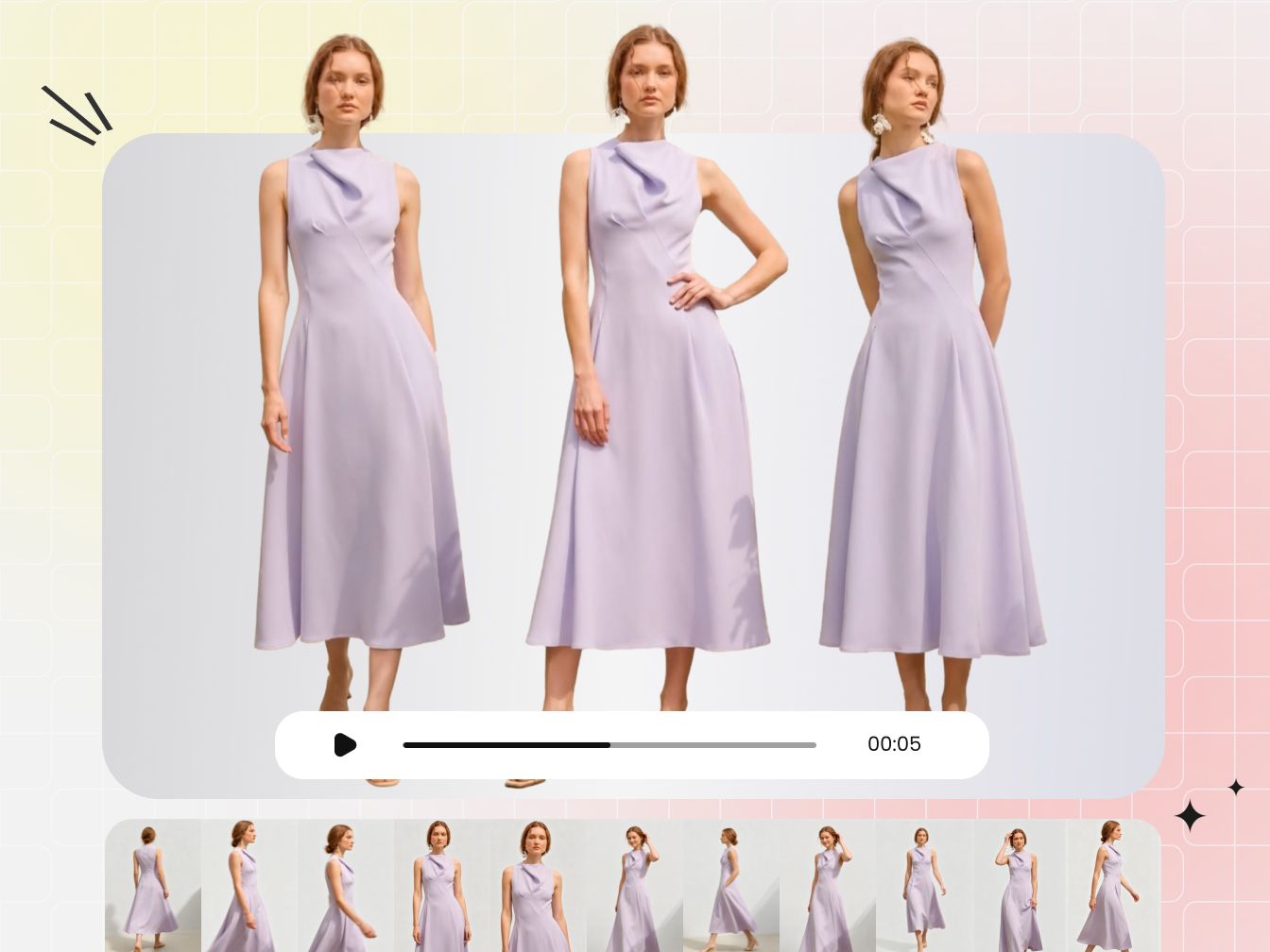
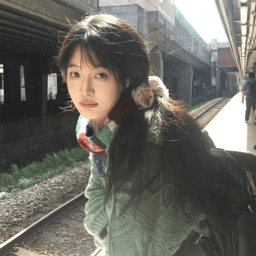
Quick Answer
Use AI image-to-video when the person, garment, or scene needs to move. Use pan and zoom when the visual content must not be synthesized or redrawn and only the framing should move. Start with a clear image that matches the target aspect ratio, create one short movement, inspect product details frame by frame, then add audio and export a separate version for each destination.
Why Product Video Matters for Fashion Ecommerce
Selling clothing online means asking someone to buy something they cannot touch first. The National Retail Federation and Happy Returns estimate that 19.3% of online sales were returned in 2025. Product video does not remove every cause of returns, but it can answer visual questions that a single still cannot.
Shoppers do use the format when they can find it. In Baymard Institute's usability testing, 41% of users watched product videos, while its benchmarking found 35% of major ecommerce sites did not present those videos effectively. For fashion, verified product footage can show actual drape, sleeve behavior, hem movement, and the garment from another angle. An AI-generated clip can illustrate possible motion, but it cannot verify how the physical product behaves. In either case, altered prints, seams, logos, or proportions can mislead rather than help.
Video works best as part of a consistent catalog rather than as a replacement for clear still images. For the source-image stage, see Snappyit's AI product photography workflow.
Ways to Make a Video From One Image
There are several ways to animate a still image. The right choice depends on whether you want the content inside the image to move or only want to add camera movement.
| Method | How it works | What changes in the original |
|---|---|---|
| AI image-to-video | A generative video model reads the photo and draws new frames from it, so the model can turn, walk, adjust a garment, or change pose. | New pixels throughout. Faces, hands, prints, and logos can all be redrawn. |
| Pan and zoom | The crop frame moves or scales between two keyframes, animating the view rather than the image. Also known as the Ken Burns effect. | Nothing is redrawn. Only the part of the original visible on screen changes. |
| Parallax | The image is separated into foreground and background layers that move at different speeds to simulate depth. | The area revealed behind the foreground has to be filled in. |
| Cinemagraph | Most of the frame is held still while one small area, such as hair or fabric, moves in a loop. | Only the looping area, though that motion still has to be created or filmed. |
The sections below focus on AI image-to-video and pan and zoom because each can start from one still without manual layer masking. Parallax and cinemagraphs can produce distinctive results, but they require more masking, layer preparation, or loop editing.
AI can create subject motion such as a walk or turn, but it may take several generations to preserve important details. Pan and zoom changes only the framing and does not synthesize new subject or garment details. A campaign can use both: an AI clip for subject motion and a pan-and-zoom version for product details, narration, or placements where visual consistency is the priority.
If you need to compare generation workflows before choosing a tool, review these AI clothing video generators.
Method 1: Create a Video With AI
Most current fashion image-to-video workflows start with an existing on-model image. The aim is to create usable model movement while keeping the person, garment, colors, proportions, and original setting as consistent as possible.
Input: upload an existing model image
Choose a clear image in which the model and garment are easy to see. A front-facing or three-quarter pose with visible limbs usually reduces ambiguity for the generation model compared with a heavily cropped image or a pose with overlapping hands and clothing.
- Use the highest-quality original available rather than a compressed screenshot.
- Keep the model, garment edges, and important product details clearly visible.
- Choose an image close to the aspect ratio you plan to publish.
- Avoid severe blur, heavy occlusion, or unusually distorted perspectives.
Before uploading, also consider how much room the model has to move. A tightly cropped portrait leaves little space for a turn or camera push, while a full-body image can support steps and broader pose changes. If the final video will be vertical, starting with a vertical source helps keep the model centered and reduces the need for AI to invent missing areas around the frame. For ecommerce, inspect small but commercially important details—the neckline, sleeve shape, hem, fasteners, print, and logo—because these are the details you will compare against the generated output.
Settings: choose how to direct the motion
AI image-to-video tools generally use one or both of two control methods:
- Motion templates: choose a predefined action or camera style, such as a pose change, turn, walk, product showcase, zoom, or orbit. Templates are quick to apply and make it easier to repeat a similar style across several images.
- Text prompts: describe the movement you want in your own words. Prompt-based control is more flexible when the model needs to perform a particular action or when the camera should remain fixed.
Some tools also analyze the uploaded image and suggest a suitable template or prompt automatically. Depending on the platform, additional settings may include duration, aspect ratio, output quantity, generation model, or quality. These options vary by tool, so choose them according to the destination and how much movement the composition can accommodate without cropping or inventing unseen areas.
For the illustrated workflow and output checks in this guide, we use Snappyit's Image to Video as the example. It provides both Text to Motion and Video Template modes. In Text to Motion, Snappyit can automatically generate motion suggestions from the uploaded model image, and users can use, copy, or refine the prompt themselves. Video Template mode offers a faster starting point when a predefined movement already fits the image.
Templates are useful when speed and repeatability matter; prompts are useful when you need more specific control. Whichever mode you choose, keep the first test simple. A subtle pose change or short walk is easier to evaluate and less likely to alter garment details than a sequence containing several actions.
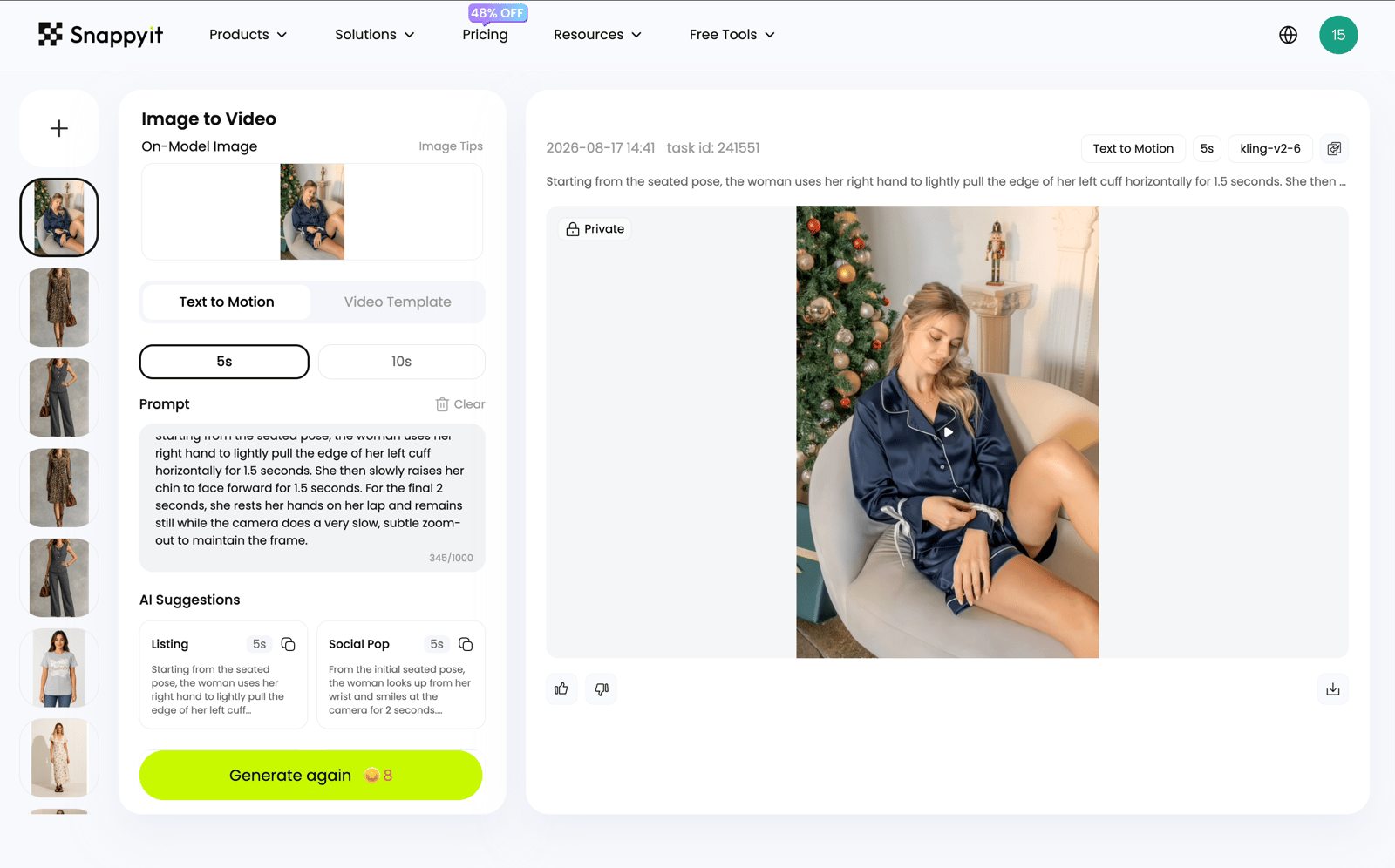
Recorded test configuration: Text to Motion, a 5-second duration, Kling v2.6, and the generated motion suggestion shown in the workspace. Tool options and model availability can change.
Writing a prompt when you want more control
If you choose to write or edit the prompt, keep it focused. Describe what the model should do, add camera movement only when it helps, and state what must remain consistent.
Simple structure: model action + optional camera movement + preservation requirements
- Subtle pose: “The model makes a natural pose change and gently turns toward the camera. Keep the clothing design, colors, facial identity, and background unchanged.”
- Short walk: “The model takes two natural steps forward while the camera remains steady. Preserve the garment shape, print, and original setting.”
- Garment interaction: “The model gently adjusts the jacket and looks toward the camera. Maintain the original fit, texture, and color.”
Start with one clear action. Combining a walk, full turn, arm movement, camera orbit, and fabric motion in the same short clip gives the model more opportunities to distort hands, faces, or garment details.
Manual prompting is most useful when the automatic suggestion is close but not specific enough. You might replace a broad “model moves naturally” instruction with “the model makes a slight shoulder turn while the camera remains fixed,” or add a preservation instruction for a patterned dress. Avoid describing a new location, new lighting setup, or different outfit unless changing the original image is intentional. In an image-to-video workflow, every extra scene instruction gives the model another reason to reinterpret pixels that were already correct.
Output: generate and review the result
Generate the clip, watch it from beginning to end, and review more than whether the movement looks dramatic. For fashion and ecommerce use, consistency is the more important test.
- Does the model's face remain recognizable?
- Do the hands, arms, and body move naturally?
- Does the garment keep its original cut, color, pattern, and logo?
- Do the background and straight edges remain stable?
- Are the opening and closing frames clean enough to trim or loop?
If a result changes the garment or creates awkward anatomy, reduce the amount of motion and generate again. Changing one instruction at a time makes it easier to identify what improves the output.
A useful review process is to compare the source image and the generated clip side by side. Pause at the beginning, middle, and end rather than judging only at normal playback speed. The middle frames often reveal temporary logo changes, duplicated fingers, shifting buttons, or background lines that bend and then recover. Separate minor motion artifacts from product inaccuracies: a brief background flicker may be acceptable for an organic social post, but a changed print or garment silhouette is usually unsuitable for a product ad. Save the best version before testing another prompt so that a usable result is not lost during iteration.
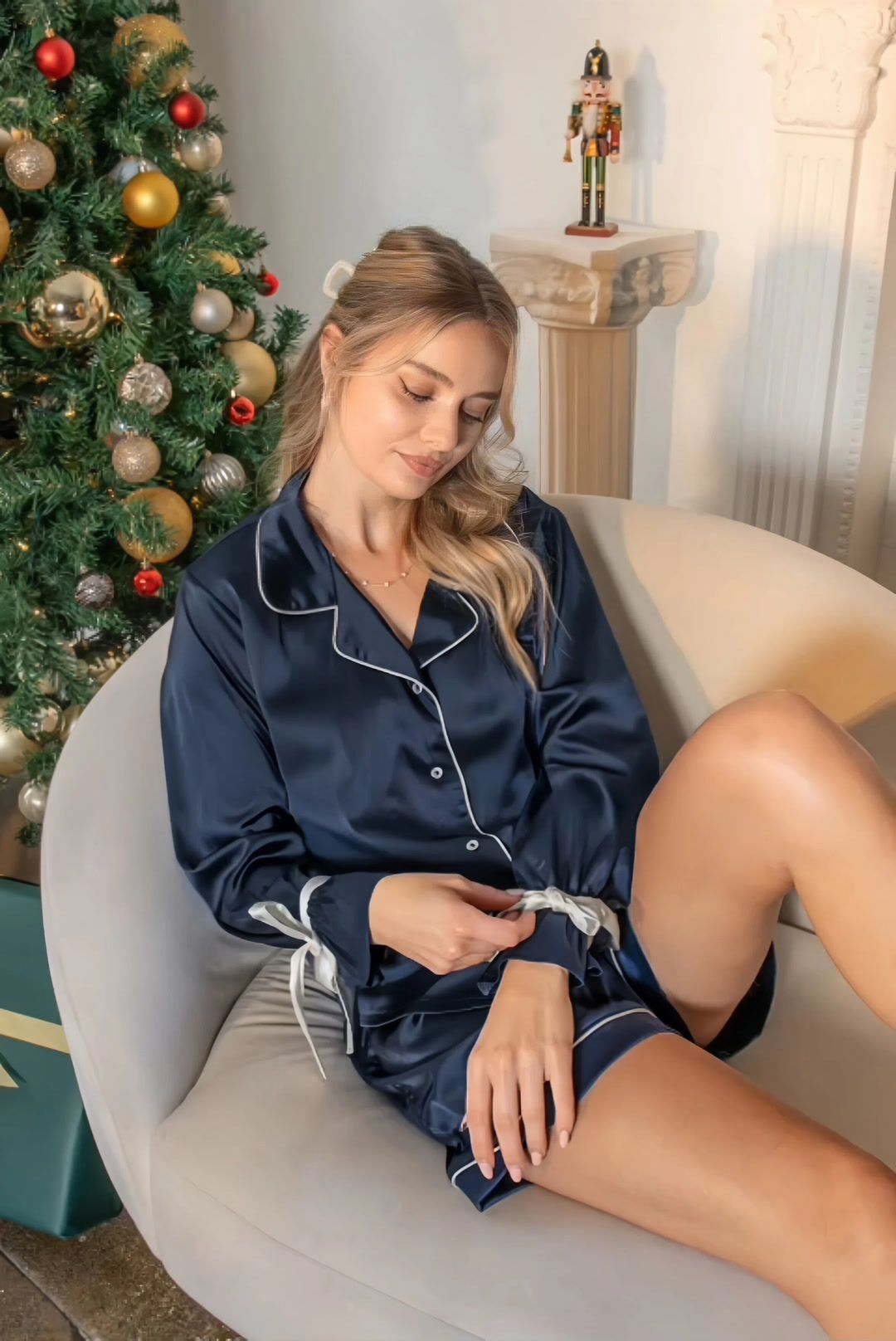
Test result: the five-second clip keeps the navy color, white piping, seated setting, and facial identity broadly consistent. The hands and cuff ribbons lose definition during the larger movement. The clip may work as a social creative, but it should not be used to represent exact product details without further review and editing.
Method 2: Create a Pan and Zoom Video
Pan and zoom is the simplest non-AI alternative. It does not make the model's body, hair, or clothing move. Instead, it creates the feeling of a camera moving across or toward the still image. Because no new visual content is generated, the original model and garment remain unchanged.
Input: place the image on a timeline
Import the image into an editor such as CapCut, Canva, iMovie, or DaVinci Resolve and place it on the video timeline. Set the image duration first; five to eight seconds is usually enough for one slow movement.
Settings: define the start and end frames
Create one keyframe at the beginning and another at the end. Change the image position or scale at the second keyframe, and the editor will animate the movement between them.
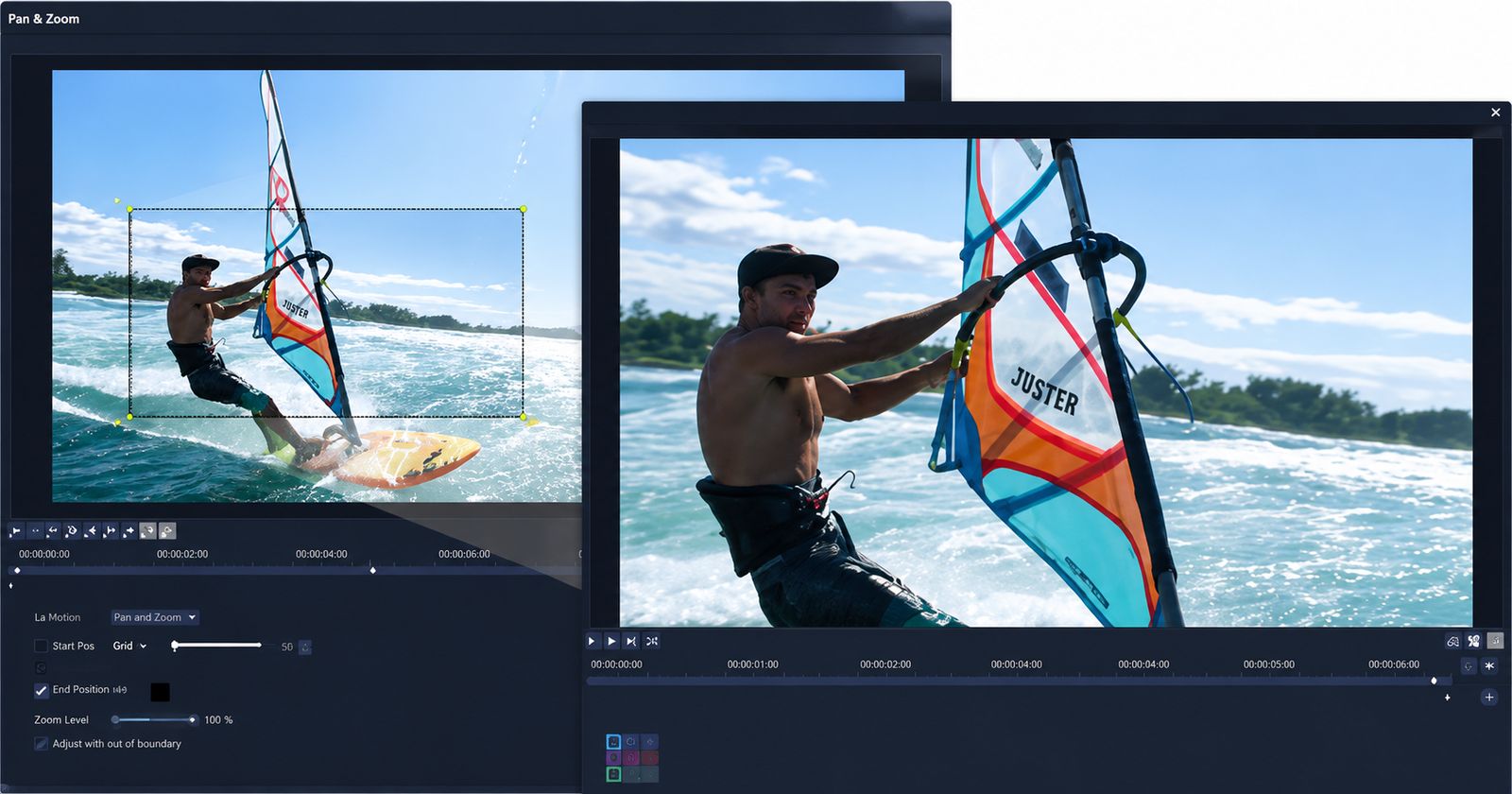
Illustration, not a screenshot of a named app: the crop frame represents the visible area, while timeline keyframes control how the view moves and scales.
- Start with the full model or product visible.
- At the end keyframe, zoom in slightly or move the frame toward an important detail.
- Preview the movement and slow it down if it feels abrupt.
- Keep faces, garments, and text inside the frame throughout the clip.
A small change is usually enough. A gentle 5–10% zoom can add motion without making the viewer feel that the image is sliding across the screen.
Direction should follow the subject. A slow push toward the model's face works for an introduction, while a downward pan can guide attention from the neckline to the full outfit. A pullback can reveal the complete look after starting on a fabric or accessory detail. Use easing when the editor provides it so the motion accelerates and slows naturally instead of starting and stopping abruptly. Avoid zooming beyond the source resolution: enlarging too far makes the final frame noticeably softer even though the original image has not changed.
Output: preview and export
Check that the movement is smooth and that the final crop does not cut off the model, garment, or product details. Export the result as an MP4 using the resolution and aspect ratio required by the destination platform.
| AI image-to-video | Pan and zoom |
|---|---|
| Creates new movement inside the scene | Moves only the camera view |
| Output varies between generations | Output follows the chosen keyframes |
| May alter anatomy or garment details | Does not synthesize subject or garment details |
| Best when the model should appear to move | Best when visual accuracy matters more than body movement |
Add Audio
Audio can make a short clip feel finished even when the visual movement is subtle. Choose one of three simple options:
- Music: use a commercially licensed track that fits the pace and audience.
- Ambient sound: add light street, studio, wind, or fabric sounds without overwhelming the visual.
- Voiceover: explain a product feature, promotion, or styling detail.
Trim the track to the clip, align an important movement with a beat when possible, and lower the music beneath any voiceover. Confirm the license covers commercial and social-media use before publishing.
For very short clips, do not force a long musical introduction into a few seconds. Start near a clear beat or use a short sound effect that supports the action. When combining several generated clips, use audio as the continuous layer that connects them: place the music first, arrange the strongest movements around its beats, then add short transitions only where needed. Preview once with headphones and once through a phone speaker, since low-volume details and voice clarity can change considerably between devices.
Export and Upload to Each Platform
Export a high-quality master first, then make platform-specific versions. MP4 with H.264 is the safest general format, while the aspect ratio determines whether the video fills the screen or is cropped.
| Platform | Recommended ratio | Recommended resolution | Typical placement |
|---|---|---|---|
| TikTok | 9:16 | 1080 × 1920 | Full-screen vertical video |
| Instagram Reels | 9:16 | 1080 × 1920 | Full-screen vertical video |
| Instagram Feed | 4:5 or 1:1 | 1080 × 1350 or 1080 × 1080 | Feed post |
| YouTube Shorts | 9:16 | 1080 × 1920 | Vertical short video |
| YouTube | 16:9 | 1920 × 1080 | Standard landscape video |
| 1:1 or 16:9 | 1080 × 1080 or 1920 × 1080 | Feed and brand content |
Keep faces, products, logos, and captions away from the outer edges because platform interfaces cover part of the frame. These working dimensions were reviewed on August 17, 2026; platform specifications can change, so confirm the current requirements in each platform's official help center before a campaign launch.
Do not simply upload the same landscape export everywhere. Create the largest clean master you need, then duplicate the edit for vertical, square, and landscape placements. Reposition the crop for each version instead of allowing the platform to crop automatically. Watch every exported file after compression, check that text remains readable on a phone, and choose a cover frame where the model and garment are both clear. If a platform applies heavy compression, avoid repeated downloads and re-uploads; return to the master and export a fresh version.
Conclusion
Start with a clear source image, keep each clip focused on one movement, and inspect the exported result at full size. For AI-generated clips, compare faces, hands, garment construction, prints, and logos against the source before publishing.
Try Snappyit Image to Video Free
Frequently Asked Questions
Can I make a video from one image for free?
Yes. AI image-to-video tools may offer free generations or trial credits, and editors such as CapCut, Canva, iMovie, and DaVinci Resolve can create a basic pan-and-zoom video from a still image.
Do I need to write a prompt in Snappyit?
No. Snappyit can analyze an uploaded model image and automatically generate a suitable motion prompt. You can also write or refine the prompt yourself when you want to control the model's movement more precisely.
Is AI image-to-video better than pan and zoom?
They solve different problems. AI creates new subject or scene motion and may redraw details. Pan and zoom creates predictable framing motion without synthesizing new visual content.
What image resolution should I use?
Use the highest-quality original available and match the target aspect ratio. For a 1080 × 1920 vertical export, start with a portrait source that can cover that frame without heavy upscaling; for 1920 × 1080, use a landscape source. Check the upload limits of the chosen tool.
How do I create a video from multiple images?
Choose the image sequence, crop every image to the same aspect ratio, place the images on a timeline, set how long each one stays visible, and add simple transitions or pan-and-zoom movement. Then add licensed music or voiceover and export for the target platform. If selected images need subject movement, generate short AI clips first and arrange those clips with the remaining stills.
How many images do I need to make a video?
There is no fixed number. Divide the target duration by the time each image will remain visible, then adjust for voiceover, AI-generated clips, and transitions. Use only the images needed to communicate the sequence instead of adding filler that weakens the pacing.
How do I add music to a video made from pictures?
Add a commercially licensed track in your editor, trim it to the video length, and lower it beneath any voiceover. Confirm that the license covers the intended commercial or social-media use.
How long should a single-image video be?
For one generated movement or one pan-and-zoom shot, a few seconds is often enough. For a longer social video, combine multiple short clips, add text or voiceover, and edit them into a sequence.
Which aspect ratio should I choose?
Use 9:16 for TikTok, Instagram Reels, and YouTube Shorts; 4:5 or 1:1 for feed posts; and 16:9 for standard YouTube videos and most landscape placements.
References
- National Retail Federation and Happy Returns. Consumers Expected to Return Nearly $850 Billion in Merchandise in 2025.
- Baymard Institute. UX Research on Product Page Videos: Where and How to Embed Them.
- Synthesia. Video Aspect Ratios: A Complete Guide.
- RecurPost. Social Media Video Size Guide.
- Snappyit. AI Image to Video.