

Choose an AI Fashion Video Workflow by Starting Asset
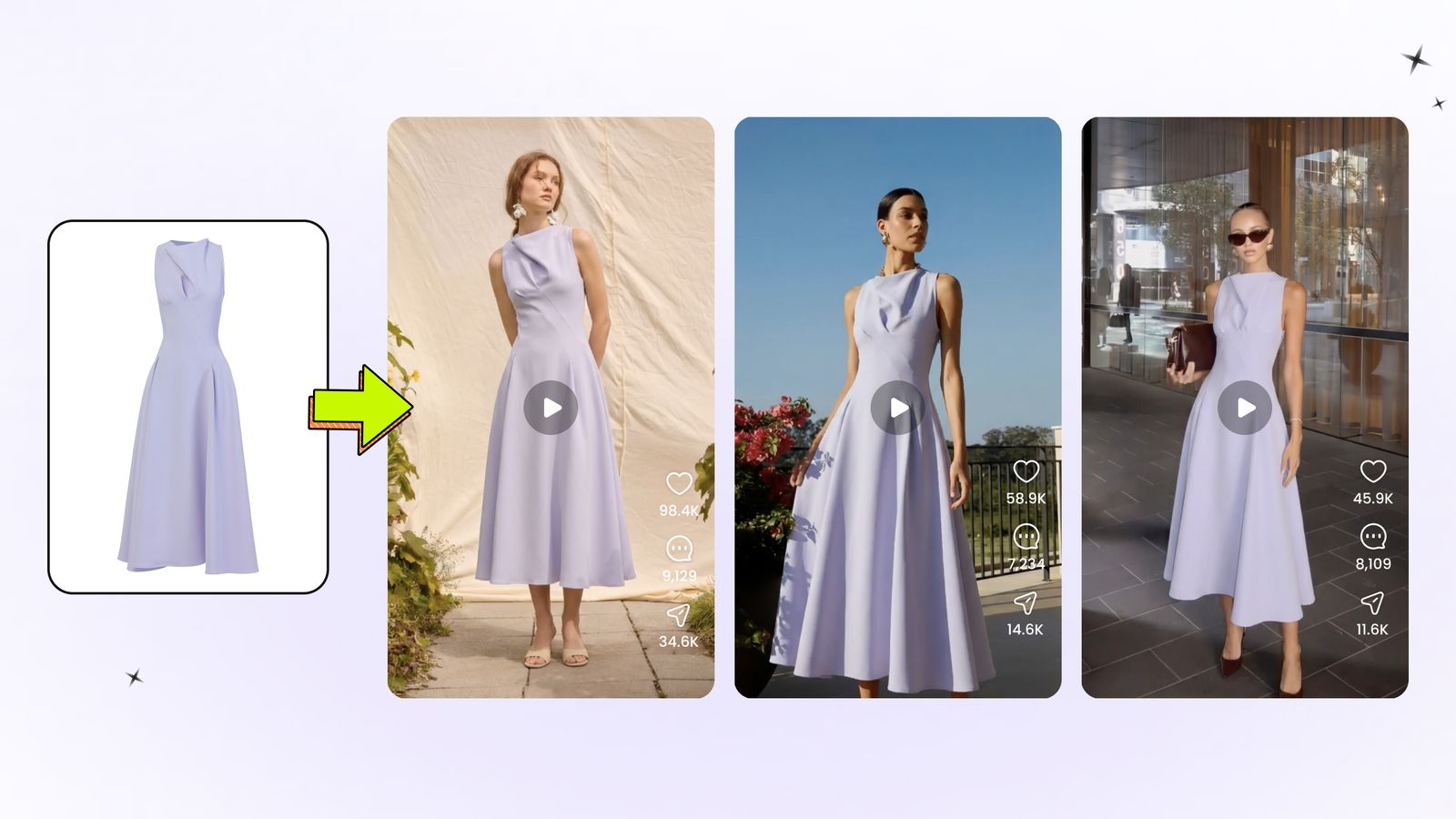
Start with the asset your team has already approved. Use Fashion Video for a garment-only photo. Use Image to Video for an approved on-model photo. If the model scene needs sign-off before animation, create and approve the still first.
How We Compared the Two Workflows
On September 2, 2026, we ran the same blue dress through two starting points. Fashion Video received the garment-only image; Image to Video received a completed on-model image of that dress. The screens and playable exports below are the saved evidence.
This is a workflow comparison, not a quality ranking or large benchmark. We did not record attempt count, generation time, or credit use, so we draw no speed or cost conclusion. For a multi-tool test of garment support, motion, templates, and pricing, see our AI fashion video generator comparison.
The Same Dress Through Two AI Video Workflows
1. AI Fashion Video Workflow: Garment Photo to Model Video
Upload a clear garment-only image, then choose the available video style and model face. This is the shorter route when an ecommerce team has product imagery but no approved on-model creative.
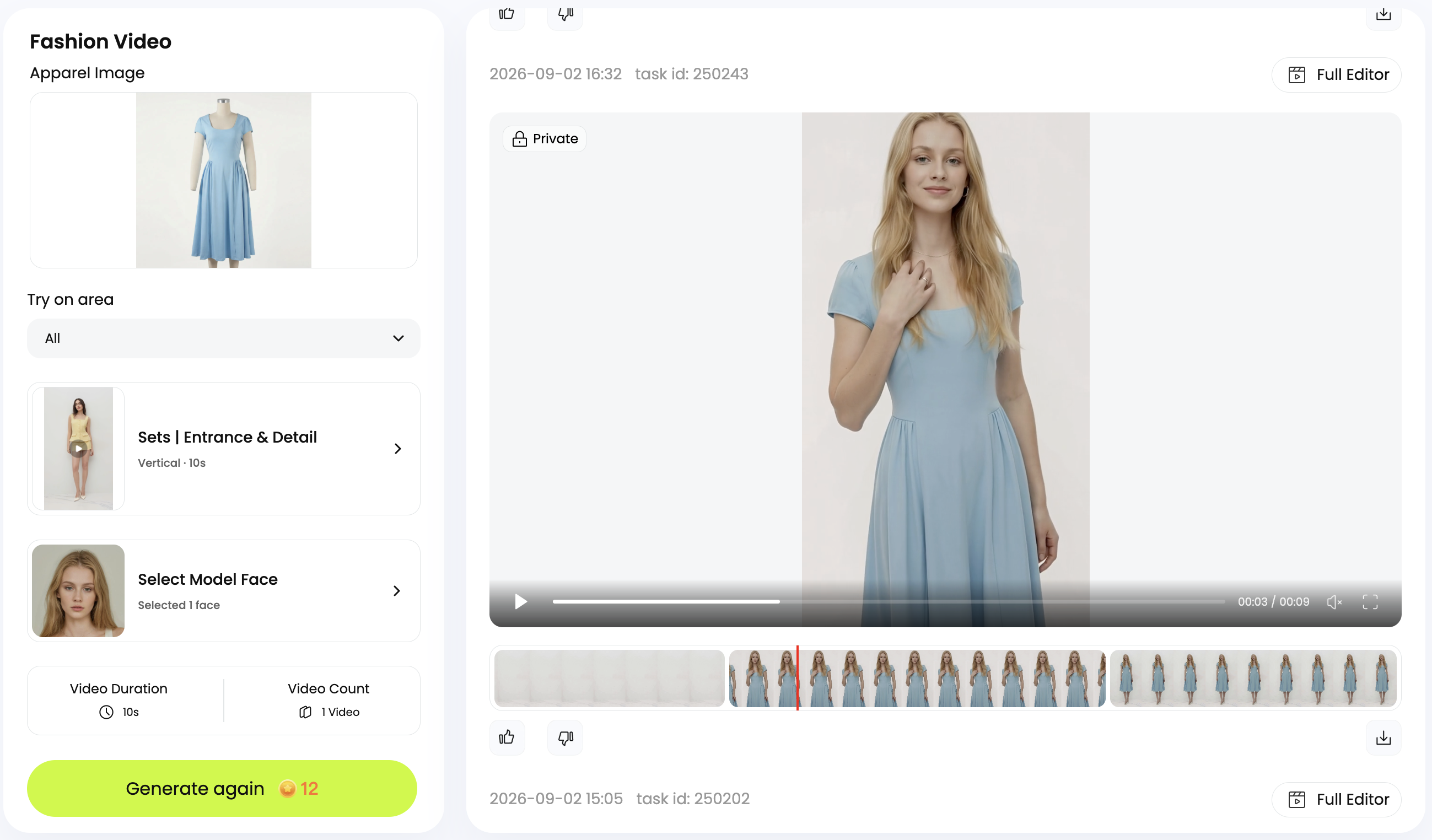
The model scene and motion are created together, so compare the dress silhouette, neckline, seams, color, and hem with the source SKU before approval.
2. Image-to-Video Workflow: Approved Model Photo to Motion
Upload an on-model image your team already approves. The source fixes the model, garment presentation, lighting, background, and crop before animation begins.
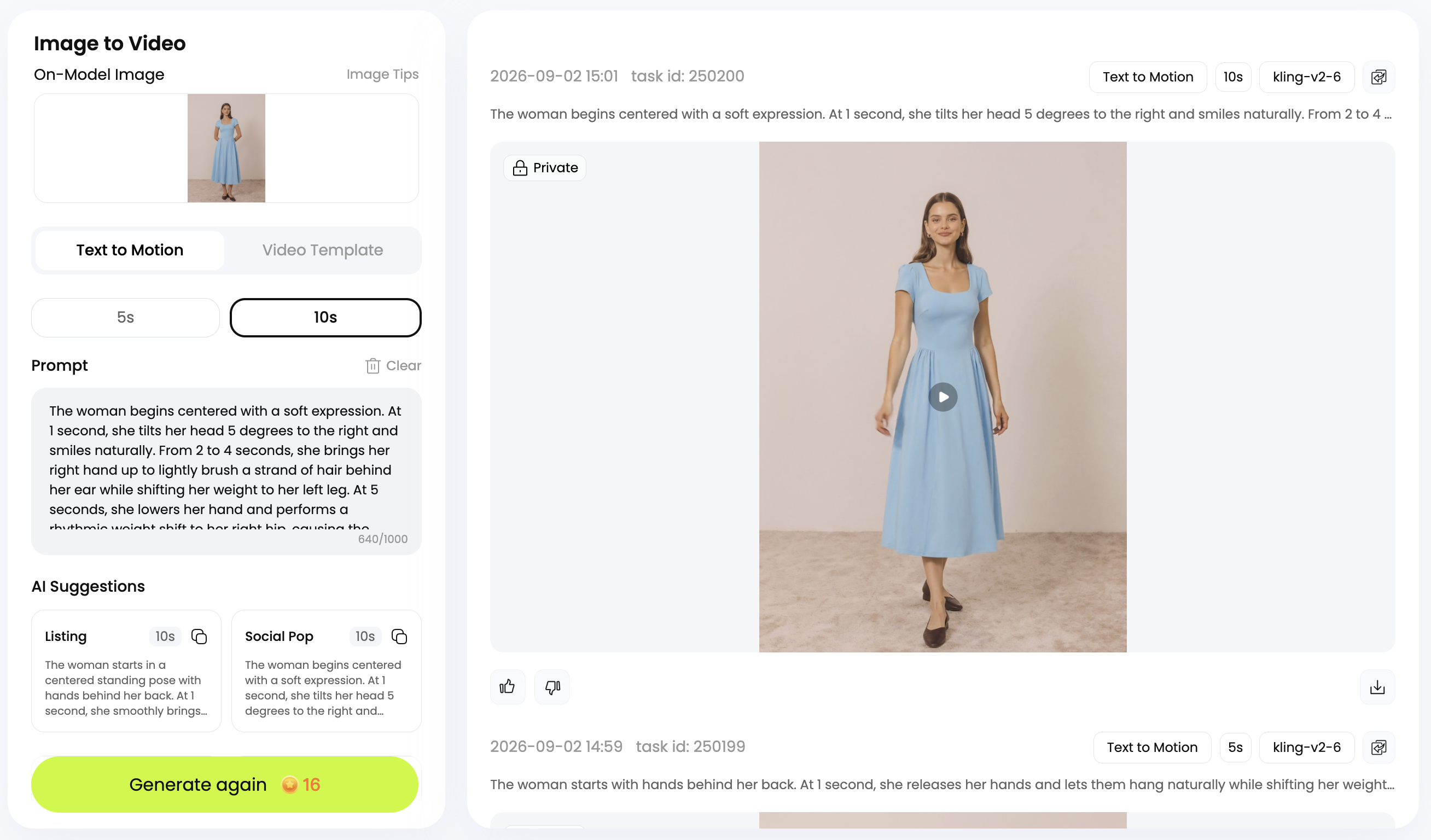
Generated frames can still redraw faces, hands, garment edges, prints, or background lines. Check the beginning, middle, and end against the approved still; our single-image video workflow covers motion choices and frame review.
AI Fashion Video vs. Image-to-Video for Ecommerce Production
| Decision factor | Fashion Video | Image to Video |
|---|---|---|
| Starting asset | Garment-only photo | Approved on-model photo |
| Model and background | Created as part of the video workflow | Established by the source image |
| Approval sequence | Review the generated model scene and motion together | Approve the still image first, then review motion |
| Main creative control | Choose from the available fashion-video options | Choose the source composition and available movement settings |
| Main accuracy risk | New model scene may alter garment presentation | New frames may alter details that were correct in the still image |
| Best fit | You lack model imagery and want the shortest garment-to-video route | You already have a model image that matches the campaign or listing |
Approve the AI Fashion Model Image Before Animation
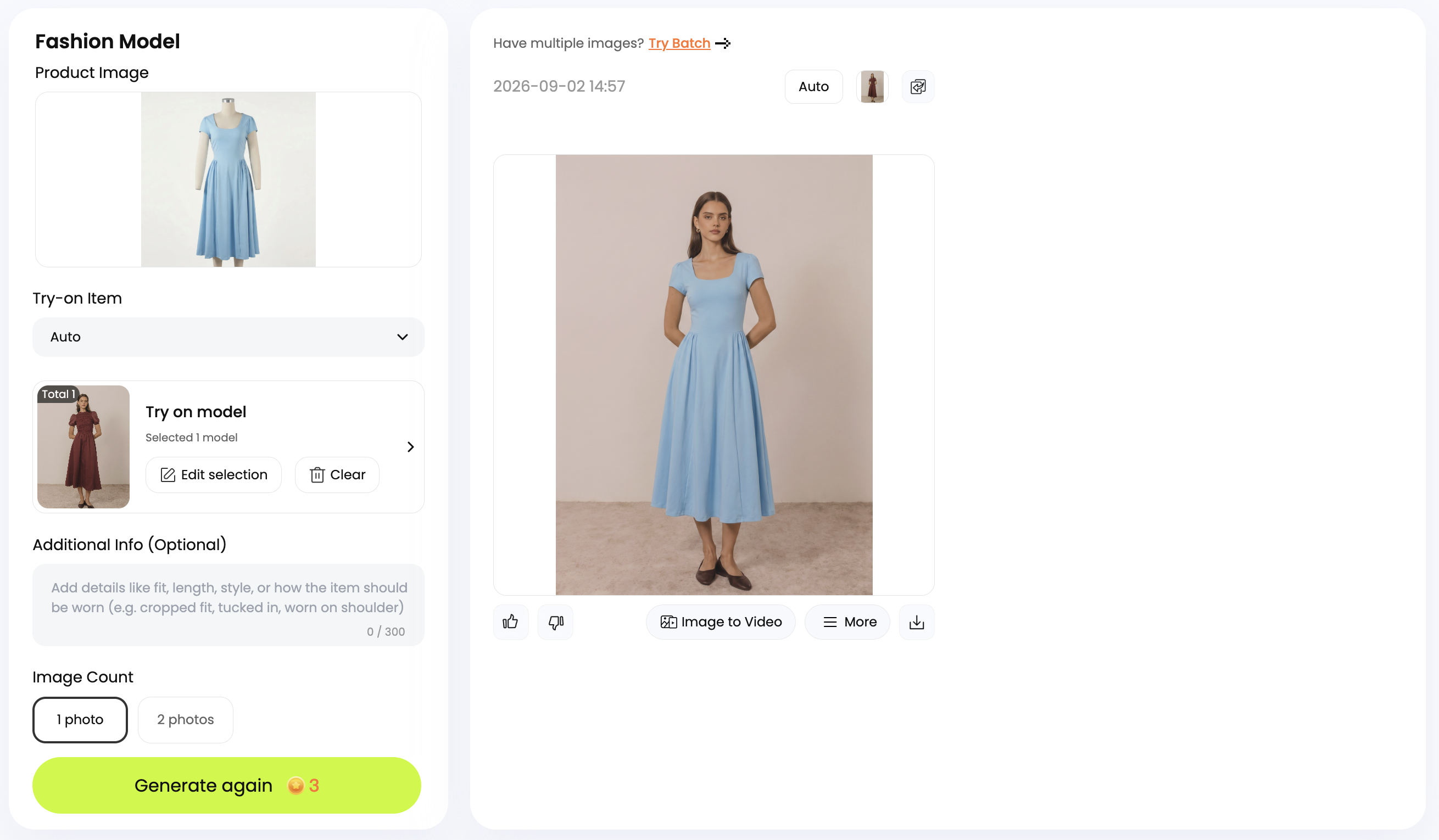
If you have only a garment photo but need separate approval for the model, background, and crop, create a still with AI Fashion Model, approve it, and send that image to Image to Video. For still-image QA, use our AI clothes changer workflow for product photos; teams working from a phone can follow the mobile AI fashion model tutorial.
Ecommerce Quality Checks for AI Clothing Videos
Review the clip beside the source image and, where possible, the physical product. Generated motion can support merchandising, but it is not evidence of measured fit, sizing, construction, or fabric performance. Keep verified stills and specifications in your ecommerce product photography workflow.
- Color and fabric: compare hue, texture, sheen, print placement, and transparent areas with the source.
- Construction: check the neckline, seams, buttons, zippers, cuffs, pockets, and hem in the first, middle, and final frames.
- Shape: confirm that the silhouette and proportions do not shift during motion.
- Human details: inspect the face, hands, fingers, limbs, and places where the body touches or covers the garment.
- Added styling: make sure generated shoes, bags, or jewelry are not presented as included products.
- Destination: confirm the platform's current video, disclosure, commercial-use, and aspect-ratio requirements before publishing.
For U.S. campaigns, the FTC's small-business advertising guide says advertising must be truthful, non-deceptive, and supported by evidence. Sales channels can add their own requirements; for example, Google Merchant Center publishes product-image rules for ads and free listings.
Which AI Fashion Video Workflow Should Sellers Choose?
Choose the shortest route that preserves your approval gates: Fashion Video for a garment-only source, Image to Video for an approved model image, or AI Fashion Model followed by Image to Video when the still needs separate sign-off. Before publishing, approve product accuracy, added styling, usage rights, and channel requirements—not visual polish alone.
AI Fashion Video vs. Image to Video FAQs
What is the difference between an AI fashion video and image-to-video workflow?
AI Fashion Video starts with a garment-only photo and creates the model scene and motion in one workflow. Image to Video starts with an approved on-model photo and animates that existing composition.
Does an AI fashion video generator require a model photo?
No. Snappyit's Fashion Video workflow accepts a garment-only photo, then creates the model presentation and movement. This route suits sellers who do not yet have approved on-model assets.
Can image-to-video turn a flat-lay clothing photo into a model video?
Not directly in the workflow reviewed here. Use Fashion Video to go from a flat lay to a model clip, or create and approve an AI Fashion Model image before sending it to Image to Video.
Can ecommerce sellers animate an AI-generated fashion model image?
Yes. Approve the model, garment details, background, and crop in AI Fashion Model first, then use Image to Video to add motion. Review the exported clip again because new frames can alter details that were correct in the still.
Can I use an AI clothing video on a product page or social media?
Yes, if you have the necessary rights, the video accurately represents the SKU, and it follows the destination channel's current rules. Keep verified product stills and specifications alongside generated motion; an AI clothing video is a merchandising asset, not evidence of measured fit, sizing, or fabric performance.
References
Product pages and Google Merchant Center guidance were checked on September 3, 2026. The saved workflow test was conducted on September 2, 2026.
- Snappyit, AI Fashion Video Generator. Garment-photo input and try-on video workflow; accessed September 3, 2026.
- Snappyit, AI Image to Video. Animation workflow for approved fashion-model photos; accessed September 3, 2026.
- Snappyit, AI Fashion Model Generator. Garment-to-model still-image workflow used before optional animation; accessed September 3, 2026.
- Snappyit same-dress Fashion Video and Image to Video test. Saved interface screens and exports documented in this article; conducted September 2, 2026.
- Federal Trade Commission: Advertising FAQs — A Guide for Small Business. Official guidance on truthfulness, non-deception, and evidence requirements for advertising claims.
- Google Merchant Center Help: Image link [image_link]. Product-image requirements for ads and free listings; accessed September 3, 2026.