



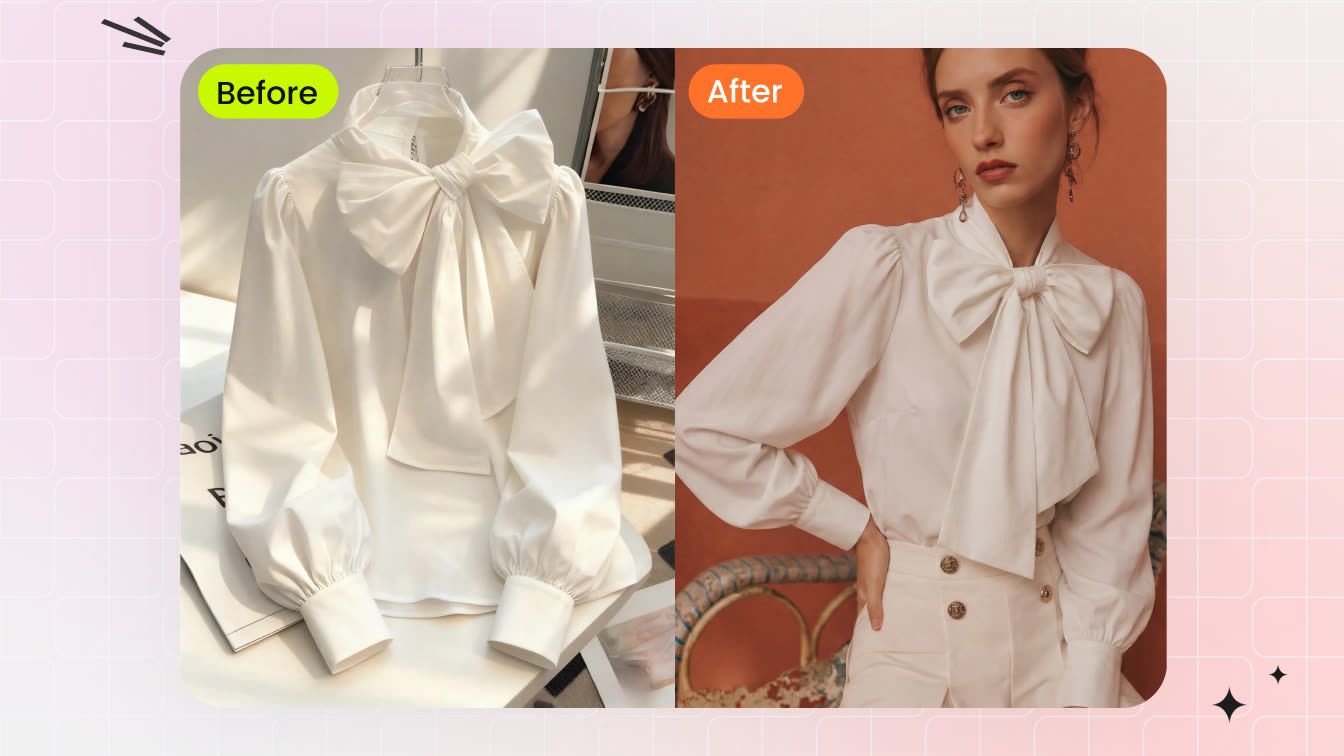
Treat every generated image as a merchandising draft. Before it reaches a product page or ad, confirm that it matches the SKU, suits the catalog, and gives shoppers an honest view of the garment.
Best Source Photos for AI Fashion Model Images
Start with a clean flat lay when possible. It shows the full outline without a body, hanger, or prop covering the garment. A clear hanger photo can also work, but the workflow must infer anything hidden by folds or overlapping fabric.
AI fashion model source-photo checklist for clothing sellers
- Keep the whole garment in frame. Do not crop sleeves, cuffs, or the hem.
- Photograph it front-on. Avoid strong angles and twists.
- Open folds and creases. Hidden fabric can change the generated silhouette.
- Remove overlapping props. Hands, accessories, and other garments can be read as part of the product.
- Use even light. Heavy shadows make colour and texture harder to match.
- Choose a plain background. Maintain clear separation around the garment edge.
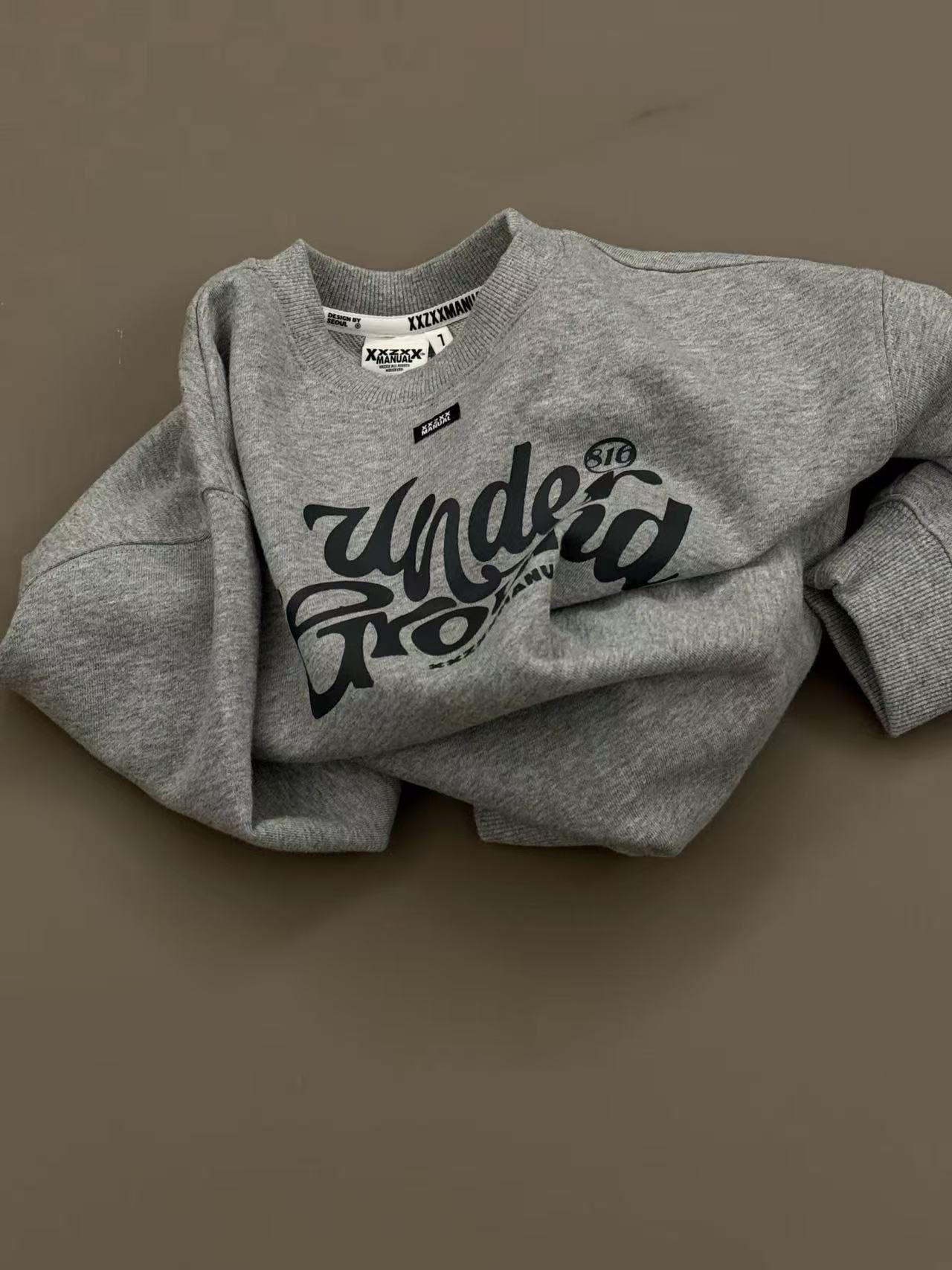
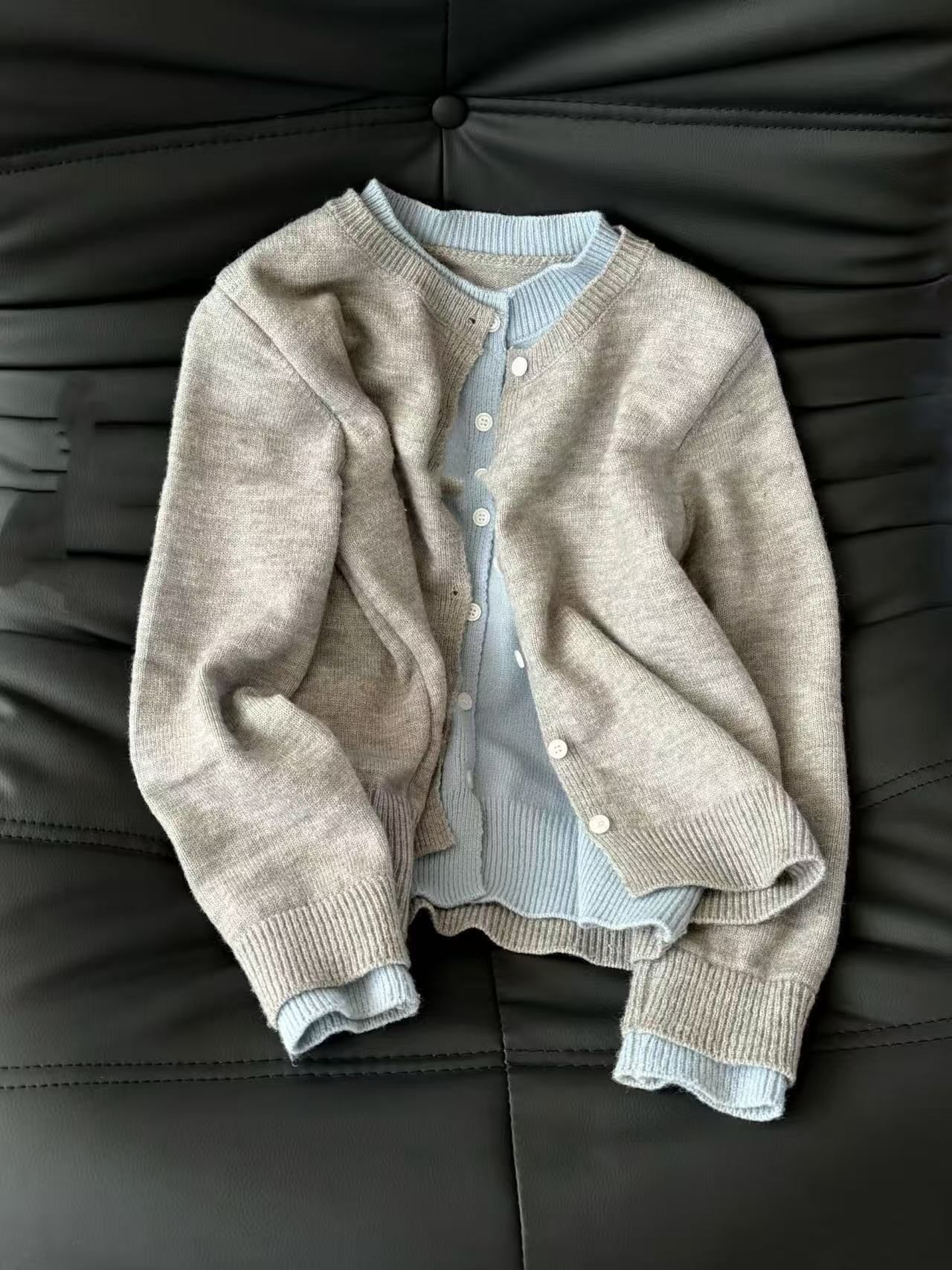
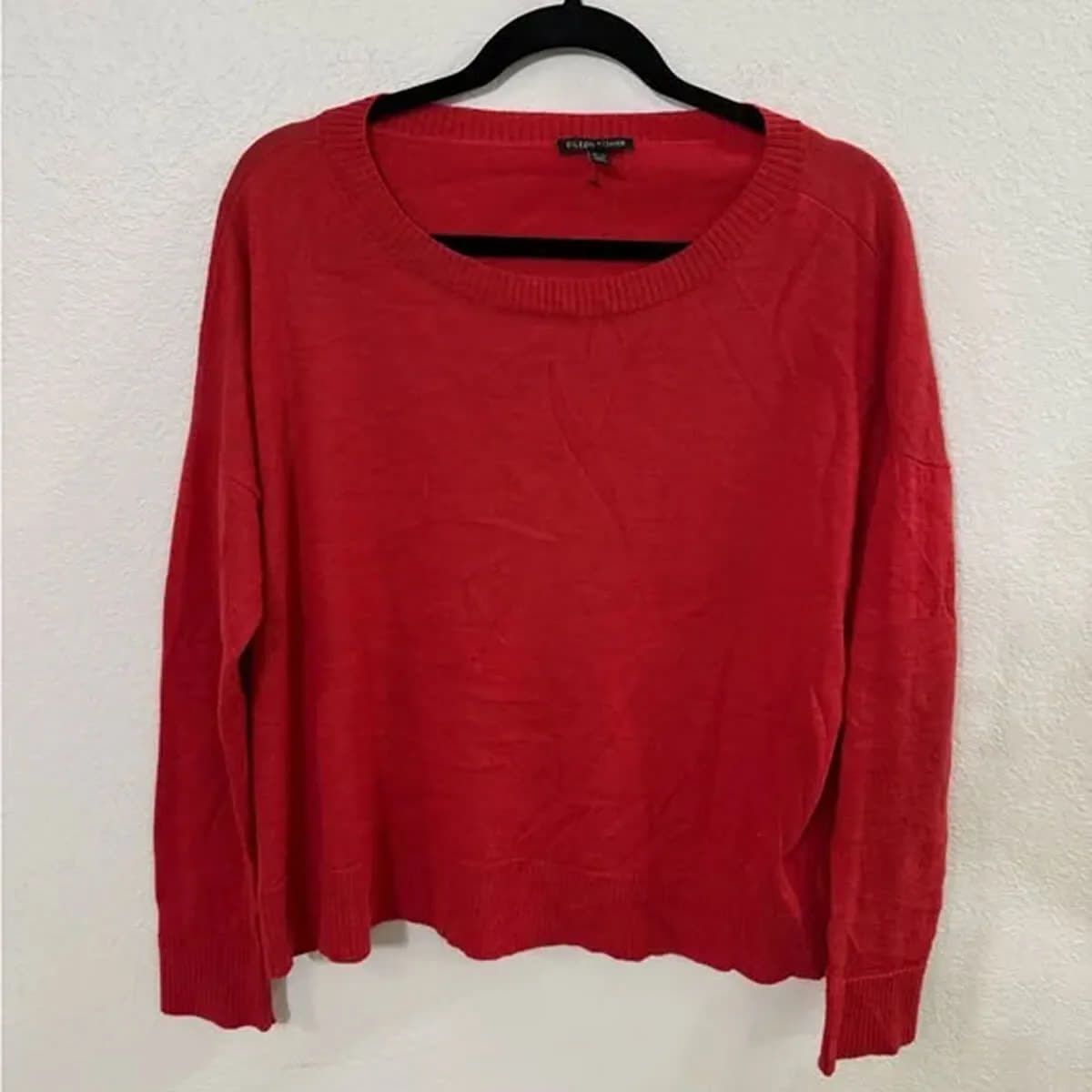
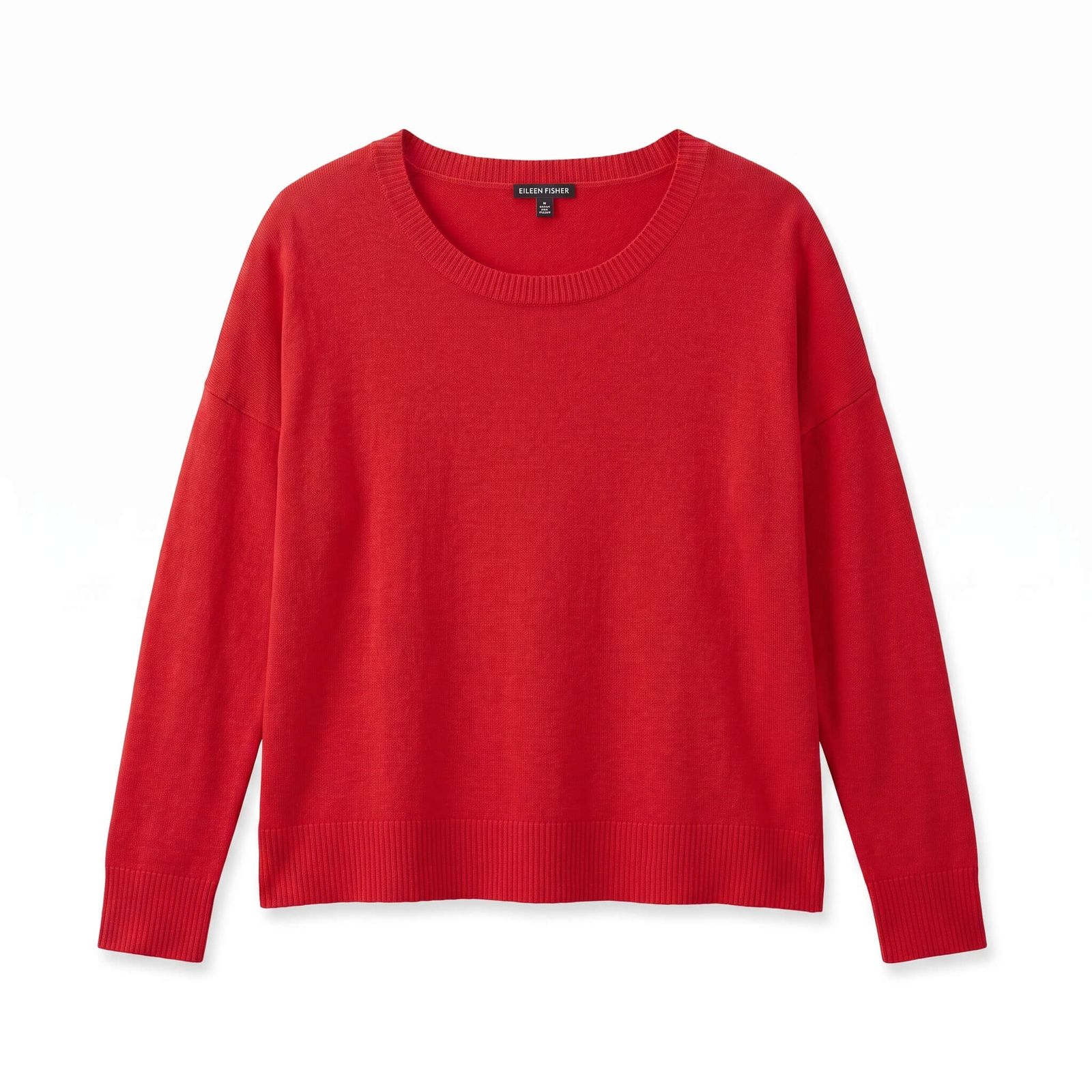
If a hanger photo has folds or an uneven outline, create a cleaner starting image with Snappyit's AI Flat Lay generator before making the on-model version.
Choose an AI Fashion Model and Pose for Ecommerce Listings
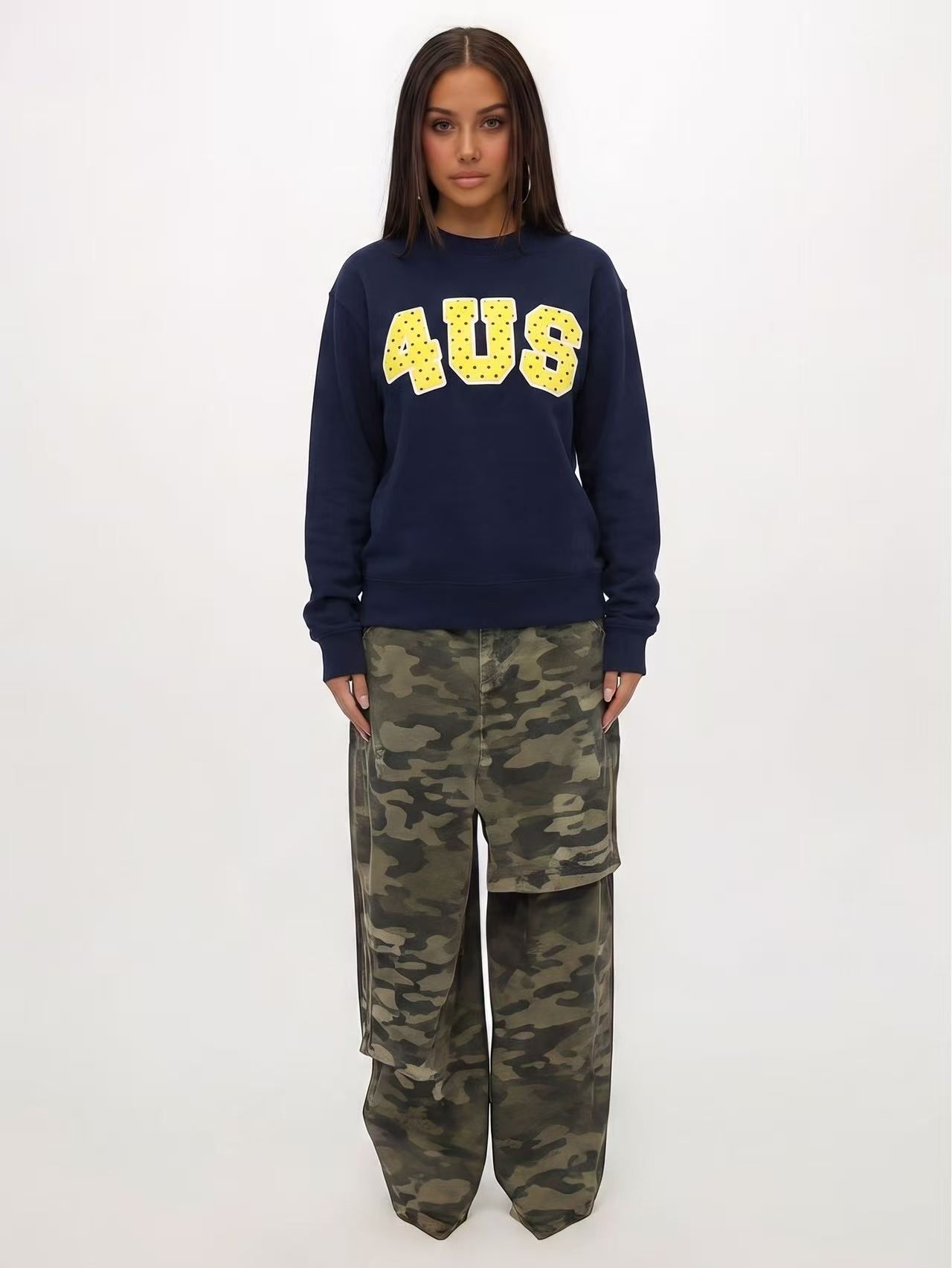
Start with a front-facing pose when the image needs to show the neckline, sleeve length, print, and hem. Use walking or angled poses for secondary lifestyle images after the garment details have passed review.
Match the AI model to your target customer
Select a model whose presentation and styling suit the collection and its intended customer. Keep the garment visually dominant, and use a consistent model direction across products that appear together.
Choose a setting for product listings and ads
- Clean studio: a practical secondary gallery option when the sales channel permits model imagery and the garment passes an accuracy check.
- Lifestyle: useful for secondary PDP images on an owned storefront, collection pages, and ads.
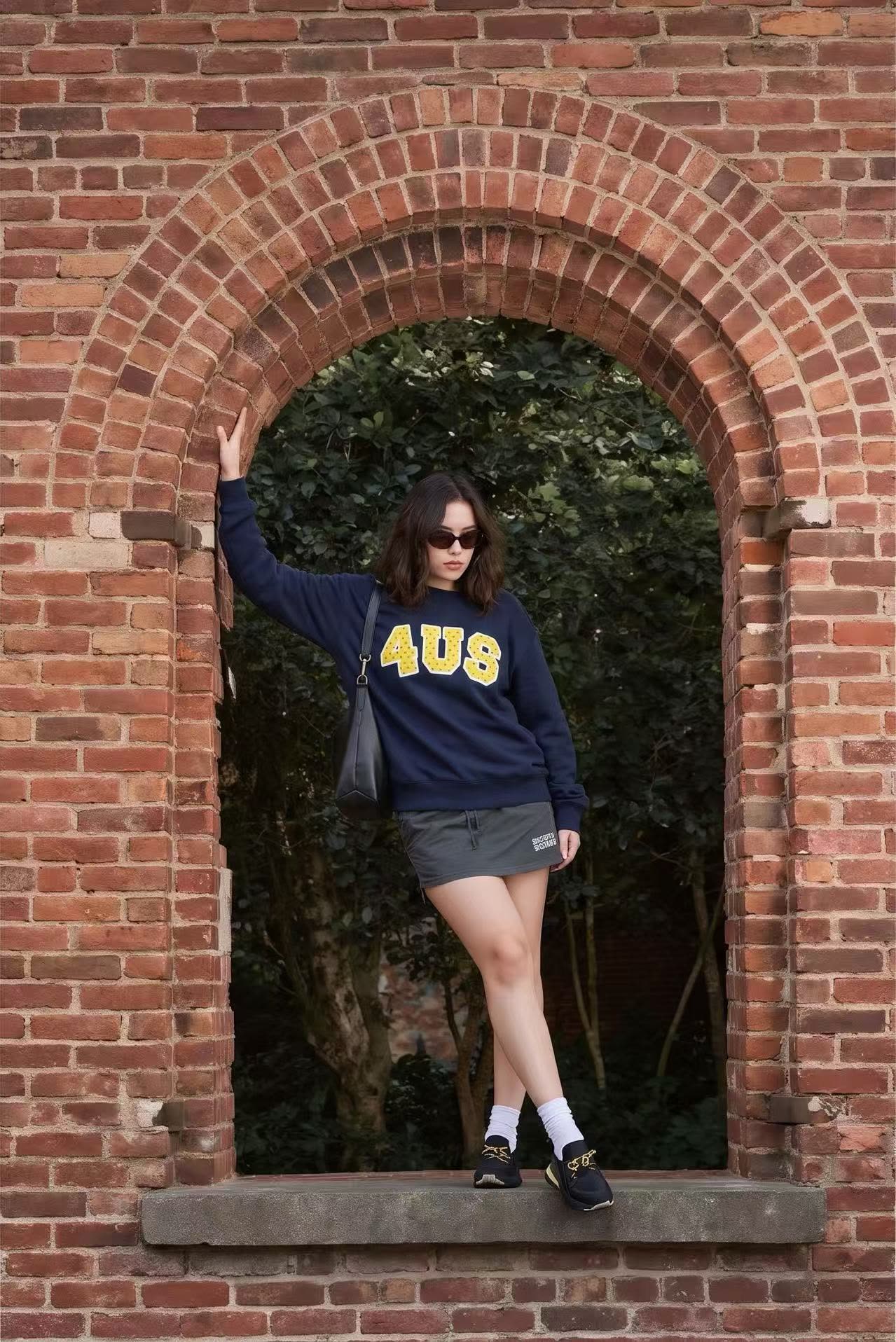
- Outdoor or streetwear: appropriate when the collection relies on a clear seasonal or urban context.
- Editorial: use for campaign and social assets rather than as the only product image.
How to Use an AI Fashion Model App on Your Phone
Snappyit is listed on the Apple App Store and Google Play. In the August 26, 2026 app test, the Fashion Model workflow followed three steps:
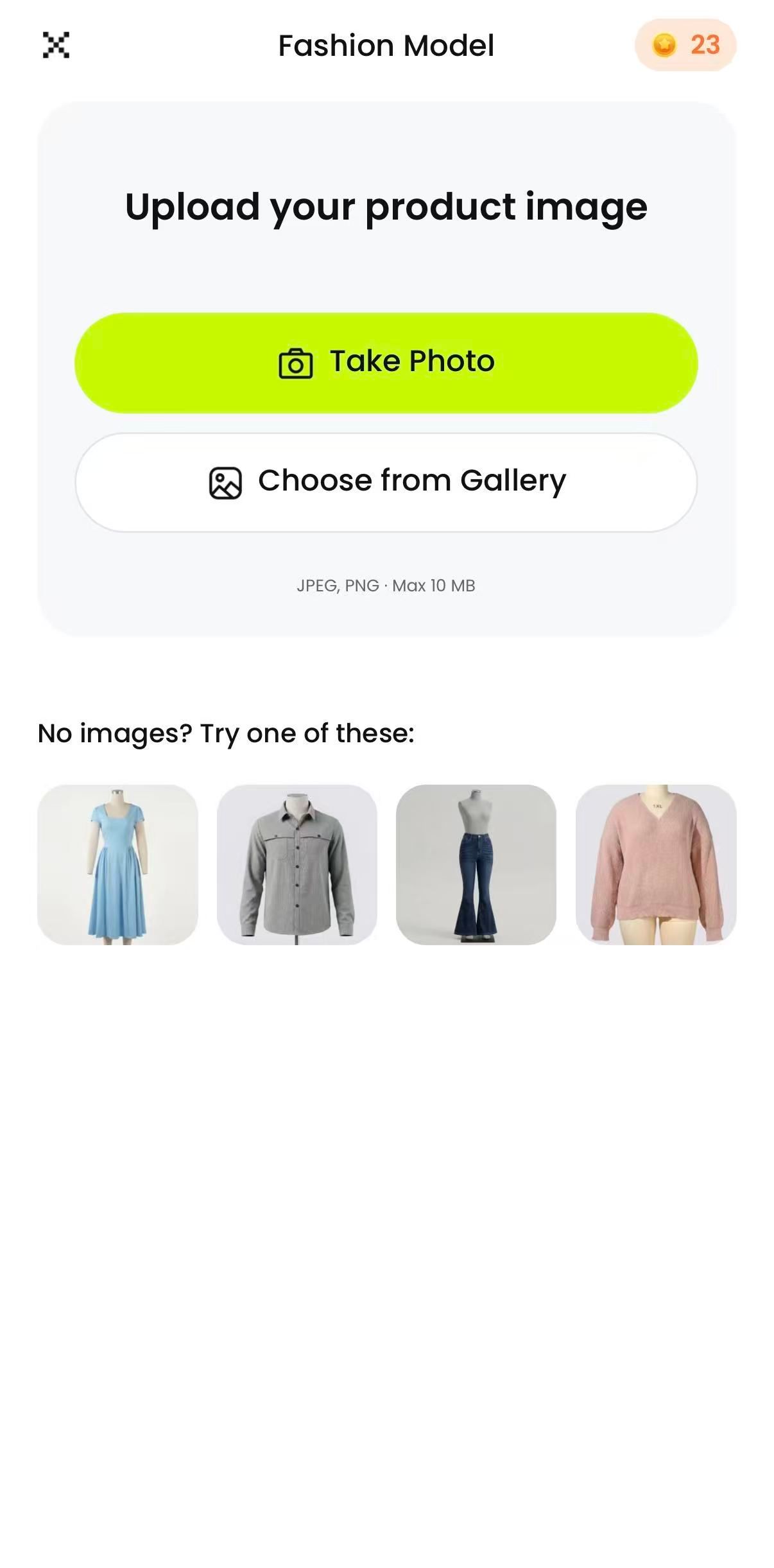
Take a photo or select a flat lay or hanger image from the camera roll.
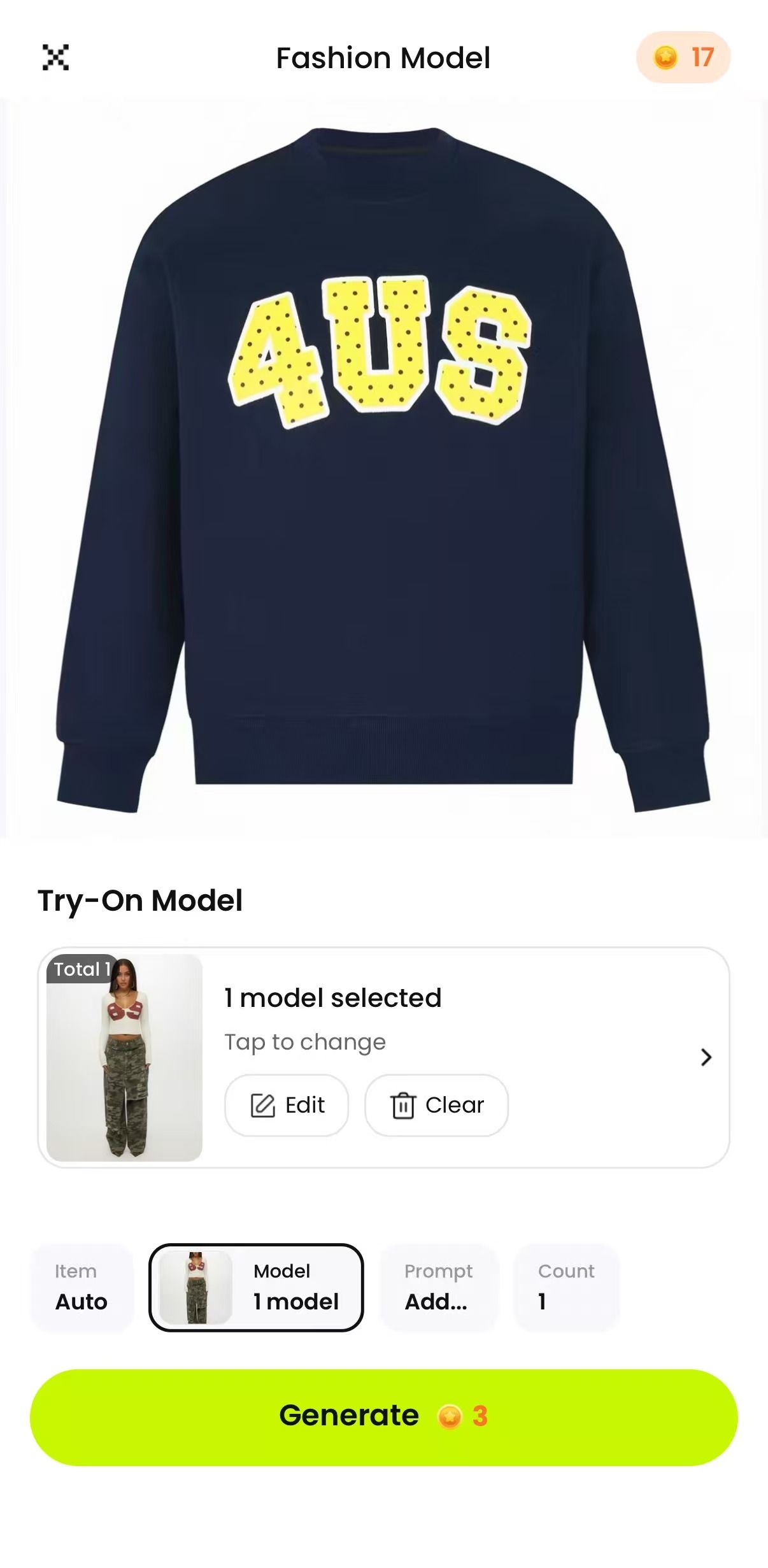
Review the try-on area, select a model, and check the displayed credit cost before generating.
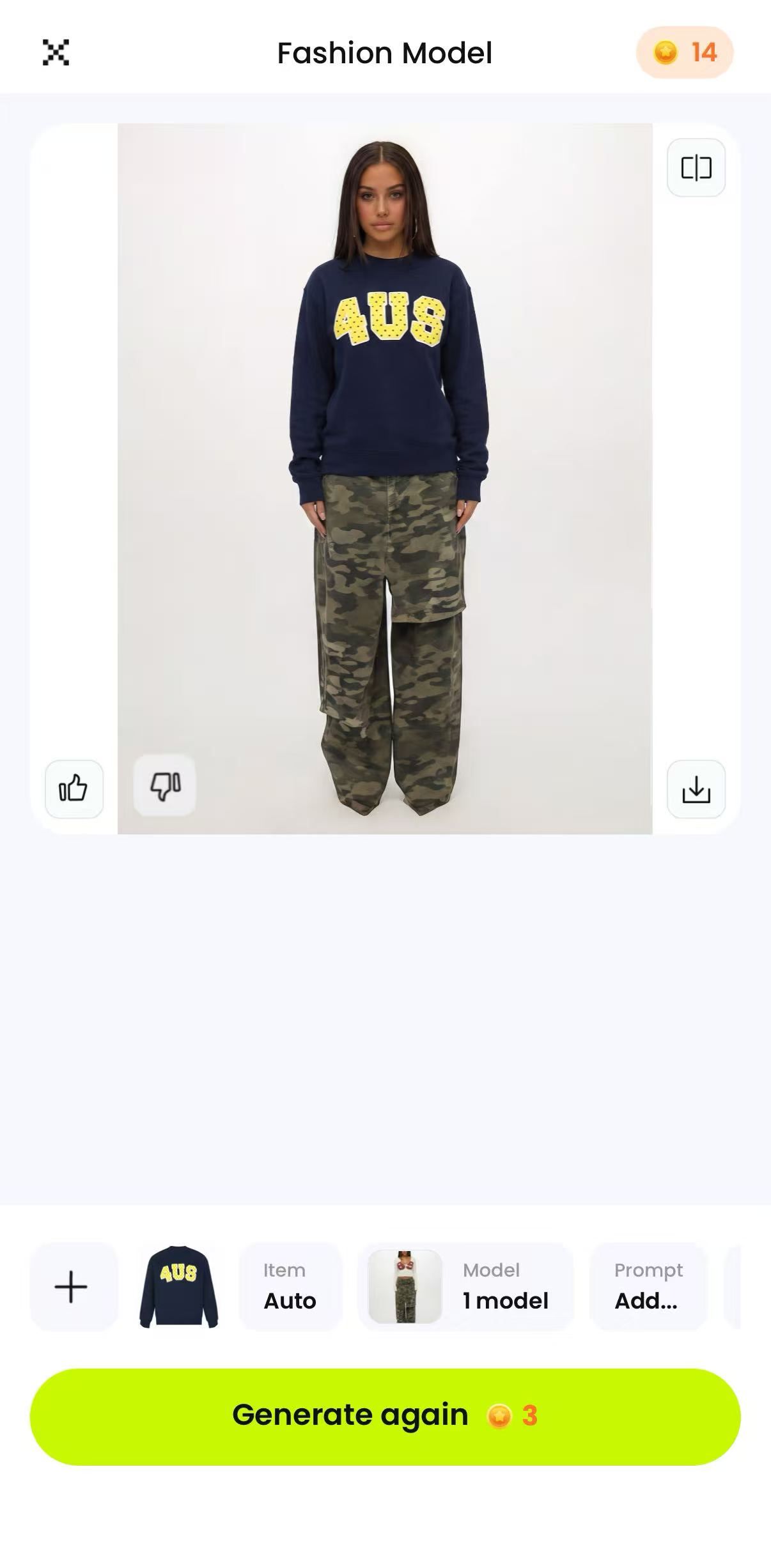
Inspect the garment against the source photo before downloading or generating another version.
Test note: the app displayed a cost of 3 credits per image during this run on August 26, 2026. This is an interface observation, not a standing price or free-credit allowance. Confirm the amount shown on the Generate button before each run.
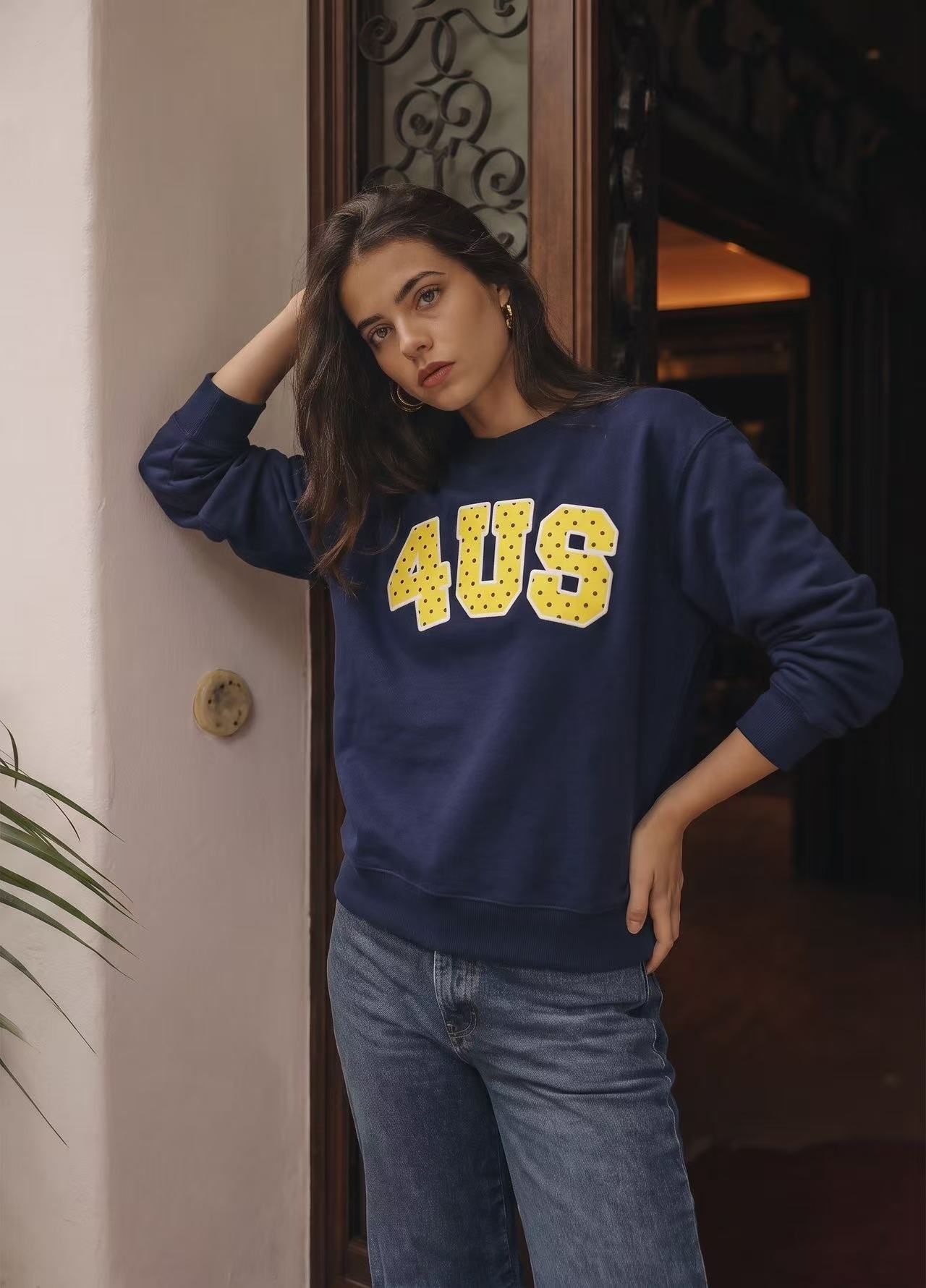
Generate for a specific placement: a clean studio result for a product gallery, or an outdoor or closer crop for a secondary lifestyle image, ad, or social post.
Check AI Model Photo Accuracy Before Publishing
A realistic model does not prove that the SKU is represented accurately. Compare the generated image with the source photo, then spot-check critical details against the physical garment before publishing:
- Silhouette and length. Confirm that oversized, fitted, cropped, and longline proportions have not changed.
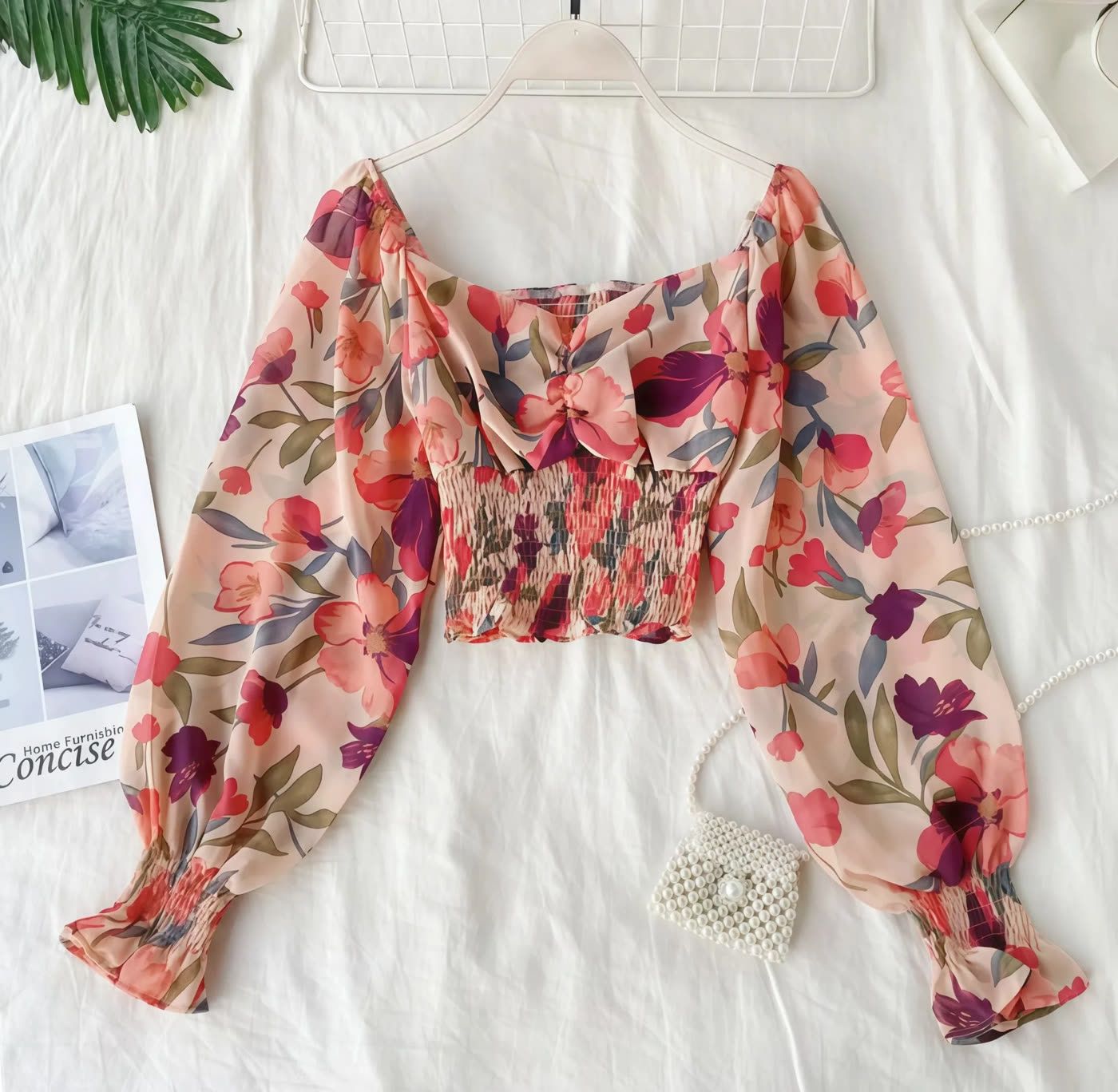
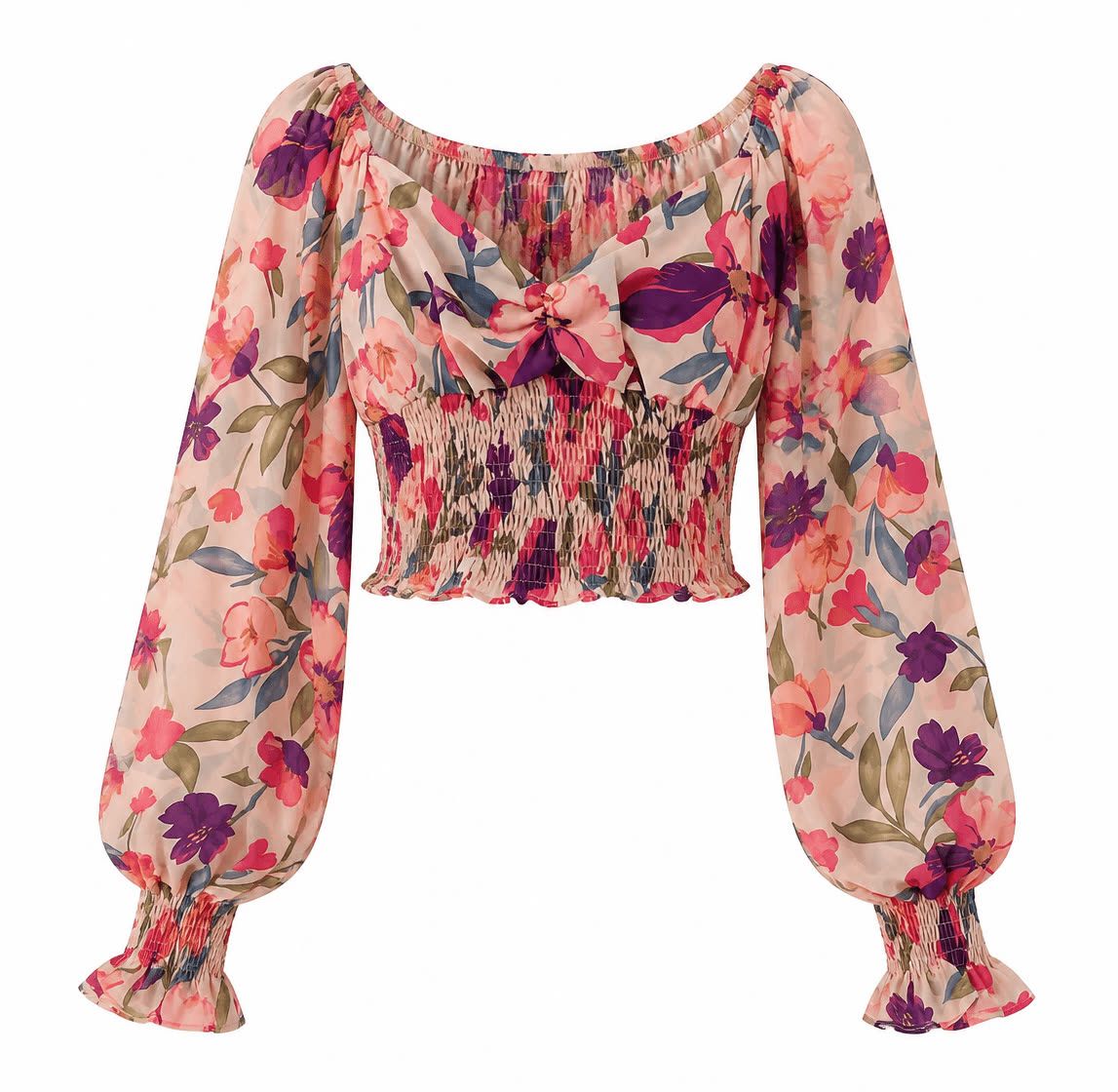
- Neckline. Check both the neckline type and its depth and width.
- Sleeves. Compare sleeve length, width, cuffs, and shoulder placement.
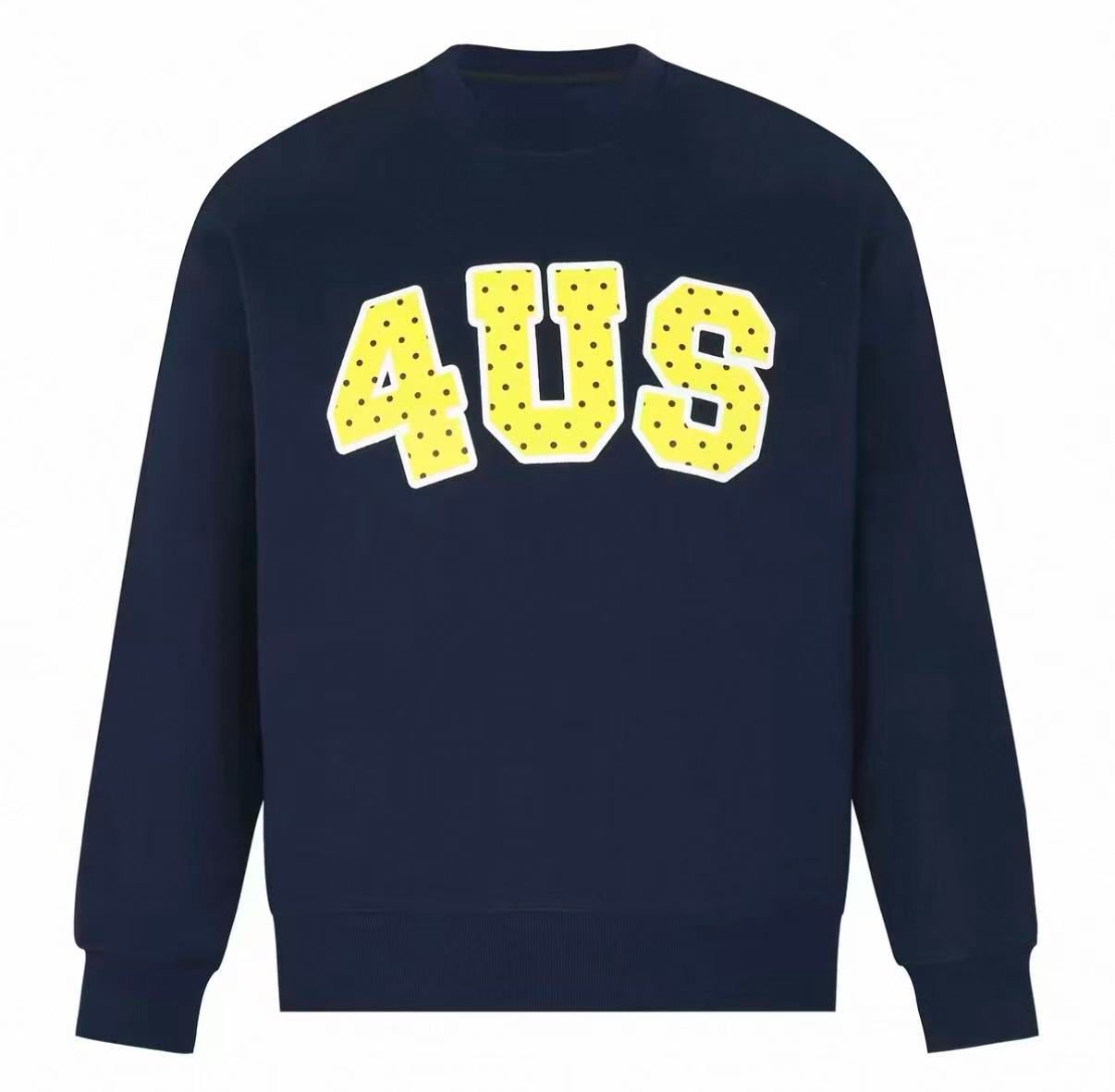
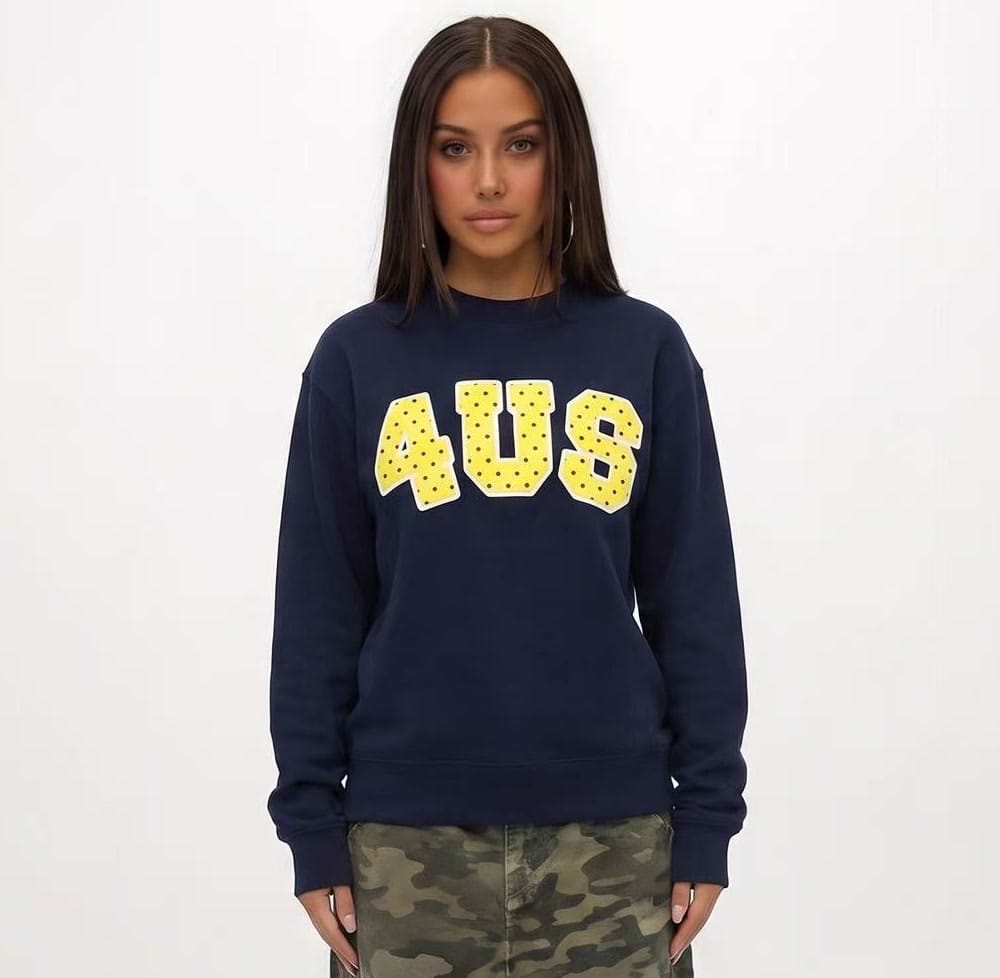
- Print or logo. Look for missing, moved, softened, or redrawn details.
- Colour. Compare against the original image rather than memory.
Common AI Fashion Model Problems and Fixes
| Problem | What you see | What to do |
|---|---|---|
| Wrong silhouette | Oversized clothing looks fitted | Use a flatter source photo that shows the full outline |
| Missing print | A logo or graphic disappears or changes | Upload a sharper, higher-resolution source image |
| Wrong colour | The garment looks darker or lighter | Correct the source lighting, then regenerate or reject the result |
| Hands cover the product | Fingers hide the hem, waist, or print | Select a pose with relaxed arms away from the garment |
| Warped neckline | The collar type, width, or depth changes | Use a front-facing source with the neckline fully open |
| Added or missing details | Buttons, seams, or pockets change | Regenerate and reject any version that misrepresents the item |
Keep AI Fashion Model Photos Consistent Across Your Catalog
Create a simple production sheet for the model, pose family, background, framing, and image ratio, then review related products side by side. In the August 26 app test, these choices had to be repeated for each garment; no catalog-wide model lock was visible. Repeating settings improves control but does not guarantee identical outputs.
Build an Ecommerce Product Image Set
Build only the assets that have a clear role in the product detail page or campaign:
- Flat lay for a clear garment-only view.
- AI fashion model to illustrate styling and an approximate worn presentation, not measured fit.
- Ghost mannequin to show three-dimensional shape without a model.
- Colour variants for additional verified colourways.
- Short product video for PDP galleries, ads, and social posts.
Approve the first output against the SKU before scaling the workflow to colour variants, video, or the rest of the catalog.
AI Fashion Model Photos vs Ghost Mannequin Images
Choose the format by merchandising goal. AI fashion model photos add wearer and styling context; ghost mannequin photos created on a phone keep the presentation product-led. Neither format is measured-fit evidence, and both need a SKU check before publishing.
| Listing need | AI fashion model | Ghost mannequin |
|---|---|---|
| Show a wearer and styling context | Yes | No visible model |
| Isolate garment shape and construction | Details may be affected by pose | Product-led presentation |
| Provide measured-fit evidence | No | No |
| Create lifestyle content | Supports styled scenes | Supports product-led creative |
| Use as the main product image | Check channel rules and SKU accuracy | Check channel rules and SKU accuracy |
| Typical role | Show styling on a model | Show shape without a visible model |
AI Fashion Model App FAQs for Clothing Sellers
Can I create an AI fashion model image from a flat lay?
Yes. Use a clean flat lay that shows the complete outline, neckline, sleeves, print, and hem. A hanger photo can also work when the garment is fully visible and unfolded.
What product photo should clothing sellers upload?
Upload a front-facing photo with the whole garment in frame, even lighting, and clear separation from a plain background. Prints and logos need enough source detail for you to inspect them after generation.
Can I choose the AI fashion model and pose?
Yes. In the Snappyit workflow tested on August 26, 2026, you selected a model before generating. Choose a model and pose that suit the collection, then repeat those choices across related products.
Can clothing sellers use AI model photos on product listings?
Check the current image rules for each sales channel. Amazon and Google Merchant Center publish their own product-image requirements, and the FTC says advertising must be truthful, non-deceptive, and supported by evidence. Treat an AI model image as a merchandising visual, not proof of measured fit, and verify it against the product you ship.
Why does an AI fashion model app change clothing details?
Generative workflows may infer details that are hidden, folded, poorly lit, or low resolution in the source photo. Compare the silhouette, neckline, sleeves, print placement, and colour with the original before publishing.
How can I keep AI fashion model photos consistent across products?
Record and repeat the model, pose family, background, framing, and image ratio for every garment. Review the collection side by side before publishing because repeated settings do not guarantee identical outputs.
References
Store listings and official marketplace guidance were rechecked on August 27, 2026. In-app observations are dated separately because controls and credit costs can change.
- Apple App Store: Snappyit — AI Product Photos — iPhone availability and the developer's description of AI Fashion Models generated from a flat-lay or product image.
- Google Play: Snappyit — AI Product Photos — Android availability and the current listing description for virtual try-on and model photos.
- Amazon Seller Central: Product image requirements — Amazon's current seller-help entry for listing images.
- Google Merchant Center Help: Image link [image_link] — product-image requirements for ads and free listings.
- Federal Trade Commission: Advertising FAQs — A Guide for Small Business — truthfulness, non-deception, and evidence requirements for advertising claims.
- Snappyit Fashion Model in-app test — upload, model-selection, result, and 3-credit interface screens captured on August 26, 2026; these observations are not permanent pricing or feature guarantees.