



Quick answer: Upload a sharp, full-garment photo, choose the right clothing category, generate the views your listing needs, and compare each result with the physical SKU at full size. Reject any image that changes the neckline, silhouette, color, print, fastenings, or logo.
Ghost mannequin product photos show a garment's shape and construction without a visible model or hanger. For ecommerce sellers, the format is most useful when it helps shoppers read the silhouette, openings, seams, and finish while keeping the catalog consistent across SKUs.
If you are still choosing a tool, compare the best ghost mannequin apps for clothing product photos with the same garment photo so you can see which one preserves the details best.
What Listing-Ready Ghost Mannequin Product Photos Need
A polished outline is not enough. The result must still describe the item you are shipping: believable volume, intentional neck and sleeve openings, the correct hem, and the same proportions and surface details as the physical SKU.
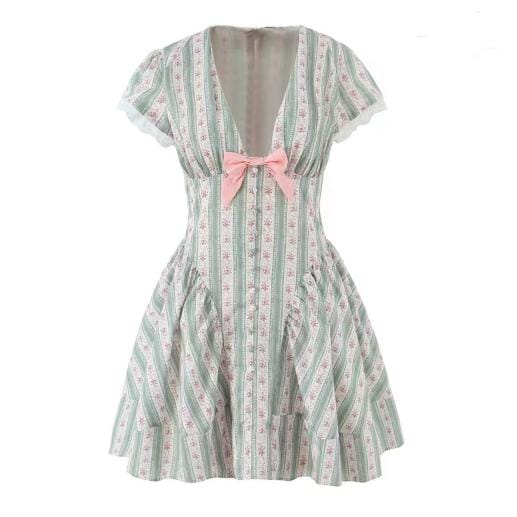
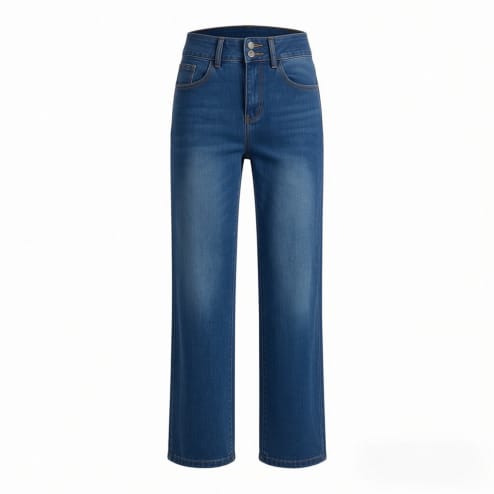
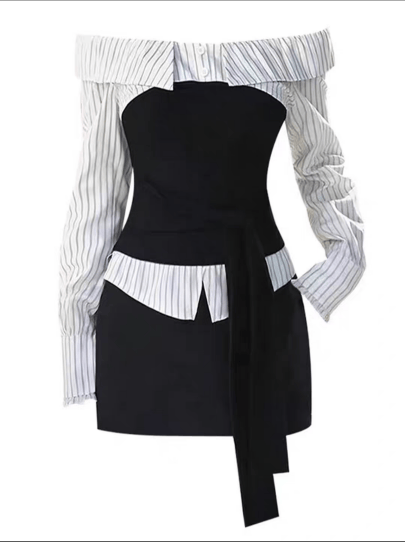
Judge volume by garment type. A fitted dress, soft knit, and rigid denim should not share the same inflated shape. Then scan the surface: prints should continue cleanly, and pockets, seams, zippers, buttons, embroidery, and labels must stay in their original positions.
How to Photograph Clothing for a Ghost Mannequin App
A hanger photo or flat lay can work. What matters is whether the source gives the app a complete, undistorted view of the product.
- Show the whole garment. Do not crop cuffs, shoulders, waistbands, or hems from the source.
- Use even, neutral light. Strong shadows and mixed-color lighting make the real color harder to interpret.
- Reduce obstruction. Keep hands, props, packaging, and other garments away from the item.
- Separate similar colors. Choose a background that gives the garment edge enough contrast.
- Smooth only distracting folds. Keep the garment's real construction and drape rather than forcing it unnaturally flat.
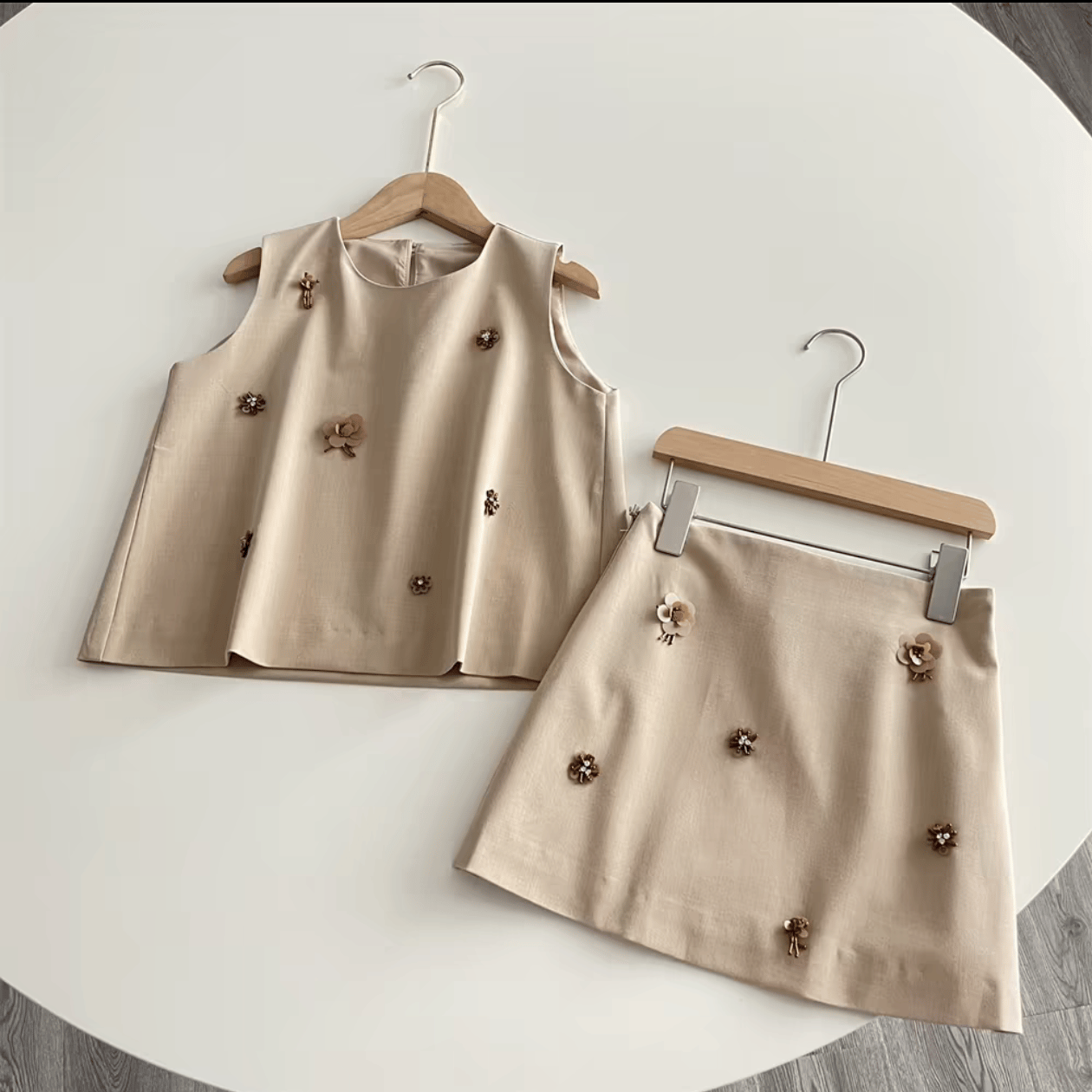
Clean the phone lens, turn off filters, use broad window light instead of direct flash, and keep the camera parallel to the garment. For a flat lay, separate the sleeves and straighten the center line without stretching the fabric. For a hanger shot, support the shoulders and keep clips away from decorative areas. The flat lay photography guide covers lighting and camera position in more detail. Upload the camera-original file, not a compressed messaging-app copy.
How to Use a Ghost Mannequin App on iPhone or Android
Snappyit is currently listed on the Apple App Store and Google Play. Open the ghost mannequin workflow and follow the three screens below.
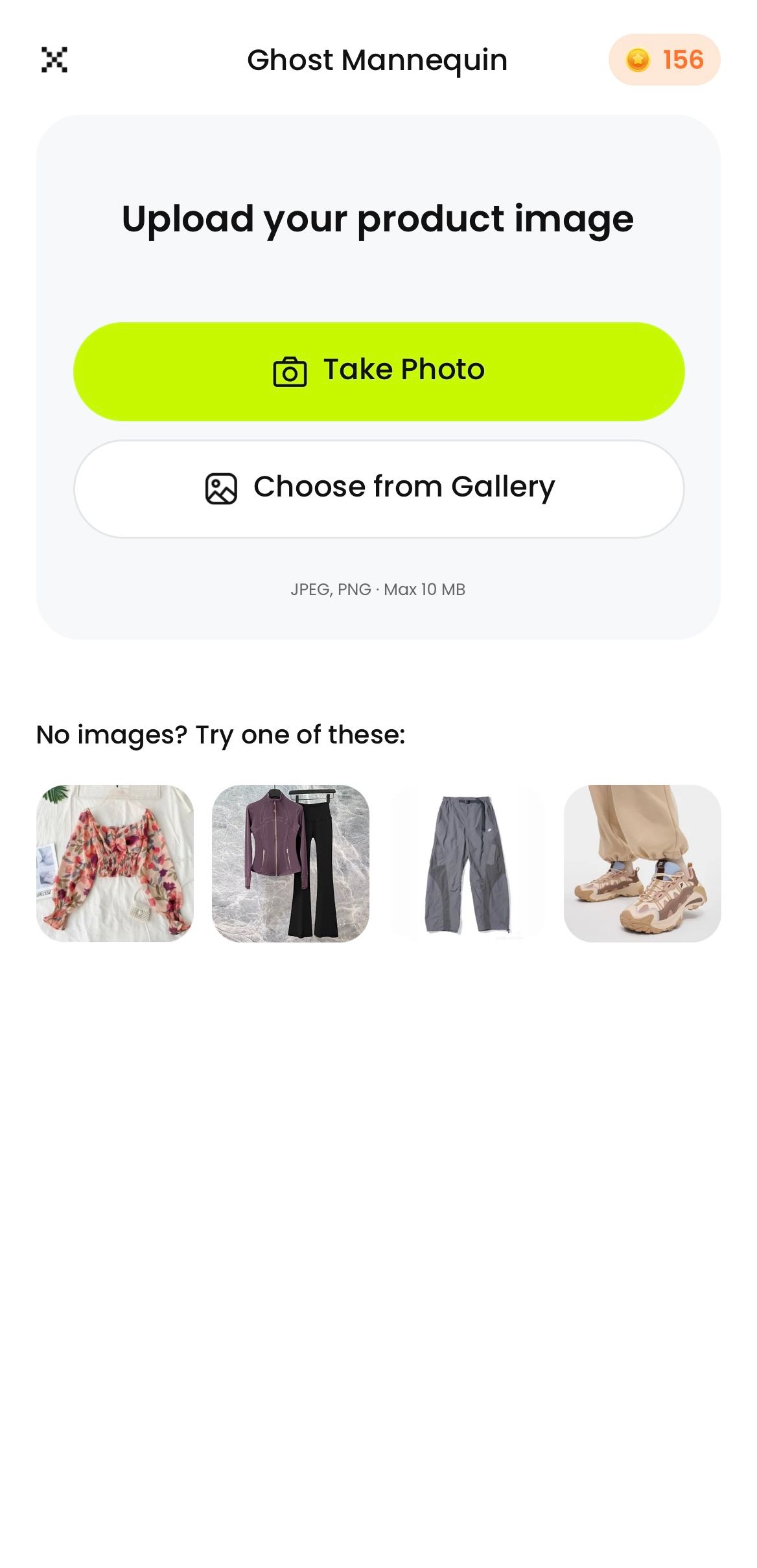
Upload a full-garment product photo
Take a new photo or choose the clearest original from your gallery. Avoid screenshots and social-media downloads.
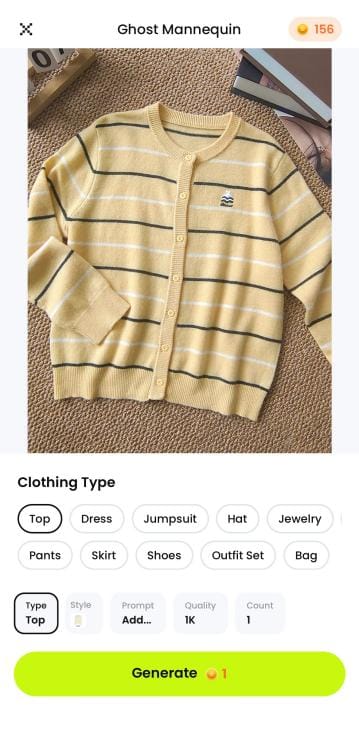
Choose the ghost mannequin settings
Confirm the preview, select the category that matches the SKU—Top for this cardigan—and review the displayed options before generating.
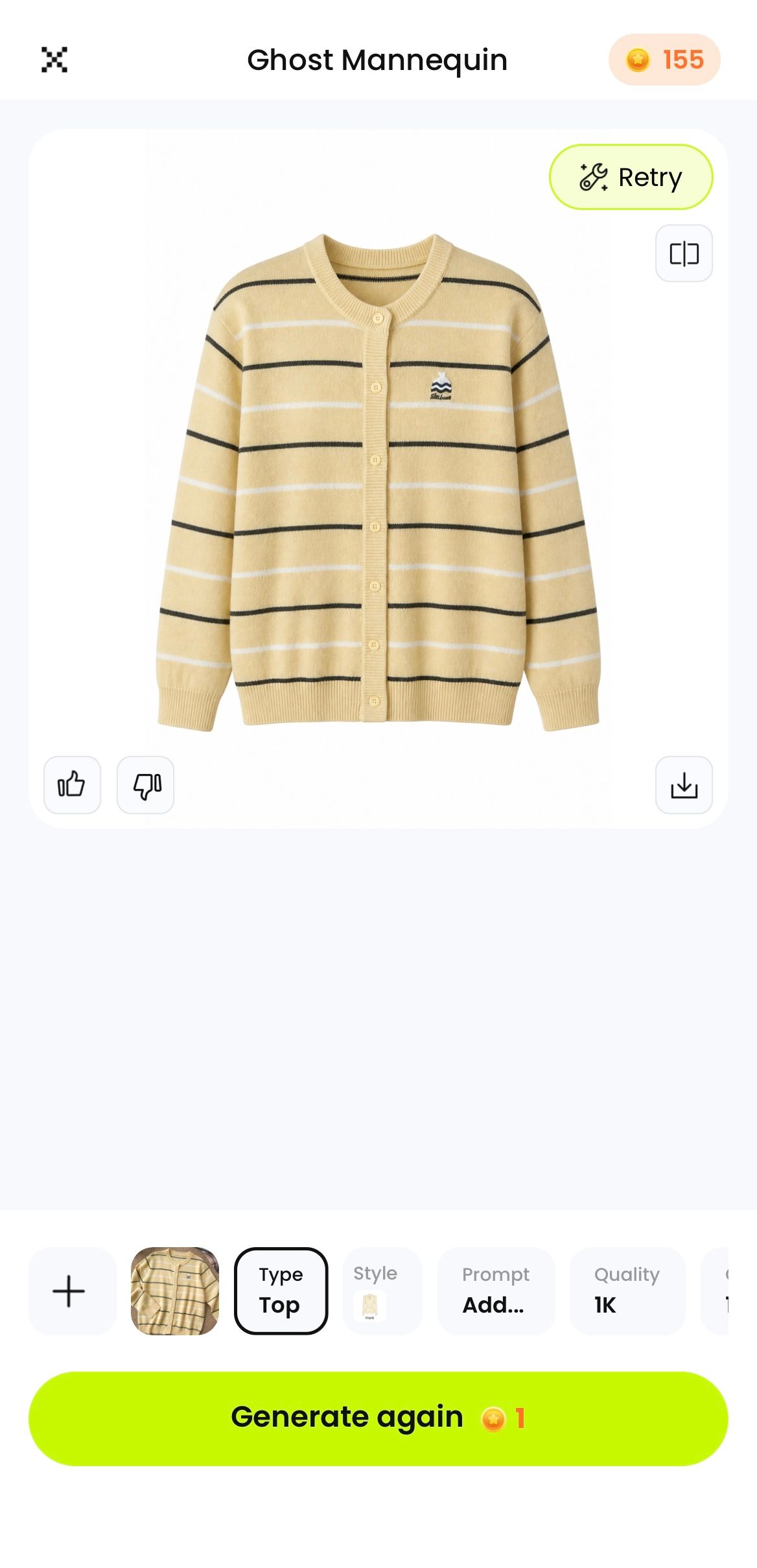
Generate and inspect the result
In this documented test, the preview appeared in about 10 seconds. Treat that as an observed example, not a guaranteed processing time, and compare the result with the source at full size.
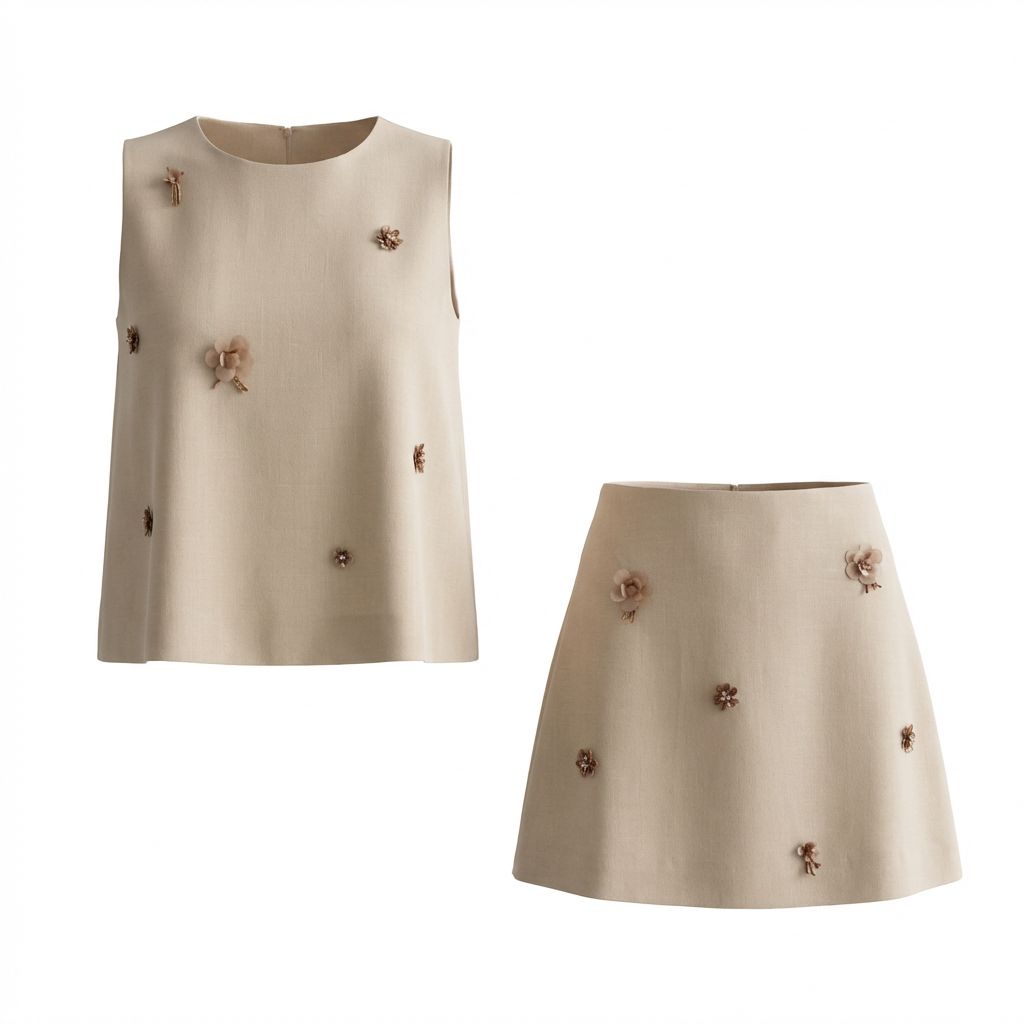
Choose only the views that add useful product information. A straight-on image makes the outline easy to read, while an angled view can show sleeve openings, shoulder depth, and body volume. Approve each angle on its own.
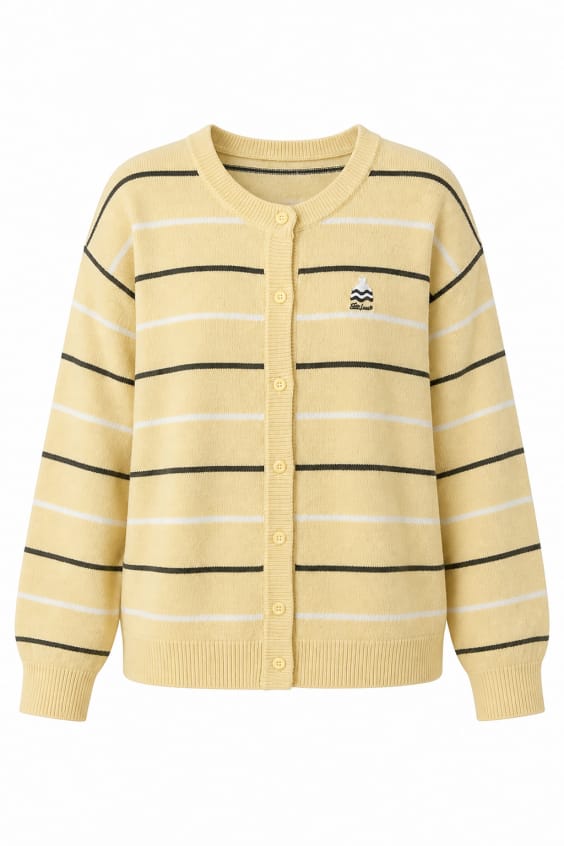
Useful for the main product image and straight-on detail checks.
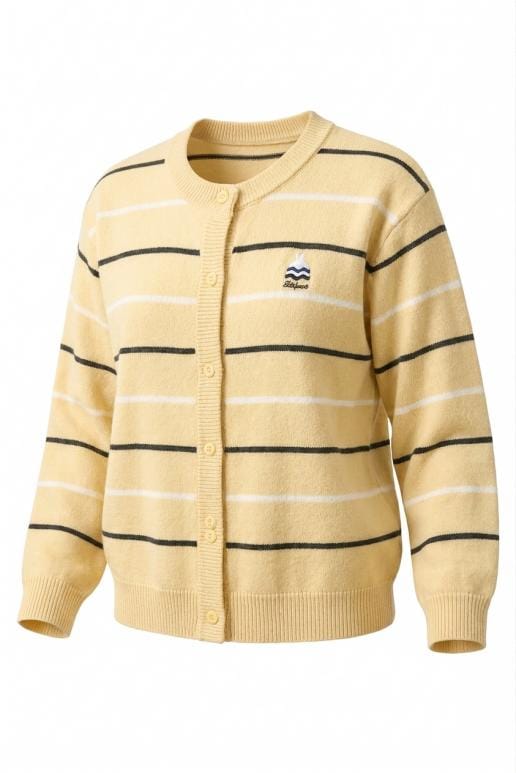
Useful for depth, sleeve opening, shoulder, and silhouette checks.
App Store feedback on product-image quality
5.0App Store review
“The ghost mannequin and fashion model features produce high quality product images. The generated images are sharp, natural and ready for listing with minimal editing.”
August 18, 2026View on the App Store
Ghost Mannequin Quality-Control Checklist for Ecommerce
Never approve from the thumbnail. Open the source and generated image at full size, compare the same area in each, and use the same sequence for every SKU in a batch.
Check the neckline and sleeve openings
Compare collar width, opening depth, inner edges, cuffs, and the position of the top fastening. Hollow areas should have believable depth without looking cut out. On the cardigan, the round ribbed collar and black shoulder stripe should remain continuous and centered.
Compare silhouette and proportions
Check shoulder width, body length, sleeve volume, side seams, and hem shape. An angled view can make one sleeve appear closer, but it should not change the garment's underlying construction or apparent size.
Verify color, print, and SKU details
Count buttons, compare pocket and logo placement, and follow stripes or repeated prints across seams. Review color on the same display at similar brightness. A visually clean result is still unsuitable if it changes a recognizable product detail.
Approve every listing angle separately
Do a final zoomed-out silhouette check, then repeat the detail review for each view. If you do not know the item well, ask the inventory or listing owner to approve it. The guide to traditional ghost mannequin photography versus an AI workflow explains why generated output still needs SKU-level approval.
The original garment is the product record. The generated image is publishable only when it describes that same item accurately.
Common AI Ghost Mannequin Problems and Fixes
First decide whether the source hid product information or the app misread a clear detail. That choice tells you whether to reshoot or retry.
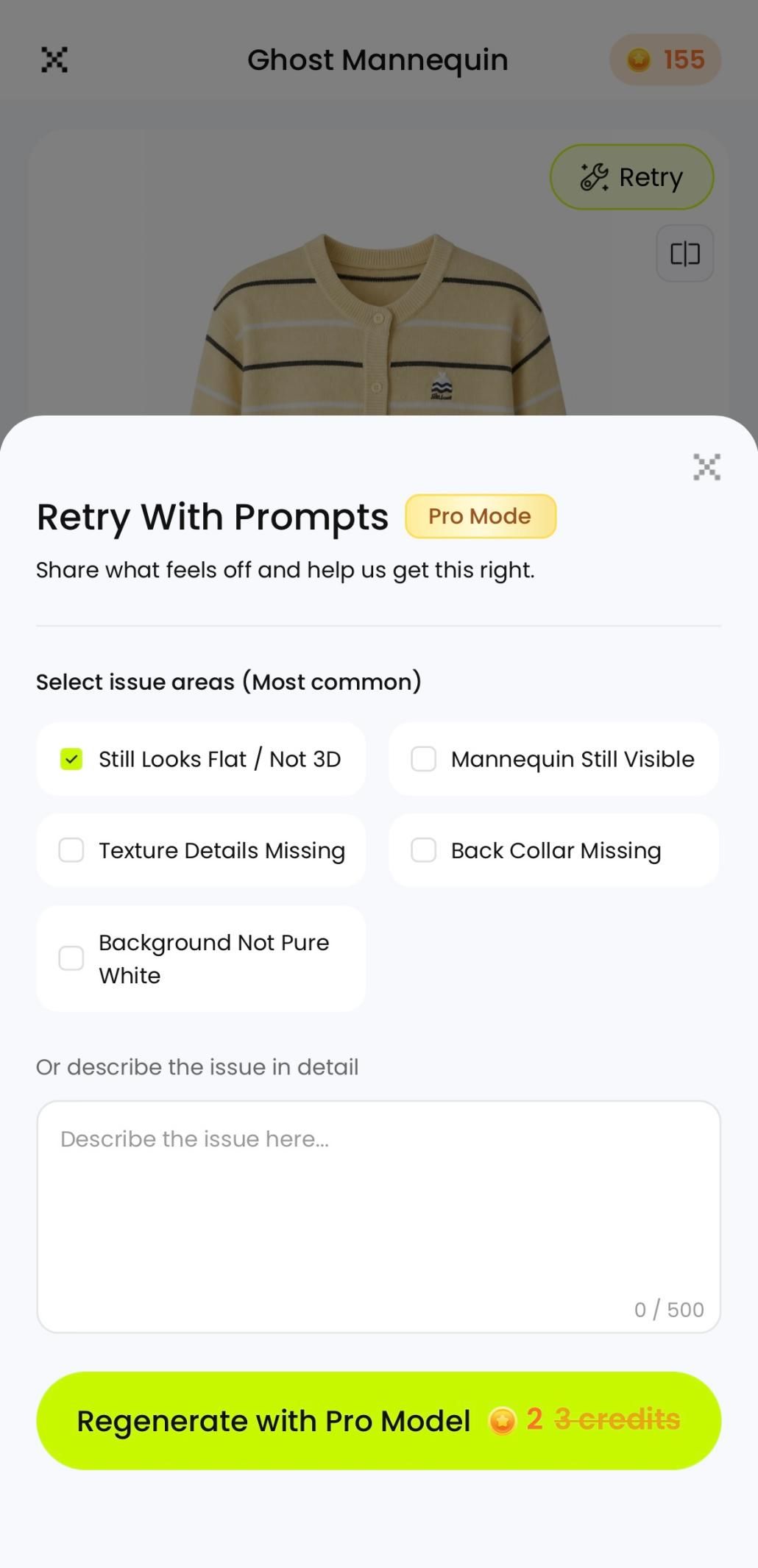
Reshoot when the source hides the product
Take a new photo when a cuff is cropped, the collar is covered, several pieces overlap, or the garment edge disappears into the background. A prompt cannot reliably reconstruct product information the camera never captured.
Retry when the app changes a clear detail
Regenerate when a clean source produces a warped stripe, invented button, incorrect logo, inflated body, uneven hem, or unwanted background. Compare alternatives from the same source so you can isolate the generation error.
Describe one correction at a time
Use a specific instruction such as “restore the back collar and keep the black stripe straight.” Broad requests for a “better” image give the app less useful direction.
How to Export Ghost Mannequin Images for Ecommerce
Finish quality control before resizing or compressing.
- Download the approved angle. Keep front and angled views as separate files with clear SKU-based names.
- Keep a master. Preserve the largest approved output before making smaller listing versions.
- Match the storefront canvas. Confirm current dimensions, aspect ratio, background, and file-size limits for the destination.
- Choose a practical format. JPEG works well for solid-background product photos; PNG is useful when transparency is required and supported.
- Check after upload. Marketplace processing can resize or compress images. Open the live product page on a phone and desktop, then check the main image, thumbnail crop, zoom view, and gallery carousel for softness, clipping, color shifts, or controls covering the hem.
Requirements change, so use current first-party documentation rather than copying one fixed size across every store. Check Google's current Merchant product image fields and your storefront's own guidance, such as Shopify's product media guide. If you need several canvases, resize a copy for each sales channel and check every exported file.
Ghost Mannequin vs Model Photos for Product Listings
These formats answer different shopper questions. Ghost mannequin images isolate construction and silhouette; model photos communicate fit, scale, styling, and context. Most apparel listings are clearer when each format has a defined job.
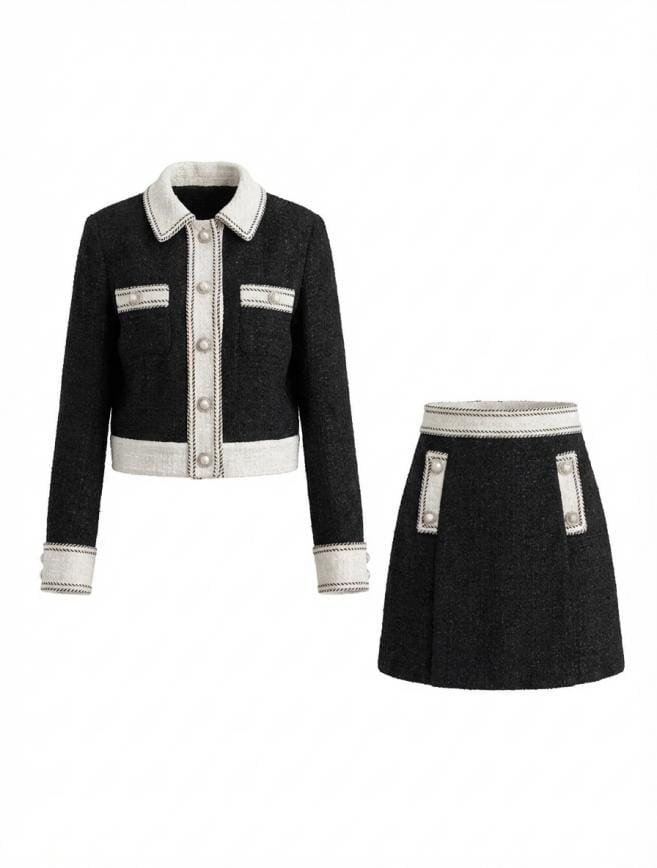
Use ghost mannequin product photos when…
- The garment itself should be the visual focus.
- You want a consistent catalog across many SKUs.
- Shoppers need a clear view of shape, neckline, seams, or detailing.
- You need clean front and angled views without a physical mannequin shoot.
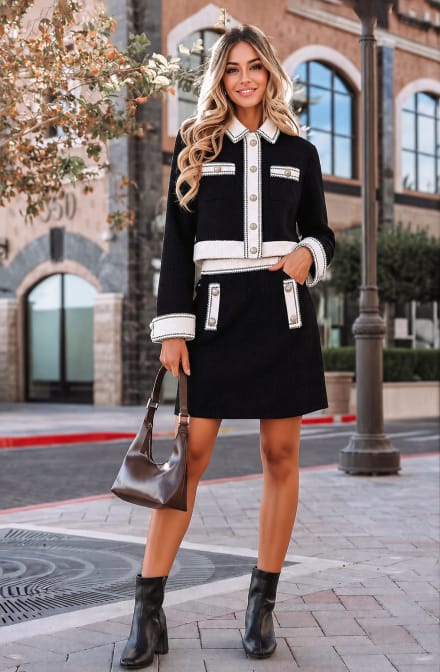
Use model product photos when…
- Fit and body scale are central to the buying decision.
- Styling, movement, or occasion helps explain the product.
- You need lifestyle or campaign imagery.
- Drape is difficult to understand without a body reference.
Fit-sensitive products—oversized knitwear, stretch garments, long coats, and unusual drape—usually need an on-body reference as well as a ghost view. Add a planned shoot or carefully reviewed fashion model workflow, plus a size chart and written measurements.
Assign each image a job: ghost mannequin for construction, another angle for depth, close-ups for material and details, and a model view for fit. Use the same image mix and approval checklist across the catalog; the broader AI product photography workflow shows how the formats work together.
Ghost Mannequin App FAQs for Ecommerce Sellers
What is the ghost mannequin effect in product photography?
Ghost mannequin photography is a product-image style that gives a garment a three-dimensional worn shape without showing a model, mannequin, or hanger. It is also called invisible mannequin photography, hollow man photography, or the hollow mannequin effect. Traditional production usually combines mannequin shots with separate views of hidden areas, while AI tools can create a similar catalog presentation from a clear flat-lay or hanger photo. Whichever method you use, compare the final image with the physical SKU before publishing.
Is there a ghost mannequin app for iPhone and Android?
Yes. Snappyit is listed on both the Apple App Store and Google Play. Open Ghost Mannequin, upload a clear flat-lay or hanger photo, and review each generated view against the physical product before publishing.
Can an AI ghost mannequin app work from one clothing photo?
Yes. Snappyit can generate a ghost mannequin view from one clear garment photo. The source should show the entire item with minimal obstruction. Compare the output with the physical SKU before using it in a listing.
What source photo works best for ghost mannequin product photography?
Use a sharp, evenly lit photo with the entire garment visible and clearly separated from the background. A clean hanger or flat-lay image gives the app more usable product information than a photo with hands, props, deep folds, or overlapping items.
How long does a ghost mannequin image take to generate on a phone?
In the documented phone test for this guide, the preview appeared in about 10 seconds. This is an observed example, not a guaranteed processing time; the source image, settings, connection, and service conditions can change it.
Can I create front and angled ghost mannequin product images?
Yes. The workflow documented here produced a straight-on view and an angled view. Inspect every generated angle separately because the neckline, sleeve openings, print, logo, and hem can be interpreted differently.
What file format should ecommerce sellers use for ghost mannequin photos?
Use the format accepted by your sales channel. JPEG is practical for a solid-background product image, while PNG is useful when transparency is required and supported. Keep a high-resolution master and check current dimensions, aspect ratio, color, and file-size rules before publishing.
References
- Apple App Store: Snappyit — AI Product Photos — iPhone availability, Ghost Mannequin feature information, and the cited customer review.
- Google Play: Snappyit — AI Product Photos — Android availability and current app listing.
- Google for Developers: Merchant API ProductInput reference — product image fields used in merchant data.
- Shopify Help Center: Product media types — current storefront product-media guidance.