



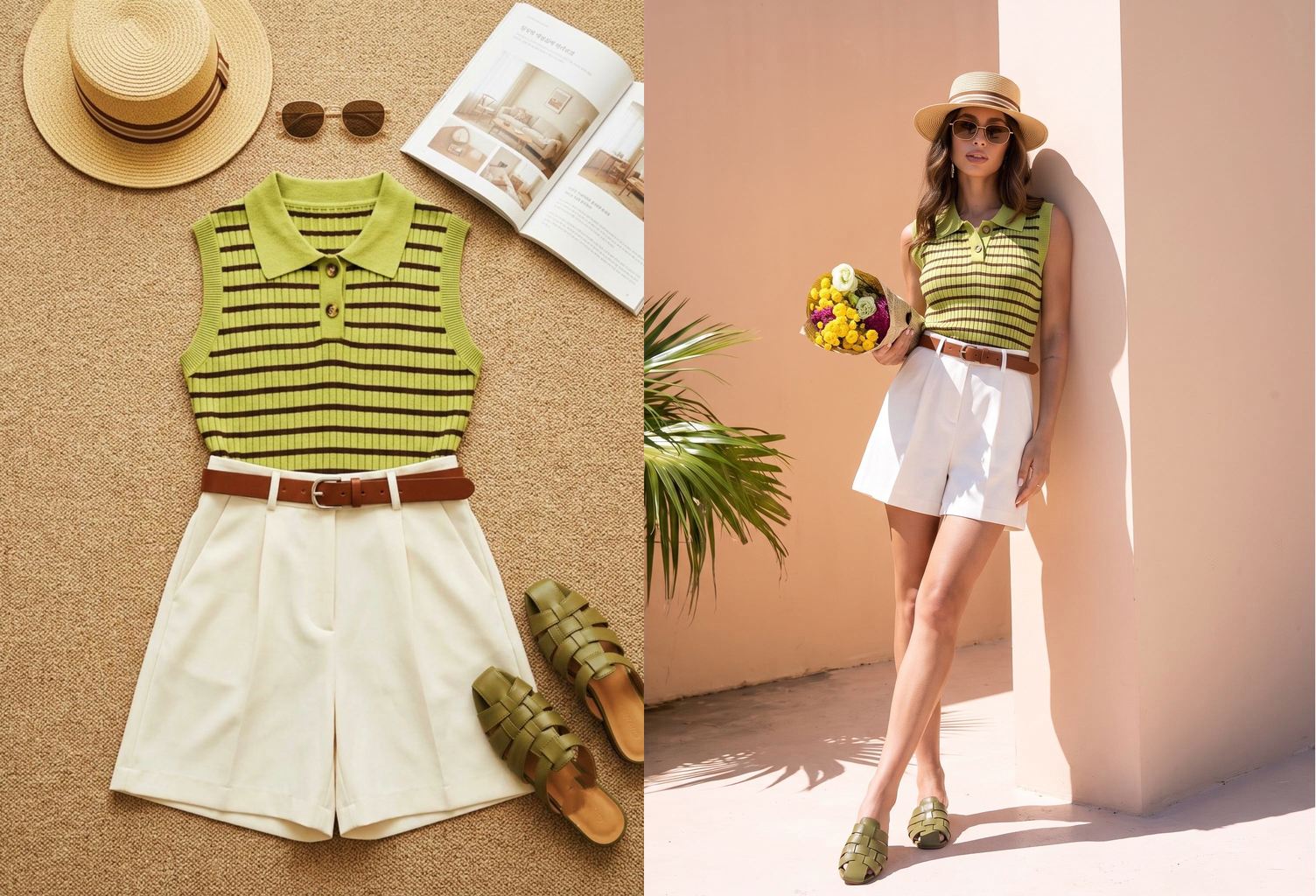
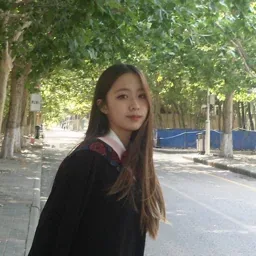
AI clothes changer vs virtual try-on: choose the right workflow
An AI clothes changer generates a new wearing presentation from clothing and model references. For ecommerce sellers, that phrase can describe two different inputs:
- Person photo + garment photo: a virtual try-on workflow that attempts to place the garment on a specific person.
- Garment photo + AI model: a product-photography workflow that turns a flat-lay, hanger, or supplier image into a new on-model image.
The Snappyit example below uses the second workflow. If you need to dress an existing person photo, confirm that the tool accepts both inputs; the AI clothes changer comparison for ecommerce sellers separates garment-to-model tools from person-photo try-on tools.
Why ecommerce sellers use AI fashion models
A garment-to-model generator can help a small catalog team test model choices, poses, crops, and settings before committing to a full shoot. It is most useful for secondary listing images, campaign concepts, social content, and visual briefs when a seller already has a real product photo but not an on-model asset.
The output is still a generated image, so speed does not remove the need for product review. Treat it as one part of an ecommerce product photography workflow, alongside accurate flat-lays, back views, detail shots, and size information.
How to prepare a garment photo for AI
Use a source that shows the product evidence a shopper will care about. If a neckline, fastening, print, or hem is blurred or hidden, do not assume the generator will reconstruct it accurately.
Garment photo checklist
- Show the whole garment. Keep the neckline, sleeves, side seams, hem, and fastenings inside the frame.
- Photograph it front-on. Prefer a clean flat-lay or straight hanging view over a steep angle.
- Use even light. Avoid deep shadows and mixed light that can obscure details or shift perceived color.
- Reduce clutter. Keep hands, packaging, and unrelated products away from the garment outline.
- Check the file at full size. If the print, stitching, or logo is already soft, choose a sharper source.
For person-photo virtual try-on, also keep the body outline visible. Crossed arms, hair over the neckline, bags, or bulky outerwear can hide the area the tool needs to replace. Resellers working from phone-shot inventory can use the clothing photography guide for resale listings before generating model images.
How to put clothes on an AI model with Snappyit
Crop excess background without cutting into the product. If the photo contains several pieces, keep their edges distinct unless you want them treated as one outfit.
- Open Fashion Model and upload the garment. Use a clear flat-lay or hanging image with the full item visible.
- Choose a model. Select a pose and framing that suit the garment and the rest of the listing.
- Generate the on-model image. Review the result rather than treating the first output as final.
- Compare source and result. Check product details at full size, not only in the workbench preview.
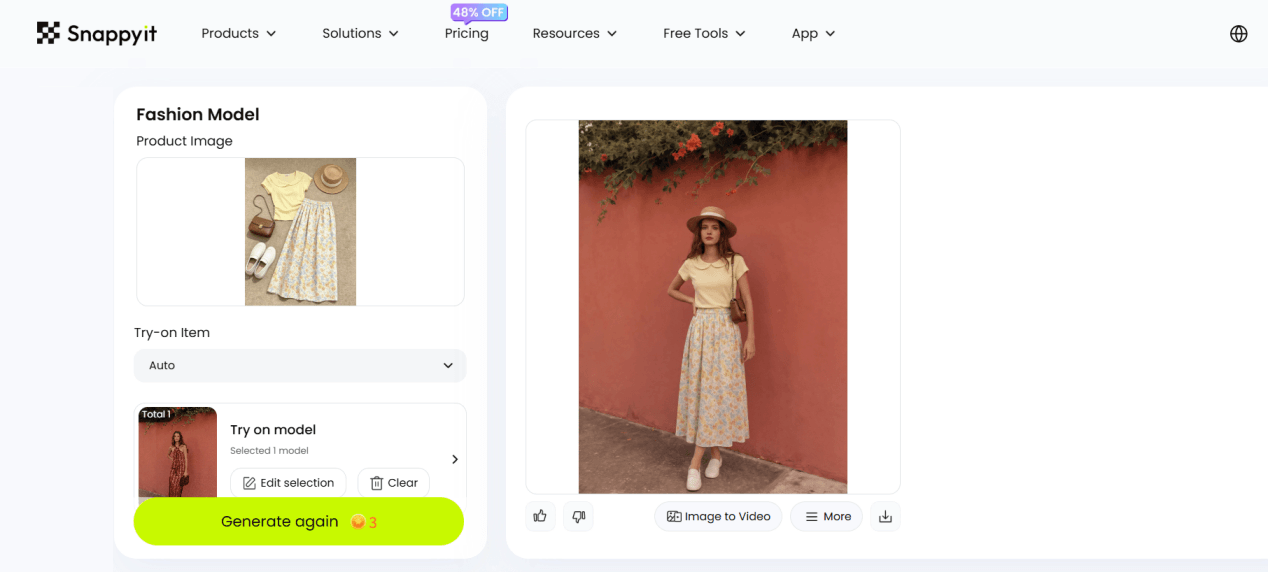
Start with one front-facing result and save the source beside it. Matching the two files at a similar viewing size makes changes in sleeve length, waist position, print scale, and color easier to notice.
The example below starts with a yellow top and floral skirt. The generated image places both pieces on a model and adds a pose, accessories, and a setting.
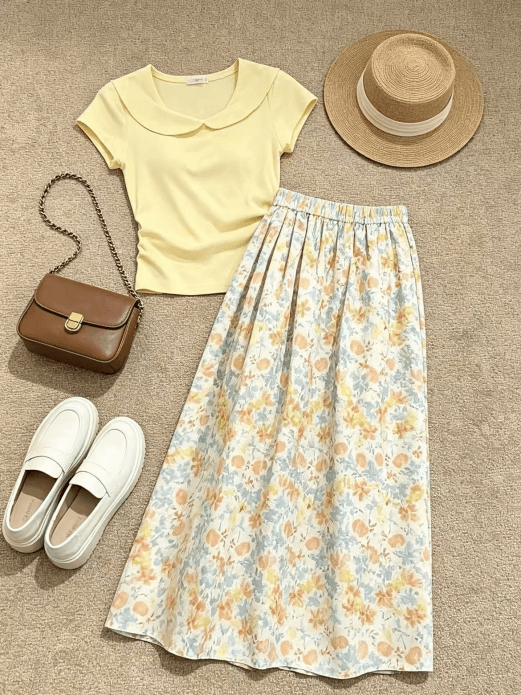
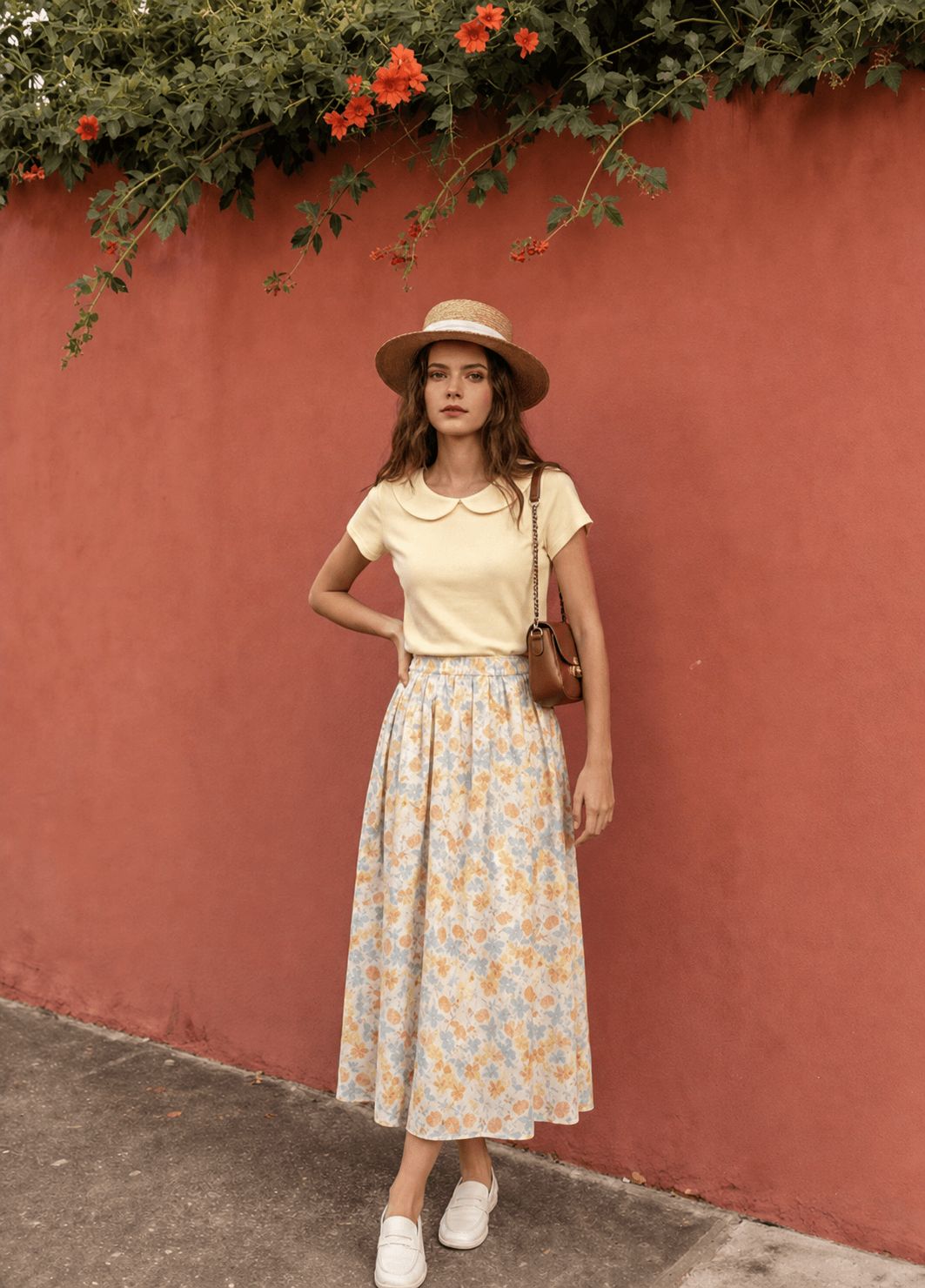
The color pairing and overall floral pattern carry through, but the pose changes how the skirt hangs. The hat, bag, shoes, background, waistband tension, and some folds are generated. Use this image to communicate styling, not as measured evidence of exact fit or length.
Keep accurate flat-lays, back views, and close-ups in the listing so shoppers do not have to infer every product fact from one generated frame.
Put your garment on an AI model →
How to create AI fashion model photos on your phone
In the Snappyit app, the garment-to-model workflow uses three screens. Begin with a straight, evenly lit image that shows the complete garment or outfit.
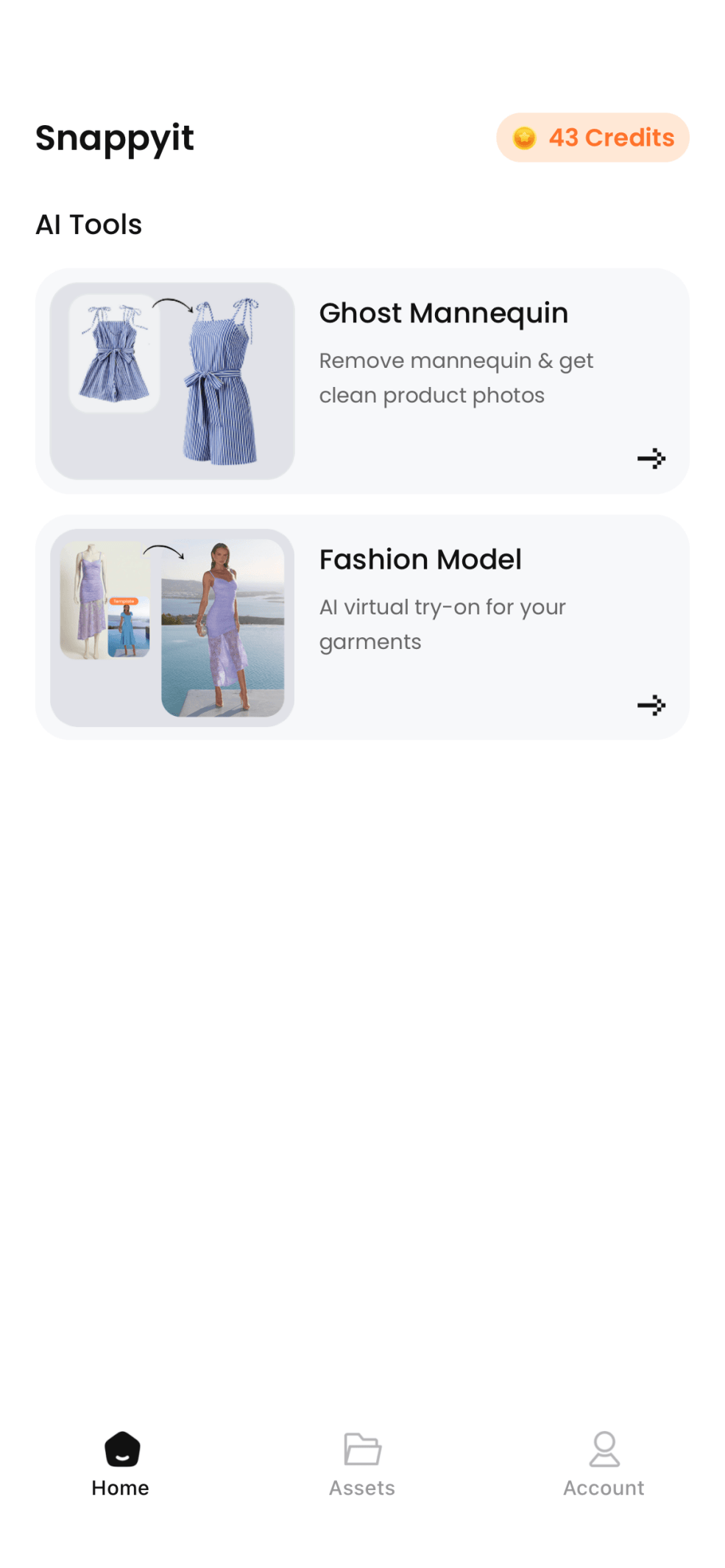
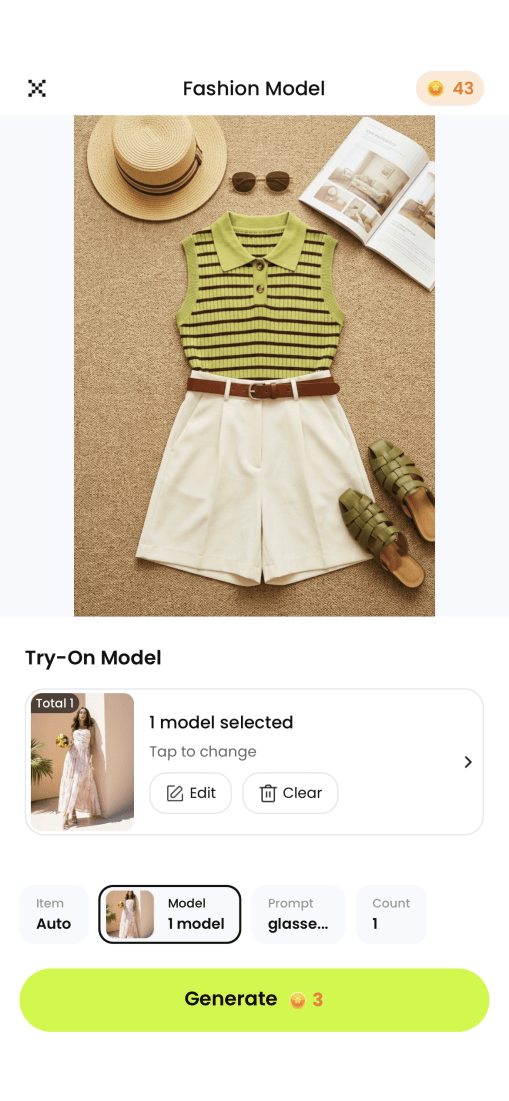
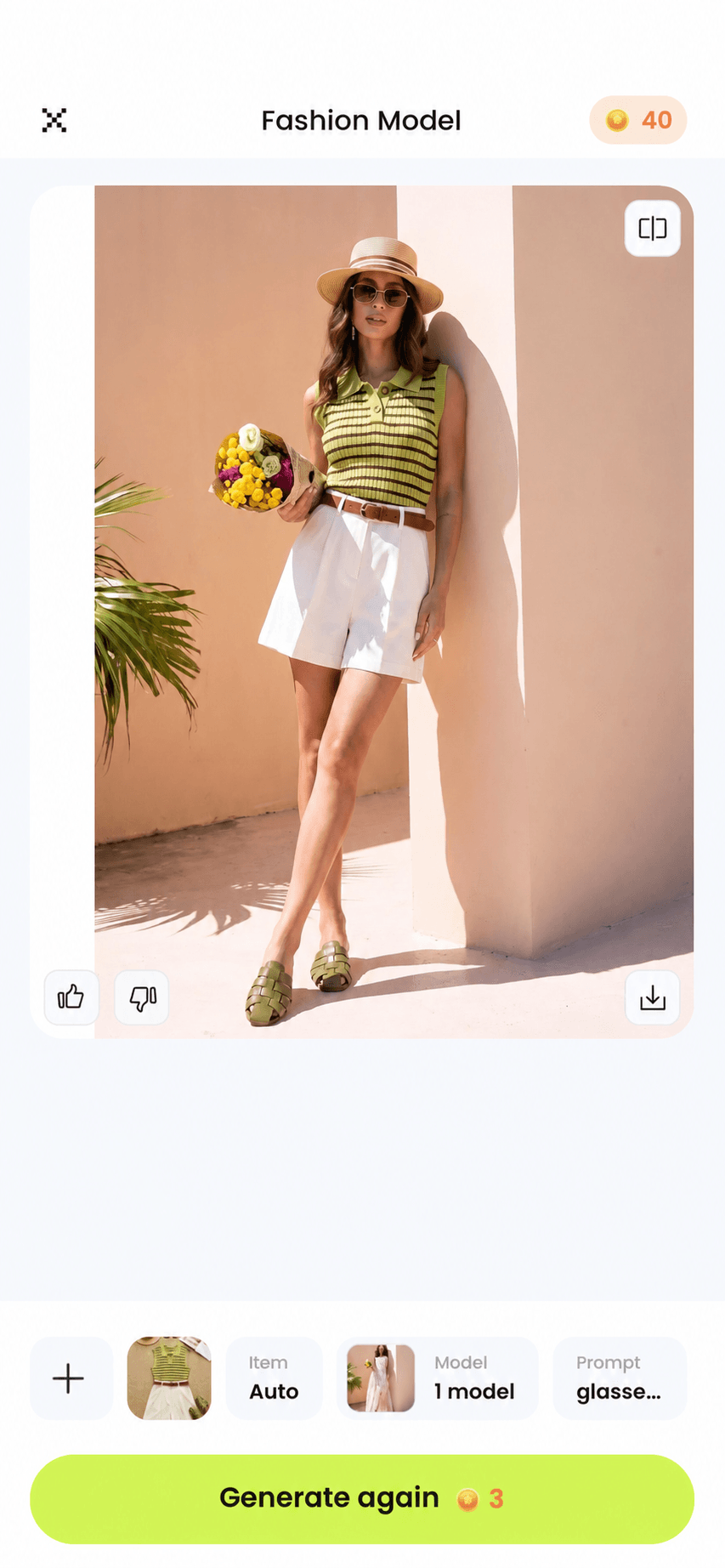
Open the result at full size. Pinch to zoom around the collar, stripes, belt, waist, and hem, then compare those areas with the original outfit.
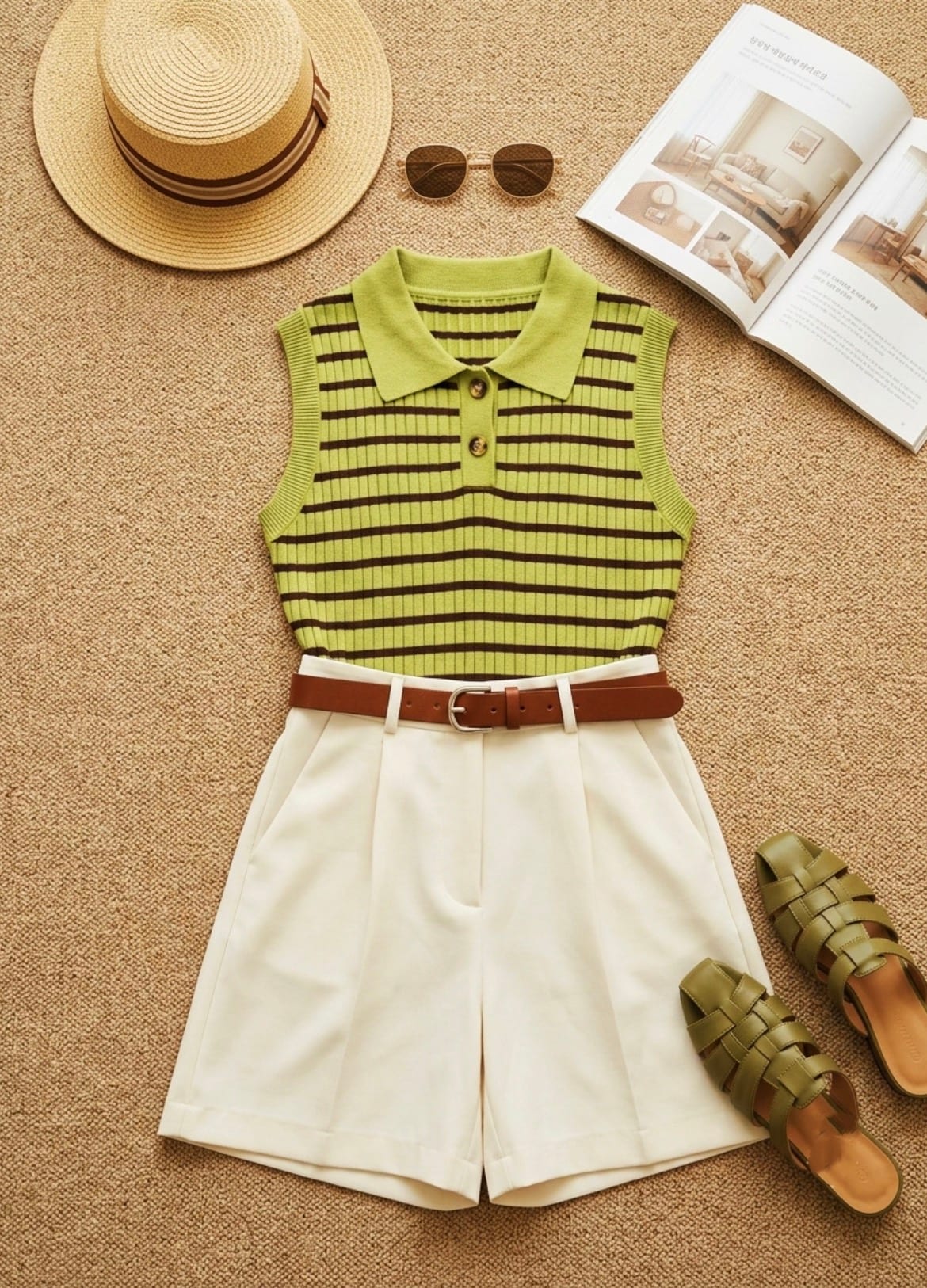
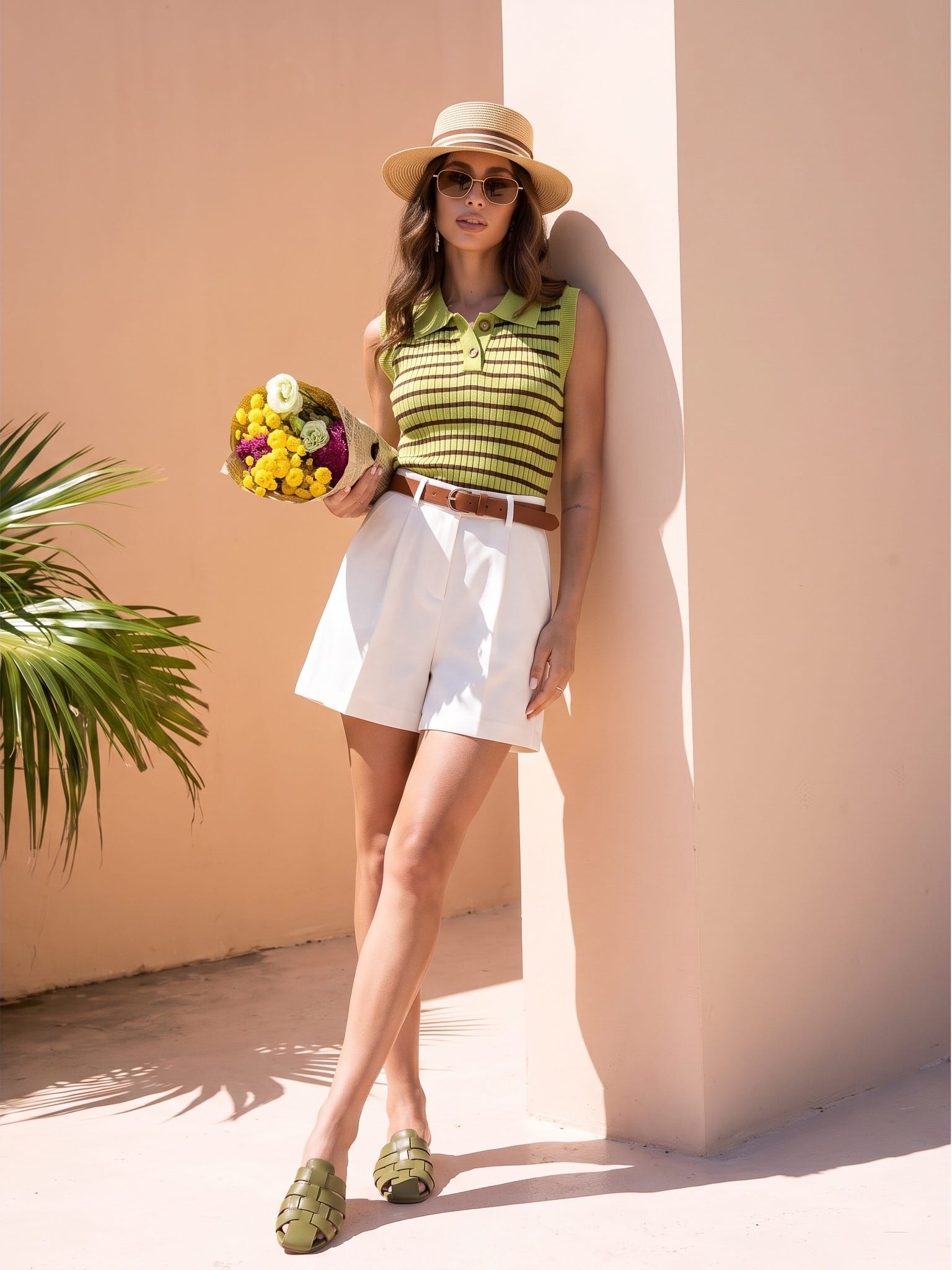
Save approved images separately from drafts. If the product source is unclear, retake it instead of building more versions from the same weak input. The mobile AI fashion model tutorial covers model selection and framing in more detail.
AI product photo quality checklist
Compare the source and result side by side. Check the product before judging the face, pose, or background:
- Neckline and collar: shape, depth, lapels, buttons, and inner layers.
- Sleeves: length, cuffs, volume, and where they meet the shoulder.
- Seams and fastenings: zips, button count, darts, waistbands, and pocket placement.
- Prints, logos, and text: scale, direction, repetition, spelling, and placement.
- Hem and proportions: garment length, rise, waist position, and overall silhouette.
- Color and fabric: color drift, lost texture, or a change from soft to rigid structure.
- Occluded areas: hands, hair, bags, and limbs that conceal or distort the garment.
A repeatable seller QA pass
First review the image at normal listing size for silhouette and obvious artifacts. Then zoom from neckline to hem and compare one feature at a time: count buttons, trace seams, and match recognizable parts of a print. Use the physical garment or an approved sample as the final reference. Reject or regenerate any image that changes a selling detail.
Common AI clothes changer problems and fixes
| Problem | What to try |
|---|---|
| The garment shape changes | Use a straighter, fuller source image and choose a less extreme pose. |
| A print or logo warps | Upload a sharper source. If the detail still changes, reject the result or correct it in a controlled editing workflow. |
| Hands merge into sleeves or waist | Choose a pose with the hands away from the garment, then regenerate. |
| The color drifts | Start with neutral, even lighting and compare the output with the physical product under controlled light. |
| The fit looks unrealistic | Try a model or pose closer to the garment's intended cut. Avoid presenting generated fit as a measurement. |
| The person looks good but the product is wrong | Judge the product first. A natural face and pose cannot compensate for inaccurate clothing. |
If the same error repeats, change the source image or model pose before generating again. More attempts do not add product detail that is missing from the input.
Where AI clothes changers fit in an ecommerce workflow
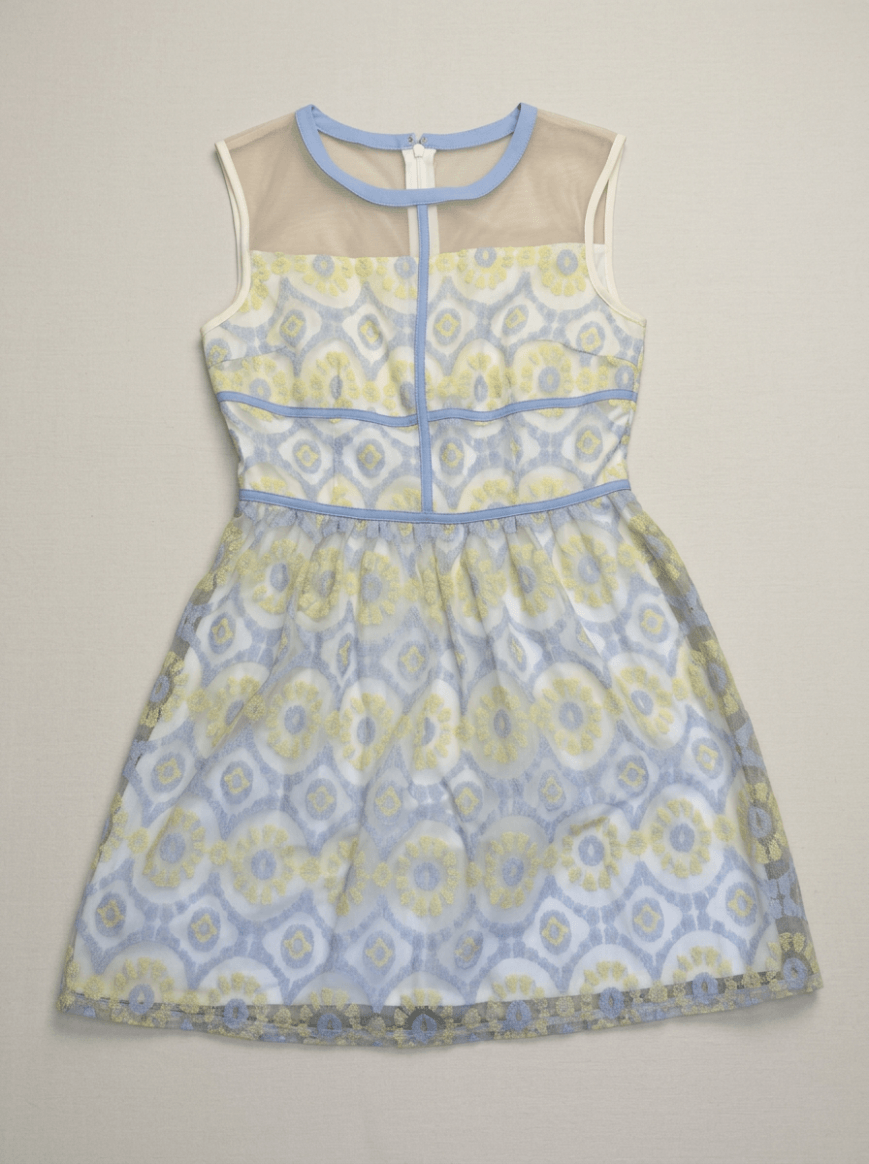
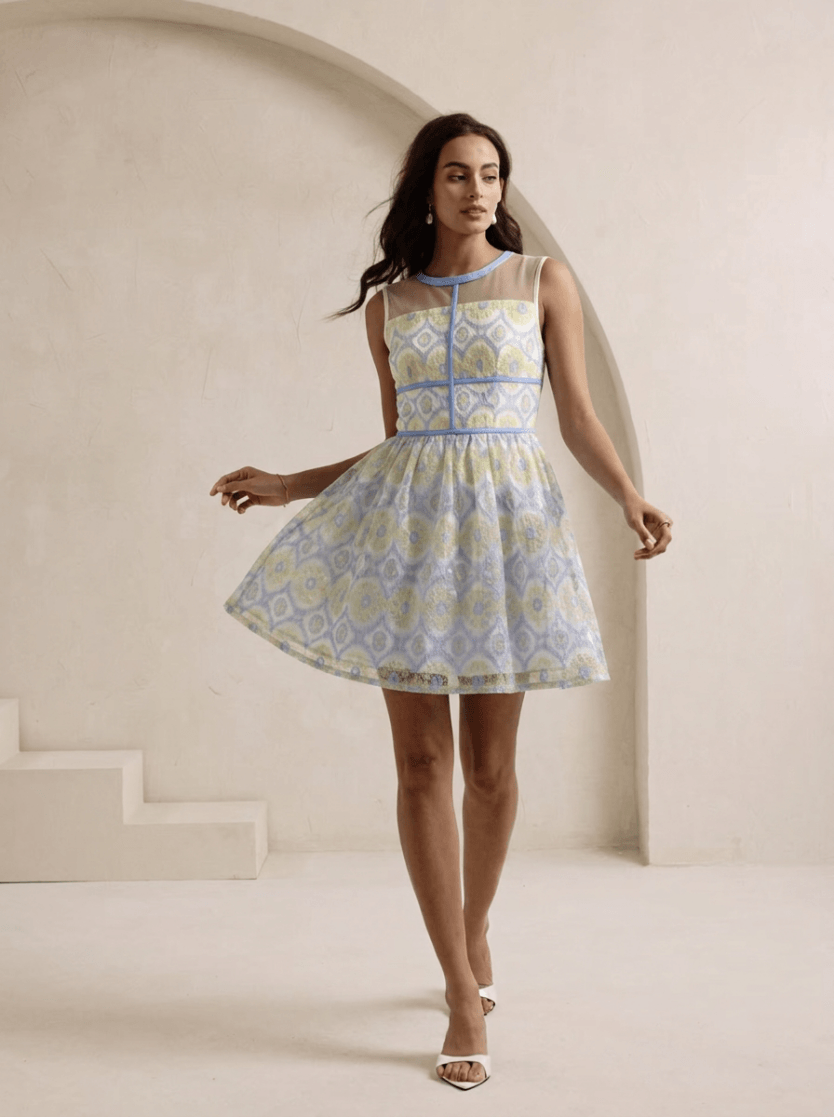
Use an on-model generator for creative testing, secondary listing images, social posts, or a visual brief for a later shoot. It can also help a team compare styling directions before applying one look across several SKUs.
Do not use a generated frame as the only evidence for exact fit, technical construction, regulated claims, or small branding details. For those decisions, keep conventional product photography or controlled retouching in the workflow.
AI clothes changer vs recoloring vs ghost mannequin
- AI clothes changer: creates a different on-person or on-model presentation from garment and model references.
- AI recoloring: changes a product color in an existing image; it does not put the item on a new model. See the AI product recoloring guide.
- Ghost mannequin: removes the visible model or support to create a hollow garment view. See ghost mannequin photography for ecommerce.
Marketplace rules and commercial-use checks
There is no universal rule that makes every AI-generated clothing image either accepted or prohibited. Requirements vary by marketplace, category, region, and whether the image is the main or an additional listing image. Review the current seller guidance before upload; Amazon Seller Central may require an account to view its full policy. The official sources below cover Amazon, Etsy, and eBay image guidance.
Accuracy is a separate requirement from file format or composition. Do not use an attractive result if it misrepresents the item; the FTC's business guidance says advertising must be truthful and not misleading. Also confirm the generation tool's commercial-use terms and your right to upload any garment or person image.
Frequently Asked Questions
What does an AI clothes changer do for ecommerce product photos?
It generates a new image in which a person or AI model wears a different garment. For ecommerce, the usual goal is to turn a flat-lay, hanger, or supplier photo into an on-model product image. Some tools instead require both a person photo and a garment photo.
Can I put clothes on an AI model from one product photo?
Yes. A garment-to-model tool can start with one clear clothing photo. In Snappyit Fashion Model, upload the garment, choose a model, generate an image, and compare it with the source before using it in a product listing.
Can I change clothes in my own photo with AI?
Only if the tool supports person-photo virtual try-on. That workflow needs both the person image and a garment reference. The Snappyit workflow demonstrated here starts with a garment photo and a selected AI model, so check the input fields before choosing a tool.
What garment photo works best for an AI fashion model?
Use a sharp, front-facing photo with even light and little background clutter. Keep the full outline, sleeves, neckline, hem, print, and fastenings visible. A clean flat-lay or hanging photo gives the generator more product evidence than a folded or partly hidden garment.
Will an AI clothes changer preserve product details exactly?
Not always. Treat the result as a generated presentation, not proof of exact fit or construction. Compare the neckline, sleeves, seams, print, logo, color, and hem with the real garment, then reject or regenerate any image that changes a selling detail.
Why do AI clothing images have distorted hands, hems, or patterns?
Occlusion, a difficult pose, or missing detail in the source can leave the generator to infer part of the image. Try a clearer garment photo or a simpler pose, then inspect hands, edges, repeated patterns, text, and fastenings at full size.
Is an AI clothes changer the same as AI recoloring or ghost mannequin?
No. An AI clothes changer creates a different wearing presentation. AI recoloring changes a product's color in an existing image, while a ghost-mannequin workflow removes the visible model or support to create a hollow garment view.
Can ecommerce sellers use AI-generated clothing photos on marketplaces?
There is no universal yes or no. Requirements vary by marketplace, category, region, and image position. Check the current seller policy before publishing, use accurate product views, avoid misleading edits, and confirm that your tool plan grants the commercial rights you need.
References
Primary product information and official guidance used to check the workflow, listing-image boundaries, and accuracy recommendations in this article.
- Snappyit, AI Fashion Model Generator.
- Amazon Seller Central, Product image requirements.
- Etsy Help, Adding listing photos and video.
- eBay Help, Adding pictures to your listings.
- U.S. Federal Trade Commission, Advertising and marketing basics.
Create an on-model product image from one garment photo
Start with one clear product photo, generate one front-facing model image, and compare it with the real item. Approve the result only after the construction, print, color, and proportions pass review.







