
Jewelry Retouching 36 min read

How To Retouch Jewelry In Photoshop: Dust To Diamond Finish

A complete five-phase Photoshop workflow for jewelry retouching — from RAW processing and metal color correction to gemstone enhancement and export-ready files for every channel.

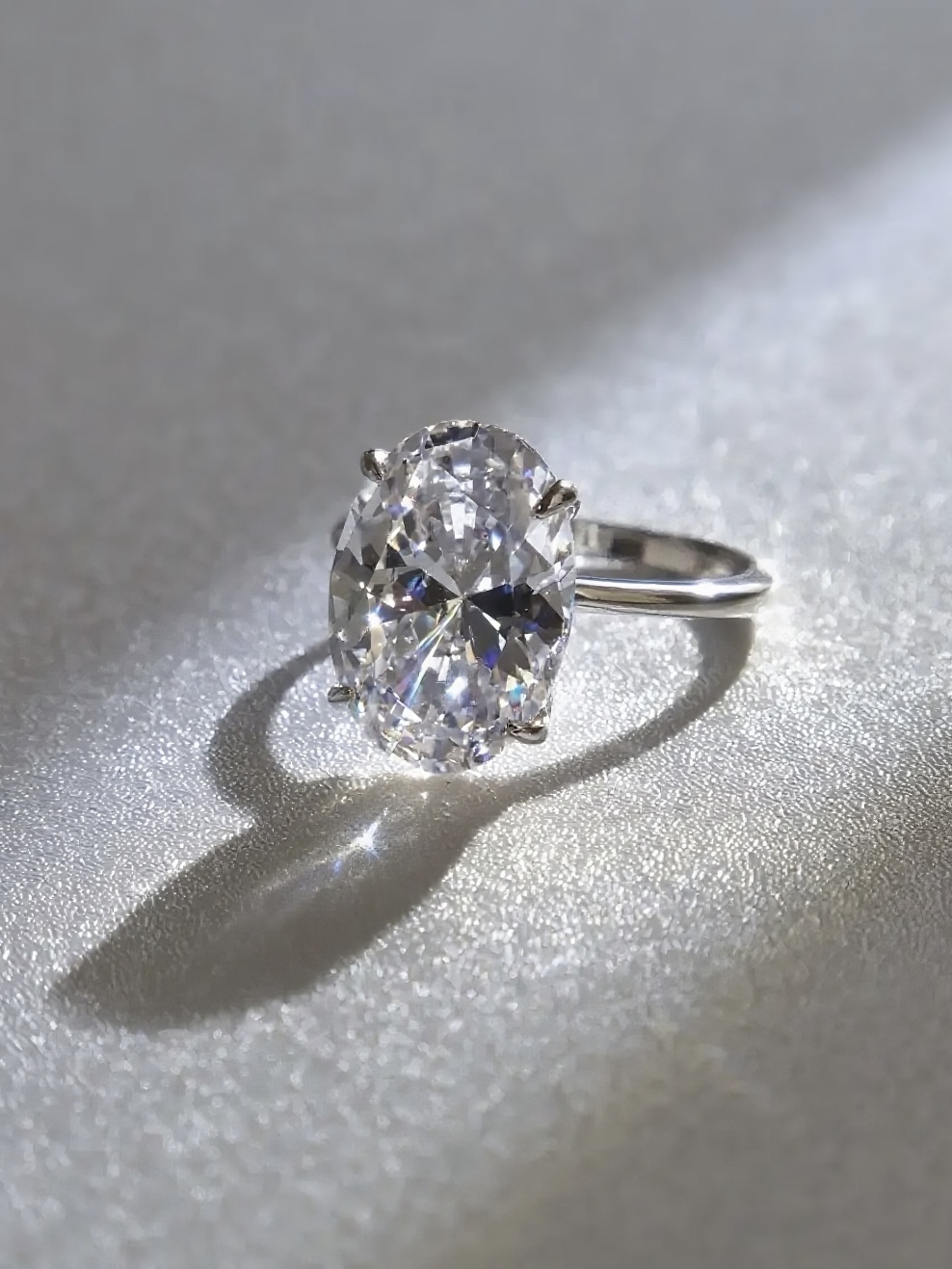
professional jewelry retouching workflow in photoshop showing a diamond ring being enhanced on a calibrated monitor

What Makes Jewelry Photo Retouching Different from Standard Editing

Imagine spending an hour photographing a diamond ring, only to open the image and find dust specks, dull metal, and lifeless gemstones staring back at you. Standard product editing tricks won't cut it here. Jewelry photo retouching is one of the most technically demanding specialties in post-production because you're working with materials that behave unpredictably on camera: highly reflective metals that mirror every object in the room, transparent gemstones that refract light in complex ways, and surface details so fine they're nearly invisible to the naked eye.

Generic brightness and contrast sliders can't solve these problems. A polished gold band requires different color handling than a matte silver pendant. A diamond's brilliance depends on precise tonal control inside individual facets. These challenges call for a structured, phase-based approach rather than a random collection of tips.

Why Jewelry Demands a Specialized Retouching Approach

This guide walks you through how to retouch jewelry in Photoshop using a clear five-phase workflow: prepare, clean, correct, enhance, and export. Each phase builds on the last, giving you a repeatable pipeline that produces consistent, professional results whether you're editing a single engagement ring or an entire e-commerce catalog. By the end, you'll have a complete non-destructive jewelry retouching process from RAW file to export-ready image, with type-specific guidance for rings, necklaces, earrings, bracelets, and watches along the way.

What You Will Need Before Starting

Before diving into jewelry photo editing, make sure you have the following ready:

  • Adobe Photoshop CC (with access to Adobe Camera Raw)
  • A calibrated monitor for accurate color representation
  • A RAW file or high-resolution JPEG of your jewelry piece
  • A graphics tablet such as a Wacom Intuos (recommended for precision brush work, but not required)

With your tools in place, the first real decision happens before Photoshop even opens its main workspace: getting the RAW processing right so your metals look true to life and your highlights aren't blown beyond recovery.

gold ring before and after raw processing showing accurate metal color correction and highlight recovery

Step 1 – RAW Processing and Metal Color Correction

Your RAW file holds far more tonal and color data than what you see in the default preview. Opening it directly in Photoshop's main workspace without first passing through Adobe Camera Raw (ACR) means leaving that data on the table. For jewelry raw processing in Photoshop, this step is where you lock in accurate metal tones, recover highlight detail on polished surfaces, and set a solid tonal foundation that every later adjustment depends on.

When you double-click a RAW file, Photoshop automatically launches the ACR dialog. If you're working with a JPEG, you can still access ACR by going to Filter > Camera Raw Filter, though you'll have less latitude for recovery. Either way, the goal here is the same: get the color and exposure as close to final as possible before any pixel-level retouching begins.

Setting White Balance for Accurate Metal Tones

White balance is the single most impactful adjustment for metal color correction in jewelry images. A slight shift in color temperature can make yellow gold look sickly green or turn platinum into a cold, lifeless gray. ACR gives you two ways to handle this, and knowing when to use each one matters.

If you shot with a gray card in the frame, select the White Balance Eyedropper tool in ACR's Basic panel and click directly on the gray card. Camera Raw reads the color of the light in the scene and adjusts the Temperature and Tint sliders to neutralize any cast automatically. This method is fast and reliable when your lighting was consistent across the shoot.

Without a gray card, you'll need to adjust Temperature and Tint manually, and this is where white balance jewelry photography gets nuanced. Different metals need different color temperature targets to look authentic on screen. Here's a practical starting framework:

Metal Type Temperature Direction Tint Direction Goal
Yellow Gold Warm (shift right, ~5800–6500K) Slight magenta (+5 to +10) Rich, saturated warmth without orange
Rose Gold Slightly warm (~5500–6000K) Magenta (+10 to +20) Pink-copper tone, not salmon
White Gold Neutral to slightly cool (~5000–5400K) Neutral (0 to +5) Clean silver-white, distinct from platinum
Platinum Cool (~4800–5200K) Slight magenta (+3 to +8) Darker, denser gray than white gold
Sterling Silver Neutral (~5200–5500K) Neutral to slight green (-5 to 0) Bright, reflective neutral without blue cast

These values are starting points, not absolutes. Your specific lighting setup, background color, and camera sensor all influence the final numbers. The key principle in jewellery retouching at this stage is to compare your on-screen result against the physical piece (or a reference swatch) and adjust until the metal reads true. Toggle the before/after preview in ACR frequently to confirm you're moving in the right direction.

Exposure and Tone Curve Adjustments in Camera Raw

Polished metal is one of the hardest surfaces to expose correctly. Specular highlights on a ring's shank or a bracelet's links can easily clip to pure white, destroying detail that no amount of later editing can recover. ACR's tone sliders give you the tools to pull that detail back before it's gone for good.

Start with the Highlights slider. Drag it to the left, typically between -40 and -80 for polished jewelry, to recover blown-out areas on reflective surfaces. You can hold Alt (Windows) or Option (Mac) while dragging to preview exactly where clipping is occurring. Any colored pixels in the preview indicate channels that are still clipped. The highlight clipping indicator in the upper-right corner of the histogram also illuminates when detail is being lost.

Next, address the shadow side. The Shadows slider pushed to the right (+20 to +40) opens up detail in darker crevices, prong settings, and the undersides of chain links without washing out the overall image. For the remaining sliders, these starting ranges work well for most jewelry images:

  • Exposure: Keep adjustments small, between -0.3 and +0.3. Large moves here affect everything and can flatten the tonal range.
  • Contrast: +10 to +25 adds definition to metal surfaces without crushing shadow detail.
  • Whites: Slight positive values (+10 to +20) can be useful for specular highlights on metallic surfaces, as Adobe notes that increased clipping may actually be desirable for these reflections.
  • Blacks: A small negative value (-5 to -15) anchors the deepest shadows and adds perceived depth.

For finer control, open the Curve panel. The Parametric Curve lets you target specific tonal ranges without affecting others. Anchor the midtones by placing a point near the center of the curve, then gently pull down the upper quarter to tame highlight brightness on metal while leaving gemstone tones untouched. This targeted tone curve anchoring is far more precise than the global Highlights slider alone.

One last critical step before you leave ACR: hold Shift and click the "Open" button at the bottom of the dialog. This opens your image as a Smart Object in Photoshop's main workspace. With a Smart Object, you can double-click the layer thumbnail at any point during your project to reopen ACR and adjust these settings non-destructively. If a client later asks you to shift a ring from yellow gold warmth to a cooler white gold tone, you won't need to start over.

Every correction you skip in Camera Raw becomes ten times harder to fix in Photoshop.

That principle applies doubly to jewelry. Metal tones, highlight recovery, and shadow detail are all exponentially easier to control in the RAW processing stage where you have the full bit depth of your sensor data to work with. Getting this foundation right means the cleanup and retouching phases ahead can focus on precision detail work rather than fighting color and exposure problems that should have been solved here.

Step 2 – Building a Non-Destructive Layer Architecture

Your RAW Smart Object is sitting in the Layers panel, color-corrected and tonally balanced. Before you pick up the Clone Stamp or start painting dodge and burn strokes, pause. The next few minutes you spend organizing your jewelry retouching layer structure will save hours of frustration later, especially when a client asks you to revise a single prong highlight on image forty-seven of a catalog shoot.

A complex jewelry file can easily accumulate thirty or more localized adjustments: dust removal here, a color tweak there, selective sharpening on a gemstone facet. Without a clear hierarchy, those adjustments become an unmanageable tangle. As Retouching Academy emphasizes, the order in which you stack your layers directly impacts the flexibility and efficiency of your entire retouching workflow. Rasterized (pixel) layers belong at the bottom of the stack, with adjustment layers above them, so tonal and color changes always apply predictably across everything beneath.

Recommended Layer Group Structure for Jewelry Projects

Think of your Layers panel as a filing cabinet. Each drawer holds a specific category of work, and everything inside is clearly labeled. Here's a blueprint you can replicate for any jewelry project:

Group Name Contents Purpose
Export Crop Crop guides, canvas adjustment layers Final framing and aspect ratio for delivery
Sharpening High Pass layer (Overlay blend), Smart Sharpen Smart Object Output-specific detail enhancement
Dodge & Burn 50% gray layers set to Soft Light Sculpt highlights and shadows on metal and stones
Color Correction Curves, Hue/Saturation, Selective Color adjustment layers with masks Targeted tonal and color refinement per element
Cleanup Empty layers named "Dust Removal," "Scratch Fix," "Reconstruction" All pixel-level healing and cloning work
RAW Smart Object Camera Raw Smart Object (base image) Non-destructive access to RAW settings at any time

A few naming conventions keep things readable across large projects. Prefix cleanup layers with "CL_" (e.g., CL_Dust, CL_Scratches). Prefix adjustment layers with the element they target (e.g., "Diamond_Curves," "Band_HueSat"). When you're working through dozens of SKUs for an e-commerce catalog, this consistency lets you, or anyone on your team, locate any edit instantly.

Using Smart Objects and Adjustment Layers Effectively

Smart Objects are the backbone of non-destructive jewelry editing in Photoshop. You already have one: the RAW base layer from Step 1. But the concept extends further. Imagine you've finished all your cleanup work on several layers within the Cleanup group. You can select those layers, right-click, and choose "Convert to Smart Object." That group now behaves as a single, re-editable unit. Apply a filter to it, like Gaussian Blur for a localized softening pass, and it becomes a Smart Filter you can adjust or remove at any time without losing a single pixel of your original retouching.

Adjustment layers paired with clipping masks are equally powerful for high end jewelry retouching. Say you've made a precise Pen Tool selection of a sapphire and created a Curves layer to deepen its blue tones. By right-clicking that Curves layer and selecting "Create Clipping Mask," the adjustment affects only the layer directly below it, leaving the surrounding metal completely untouched. You get surgical precision without painting complex masks by hand.

This combination of grouped layers, Smart Objects, and clipped adjustments forms the architecture that makes photoshop layers for jewelry photography manageable at scale. When a client requests a revision, you open the relevant group, tweak the specific layer, and the rest of your file stays intact. For studios handling brand-consistency requirements across hundreds of product images, this upfront setup isn't optional. It's the difference between a smooth revision cycle and rebuilding edits from scratch.

With your layer architecture locked in, every retouching move from this point forward has a designated home. The first task to fill those empty cleanup layers: removing the dust, scratches, and surface imperfections that no amount of careful photography can fully prevent.

close up of a polished metal jewelry surface during the dust and scratch removal retouching phase

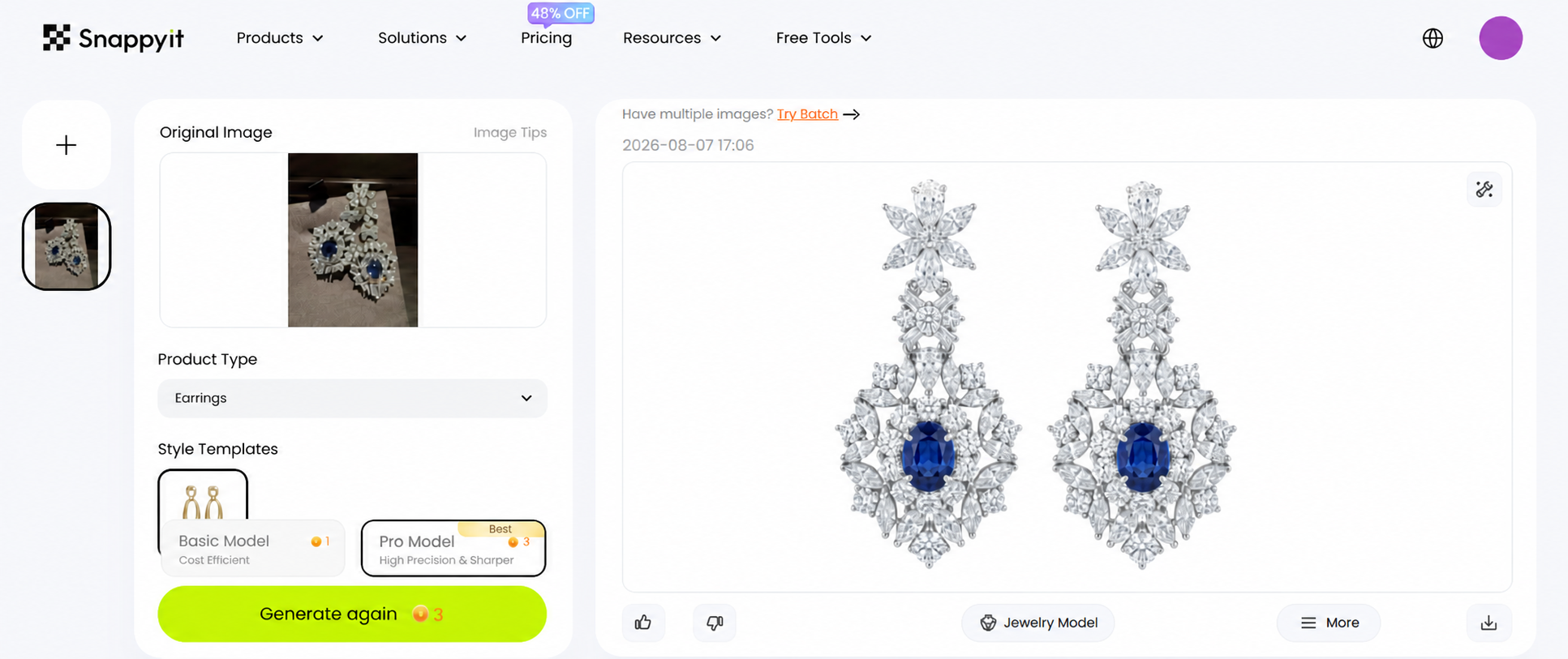
Skip the manual Photoshop grind. Snappyit's AI jewelry retouch cleans dust, corrects metal tone, and boosts gemstone brilliance automatically. Try Snappyit free →

Step 3 – Cleaning Dust, Scratches, and Surface Imperfections

Zoom into any jewelry photograph at 200% and you'll see them: tiny dust particles clinging to a prong, hairline scratches running across a polished shank, fingerprint smudges dulling a bezel edge. These imperfections are invisible at arm's length but glaringly obvious in a high-resolution product image. The cleanup phase is where retouching jewelry photos shifts from preparation to hands-on craft, and the tools you choose and how you configure them make the difference between a seamless result and a smeared mess.

Clone Stamp and Healing Brush Settings for Metal Surfaces

Reflective metal is unforgiving. The Healing Brush blends sampled pixels with the surrounding area automatically, which works beautifully on skin or fabric but can smear highlights and reflections on polished gold or silver. When you heal across a specular highlight on a ring band, the tool averages the bright reflection with the darker surrounding metal, leaving a muddy gray patch where a clean line of light should be.

For controlled jewelry dust removal editing on metal, the Clone Stamp is your primary tool. Set it up on a new empty layer with these specific settings you can bookmark:

  • Opacity: 70-90% (lower values let you build up coverage gradually rather than stamping a single opaque patch)
  • Flow: 80-100% (controls how quickly paint deposits with each stroke)
  • Sample: "Current & Below" from the Sample dropdown in the Options bar
  • Aligned: Enabled, so the source point moves with your cursor, reducing the chance of repeating patterns in the retouched area

The "Current & Below" sampling option is key here. It tells Photoshop to read pixel data from the layers beneath your empty cleanup layer while depositing new pixels only on that cleanup layer. Your original image stays untouched, and every clone stroke lives on its own editable layer, exactly as the non-destructive architecture from Step 2 intended.

The Spot Healing Brush still has a role, but a narrow one. Switch to it in Content-Aware mode for isolated dust spots sitting on relatively uniform, non-reflective surfaces like a matte-finished band or the flat back of a pendant. For anything near a reflection edge or a tonal transition on polished metal, stay with the Clone Stamp.

One additional technique worth knowing: the Healing Brush set to Replace blend mode. As Julieanne Kost explains in her Clone Stamp and Healing Brush tips, this mode stops the tool from automatically blending color and tonality between source and destination. It behaves like the Clone Stamp but with one advantage: the edges of the healed area won't appear soft, which is useful when you need crisp transitions along metal edges.

Removing Scratches and Blemishes on Rings, Necklaces, and Earrings

Different jewelry types present different cleanup headaches, and a one-size-fits-all approach won't hold up. Here's what to expect and how to handle each:

Rings frequently show tool marks along the inner shank from sizing adjustments. These marks are linear, so you'll need to clone along the curve of the band rather than across it. Sample from a clean section of the same shank, match the curvature, and work in short, overlapping strokes. Casting imperfections, small pits or rough spots near prong bases, respond well to the Clone Stamp at a slightly reduced opacity of around 70% so you can layer coverage without flattening the metal's natural texture.

Necklaces and chains trap dust in the crevices between links. You might be tempted to use Content-Aware Fill here, but it struggles with the repetitive geometry of chain links and often produces distorted or blurred results. Instead, Alt-click (Windows) or Option-click (Mac) on a clean section of an adjacent link to set your sample point, then carefully stamp over the dusty area. For a thorough jewellery retouch on intricate chain work, set up multiple source points using the Clone Source panel. Photoshop lets you store up to five different sample locations, which is invaluable when you need to pull clean texture from several different links.

Earrings pose a unique challenge: posts and butterfly backs are often bent, scratched, or partially out of focus. Minor scratches respond to standard cloning, but heavily damaged posts may need complete reconstruction. Select a clean section of the post, duplicate it onto a new layer, and use Free Transform (Ctrl+T / Cmd+T) to position and rotate it over the damaged area. Mask the edges for a seamless blend.

Regardless of jewelry type, zoom to 200-300% before starting any cleanup pass. Work in small strokes that follow the grain of the metal's finish, whether that's the linear pattern of a brushed surface or the smooth gradation of a polished one. Resample frequently by Alt-clicking or Option-clicking on a fresh source area every few strokes. Even a slight shift in light direction between your source and destination will create a visible mismatch on reflective surfaces.

Sample frequently and match the light direction — a single misaligned clone stroke is immediately visible on reflective metal.

A systematic approach helps here. Rather than jumping around the image, start at one edge and work screen by screen. The Page Up and Page Down keys move you through the document one full screen at a time, making it easy to cover every square pixel without missing a spot. This methodical jewellery retouch workflow ensures nothing slips through, especially on pieces with complex geometry like multi-stone settings or articulated bracelet links.

With dust cleared, scratches erased, and surface imperfections rebuilt, the jewelry surface is clean but still flat. The metal lacks the sculpted dimensionality and tonal richness that makes a product image feel tangible. That depth comes from the next phase: advanced retouching techniques that shape light itself across the metal surface.

Step 4 – Advanced Metal Retouching with Frequency Separation and Dodge and Burn

Clean metal is a good start, but clean and flat won't sell jewelry. The difference between a basic product shot and professional jewelry photography retouching comes down to how light behaves across the surface. Polished gold should glow with smooth tonal gradations. Silver should carry crisp, defined reflections. Achieving that level of control requires two advanced jewelry photo editing techniques that work in tandem: frequency separation for smoothing tonal inconsistencies, and dodge and burn for sculpting three-dimensional form through light and shadow.

Frequency Separation for Smoothing Metal Without Losing Texture

When you look at a metal surface in a photograph, you're seeing two things layered together: broad tonal transitions (the gradual shift from light to dark across a curved band) and fine surface texture (the micro-grain of a brushed finish or the tiny imperfections in a polished surface). Frequency separation lets you edit these two components independently, so you can smooth out blotchy tonal shifts on a gold ring without erasing the metal's natural texture.

Here's how to set it up step by step:

  1. Select your cleaned-up base and press Ctrl+Alt+Shift+E (Cmd+Option+Shift+E on Mac) to create a merged visible stamp. Duplicate this stamp layer twice. Name the bottom copy "Low Frequency" and the top copy "High Frequency."
  2. Hide the High Frequency layer by clicking its eye icon. Select the Low Frequency layer and go to Filter > Blur > Gaussian Blur. For jewelry at standard e-commerce resolution (around 2000-4000 pixels on the longest edge), start with a radius of 4-8 pixels. You want just enough blur to eliminate the fine surface detail while preserving the broad light-to-dark transitions. Click OK.
  3. Make the High Frequency layer visible again and select it. Go to Image > Apply Image. In the dialog, set the Layer to "Low Frequency," Blending to Subtract, Scale to 2, and Offset to 128. Click OK.
  4. Change the High Frequency layer's blend mode to Linear Light.

Your image should look identical to the original. The magic happens when you paint. Select the Low Frequency layer, grab a soft brush with 20-40% Opacity, and sample nearby tones with the Eyedropper (hold Alt/Option while the Brush tool is active). Paint over uneven tonal patches on the metal surface, areas where lighting created blotchy transitions or where cleanup work left subtle tonal mismatches. The broad color and luminosity smooth out, but the High Frequency layer above preserves every grain and micro-scratch of the original texture.

This technique is especially effective on frequency separation jewelry photoshop workflows involving large, curved surfaces like ring shanks, bangle interiors, and watch cases. The key is restraint: paint only where tonal transitions look unnatural. Over-smoothing the low-frequency layer produces the plastic, airbrushed look that immediately signals amateur editing.

Dodge and Burn to Sculpt Highlights and Shadows

If frequency separation fixes what's wrong with the light, dodge and burn metal retouching adds what's missing. This technique lets you manually paint highlights brighter and shadows deeper, sculpting the perceived three-dimensional form of the jewelry piece. As Photoshop Tutorial explains, dodging and burning gives you surgical control over light and shadow, letting you add dimension to flat areas and direct the viewer's attention exactly where you want it.

The neutral gray layer method keeps this work fully non-destructive:

  1. Create a new layer (Layer > New > Layer). In the dialog, set the Mode to Soft Light and check "Fill with Soft-Light-neutral color (50% gray)." Name it "D&B Metal."
  2. Select a soft round brush. Set the foreground color to white and drop the Opacity to 5-10%.
  3. Paint over areas where you want to build highlights: the top ridge of a ring's band, the leading edge of each prong, the crest of a bracelet link where light naturally catches.
  4. Switch the foreground color to black, keep the same low Opacity, and paint where shadows should deepen: the underside of a setting, the recesses between chain links, the inner curve of a hoop earring.

Low opacity is critical. Building up gradually with multiple passes gives you smooth, believable transitions. A heavy-handed stroke at 30% or higher creates an obvious bright or dark patch that looks painted rather than lit. Think of each brush stroke as a whisper of light, not a spotlight.

Practical applications vary by piece. On a solitaire ring, dodge the top facets of the setting to make the diamond appear to sit forward, and burn the gallery (the open framework beneath the stone) to push it into shadow. On a tennis bracelet, alternate subtle dodge strokes on the top face of each link with burn strokes in the gaps between them. This rhythmic light-dark pattern enhances the sense of articulated, three-dimensional form that flat lighting often fails to capture.

Luminosity Masking for Targeted Tonal Control

Frequency separation and dodge and burn handle most metal retouching needs, but some situations call for even more precision. Imagine a piece that combines bright platinum prongs with a darker rhodium-plated band. A global Curves adjustment to brighten the platinum also lifts the rhodium, destroying the contrast between them. Luminosity masks solve this by letting you isolate specific tonal ranges, highlights, midtones, or shadows, and apply adjustments only to those ranges.

The concept is straightforward: luminosity masks use the brightness values of the image itself to create selections. Bright pixels become more selected, dark pixels less so (or vice versa). In practice, you Ctrl-click (Cmd-click on Mac) on the RGB channel in the Channels panel to load a basic highlights selection. From there, you can intersect, add, or subtract channels to narrow the selection further. Apply a Curves adjustment layer with this selection as its mask, and your tonal changes affect only the bright platinum surface while the darker rhodium stays untouched.

For jewelry retouching, luminosity masks are particularly useful for three scenarios: separating metals of different reflectivity within the same piece, controlling specular highlights without affecting midtone detail, and fine-tuning the contrast between a gemstone and its surrounding setting. They add a level of targeted control that flat brush-based masking simply can't match.

With tonal transitions smoothed, highlights and shadows sculpted, and metal surfaces carrying convincing three-dimensional depth, the metal work is complete. The gemstones, however, play by entirely different optical rules. Diamonds refract and disperse light. Colored stones absorb and transmit specific wavelengths. Opaque stones like pearls scatter light across their surface. Each type demands its own enhancement strategy.

diamond displaying brilliance and fire after gemstone enhancement retouching in photoshop

Step 5 – Gemstone Enhancement for Brilliance, Fire, and Transparency

Metal retouching shapes how light moves across a surface. Gemstone retouching in Photoshop is a fundamentally different challenge because you're shaping how light moves through a surface, or in some cases, how it scatters across one. A diamond refracts incoming light, splitting it into spectral colors and bouncing it back through precisely angled facets. An emerald absorbs most wavelengths and transmits a narrow band of green. A pearl doesn't transmit or refract light at all. It diffuses it across layers of nacre, producing a soft glow with shifting color overtones.

These optical differences mean a single enhancement approach applied to every stone will produce unnatural results. The Curves adjustment that makes a diamond sparkle will make a pearl look harsh. The saturation boost that deepens a ruby's red will push a diamond into garish territory. Each stone type needs its own targeted strategy, and the precise selections and clipped adjustment layers you built into your layer architecture in Step 2 are what make this level of control possible.

Enhancing Brilliance and Fire in Diamonds

When gemologists talk about a diamond's visual performance, they use two specific terms. Brilliance refers to the bright white flashes of light reflected back to the viewer. Fire refers to the spectral color dispersion, those tiny rainbows of red, blue, and green that appear as the stone moves under light. In a photograph, both brilliance and fire are static, frozen in whatever lighting conditions existed at the moment of capture. Diamond photo enhancement in Photoshop is about amplifying what the camera recorded so the stone looks as alive on screen as it does in person.

Start by isolating the diamond from the surrounding metal. The Pen Tool gives you the cleanest edge for this. Trace the outline of the stone at the girdle (the widest point where the diamond meets the setting), close the path, and press Ctrl+Enter (Cmd+Return on Mac) to convert it to a selection. If the diamond has a complex shape or you need a faster approach, Quick Mask mode (press Q) lets you paint the selection with a brush, which works well for round brilliants and simple cuts. Refine the selection edge with Select > Select and Mask if needed, feathering by 0.5-1 pixel to avoid a hard cutout look.

With the diamond selected, create a Curves adjustment layer. The selection automatically becomes the layer mask, so your adjustments affect only the stone. To boost brilliance, pull the highlights region of the curve upward, making the bright facet reflections even brighter. Then anchor the midtones and pull the shadows region slightly downward. This increases the internal contrast of the diamond, widening the gap between its brightest flashes and its darker facets. The result is a stone that appears to glow from within rather than sitting flat against the metal.

Fire requires a separate, more delicate adjustment. Look closely at the diamond's facets and you'll often see faint prismatic colors, flashes of blue, orange, or green where light has dispersed through the stone. To enhance these without affecting the surrounding metal, create a Hue/Saturation adjustment layer clipped to the same diamond selection. Increase Saturation by +10 to +20 on the Master channel as a starting point. If specific spectral colors are visible, switch to individual color channels (Reds, Yellows, Blues) within the Hue/Saturation dialog and boost only those ranges by +15 to +25. This selectively intensifies the fire without shifting the overall color balance of the image.

A word of caution: diamonds should read as predominantly white and bright. If your saturation boost makes the stone look tinted or colored, you've gone too far. Pull back until the prismatic flashes appear as accents within the brilliance, not as the dominant visual feature. As Color Clipping notes, the goal is balancing light, color, and reflection to create real-world brilliance, not an artificially enhanced glow that breaks buyer trust.

Retouching Colored Gemstones — Emeralds, Rubies, and Sapphires

Colored gemstones present the opposite problem from diamonds. Where diamonds need contrast and spectral enhancement, colored stones need careful jewelry stone color editing that deepens their hue without crossing into artificial territory. Over-saturated gemstones are one of the most common mistakes in jewelry retouching, and buyers notice immediately. A ruby that looks neon red or a sapphire pushed to electric blue signals heavy-handed editing and erodes confidence in the product's actual appearance.

The technique here relies on narrowing the color range of your adjustment. Select the gemstone using the Pen Tool or Quick Mask, then create a Hue/Saturation adjustment layer with the selection as its mask. Instead of boosting the Master saturation channel, click the dropdown that defaults to "Master" and switch to the specific color range that matches your stone: Reds for rubies, Blues for sapphires, Greens for emeralds. This targets only the stone's dominant wavelength, leaving any neutral or complementary tones within the stone untouched.

Increase Saturation in that targeted range by +10 to +20. You can also shift the Hue slider by 1-3 degrees if the stone's color leans slightly off from its ideal. A sapphire that photographs with a slight violet cast, for example, can be nudged toward pure blue with a small Hue shift of -2 to -5 in the Blues channel. Keep the adjustments subtle. Toggle the layer visibility on and off to compare, and if the difference looks dramatic rather than refined, reduce the values.

Emeralds deserve special attention because their value is closely tied to transparency. A high-quality emerald appears to glow with an inner light, and you can enhance this effect with a masked Curves layer. Select the interior of the stone (excluding the darker inclusions and edges) and create a Curves adjustment. Gently lift the midtone region of the curve, brightening the stone's interior by a small amount. This simulates the way light passes through a transparent emerald and illuminates it from within. Be careful not to lift the highlights too far, or you'll wash out the rich green that defines the stone's character.

Working with Opaque Stones — Pearls, Turquoise, and Opal

Opaque and semi-translucent stones interact with light at the surface level rather than transmitting it internally, and that changes the retouching approach entirely. You're not enhancing refraction or transparency here. You're enhancing surface phenomena: luster, iridescence, and pattern detail.

Pearls are defined by two qualities. Luster is the soft, mirror-like reflection across the pearl's surface. Orient is the subtle iridescence, a shifting play of pink, green, and blue overtones caused by light diffracting through thin layers of nacre. To retouch gemstones in jewelry photos that feature pearls, create a new layer set to Soft Light blend mode. Using a soft brush at 8-12% Opacity, paint with a very pale warm tone (a desaturated peach or cream) along the areas where luster is strongest, typically the upper hemisphere facing the light source. Then switch to a cool tone (a pale blue-lavender) and paint subtle strokes along the edges where orient is visible. The Soft Light blend mode intensifies these tones without making them opaque, preserving the pearl's characteristic soft glow.

Turquoise and opal each have defining visual features that benefit from selective sharpening rather than color manipulation. Turquoise is prized for its matrix, the dark veining pattern that runs through the stone. Opal is valued for its play-of-color, the shifting spectral patches that appear across its surface. Both of these features are texture-dependent, meaning sharpening brings them forward more effectively than saturation adjustments.

To sharpen selectively, create a merged visible stamp (Ctrl+Alt+Shift+E / Cmd+Option+Shift+E), then go to Filter > Other > High Pass. Set the radius to 1.5-3.0 pixels, enough to capture the matrix lines or color patches without introducing noise. Change the layer's blend mode to Overlay and add a layer mask filled with black (hiding the effect entirely). Then paint with a white brush on the mask only over the stone, revealing the sharpening effect exclusively where it's needed. The surrounding metal and background remain unaffected.

For quick reference, here's a summary of the recommended approach for each stone type:

  • Diamonds: Curves for internal contrast (brilliance), targeted Hue/Saturation for spectral color (fire)
  • Rubies: Hue/Saturation with Reds channel narrowed, +10 to +20 Saturation
  • Sapphires: Hue/Saturation with Blues channel narrowed, minor Hue shift if needed
  • Emeralds: Hue/Saturation for color depth, masked Curves to lift interior luminosity for transparency
  • Pearls: Soft Light layer with warm and cool tones painted at low opacity for luster and orient
  • Turquoise: High Pass sharpening masked to the stone to define matrix patterns
  • Opal: High Pass sharpening masked to the stone to enhance play-of-color detail

Every adjustment in this phase should live on its own clipped layer with a descriptive name: "Diamond_Curves_Brilliance," "Ruby_HueSat," "Pearl_Luster_SoftLight." This keeps your file organized and every enhancement independently adjustable, which matters when a client wants the sapphire a shade deeper but the diamond left exactly as is.

At this point, your jewelry image carries accurate metal tones, clean surfaces, sculpted dimensionality, and gemstones that look vibrant and true to life. The retouching work is done. What remains is preparing the image for its final destination, and the sharpening settings and export formats you choose here determine whether all that careful work actually looks its best on a product page, in a print catalog, or on a social media feed.

Step 6 – Jewelry Image Sharpening and Export for Every Destination

All the retouching in the world won't matter if the final file looks soft on a product page or muddy in a print catalog. Sharpening and export are where your careful work either shines or falls apart, and the settings you need change depending on where the image is going. A file destined for Amazon requires different treatment than one headed to a print brochure or an Instagram carousel. Getting this right is the final step in learning how to edit jewelry photos that look polished and professional across every platform.

Sharpening Strategies for Jewelry Detail

Sharpening should always happen after all retouching and color work is complete, and it should target the output size, not the full-resolution master. Two methods work well for jewelry image sharpening in Photoshop, and each has a sweet spot.

Unsharp Mask (Filter > Sharpen > Unsharp Mask) is the more traditional approach and gives you direct control over three variables. For e-commerce images that will be viewed on screen, start with these values:

  • Amount: 80–120%
  • Radius: 0.8–1.2 pixels
  • Threshold: 2–4 levels

For high-resolution print files where fine facet edges and engraving details need to pop on paper, shift to a different balance:

  • Amount: 150–200%
  • Radius: 0.3–0.5 pixels
  • Threshold: 0 levels

The lower radius and zero threshold for print may seem aggressive, but print sharpening needs to compensate for softening that occurs during the printing process itself. As Greg Benz explains, web sharpening compensates for softness introduced during resizing, while print sharpening compensates for softness introduced after the file leaves your screen. The two scenarios demand different settings.

High Pass sharpening offers more visual control and works especially well when you want to sharpen the jewelry while leaving the background untouched. Here's the setup:

  1. Press Ctrl+Alt+Shift+E (Cmd+Option+Shift+E on Mac) to create a merged visible stamp at the top of your layer stack.
  2. Go to Filter > Other > High Pass. Set the radius to 1.0–2.0 pixels. The preview turns gray, and you'll see only the edge detail. For fine jewelry textures, stay closer to 1.0; for bolder elements like chunky chain links, push toward 2.0.
  3. Click OK, then set the layer's blend mode to Overlay.
  4. Add a layer mask filled with white (revealing the sharpening everywhere), then paint with a soft black brush over areas that should stay soft: the background, any out-of-focus elements, and smooth gradient areas where sharpening would introduce noise.

Whichever method you choose, evaluate the result at 100% zoom. Zooming further in tempts you to over-sharpen details no viewer will ever see at normal size. If you notice bright or dark halos forming along high-contrast edges, like the boundary between a ring and a white background, your radius is too high or your amount is too aggressive. Pull back and check again.

Export Settings for E-Commerce, Print, and Social Media

Before you flatten or export anything, save your layered master file as a PSD (or PSB if the file exceeds 2 GB). This preserves every adjustment layer, mask, and Smart Object so you can return to any stage of the project for revisions. Your master file is your insurance policy; the export is just a delivery copy.

With the master saved, the jewelry photo export settings for ecommerce and other destinations break down like this:

Destination File Format Color Profile Resolution Recommended Dimensions
Amazon / Shopify JPEG sRGB 72 ppi 2000 px longest edge
Print Catalog TIFF or PDF Adobe RGB or CMYK (per printer spec) 300 ppi Per layout dimensions
Instagram / Social JPEG sRGB 72 ppi 1080 px square or 1080 × 1350

For web and social exports, go to File > Export > Export As. Choose JPEG, check "Convert to sRGB" if your working space is Adobe RGB or ProPhoto, and set the quality slider between 80–90%. This range keeps file sizes manageable while avoiding the blocky compression artifacts that become especially visible on fine metal textures and delicate prong edges. If you need more granular control over compression, File > Export > Save for Web (Legacy) offers a 2-up preview so you can compare quality levels side by side before committing.

Color profile matters more than most people realize for jewellery photo retouching accuracy. As Clipping Path Zone reports, images edited with calibrated sRGB profiles can see up to a 15% higher click-through rate compared to unmanaged color files. Always embed the sRGB profile when exporting for web. The profile adds less than 1% to file size and prevents browsers or devices from misinterpreting your carefully corrected metal tones.

For print, confirm the required color profile with your printer before converting. Some print houses want Adobe RGB files they convert themselves; others expect CMYK with a specific ICC profile. Sending the wrong profile can shift your gold tones warm or cool in ways that undo hours of retouching work.

With your sharpened, properly formatted files delivered and your layered master safely archived, the single-image workflow is complete. The real question for most jewelry sellers and studios, though, isn't how to retouch one image perfectly. It's how to maintain that level of quality across dozens or hundreds of SKUs without the process consuming every working hour you have.

high volume jewelry retouching workflow setup for batch processing multiple product images efficiently

Step 7 – Batch Processing and Scaling Your Jewelry Retouching Workflow

Retouching a single ring to perfection is satisfying. Retouching 200 rings to the same standard by Friday is a different reality entirely. Most jewelry sellers and photography studios aren't working with one hero image at a time. They're managing seasonal catalog launches, new SKU uploads, and marketplace listings that demand consistent quality across every frame. The manual phases you've learned throughout this guide, cleanup, dodge and burn, gemstone enhancement, are where the real craft lives. But the repetitive finishing steps that follow, sharpening, color profile conversion, resizing, and exporting, are identical from image to image. That's where jewelry retouching workflow automation through Photoshop Actions and batch processing becomes essential.

Recording a Reusable Jewelry Retouching Action

Photoshop Actions record a sequence of commands and play them back with a single click. For jewellery image editing at scale, this means you can capture your entire finishing pipeline once and apply it to every image in a shoot without repeating the same menu clicks hundreds of times.

Here's how to record a practical jewelry export Action step by step:

  1. Open a finished, retouched jewelry file that's ready for its final sharpening and export pass.
  2. Open the Actions panel (Window > Actions). Click the folder icon at the bottom to create a new Action Set and name it "Jewelry Export." Then click the new action icon (the plus sign) and name the action "E-Commerce JPEG Export." Click Record.
  3. Apply your sharpening pass. For example, go to Filter > Sharpen > Unsharp Mask and enter your e-commerce values: Amount 100%, Radius 1.0 pixel, Threshold 3 levels. Click OK.
  4. Convert the color profile by going to Edit > Convert to Profile. Select sRGB IEC61966-2.1 as the destination space. Click OK.
  5. Resize the image with Image > Image Size. Set the longest edge to 2000 pixels, resolution to 72 ppi, and resample method to Bicubic Sharper (reduction). Click OK.
  6. Export the file using File > Export > Export As. Choose JPEG at 85% quality with "Convert to sRGB" checked, and save to your designated output folder.
  7. Click the square Stop button at the bottom of the Actions panel.

Your Action is now saved and ready to replay. Select any retouched jewelry file, hit the Play button in the Actions panel, and Photoshop executes every step in sequence. You can also create separate Actions for different destinations, one for print TIFF export at 300 ppi, another for Instagram-sized JPEGs at 1080 pixels, giving you a one-click finishing pipeline for each output channel.

A critical distinction: not every step in your retouching process belongs in an Action. Cleanup, frequency separation, dodge and burn, and gemstone enhancement all require per-image judgment. A dust speck on one ring sits in a completely different location than on the next. The specular highlights on a bracelet need different sculpting than those on a pendant. These creative decisions can't be automated because they change with every piece. Record only the steps that remain identical across images: sharpening parameters, profile conversions, resizing, and file format exports.

To apply your Action across an entire folder of images at once, go to File > Automate > Batch. In the Batch dialog, select your Action Set and Action name, choose the source folder containing your retouched files, and set the destination folder for the exported results. Check "Override Action 'Save As' Commands" so Photoshop sends every export to your chosen destination folder instead of the path baked into the recorded action.

Common Mistakes and Troubleshooting Tips for Jewelry Retouching

Even with a solid workflow in place, certain errors have a way of creeping into jewelry images, sometimes so subtly that you don't notice them until a client points them out or a product listing underperforms. The techniques covered in this guide give you the tools to produce professional results, but knowing where things typically go wrong is just as valuable as knowing how to do things right. Think of this section as your jewelry photo editing troubleshooting checklist, a quick-reference resource you can revisit whenever something in your final image feels off but you can't pinpoint why.

Over-Sharpening and Halo Artifacts on Metal Edges

This is the single most visible mistake in jewelry retouching, and it happens fast. When the Unsharp Mask radius is set too high or the amount is pushed too aggressively, bright and dark halos form along high-contrast edges, especially where polished metal meets a white background. The result looks like a glowing outline around the piece, and it screams "over-processed" to anyone who zooms in.

The fix starts with understanding what causes the halos. As Kept Light Photography explains, sharpening works by lightening the lighter side of an edge and darkening the darker side to increase contrast. Push that process too far, and the lightening becomes a visible white fringe. Reducing the radius is your first move, bringing it back to the 0.8-1.2 pixel range for e-commerce images. If halos persist, try the split sharpening technique: duplicate your sharpened layer, set one copy to Lighten blend mode and the other to Darken, then lower the opacity of the Lighten layer or mask it along problem edges. This gives you independent control over the bright halos without weakening the overall sharpening effect.

Color Casts from Incorrect White Balance

An uncorrected color cast is one of those common jewelry photography editing errors that buyers feel before they consciously identify. Gold with a greenish tint looks cheap. Silver with a blue cast reads as cold and uninviting. Perfect Retouching reports that inconsistent white balance across a product catalog damages brand trust and directly increases return rates, because customers compare pieces side by side and mismatched tones signal unreliable color representation.

The good news: if you followed the Smart Object workflow from Step 1, this is one of the easiest problems to fix. Double-click your RAW Smart Object layer thumbnail to reopen Adobe Camera Raw, adjust the Temperature and Tint sliders until the metal reads true, and click OK. The correction ripples through your entire layer stack non-destructively. No flattening, no re-doing your cleanup or dodge and burn work. This is exactly why the RAW processing foundation matters so much. Skipping it or rushing through it creates a color problem that compounds with every subsequent adjustment.

Destructive Editing and Lost Flexibility

Flattening layers to "keep the file small," painting clone strokes directly on the base image, or applying filters without converting to a Smart Object first: these shortcuts feel harmless in the moment. Then a client emails asking you to soften the dodge and burn on the band, remove one more scratch near the prong, or shift the metal tone slightly warmer. Without the non-destructive layer architecture from Step 2, every revision means starting over or attempting clumsy workarounds that degrade image quality.

The prevention strategy is the layer structure itself. Cleanup work lives on its own empty layers. Dodge and burn sits on 50% gray layers set to Soft Light. Color corrections use adjustment layers with masks. Every element is independently editable, and the base image remains untouched throughout the entire project. If you find yourself tempted to flatten mid-project, resist. Disk space is cheap. Rebuilding hours of precision retouching is not.

Here are the five most frequent jewelry retouching mistakes to avoid, ranked from most common to least common:

  1. Inconsistent white balance across images — creates mismatched metal tones that undermine catalog cohesion and trigger buyer doubt.
  2. Over-sharpening with visible halos — the telltale bright fringe along metal edges that signals heavy-handed processing.
  3. Over-smoothing metal surfaces — aggressive blur or healing removes the natural grain and micro-texture that make metal look real, producing a plastic appearance.
  4. Over-saturating gemstones — pushing color beyond what the stone naturally displays makes rubies look neon and sapphires look electric, breaking buyer trust instantly.
  5. Exporting in the wrong color profile — sending a CMYK file to a web platform or an sRGB file to a print house shifts every carefully corrected tone off target.

Each of these errors is entirely preventable using the techniques and workflow structure covered in this guide. The pattern you'll notice is that most mistakes stem from either skipping a foundational step or pushing an enhancement past the point of realism. Restraint, paired with a non-destructive setup that lets you dial back any adjustment at any time, is the most reliable safeguard against all of them.

Jewelry retouching is a craft built on patience and precision — master each phase individually, then connect them into a seamless workflow that produces consistent, professional results across every piece you shoot.

Have a full catalog to retouch? Batch dozens of listing-ready jewelry images in minutes instead of hours. Try Snappyit free →

Frequently Asked Questions About Jewelry Retouching in Photoshop

1. What Photoshop tools are best for retouching jewelry?

The Clone Stamp tool set to 70-90% opacity with 'Current & Below' sampling is the primary tool for metal surfaces because it avoids the reflection smearing that the Healing Brush causes on polished metals. For isolated dust on matte surfaces, the Spot Healing Brush in Content-Aware mode works well. For tonal sculpting, use dodge and burn on a 50% gray layer set to Soft Light blend mode with a brush at 5-10% opacity. Frequency separation handles smoothing tonal inconsistencies without destroying metal texture, while Curves and Hue/Saturation adjustment layers with precise masks handle gemstone enhancement.

2. How do I make diamonds look more brilliant in Photoshop?

Isolate the diamond using the Pen Tool or Quick Mask, then apply a Curves adjustment layer with the selection as its mask. Pull the highlights region upward and the shadows slightly downward to increase internal contrast, which simulates brilliance. For fire (the spectral color dispersion), add a separate Hue/Saturation layer clipped to the diamond selection and boost saturation by +10 to +20 on specific color channels where prismatic flashes are visible. Keep the stone reading predominantly white and bright — if it looks tinted, you have pushed too far.

3. What export settings should I use for jewelry photos on e-commerce platforms?

For Amazon and Shopify, export as JPEG in sRGB color profile at 72 ppi with the longest edge set to 2000 pixels. Set JPEG quality between 80-90% to avoid compression artifacts on fine metal textures. For Instagram and social media, use JPEG in sRGB at 72 ppi sized to 1080 pixels square or 1080x1350. For print catalogs, export as TIFF or PDF in Adobe RGB or CMYK per your printer's specifications at 300 ppi. Always embed the color profile and save a layered PSD master before flattening.

4. How can I speed up jewelry retouching for large product catalogs?

Record Photoshop Actions for repetitive finishing steps like sharpening, color profile conversion, resizing, and JPEG export. Apply these Actions across entire folders using File > Automate > Batch. Keep in mind that creative steps like cleanup, dodge and burn, and gemstone enhancement require per-image judgment and cannot be automated through Actions. For high-volume workflows with tight deadlines, AI-assisted tools like Snappyit's Jewelry Retouch solution (https://snappyit.ai/jewelry-retouch) can handle many repetitive retouching tasks automatically, complementing your manual Photoshop skills where speed matters most.

5. Why does my gold jewelry look greenish or unnatural after editing?

A greenish gold tone almost always traces back to incorrect white balance during RAW processing. Yellow gold needs a warmer color temperature (around 5800-6500K) with a slight magenta tint shift (+5 to +10) to render accurately. If you opened your image as a Smart Object, double-click the layer thumbnail to reopen Camera Raw and adjust Temperature and Tint until the gold reads as rich and warm without turning orange. Compare against the physical piece or a reference swatch, and toggle the before/after preview frequently to confirm your direction.

Retouch your jewelry photos in seconds

You now have the full Photoshop workflow — but when deadlines are tight or the catalog is large, let AI handle the dust removal, metal correction, and gemstone polish so you can ship listing-ready images faster.

Try Snappyit free →


More Resources for Jewelry Sellers