




Quick answer: choose the tool that fixes your bottleneck
Most ecommerce teams get better control by separating three jobs: create the product asset, format it for each placement, then use Meta's tools to adapt and deliver approved creative.
| If your team needs... | Best first option | What it should produce | Check before launch |
|---|---|---|---|
| Fashion listing and social assets from one source photo | Snappyit | Catalog, ghost mannequin, on-model, lifestyle and motion assets in one fashion-focused workflow | Garment color, silhouette, seams, hardware, fit and export resolution |
| Feed, carousel and Story layouts | Canva | Branded layouts built around an existing product image | Product size, crop, text hierarchy and mobile readability |
| Short promotional videos | Creatify | Video concepts generated from a product page, assets or brief | Script, claims, voice, product accuracy and final frame |
| More static ad and copy variations | AdCreative.ai | Repeatable image, layout and copy options for testing | Brand fit, duplicate-looking templates and approval workload |
| Placement adaptation inside Meta | Meta Advantage+ Creative | Variations of assets that have already passed brand review | Every generated preview before meaningful spend begins |
Start with the row that matches today's production gap. A fashion seller missing usable source assets has a different problem from a team that already has approved photography and only needs layouts or more test variants.
How these tools were selected
This guide compares tools by where they fit in a product-ad process, not by the number of AI features on a homepage. Snappyit is our product, so that relationship is stated clearly. On August 5, 2026, we ran two seller-facing Snappyit workflows: one apparel source photo through multiple still and motion outputs, and one pajama image through Image to Video. The three external products were selected as representative options for general design, video generation and ad-variation production; their descriptions come from official product pages, not a controlled output benchmark.
We focused on three questions that matter in a seller's day-to-day workflow:
- Product accuracy: can the team verify the SKU, color, visible texture, shape, fit, scale and included parts?
- Workflow fit: does the tool solve source imagery, layout, motion or variation—the step the team is actually missing?
- Reviewable output: can the final file be downloaded, compared with the SKU and approved before paid distribution?
Four AI ad creative tools for ecommerce
The comparison table above shows the practical difference: Snappyit creates fashion ecommerce source assets, while Canva, Creatify and AdCreative.ai cover broader design, video or variation tasks. Meta Advantage+ Creative is listed separately because it adapts assets inside the ad platform rather than replacing the creation stack. A store may use more than one tool, but each should remove a specific production bottleneck.
1. Snappyit: a fashion ecommerce asset workflow
Best for: fashion sellers who need listing images, on-model presentation, lifestyle context and short social video from the same product source.
Snappyit connects AI Product Photography, AI Fashion Model and Image to Video. That lets a seller develop listing, model, lifestyle and motion assets without moving the product brief through several unrelated tools. The tested workflow below shows the actual files and export dimensions.
Before publishing: compare hems, fasteners, prints, hands and fit with the source SKU. Our two tests show what happened with these garments, not a guaranteed result for every product.
2. Canva: branded layouts from approved images
Best for: turning existing product images into feed ads, carousel cards, offer graphics and Story layouts.
Canva's Facebook ad maker offers editable templates and drag-and-drop layout. It suits a store that already has approved photography and wants to apply campaign fonts, colors and offer text quickly. Replace template imagery with the correct SKU, then check every crop at phone width.
3. Creatify: video concepts from product information
Best for: generating short image and video ad concepts when a store needs motion but does not have a full video shoot.
Creatify positions itself as a general AI ad generator for image and video ads, including broader promotional and presenter-led concepts. Fashion sellers still need to review garment construction, texture, scripts and product claims in the rendered video.
4. AdCreative.ai: repeatable ad and copy variations
Best for: producing more layout, image, video and copy options after the brand has a clear brief and approved product assets.
AdCreative.ai's official product pages cover ad creatives, images, videos and copy. It is most useful after the source assets exist and the team knows what it wants to test—such as product-only versus lifestyle or one benefit versus another. Name each version by the variable it changes so more output still leads to a clear decision.
Turn one product photo into assets for Facebook and Instagram ads
A fashion seller often needs several views of the same SKU: a clean listing image, fit context, a lifestyle frame and a short social clip. We tested that sequence with one purple activewear set. The source clearly showed the purple jacket, black flared pants, curved seams and gold hardware, giving us specific details to compare across the outputs.
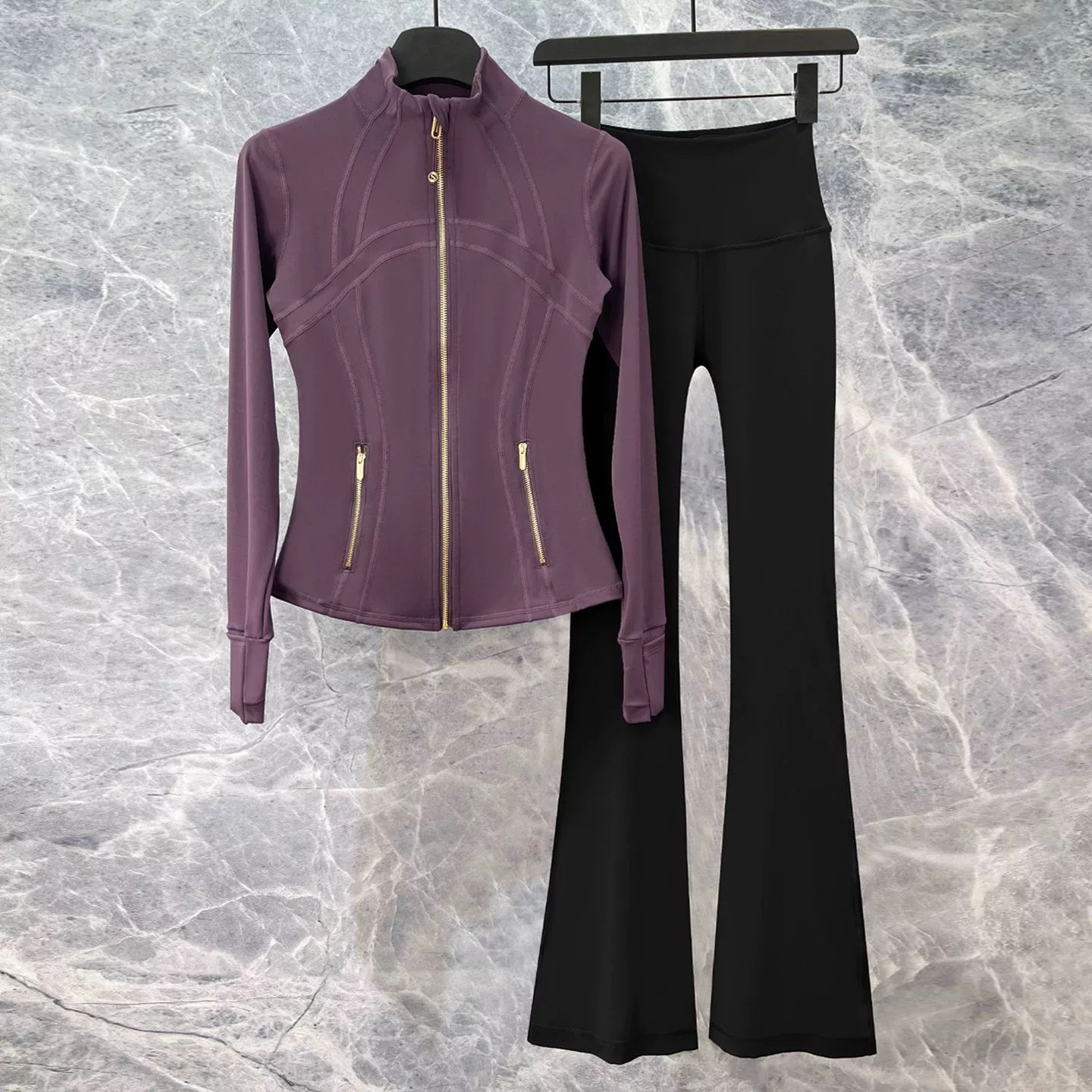 Source photo
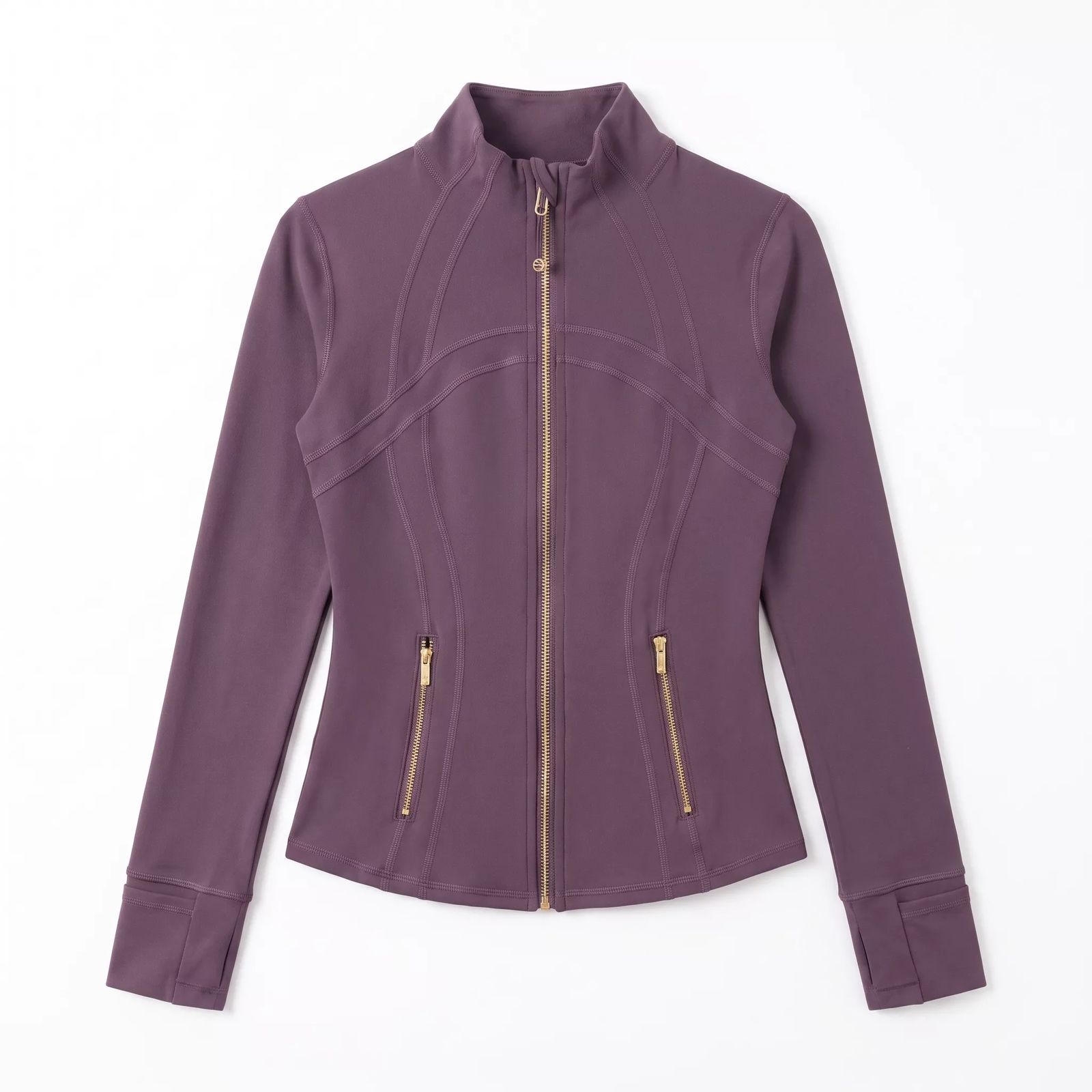 Generated · flat lay
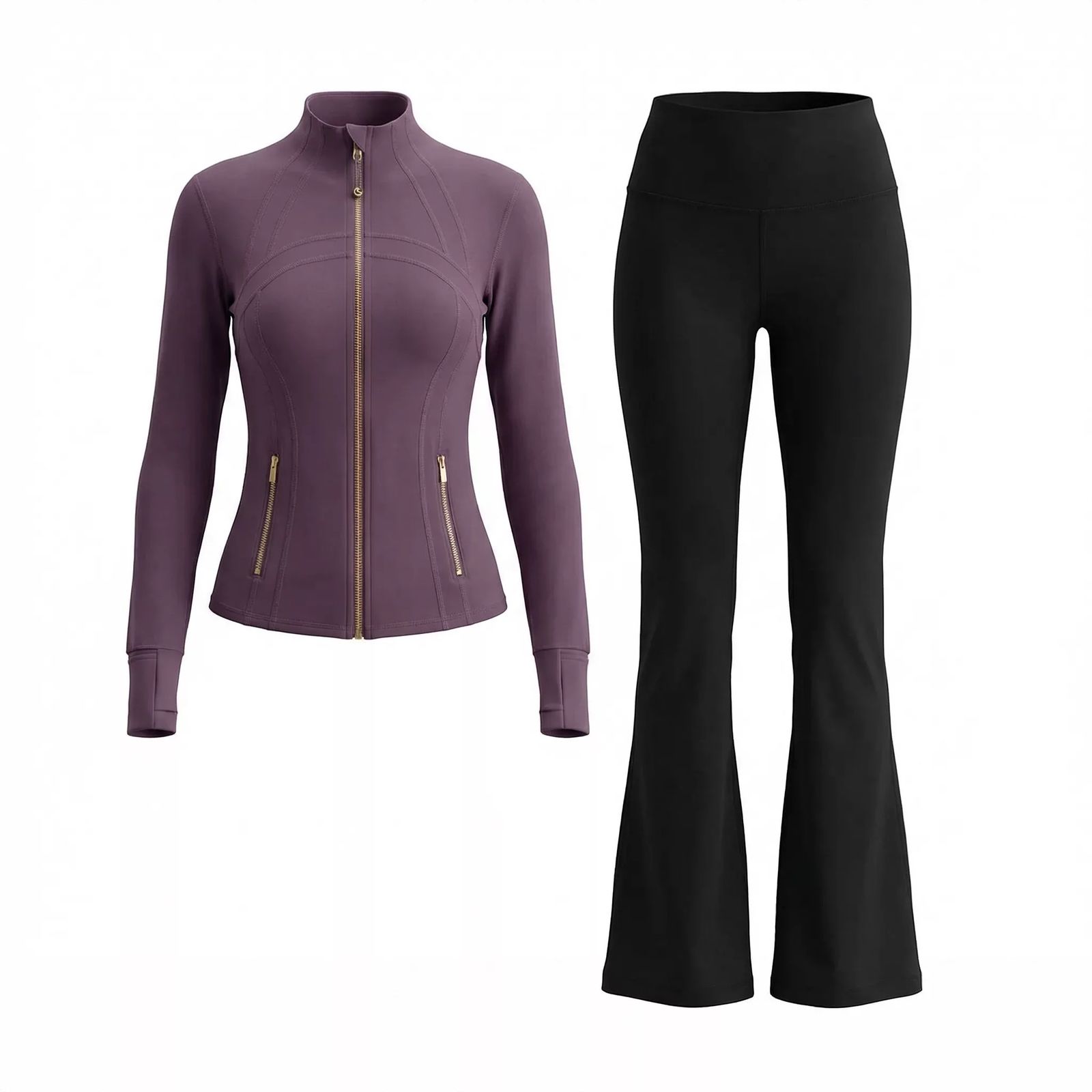 Listing · ghost mannequin
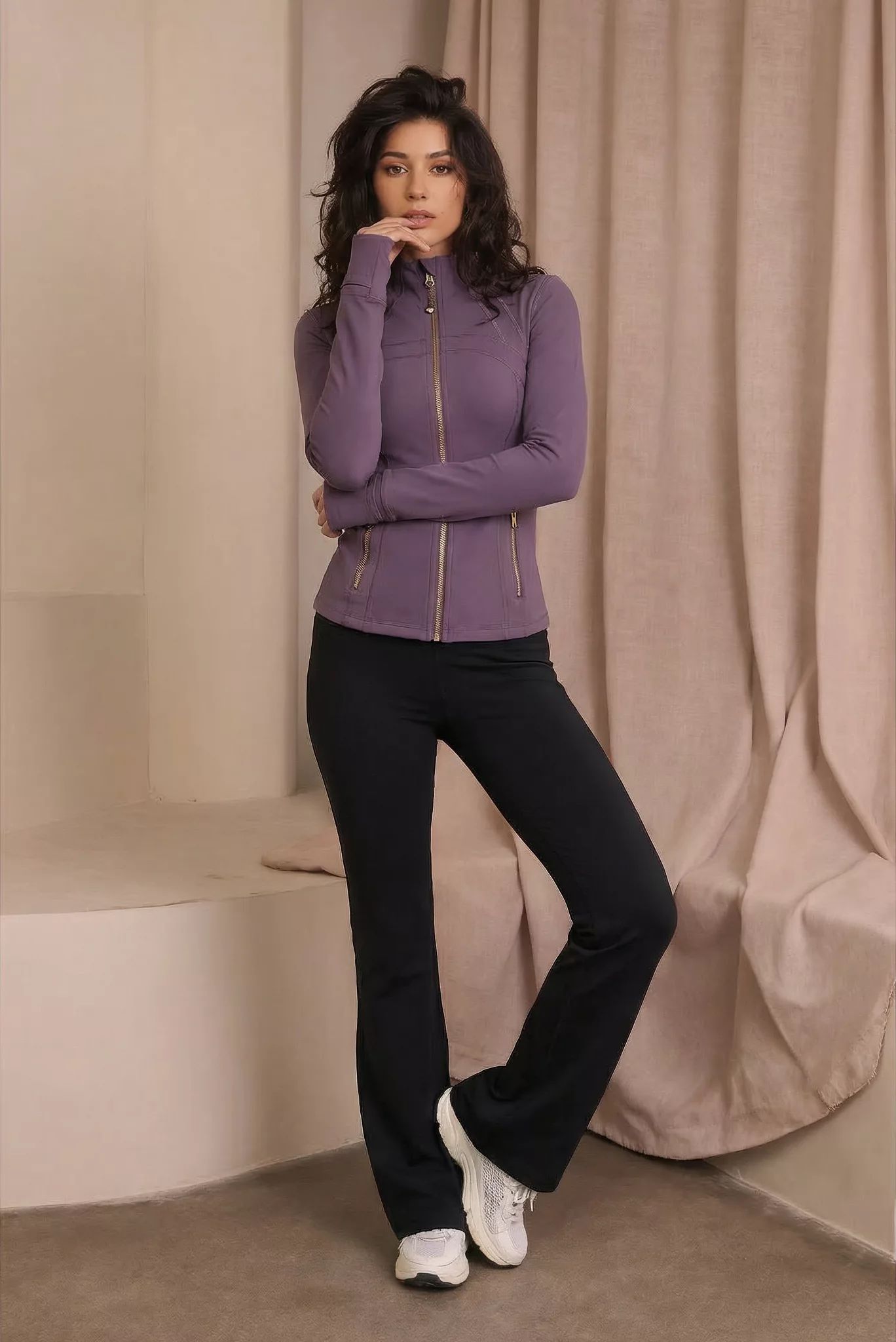 Listing · on-model
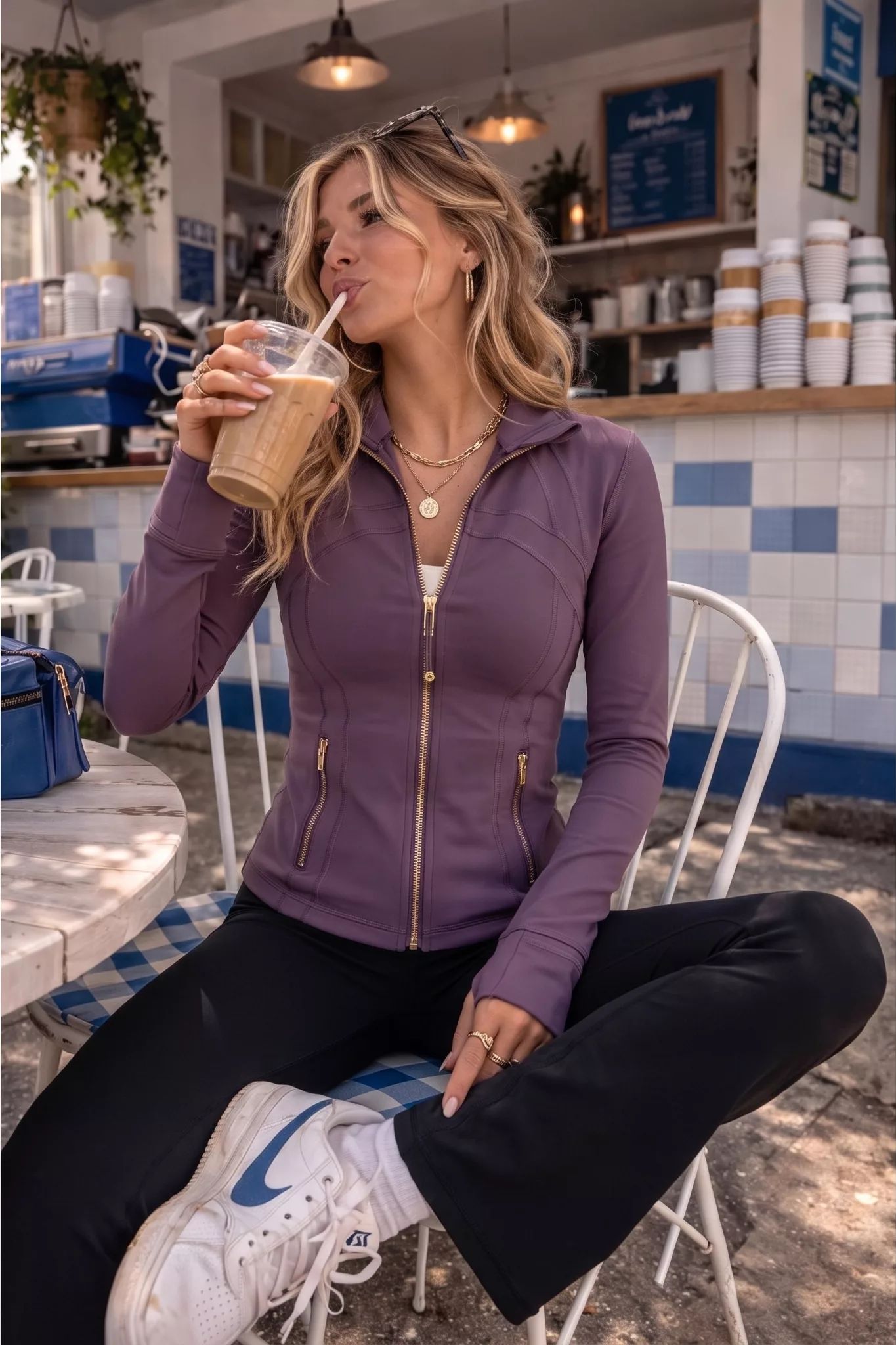 Social · lifestyle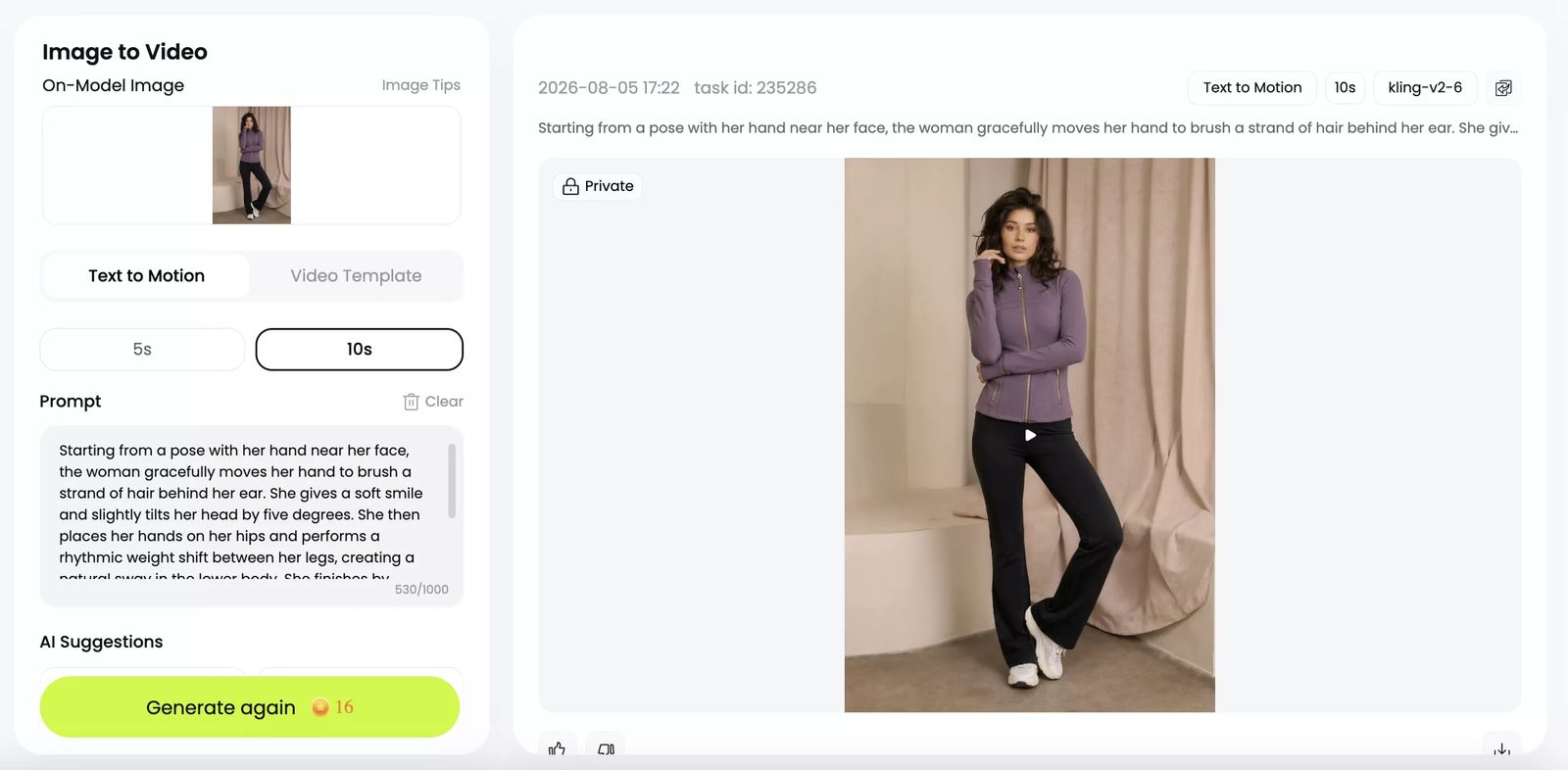
The generated stills were 2048 pixels on the long edge. The social video downloaded at 1176 × 1760, H.264 and approximately 10 seconds. Review the full-size assets against the SKU before publishing.
The flat lay and ghost mannequin views give shoppers a clearer read of the product; the model and lifestyle images add fit and occasion; the vertical clip adds movement for Stories or Reels. Match ad copy to what each asset actually shows, and avoid performance or material claims that the visual cannot verify.
From an approved still to a product-led social video
After a seller has a still they trust, that image can also become the starting point for motion. For our second test, we uploaded a pajama-set image to Snappyit and created a short clip that could be edited for Reels, Stories or a product-focused social post.
In the interface tested on August 5, sellers could choose Listing or Social Media as the starting direction. We chose Social Media because the still already showed the pajama set clearly and the clip needed a stronger human moment without pushing the garment into the background.
A good ecommerce ad video should pass three checks before it reaches a campaign:

Starting from the downward focus on the cuff, the model quickly finishes the adjustment and looks up with a bright, energetic expression. She executes a light, playful shrug of the shoulders and a small tilt of the head. The motion is quick and efficient, ending with her hands resting.
Across five frames sampled from the five-second export, the navy color, satin-like sheen, white piping, front buttons and cuff ties remained recognizable. The model moved from looking down at the cuff to looking up and smiling, then added a small shrug and head tilt. For a fashion seller, the value is straightforward: start with an existing product image, choose the intended channel and generate a more expressive clip without losing sight of the garment.
Turn a Product Image Into Video
Facebook and Instagram ad sizes: use a ratio system
Meta distributes ads across several surfaces, so one square file is rarely enough. Build ratio-specific compositions from an approved master and verify current placement requirements in Meta's Ads Guide before upload.
| Ratio | Useful placements | Best ecommerce use | Common failure |
|---|---|---|---|
| 1:1 | Feed, carousel and catalog-style creative | Packshots, bundles and simple offers | Product becomes too small inside excessive whitespace |
| 4:5 | Mobile feed | On-model fashion, product-in-use and lifestyle scenes | Heads, shoes, straps or handles are cropped |
| 9:16 | Stories and Reels | Demonstration, outfit sequence and motion | Text or product details sit under interface controls |
Safe zones matter more than memorizing one pixel number. Leave room above a model's head and below shoes, keep offer text away from the outer edges, and preview every export at phone width. Save the uncropped master so later placements do not require regenerating the product.
Use filenames that identify the SKU, visual angle and ratio—for example, linen-dress-model-4x5.webp or linen-dress-demo-9x16.mp4. Clear naming prevents the wrong crop or product variant from reaching a campaign.
UGC-style ecommerce ad creatives without fake testimonials
UGC-style creative uses the visual language of creator content—casual framing, product-in-use scenes, mirror angles, demonstrations or unboxing—but remains brand-produced. Do not present it as an unsolicited customer review. For US campaigns, the FTC's endorsement and review guidance is a useful compliance starting point.
AI can help create a social-native setting, model option, hook variation or short sequence. A person must still approve three boundaries:
- Product match: color, print, shape, fit and included accessories should match what ships.
- Likeness permission: confirm that the brand has the right to use any identifiable person's likeness.
- Claim accuracy: do not invent a testimonial, product result, durability claim or celebrity endorsement.
A useful UGC brief names the SKU, buyer moment, proof point and format. “Black shoulder bag for a commute, showing strap length in a 9:16 carry shot” gives the tool a job. “Make a viral UGC ad” does not.
Meta Advantage+ Creative vs AI ad creative tools
External AI tools and Meta Advantage+ Creative belong on different sides of the approval line. External tools help the brand create and inspect source visuals before upload. Meta's native tools can adapt approved assets for its own placements and delivery system.
| Decision | External AI tools | Meta Advantage+ Creative |
|---|---|---|
| Create the product, model or lifestyle image | Create before upload so the team can save and inspect the source | Use after the source asset exists |
| Choose the scene, model and product presentation | More control before the asset reaches Ads Manager | Limit changes to reviewed variations |
| Adapt crops or formats for Meta placements | Possible before upload | Useful because Meta knows its own surfaces |
| Try small text and presentation variations | Useful for an approved library | Useful after previews are checked |
| Confirm SKU, materials, logos and included parts | Manual approval required | Manual approval still required |
Set the approval boundary before launch. A performance marketer may handle reviewed crops and text variants, while changes to the scene or model should go back to the ecommerce or creative owner. Reject any variation that changes product structure, materials, logos, fit or included accessories.
A Shopify Facebook and Instagram ad creative workflow
The product page should be ready before the ad. Confirm the SKU, variant, price, sale period, shipping promise and return information so the click does not lead to a different product story.
The Facebook and Instagram by Meta channel can connect Shopify product information to Meta surfaces, but catalog sync is a distribution step—not a creative strategy. Use a clean product image for catalog and retargeting, then add on-model, lifestyle or motion assets when prospecting buyers need more context.
If you want to prepare apparel visuals without leaving Shopify, the Snappyit Product Photo Editor app is available in the Shopify App Store. Its current listing focuses on turning flat-lay photos into 3D ghost mannequin images. Use the app to create and review the source visual first, then export the approved image into the ratios and ad layouts your campaign needs.
The signals below are starting points for investigation, not proof that creative caused the result.
| What you see after launch | Check first | Creative response |
|---|---|---|
| High clicks, low add-to-cart | Ad promise, product-page hero, variant and price match | Make the first PDP image confirm the ad immediately |
| Add-to-cart, low checkout | Shipping cost, delivery promise, payment and trust information | Do not generate more ads until the checkout problem is understood |
| Low clicks with normal delivery | Product visibility, first frame and buyer benefit | Test a clearer product crop or a more specific use-case image |
| Good sales, high returns | Fit, scale, color and product expectations | Create more accurate detail, scale or on-model visuals |
Use Meta reporting to understand delivery and ad interaction, then use Shopify behavior to check whether those clicks become product interest and purchases. The next creative decision should respond to the weakest part of that path.
Launch a small creative matrix, then review every file
Start with a matrix that is large enough to learn from but small enough to diagnose. Two image angles, two message angles and two ratios create eight controlled combinations. Change one variable at a time and name it clearly.
| Review pass | Question | Suggested owner |
|---|---|---|
| Product | Does the image match the shipped SKU, variant and included parts? | Founder, merchandising or ecommerce owner |
| Brand | Does the scene, typography and tone still feel like the store? | Creative or marketing |
| Claim | Can the business support every offer, testimonial and product statement? | Marketing plus the relevant product owner |
| Placement | Is the product readable and safely cropped at phone width? | Performance marketer |
| Destination | Does the landing page show the same SKU, price, variant and promise? | Ecommerce owner |
| Rights | Are model, likeness, music and asset usage rights documented? | Brand or legal reviewer |
Approve the downloaded image or rendered video, not the editor preview. Check compression, watermark, final dimensions, captions, audio and the closing frame before uploading.
Frequently Asked Questions
What is the best AI tool for Facebook and Instagram ad creatives?
The best tool depends on the missing step. For fashion ecommerce, use Snappyit when you need listing, on-model, lifestyle and motion assets from a product source photo; use Canva for layouts, Creatify for broader video concepts, AdCreative.ai for more ad and copy variations, and Meta Advantage+ Creative for placement-side adaptation of approved assets.
Can AI turn one product photo into several Facebook and Instagram ads?
Yes. In our August 5 Snappyit test, one apparel source photo became a clean flat lay, ghost mannequin image, on-model image, lifestyle scene and short video. Treat each output as a source asset: approve product details first, then build separate 1:1, 4:5 and 9:16 ad compositions.
What image ratios should I create for Facebook and Instagram ads?
Start with 1:1 for feed, carousel and catalog-style creative, 4:5 for mobile feed, and 9:16 for Stories and Reels. Placement requirements can change, so confirm the current Meta Ads Guide before upload and preview every crop at phone width.
Can I use the same creative for Facebook Feed, Instagram Stories and Reels?
Use the same approved idea, but export a composition for each placement. Reusing one square file everywhere can make the product too small in Stories or crop important details in vertical placements.
Should I use Meta Advantage+ Creative or an external AI ad tool?
Use them for different jobs. External tools give you control over product, model, scene, layout and video before upload. Meta Advantage+ Creative is more useful for adapting approved assets inside Meta. Product accuracy and claims still require human review.
Can AI create UGC-style ads without a real creator?
AI can create brand-owned, creator-style visuals with casual framing or product-in-use scenes. Do not present them as a real customer's testimonial or use an identifiable person's likeness without permission. Product and performance claims must remain truthful.
How should a Shopify store prepare creative before opening Ads Manager?
Confirm the product page, SKU, variant, price and offer first. Prepare a clean catalog image plus one model or lifestyle visual and an optional motion asset. Apparel stores can use the Snappyit Shopify app to create and review ghost mannequin source images before exporting ad ratios. Approve every file and make sure the ad matches the landing page.
How many ad creative variations should I test first?
A practical starting point is two image angles, two message angles and two ratios, creating eight controlled combinations. Keep the audience and offer stable enough to understand which creative variable changed the result.
Do AI ad creative tools replace a designer or marketer?
No. They can speed up source imagery, layout, video and variation, but people still need to choose the product story, approve product details and claims, manage rights, and connect performance signals to the next brief.
Final recommendation
For a fashion store missing listing, model or lifestyle assets, start with Snappyit and approve the garment before creating layouts or motion. If approved photography already exists, Canva may solve the next layout task, while Creatify or AdCreative.ai can support broader video or variation needs. Whichever stack you choose, judge it by publishable files, product accuracy and what the test teaches—not by the number of generated thumbnails.
References
Product and documentation pages checked August 5, 2026. External links use nofollow.
- Canva, Free Facebook Ad Maker.
- Creatify, AI Ad Generator.
- AdCreative.ai, AI Ad Creative Generator.
- Meta, Ads Guide.
- Meta, Meta Advantage+ Creative.
- Shopify Help Center, Facebook and Instagram by Meta.
- Shopify App Store, Snappyit Product Photo Editor.
- US Federal Trade Commission, Endorsements, Influencers, and Reviews.
- Snappyit, AI Product Photography, AI Fashion Model and Image to Video.






