
What Ghost Mannequin Photography Is and Why It Matters
You have a rack of samples, a camera, and a deadline. Flat lays make everything look lifeless, hangers add visual clutter, and hiring models for every SKU blows the budget. This is exactly the gap ghost mannequin clothing photography was built to fill.
What Is the Ghost Mannequin Effect
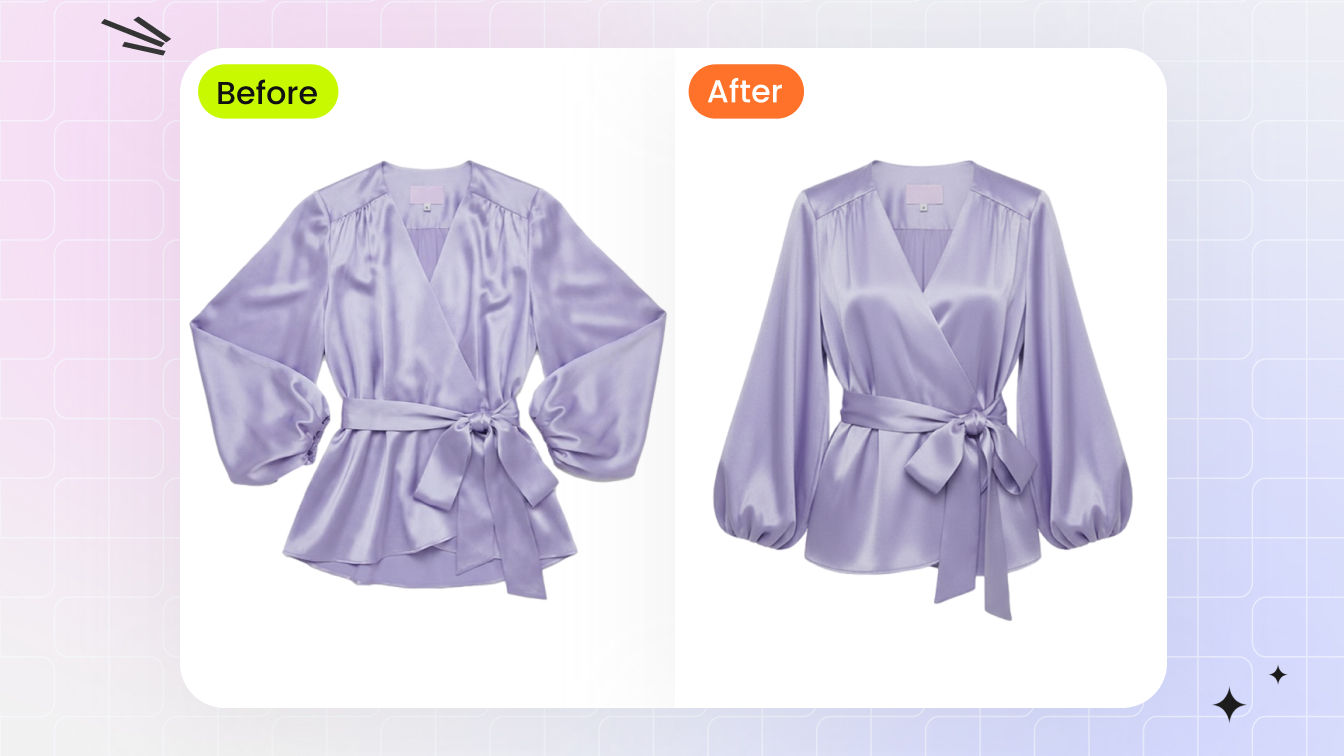
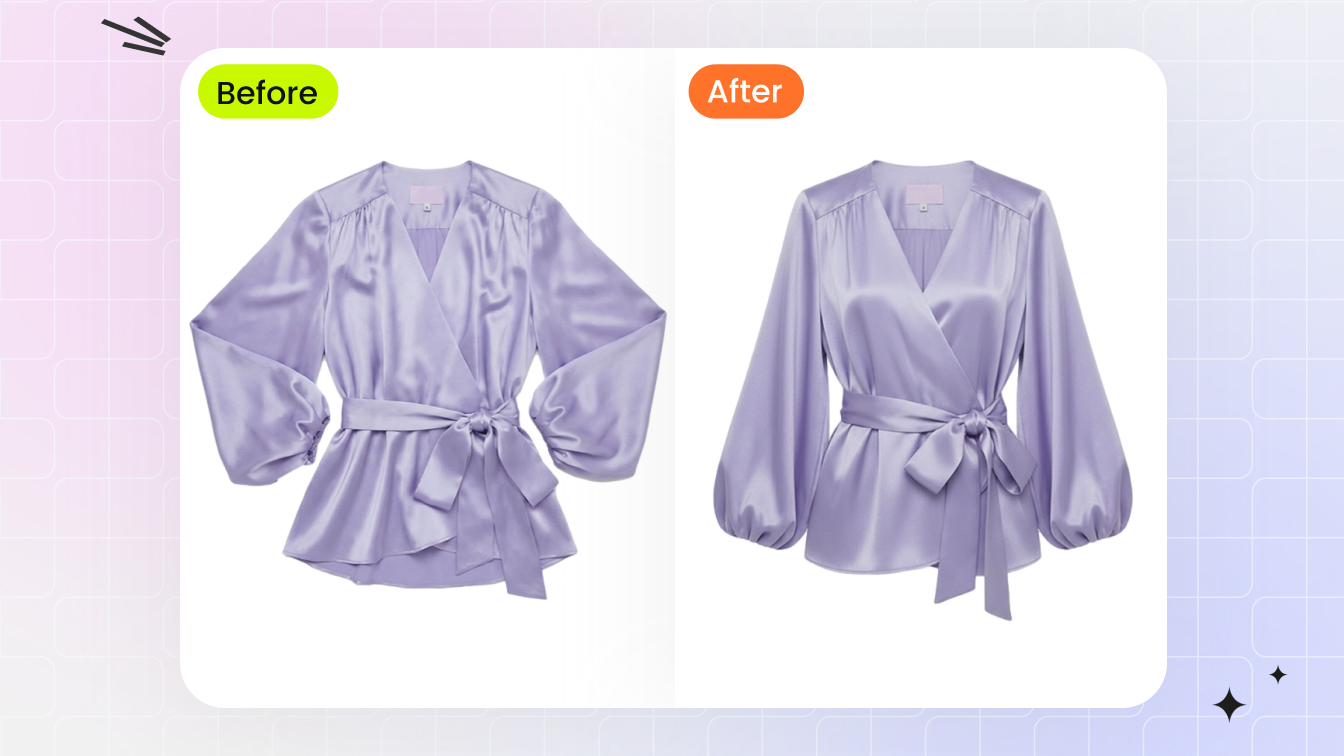
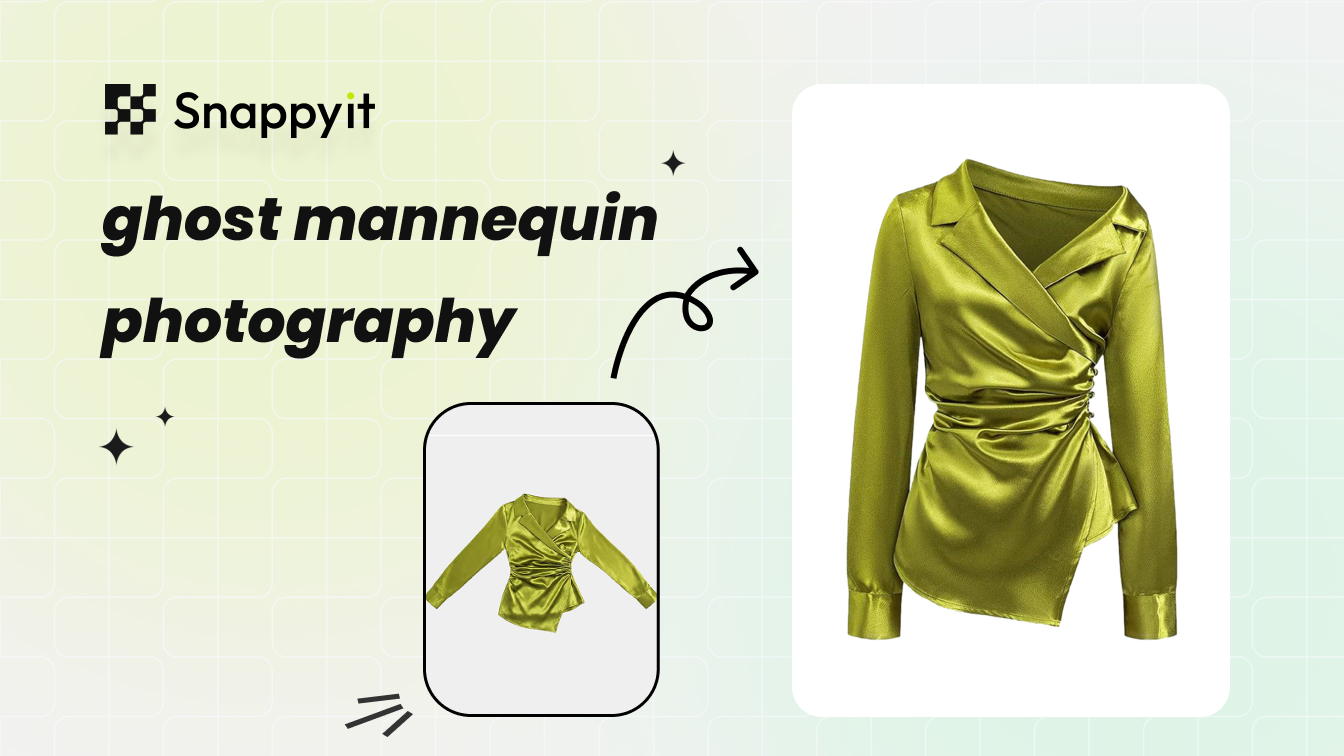
The ghost mannequin technique, also called the invisible mannequin method, is straightforward in concept: you photograph a garment on a mannequin, then digitally remove the mannequin in post-production. The result is a garment that appears to float in space with natural volume and shape, as if worn by an invisible body.
Ghost mannequin photography is a product photography method where clothing is shot on a mannequin that is later removed during editing, creating a three-dimensional, hollow garment image with no visible support.
The technique started as simple neck-joint compositing, where photographers stitched an interior collar shot behind the front image to fill the gap left by the removed mannequin neck. Today, the workflow has evolved into multi-angle capture sequences that produce fully hollow interiors, showing everything from inner linings to waistband construction. Whether you run a dedicated ghost mannequin photography studio or shoot from a spare room, the core principle stays the same: give the garment dimension without distraction.
Why Ecommerce Brands Rely on This Technique
When you browse any major apparel retailer, you'll notice hundreds of product images that share the same clean, consistent look. That uniformity is almost always the ghost mannequin effect at work. Brands like ASOS and Zara rely on it across thousands of SKUs because it checks several boxes at once:
- Consistent catalog imagery - every product gets the same framing, lighting, and presentation style, which strengthens brand identity across the storefront.
- Faster turnaround - no model coordination, no makeup artists, no scheduling conflicts. Dress the mannequin, shoot, move on.
- Lower per-image cost at scale - traditional ghost mannequin images typically run $15-50 each, compared to $50-200+ for on-model photography.
- Construction detail visibility - interior linings, label placement, and collar structure are all easy to showcase when you control the composite layers.
This guide is written for the person behind the camera or managing the shoot, not as a sales pitch for any single tool or service. Every section ahead covers a specific stage of the workflow, from choosing the right equipment and mannequin type to nailing the multi-shot capture sequence and cleaning up composites in post. The goal is to help you identify exactly where your process breaks down and how to fix it.
Of course, the technique is not the right fit for every single product or brand aesthetic. Some garments genuinely look better on a live model or laid flat. Knowing when to use this method and when to reach for an alternative is just as important as mastering the technique itself.
Choosing Ghost Mannequin Photography Over Other Techniques
Picking a photography style is a strategic decision, not a creative preference. A $10 t-shirt and a tailored blazer shouldn't be photographed the same way, and the method you choose directly shapes how customers perceive fit, quality, and value. So how does ghost mannequin photography actually stack up against the alternatives?
Ghost Mannequin vs Flat Lay vs On-Model Shooting
Four techniques dominate ecommerce apparel imagery: ghost mannequins, flat lay, on-model, and hanger photography. A fifth option, 3D rendering, is gaining ground but remains niche for most brands. Each method trades off cost, speed, and visual impact differently, and the right pick depends on what you are shooting and where it will be displayed.
| Technique | Visual Dimensionality | Cost per Image | Speed of Production | Best Garment Types | Ideal Use Case |
|---|---|---|---|---|---|
| Ghost Mannequin | High — 3D floating effect with realistic fit | $15–50 (shooting + editing) | Moderate — multi-shot capture plus compositing | Structured apparel: blazers, jackets, dresses, button-downs | Product catalog pages where fit and form matter most |
| Flat Lay | Low — top-down, no depth | $5–20 | Fast — single overhead shot, minimal editing | T-shirts, scarves, accessories, casual basics | Social media, lifestyle content, large-volume casual catalogs |
| On-Model | Highest — real body, natural movement | $50–250+ | Slow — model booking, styling, hair and makeup | Any garment, especially those relying on drape and movement | Lifestyle storytelling, fit demonstration, lookbooks |
| Hanger | Minimal — garment hangs flat, limited shape | $5–15 | Fastest — hang and shoot | Simple tops, lightweight items | Internal use, quick marketplace listings, budget catalogs |
| 3D Rendering | Variable — depends on model quality | $50–500+ (initial setup high, variants cheap) | Slow initial build, fast for color variants | Standardized basics with many colorways | Brands with large color/material variant libraries |
Ghost mannequin photography hits the sweet spot for most standard apparel catalogs. It delivers the three-dimensional realism that flat lays and hangers cannot, at a fraction of what on-model shoots cost. A typical on-model fashion shoot runs around $2,750 for 60 final images once you factor in the model, hair, makeup, and studio rental. Ghost mannequins eliminate those line items entirely while still giving customers a clear sense of how the garment sits on a body.
Flat lay works well for products where shape isn't the selling point. Accessories, casual knits, and items destined for Instagram grids often look perfectly fine shot from above. But as industry comparisons consistently show, flat lay lacks the depth and realism that structured garments need to convert browsers into buyers.
When Ghost Mannequin Is Not the Right Choice
Invisible ghost mannequin photography is powerful, but it is not universal. Garments that depend on movement and drape, think flowing evening gowns, activewear mid-stride, or oversized silhouettes that only make sense on a real body, lose their character when pinned to a static form. For those pieces, on-model photography tells a story that ghost mannequins simply cannot.
Extremely small accessories also fall outside the sweet spot. Belts, socks, and scarves rarely justify the multi-shot capture and compositing overhead when a clean flat lay or simple product shot achieves the same result in a quarter of the time. And if your brand aesthetic leans heavily into lifestyle storytelling, curated scenes, or editorial mood, ghost mannequins will feel too clinical for your primary imagery, though they can still serve as secondary catalog views.
The most effective brands don't commit to a single method across every SKU. They treat photography style as a per-product decision: ghost mannequins for the structured pieces that make up the catalog backbone, flat lay for accessories and casual items, and on-model selectively for hero products and campaign content. That kind of intentional mix keeps production costs manageable while giving each garment the presentation it deserves.
Whichever technique you land on, the quality of the final image depends heavily on what happens before you press the shutter. The right gear, matched to your budget and garment types, is the foundation everything else builds on.

Equipment Checklist for Ghost Mannequin Photography at Every Budget
A great ghost mannequin image is only as good as the gear behind it. But here is the thing: you do not need to spend thousands upfront to produce clean, catalog-ready results. The difference between a beginner setup and a professional rig comes down to speed and consistency, not whether the technique works at all. A photographer with a single light and a basic torso mannequin can absolutely nail mannequin product photography. A photographer with a three-light kit and articulated mannequins just does it faster and with fewer retakes.
The checklist below is organized into three tiers so you can start where your budget allows and upgrade strategically as volume grows.
Essential Gear for Getting Started
This is the baseline kit. Everything here is necessary to produce a usable ghost mannequin composite. Skip any one item and you will either struggle during the shoot or spend excessive time fixing problems in post.
- Camera body with full manual controls — any DSLR or mirrorless camera that lets you set aperture, shutter speed, ISO, and white balance manually. You do not need the latest flagship. An entry-level body like a Canon EOS Rebel series or Nikon Z30 handles product work just fine.
- 50mm or 85mm prime lens — a prime in this range minimizes barrel distortion and keeps garment proportions accurate. If you prefer versatility, a 24-70mm zoom covers the same focal lengths with the flexibility to reframe without moving the tripod. As product photography guides consistently recommend, the 50mm prime is the workhorse choice for this kind of work.
- Sturdy tripod — non-negotiable. You need identical framing between your front shot and interior shot for clean compositing. Any movement between takes creates alignment headaches in Photoshop. A tripod with a ball head and quick-release plate makes repositioning between garments fast.
- Basic torso mannequin in matte white or light gray — a matte finish prevents color casts from reflecting onto light-colored fabrics. Glossy mannequins bounce light unpredictably and create hotspots that bleed into the garment. Ghost mannequins with removable body parts — detachable neck, arms, and torso sections — typically cost between $150 and $500 and are purpose-built for this technique.
- White or light gray seamless paper backdrop — a 9-foot roll of seamless paper is the industry standard. White is preferred because it is the easiest to push to pure white (RGB 255, 255, 255) in post, and most marketplaces like Amazon and Shopify stores require or recommend white backgrounds.
- One continuous LED panel or a single strobe with softbox — a single diffused light source at a 45-degree angle to the mannequin, paired with a white reflector on the opposite side, produces clean and even illumination for ghost mannequin for ecommerce shoots. Continuous LED panels let you see exactly what the camera sees in real time, which is helpful for beginners. A strobe with a softbox delivers more power and sharper results but requires a flash trigger and a bit more setup knowledge.
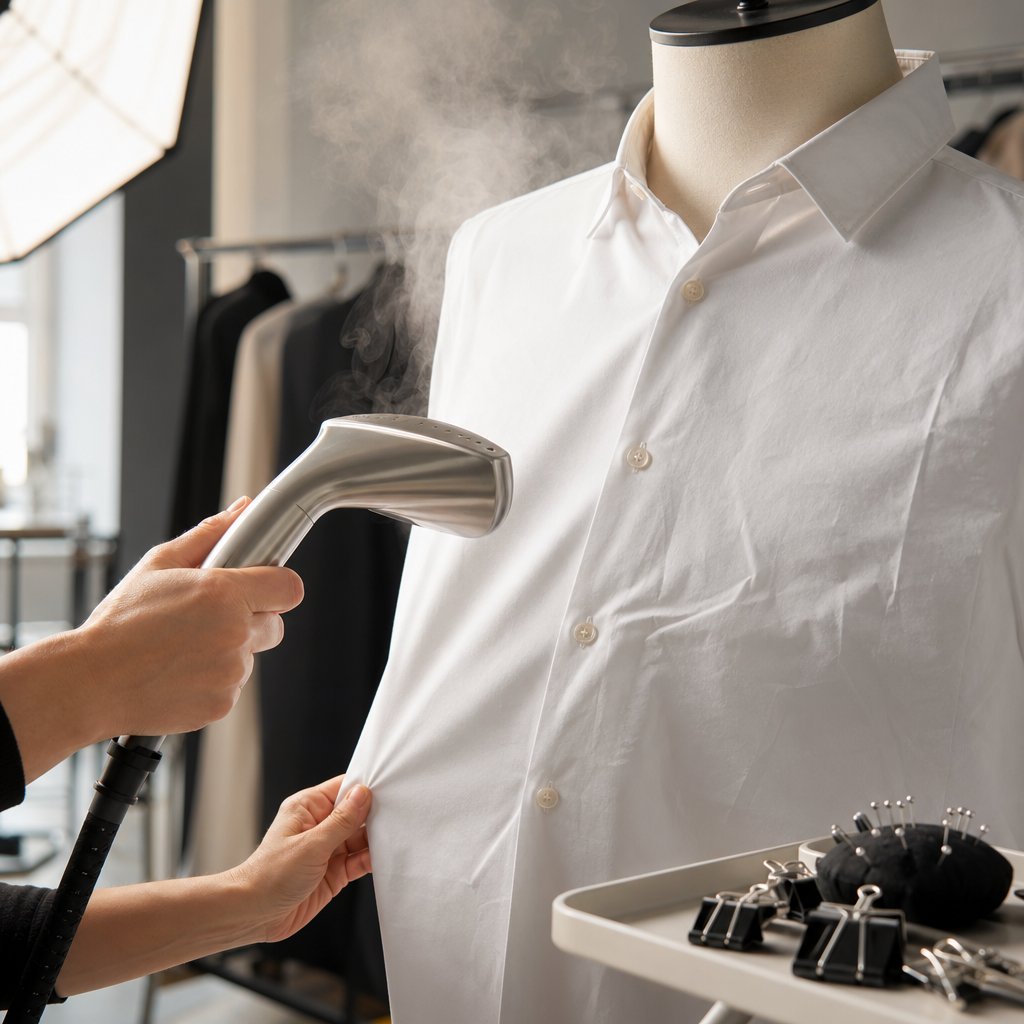
- Garment prep tools — a handheld steamer, bulldog clips, straight pins, and double-sided fashion tape. These are cheap and absolutely critical. Wrinkles and loose fabric are the number-one cause of excessive retouching time, and no amount of post-production skill makes up for sloppy prep.
With this kit, you can produce professional-looking composites for shirts, blouses, jackets, and dresses. The total investment typically falls between $500 and $1,200 depending on whether you already own a camera body.
Recommended and Professional Upgrades
The essential tier gets the job done. The upgrades below make the job faster, more consistent, and better suited to high-volume production. Each item earns its place by solving a specific bottleneck rather than just being "nicer to have."
Recommended tier — for photographers shooting regularly or managing catalogs of 50+ SKUs per session:
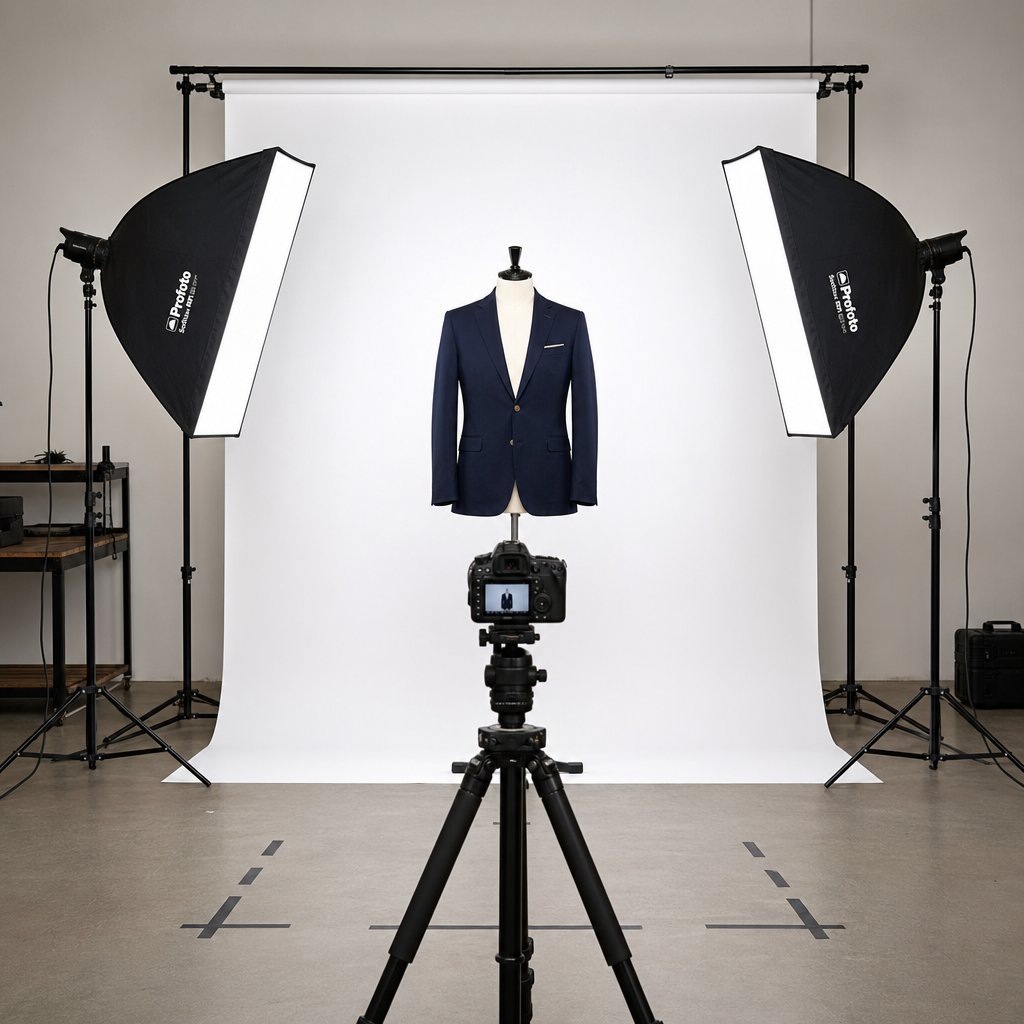
- Second light for fill — adding a fill light or a second softbox on the opposite side of your key light eliminates the need to constantly reposition a reflector. It wraps the garment in even illumination and dramatically reduces shadow cleanup in post. Two softboxes at 45-degree angles on either side of the mannequin is the classic product photography setup for a reason: it is reliable, repeatable, and fast.
- Tethering cable and laptop — shooting tethered to a laptop lets you review every image at full resolution the moment you press the shutter. You catch soft focus, exposure drift, and styling issues immediately instead of discovering them hours later during editing. This single upgrade nearly eliminates reshoots.
- Boom arm for overhead angles — useful for capturing interior shots of garments laid flat, especially waistband and collar details that need a straight-down perspective.
- Foam inserts and tissue paper kit — pre-cut foam forms for shoulders, chest cavities, and sleeves give lightweight fabrics the volume they need to look natural on the mannequin. Without stuffing, thin materials like jersey and chiffon cling to the form and look deflated in the final image.
Professional tier — for studios handling high-volume ghost mannequin for photography work or serving multiple brands:
- Articulated or segment mannequins for different garment categories — a single torso mannequin handles most tops, but pants need a lower-body form, and full-length dresses benefit from a complete figure. Having category-specific mannequins eliminates awkward pinning workarounds and speeds up styling significantly.
- Three-light setup with strip boxes — strip boxes produce narrow, controlled light that wraps around the garment's edges, separating it cleanly from the backdrop. A third light aimed at the seamless paper behind the mannequin blows out the background to pure white in-camera, cutting background removal time in post.
- Color calibration target — a gray card or a full color checker shot at the start of each session gives you a reliable reference for white balance correction. This ensures your navy blues stay navy and your whites stay neutral across hundreds of images, which matters enormously for catalog consistency.
- Dedicated shooting table for small items — a translucent acrylic table lets you light products from below, which is useful for accessories and small garments that do not fit a mannequin. It also simplifies shadow creation for items that need a grounded, natural look.
The recommended tier adds roughly $300-$800 to your setup. The professional tier can push total investment to $3,000-$5,000+, but at that level you are equipped to handle any garment type at volume with minimal post-production overhead.
Mannequin Selection by Budget
Mannequin choice deserves its own deep dive, and the next section covers it in detail. But if you are making your first purchase and need a single recommendation: start with a detachable-limb torso mannequin in a matte white finish. This style handles the widest range of garment types, from button-down shirts to structured blazers to sleeveless dresses, and its removable parts make interior shots straightforward without needing to fully undress and redress the garment between takes.
Budget shoppers can find serviceable options in the $150-$250 range. Spending more typically gets you better joint mechanisms, more realistic proportions, and sturdier construction that holds up across thousands of dressings. The mannequin is the one piece of gear where going too cheap creates problems that ripple through every stage of the workflow, from styling and pinning all the way through to compositing and edge cleanup.
Choosing the right mannequin type for your specific garment mix is where most photographers make their first costly mistake. A torso that is perfect for tailored shirts can be completely wrong for wide-leg trousers or full-length gowns.
Skip the multi-shot compositing. Snappyit turns a single garment photo into a clean ghost mannequin image automatically. Try Snappyit free →
Mannequin Types Compared and When to Use Each
A photography mannequin is not a one-size-fits-all purchase, yet most photographers treat it that way. They grab whatever torso is available, wrestle every garment onto it, and then wonder why half their composites look awkward. The mannequin you choose dictates how natural the garment sits, how easy the interior shot is to capture, and how much time you burn in post cleaning up fit issues. Picking the wrong one is the single fastest way to sabotage an otherwise solid workflow.
Three categories cover the vast majority of mannequin photography needs. Each serves a different slice of your catalog.
Full-Body vs Torso vs Neck Block Mannequins
A full-body mannequin gives you head-to-toe coverage, which makes it the obvious choice when you need to photograph complete outfits, tops and bottoms styled together, or full-length dresses that lose their silhouette on a truncated form. The tradeoff is cost and footprint. Full-body forms are the most expensive option, they take up significant studio space, and swapping garments on and off takes longer because there are more limbs to work around.
Torso mannequins, with or without arms, are the workhorse for most ecommerce catalogs. If you primarily shoot shirts, jackets, blouses, or knee-length dresses, a torso handles all of it efficiently. Removable arm and neck sections make interior shots straightforward, and the compact size means you can store multiple torsos without dedicating an entire room to mannequin storage.
Neck block mannequins are the specialist tool. These small forms replicate just the neck and upper chest area, and they exist for one purpose: capturing the interior collar and neckline detail that fills the gap when you remove the main mannequin in post. Many photographers use a neck block as a secondary form alongside their primary torso, shooting the garment inside-out on the block to get a clean interior layer for compositing.
| Mannequin Type | Garment Compatibility | Ease of Compositing | Storage Footprint | Typical Price Range |
|---|---|---|---|---|
| Full-Body | Complete outfits, full-length dresses, coordinated sets | Moderate — more surface area to mask and remove | Large — requires dedicated floor space | $300–$1,200+ |
| Torso (with/without arms) | Shirts, jackets, blouses, short dresses, skirts (upper body) | Easy — smaller removal area, detachable parts simplify interior shots | Compact — stores on a shelf or in a closet | $150–$500 |
| Neck Block | Collar and neckline detail only (secondary form) | Very easy — minimal masking, used only for interior layers | Minimal — fits in a drawer | $30–$100 |
For most brands starting out, a torso mannequin paired with a neck block covers roughly 80% of standard apparel SKUs. Add a full-body form only when your product line genuinely demands it.
Flexible and Articulated Mannequins
Standard mannequins hold a single, fixed pose. That works fine when every product image in your catalog shares the same straight-on presentation. But some brands want subtle pose variation, a slightly bent arm to show a jacket's sleeve drape, or a hip shift to give a dress more personality, without investing in multiple mannequin bodies.
Articulated mannequins solve this with adjustable joints at the shoulders, elbows, and sometimes the wrists. You can reposition the limbs between garments to create natural-looking variation across a catalog while keeping the same base form. The joints do add complexity to compositing since the seam lines at each joint need careful masking, but the visual payoff is a catalog that feels less rigid and more lifelike.
On the budget end, inflatable and soft-body mannequins offer a lightweight, portable alternative. These work reasonably well for stretchy knits, jersey tops, and casual basics where the fabric conforms to whatever shape it is given. They fall apart, sometimes literally, with structured garments. A tailored blazer on an inflatable form looks lumpy and shapeless because the soft body cannot hold the garment's intended silhouette. Treat inflatables as a niche tool for specific fabric types, not as a primary photography mannequin.
Matching Mannequin Size to Your Garment Range
Here is where many photographers create problems they do not realize until they are deep into a shoot. Imagine pinning a size-10 blazer onto a size-6 mannequin. The excess fabric bunches at the back, the shoulders droop past the mannequin's shoulder points, and no amount of clipping produces a natural front silhouette. The reverse is just as bad: a too-large mannequin stretches the garment, distorts the fit, and can even damage delicate fabrics.
The rule is simple: your invisible mannequin must match the sample size of the garments you are photographing. Most brands shoot samples in a single base size, typically a size 6 or 8 for women's apparel and a medium for men's. Buy a mannequin that corresponds to that sample size, and your styling time drops dramatically.
If your brand shoots across a wide size range, say small through plus-size, keeping two mannequin sizes on hand is worth the investment. A standard and a plus-size torso cover the full spectrum without forcing you into excessive pinning or stuffing workarounds. The cost of a second mannequin is trivial compared to the retouching hours you save when every garment actually fits the form it is photographed on.
Getting the mannequin right is half the battle. The other half is what happens between pulling the garment off the rack and pressing the shutter: steaming, pinning, stuffing, and styling the fabric so it looks its best before the camera ever fires.

Garment Preparation and Styling Before the Mannequin Photoshoot
Every minute you skip in garment prep costs you five minutes in post-production. That is not an exaggeration. Wrinkles that take thirty seconds to steam out of a blouse can take ten minutes to clone and heal in Photoshop, and the result still looks worse than if the fabric had been smooth in the original capture. Pins placed carelessly in the frame turn into tedious retouching puzzles. Sleeves that collapse because nobody stuffed them create flat, lifeless silhouettes that no amount of editing can convincingly inflate.
Yet garment preparation is the phase most photographers rush through or skip entirely. They focus on camera settings and lighting, treat styling as an afterthought, and then wonder why their ghost mannequin product photography looks off. The fix starts here, before the camera ever fires.
Steaming, Pressing, and Wrinkle Removal
Every single garment needs to be steamed or pressed before it goes on the mannequin. No exceptions. Even brand-new samples arrive with fold lines from packaging, and garments pulled from storage always carry creases that the camera will magnify.
You have two main tools for the job, and each suits different fabrics and garment structures:
- Handheld garment steamer — fast, portable, and gentle. A steamer is ready to use in about 30 seconds and works beautifully on knits, delicates, silk, and anything that wrinkles easily during handling. You can steam a garment directly on the hanger or mannequin without needing an ironing board, which keeps the workflow moving. For thicker fabrics like wool or denim, hold the nozzle close to the surface and pass slowly to let the steam penetrate the fibers. For delicate materials like silk, keep the steamer a few centimeters away and use quick, light passes to avoid water spots.
- Garment press or iron — better for crisp, structured results. Dress shirts with stiff collars, tailored blazer lapels, and pleated trousers benefit from the flat, direct heat of a press. The contact pressure creates sharp creases where you want them and eliminates wrinkles more aggressively than steam alone. The downside is speed: you need a flat surface, the heat-up time is longer, and you risk leaving shine marks on certain fabrics if you skip a pressing cloth.
For most mannequin photoshoot workflows, a handheld steamer handles 80-90% of garments. Keep a press or iron on standby for the structured pieces that need that extra crispness. The key principle is simple: wrinkles visible during the shoot are exponentially harder to fix in post than to prevent. A two-minute steam pass saves you from pixel-level healing brush work later.
One detail photographers often overlook: run a lint roller over the garment immediately after steaming. Steam loosens fibers and can bring dust and lint to the surface, especially on dark fabrics. A quick roll catches those particles before they show up as bright specks in your high-resolution captures.
Pinning, Clipping, and Stuffing Techniques
Styling a garment on a mannequin is about creating an illusion. You want the front of the garment to look naturally fitted and full-bodied, even if the back is a mess of clips, pins, and tape holding everything in place. The camera only sees what you show it.
Professional fashion stylists rely on a core set of tools that every ghost mannequin photographer should keep within arm's reach: styling clips (crocodile clips, binder clips), sewing and safety pins, double-sided tape, white or blue tack adhesive, tissue paper, and fashion scissors for trimming loose threads. These are inexpensive and indispensable.
Here is the step-by-step dressing sequence that keeps your styling consistent across every garment:
- Inspect the garment — check for stains, loose threads, missing buttons, or damage. Trim any hanging threads with sharp fashion scissors. A flaw you catch now saves a reshoot later.
- Steam or press — remove all wrinkles and fold lines as described above. Finish with a lint roller pass.
- Dress the mannequin — slide the garment onto the form carefully. Button or zip it to the position you want in the final image. Smooth the fabric with your hands from the center outward.
- Pin and clip the back — use bulldog clips and pins along the back center seam and sides to pull excess fabric taut. The goal is a clean, fitted front silhouette without distorting the garment's natural shape. Place clips vertically on the sides to pull fabric evenly without creating horizontal wrinkles. Pins work well in the shoulder and upper back areas where they are easy to hide from the camera.
- Stuff sleeves and collar — roll tissue paper loosely and insert it into sleeves to give them natural volume and a slight outward curve. Stuff the collar area lightly so it holds its shape rather than collapsing inward. For trousers, pad the lower hem line to round out the leg opening. As styling professionals note, tissue paper padding gives clothes a more "full-bodied" look and highlights finer garment details.
- Secure lapels, hems, and cuffs — use double-sided tape to keep lapels lying flat, hems sitting evenly, and sleeve cuffs in position. White tack adhesive works when tape alone cannot hold heavier fabric in place, and it appears nearly invisible in final photos.
- Final check from camera position — step behind the camera, look through the viewfinder or live view, and scan the entire garment. Check that no clips or pins are visible from the shooting angle. Verify that the silhouette looks natural and symmetrical. Adjust anything that looks off before you take a single frame.
One critical rule runs through every step: all pins and clips must be placed where they will be hidden from the camera or positioned where they can be easily cloned out in post. The back of the mannequin is your staging area. If a clip must go on the side, tuck it as far toward the back edge as possible. A visible bulldog clip in the final image screams amateur, and removing it cleanly in Photoshop takes far longer than repositioning it during the shoot.
Fabric-Specific Preparation Tips
Not every fabric responds the same way to steaming, pinning, and stuffing. Treating a satin blouse the same as a cotton oxford leads to problems that show up immediately in the ghost mannequin effect. Here are the adjustments that matter most:
- Sheer and lightweight fabrics — chiffon, organza, and mesh are translucent enough that the mannequin body shows through the fabric. Place a contrasting interior layer, a piece of white or black card stock, between the garment and the mannequin to give the fabric visual definition. Clips work better than pins on sheer material because pins simply will not hold the fabric firmly enough without tearing it.
- Dark fabrics — black, navy, and charcoal garments absorb light and lose texture detail in photographs. These pieces benefit from extra fill light to reveal weave, stitching, and surface texture. A lint roller is especially important here, since dust and lint that are invisible on white fabric become glaringly obvious on dark materials under high exposure.
- Reflective and satin materials — silk, satin, and patent leather bounce light unpredictably, creating hotspots and blown-out highlights that flatten the garment's appearance. Careful light positioning is essential: move your key light further to the side or increase the size of your diffusion to spread the reflection across a wider area rather than concentrating it in a single bright spot.
- Heavy knits and wool — thick fabrics hold wrinkles stubbornly and need slow, close steaming to relax the fibers. They also tend to stretch under their own weight on a mannequin, so pin the shoulders and upper back firmly to prevent the garment from sagging during the shoot.
Matching your prep approach to the fabric saves time on both ends of the workflow. You spend less time fighting the material during styling, and your editor spends less time correcting issues that proper handling would have prevented.
Garment prep gets the fabric looking its best. But even a perfectly styled piece falls flat if the light hitting it is wrong or the camera settings are off. How you set up the studio environment and dial in your exposure determines whether all that careful preparation actually translates into a clean, usable capture.
Camera Settings and Studio Setup for Ghost Mannequin Images
You can steam every garment perfectly, pin the back like a seasoned stylist, and stuff every sleeve with tissue paper. None of it matters if your camera is set to auto and your lighting is uneven. The studio environment and camera settings are where clothing photography ghost mannequin work either comes together or quietly falls apart, frame after frame, across an entire catalog.
This section is meant to be bookmarked. Print it, tape it to your light stand, or save it on your tethering laptop. These are the specific numbers and configurations you need on shoot day, not vague advice about "getting the exposure right."
Camera Settings Optimized for Ghost Mannequin Shoots
Product photography rewards precision over creativity. You are not chasing mood or atmosphere. You want every fiber of the fabric rendered sharply, every color accurate, and every frame matching the one before it. Manual mode is non-negotiable. Auto settings shift between garments of different colors and reflectivity, which means your white oxford shirt and your black wool blazer end up at completely different exposures even though they were shot thirty seconds apart.
Here are the starting points that produce clean, consistent results across the widest range of garments:
Baseline settings for ghost mannequin shoots: Aperture f/8 to f/11, ISO 100 to 200, Shutter speed 1/125 to 1/200 (strobe sync) or adjusted for continuous lighting, Manual white balance set with a gray card, RAW file format.
Why these numbers? Each one solves a specific problem:
- Aperture f/8 to f/11 — this range delivers maximum sharpness across the entire garment from collar to hem. Wider apertures like f/2.8 or f/4 create shallow depth of field that blurs parts of the garment, which might look artistic but is useless for product imagery where customers need to see every detail. Going narrower than f/16 introduces diffraction, a subtle softening effect caused by light bending around the aperture blades, which actually reduces overall sharpness.
- ISO 100 to 200 — the lowest native ISO your camera offers keeps digital noise to a minimum and preserves fabric texture. Since you are working in a controlled studio with dedicated lighting, there is no reason to push ISO higher. Noise is especially damaging on smooth fabrics like satin and silk, where it breaks up the clean surface the customer expects to see. As product photography guides consistently emphasize, low ISO paired with controlled lighting produces the cleanest files with the most editing flexibility.
- Shutter speed 1/125 to 1/200 — if you are using strobes, set your shutter speed to your camera's flash sync speed, which is typically 1/200 or 1/250 depending on the body. The strobe fires fast enough to freeze any micro-vibration, and the shutter speed simply controls how much ambient light bleeds into the frame. With continuous LED lighting, you have more flexibility. Adjust shutter speed to achieve correct exposure based on your meter reading, and let the tripod handle any stability concerns at slower speeds.
- Manual white balance via gray card — auto white balance is the silent saboteur of catalog consistency. Your camera's AWB algorithm interprets each garment differently: a red dress shifts the white balance cooler, a blue shirt pushes it warmer, and suddenly your "white" background is a slightly different shade in every image. Photograph a gray card at the start of each session, set your custom white balance from that reference, and leave it locked. Every garment in the session will share the same color baseline, which saves enormous time in batch color correction later.
- RAW file format — RAW files capture the full data from your camera's sensor, giving you far more latitude to adjust exposure, white balance, and color in post without degrading image quality. JPEG compression throws away data you cannot recover. For a mannequin for photography workflow where you are compositing multiple layers and making precise color adjustments, RAW is not optional.
One setting photographers often overlook: turn off in-camera noise reduction and sharpening. These processing effects bake changes into your file that interfere with the precise masking and compositing you will do later in Photoshop. Apply sharpening as the final step of your editing workflow, not during capture.
Lighting Setup for Clean, Even Exposure
Lighting makes or breaks ghost mannequin images more than any other single variable. The goal is flat, even illumination that reveals fabric texture and construction detail without creating harsh shadows or blown highlights. Dramatic lighting belongs in editorial spreads and lookbooks. Product catalog imagery needs clarity, not mood.
A reliable two-light setup covers the majority of garment types:
- Key light at 45 degrees, camera-left — position a large softbox (36 inches or bigger) at roughly 45 degrees to the mannequin and slightly above eye level. The softbox diffuses the light across a wide area, wrapping around the garment's curves and minimizing hard shadow edges. Larger softboxes produce softer light, so go as big as your space allows.
- Fill light or reflector at camera-right — place a second softbox or a large white reflector panel on the opposite side to open up shadows. The fill should be roughly one stop dimmer than the key light to maintain subtle dimensionality. If both lights are equal power, the garment looks completely flat and loses the gentle contouring that gives it a three-dimensional appearance. A white foam board reflector works well here if you do not have a second light, it simply bounces the key light back onto the shadow side at reduced intensity.
This two-light configuration handles white, mid-tone, and most colored garments without adjustment. Dark fabrics, however, need extra attention. Black, navy, and charcoal garments absorb so much light that they can merge into the shadows and lose all visible texture. For these pieces, add a third light or reflector positioned low and behind the garment, aimed upward at the back of the fabric. This creates a subtle rim of light along the garment's edges that separates it from the backdrop and reveals surface detail that would otherwise disappear.
Keep one rule in mind throughout: do not move your lights between the front shot and the interior shot of the same garment. Any change in lighting direction or intensity between layers creates mismatched exposure that is immediately visible when you composite the images in post. Lock your lights in position, mark their stands on the floor with tape if needed, and leave them untouched until the entire garment is finished.
Backdrop, Distance, and Tethered Shooting
The backdrop, camera-to-subject distance, and review workflow are the final pieces of the studio environment puzzle. Get these right and your shoot runs smoothly from the first garment to the last.
Backdrop: White or light gray seamless paper remains the standard for ghost mannequin clothing photography. A 9-foot-wide roll mounted on a crossbar behind the mannequin, curving gently down to the floor or shooting table, creates a seamless "sweep" with no visible horizon line. Seamless paper is preferred over fabric backdrops because it stays wrinkle-free, is easy to replace when scuffed, and produces clean edges that simplify masking in post. If your background light is not blowing the paper to pure white in-camera, you can push it there during editing, but starting close saves time.
Camera-to-subject distance: Position your tripod roughly 4 to 6 feet from the mannequin when using a 50mm to 85mm lens. This distance range minimizes barrel distortion, which warps straight lines and makes garments look wider or narrower than they actually are. Wider lenses at closer distances exaggerate proportions, especially at the edges of the frame. If you are using a 24-70mm zoom, set it to the 50-70mm range and step back rather than zooming wide and moving closer.
Tripod and remote shutter: Mark your tripod position on the floor with gaffer tape so you can return to the exact same spot if the tripod gets bumped. Use a remote shutter release, a cable release, or your camera's built-in two-second timer to eliminate any vibration from pressing the shutter button. When you are shooting hundreds of SKUs in a session, even tiny shifts in framing compound into noticeable inconsistencies across the catalog.
Tethered shooting: If there is one workflow upgrade that pays for itself immediately, it is tethering your camera to a laptop. Software like Capture One or Adobe Lightroom displays each image at full resolution the moment you fire the shutter. You can zoom to 100%, check critical focus on the collar stitching, verify that no pins are visible, and confirm exposure accuracy before moving on to the next garment. Without tethering, you are relying on a 3-inch LCD screen that hides soft focus, subtle color casts, and styling mistakes you will not discover until you sit down to edit hours later. A single USB tethering cable and a laptop on a side table eliminate an entire category of preventable reshoots.
With your studio environment locked in and your camera dialed to the right settings, the technical foundation is solid. The next challenge is knowing exactly which shots to capture for each garment type, and in what order, so the compositing stage goes smoothly instead of turning into a puzzle with missing pieces.

Multi-Shot Workflow Broken Down by Garment Type
Your studio is set, your camera is dialed in, and the garment is styled. The question every ghost mannequin photographer faces next is deceptively simple: which shots do I actually need? Capture too few and you are left with gaps that no amount of Photoshop skill can fill. Capture too many and you burn time on angles that never make it into the final composite.
The answer depends on what you are shooting. A button-down shirt and a pair of trousers do not require the same capture sequence, and treating them identically is one of the most common reasons invisible mannequin photography looks unfinished.
The Core Multi-Angle Shot List
Every garment, regardless of category, needs a minimum set of captures to produce a clean composite. Think of these as the raw ingredients your editor will layer together in post. Miss one and the final image will have a visible hole or an awkward transition where the mannequin used to be.
Here is the recommended shooting order, structured so you move through each garment efficiently without repositioning lights or the camera between critical shots:
- Front view on the mannequin — your primary product image. Camera centered at chest height, the entire garment in frame with even margins on all sides. This is the shot customers see first, so check styling, symmetry, and exposure carefully before moving on.
- Back view on the mannequin — rotate the mannequin 180 degrees without moving the camera, tripod, or lights. This gives customers the rear view and provides the back-panel layer you may need during compositing. Keeping everything else stationary ensures the two shots align perfectly when layered.
- Interior or reverse view — this is the shot most beginners forget, and it is the one that makes the entire ghost mannequin effect possible. Remove the mannequin's neck piece and upper torso section (or flip the garment inside-out and lay it flat) to expose the inner collar, neckline, and armhole areas. Photograph these interior surfaces so your editor has real fabric to fill the gaps left by the removed mannequin. Without this layer, your composite will simply have a hole where the mannequin's neck and body used to be.
- Detail shots (optional) — close-ups of labels, stitching, hardware, zipper pulls, or unique construction details. These are not part of the composite but serve as supplementary product images that help customers evaluate quality. Shoot them while the garment is still on the mannequin and the lighting is locked in.
That three-shot core, front, back, and interior, is the backbone of every invisible mannequin photography workflow. The interior capture is what separates a professional composite from an amateur cutout with an empty void at the neckline. It provides the actual fabric texture and color that fills the space between the collar and the chest, giving the finished image its characteristic hollow, three-dimensional look.
Adapting the Workflow for Different Garment Types
The three-shot sequence is a starting point, not a rigid formula. Different garment categories demand different photography mannequins, additional angles, and specific styling adjustments. Here is how the workflow shifts depending on what is on the rack.
Tops and shirts follow the standard front-back-interior sequence with minimal variation. Pin excess fabric at the back to create a fitted front silhouette, stuff the collar lightly with tissue paper, and ensure buttons or closures are fastened consistently across every SKU. Three shots per garment is usually sufficient.
Jackets and outerwear require more captures. Shoot the jacket buttoned or zipped for the primary image, then shoot it open to show the interior lining and construction. Stuff the sleeves more aggressively than you would for a lightweight shirt since outerwear needs visible structure and volume to look convincing. Capture the interior lining as a dedicated shot, especially if the lining fabric or pattern is a selling point. Plan for four to five shots per piece.
Bottoms like pants and skirts need a lower-torso or waist-down mannequin. Pin at the back seam to pull the waistband taut, and stuff the leg openings with tissue paper to round out the hem. Shoot front and back views, then capture the waistband interior by folding the waist area outward or removing the mannequin's waist section. Three to four shots cover most styles.
Dresses benefit from a full-body mannequin that shows the complete silhouette from neckline to hem. Depending on the cut, you may need an additional three-quarter or side-angle shot to communicate the garment's shape, particularly for A-line, fit-and-flare, or asymmetric designs where the front view alone does not tell the full story. Budget four to five shots.
Accessories like hats and bags often do not need a mannequin at all. Hat forms, head blocks, or simple stuffing with tissue paper create the shape you need. Bags can be stuffed and propped on a small stand or shooting table. Two to three shots, front and back plus one detail, typically suffice.
| Garment Type | Recommended Mannequin | Shots Needed | Key Styling Notes |
|---|---|---|---|
| Tops and Shirts | Torso with removable neck | 3 (front, back, interior) | Pin back for fitted silhouette; stuff collar lightly; fasten buttons consistently |
| Jackets and Outerwear | Torso with removable arms | 4-5 (front closed, front open, back, interior, lining detail) | Stuff sleeves aggressively; shoot both buttoned and open; capture lining separately |
| Pants and Skirts | Lower-torso or waist mannequin | 3-4 (front, back, waistband interior, optional side) | Pin at back seam; stuff leg openings; fold waist outward for interior shot |
| Dresses | Full-body mannequin | 4-5 (front, back, interior, side or 3/4 angle) | Side angle for A-line or asymmetric cuts; pin back carefully to preserve silhouette |
| Accessories (Hats, Bags) | Form, head block, or stuffing | 2-3 (front, back, detail) | No mannequin needed; stuff for shape; use a small stand or shooting table |
Adapting the shot count and mannequin choice per category keeps your capture sessions efficient. You avoid wasting time on unnecessary angles for simple garments while making sure complex pieces get the coverage they need for a convincing composite.
Maintaining Consistency Across a Full Catalog
Shooting a single garment well is one skill. Shooting two hundred garments so they all look like they belong in the same catalog is an entirely different challenge. Research shows that brands with consistent product visuals can see revenue increases of up to 33%, and inconsistency in framing, lighting, or positioning is one of the fastest ways to erode customer trust on a product grid.
The fix is mechanical, not creative. Consistency comes from eliminating variables between garments, not from making subjective judgments shot by shot.
- Mark everything on the floor — use gaffer tape to mark the exact position of the mannequin's base, the tripod legs, and each light stand. When you swap garments, the mannequin goes back to the same spot, the camera stays at the same height and distance, and the lights remain untouched. This ensures every SKU shares identical framing and shadow direction.
- Lock your camera settings for the session — once you have dialed in your aperture, ISO, shutter speed, and white balance for the first garment, leave them alone. The only adjustment between garments should be minor styling changes on the mannequin itself. If a dark garment needs more light, adjust your strobe power rather than changing the aperture or ISO, so depth of field and noise levels stay uniform.
- Use a reference image for every session — shoot your first garment, review it on the tethering laptop, and designate it as the session's reference frame. As you move through subsequent garments, pull up the reference image side by side with each new capture. Check that the garment sits at the same height in the frame, the background tone matches, and the overall exposure feels consistent. Tethered shooting software makes this comparison instant, which is why it is one of the most impactful workflow upgrades for high-volume production.
- Batch garments by type — shoot all shirts together, then all jackets, then all pants. This minimizes mannequin swaps and keeps your styling rhythm consistent within each category. Switching between a torso mannequin and a full-body form mid-session breaks your flow and increases the chance of accidentally shifting a light stand or tripod.
Consistency during capture directly reduces the workload in post-production. When every frame shares the same lighting, framing, and color baseline, your editor can batch-process adjustments instead of correcting each image individually. That efficiency compounds fast across a catalog of hundreds of SKUs.
With a complete set of well-matched captures for each garment, the real transformation happens next: layering those shots together in post-production to remove the mannequin and build the final composite that customers actually see.

Post-Production Ghost Mannequin Editing From Masking to Final Export
You have a folder full of RAW files: front shots, back shots, interior layers. They look like raw ingredients right now, not finished product images. The mannequin ghost is still very much visible in every frame, and the garment does not yet have that clean, floating appearance customers expect. This is where ghost mannequin editing transforms a set of ordinary photo mannequin captures into polished composites that belong on a product page.
Post-production is also where most photographers hit a wall. The shooting part feels intuitive. The editing part feels like surgery. Every pixel matters at the neckline seam, and a sloppy mask edge can undo hours of careful styling and lighting work. The workflow below breaks the process into repeatable steps you can follow garment after garment.
Layer Masking and Mannequin Removal Step by Step
The core editing sequence in Photoshop follows the same logic regardless of garment type. You are building a composite from two or more layers, removing the mannequin from the front shot, and filling the resulting void with real fabric from the interior capture. Here is the step-by-step order:
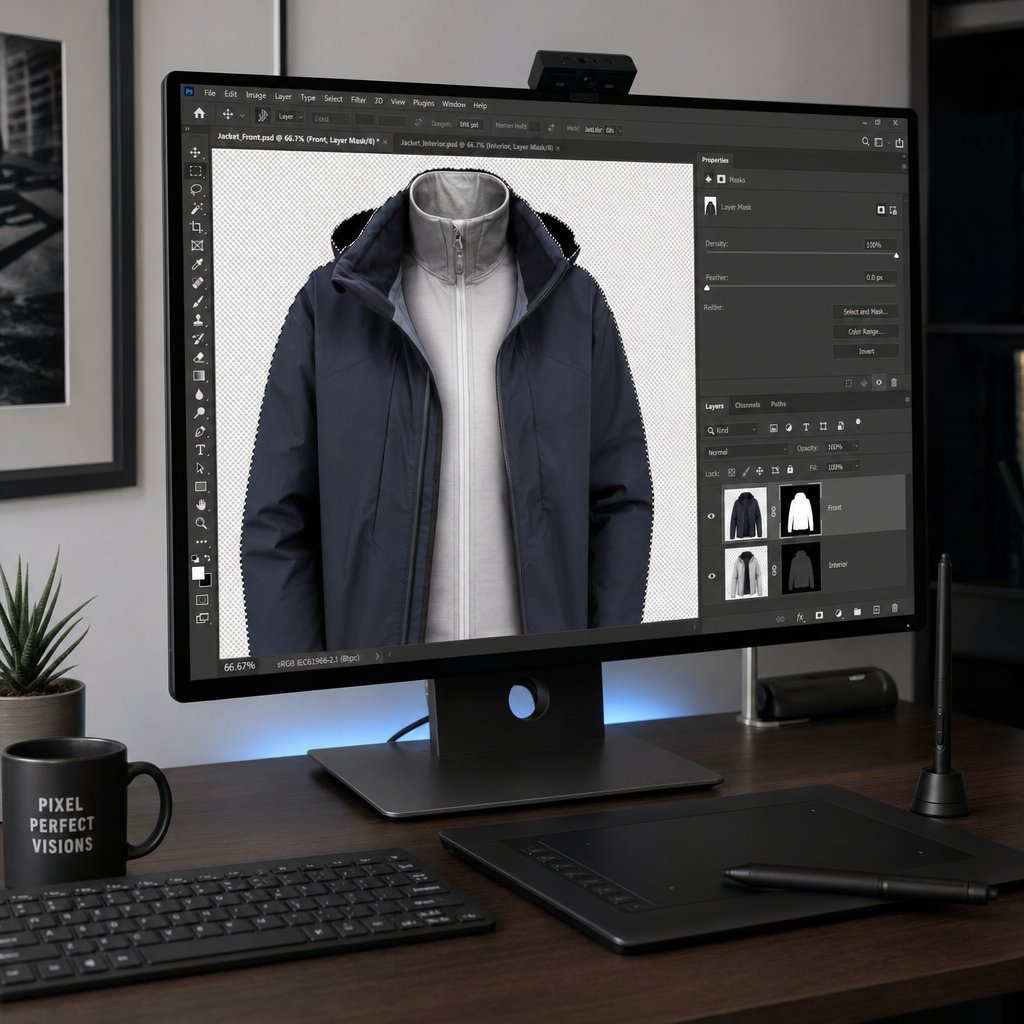
- Import your files — open the front-on-mannequin shot and the interior shot in Photoshop. Place the front image as your base layer and drag the interior image in as a second layer above it. Lower the interior layer's opacity to around 50% so you can see both images simultaneously for alignment.
- Create a precise garment selection on the front shot — switch to the front layer and use the Pen Tool to trace a tight path around the garment's outer edge. The Pen Tool gives you the cleanest, most controllable selection, especially around curves at the shoulders, collar, and hem. The Quick Selection Tool works for speed, but it tends to leave jagged edges on complex fabric textures that require extra cleanup later. For the best results, zoom to 200-300% and work in short anchor-point segments around detailed areas like collars and cuffs.
- Mask out the mannequin — convert your path to a selection, then click "Add Layer Mask" in the Layers panel. What remains is the garment by itself, holding its shape with the form edited out of frame. You will immediately see the gap where the mannequin's neck, chest, and arms used to be.
- Place and align the interior layer — bring the interior shot behind the front layer. When the camera stays locked on a tripod between frames, those two exposures register almost perfectly over each other. Use Edit > Free Transform to scale and reposition the interior layer until the collar, neckline, and armhole fabric sits naturally behind the front garment outline. As neck joint compositing guides emphasize, precise alignment at this stage is what separates a convincing composite from an obvious paste job.
- Blend the edges between layers — mask the interior layer so only the portions visible through the neckline and armhole gaps remain. Use a soft brush at low opacity on the mask edges to feather the transition between the front fabric and the interior fabric.
- Refine transitions and clean up stray pixels — zoom to 100% and scan every edge of the composite. Look for stray mannequin pixels, color fringing where layers overlap, and any hard lines that break the illusion. The Clone Stamp and Healing Brush handle small artifacts quickly.
- Finalize the composite — flatten your layers, add a subtle drop shadow beneath the garment to ground it (a Gaussian blur shadow at 3-5% opacity works well), perform final color correction, and export. Save a high-resolution TIFF for your archive and a web-optimized JPEG or WebP at 1000-2000px on the longest side for your product listings.
The entire sequence takes roughly 15 to 30 minutes per garment when you are learning it. With practice and reusable Photoshop actions, experienced editors cut that down to 5-10 minutes per image.
Neck Joint Compositing and Edge Cleanup
The neckline is where composites succeed or fail. It is the most technically demanding part of the edit because two separate photographs, shot at slightly different angles and potentially different micro-exposures, need to merge into a single seamless surface. If the transition looks even slightly off, the viewer's eye goes straight to it.
Three techniques make the difference between a visible seam and an invisible one:
- Feather your mask edges — a hard mask edge at the neckline creates an obvious cut line where the front layer meets the interior layer. Apply a 1-2 pixel feather to the mask boundary to soften the transition. You can do this through the Properties panel with the mask selected, or by painting along the edge with a soft black brush at 20-30% opacity. The goal is a gradient blend, not a sharp border.
- Match exposure and color between layers — even with consistent lighting during the shoot, the interior shot often reads slightly darker or warmer than the front shot because the fabric is angled differently relative to the light source. Before blending, select the interior layer and use Curves or Levels to adjust brightness and contrast until the interior fabric matches the front exposure. A small Hue/Saturation tweak may also be needed if the interior fabric picked up a color cast from the mannequin surface.
- Smooth with the Clone Stamp and Healing Brush — after masking and exposure matching, zoom to 200% and work along the entire neckline seam. The Clone Stamp lets you sample clean fabric from nearby and paint it over any remaining transition artifacts. The Healing Brush blends sampled texture into the surrounding area automatically, which is useful for smoothing subtle tonal shifts. Alternate between the two tools depending on whether you need precise placement (Clone Stamp) or natural blending (Healing Brush).
One detail that catches many editors: check the composite at multiple zoom levels. A neckline that looks perfect at 300% can still show a faint halo or tonal shift when viewed at the 100% zoom level customers actually see on a product page. Always do a final review at actual display size before exporting.
Scaling Production with Batch Editing and AI Tools
Editing one composite to perfection is satisfying. Editing three hundred of them to the same standard is a production challenge. When your catalog grows beyond a few dozen SKUs, the manual Photoshop workflow becomes a bottleneck that either slows your launch timeline or forces you to cut corners on quality.
Several strategies help you scale without sacrificing the polished results the technique is built to deliver:
- Photoshop Actions and batch processing — record an Action for the repetitive steps that stay identical across garments: background cleanup, shadow placement, color space conversion, and export settings. Run these as a batch through File > Automate > Batch to process entire folders automatically. The creative steps like masking and compositing still require a human eye, but automating everything around them can cut per-image editing time significantly.
- Dedicated ghost mannequin photography service providers — outsourcing the editing to a specialized retouching service is a common scaling strategy for brands and studios that shoot at volume. Professional editing services typically charge $5 to $30 per image depending on complexity, and they handle the full compositing pipeline from masking through final export. This frees the photographer to focus on capture while a dedicated team handles post-production on a predictable turnaround schedule.
- AI-powered background removal and compositing tools — machine learning has made significant progress in automating the most time-consuming parts of the workflow. AI tools can now handle background removal, basic mannequin masking, and even layer compositing with results that are, for many standard garment types, close to what a skilled editor produces manually. The technology is not perfect for every garment, complex necklines and layered fabrics still benefit from human refinement, but it dramatically reduces the manual effort required per image. For brands exploring automated workflows for apparel imagery at volume, platforms like Snappyit's Fashion Brands tools offer a streamlined path to catalog-ready clothing images with consistent, polished results across large product libraries.
The smartest approach for most growing brands is a hybrid one. Use AI and automation for the bulk of the catalog where garments are straightforward, and reserve manual editing for complex pieces, hero products, and anything with unusual construction that automated tools struggle with. This keeps per-image costs low while maintaining the quality standard your customers expect.
Even with a solid editing workflow in place, certain problems show up repeatedly, both during the shoot and in post. Knowing what goes wrong and why saves you from diagnosing the same issues over and over as your production volume grows.
Troubleshooting Common Ghost Mannequin Photo Mistakes and Scaling Production
Some problems show up once and you fix them forever. Others creep back into every session until you understand the root cause. Whether you are mid-shoot staring at a garment that refuses to sit right, or mid-edit fighting a neckline seam that will not disappear, the issues below are the ones that trip up photographers at every experience level. Bookmark this section. You will come back to it.
Common Shooting Mistakes and How to Fix Them
Most ghost mannequin photo problems originate during capture, not during editing. A mistake made in the studio gets baked into the RAW file, and no amount of Photoshop skill fully compensates for a flawed source image. The table below covers the issues that account for the vast majority of reshoot requests and excessive retouching hours.
| Problem | Cause | Fix |
|---|---|---|
| Garment does not fit the mannequin properly — fabric bunches, shoulders droop, or the silhouette looks unnatural | Mannequin size does not match the garment's sample size, or insufficient pinning at the back | Switch to a mannequin that matches the garment's intended fit. If a size swap is not available mid-session, pin more aggressively along the back center seam and sides. Use bulldog clips vertically to pull fabric taut without creating horizontal wrinkle lines across the front |
| Visible pins or clips in the frame | Clips placed too far forward on the garment, or pins positioned where the camera can see them | Reposition all clips and pins to the back half of the mannequin before shooting. If a clip must sit on the side seam, angle it so the flat edge faces the camera and plan to clone it out in post. A quick check through the viewfinder before each capture catches these before they become editing problems |
| Inconsistent lighting between front and interior shots | Lights were moved, bumped, or adjusted between captures, or the photographer switched from manual to auto exposure between shots | Lock your lights in position and mark their stands with gaffer tape on the floor. Use fully manual exposure settings and do not change them between the front, back, and interior captures of the same garment. As professional shooting guides stress, the front, back, and inner neck photos must share identical lighting and white balance |
| Color casts from the mannequin reflecting onto light-colored fabrics | Glossy or colored mannequin surface bouncing tinted light onto the garment, especially visible on whites, creams, and pastels | Use a matte-finish mannequin in white or light gray. If you are stuck with a glossy form, drape a thin white fabric over the mannequin's surface before dressing it. Correct any remaining color cast in post using a Hue/Saturation adjustment layer targeted to the affected tonal range |
| Wrinkles and creases visible in the final image | Garment was not steamed before shooting, or fabric shifted during mannequin dressing | Steam every garment immediately before it goes on the form. Do a final visual check from the camera position after all pinning and stuffing is complete. Wrinkles that take 30 seconds to steam out cost 10+ minutes to heal in Photoshop |
| Garment appears flat and lifeless despite being on a mannequin | Sleeves, collar, or body cavity not stuffed, causing the fabric to collapse against the form | Roll tissue paper loosely and insert it into sleeves, collar, and chest areas. The stuffing should create gentle volume, not stretch the fabric. For lightweight materials like jersey or chiffon, use less stuffing to avoid an overfilled look |
A pattern runs through nearly every item on that list: the fix is faster and cheaper than the workaround. Switching a mannequin size takes two minutes. Cloning out a poorly fitted silhouette in Photoshop takes twenty. Steaming a shirt takes thirty seconds. Healing brush work on wrinkles takes ten minutes per garment and still looks worse than smooth fabric captured correctly in the first place.
Post-Production Pitfalls and Solutions
Even with clean source files, the editing stage introduces its own set of recurring problems. These tend to be subtler than shooting mistakes, the kind of issues that look fine at a glance but fall apart when a customer zooms in on your product page.
Visible seam lines where front and interior layers meet. This is the most common ghost mannequin editing flaw. The neckline transition shows a hard edge or a tonal shift where two separate photographs overlap. The fix starts with feathering your mask edges by 1-2 pixels so the boundary between layers is a soft gradient rather than a sharp cut. Then use the Healing Brush along the seam to blend any remaining tonal differences. Editing error guides consistently identify neck misalignment as the trickiest area, so zoom to 200-300% and work in short strokes rather than trying to fix the entire seam in one pass.
Mismatched exposure between layers. The interior shot often reads slightly darker or warmer than the front shot because the fabric was angled differently relative to the light. If you composite these layers without correcting the mismatch, the interior fabric looks like it belongs to a different garment. Before blending, select the interior layer and adjust Curves or Levels until its brightness and contrast match the front layer. A small Hue/Saturation tweak handles any color temperature drift. Do this correction before you start masking and blending, not after, so every subsequent edit builds on a matched foundation.
Jagged or rough edges on the garment outline. Hard-edged masks make the garment look like it was cut out with scissors rather than professionally composited. The cause is usually a selection made with the Quick Selection Tool or Magic Wand without any edge refinement. The fix: refine your mask with a 1-2 pixel feather, then review the entire garment outline at 100% zoom. Pay special attention to areas where fabric texture creates an irregular edge, like the hem of a knit sweater or the frayed edge of raw denim. A soft brush on the layer mask at 10-20% opacity lets you manually smooth any sections that automated feathering missed.
Over-smoothing fabric texture. It is tempting to blur away every imperfection, but removing all natural folds and texture makes the garment look plastic. Retouching professionals recommend preserving natural drape and only removing distracting creases, not every wrinkle. Customers want to see how the fabric actually behaves, not a digitally flattened version of it.
Background inconsistency across the catalog. Different garments end up with slightly different background tones because exposure varied between shots or different editors processed the files. Standardize your background to pure white (RGB 255, 255, 255) using a Levels adjustment where you set the white point with the eyedropper on the background area. Apply this as a Photoshop Action so every image in the batch gets the same treatment. Consistent backgrounds are not just an aesthetic preference; marketplaces like Amazon require pure white, and inconsistent tones across your product grid make the entire store look disjointed.
Scaling Without Sacrificing Quality
Producing ten flawless mannequin photos a week is manageable. Producing five hundred while maintaining the same standard requires systems, not just skill. The brands that scale ghost mannequin clothing photography successfully treat it as a production pipeline, not a creative exercise repeated from scratch every time.
Three strategies make the difference between a workflow that scales and one that collapses under volume:
- Build reusable Photoshop templates per garment category. Create a template file for shirts, one for jackets, one for pants, and so on. Each template includes pre-built layer groups for the front shot, interior layer, and background, with masks already roughed in at the correct positions. When a new garment comes in, you drop the captures into the template, adjust the masks to fit, and the structural work is already done. This alone can cut per-image editing time by 30-40% once the templates are dialed in.
- Establish a style guide with reference images for consistency. Document your standards: background color values, shadow opacity and position, acceptable crop margins, color correction targets, and export specifications. Include a reference image for each garment category that shows exactly what the finished composite should look like. Photography style guides are what separate brands with cohesive catalogs from brands where every product page looks like it was shot by a different photographer. Share the guide with every editor, whether in-house or outsourced, so the output stays uniform regardless of who processes the file.
- Evaluate whether outsourcing or AI-assisted tools make sense at your current volume. Below a certain threshold, doing everything in-house is the most cost-effective approach. Above it, the math shifts. If your photographer is spending more time editing than shooting, that is a signal to either outsource the post-production to a dedicated service or integrate AI tools that handle the repetitive masking and compositing steps. For brands ready to explore scalable, AI-driven workflows that maintain the polished look this technique delivers, Snappyit's Fashion Brands platform offers a practical starting point for automated apparel image creation at catalog scale. The key is matching the tool to the task: use automation for straightforward garments that follow predictable patterns, and reserve manual editing for complex pieces where human judgment still outperforms algorithms.
Volume does not have to mean compromise. The brands producing thousands of ghost mannequin images a month at consistently high quality are not working harder than everyone else. They are working inside systems that eliminate decision fatigue, reduce per-image handling time, and catch errors before they reach the product page. Build those systems early, even if your catalog is small today, and scaling becomes a matter of throughput rather than a quality tradeoff.
If you are searching for ghost mannequin photography near me or evaluating whether to build an in-house capability versus partnering with a studio, the answer depends on your volume, your team's editing skill, and how fast your catalog is growing. Start with the fundamentals covered in this guide, nail the workflow on your first fifty SKUs, and let the results tell you where to invest next. The technique rewards precision and consistency above all else, and every improvement you make at one stage of the pipeline pays dividends at every stage that follows.
Ready to scale your catalog? Automate ghost mannequin editing across hundreds of SKUs with consistent, polished results. Try Snappyit free →
Ghost Mannequin Clothing Photography FAQs
1. What does ghost mannequin photography usually cost per shot?
Ghost mannequin photography typically costs between $15 and $50 per final image when you factor in both shooting and editing time. This includes the multi-shot capture (front, back, and interior views) plus the post-production compositing work to remove the mannequin and blend layers. Outsourcing just the editing portion to a dedicated retouching service usually runs $5 to $30 per image depending on garment complexity. Compared to on-model photography, which averages $50 to $250+ per image after model fees, styling, and studio rental, ghost mannequin offers significant savings at scale while still delivering three-dimensional product imagery.
2. Which camera settings deliver the cleanest ghost mannequin shots?
The optimal camera settings for ghost mannequin shoots are aperture f/8 to f/11 for edge-to-edge sharpness, ISO 100 to 200 for minimal noise, and shutter speed at your flash sync speed (typically 1/125 to 1/200) when using strobes. Always shoot in full manual mode with white balance set from a gray card rather than auto, which shifts unpredictably between garments of different colors. Capture in RAW format to preserve maximum editing flexibility during compositing. Disable in-camera sharpening and noise reduction, as these interfere with the precise masking work required during post-production.
3. What type of mannequin works best for ghost mannequin photography?
A detachable-limb torso mannequin in matte white or light gray is the most versatile choice for ghost mannequin photography. The removable neck, arms, and torso sections make it easy to capture interior shots without fully undressing the garment. Matte finishes prevent color casts from reflecting onto light-colored fabrics. For brands shooting a full range of apparel, pairing a torso mannequin with a neck block covers approximately 80% of standard SKUs. Add a lower-body form for pants and skirts, and a full-body mannequin only when your product line includes complete outfits or full-length dresses.
4. How do you remove the mannequin in Photoshop for the ghost effect?
The mannequin removal process involves layering multiple photographs in Photoshop. First, use the Pen Tool to trace a precise path around the garment on your front shot, then convert it to a layer mask to hide the mannequin. Next, place your interior shot (showing the collar and neckline fabric) as a layer behind the masked front image. Align the interior fabric so it fills the gaps left by the removed mannequin neck and chest area. Feather mask edges by 1-2 pixels, match exposure between layers using Curves adjustments, and smooth transitions with the Clone Stamp and Healing Brush tools. The entire process takes 15-30 minutes per garment initially, dropping to 5-10 minutes with practice and reusable actions.
5. Will AI editing ever fully replace hand-done ghost mannequin work?
AI tools can handle a significant portion of ghost mannequin editing for standard garments, particularly background removal and basic mannequin masking. For straightforward items like t-shirts and simple button-downs, AI-powered platforms produce results close to manual editing quality at a fraction of the time. However, complex necklines, layered fabrics, and unusual garment constructions still benefit from human refinement. The most effective approach for growing brands is a hybrid workflow: use AI automation for the bulk of straightforward catalog items and reserve manual editing for hero products and complex pieces. Platforms like Snappyit's Fashion Brands tools offer scalable automated workflows specifically designed for apparel imagery at volume.
Create ghost mannequin images in seconds
Stop wrestling with mannequins, pins, and layer masks for every SKU. Upload a garment photo and let Snappyit produce a clean, catalog-ready ghost mannequin image with consistent backgrounds and natural volume — no studio required.