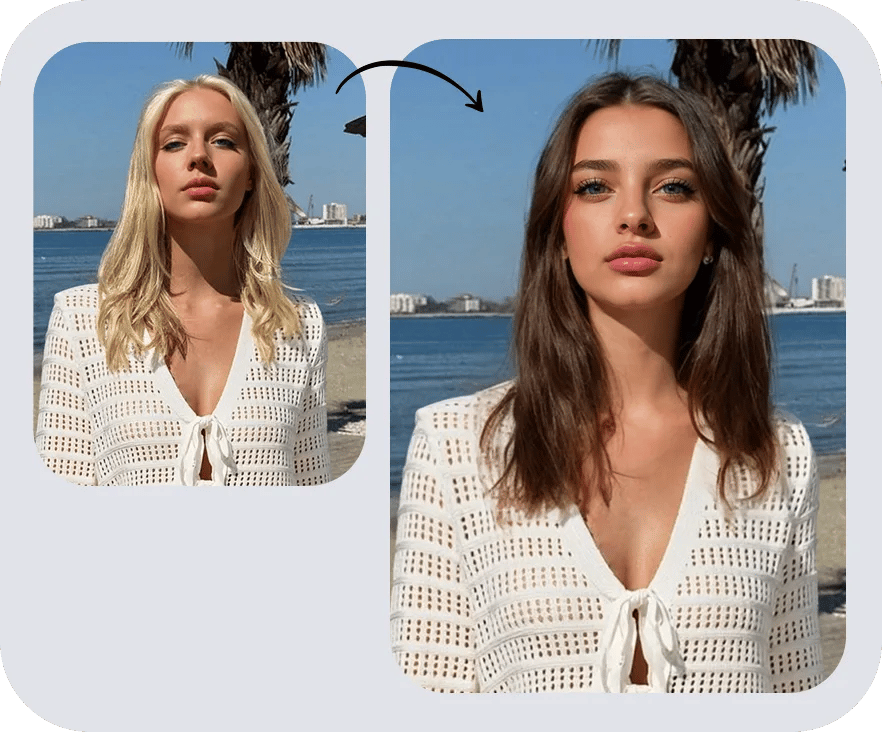

3 Ways to Swap Faces on iPhone
You can swap faces on iPhone three ways: use the Photos cutout for a manual on-device composite, install an app for templates or video, or open a browser tool. Snappyit is designed specifically to replace faces in fashion and product-model photos with synthetic AI model faces.
| Need | What to do |
|---|---|
| Keep photos on your phone | Use the Photos cutout — no upload, but manual. |
| Replace a face in a fashion-model photo | Use Snappyit in Safari and select a synthetic AI model face. |
| Make short clips or reuse templates | Install a face swap app. |
| Create a test image | Try Face Swap Free |
Face swapping replaces one person's facial identity with another's. The AI detects a face, maps its landmarks, then blends that identity onto a different head or scene while keeping the lighting, skin texture, and expression of the original photo. That's different from a Snapchat or Instagram filter, which just overlays effects on your live camera. A real swap produces a static image or video where the new face looks like it belongs there.
How to face swap on iPhone free: choose one of three methods
| Method | Best for | Main limitation |
|---|---|---|
| Apple Photos cutout | No-download manual composites | Not an automatic AI blend |
| Free face swap app | Templates, short clips and repeat use | Watermark, login or daily limits may apply |
| Safari browser tool | A quick photo swap without installing an app | Your photo is uploaded to a web service |
Whichever route you choose, use faces you have permission to edit and check the privacy policy before uploading biometric data.
Face Swap vs Morph vs Filter
App Store results mix face swaps, morphs, and AR filters. Use this comparison to choose the technique that matches what you want.
| Technique | What it does | Best for | Typical tools |
|---|---|---|---|
| Face swap | Replaces one face with another entirely | Memes, putting yourself in a scene, creative edits | Swap apps, browser AI tools like free face swap apps |
| Face morph | Blends two faces into a hybrid | Celebrity mashups, curiosity, artistic projects | Morph apps, GAN generators |
| AR filter | Overlays live effects on the camera feed | Stories, video calls, quick entertainment | Snapchat, Instagram, TikTok |
The rest of this guide covers face swapping specifically, since that's the one most searches are after.
How to face swap on iPhone without an app
Your iPhone ships with tools that can do a basic face composite with nothing installed. They won't produce the seamless AI blend of a dedicated app, but everything stays on your device: no uploads, no accounts, no third-party permissions.
iOS already understands faces. Open Photos, tap the Albums tab, and scroll to People & Places; the phone has quietly scanned your library and grouped faces on-device. The feature that makes a manual swap possible is the photo cutout.
Using the Photos cutout
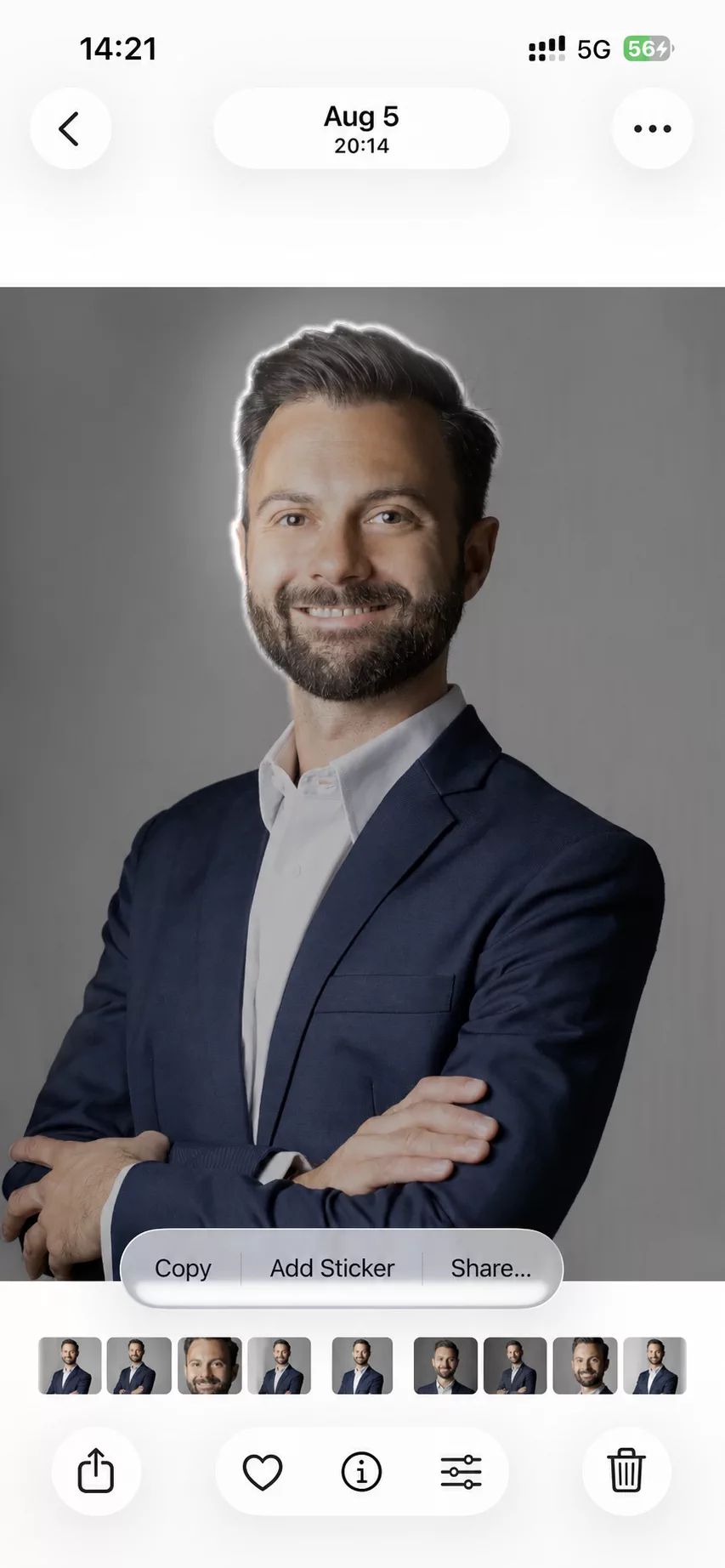
Current versions of iOS include a feature Apple calls a photo cutout. It's the closest thing to a native swap your iPhone offers:
- Open Photos and find the image with the face you want to use as the source.
- Touch and hold the subject. A white outline appears around them.
- Release, then tap Add Sticker.
- Open the target photo (the body or scene that stays).
- Tap Edit, choose the Markup pen icon, tap the +, choose Add Sticker, and select the sticker you saved.
- Resize and drag it to line up with the target's head.
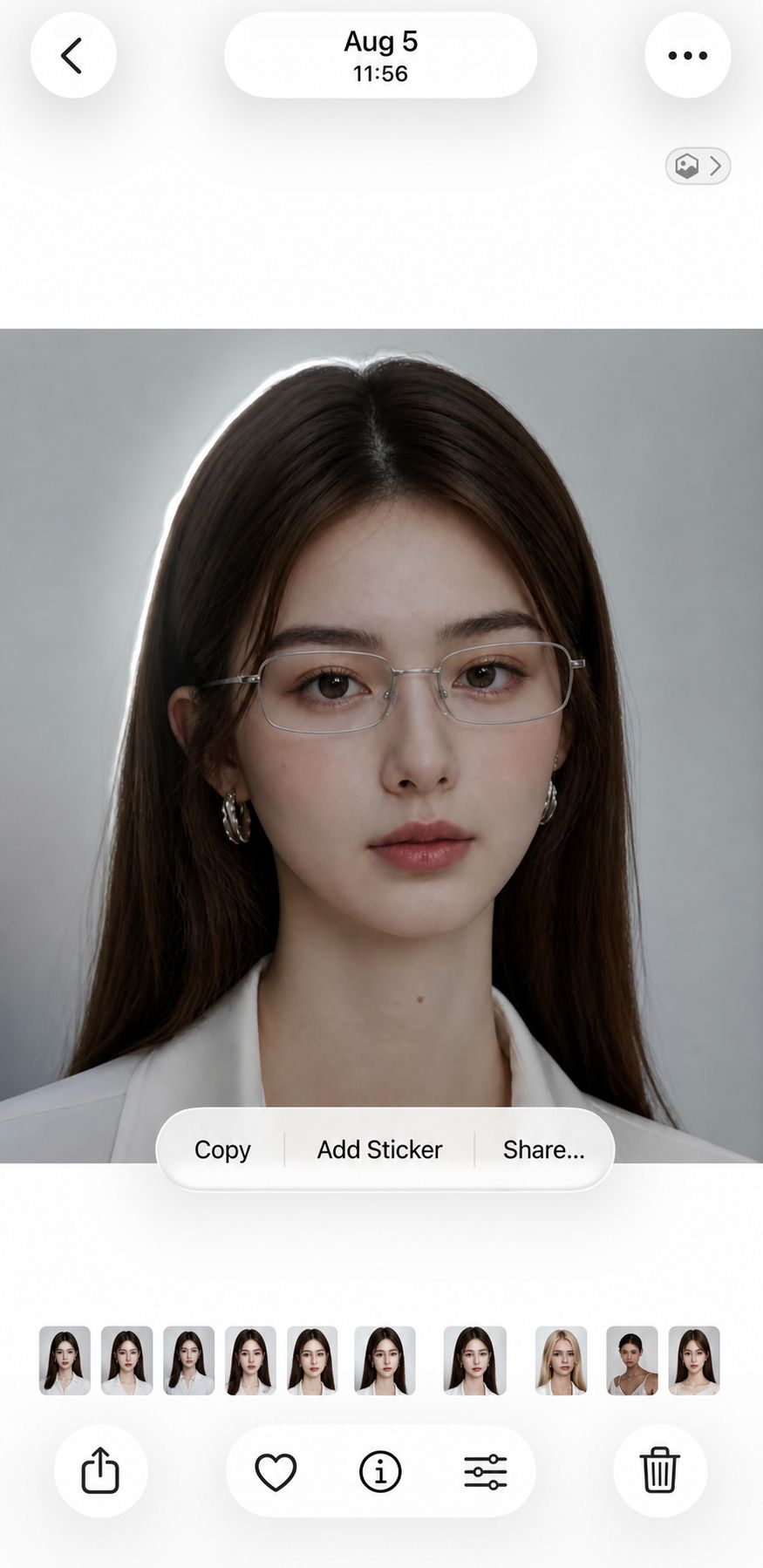
Press and hold the subject, release, then tap Add Sticker.
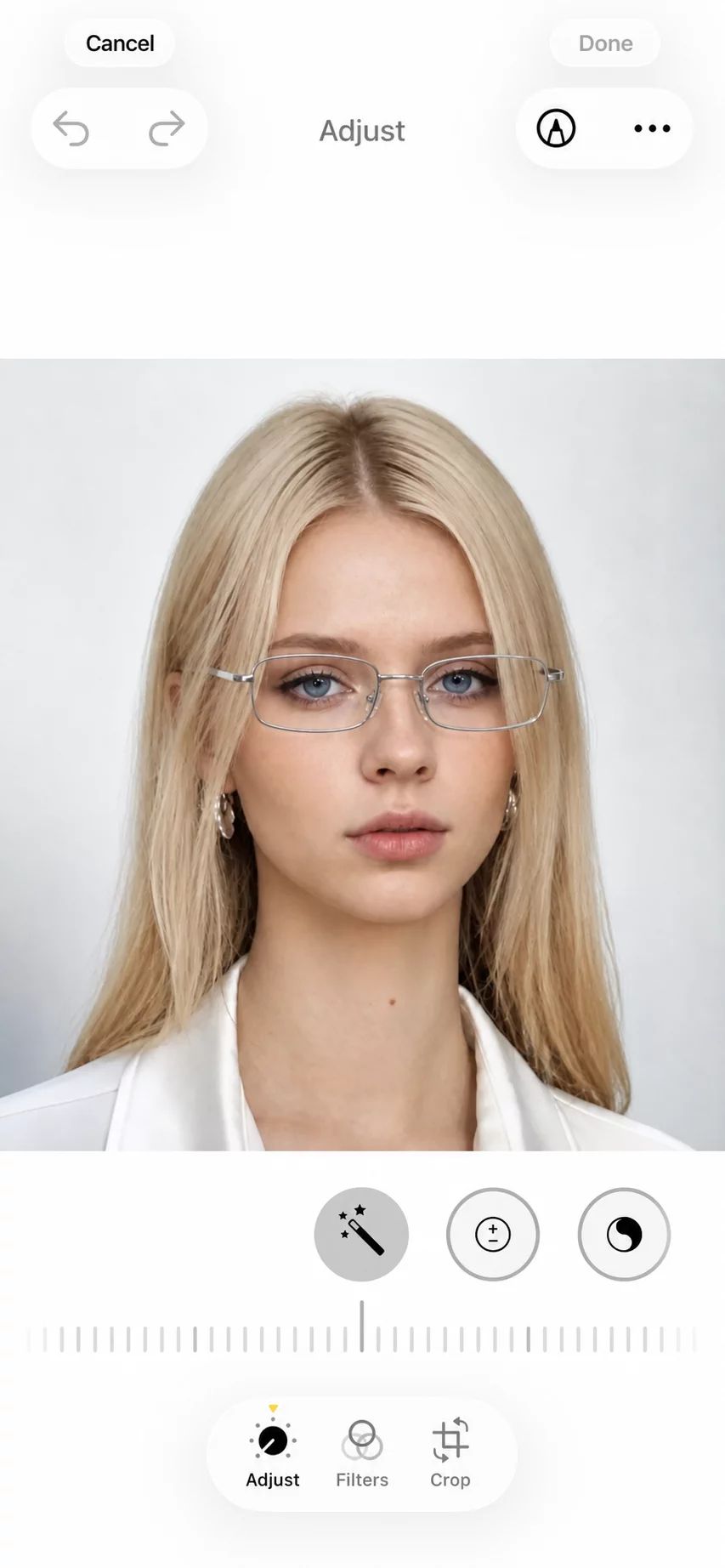
Open the target photo, tap Edit, then open Markup.
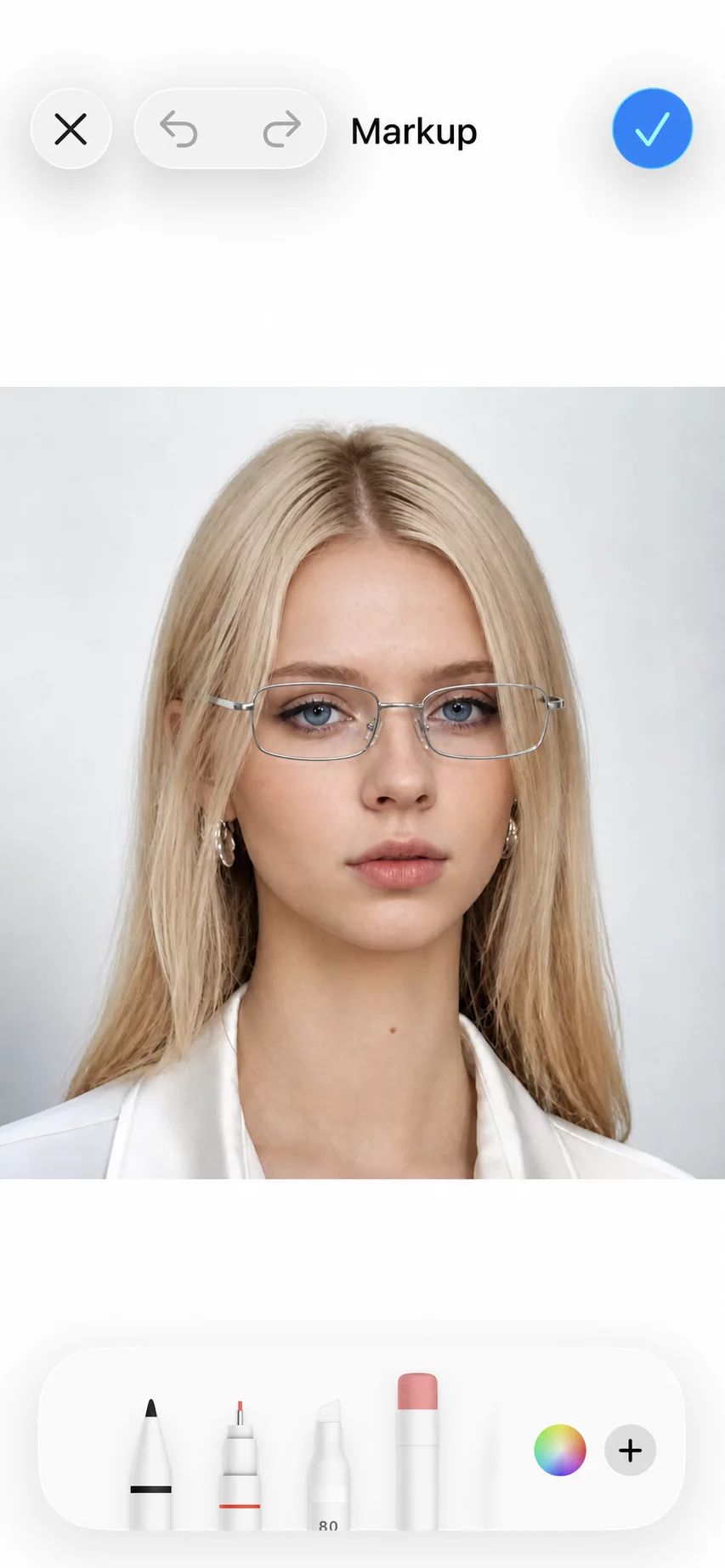
In Markup, tap the + button and choose Add Sticker.
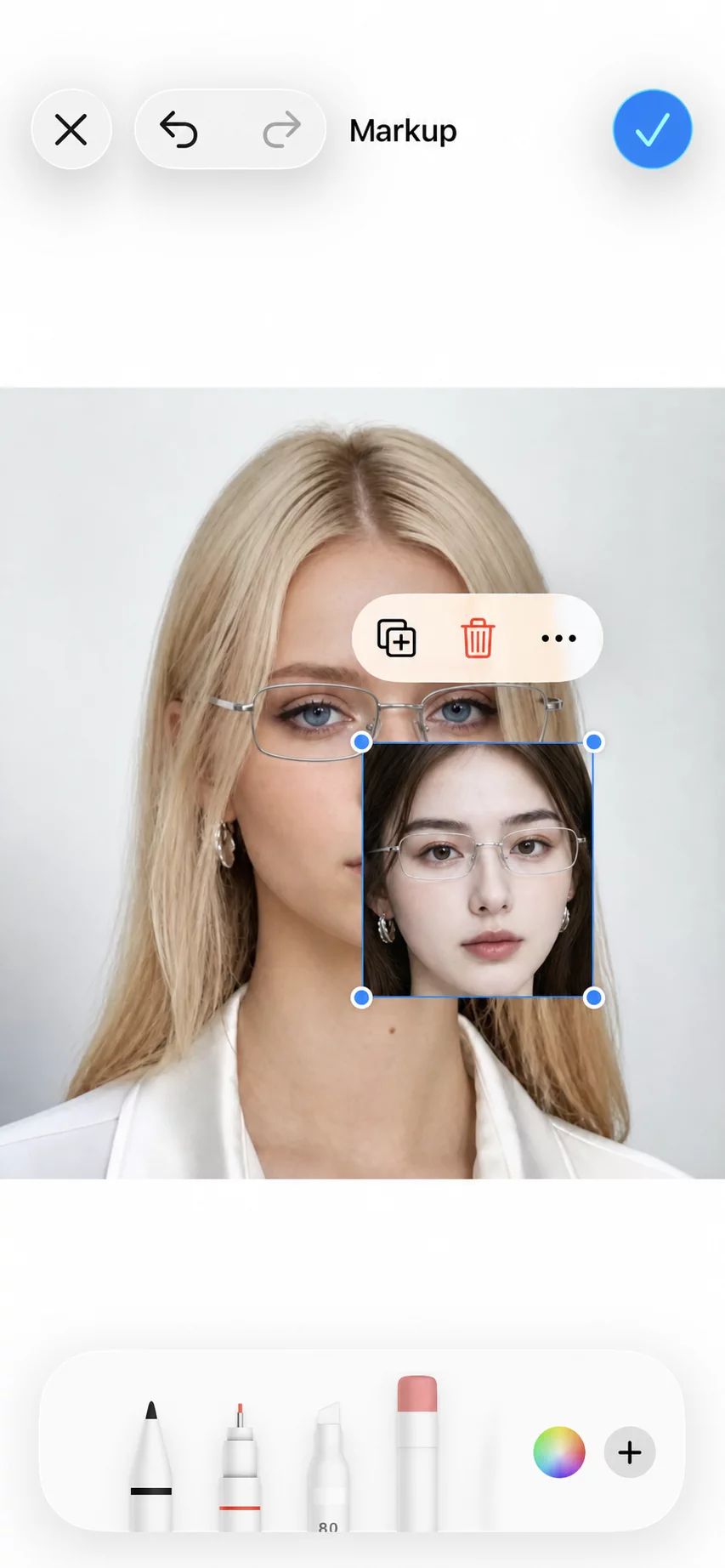
Select the saved sticker, then resize and position it over the target.
The cutout grabs the whole subject, not just the face, so crop your source tightly around the head first. Apple lists subject lifting for supported iPhone models running iOS 16 or later; check the current Apple support page if the option does not appear on your device.
A reusable Shortcut
If you'll do this often, the Shortcuts app can automate the overlay. Create a new shortcut, add two Select Photos actions (source and target), an Overlay Image action that places the first on the second, and a Save to Photo Album action at the end. Name it, turn on "Show in Share Sheet" if you like, and you have a one-tap composite that lives on your home screen. Setup takes a few minutes; every swap after that is two photo picks.
Where native tools fall short
These methods paste a flat layer. There's no skin-tone matching, no lighting adjustment, and no feathered blend around the hairline, so edges look cut-and-pasted. The cutout grabs the whole subject rather than the face alone, the pasted face won't warp to match a head tilt or expression, and none of it works on video. The output is fine for a group-chat joke or a rough mockup. For anything you'd post publicly, the mismatches show fast.
What you get in return is a lower upload-related privacy risk: this workflow can stay on the device instead of sending the selected images to a face-swap service. You should still protect the phone, backups, and any copies you later share.
Choosing a Face Swap App
The App Store returns dozens of swap apps that all look alike. Instead of hunting for one "best" app, match a category to what you're making. A meme maker and a video creator need different tools. Before installing one, compare the current limits in our guide to the best free face swap apps.
Snappyit's iPhone app is coming soon. Until then, Snappyit Face Swap works directly in Safari without an App Store download.
Free, for casual swaps
If you just want a quick laugh without a subscription, look for a free tier that handles single-photo swaps. Reface and Facecopy both have free plans for basic photo swaps; Reface watermarks free exports, while Facecopy is a manual cut-and-paste editor that does its work on the phone rather than on a server. The catch with any free tier is predictable: watermarks, daily-use caps, or lower resolution. For group-chat jokes that rarely matters; for public posts you'll hit those limits.
For video and reels
Video is a different job. The app has to track facial landmarks across every frame so the swapped face follows head movement, blinks, and expressions. Template-based apps like Reface are the fastest route: you upload one selfie and the AI maps it onto a pre-made clip, at the cost of creative control. Custom video uploads give you more freedom but take longer. Video apps are heavier, drain more battery, and often offload the work to cloud servers, which means your footage leaves your device and you need a stable connection.
For group photos and realism
When multiple faces share a frame, you want an app that lets you tap the specific face to replace rather than swapping everyone at once. For results that genuinely fool the eye, look for apps that advertise GAN or deep-learning blending, which match skin tone, lighting direction, and texture rather than pasting one face on another. High-resolution, artifact-free exports usually live behind a paid plan.
Permissions and privacy
Every swap app asks for permissions, and it's worth knowing what they mean:
- Photo Library — needed to pick images. Some apps want full access; others use the limited picker that only sees what you select. Prefer the limited picker.
- Camera — needed only for live swaps or capturing a new source. If you're swapping existing photos, you can usually deny it.
- Network — required for cloud processing. Your photos travel to a server and back, which is faster for hard jobs but hands your images to a third party.
The on-device versus cloud split is the thing that matters most, and a 2026 audit of 155 face swap apps puts numbers on it: among the apps whose privacy policies stated where processing happens, 81 sent face data to cloud servers and only 17 kept it on the device. Local processing reduces exposure to a remote service, but you should still review the app's permissions, retention terms, and backup behavior. The same audit found 27 apps using generic privacy policies that did not mention biometric data or face images despite face swapping being the core function. Before installing anything, review the App Privacy label and the developer's full privacy policy.
Storage adds up faster than you might expect. Checked on the US App Store on August 5, 2026, the apps named in this guide run from 16 MB for a manual cut-and-paste editor to 161 MB for Reface; full AI video apps commonly pass 250 MB. Install two or three and you're into most of a gigabyte.
How to face swap on iPhone in Safari
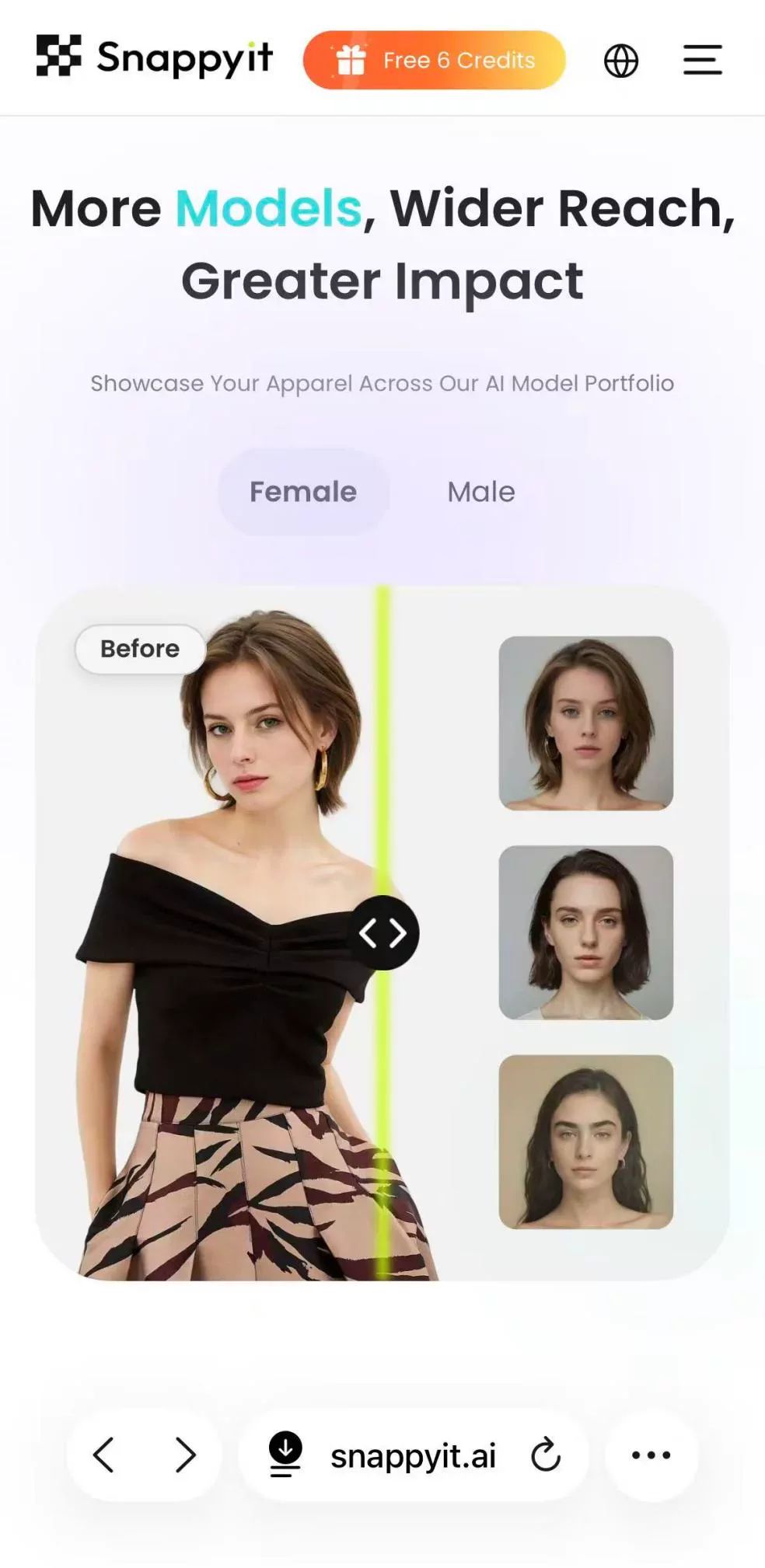
Browser-based tools run in Safari or Chrome, so they do not require an App Store installation. They still need access to the image you select, and cloud-based tools upload that image for processing. Snappyit is intended for fashion and product-model photos: you upload a clear model image, mark the region to replace, select a synthetic AI fashion model, and generate the result.
A browser tool makes the most sense when storage is tight, you only need a one-off swap, you'd rather not grant an app full photo-library access, or you want to start on your phone and finish the same URL on a laptop. The tradeoff is that processing happens on a remote server, so you need a connection and your photos do travel off-device. For casual creative work that's a fine deal; for images you'd never want leaving your phone, stick with the native cutout above.
Step by step in Safari
Here is the current workflow with Snappyit's Face Swap:
- Open Safari and go to the tool.
- Upload a clear fashion or product-model photo.
- Paint over the face or model area you want to replace; leave hair unmarked if you want to preserve it.
- Choose a synthetic AI fashion model from the built-in library.
- Tap Generate. Processing time varies with the image and current service load.
- Preview the result, then download it to your iPhone.
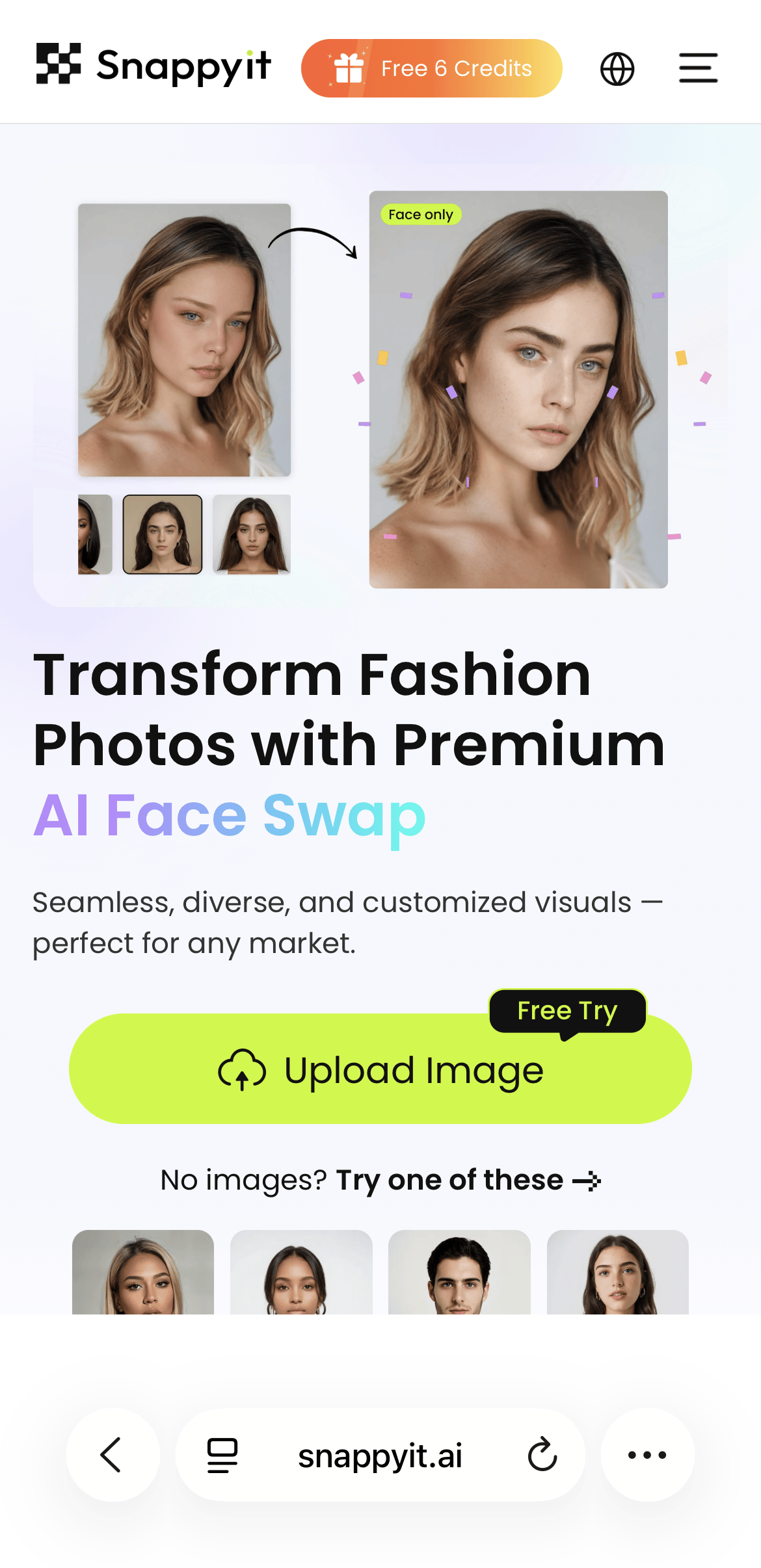
Open the Face Swap tool in Safari, then tap Upload Image.
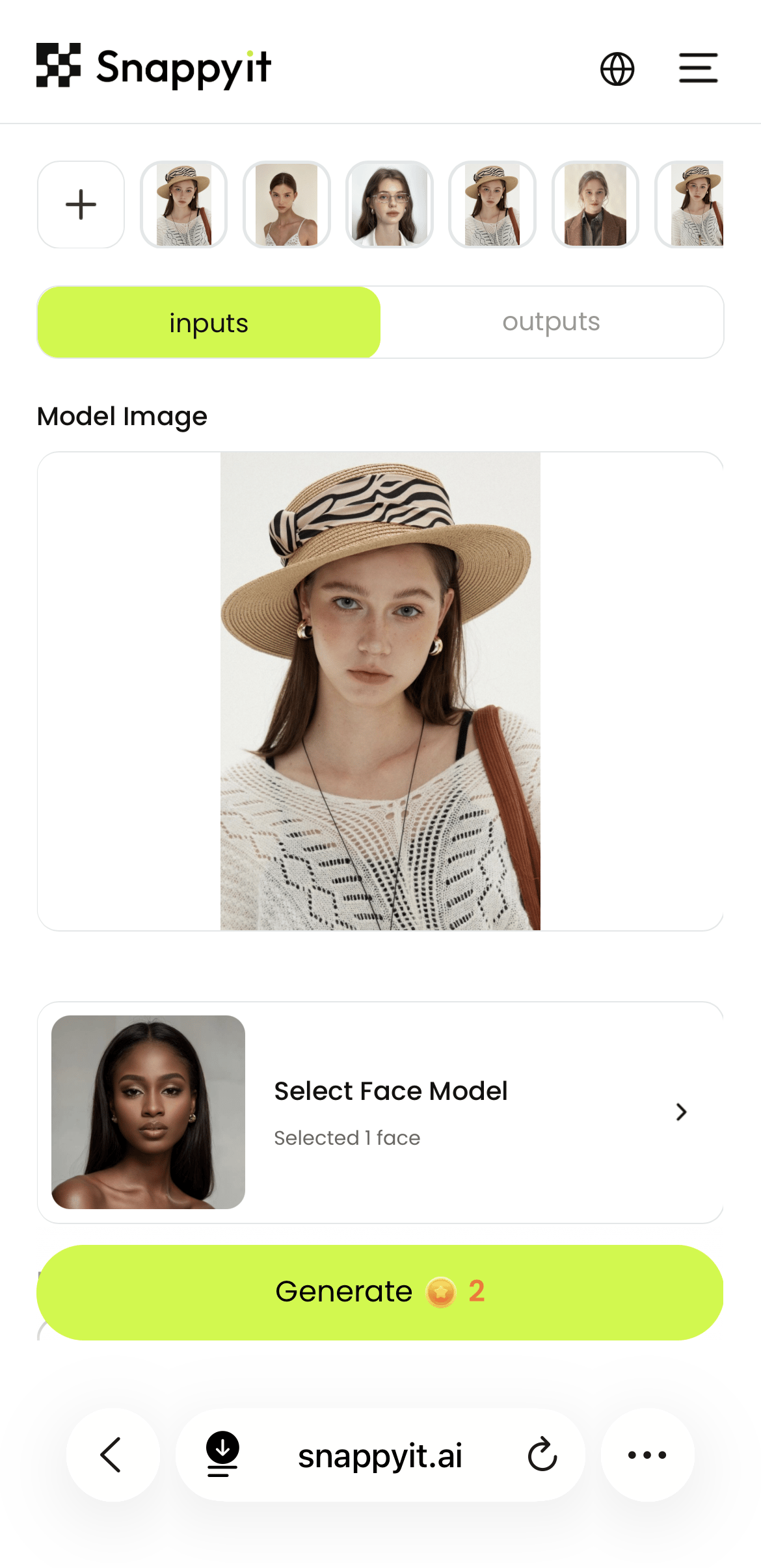
Choose the target and face model, then tap Generate.
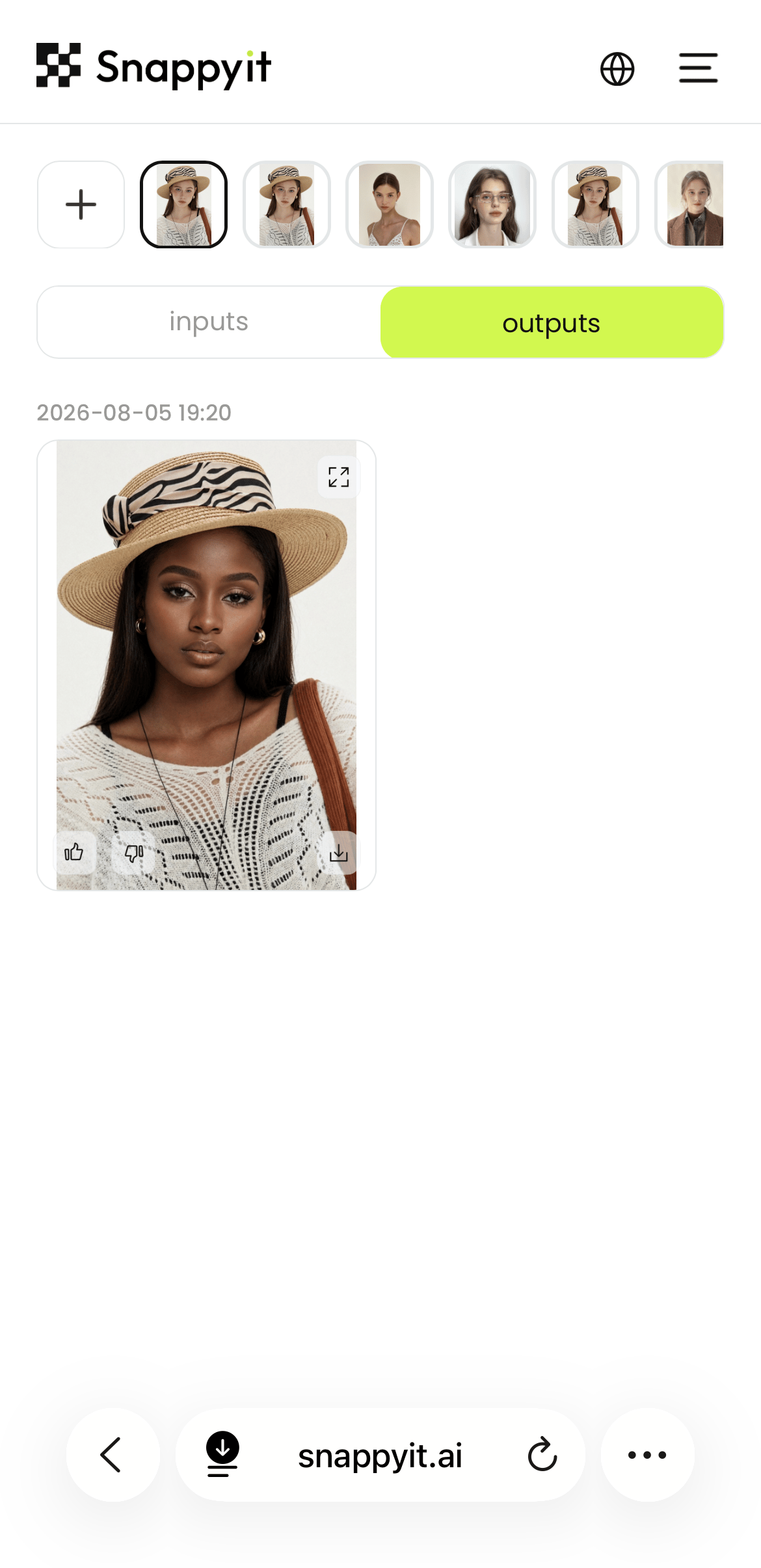
Preview the completed result and save it to your camera roll.


Snappyit differs from a classic two-person face swap: it replaces the selected region in a fashion-model photo with a synthetic AI model rather than asking you to upload a second real person's face. That makes it a better fit for ecommerce visuals than personal celebrity swaps or friend-to-friend memes.
What web results actually look like
Clean, front-facing, well-lit inputs generally give the model clearer landmarks. Extreme angles, heavy shadows, glasses, and partly hidden faces can still create visible artifacts. Export resolution, watermarks, processing time, and video support vary by service and plan, so verify the current tool limits before committing to a workflow. For a broader photo-first process, see how to swap faces in pictures.


Making a Swap Look Real
If your swap comes back looking like a bad collage, the problem is almost always the input photos, not the software. The single most common reason a swap looks fake is mismatched lighting. Your brain has spent a lifetime learning how light falls on a face, so when the face is lit from the left and the body's shadows fall to the right, the mismatch registers instantly even if you can't name it.
Match angle and lighting
Before you swap, line up these four things between source and target:
- Light direction. Highlights and shadows should fall the same way in both photos. A sunny outdoor face on a dim indoor scene almost always fails.
- Light intensity. Harsh midday sun and soft overcast light produce very different contrast; keep them in the same ballpark.
- Head angle. Front-facing photos swap best. Even a slight tilt between the two causes visible warping, and full profiles rarely work.
- Camera distance. A close-up selfie on a face shot from across a room brings perspective distortion, since proportions shift with distance.
Resolution and quality
AI models need clear landmarks. A blurry, pixelated, or heavily compressed source means the model can't lock onto eye corners and jawlines, and the swap comes out mushy. Keep both images similar in sharpness; a crisp target paired with a tiny low-res face crop shows the gap immediately. Use a clear image in which the eyes, nose, mouth, and jawline remain distinct at normal viewing size, and avoid heavy filters or beauty smoothing on the source, which alter texture and color in ways that clash with the target.
What makes swaps fail
Some photos reliably produce bad swaps. The usual culprits:
- Glasses and sunglasses — frames confuse boundary detection and reflections add noise. Match eyewear between photos or skip it.
- Obstructions — hands, hair across an eye, or a scarf block the landmarks the AI needs.
- Extreme expressions — a wide laughing mouth on a closed smile creates an obvious jaw and teeth mismatch. Keep expressions close.
- Heavy makeup or face paint — dramatic contouring reads as bone structure to the AI and carries over oddly.
- Skin-tone gaps — large differences need aggressive color correction that often looks artificial at the seam.
- Low-light grain — noise from dim shots transfers into the swap and clashes with a clean target.
A quick pre-flight check before you upload: keep the face clearly visible and unobstructed, choose a target with a similar head angle and light direction, use a sharp image, and avoid glasses or heavy makeup when possible. A short input check can prevent repeated failed attempts.
Sharing, Consent, and the Law
Face-swap rules vary by jurisdiction, content, and intended use, so private creation should not be treated as automatically lawful. Before creating or sharing a realistic edit, get the depicted person's consent, avoid deceptive or intimate content, and check the rules that apply where you live. Major platforms may label or remove manipulated media that could mislead viewers.
- Label realistic edits. TikTok, YouTube, Meta, and X all have disclosure or manipulated-media rules.
- Do not use a likeness to deceive, harass, or advertise without permission. Publicity and deepfake laws vary by location.
- Never share non-consensual intimate imagery. The U.S. TAKE IT DOWN Act covers AI-generated deepfakes.
For privacy, check how long a tool stores uploads and whether it uses images for training. If a photo is sensitive, keep it on-device with the native Photos method.
Frequently Asked Questions
Can I swap faces on iPhone without downloading any app?
Yes. Supported versions of iOS include a subject cutout in Photos that lets you save a subject as a sticker and place it onto another image with Markup. Browser tools also work in Safari without an App Store installation. The native method is manual, while Snappyit uses cloud processing to replace a selected region in a fashion-model photo with a synthetic AI model face.
What is the best free face swap app for iPhone?
It depends on the job. Reface offers a free tier for template-based photo and video edits, although watermark and feature limits can change. Snappyit is a browser tool rather than an iPhone app; it gives new users free credits for replacing faces in fashion-model photos with synthetic AI models. Check each product's current App Store listing, pricing page, and privacy policy before choosing.
Why does my face swap look fake and how can I fix it?
The usual cause is mismatched lighting direction between the two photos; if one face is lit from the left and the other from the right, the inconsistency reads instantly. Mismatched head angles, big resolution gaps, glasses, and extreme expressions also hurt. Fix it by choosing a source photo that matches the target's lighting, angle, and quality before processing.
Is it legal to face swap someone without their permission?
Laws vary by jurisdiction, content, and intended use, so a private face swap is not automatically lawful. Several U.S. states regulate deceptive or intimate deepfakes, the federal TAKE IT DOWN Act addresses non-consensual intimate imagery, and right-of-publicity laws may restrict commercial use of a person's likeness. Get consent and seek local legal advice for sensitive or commercial uses.
How do I face swap in a group photo on iPhone?
Work on one face at a time and use a tool that lets you select or mask the exact person. In Snappyit, upload a clear fashion-model photo and paint over the face or model region you want to replace before choosing a synthetic AI model. For a general two-person group-photo swap, use an app that explicitly supports selecting a source face and a target face.
Are browser face swap tools safe for my photos?
Cloud-based browser tools upload the image you select for processing, so it leaves your device during the session. Snappyit supplies synthetic faces from its built-in model library, but you should still review its current Privacy Policy for retention, deletion, and training terms before uploading. For sensitive photos you do not want sent to a service, use an on-device workflow instead.
Face swapping is one tool in Snappyit's broader AI product photography lineup, which can also create AI fashion models from a product photo.
References
- Apple Support, Lift a subject from the photo or video background on iPhone.
- Reface, App Store product page.
- Facecopy, App Store product page.
- arXiv, 2026 audit of 155 face swap apps.
- Meta, Misinformation policy.
- TikTok, Responsible AI-generated content guidance.
- YouTube Help, Disclosure of altered or synthetic content.
- X Help Center, Authenticity policy.
- SS Rana & Co., India IT Rules amendment overview.
- European Commission, AI Act Article 50 transparency obligations.
- Tennessee General Assembly, ELVIS Act.
- Crowell & Moring, Washington and Pennsylvania deepfake laws.
- Congress.gov, TAKE IT DOWN Act.