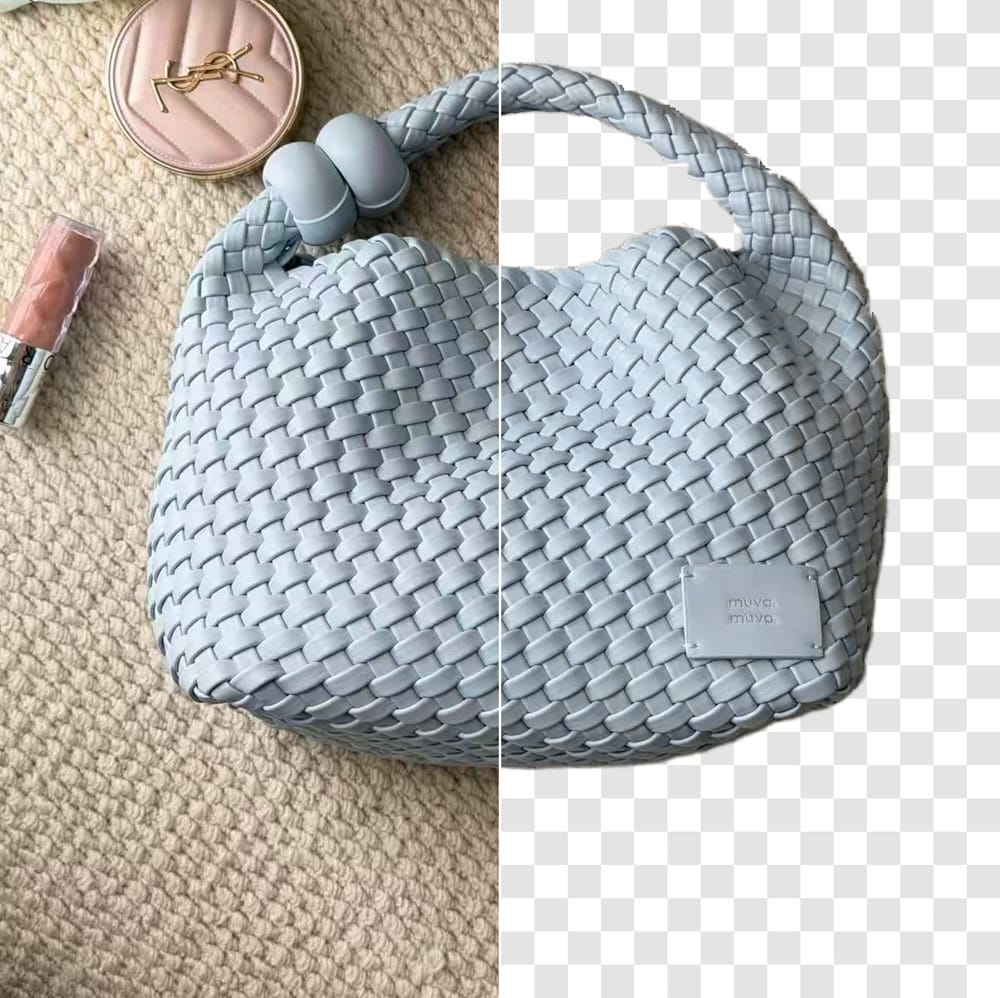

Best free background removal tools at a glance
What matters is the file you can actually upload, not the polished preview inside the editor. We compared subject detection, manual cleanup, edge accuracy, detail preservation, background residue, export dimensions, watermarks, and account or credit limits.
A clean-looking cutout may still be unusable for a listing if the saved file is too small for buyer zoom, carries a watermark, or uses up a limited credit allowance.
If you are looking for a free remove.bg alternative, compare the saved resolution, cleanup effort, sign-in requirements, and credit limits—not just the editor preview.
- Export resolution
- Check the saved file's pixel dimensions. A sharp editor preview may produce a much smaller download.
- Watermarks and usage terms
- Check the saved file for a watermark, then read the current commercial-use terms before you publish.
- Credits and sign-in
- Record whether a free export needs an account, consumes a credit, or stops after a fixed allowance.
When a free background remover is enough for ecommerce
For occasional product cutouts, a free tool can cover the job. All six isolated the sneakers on the first pass, although output quality and free download size differed. The busy handbag separated them more clearly because it required the tool to distinguish the product from nearby props and preserve an open handle.
Start with where the image will be used. An Amazon main image needs different checks from a Shopify composite or a small social graphic. Use the August-updated guides to Amazon product image requirements and marketplace image sizes for platform rules, then use the free background remover for the cutout itself.
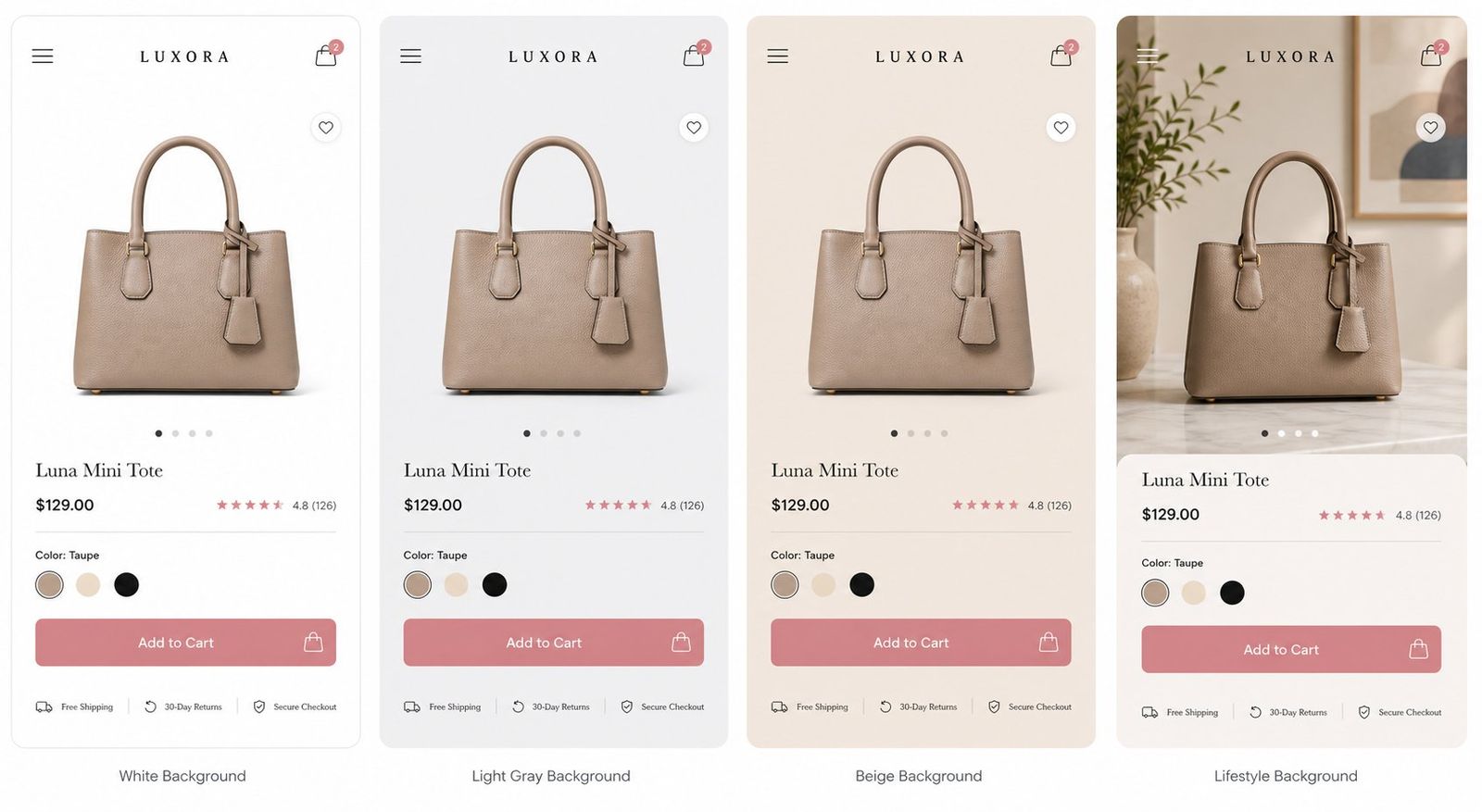
How we tested free background removers for product photos
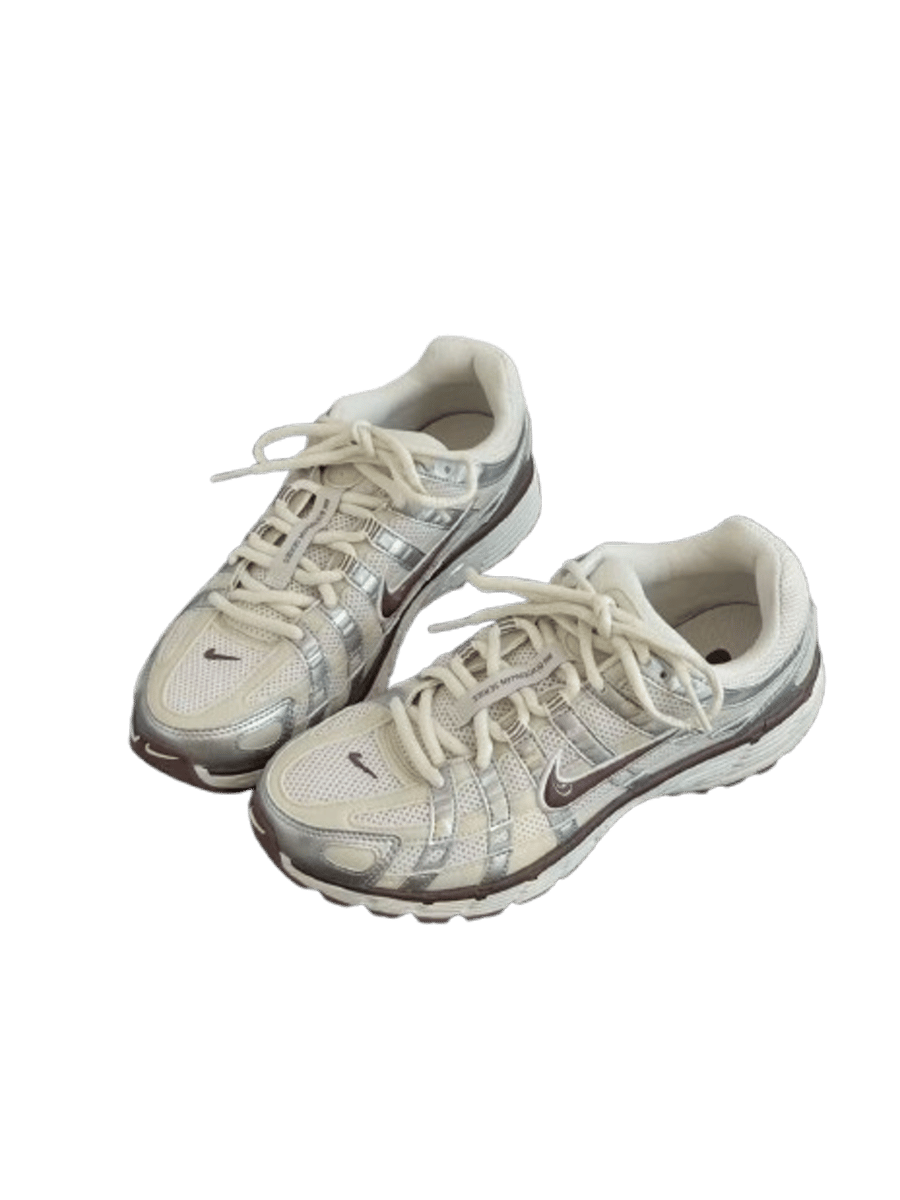
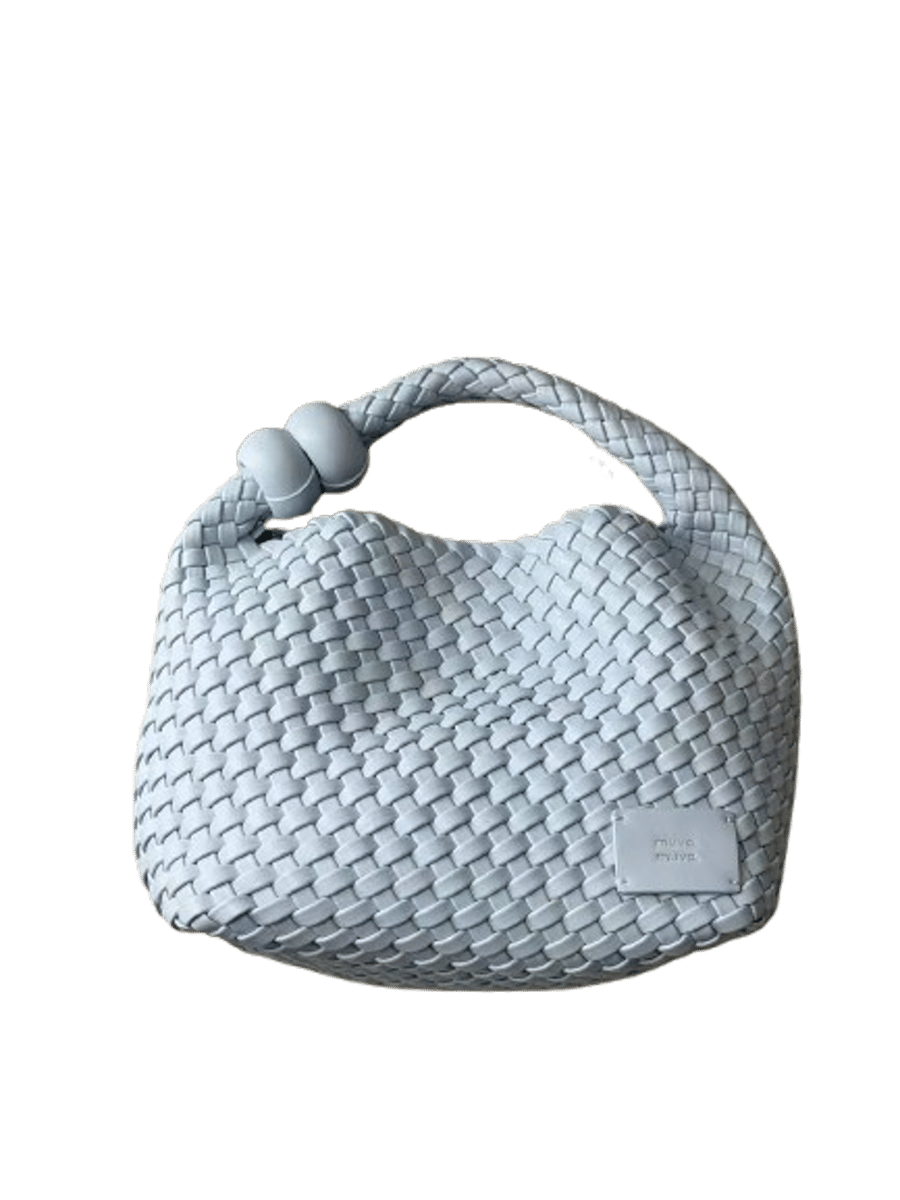
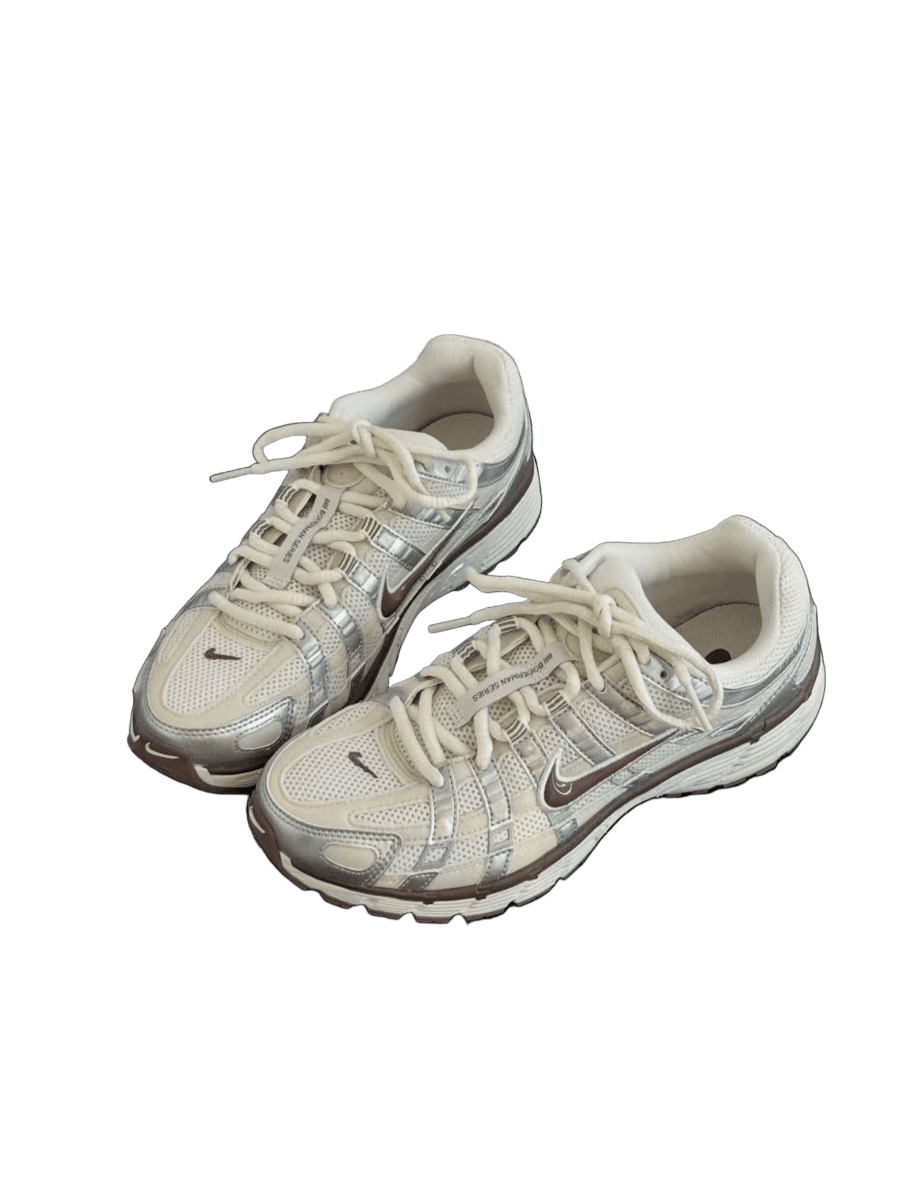
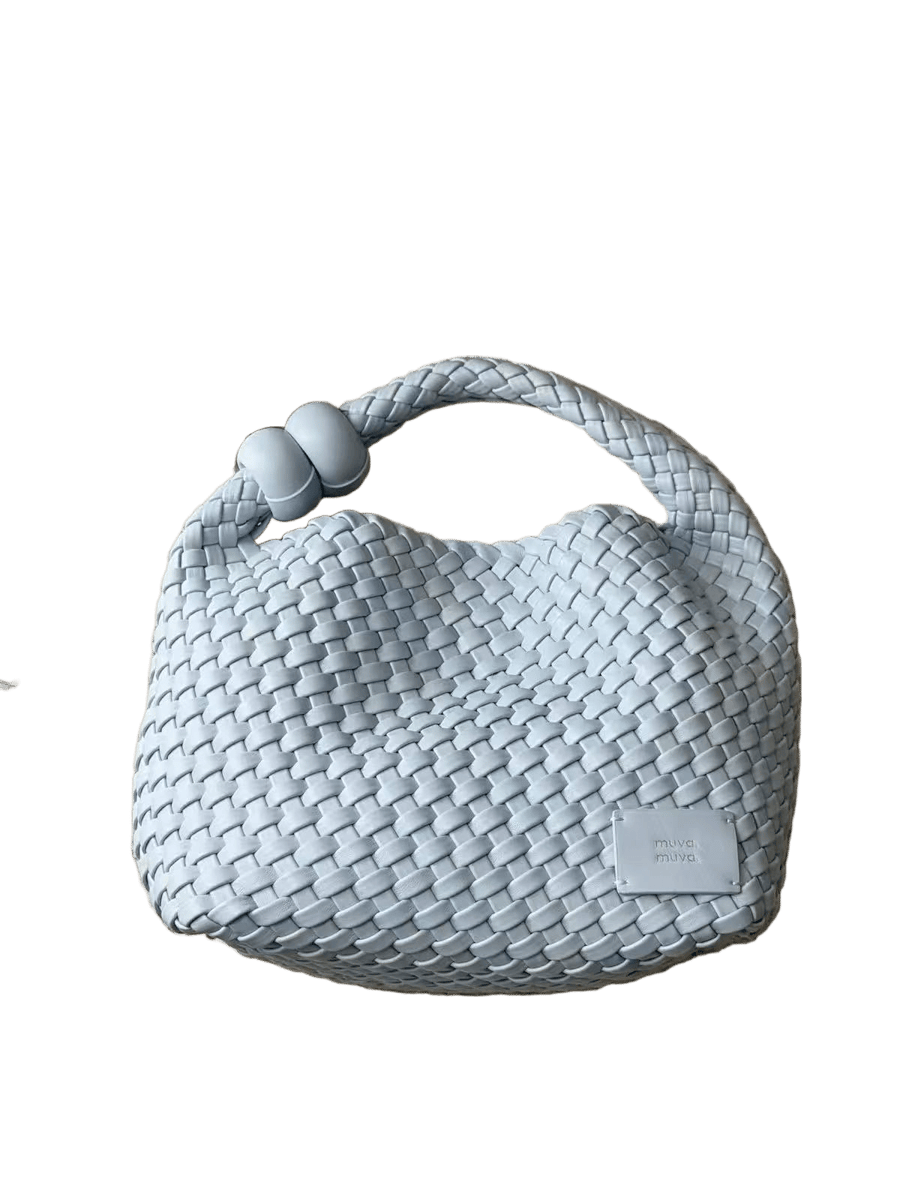
We tested two different types of product images: a pair of sneakers with fine edges and overlapping details, and a woven handbag with an open handle and a busy background.
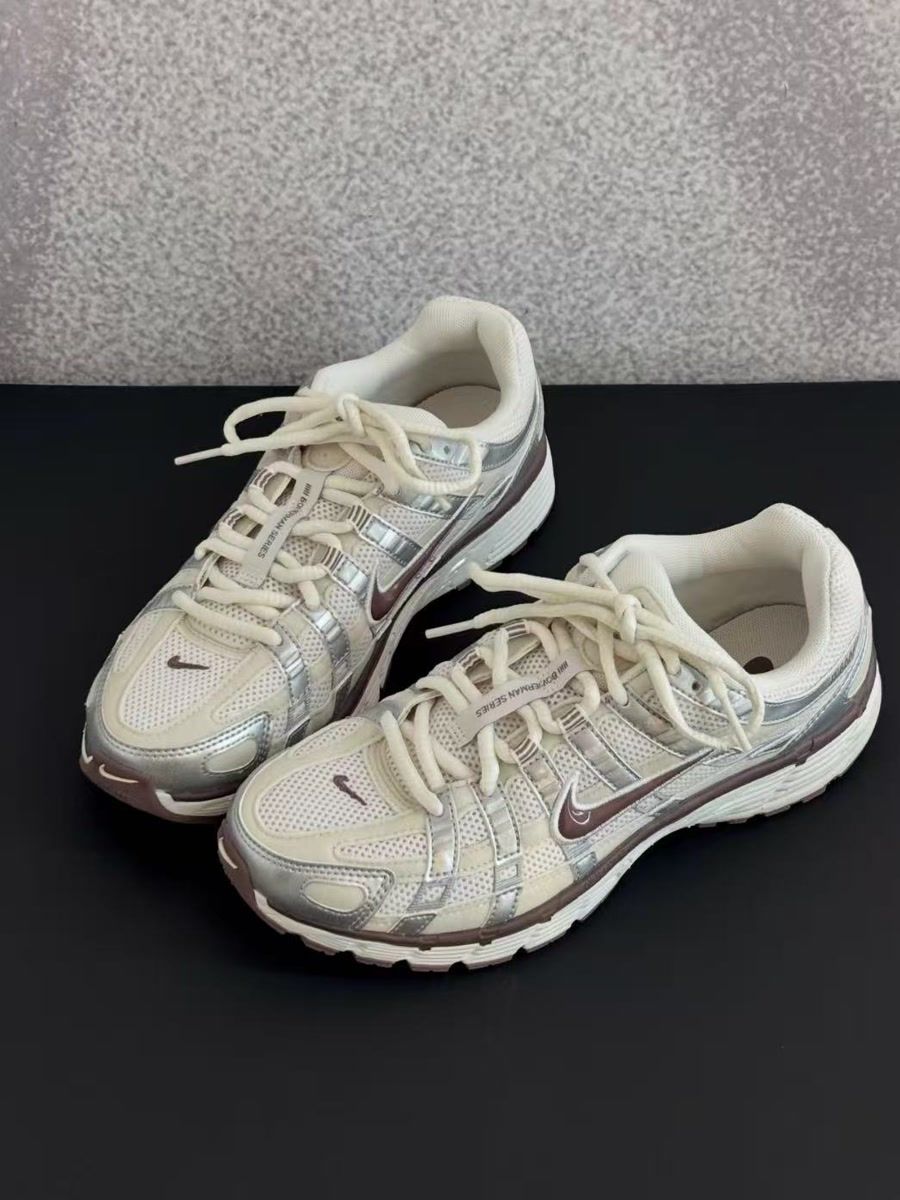
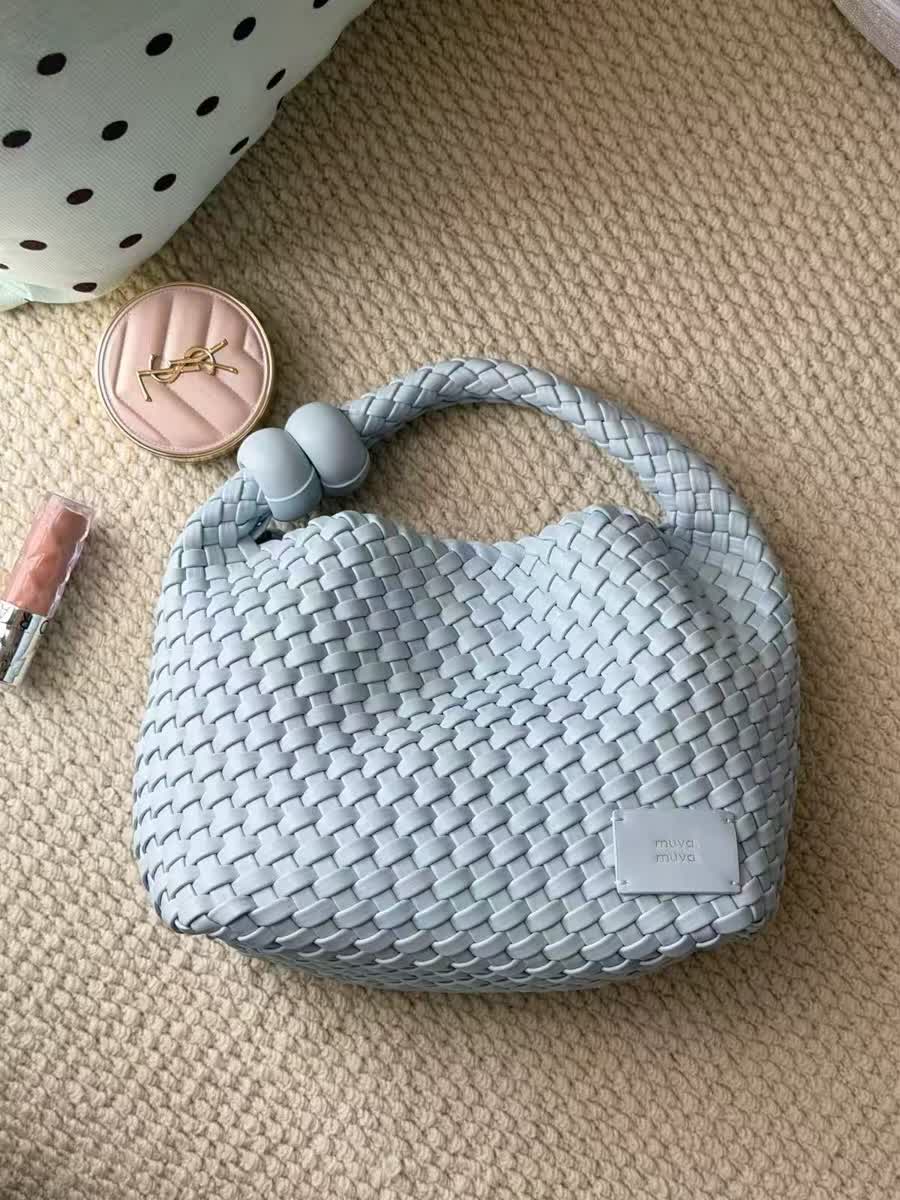
The two source photos every tool received. August 18, 2026
The sneaker exposes outline problems around overlapping laces and the thin edge where the sole meets the surface. The handbag is harder: the tool has to open the space under the handle without keeping the pouch, compact, lipstick, or rug.
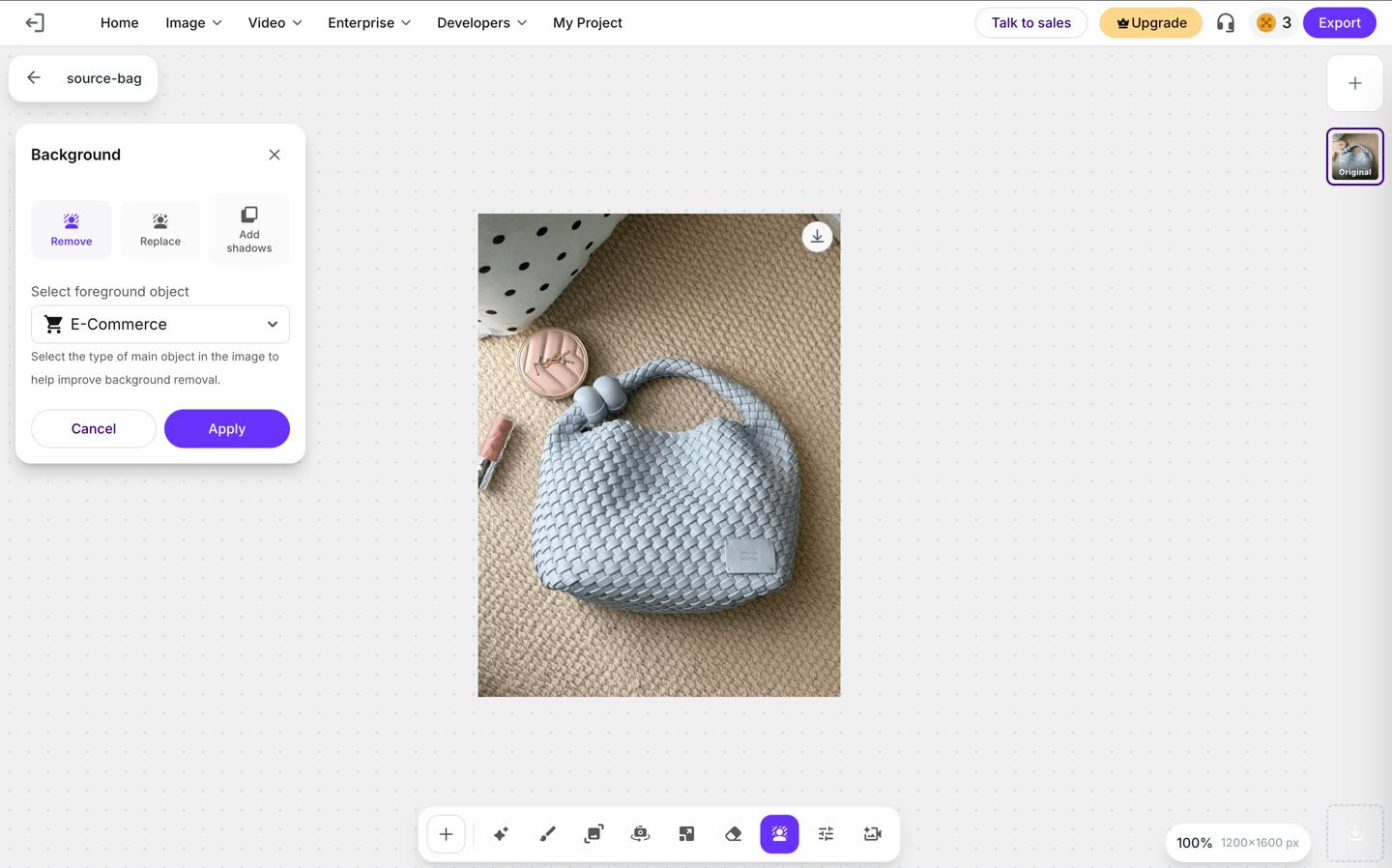
Every tool received the same two photos on its free tier, with no account beyond what the tool required. We ran each photo once rather than re-running for a better result. Where a tool left an unwanted object, we used its own cleanup controls and included that time. Erase.bg was the exception: the handbag was tested in both E-Commerce and General modes because mode selection changed the result. The screenshots and downloaded files below show what we got.
Snappyit operates one of the six tools in this comparison. We used the same source files and scoring criteria for every tool. Results can differ on other products, and free-plan limits can change.
- Subject detection: How accurately the tool identifies the product and separates it from objects or elements in the background. The handbag shot also has a pouch, a compact and a lipstick in frame, and none of them belong in the cutout.
- Manual cleanup: How much work it takes to erase whatever the tool got wrong, and how the brush behaves while you do it.
- Edge accuracy: How cleanly the tool follows the product’s outer edges, including tricky areas like laces, straps, and thin edges.
- Detail preservation: How well the tool keeps small product details, such as textures, stitching, patterns, and fine materials.
- Background residue: Whether any unwanted background elements, shadows, or visible edges are left behind after removal. We checked every result on a magenta backing rather than white, because a white page hides a pale fringe.
We also recorded processing time, download dimensions, watermarks, and account requirements. Those results appear in the comparison table.
Six free background removal tools tested on product photos
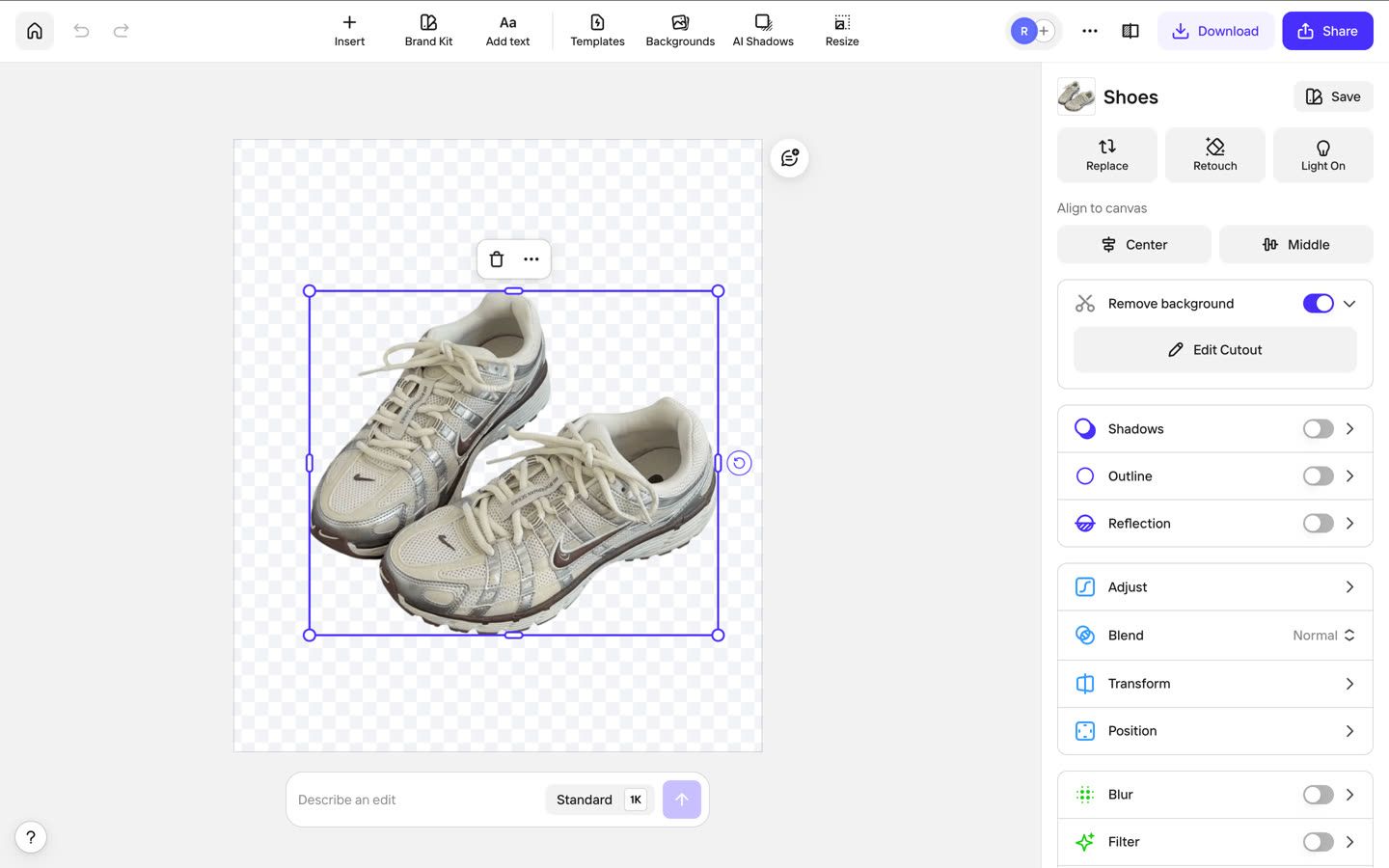
1. Snappyit background remover
Snappyit makes the first cut automatically, then provides Keep and Remove brushes for corrections. Test it in the Free Background Remover.
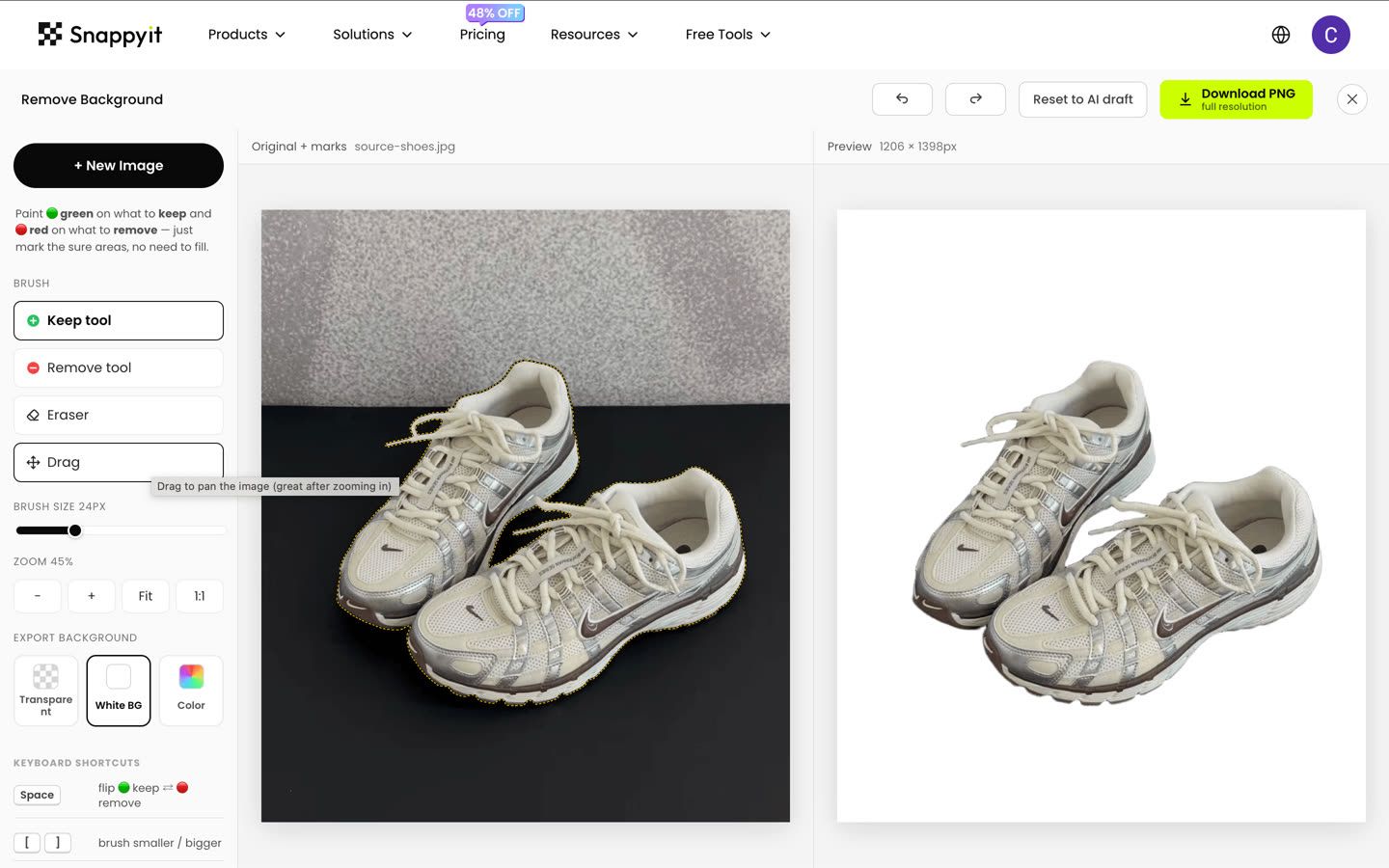
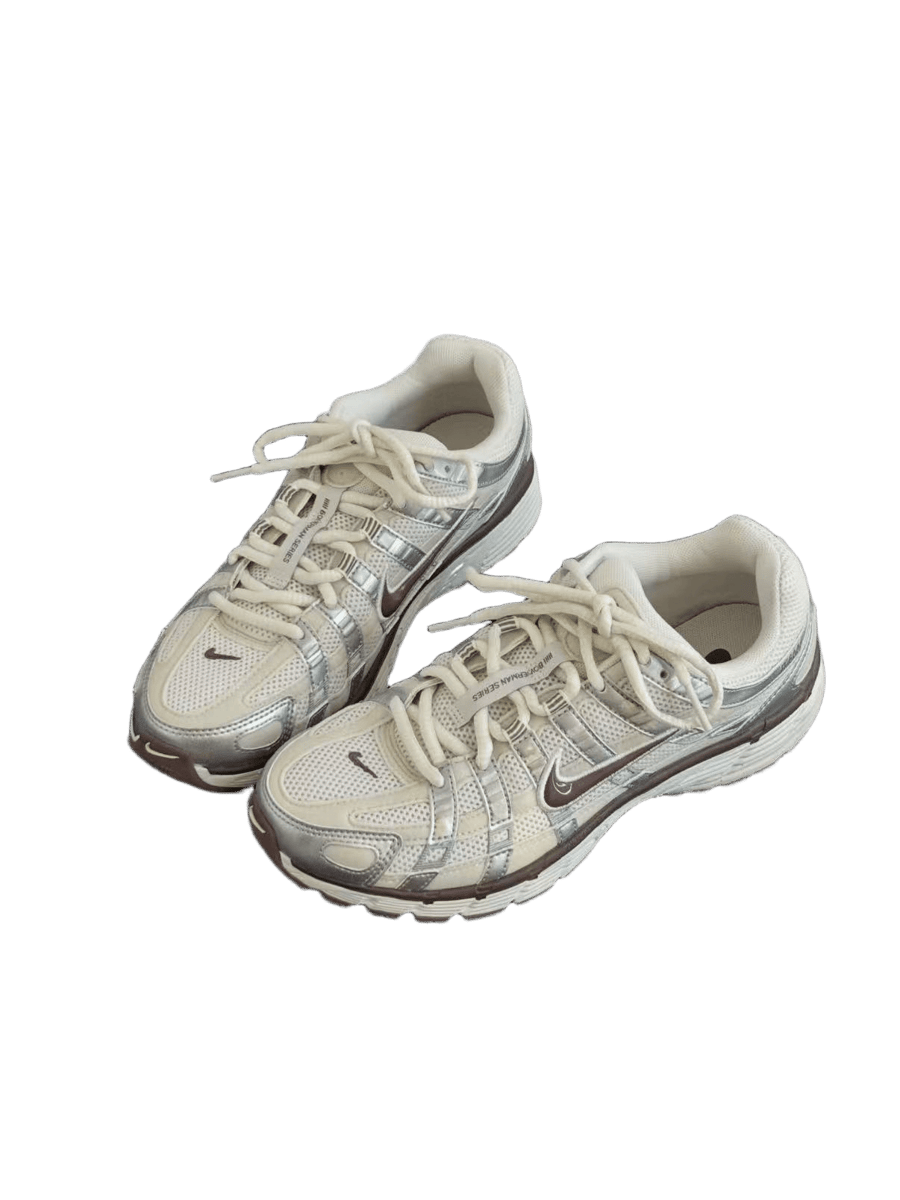
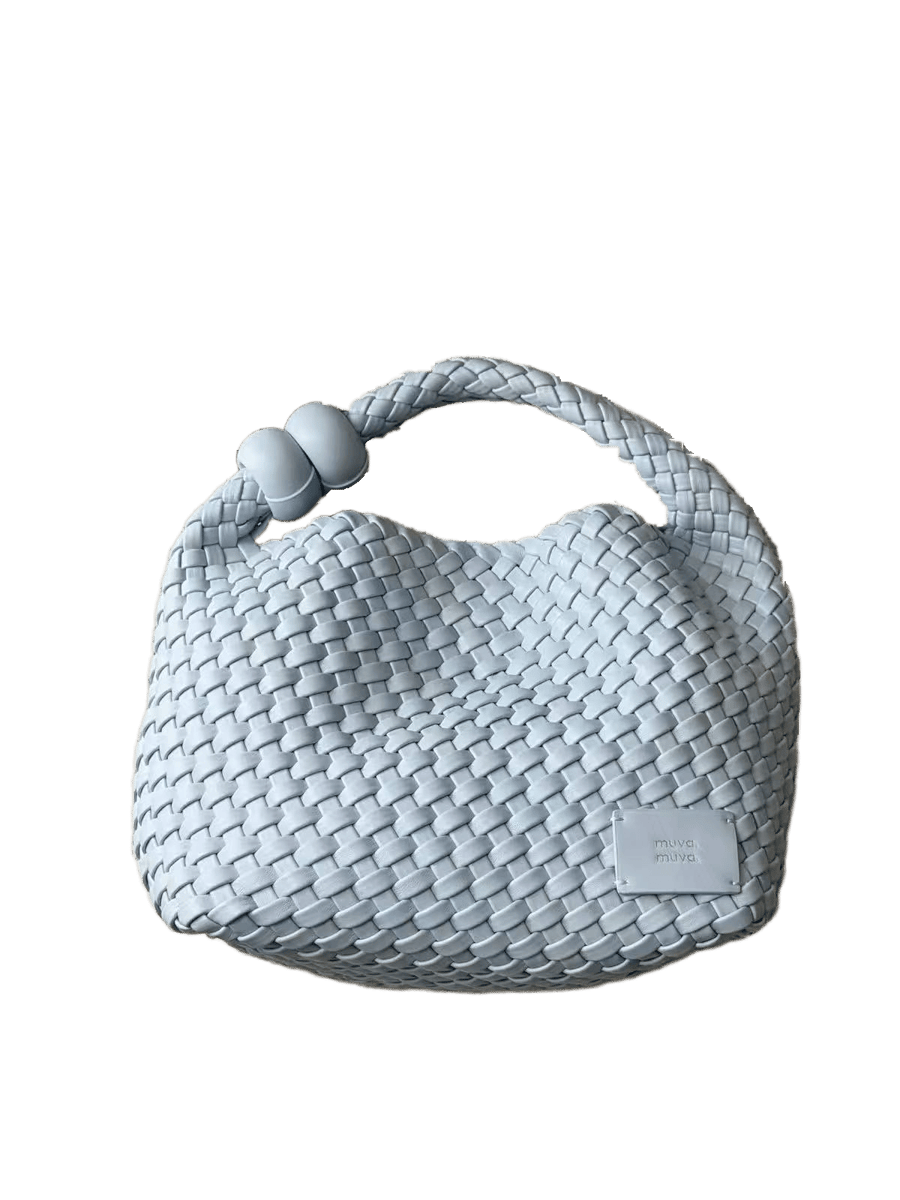
Snappyit results. The handbag is shown after we brushed out the compact and lipstick. August 18, 2026
- Subject detection
- Snappyit handled the sneakers cleanly. The bag required a little more manual attention, particularly around the handle opening and the small objects next to it.
- Manual cleanup
- The bag needed some manual brushwork to remove the remaining objects and open the handle. It took about two minutes, while the sneakers required no additional cleanup.
- Edge accuracy
- Edges stayed clean and followed the bag’s woven texture closely. On the sneakers, it preserved the overlapping laces and kept the lace ends sharp.
- Detail preservation
- Small details remained intact, including the BOWERMAN SERIES text on the lace strap, the muva muva label, and the bag’s woven strands.
- Background residue
- After cleanup, the cutouts were clean and free of visible background residue. The sneaker cutout was clean from the start, with no noticeable halo or rug fragments along the edges.
The sneakers finished in under 20 seconds with no cleanup. The handbag took about two minutes because we removed the compact and lipstick and opened the handle gap manually.
Snappyit kept the uploaded dimensions and offered transparent, white, or custom-color export. A white export removes one compositing step for an Amazon main image, but the file still needs the crop, pure-white background, product-accuracy, and edge checks in the Amazon product image requirements.
2. remove.bg free background remover
remove.bg was the fastest tool here, but its free downloads were much smaller than the uploaded files.
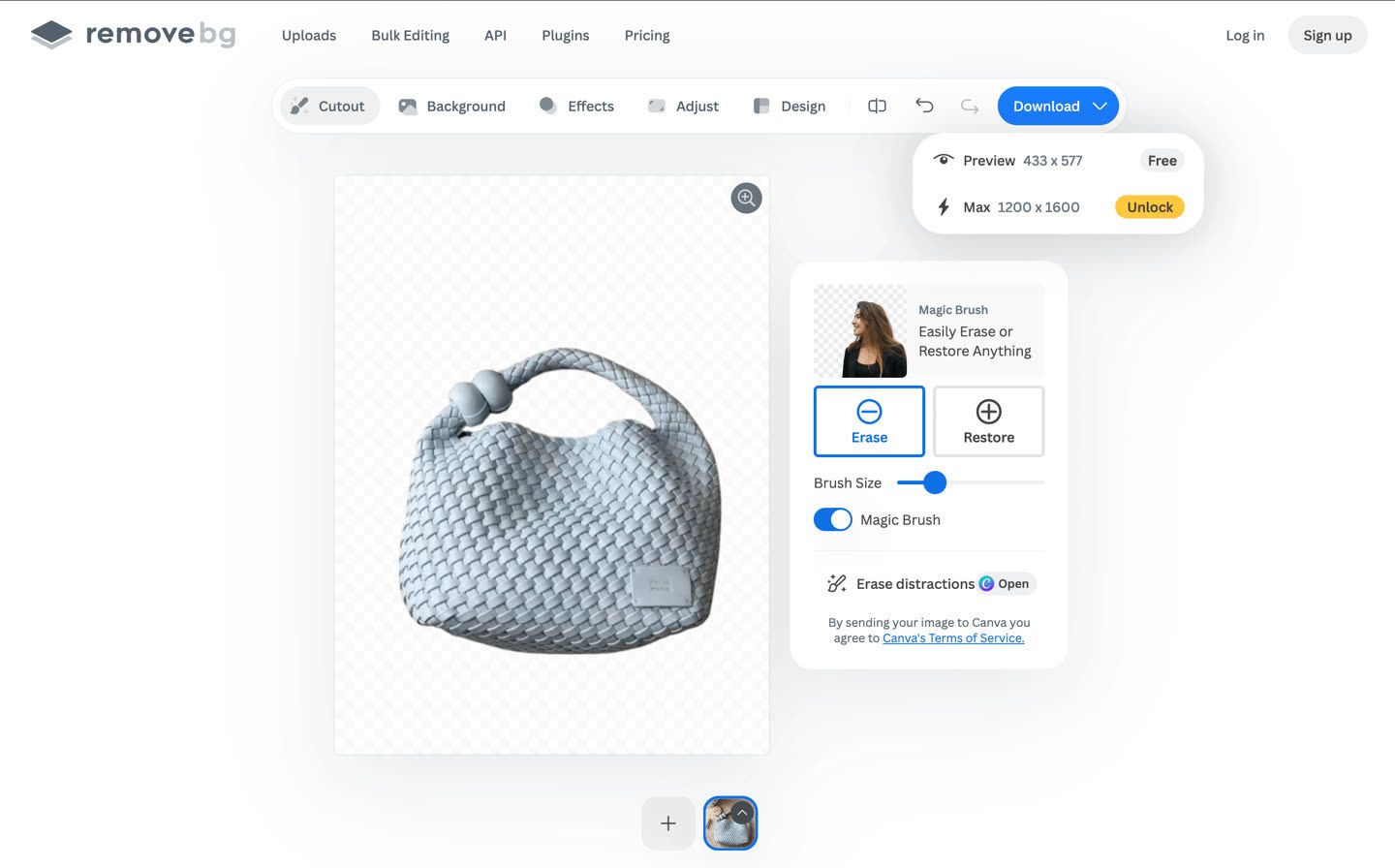
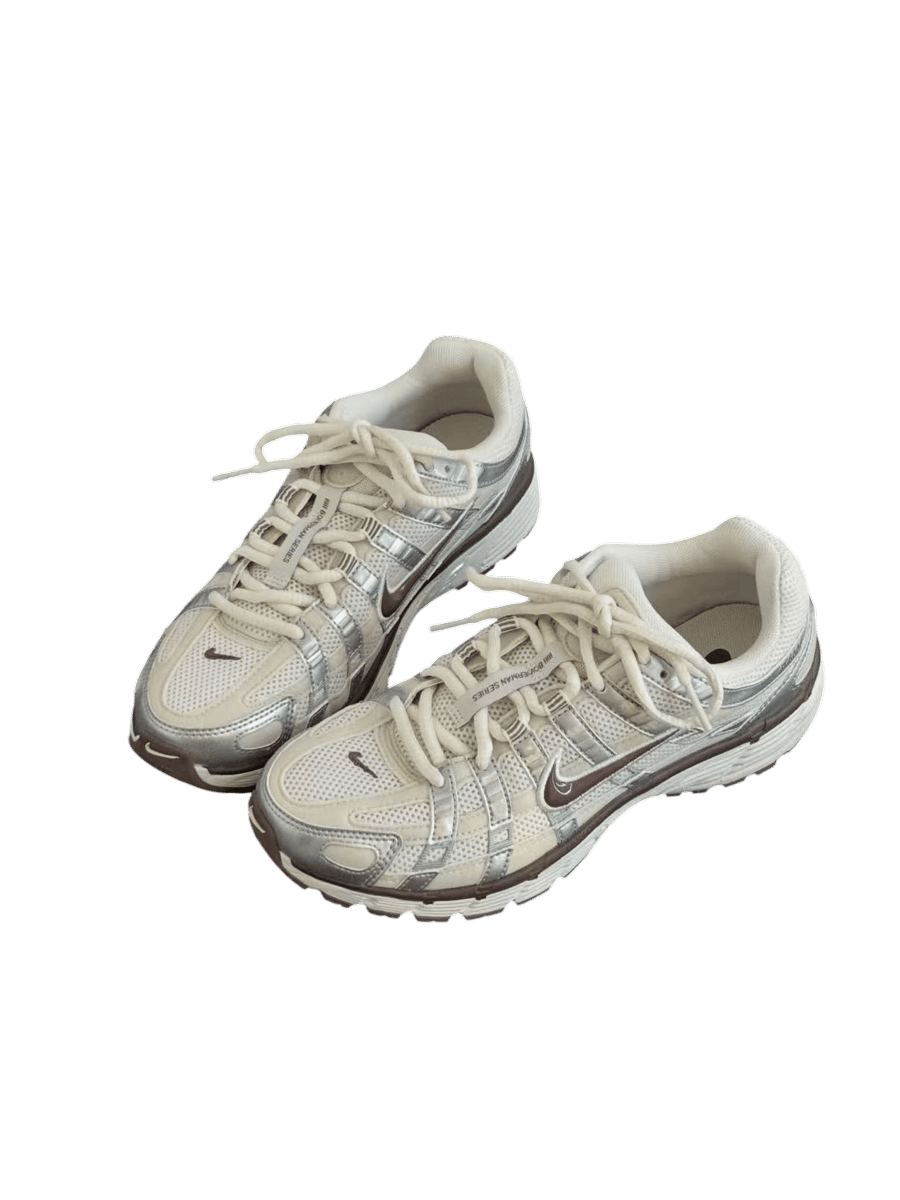
remove.bg results, enlarged from the 464 × 538 and 433 × 577 downloads. The handbag is shown after we brushed out the compact and lipstick. August 18, 2026
- Subject detection
- The sneakers came out clean. On the bag, the tool kept the compact and lipstick inside the cutout, so we had to remove them manually.
- Manual cleanup
- Quick, though the brush is fairly blunt. You paint over the whole object before it disappears, with no one-stroke shortcut. The two small items took only a few seconds to clear.
- Edge accuracy
- Clean on both products. Even the thin lace tip on the left survived as a separate line, with no ragged edges or stray pixels on a bright background.
- Detail preservation
- This is where the low output resolution shows. The BOWERMAN SERIES text on the lace strap is blurred, and the bag’s weave has softened. The cut itself is clean, but there aren’t enough pixels to preserve the detail.
- Background residue
- On the automatic pass the gap under the bag’s handle and the loop in the sneaker’s lace both came back transparent, with no rug fragments left around the edges.
This was the fastest tool: under 10 seconds for the sneakers and under 20 seconds for the handbag, including cleanup. Our free downloads were 464 × 538 and 433 × 577, both about 0.25 megapixels. That retained roughly 13%–15% of the input pixel count. The files may suit a small placement, but they fall below Amazon's preference for images larger than 1,000 pixels on each side for zoom. Full-resolution downloads use paid credits; check the current pricing page before building a recurring workflow.
3. PhotoRoom background remover
PhotoRoom's Background Remover combines automatic removal with an object-aware cleanup brush.
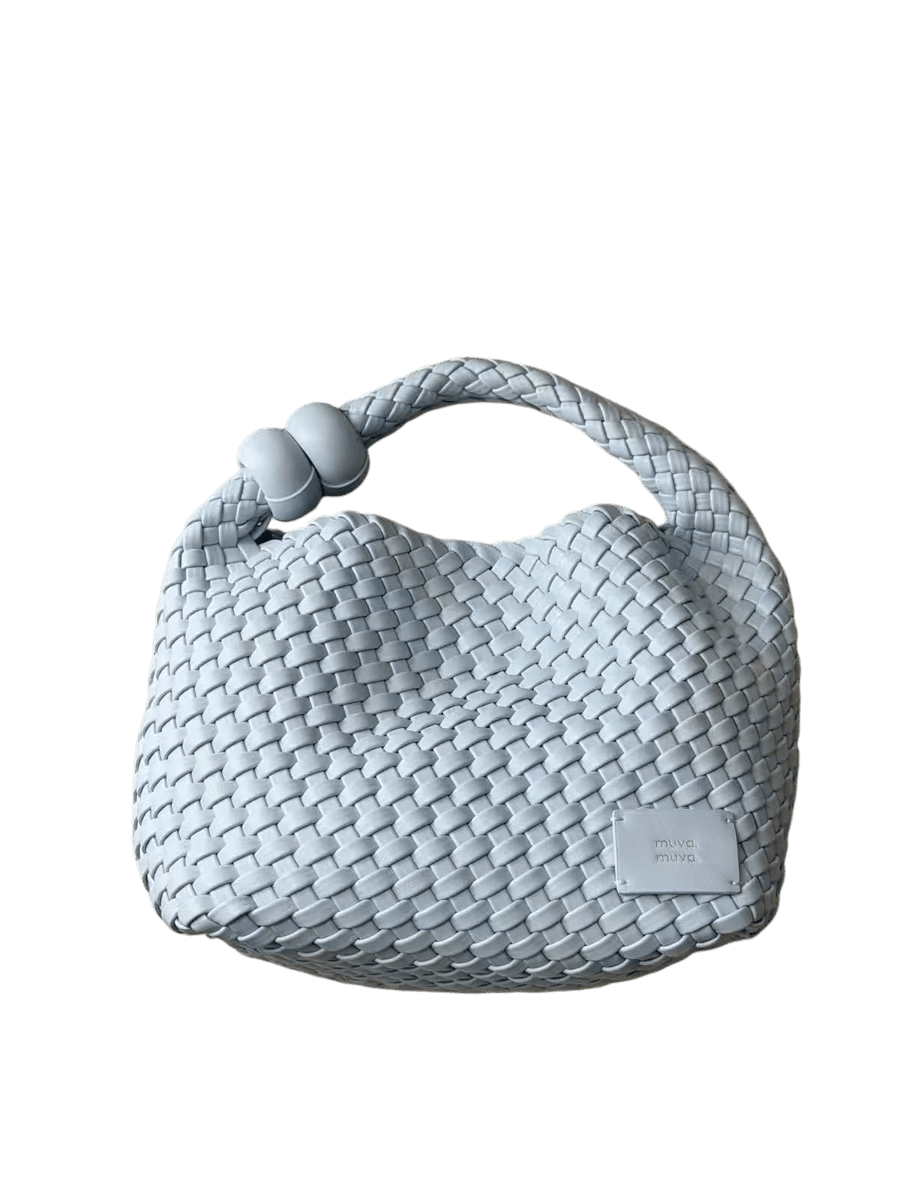
PhotoRoom results. The handbag is shown after we brushed out the compact and lipstick. August 18, 2026
- Subject detection
- The sneakers came out clean. On the bag it left the compact and the lipstick in the cutout, so we had to take them out manually.
- Manual cleanup
- The easiest of the four erasers we used. One stroke across an object removed the whole object, so we did not have to paint over every pixel.
- Edge accuracy
- Crisp on both products. The thin lace tip on the left survived as its own line, and on a bright background the line around the weave and around the laces is sharp, with no softening where the product meets the edge.
- Detail preservation
- Both files came back at the uploaded dimensions. The BOWERMAN SERIES text on the lace strap remained readable, and the bag’s woven strands stayed distinct.
- Background residue
- The main handle opening and sneaker lace loop came back transparent. A small patch of rug remained where the handle joins the bag, but the outer edges were otherwise clean.
Both runs took under a minute. The transparent PNGs we downloaded on August 18 kept the uploaded dimensions—1206 × 1398 and 1200 × 1600—and had no visible watermark. Free-tier rules and commercial permissions can change. Sellers who need background generation and catalog features beyond cutouts can compare the August-updated PhotoRoom alternatives for product photography.
4. Clipping Magic background remover
Clipping Magic shows the marked original and live cutout side by side, with green/red brushes and edge controls for manual refinement.
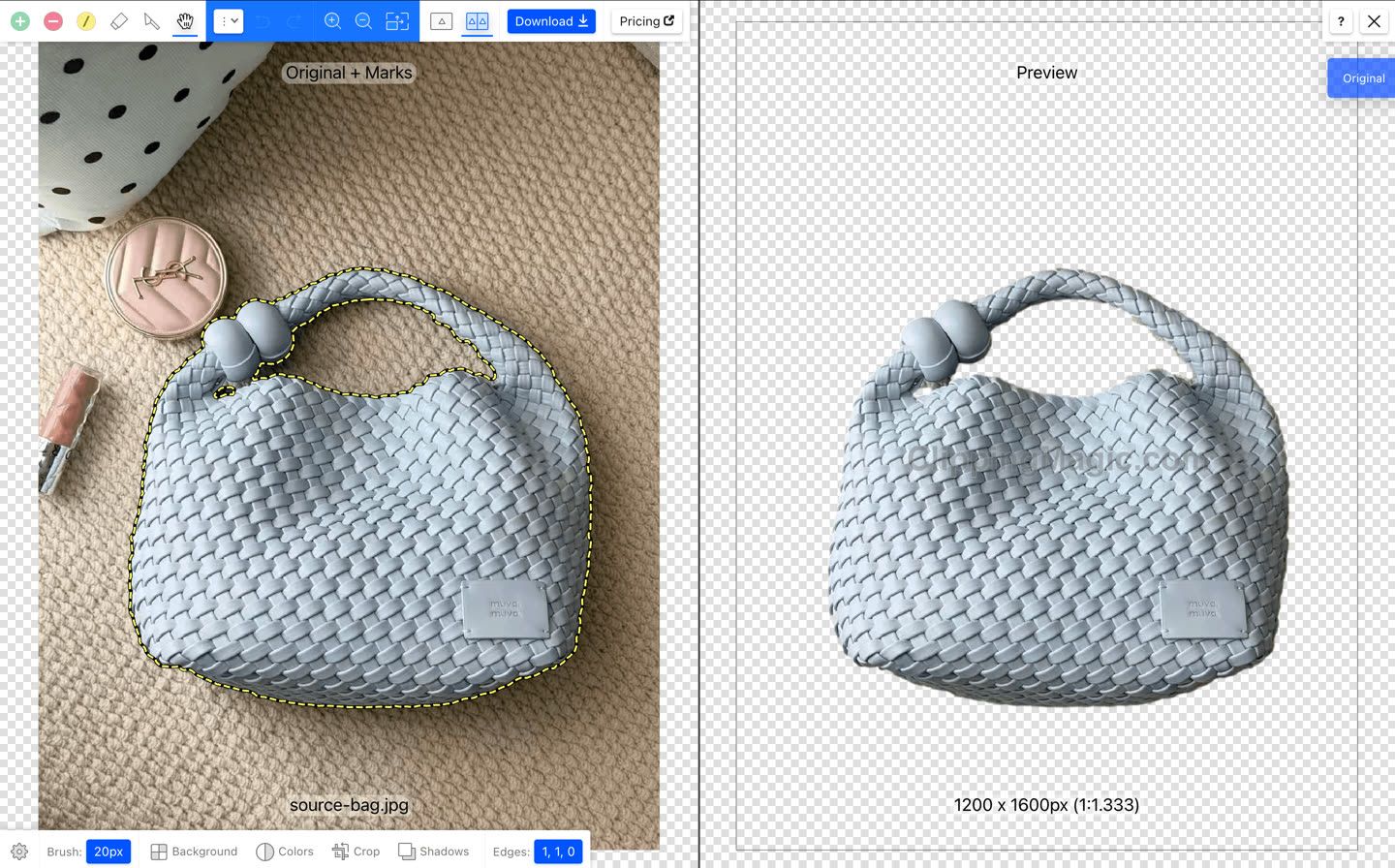
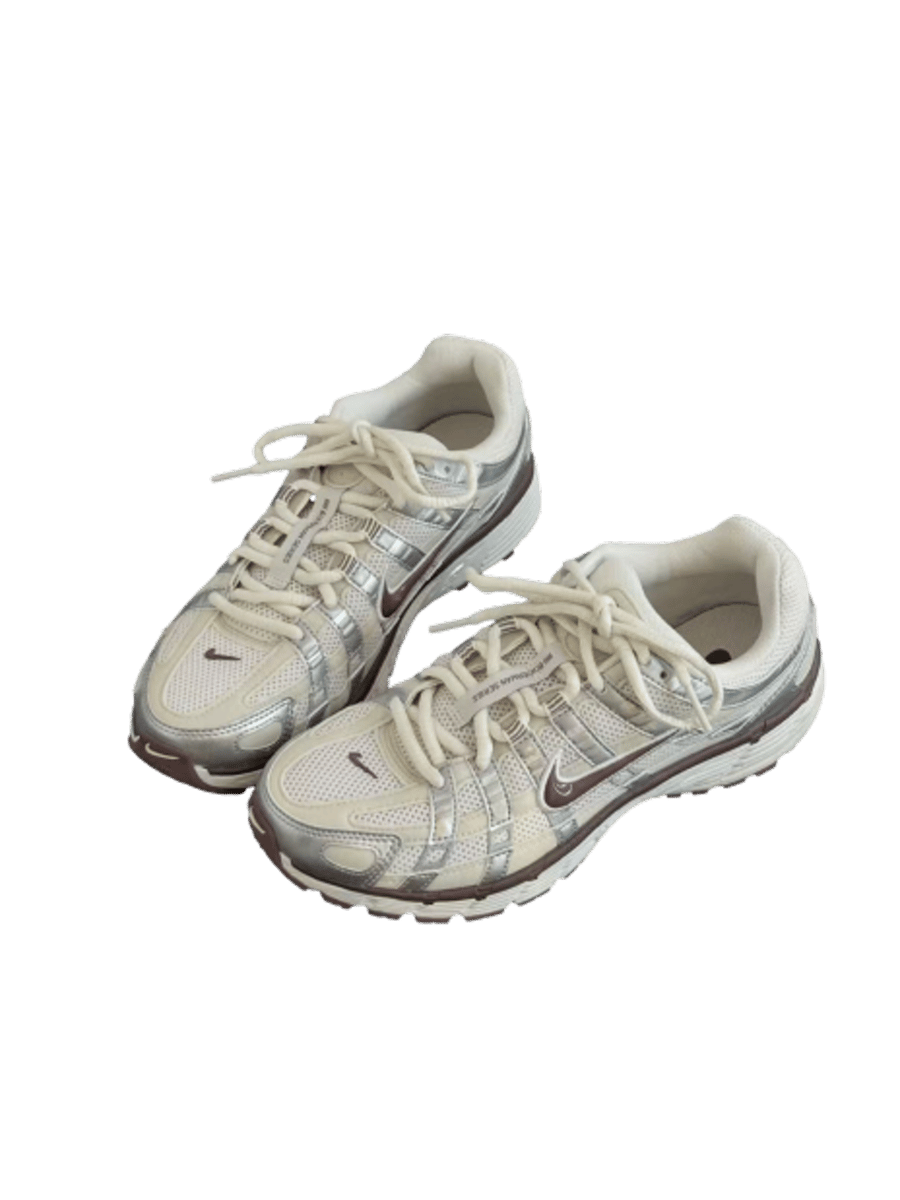
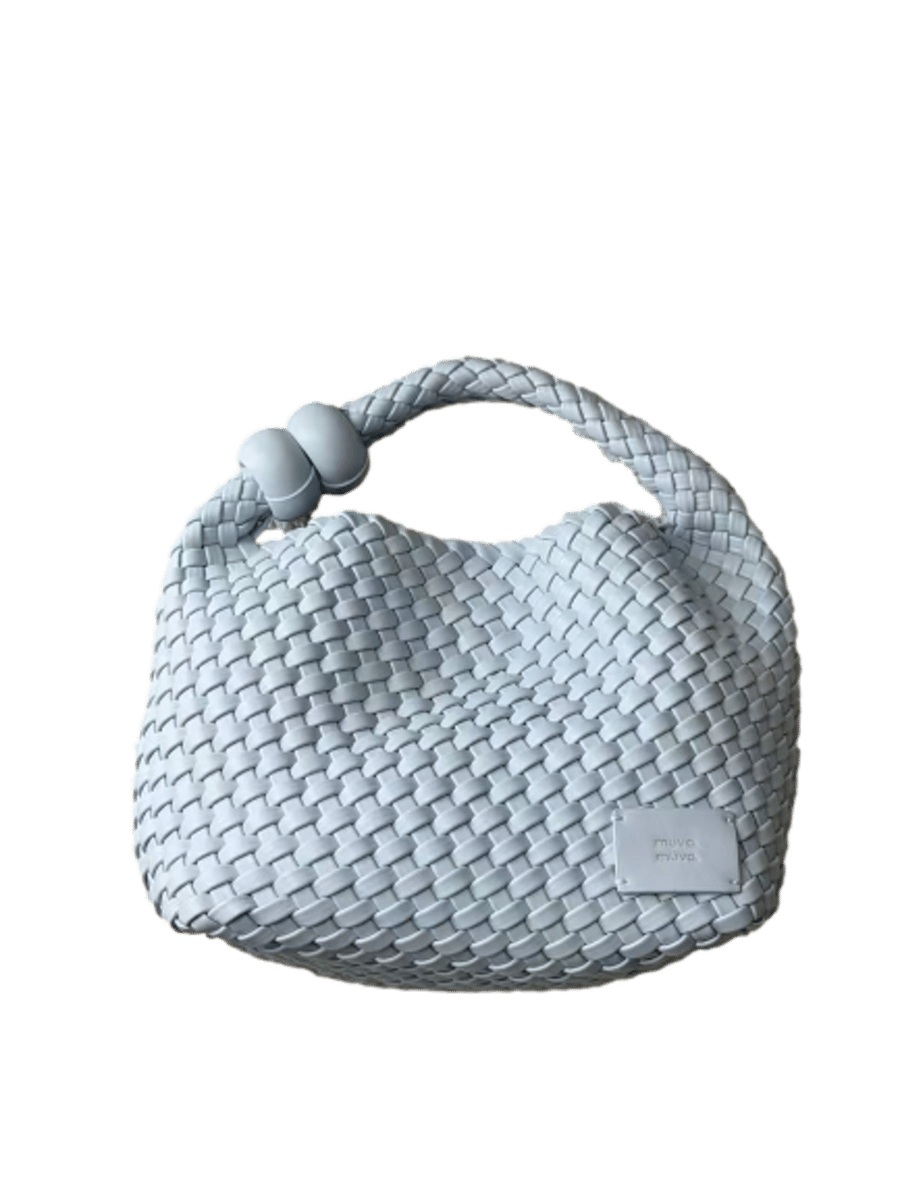
Clipping Magic results from one run per product, enlarged from the 464 × 538 and 433 × 577 downloads. August 18, 2026
- Subject detection
- One of only two tools that separated the bag from the surrounding props without manual brushwork. The sneakers were also identified correctly, although edge and residue issues remained in both saved results.
- Manual cleanup
- Neither product needed manual brushwork. Clipping Magic also offers green and red brushes plus Edge controls for more precise adjustments.
- Edge accuracy
- The cutout was generally clean, but the edges were slightly loose. Compared with remove.bg at the same image size, Clipping Magic left a thin rim of background around the sneaker and introduced a small hole near one eyelet.
- Detail preservation
- The cutout itself was fine, but the output resolution was relatively low, making small text and woven details appear soft.
- Background residue
- Most gaps were handled correctly, including the handle opening and sneaker lace loop. A small gap where the handle meets the bag still showed some of the original rug.
Both products finished in under 20 seconds and needed no manual cleanup. The editor showed a full-size watermarked preview, while the files we saved on August 18 were watermark-free at 464 × 538 and 433 × 577. Clipping Magic's current pricing page says a subscription is required to remove the watermark and download, so check the download screen before relying on this route.
5. Erase.bg background remover
Erase.bg runs inside Pixelbin's editor and asks the user to select a foreground mode before processing.
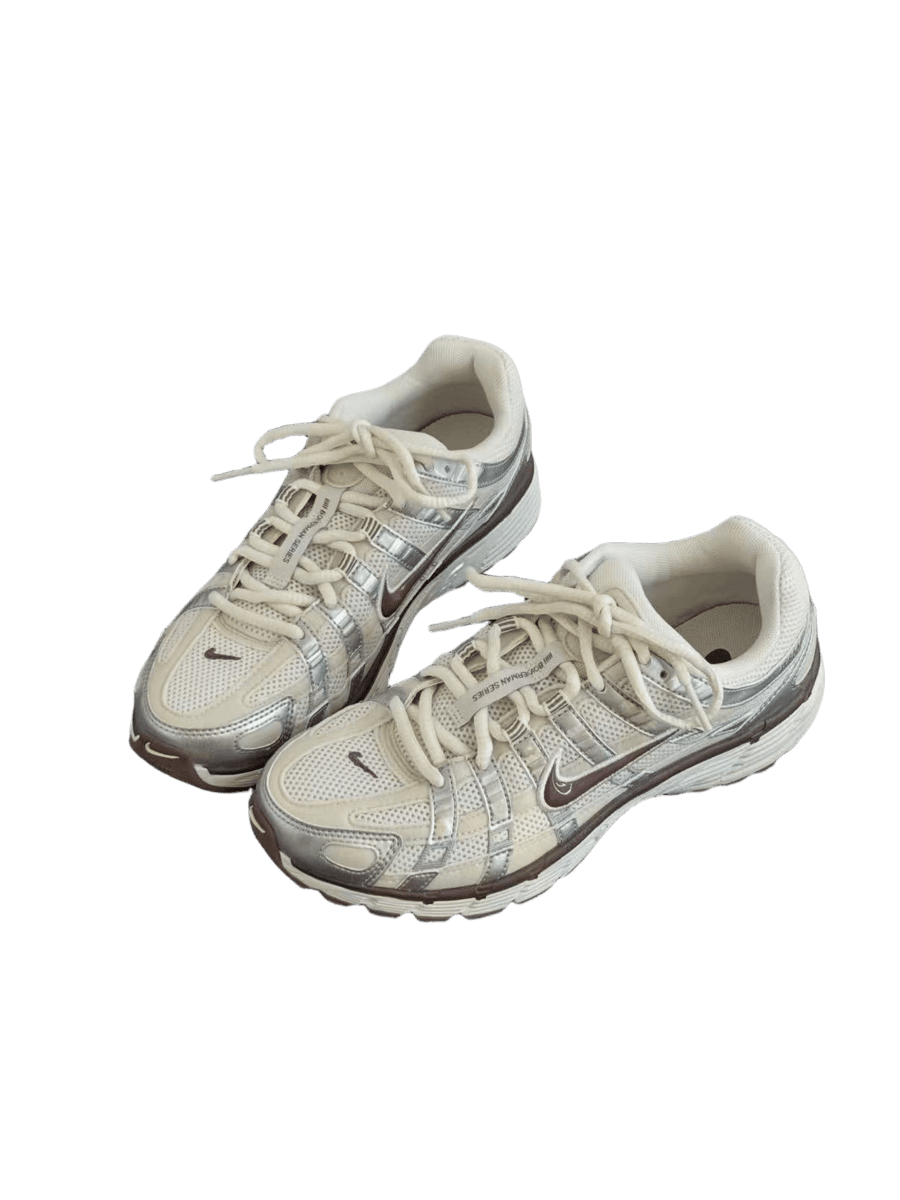
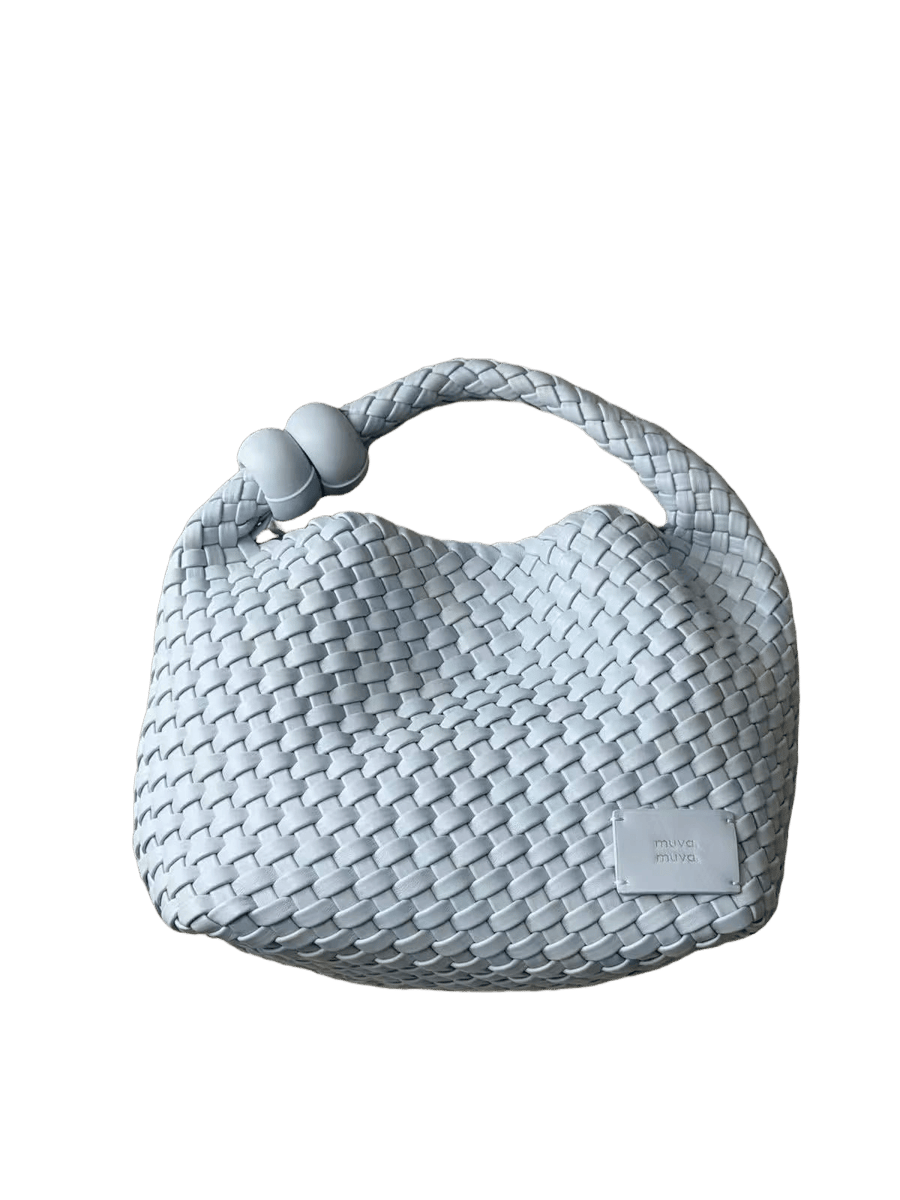
Erase.bg results from one General-mode run per product. August 18, 2026
- Subject detection
- In General mode, Erase.bg separated the bag from the surrounding props without manual brushwork and identified the sneakers correctly.
- Manual cleanup
- None was needed in the successful General-mode runs.
- Edge accuracy
- Erase.bg produced tight, precise edges overall, although it slightly trimmed parts of the product along some edges. Compared with the other tools, its cutout was among the tighter results.
- Detail preservation
- Both files were returned at their original upload sizes. The BOWERMAN SERIES text remained readable, and the woven texture of the bag was well preserved.
- Background residue
- Most areas were clean, though some rug remained in the small gap where the handle joins the bag. This was the trickiest area across the test.
Each General-mode run took under 30 seconds. Erase.bg's official pricing page, checked August 21, states that sign-up provides three free credits and three HD downloads, with one background removal using one credit. Our two General-mode files returned at the uploaded dimensions.
You can also replace the background with a prompt, image, or color. Mode selection mattered: E-Commerce left background behind on the handbag, while General produced the cleaner result shown here, with only the small handle-junction residue noted above.
6. Fotor background remover
Fotor's Background Remover sits inside a broader editor with background color, blur, restore, product-shot, and ecommerce resize options.
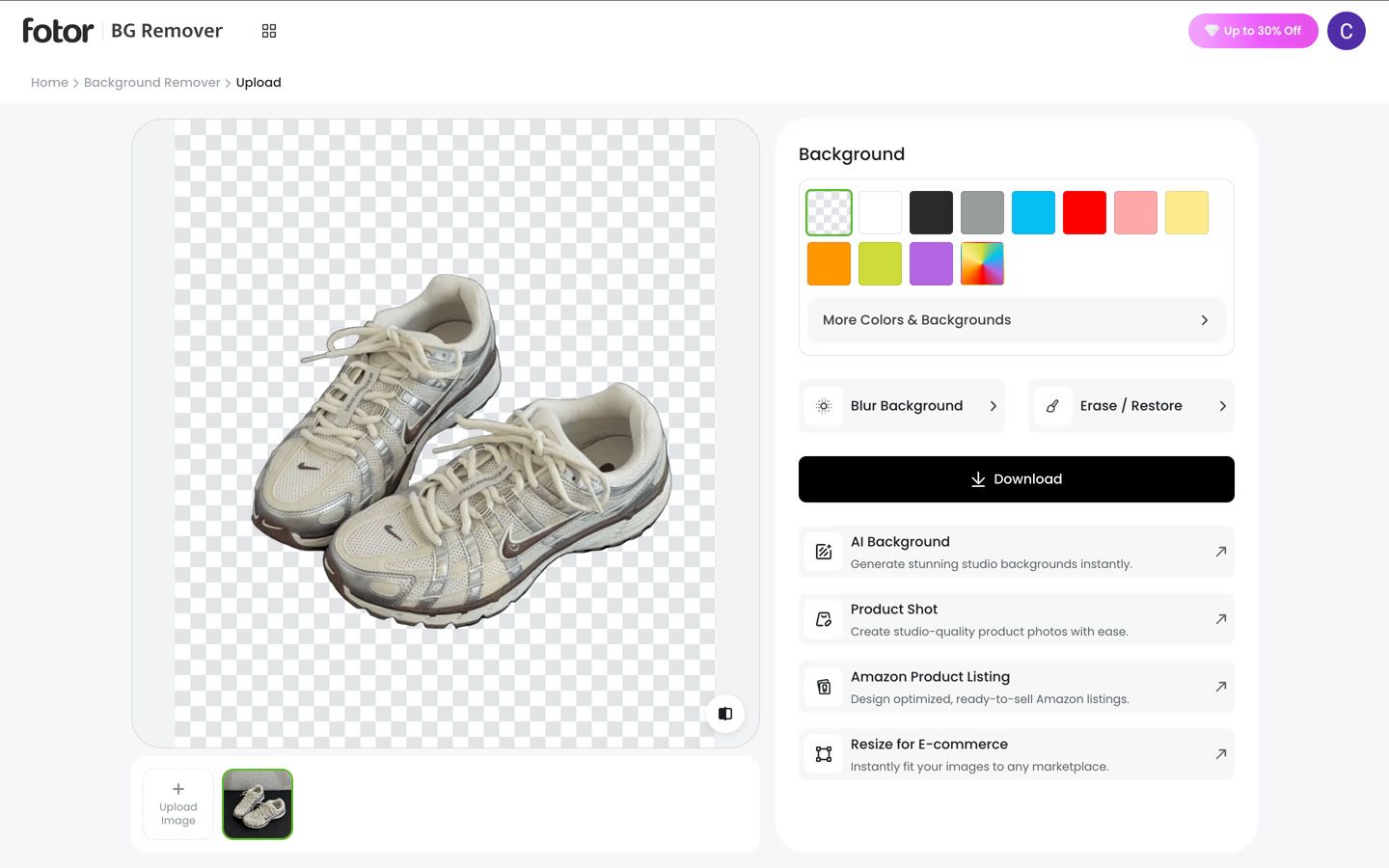
Fotor results. The handbag is shown after we brushed out the compact. August 19, 2026
- Subject detection
- The sneakers came out clean first time. On the bag it left the compact behind, so we took that out by hand. It did find the gap under the handle on its own.
- Manual cleanup
- Fotor removed only the area we painted. Unlike PhotoRoom's object-aware stroke, it required us to trace the compact more carefully, and the corrected patch remained less tidy than the automatic edge.
- Edge accuracy
- The loosest cut of the four tools that returned the file at its original size. Fotor keeps a band of background around each product that the other three cut away. On a bright background you see it as a pale halo round the whole outline, laces included.
- Detail preservation
- Both files kept the uploaded dimensions, 1206 × 1398 and 1200 × 1600. The BOWERMAN SERIES text stayed readable, and the bag’s woven texture remained clear.
- Background residue
- The main rug area was removed, but a little remained where the handle joins the bag. PhotoRoom and Erase.bg also missed part of this narrow gap. Fotor's wider pale halo is counted under edge accuracy rather than residue.
The sneakers took under 20 seconds; the handbag took about two minutes after manual cleanup. Both files downloaded at the uploaded dimensions on August 19, without sign-in or a visible watermark. Fotor's current general pricing page describes free JPG, PNG, and PDF exports as watermarked, so download one test file and check its usage terms before sending a catalog through the tool.
Free background remover comparison: side by side
The scores summarize only these two test images. Good means no material problem in that criterion, Fair means a visible but correctable issue or extra work, and Poor means a defect or output loss likely to limit the intended listing use. Times include the cleanup described above; free-tier terms are dated observations, not permanent guarantees.
| Tool | Free-tier gate | Subject | Cleanup | Edges | Detail | Residue | Speed | Observed output | Best fit from this test |
|---|---|---|---|---|---|---|---|---|---|
| Snappyit | No account required in test | Fair | Fair | Good | Good | Good | Shoes under 20s Bag 2 min | Size Uploaded dimensions Watermark None | White or transparent listing cutouts. Full-size export with manual brushes. |
| remove.bg | About 0.25 MP free; paid credits for full resolution | Fair | Good | Good | Poor | Good | Shoes under 10s Bag under 20s | Size 464 × 538 / 433 × 577 Watermark None | Fast small placements. Check final dimensions before using buyer zoom. |
| PhotoRoom | Free downloads observed; check current terms | Fair | Good | Good | Good | Fair | Shoes under 20s Bag under 1 min | Size Uploaded dimensions Watermark None | Routine manual cleanup. One stroke removed each unwanted object. |
| Clipping Magic | Small download observed; full download terms are subscription-based | Good | Good | Fair | Poor | Poor | Shoes under 20s Bag under 20s | Size 464 × 538 / 433 × 577 Watermark None on saved files | Busy shots with little brushwork. Verify the live download gate. |
| Erase.bg | Sign-up; 3 starter credits and HD downloads | Good | Good | Good | Good | Fair | Shoes under 30s Bag under 30s | Size Uploaded dimensions Watermark None | A few busy product shots. General mode outperformed E-Commerce here. |
| Fotor | Free downloads observed; general plan terms differ | Fair | Fair | Poor | Good | Fair | Shoes under 20s Bag 2 min | Size Uploaded dimensions Watermark None in test | Full-size one-off tests. Inspect halos before publishing. |
Test results: August 18–19, 2026. Official pricing and plan pages rechecked August 21, 2026.
Background removal is only one part of a larger catalog job. The August-updated comparison of batch photo editors for product photos covers multi-image processing and consistent exports.
Best free remove.bg alternatives for ecommerce sellers
Switching from remove.bg because its free file is too small? Snappyit, PhotoRoom, Erase.bg, and Fotor kept the uploaded dimensions in these two runs. If size is not the problem, compare cleanup time, background format, sign-in, and credits instead.
| If you are | Reach for | Why |
|---|---|---|
| Preparing Amazon main images | Snappyit | It exports a flat white file as well as a transparent PNG. You still need to verify pure white, crop, product accuracy, and current Amazon rules. |
| Shooting with props in the frame | Erase.bg | General mode separated our busy handbag from the surrounding props without brushwork. Sign-up included three starter credits in the current official offer. |
| Expecting manual cleanup | PhotoRoom | It kept the uploaded dimensions, and one rough stroke removed each unwanted object. Check its current export and usage rules before relying on it. |
Keep remove.bg when speed matters more than resolution and the final placement stays within the saved dimensions. Otherwise, try the relevant alternative on one of your harder products before moving the rest of the catalog.
Try the free background remover →
Free ecommerce background removal workflow: shoot to export
Try this five-step process on one product before using a free tool across your store. The removal itself may be free, but account limits, usage rights, and marketplace rules still matter.

1. Shoot product photos with edge contrast
Place the product against a backdrop that differs from its dominant color, light it evenly, and capture at the highest practical resolution. One light plus a white foam-board bounce can be enough for a small setup. Apparel sellers can compare a physical setup with the August-updated flat-lay photography workflow.
2. Remove the product background
Start with one of your harder products, not a clean studio shot, and judge the saved file rather than the preview. The handbag made differences in detection, cleanup, and residue much clearer than the simpler sneaker. The free background remover is the no-account option tested here.
3. Clean up props, gaps, and halos
Inspect the cutout on a bright contrasting layer. Check straps, lace loops, fuzzy fabric, holes, and any prop touching the product. Four tools kept at least one nearby object in the handbag photo; cleanup ranged from a few seconds to about two minutes.
4. Export for the marketplace
Use a transparent PNG for composites or storefronts that support transparency. For an Amazon main image, use a pure-white background and verify the current crop and content rules. Check the saved dimensions against the August-updated marketplace image-size guide, and use the Image Resizer only after the cutout is approved so you do not hide edge defects in a smaller export.
5. Publish and spot-check the product listing
Upload one finished image before processing the full batch. Check the live listing on desktop and mobile for unexpected cropping, background shifts, compression, or soft detail. Fix the master once, then export the marketplace versions.
For apparel, a clean cutout can also feed a flat-lay to ghost-mannequin workflow. Keep the source and transparent cutout so you can reuse them without removing the background again.
Free background remover FAQ for ecommerce sellers
Is there a truly free background remover with no watermark for ecommerce?
The six files we saved on August 18–19 had no visible watermark, but a clean file does not mean unlimited exports or automatic commercial rights. Erase.bg required sign-up and used one of three starter credits. Clipping Magic's current pricing page requires a subscription to remove the watermark and download, while Fotor's general pricing page describes watermarked free exports; both differed from the files we received. Check one download and its license before you publish.
Do free background removal tools downscale product images?
Yes, some do. The original sneaker measured 1206 × 1398 and the handbag 1200 × 1600. remove.bg and Clipping Magic saved them at 464 × 538 and 433 × 577—about 0.25 megapixels, or roughly 13%–15% of the input pixel count. The other four tools kept the uploaded dimensions. Inspect the saved file rather than the editor preview. Amazon prefers images larger than 1,000 pixels on each side for zoom; other marketplaces differ. A small file may work in a thumbnail or social design, but upscaling it will not restore lost detail.
Which free background remover is best for Amazon white-background images?
For Amazon main images, Snappyit was the quickest route in these two runs: it kept the uploaded dimensions and let us choose white at export. That alone does not make an image Amazon-compliant. The main image still needs a pure RGB 255, 255, 255 background, accurate product representation, at least 85% frame fill, and no unrelated props, text, borders, or watermarks. Fotor and Erase.bg can also replace backgrounds, but Fotor showed a pale halo and Erase.bg changed with the selected mode. Check the crop, edges, and current category rules before upload.
Can a free background remover handle an ecommerce product catalog?
Two photos cannot tell us how a tool will perform across hundreds of products. Erase.bg offers three starter credits, while remove.bg and Clipping Magic use paid credits or subscriptions for full downloads; PhotoRoom's paid plans use export allowances, and Fotor's free terms can differ by feature. Before you commit, run 10–20 of your harder products, then record failed cuts, cleanup time, saved dimensions, and actual cost. A free single-image tool can still make sense when weekly volume is low and cleanup is predictable.
Why can the same background removal tool produce a different result?
Check the processing mode and input first. Erase.bg offered General, E-Commerce, Car, Human, and Object modes; E-Commerce left background behind on the handbag, while General produced the cleaner cut shown here. Crop, lighting, contrast, overlapping props, and transparent or fuzzy edges can also change the result. Write down the tool, mode, photo setup, cleanup check, and export format your team should use. If quality shifts, rerun the same difficult product instead of judging from the editor preview.
What is the best free alternative to remove.bg for ecommerce?
For full-size white or transparent listing cutouts, Snappyit was the closest replacement in these two runs. PhotoRoom had the quickest cleanup brush, while Erase.bg handled the busy handbag without brushwork in General mode but required sign-up and used starter credits. Keep remove.bg when its faster small download fits the final placement.
Sources and test notes
Performance scores, times, dimensions, and edge observations come from the controlled runs shown in this article on August 18–19, 2026. Official tool and pricing pages were rechecked on August 21, 2026. Vendor terms can vary by region, account, billing period, and feature.
- Snappyit, Free Background Remover — tested interface and export options.
- remove.bg, Background Remover and official pricing — free preview and paid full-resolution credit terms.
- PhotoRoom, Background Remover and official plans and pricing — tool workflow and current plan/export allowances.
- Clipping Magic, Background Remover and official pricing — subscription, credit, watermark, and download language.
- Erase.bg, Background Remover and official pricing — three starter credits, sign-in, HD downloads, and one credit per removal.
- Fotor, Background Remover and official pricing — editor features and general free-plan export terms.
- Amazon, How to take product photos — white background, 85% frame fill, and the preference for more than 1,000 pixels on each side for zoom.
- Amazon Seller Central, Product Image Requirements — main-image content and technical requirements; marketplace or category rules may require sign-in.