


A wrinkle remover can help a seller smooth clothing in a usable product photo when a sample arrives creased, a reseller cannot reshoot, or a launch image needs a cleaner presentation. “Smoothest,” however, is not the same as “best”: the edit still has to preserve the garment’s weave, print, seams, silhouette, and condition.
We ran the same blue shirt, yellow knit top, and deeply creased white shirt through Snappyit, Photoroom, Evoto, AirBrush, and PicWish. This is a visual workflow comparison, not a universal ranking. Use the outputs to identify which controls and failure modes matter for your catalog, then test the finalists on your own recurring garment types.
How we tested the wrinkle removers
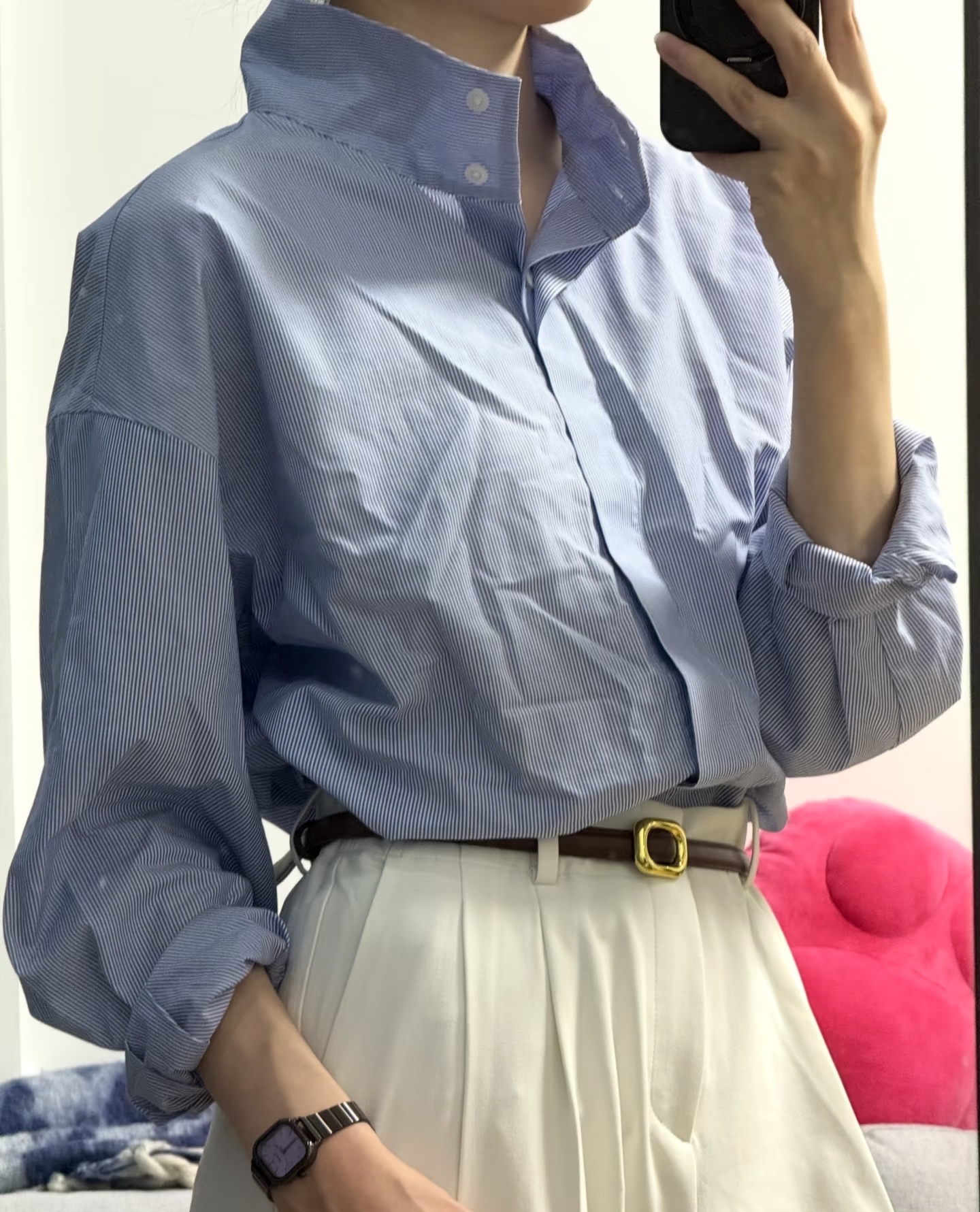
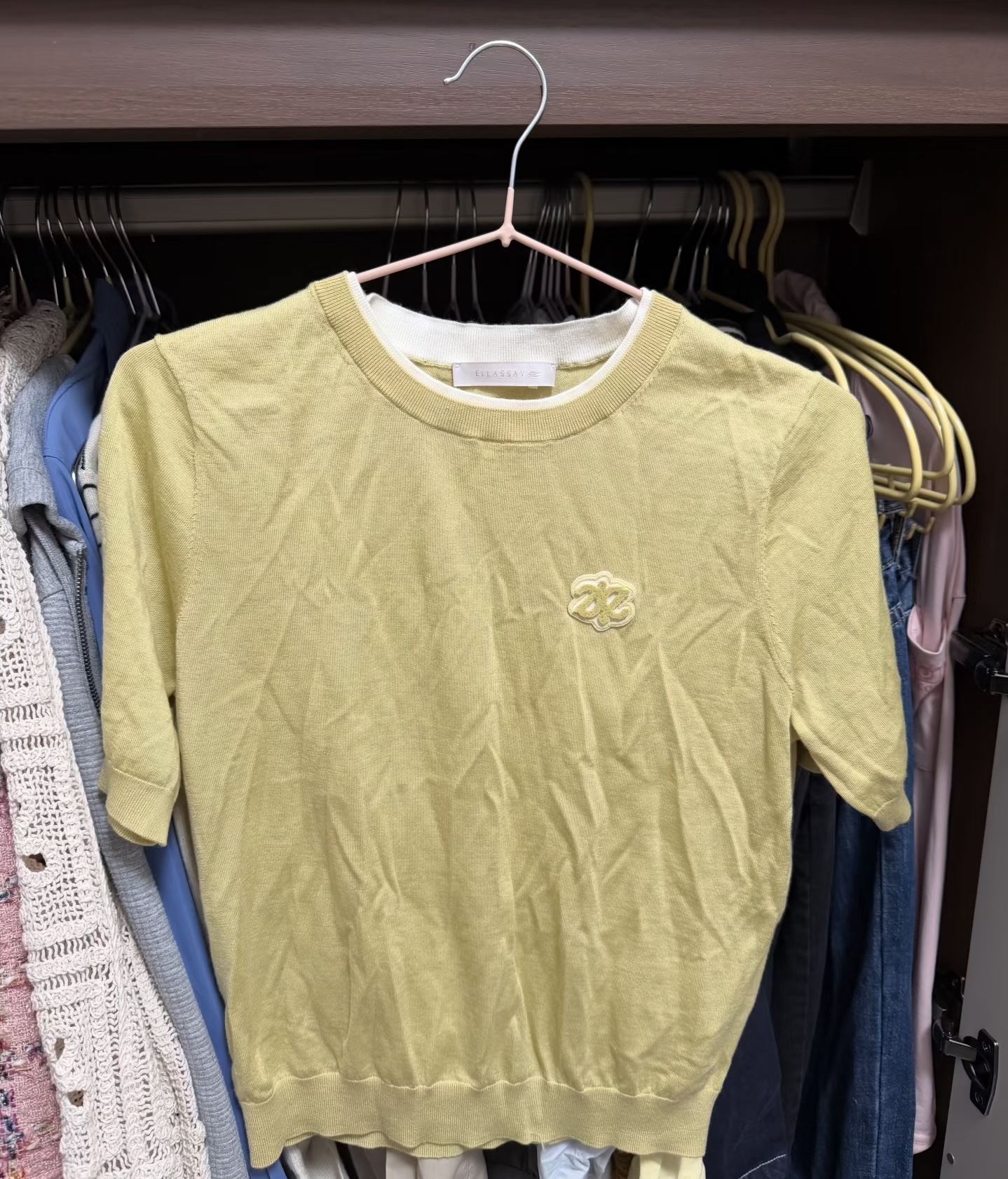
We used one blue shirt worn on a person, one yellow knit top with a small chest motif, and one white button-down with pronounced folds. The photos challenge different parts of a result: worn shape, fine surface detail, and deep creases around a collar, placket, sleeves, and hem.
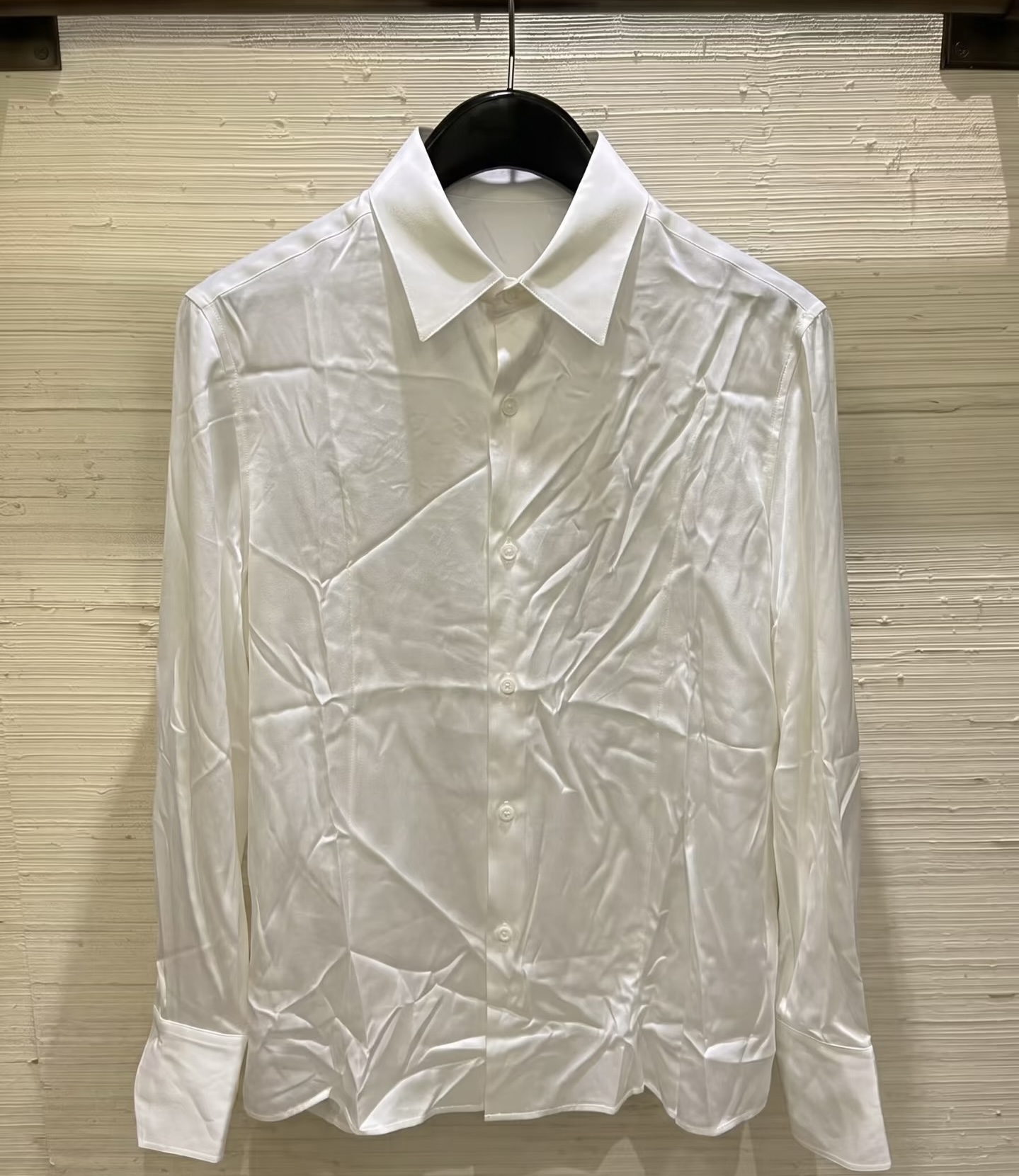
- Use the same source photo for each tool in a scene.
- Open the clothing-wrinkle feature in the tested mobile or browser workflow, upload the image, and generate a result.
- Keep one representative output per tool and scene, then compare folds, texture, motif, seams, silhouette, and visible condition against the source.
| Tool | Tested route | Workflow used |
|---|---|---|
| Snappyit | Mobile interface | Remove Wrinkles |
| Photoroom | Mobile interface | Ironing [1] |
| Evoto | Mobile interface | Smart Digital Ironing |
| AirBrush | Browser interface | AI Clothes Wrinkle Remover [2] |
| PicWish | Browser interface | AI Clothes Wrinkle Remover [3] |
Results by tool: interface and three photo comparisons
Each tool's section shows its interface and three results side by side. The View original button at the top right switches to the matching source photo; View result switches back. Selecting an image opens its full-size version.
Snappyit Remove Wrinkles
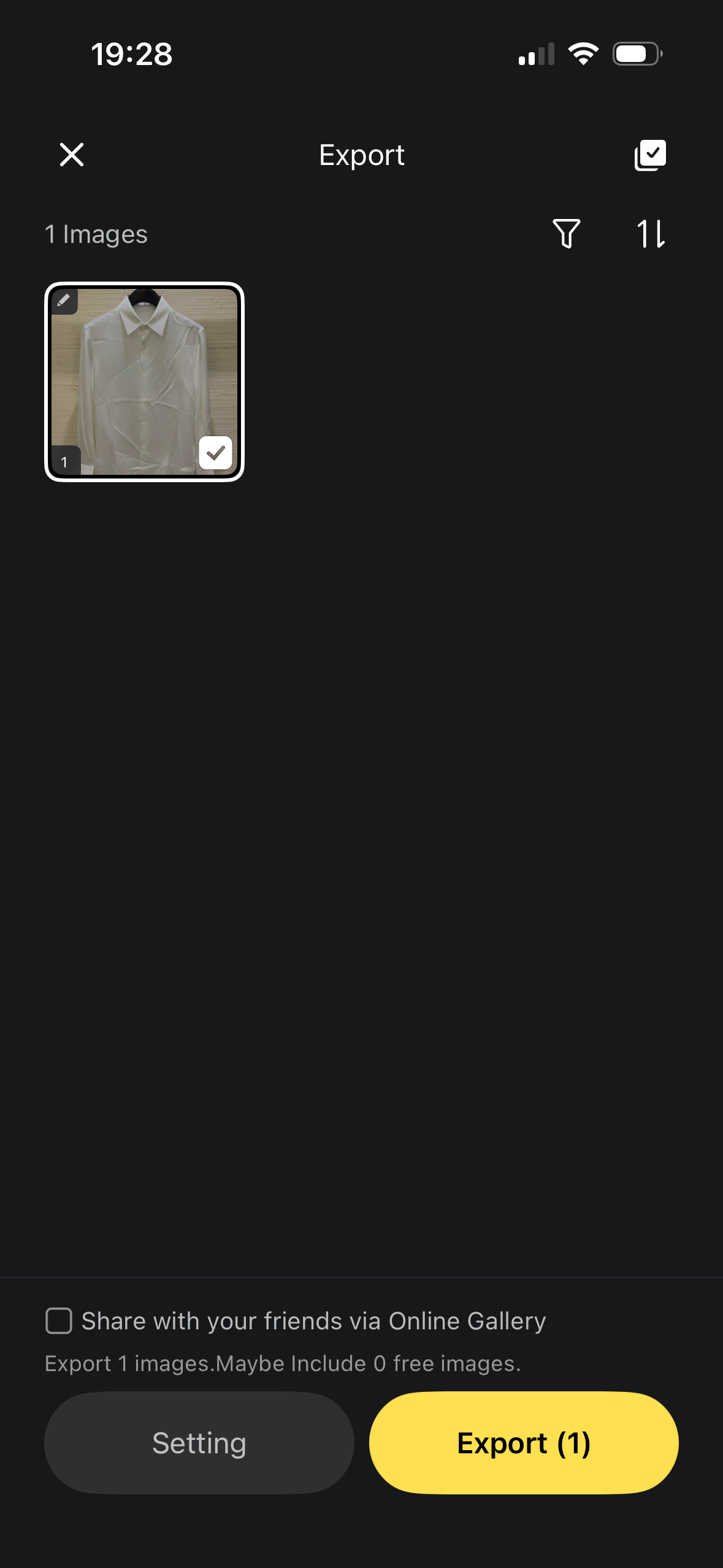
Snappyit's Remove Wrinkles workflow lets you remove wrinkles from clothes in photos with two strength options: Natural and Smooth. An optional text prompt allows specific instructions before generation.
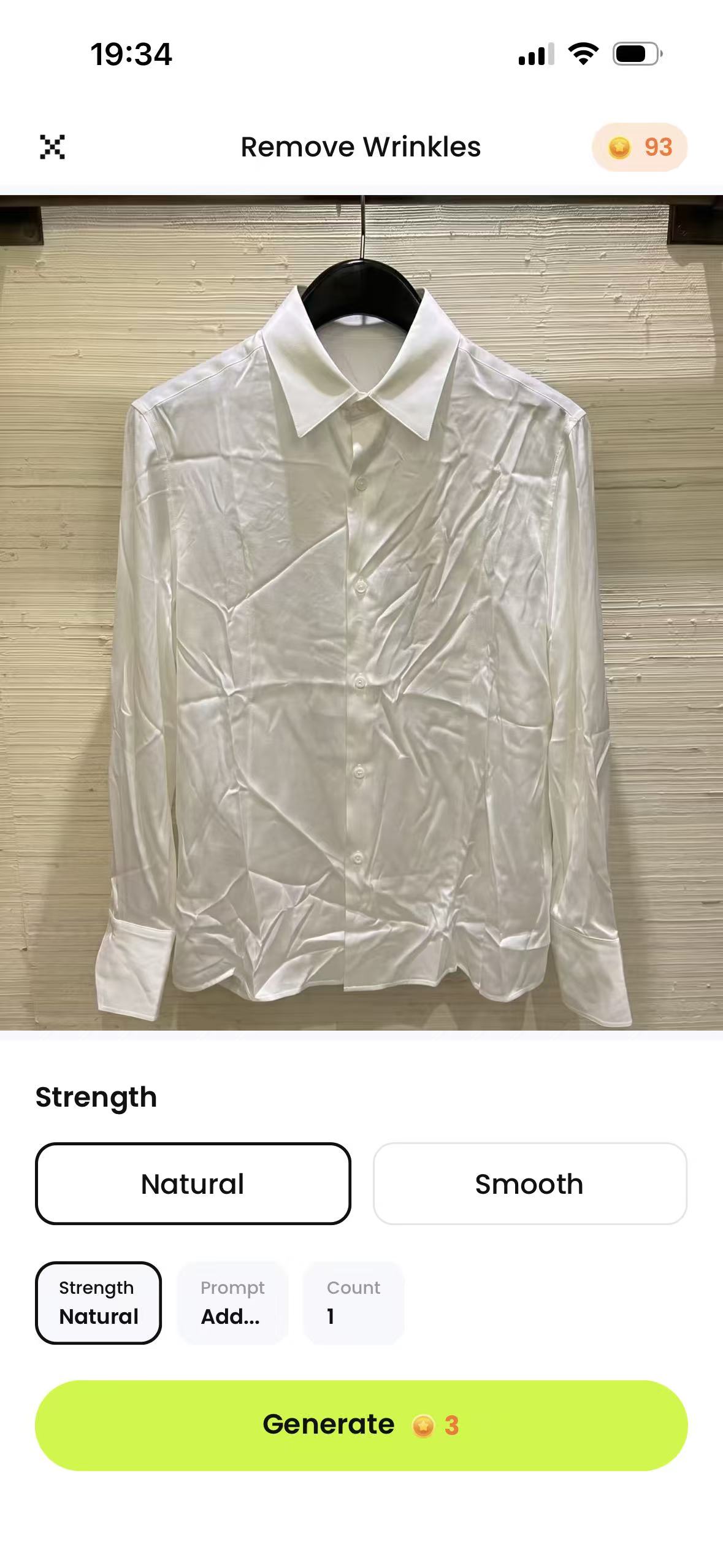
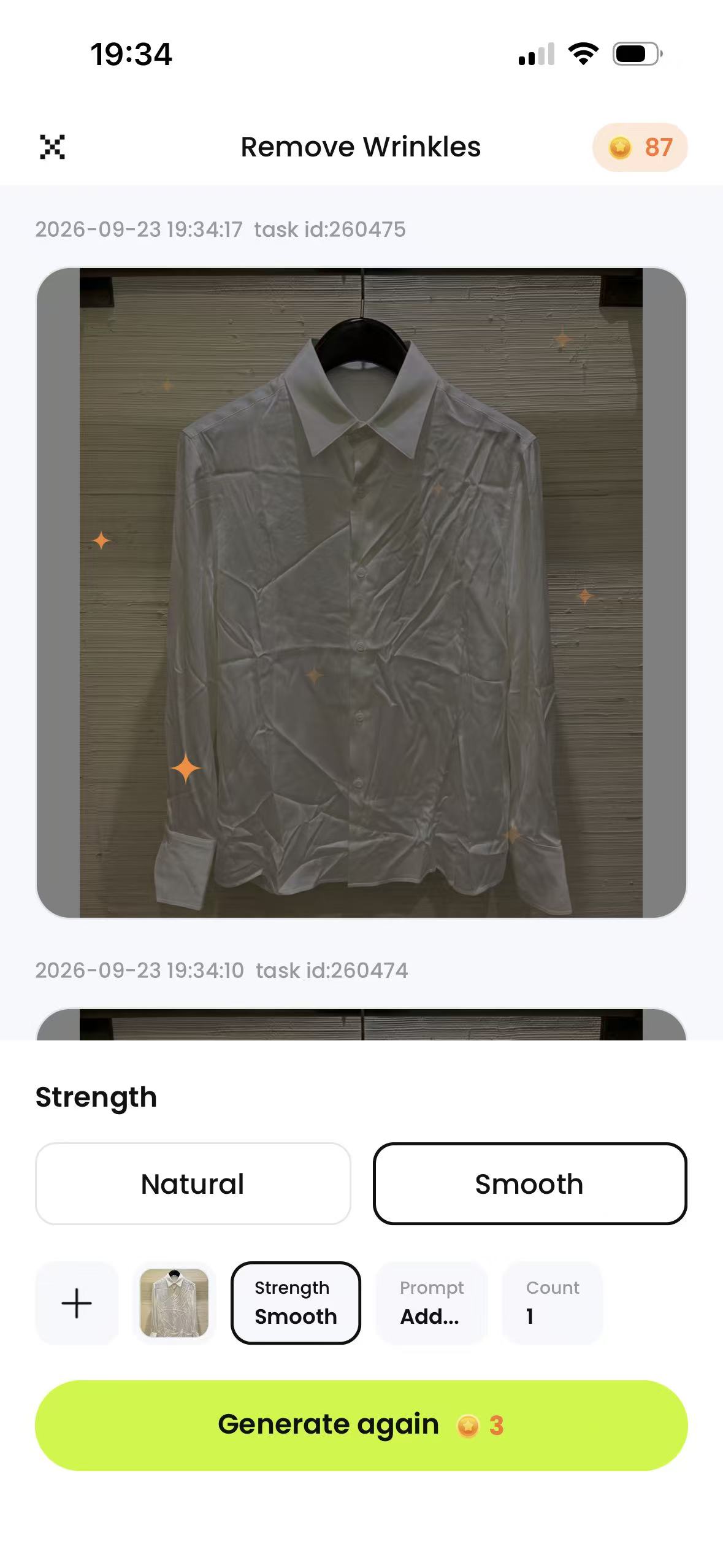
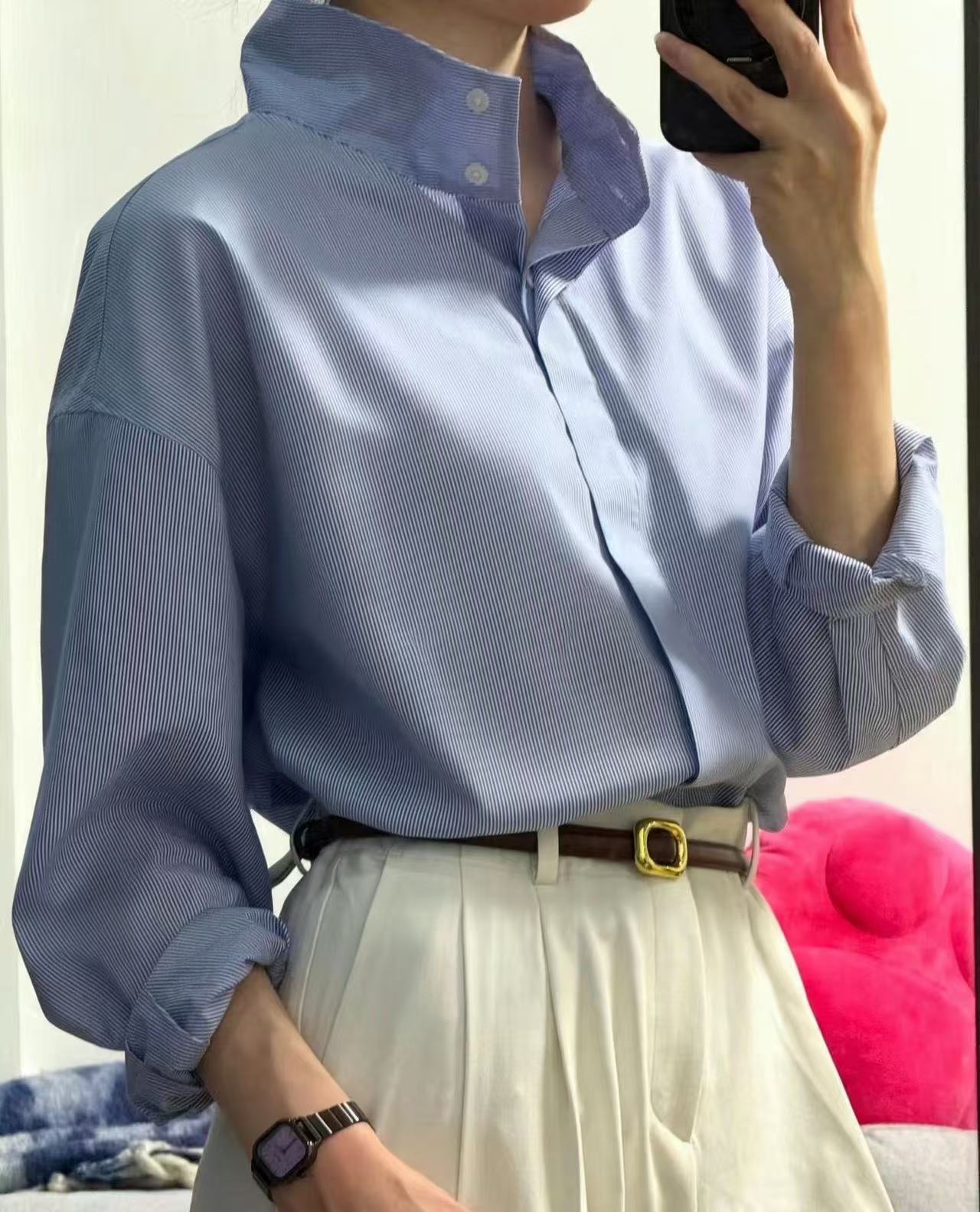
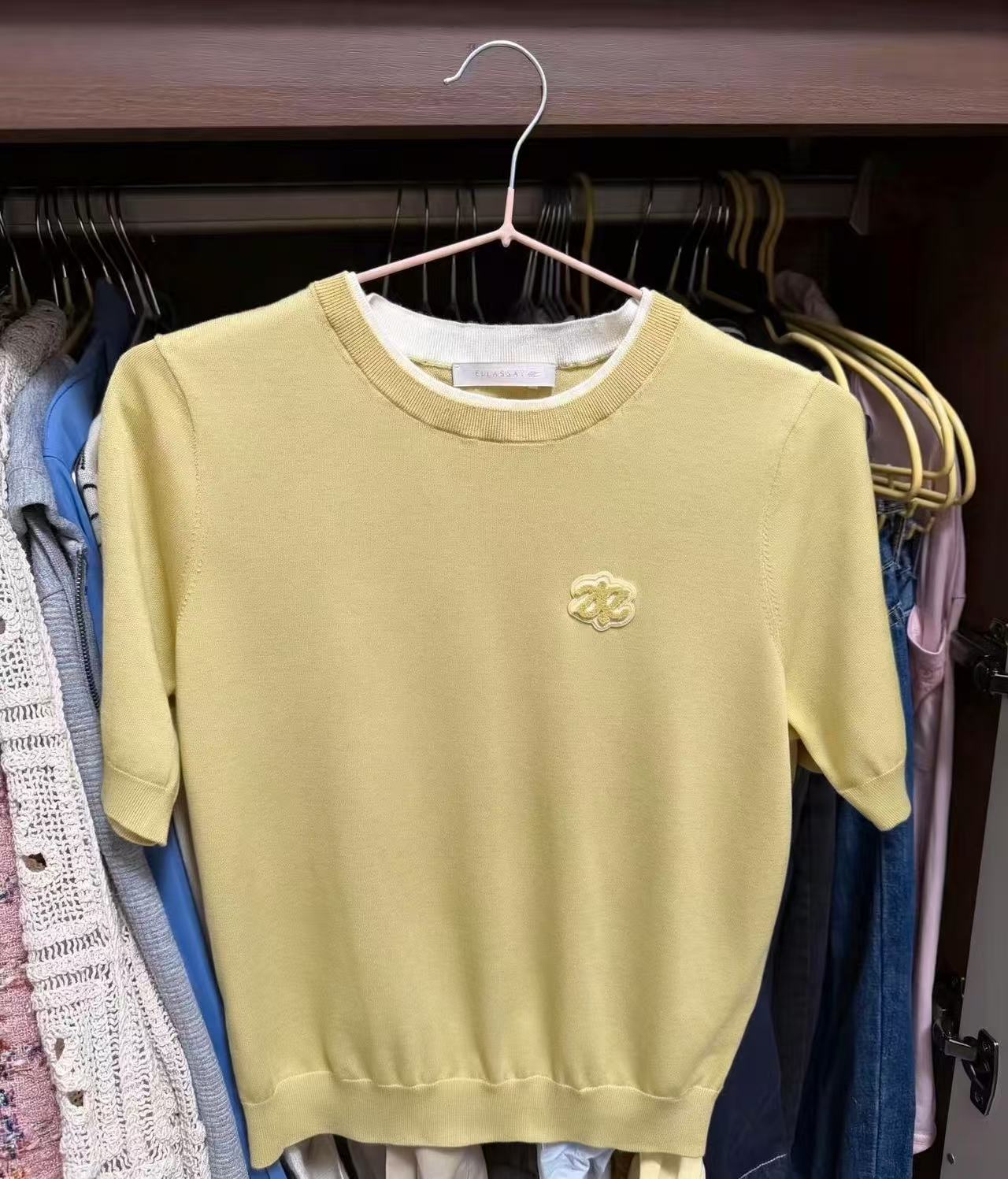
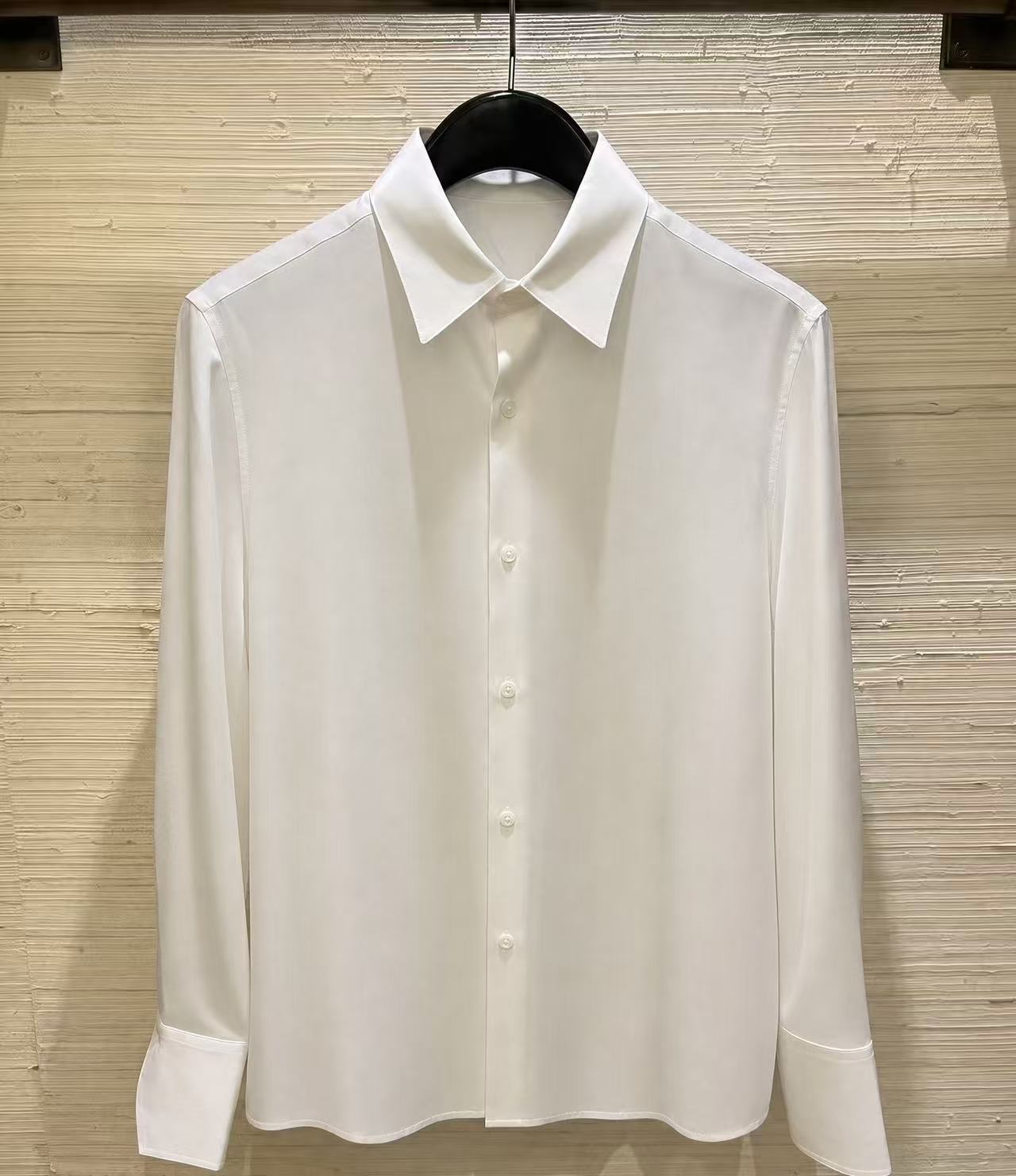
Blue shirt: The broad chest and sleeve creases are reduced substantially while the tucked waist stays recognizably in place. Yellow knit top: The front becomes much smoother and the chest motif remains visible, though the surface looks more uniform. White shirt: This result uses Smooth. It removes most strong crisscross folds; check the collar, placket, cuffs, and hem against the original.
Photoroom Ironing
In Photoroom's app, Ironing accepts a clothing photo and starts wrinkle removal with Generate image. The mobile flow tested here has no strength slider, mask, or prompt before generation. The result can then be reviewed and saved. Photoroom also documents clothing wrinkle removal on its website [2].
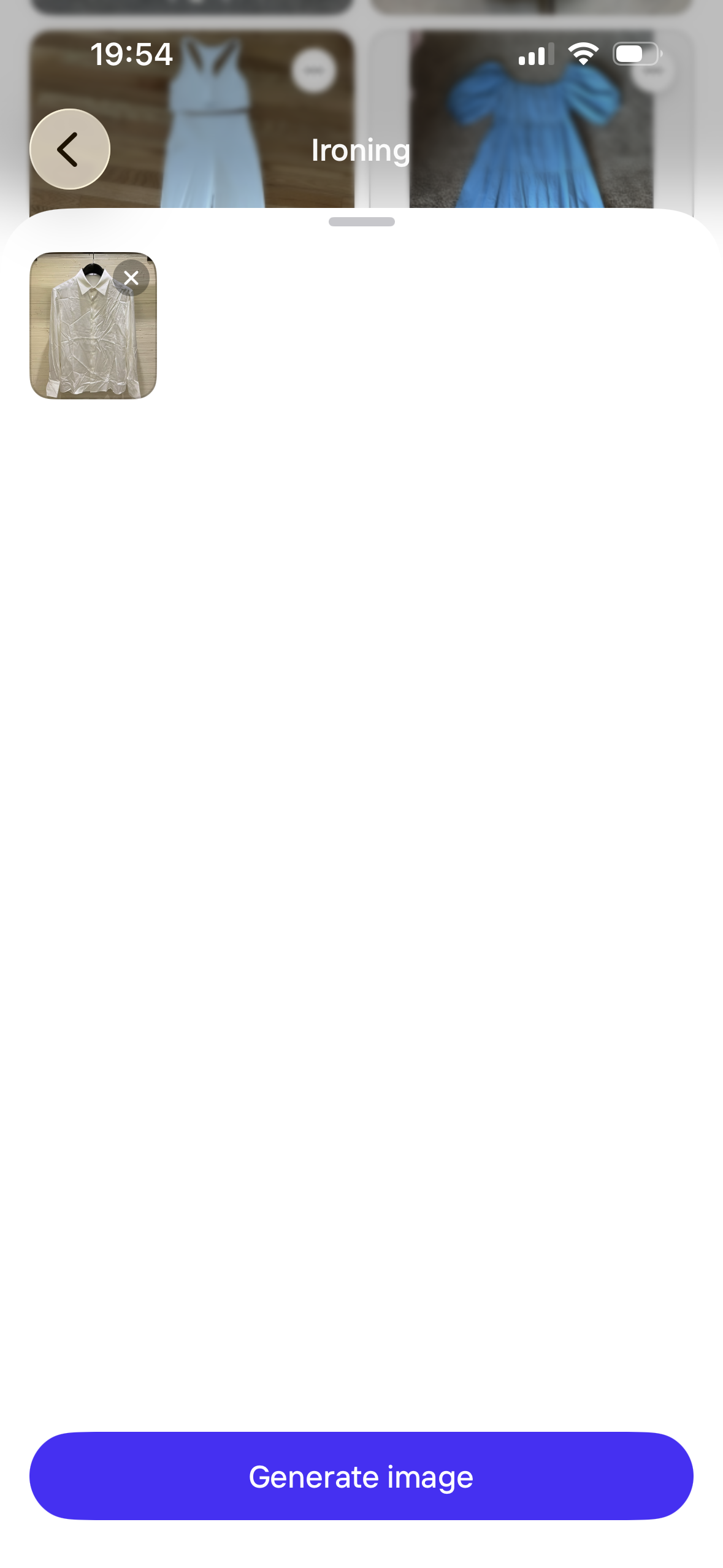
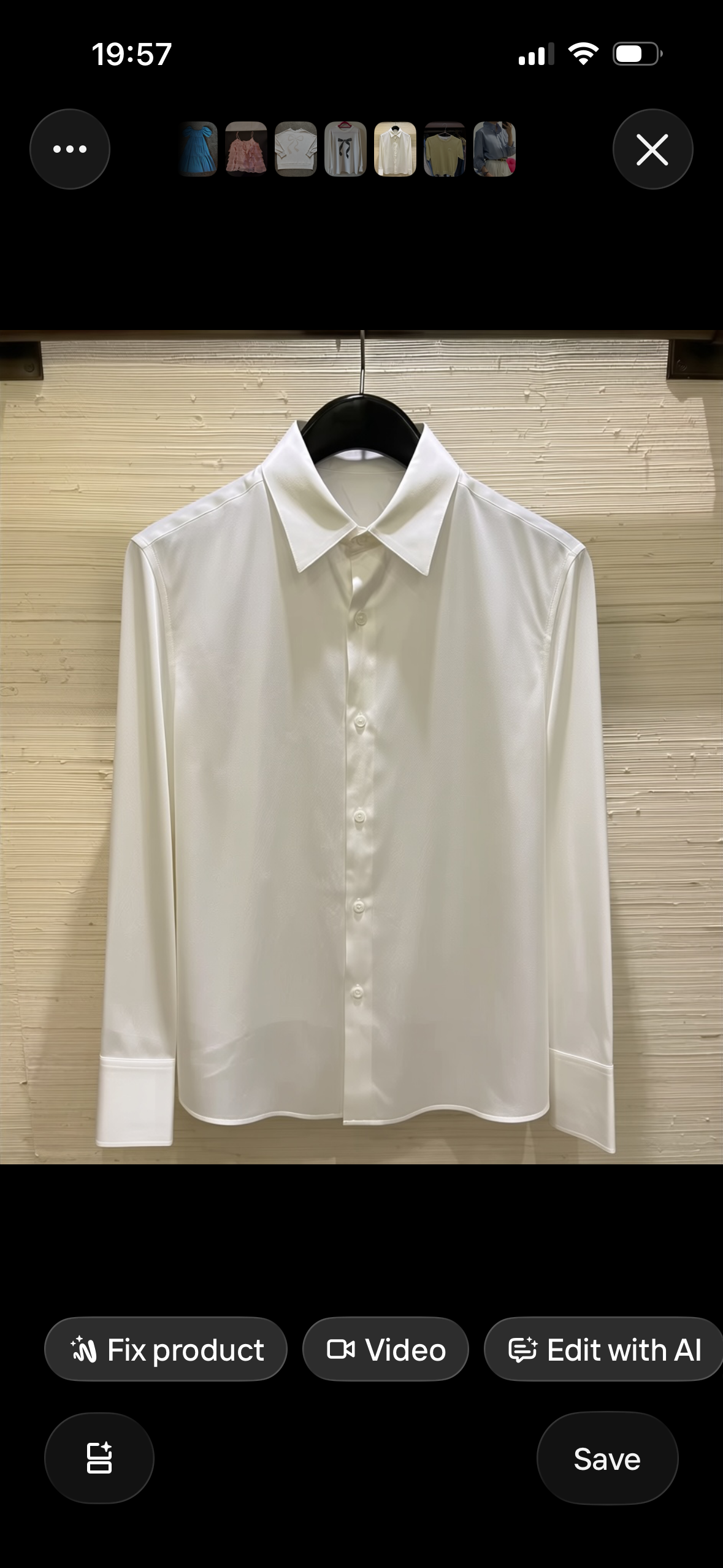
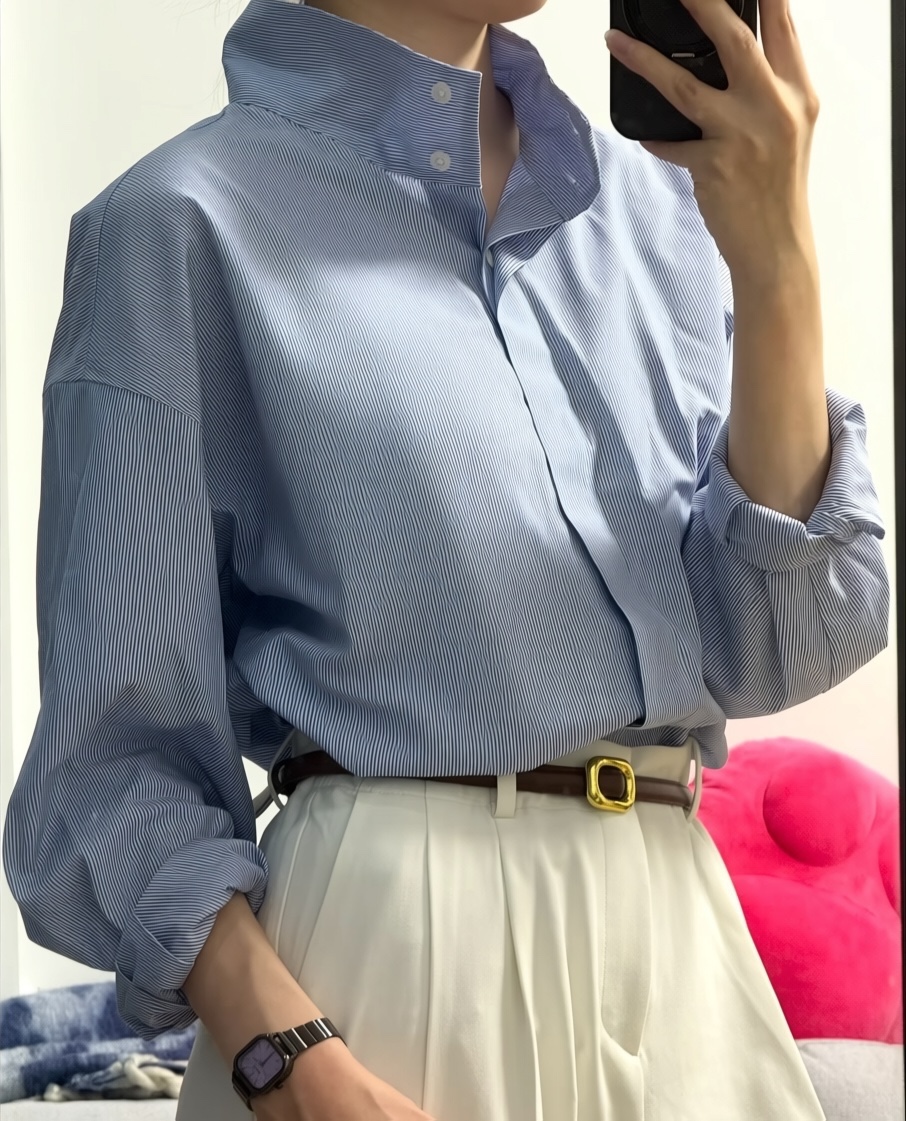
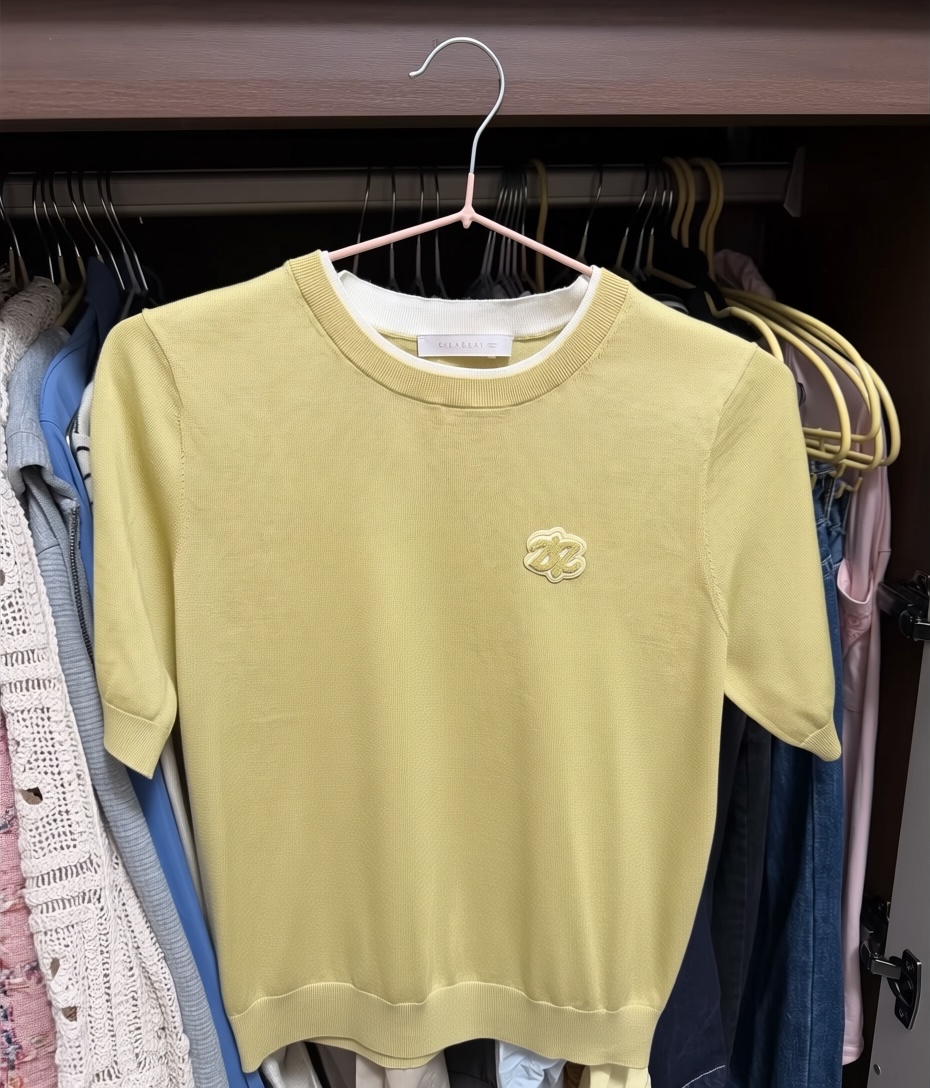
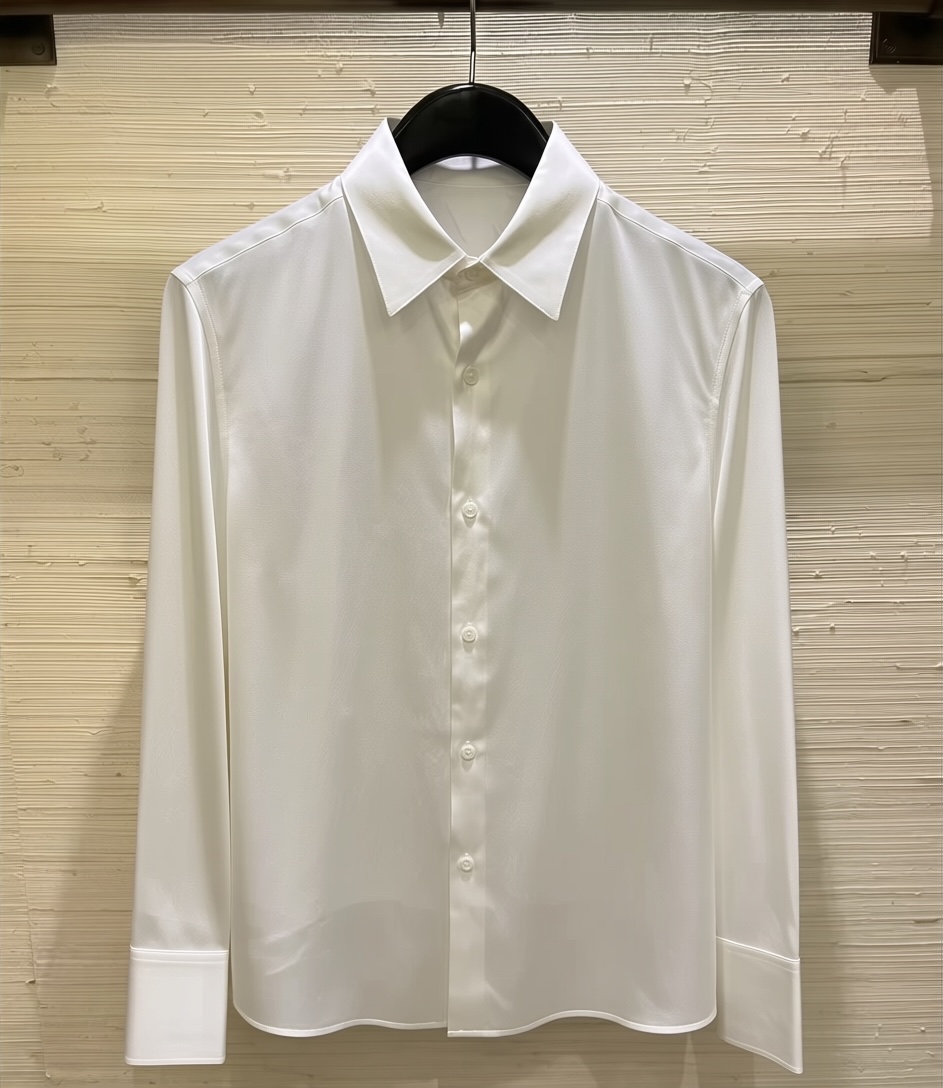
Blue shirt: The front folds are reduced while the sleeve and waist retain some shape. Yellow knit top: Fine folds are softened strongly and the motif remains, but the body looks smoother. White shirt: Most broad creases disappear; inspect the uneven area near the placket and the regularized cuffs and hem.
Evoto Smart Digital Ironing
Evoto's Smart Digital Ironing generates an initial wrinkle-removal result after a photo is uploaded. The Clothes controls then allow adjustments with De-wrinkle Clothing, Fine Wrinkles Removal, and Deep Wrinkles Removal. Other clothing options include De-blemish Clothing, Clothing Edge Smoothing, and Objects Protection. [4]
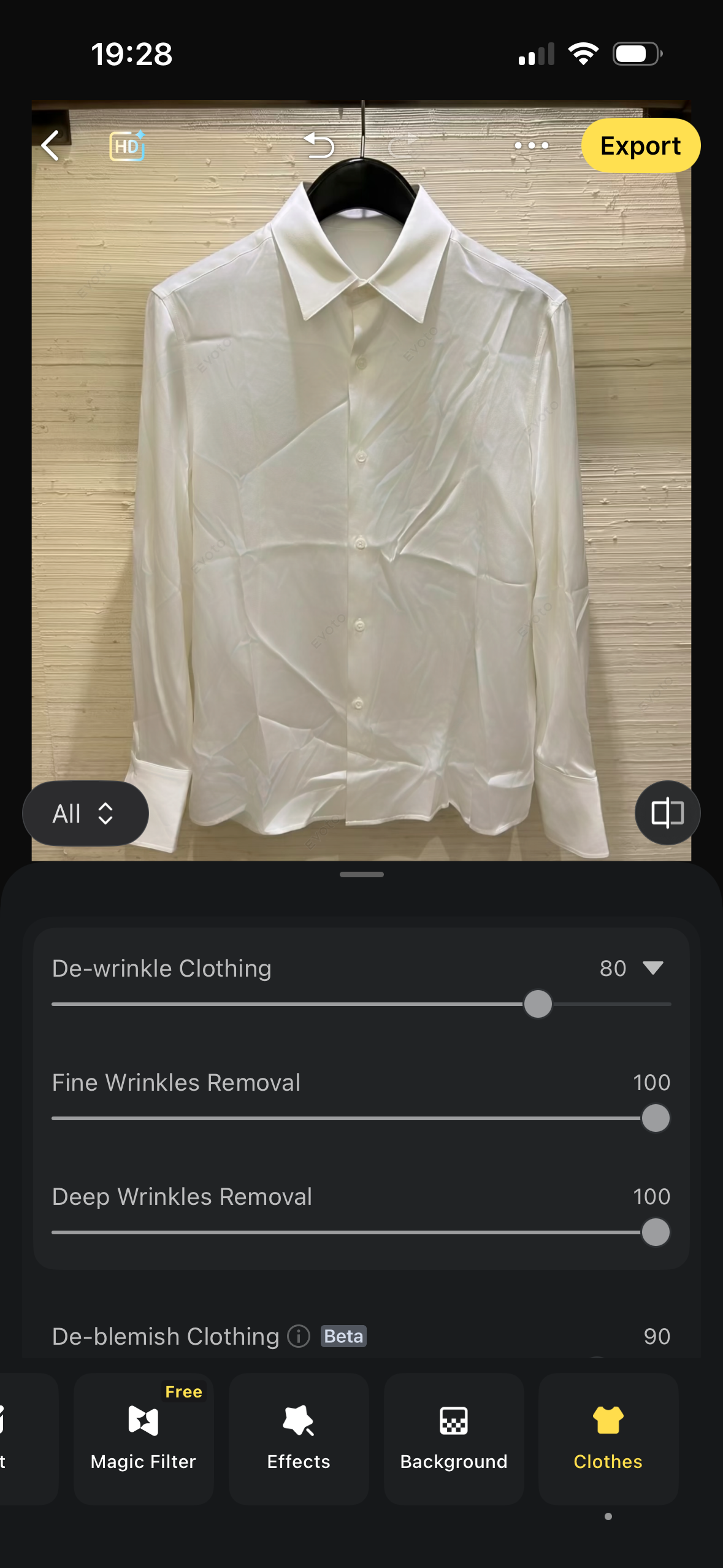
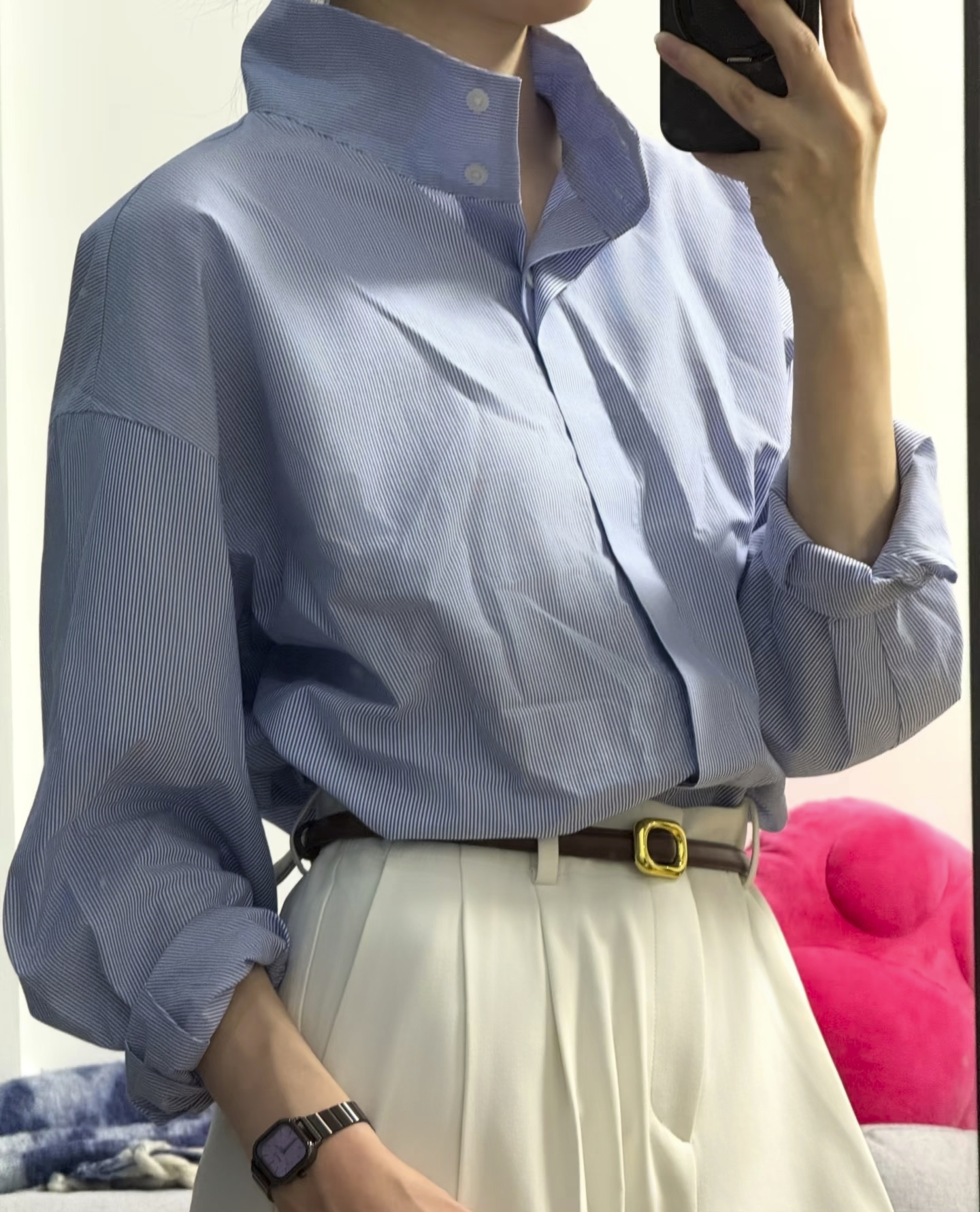
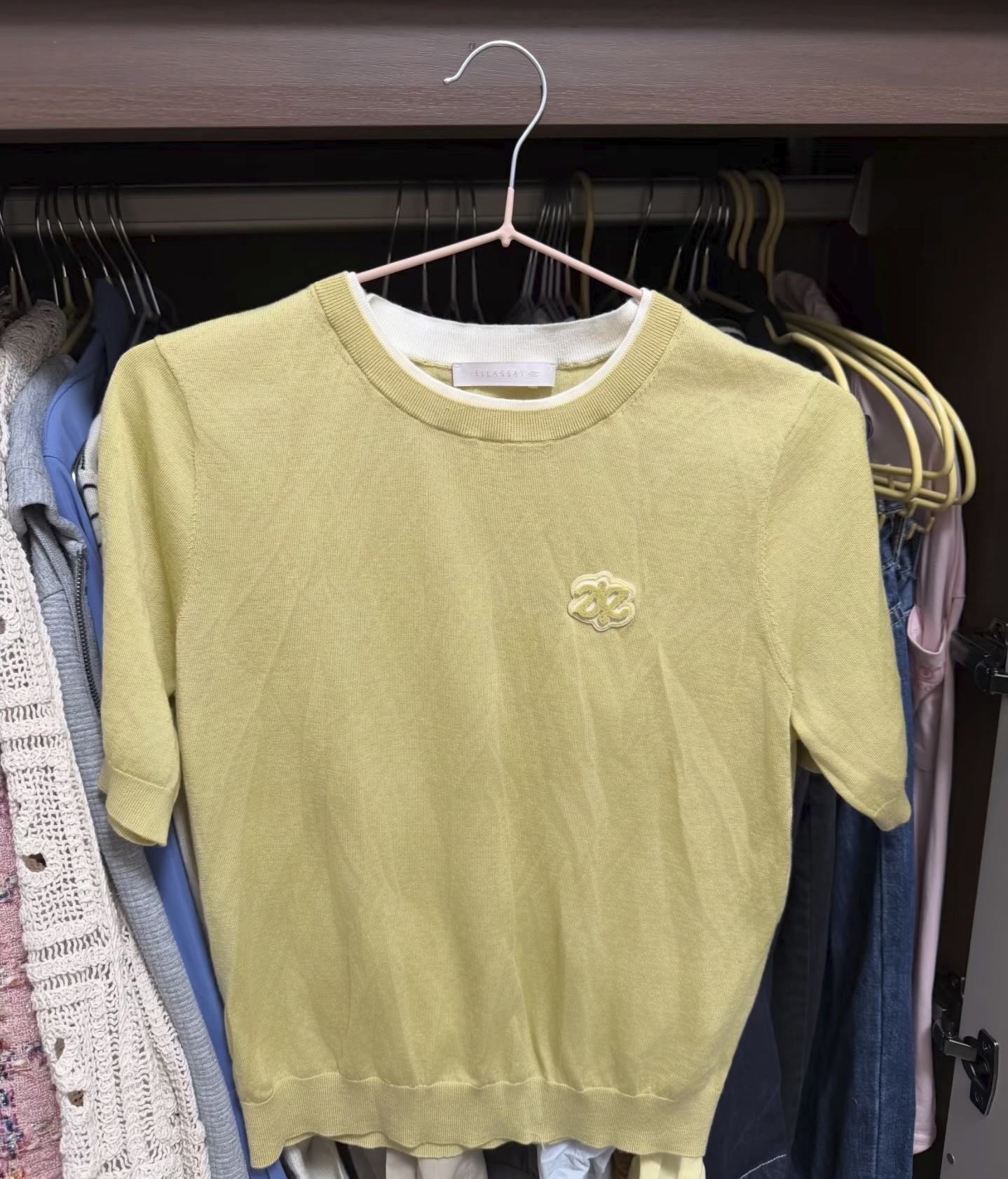
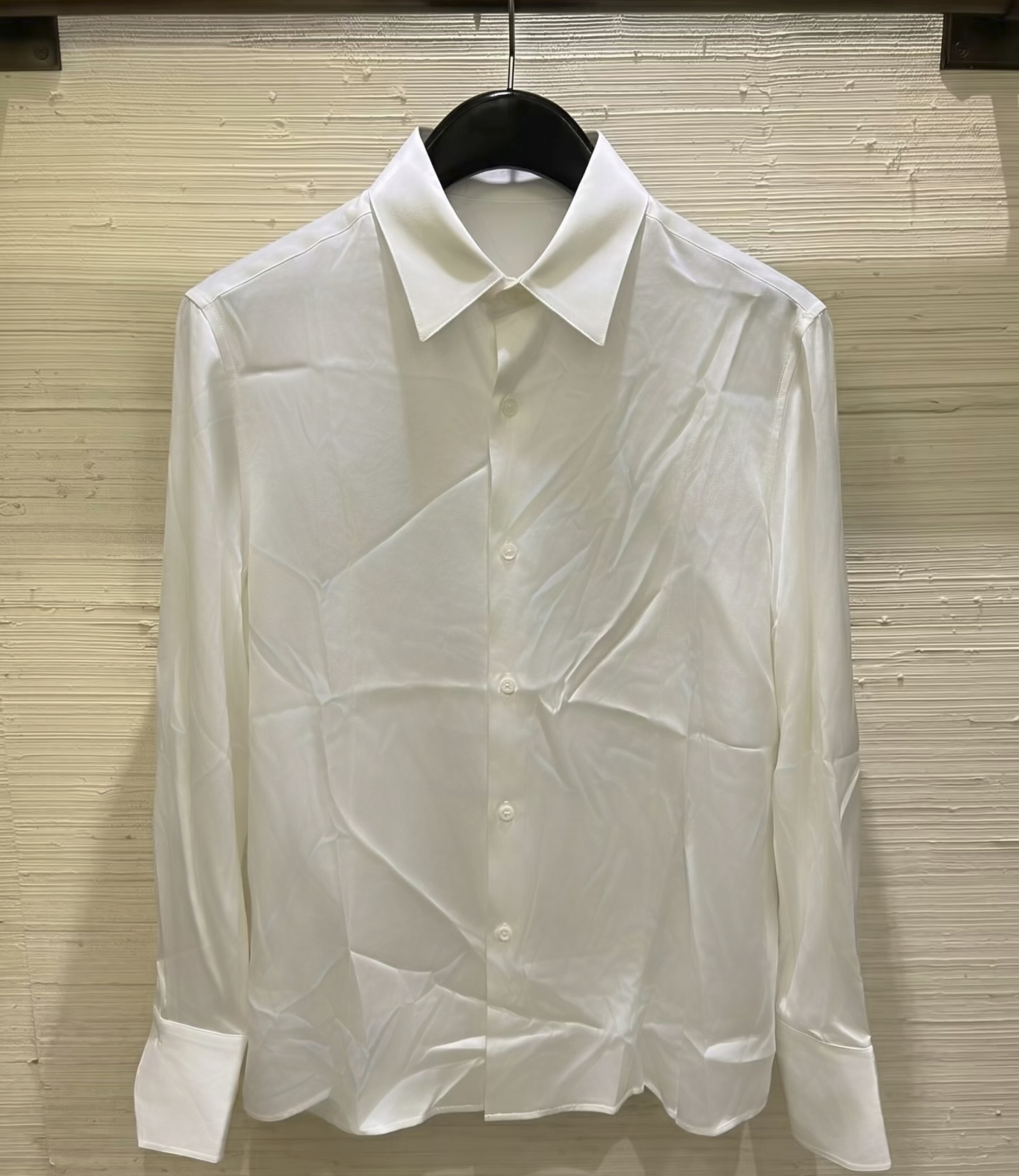
Blue shirt: The chest looks calmer, but folds remain at the sleeve and tucked waist. Yellow knit top: Larger creases ease while more surface variation remains than in the strongest smoothing examples. White shirt: The deep crossed folds soften but remain visible across the upper and lower front.
AirBrush AI Clothes Wrinkle Remover
AirBrush's browser tool accepts a photo upload. Its Auto mode offers a Wrinkles target and an Erase action, while a Manual mode is available alongside Auto. The clothes-wrinkle tool page [2] provides the entry point.
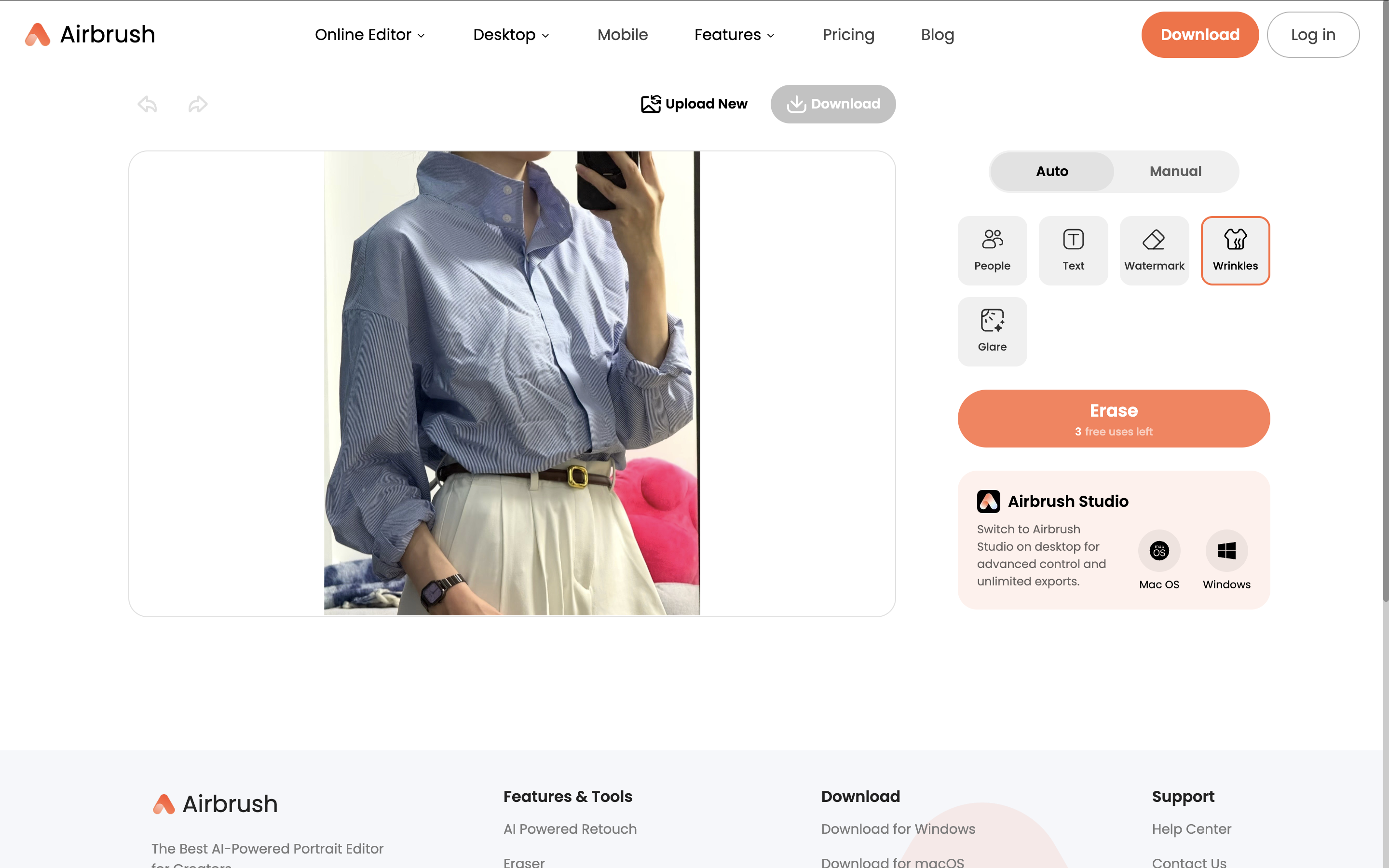
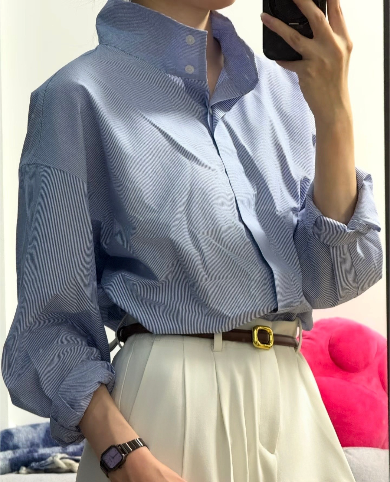
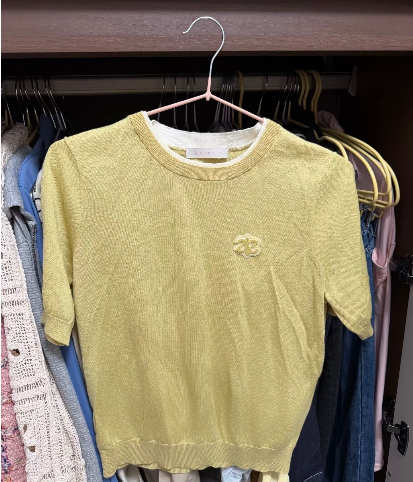
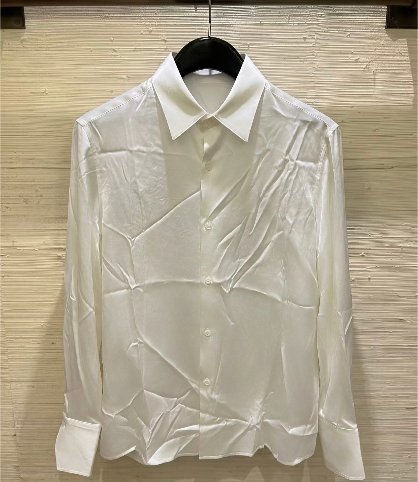
Blue shirt: Large folds change, but the fabric pattern looks more pronounced. Yellow knit top: Some creases ease, though the smaller file makes fine knit detail harder to judge beside the larger exports. White shirt: Broad folds remain across the upper right and lower front.
PicWish AI Clothes Wrinkle Remover
PicWish applies automatic clothing-crease detection [3] to the uploaded photo. Its browser workflow provides a Smoothing control for the overall strength of the wrinkle-reduction pass. In this tested flow, the strength is adjusted for the image as a whole.
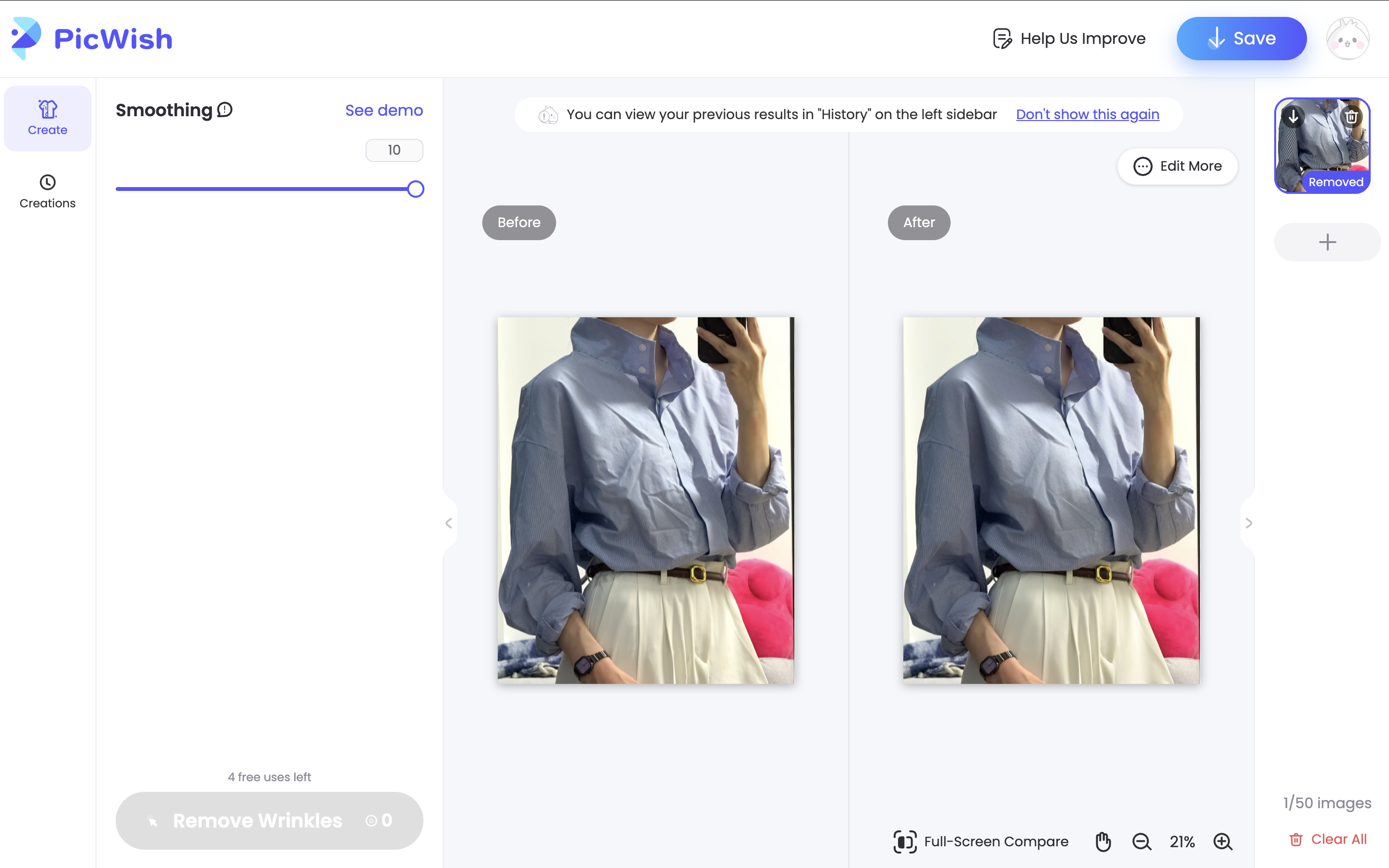
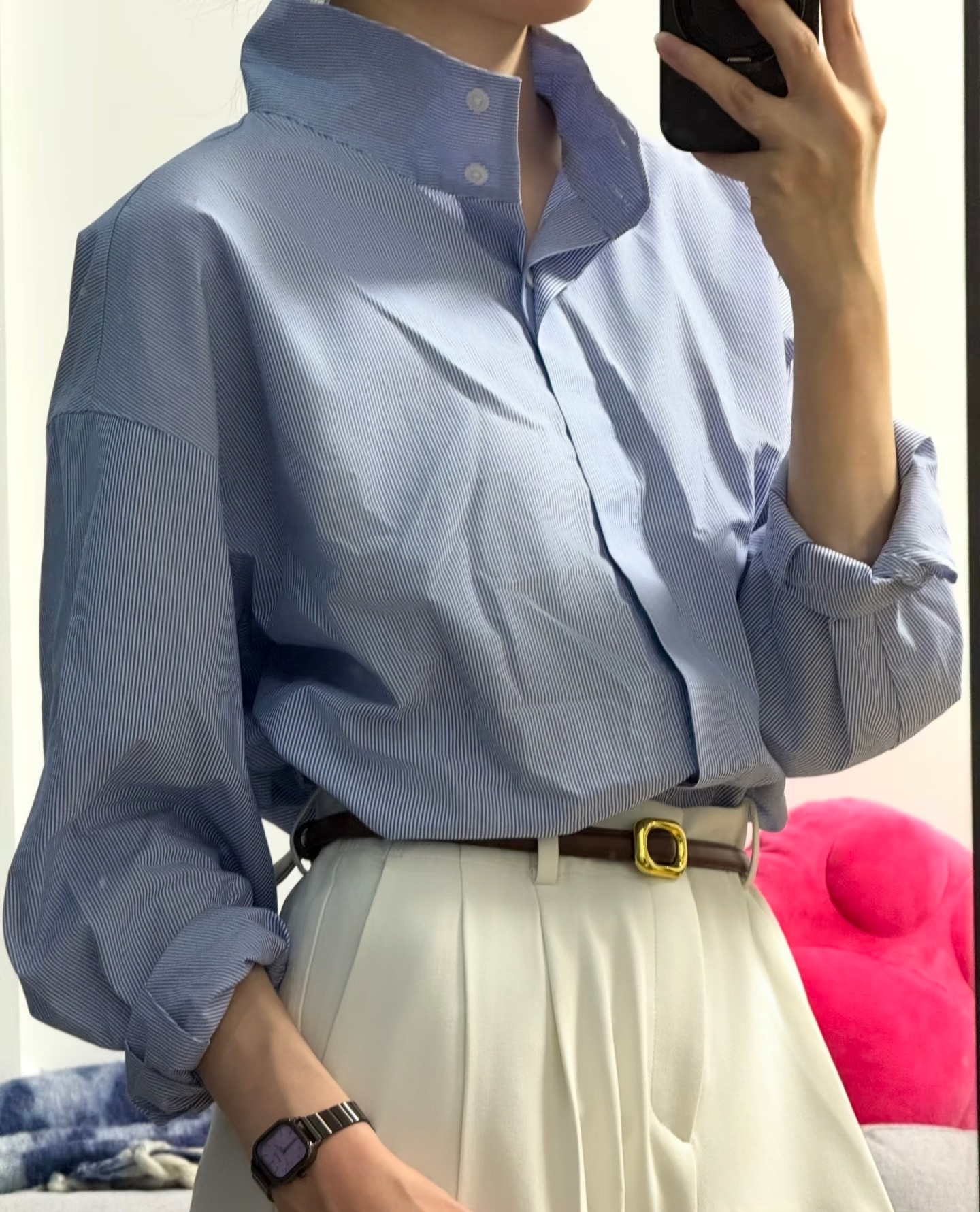
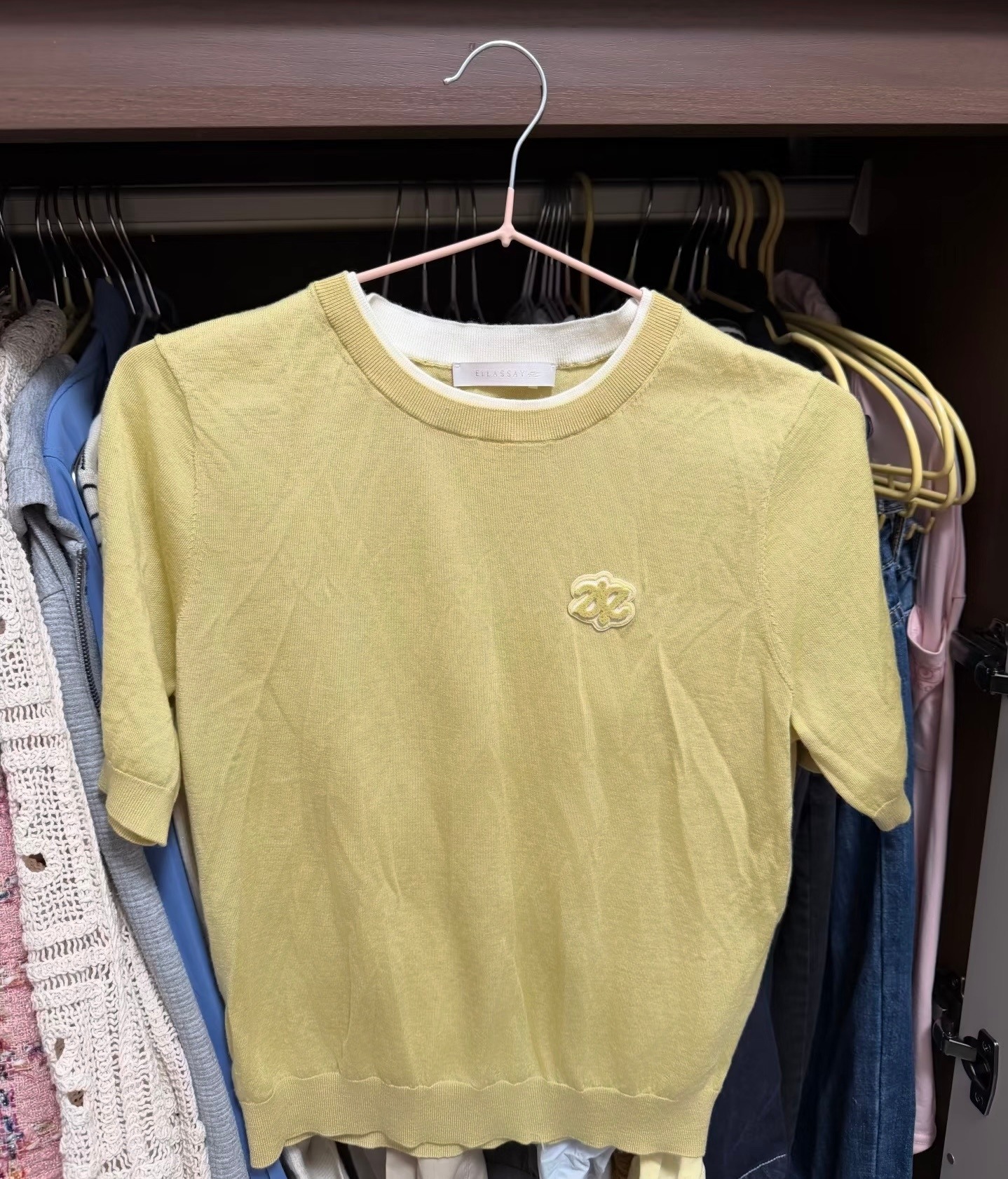
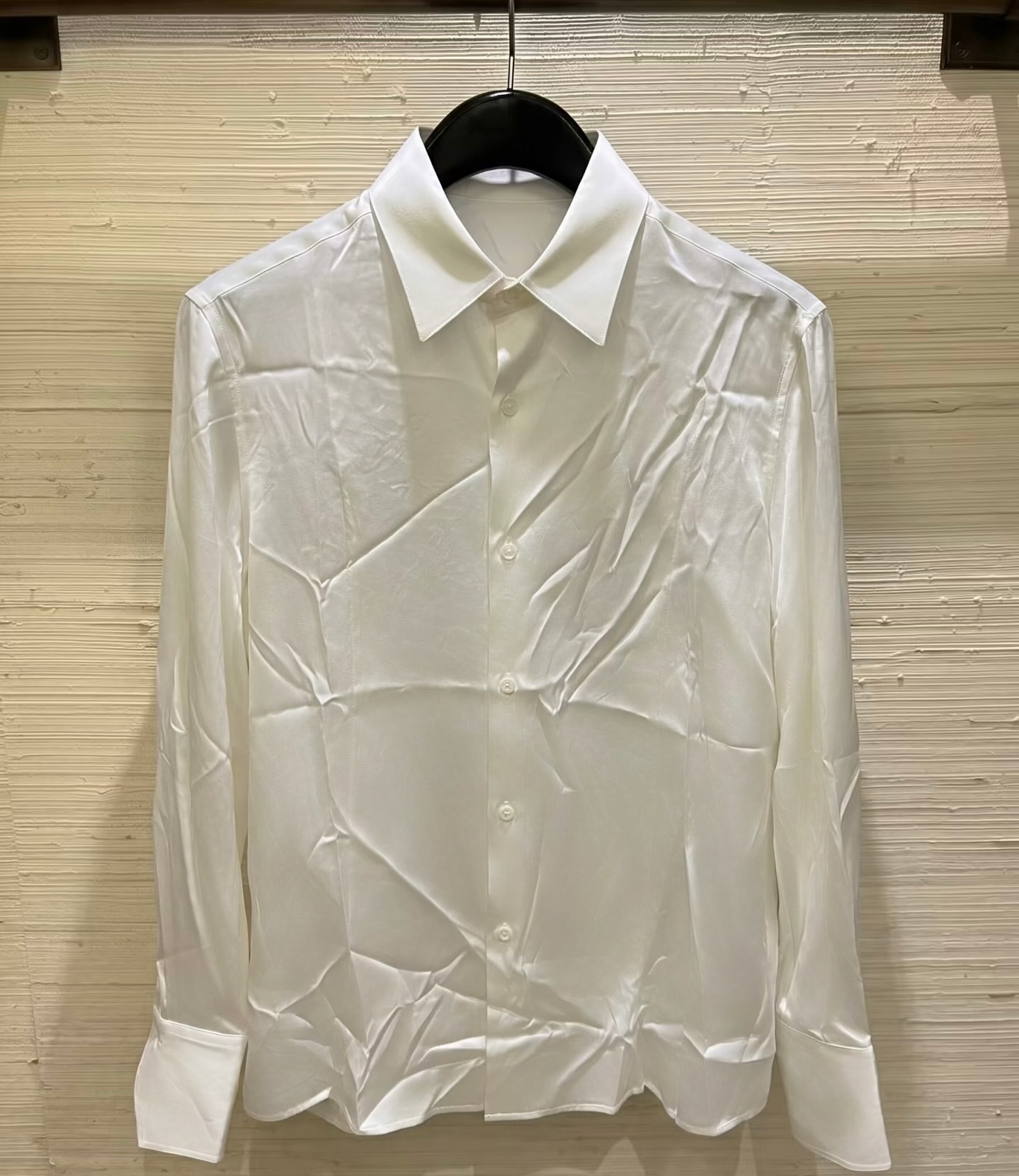
Blue shirt: Chest creases ease while the worn shape and waist stay visible. Yellow knit top: Several vertical folds remain although the top looks tidier overall. White shirt: Strong folds remain on the right chest and lower front.
Workflow comparison for clothing sellers
| Comparison | Snappyit | Photoroom | Evoto | AirBrush | PicWish |
|---|---|---|---|---|---|
| Route tested | Mobile | Mobile | Mobile | Browser | Browser |
| Workflow | Remove Wrinkles | Ironing | Smart Digital Ironing | AI Clothes Wrinkle Remover | AI Clothes Wrinkle Remover |
| Controls | Natural / Smooth + prompt | Upload → Generate | Strength sliders + protection | Auto / Manual | Smoothing slider |
| Merchant QA focus | Compare Natural and Smooth; inspect texture after stronger smoothing | Inspect cuffs, hems, and placket after the automatic pass | Use the extra controls carefully around protected garment details | Check pattern and export detail before listing | Check whether global smoothing leaves important creases or softens texture |
Routes and controls describe the workflows used for this comparison, not every platform or plan currently offered by each company.
Swipe sideways to compare all five tools →
General plans and pricing
General plans shown on official pricing pages, checked September 24, 2026. Offers, taxes, billing periods, and currencies can vary by region and account.
| Tool | General free access or trial | Public plan price |
|---|---|---|
| Snappyit | Free credits at sign-up | Basic from US$8.20/month with the yearly option selected [5] |
| Photoroom | Free access; Pro trial offered | Pro from US$7.50/month, billed yearly [6] |
| Evoto | 7-day trial | Starter US$89/year [7] |
| AirBrush | 7-day trial advertised | 10 credits for US$9; Web Plus US$15.95/month [8] |
| PicWish | Free plan | No fixed Pro price displayed on the public pricing page [9] |
How to choose a tool for a real catalog
Start with the garments you process most often—not the cleanest demo photo. Test a lightly creased woven item, a knit or patterned item, and one difficult white garment. Review each export at full size and reject results that alter logos, ribbing, seams, buttons, hems, silhouette, or condition.
- For occasional fixes: prioritize a short upload-to-export flow and a result that needs little follow-up.
- For mixed fabrics: prioritize strength choices or local controls so a knit top and a button-down do not receive the same treatment.
- For teams or many SKUs: record retries, hands-on review time, export size, and the number of publishable images—not just the subscription price.
- For resale inventory: keep condition photos untouched and use wrinkle removal only where it cannot conceal wear.
Pricing and trial allowances change by region, account, and date. Check the current plan page and the cost shown at generation time, then calculate cost per approved image after retries and manual review.
Conclusion
No single tool wins every garment in this set. The useful choice is the one that fits your recurring product mix, preserves sellable details, and produces enough approved exports to justify the review time and cost. Keep the original beside every result, and reshoot instead of forcing an edit when the source lacks the detail buyers need.
Explore Snappyit photo tools →
FAQ: Clothes Wrinkle Remover Apps
What is the best app to remove wrinkles from clothes in photos?
The best choice depends on the photo and the desired finish. In this three-image comparison, useful checks include remaining folds, fabric texture, print detail, seams, and shape against the original.
Can AI remove deep wrinkles from a white shirt photo?
AI can reduce visible folds, but deep creases are a difficult case. Our white-shirt test makes it especially important to inspect the collar, button placket, cuffs, and hem for invented or softened detail.
Will a clothes wrinkle remover change a logo or pattern?
It can. Compare small logos, knit patterns, buttons, and seam edges with the source image at full size. Use the original photo if the result changes a design or condition detail.
What is the difference between a photo wrinkle remover and ironing?
A photo tool changes the image only; it does not remove folds from the garment itself. If the physical item is available and fabric care allows it, preparing the garment before the photo is still useful.
How do I keep AI wrinkle removal looking natural?
Start with a clear source image, compare the result with the original, and inspect fabric grain, folds, logos, seams, and silhouette. Choose the version that still looks like the actual garment.
How should a seller compare wrinkle-removal costs?
Use the current price shown for your account, then include retries and review time. Cost per approved listing image is more useful than the advertised monthly price or the cost of one generation.
References
- Photoroom, “Remove Wrinkles From Clothes Automatically With AI”. Official clothing-wrinkle feature page. Accessed September 24, 2026.
- AirBrush AI Clothes Wrinkle Remover. Official browser feature page. Accessed September 24, 2026.
- PicWish AI Clothes Wrinkle Remover. Official browser feature page. Accessed September 24, 2026.
- Evoto Support, “Clothing & Accessories Adjustments Module”. Official explanation of de-wrinkle refinements and other clothing tools. Accessed September 24, 2026.
- Snappyit pricing. Plans and introductory credits. Accessed September 24, 2026.
- Photoroom pricing. Plans, credits, and export limits. Accessed September 24, 2026.
- Evoto payment options. Starter plan pricing; displayed currency and offers may vary by region. Accessed September 24, 2026.
- AirBrush pricing. Web credits and plan information. Accessed September 24, 2026.
- PicWish pricing. Public plan and preview information. Accessed September 24, 2026.