
Best Free Clipping Magic Alternatives for Product Photos
For an ecommerce seller, the important differences are not just cutout quality. Check the correction tools, output size, commercial-use terms, and whether the workflow scales beyond one image. Clipping Magic's pricing page says a subscription is required to remove the watermark and download; our test also observed a small non-commercial preview without login. Snappyit publishes this comparison and builds one of the tools reviewed.
| Merchant need | Closest fit in this test | Free-use boundary |
|---|---|---|
| Green/red region markers | Snappyit | Full-resolution PNG; no login or watermark |
| Automatic full-size web export | Pixelcut | No signup in our test; ongoing allowance not published |
| Web editor plus erase/restore | Photoroom | Personal use; 25 exports weekly and 100 monthly |
| Manual tools and desktop batch | PhotoScissors | Free SD download; HD uses credits |
| Fast automatic preview | remove.bg | 0.25 MP and personal use without an account |
| A few HD downloads after signup | Erase.bg | Three free HD credits for new users |
Why Ecommerce Sellers Look for a Clipping Magic Alternative
Clipping Magic charges one credit per downloaded image. Its entry plan includes 15 monthly credits, while Bulk Clipping begins with the 100-credit Standard plan. Unused credits roll over to plan-specific caps, there is no pay-as-you-go option, and remaining credits expire when a subscription is cancelled. Prices are localized, so check the official pricing page rather than a static quote.
For a merchant, the decision usually comes down to three operational limits:
- Commercial rights. A free preview is not automatically licensed for a product listing, ad, or marketplace image.
- Usable export size. A clean 0.25 MP preview may still be too small for zoom, crops, or multi-channel reuse.
- Catalog throughput. Occasional edits can stay single-image; recurring SKU work benefits from batch upload, consistent backgrounds, and predictable export allowances.
What to Compare in a Product Background Remover
Clipping Magic's main advantage is manual control. Its official product page lists automatic clipping, green and red keep/remove markers, a scalpel, a hair tool, configurable edge controls, inputs up to 25 MP or 80 MB, and SVG or TIFF clipping-path exports.
The green/red interaction is useful because you mark regions, not the complete edge. Green tells the editor what must stay; red tells it what must go; the boundary is recalculated from those hints. That is different from an ordinary erase/restore brush, which directly paints the mask.
Test workflow: We uploaded the 1086 × 1448 source, inspected the automatic boundary, then added green keep marks and red remove marks around the bow openings and layered hem. The editor recalculated the cutout after each correction. Without logging in, we downloaded the resulting 433 × 577 small preview for non-commercial visual comparison.
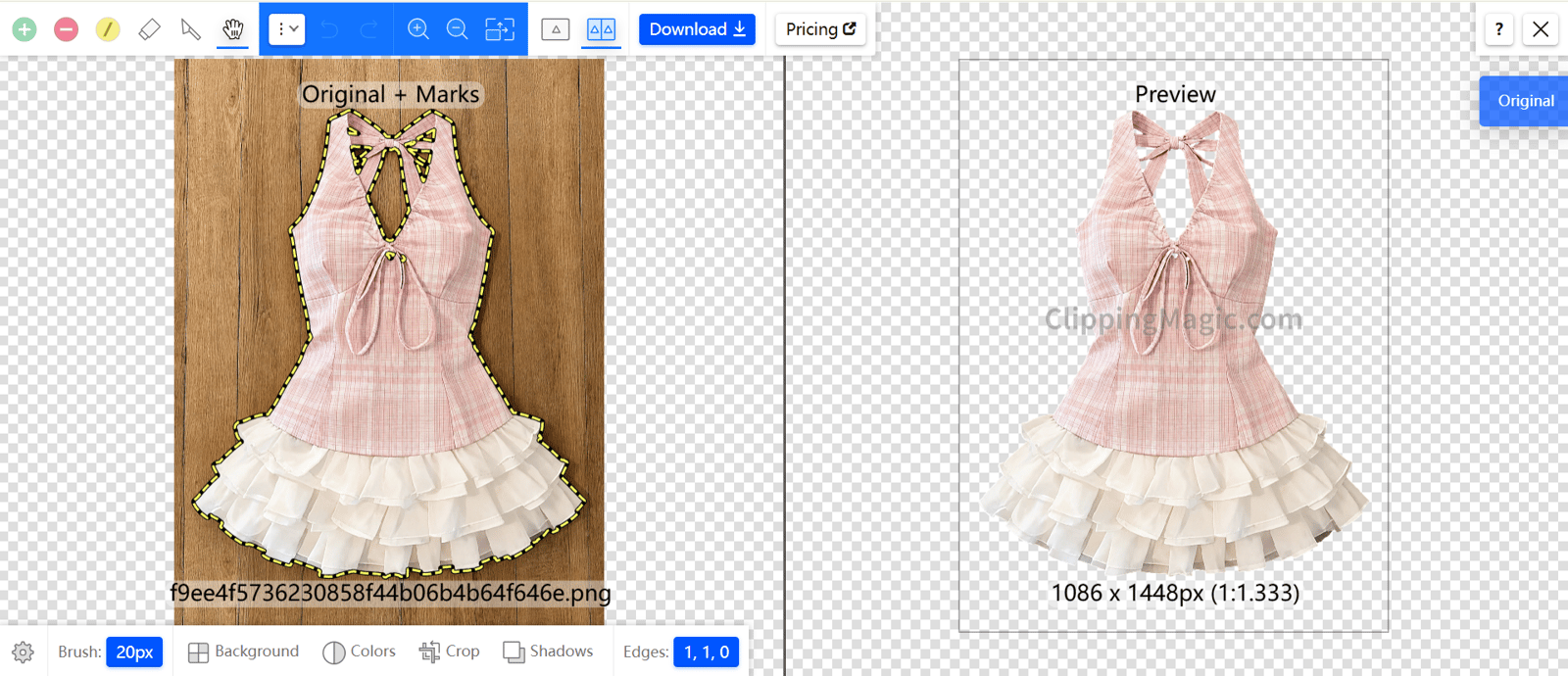
Full workspace after the automatic pass, with keep/remove marks around the garment.
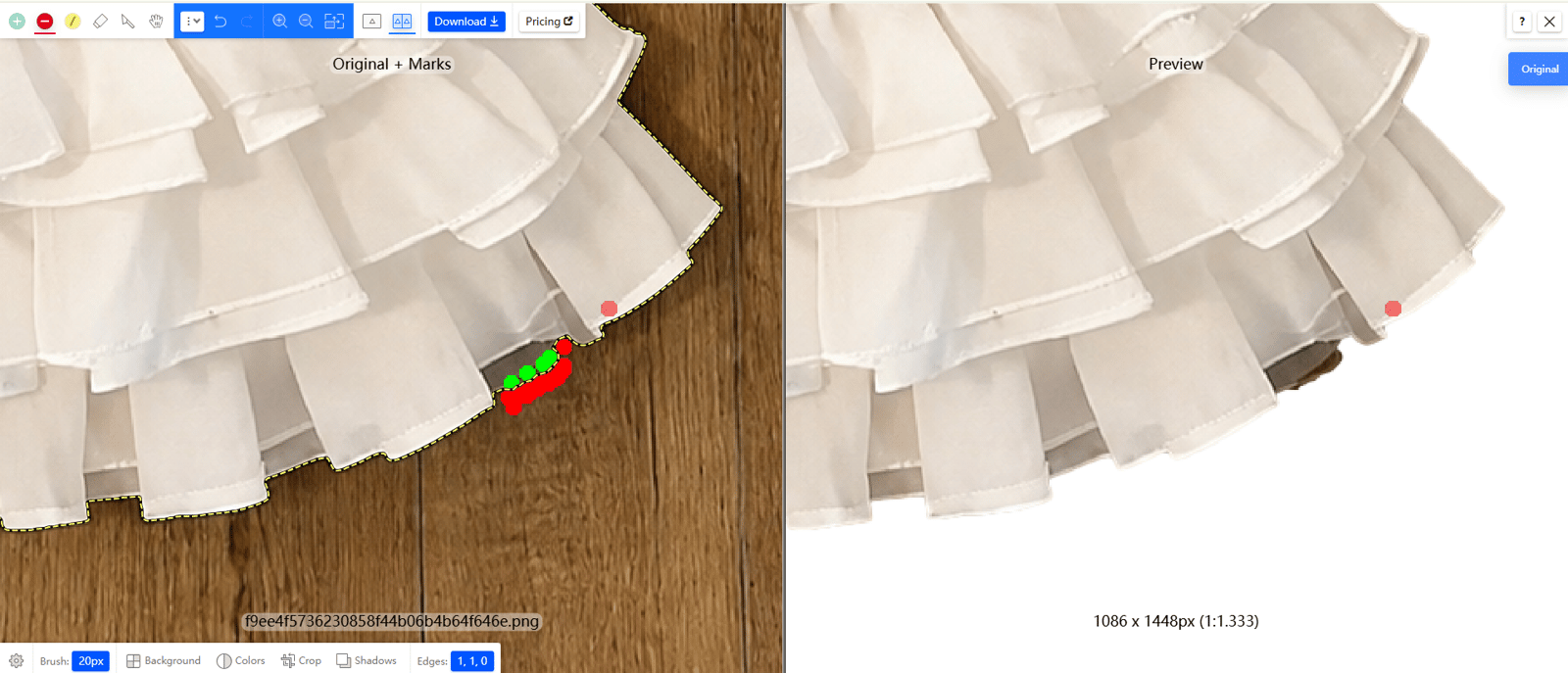
Close-up correction pass: green restores garment pixels and red removes remaining floor near the ruffled hem.

Free size-limited small preview used for non-commercial visual comparison, 433 × 577; no login was required.
Where Clipping Magic still leads
For difficult hair, low-contrast boundaries, vector clipping paths, and high-volume jobs, Clipping Magic remains the deepest editor in this comparison. It also allows unlimited uploads and live previews before purchase; watermark-free downloads require a subscription.
For catalog work, weigh that editing depth against export resolution, watermark and login rules, commercial rights, and batch capacity. The reviews below separate observed cutout quality from each product's published limits.
6 Free Clipping Magic Alternatives Tested on One Product Photo
For the hands-on check, we used the same 1086 × 1448 clothing photo in Clipping Magic and all six alternatives: Snappyit, remove.bg, Photoroom, PhotoScissors, Pixelcut, and Erase.bg. This makes the thin bow straps, front ties, layered ruffles, and pale fabric edges directly comparable.
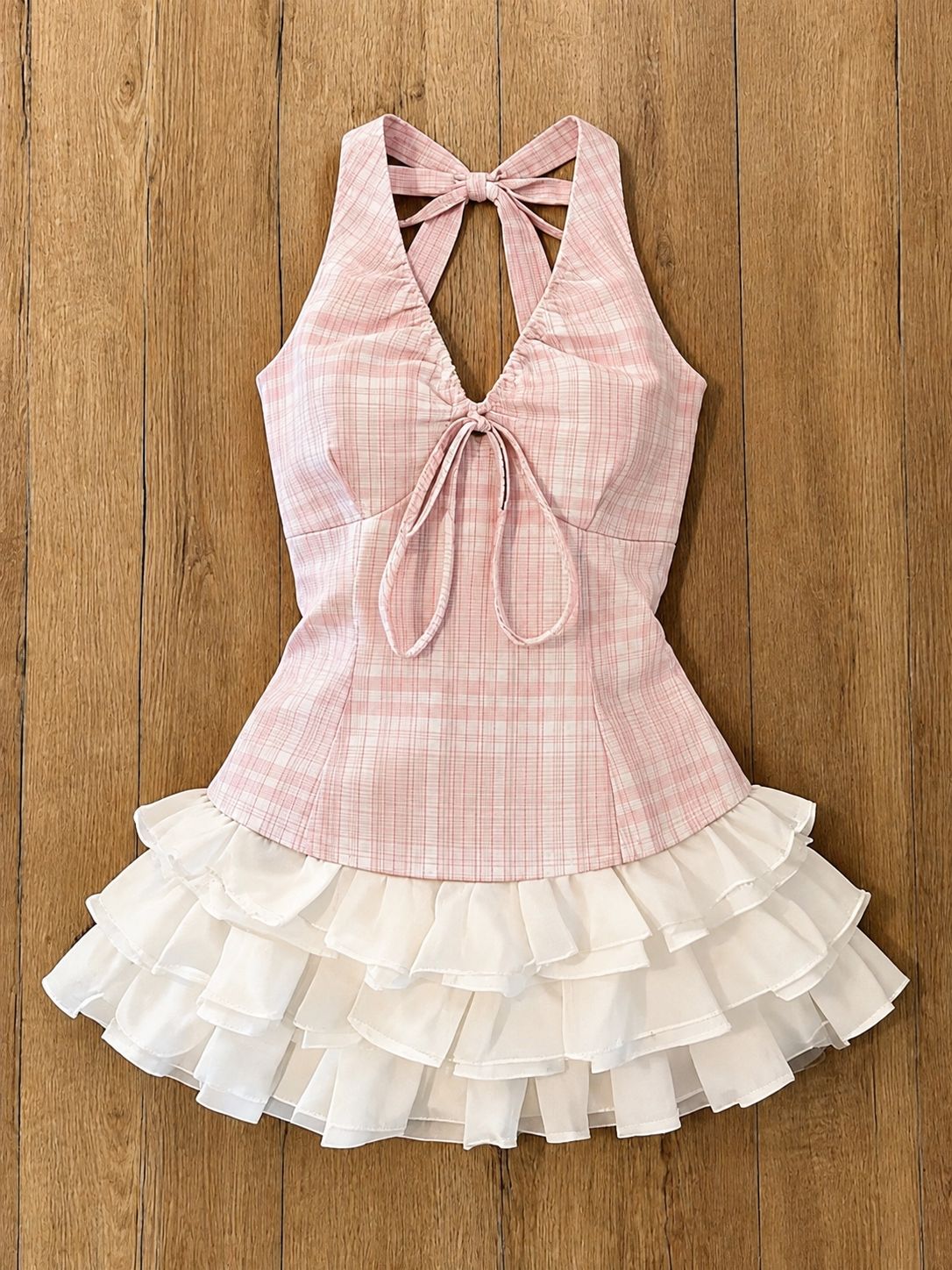
The original image used for all seven hands-on tests.
1. Snappyit Free Background Remover: Best Green/Red Brush Match
Test workflow: In the Snappyit free background remover, we uploaded the source image and checked the automatic cutout. We then used its green-keep and red-remove region markers around the straps and ruffled hem; the mask updated after each stroke. Finally, we exported transparent and white-background PNGs, both at the original 1086 × 1448 dimensions.
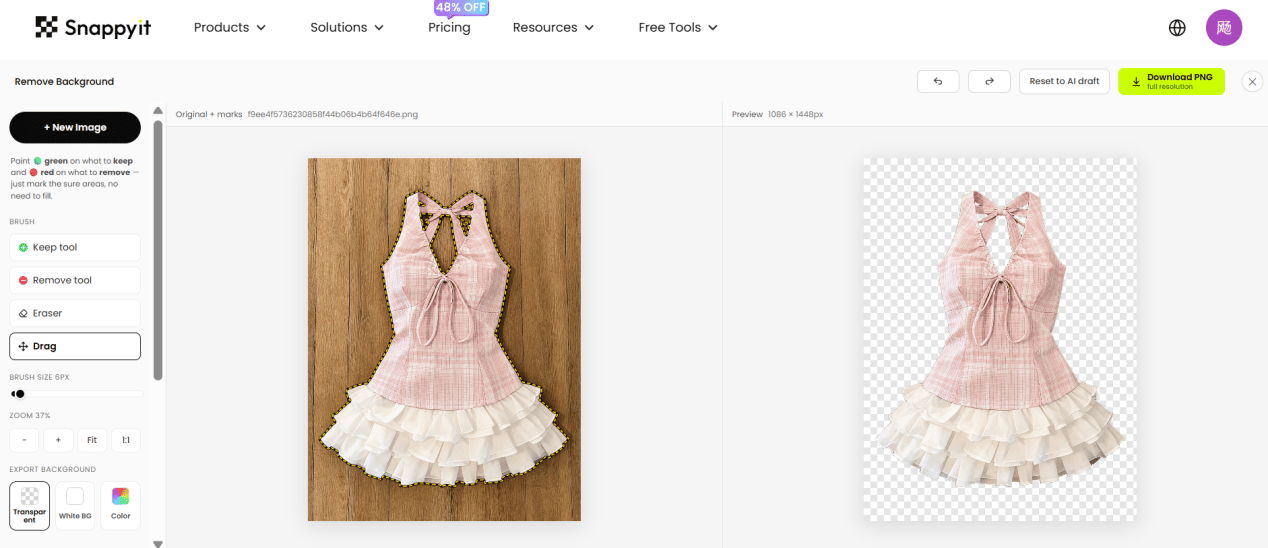
Snappyit workspace: automatic cutout on the right, green/red refinement on the left.
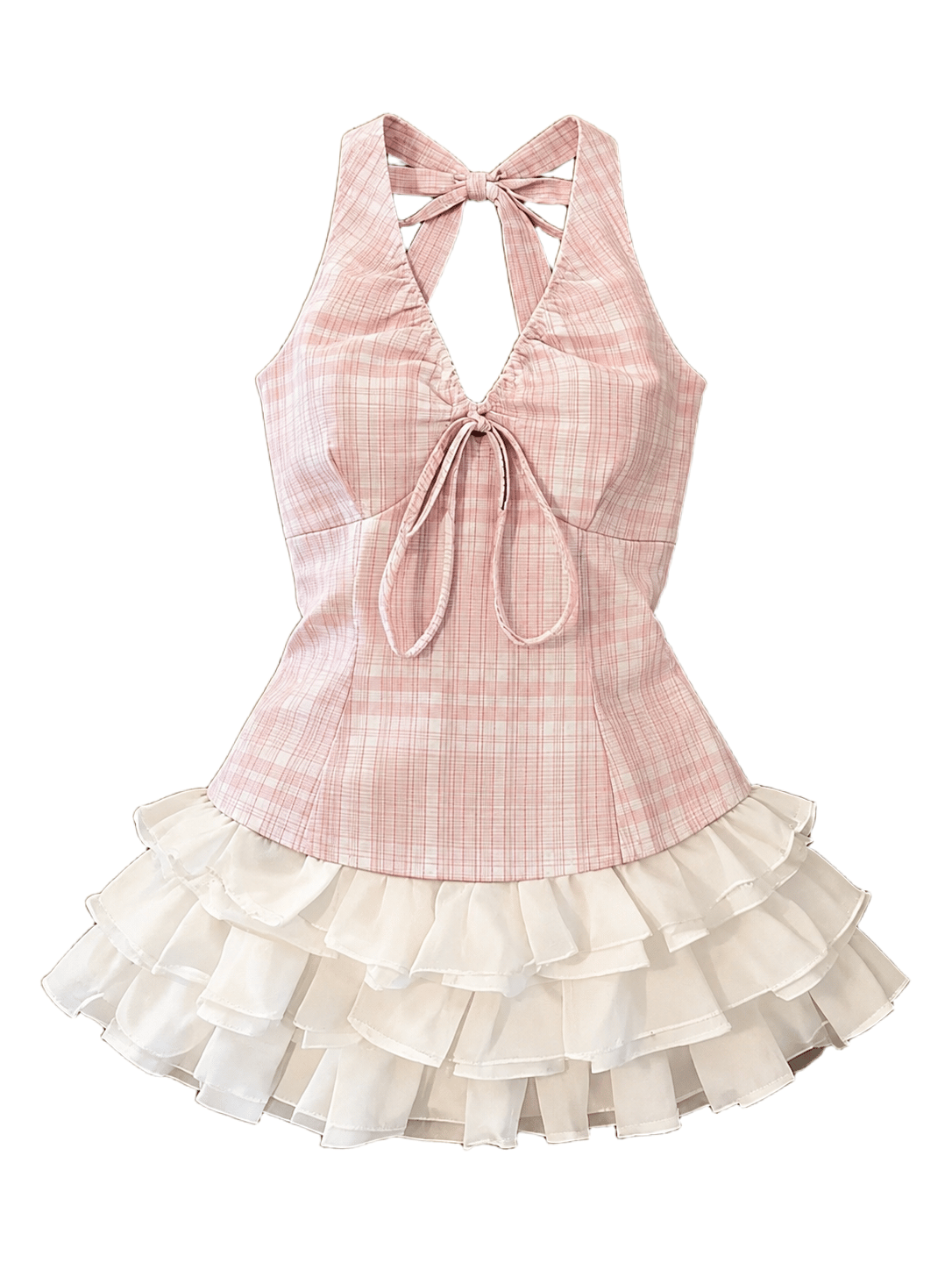

White-background and transparent PNG exports, both 1086 × 1448.
Pros:
- Free full-resolution export with no login or watermark. The automatic first pass can be refined with green-keep and red-remove region markers, then exported on transparent, white, or custom-color backgrounds.
- In our test, the narrow bow straps, front ties, and separate ruffle layers stayed intact in both exports.
- Runs in the browser and accepts JPG, PNG, and WebP with nothing to install.
Cons:
- Single-image workflow only — no batch processing for large catalogs.
- No SVG or TIFF clipping-path export, scalpel, or dedicated hair tool; input is capped at 4096 x 4096.
- A faint warm fringe remained on a few lower ruffle edges, so pale fabric against a dark background still needs a close check.
Best for: Sellers who need a manual safety net for apparel, accessories, or product details but do not need batch processing or vector clipping paths.
Try the free green/red brush editor →
2. remove.bg: Best for Fast Personal-Use Previews
remove.bg is automation-first. Its free-use policy allows website previews up to 0.25 MP for personal use, while higher-resolution and commercial output is paid. Corrections use Erase/Restore or the AI-assisted Magic Brush, not paired green/red region hints.
Test workflow: We uploaded the source, let the automatic cutout finish, inspected it in the Cutout workspace, and downloaded the free preview. The result was 433 × 577 rather than the 1086 × 1448 source.
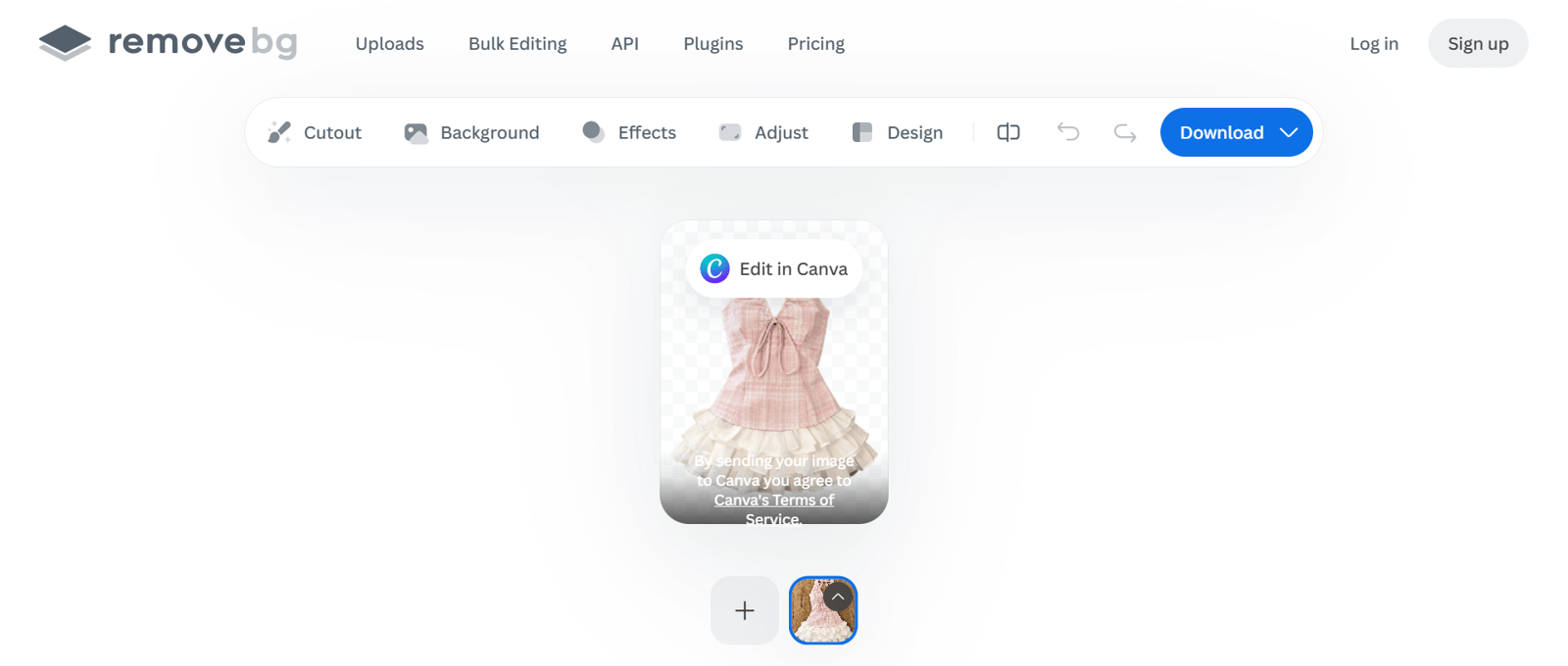
remove.bg workspace after the automatic pass.

Free preview, 433 × 577.
Pros:
- No account is required for the free website preview, and Erase/Restore plus Magic Brush cover basic corrections.
- The test kept the bow openings, thin front ties, and the main ruffle layers without manual correction.
- Official resolution documentation supports images up to 50 MP, with paid batch workflows available through desktop and API tools.
Cons:
- The free website output is capped at 0.25 MP; our portrait result was 433 × 577.
- Fine lower-ruffle edges looked slightly softer than in the full-size Snappyit and Photoroom exports.
- Official terms limit free and no-account output to personal use; commercial use requires a subscription or pay-as-you-go full-resolution plan.
Best for: Fast personal previews, or paid catalog workflows that value automation and broad integrations more than green/red edge control.
3. Photoroom: Best for Broader Product Photo Editing
Photoroom combines automatic removal with Edit Cutout corrections, templates, backgrounds, shadows, and other listing-image tools. Its free export allowance is 25 images weekly and 100 monthly, while free accounts are limited to personal use.
Test workflow: We uploaded the same source, accepted the automatic cutout, inspected it in the web workspace, and downloaded the result. The exported PNG kept the original 1086 × 1448 dimensions.
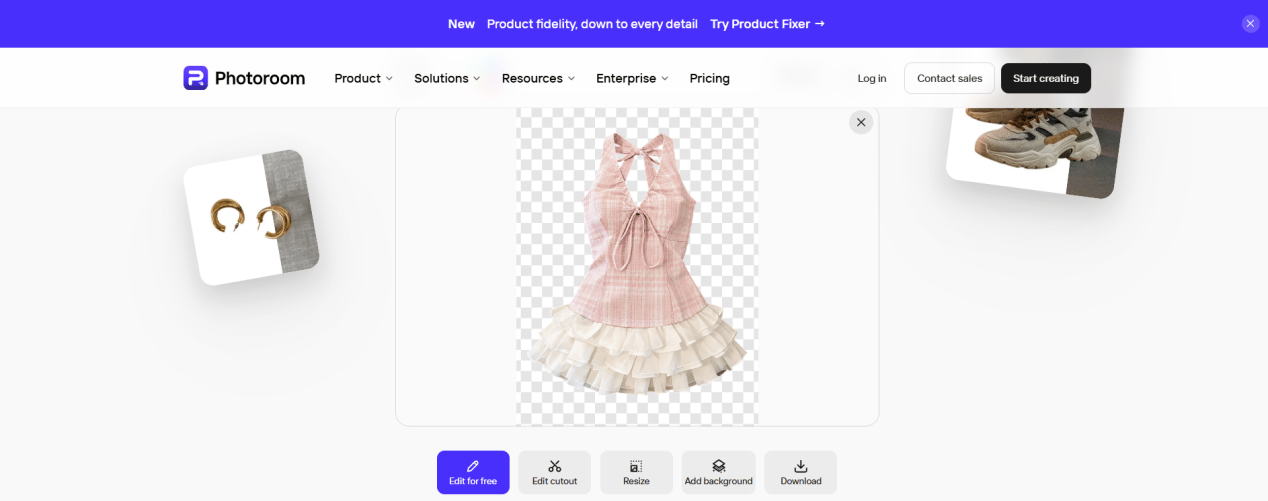
Photoroom workspace with Edit Cutout, Resize, and background controls.

Downloaded result, 1086 × 1448.
Pros:
- The free plan includes background removal and Edit Cutout erase/restore corrections.
- The wider editor adds listing-oriented templates, shadows, backgrounds, and paid batch workflows.
- The test preserved the bow gaps, ties, and layered hem at the source dimensions.
Cons:
- The free plan is for personal use; business and commercial output requires a paid subscription.
- A light warm fringe remained along parts of the pale lower hem, so contrasting backgrounds need an edge check.
- The free Web App caps output at 2000 × 2000 px, and Batch exports require a paid subscription.
Best for: Sellers who want background removal, templates, shadows, and batch editing in one paid product-photo workspace.
4. PhotoScissors: Best for Manual Edge Tools
PhotoScissors combines automatic removal with a green foreground marker, an Eraser, and dedicated tools for hair and transparent objects. The online plan offers free standard-definition downloads, while HD output uses credits; its desktop app adds batch processing.
Test workflow: We uploaded the source, reviewed the automatic cutout in the workspace, and downloaded the free standard-definition PNG. The green foreground marker and Eraser were available for corrections, but the automatic result was already usable. The file was 540 × 720, roughly half the source dimensions.
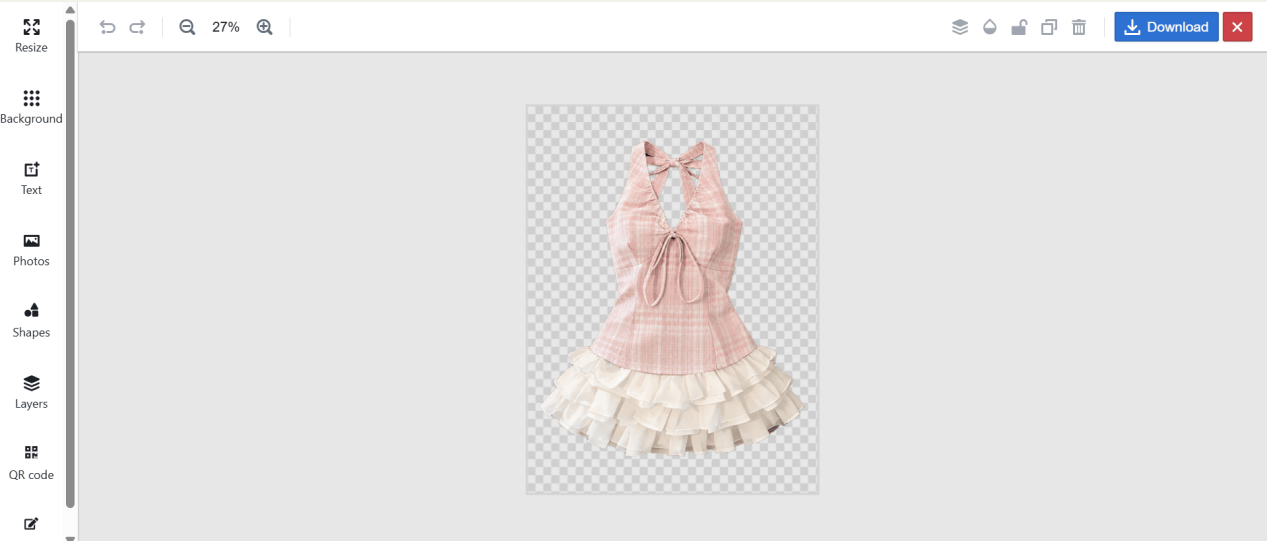
PhotoScissors workspace after automatic removal, with editing tools and download control.

Free standard-definition PNG, 540 × 720.
Pros:
- A green foreground marker and Eraser handle ordinary corrections, with separate tools for hair and transparent objects.
- The official pricing page includes free standard-definition downloads.
- Our automatic result kept the bow opening, narrow front ties, and separate ruffle layers without an obvious missing section.
Cons:
- The online uploader is limited to 10 MB and 4.2 MP.
- High-resolution online downloads use credits; our free SD result was 540 × 720.
- Some wood-floor background remained inside narrow openings, and a few pale hem edges looked soft, so the result still needed cleanup.
- The online uploader handles one image at a time; batch work requires the separately installed desktop application.
Best for: Sellers who want more manual edge tools than a basic eraser and can accept SD output or pay for HD and desktop batch processing.
5. Pixelcut: Best for Fast HD Automatic Cutouts
Pixelcut's public background remover advertises free HD output with no signup or watermark. It also provides a direct Refine brush, but not Clipping Magic's paired green/red region hints. In our August 20 test, the web editor allowed three downloads; treat that as dated test behavior, not a permanent quota.
Test workflow: We uploaded the source, accepted the automatic cutout, checked it in the workspace, and downloaded the transparent PNG. The editor also offered background, retouch, expand, upscale, and enhance tools. The export retained the original 1086 × 1448 dimensions.
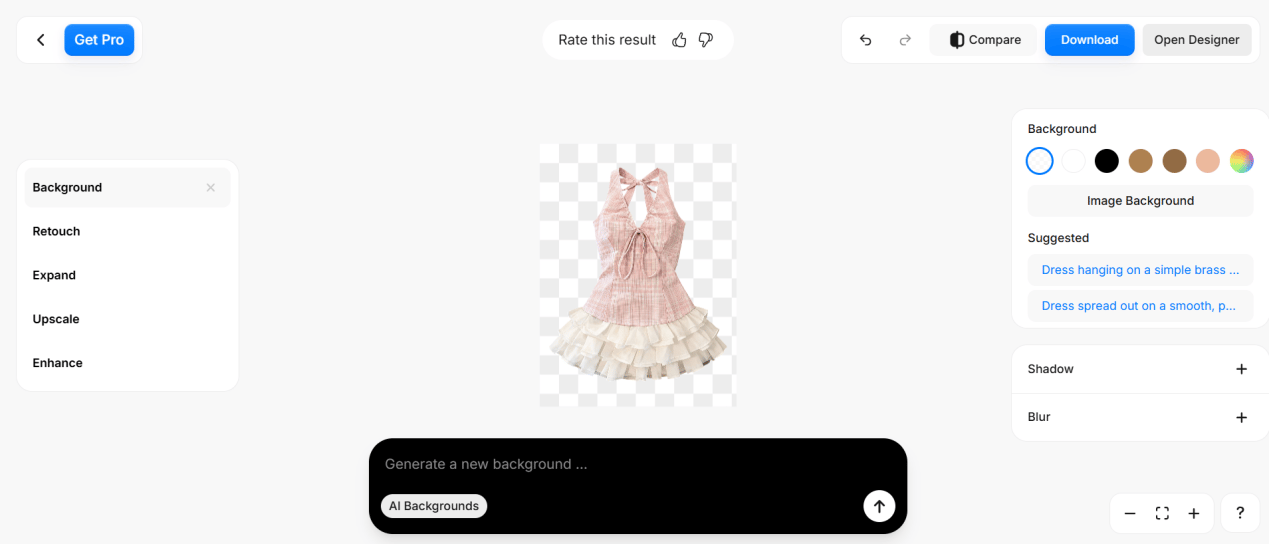
Pixelcut workspace with background controls and additional product-image tools.

Transparent PNG export, 1086 × 1448.
Pros:
- Web, mobile, templates, and broader product-image editing are available in one product.
- The result preserved the bow openings, thin front ties, and layered ruffles at the source dimensions.
Cons:
- The direct Refine brush is not a green/red region-marking tool with instant recompute.
- A faint warm fringe remained along a few pale lower edges, so it benefits from inspection on a contrasting background.
- Bulk background removal is paid: Pixelcut's bulk page advertises up to 10,000 images per batch, while its Pro plan includes commercial licensing and 1,000 monthly batch exports.
Best for: Quick full-size automatic cutouts; sellers with recurring commercial or batch work should evaluate the paid plan rather than assume the free quota is stable.
6. Erase.bg: Best for Occasional HD Downloads After Signup
Erase.bg's public page and pricing page do not fully align. The home FAQ describes free personal-use processing, while pricing promises three HD downloads after signup and routes regular or bulk work to paid plans. In our test, the editor displayed an 815 × 1087 preview before signup. Merchants should confirm the current account and commercial-use terms before building a workflow around it.
Test workflow: We uploaded the source, reviewed the automatic preview, and captured the 815 × 1087 result shown in the session. The workspace offered Edit, AI Background, and Improve Quality options, while the HD button listed the full 1086 × 1448 dimensions.
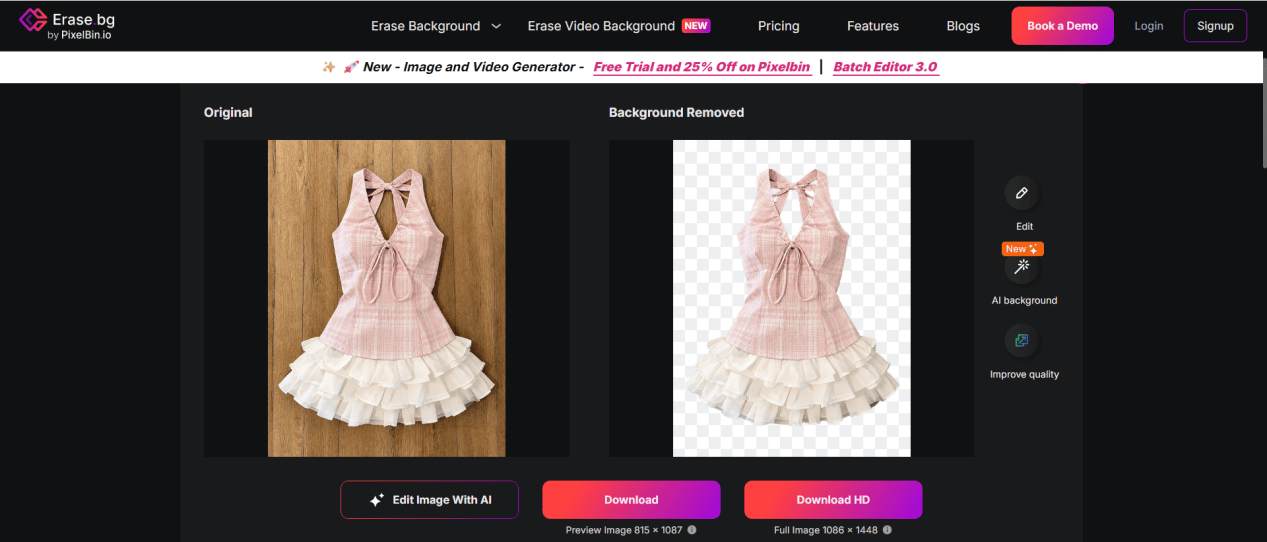
Erase.bg test workspace with an 815 × 1087 preview and a 1086 × 1448 HD option.

Test-session preview, 815 × 1087; official free HD downloads require signup.
Pros:
- The signup flow offers three free credits for HD downloads.
- Supports PNG, JPG, JPEG, WebP, and HEIC, with the FAQ listing output up to 10,000 × 10,000 px and 25 MB.
- The test kept the main silhouette, bow openings, front ties, and distinct ruffle layers.
Cons:
- Some wood-floor background remained inside the narrow bow and strap openings, so hollow areas were not fully cleared.
- The public editor documents background replacement and color editing, not a green/red or erase/restore mask-refinement brush.
- A light warm fringe was visible around some pale edges in the preview.
Best for: Occasional automatic cutouts after checking the current signup and license terms, rather than a repeatable commercial catalog workflow.
Clipping Magic Alternatives: Free Export, Manual Control, and Commercial Use
Test results are dated August 20, 2026; official product and help pages were rechecked on August 24. “Manual control” separates region hints from direct erase/restore editing, because they solve different edge problems.
| Tool | Free output | Edge correction | Commercial and batch note |
|---|---|---|---|
| Clipping Magic | 433 × 577 preview observed without login; official pricing says downloads require a subscription | Green/red markers, scalpel, hair tool, and edge controls | Subscription required for full-size or commercial output; Bulk Clipping starts on Standard |
| Snappyit (free tool) | 1086 × 1448 PNG in our test; no login or watermark | Automatic pass plus green-keep/red-remove region hints | Single-image web workflow; no batch export |
| remove.bg | 0.25 MP website preview without an account | Erase/Restore plus AI-assisted Magic Brush | Free output is personal use; commercial and batch workflows are paid |
| Photoroom | 1086 × 1448 in our test; free Web App capped at 2000 × 2000 | Edit Cutout Erase/Restore | Free output is personal use; paid plans are required to export Batch jobs |
| PhotoScissors | 540 × 720 SD result in our test; HD uses credits | Green foreground marker, Eraser, hair, and transparent-object tools | Online workflow is single-image; desktop app adds paid batch processing |
| Pixelcut | 1086 × 1448 in our test; three downloads allowed that day | Direct Refine brush | Public page advertises free HD; commercial license and batch exports are paid-plan features |
| Erase.bg | Three HD credits offered after signup; 815 × 1087 preview observed before signup | No documented mask-refinement brush | Official free-HD wording is inconsistent; bulk workflow routes through Pixelbin |
In this test, Snappyit was the only alternative with the same paired green-keep/red-remove region-hint pattern as Clipping Magic. PhotoScissors came closest, but combines a green foreground marker with an Eraser and limits free downloads to SD.
Clipping Magic vs remove.bg vs Snappyit for Product Photos
For a product catalog, choose by correction depth and usable output rather than by the first automatic preview:
- Clipping Magic has the deepest manual editor, including hair, scalpel, and edge controls, but full-size or commercial output is subscription-based.
- remove.bg is faster when the automatic cutout is already good. Its free website preview is 0.25 MP and personal-use only; higher-resolution and commercial output is paid.
- Snappyit combines an automatic pass with paired green/red region hints and exported a full-resolution PNG without login in our test, but it is a single-image workflow without a hair tool or clipping-path export.
If remove.bg is the main alternative you are considering, compare its current free-resolution and commercial-use limits before choosing it for catalog work.
How to Refine Product Photo Edges with a Green/Red Brush
Here is the verified workflow in Snappyit's free tool:
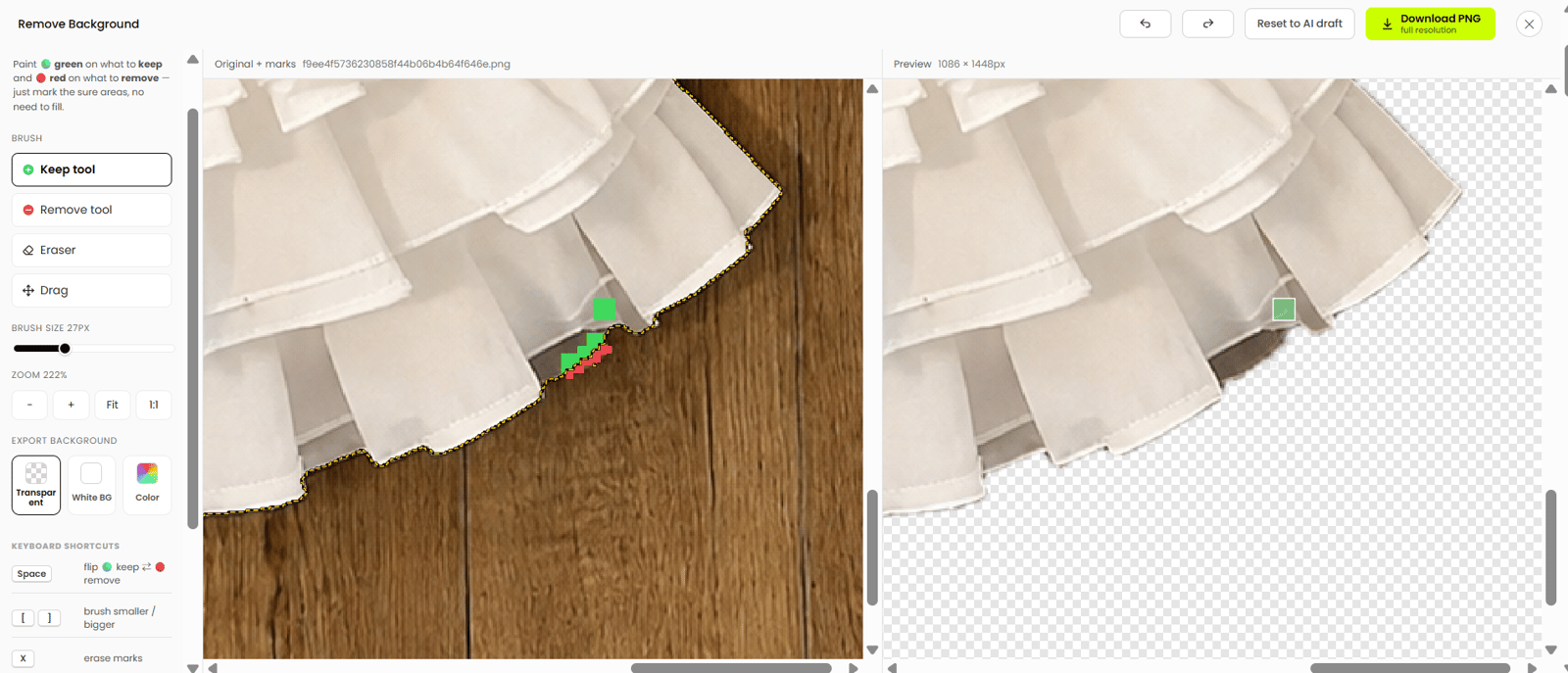
Inspect the automatic cutout, then add green keep and red remove marks where an edge needs correction.
- Upload. Open the free background remover and drop in a JPG, PNG, or WebP up to 4096 x 4096. No account, no email.
- Let the AI cut. The automatic pass isolates the main subject. Processing time depends on the image and connection; inspect the boundary before downloading.
- Mark, don't trace. Zoom in with the scroll wheel (Shift-drag or H to pan). Paint green over anything wrongly removed — a chewed-off drawstring, a translucent sleeve — and red over anything wrongly kept, like background showing through a handle gap. The mask recomputes with every stroke.
- Work the shortcuts. Space flips between green and red, [ and ] resize the brush, X erases marks, H switches to move/pan, and Z/Y undo and redo. Shift-drag pans and the scroll wheel zooms.
- Export full-res. Download a full-resolution PNG with a transparent background, or flatten onto solid white for marketplace main images — or use a custom color to match a brand palette.
Lace, mesh, open weave, fur trim, and loose threads are useful places to inspect the edge before export. Once the cutout is clean, our AI product photography guide explains how to build the full listing image set. For broader workflows, the AI product photography hub connects background removal with Snappyit's other ecommerce tools.
Clipping Magic Alternatives FAQ for Ecommerce Sellers
Is there a free version of Clipping Magic?
Clipping Magic's pricing page says a subscription is required to remove the watermark and download. In our August 20, 2026 test, the editor also offered a 433 x 577 preview download without login. Treat that small file as observed test behavior, not a guaranteed commercial free plan; full-size or commercial output requires a subscription.
Which free Clipping Magic alternative is best for ecommerce product photos?
For product photos that need green-keep and red-remove corrections, Snappyit's free background remover was the closest workflow match in this test. It combined an automatic first pass with region markers and exported a full-resolution PNG without login or a watermark. Snappyit publishes this comparison and builds the tool.
What should sellers check before using a free cutout commercially?
Check the license, output dimensions, watermark, account requirement, and daily or monthly export cap. remove.bg and Photoroom explicitly restrict free output to personal use, while Clipping Magic requires a subscription for commercial output. Recheck the current terms before uploading images to a marketplace.
Can I use remove.bg for free instead of Clipping Magic?
Yes, for a low-resolution personal-use preview. remove.bg's official help center caps free website output at 0.25 megapixels. A free account adds one high-resolution credit; ongoing high-resolution or commercial use requires a subscription or pay-as-you-go credits.
Is Photoroom a free Clipping Magic alternative for product photos?
Yes for personal-use background removal. In our test, Photoroom exported the 1086 x 1448 source at the same dimensions and provided Edit Cutout corrections. Its free Web App supports up to 2000 x 2000 output, with 25 weekly and 100 monthly exports; commercial use requires a paid plan.
Which Clipping Magic alternatives support batch background removal?
Clipping Magic includes Bulk Clipping from its Standard plan. Photoroom supports batch editing on all subscriptions but restricts batch exports to paid plans. PhotoScissors offers batch processing in its desktop app, Pixelcut offers subscription-based bulk exports, and remove.bg provides paid batch workflows through its desktop tools and API.
How does a green/red brush background remover work?
You paint rough green strokes over areas to keep and red strokes over areas to remove, and the tool recomputes the cutout from those region hints. You mark areas that are clearly foreground or background rather than tracing the entire edge. Clipping Magic and Snappyit both use this interaction pattern.
Best Clipping Magic Alternative for Your Ecommerce Workflow
Choose Clipping Magic when difficult edges, hair, clipping paths, or batch production justify a subscription. Choose Snappyit's free background remover when you want the closest paired green/red workflow for individual product photos and need a full-resolution PNG without login. Choose Pixelcut or remove.bg for fast automatic cutouts, Photoroom for a wider paid product-photo workspace, PhotoScissors for additional manual tools, and Erase.bg only after confirming its current account and commercial-use terms.
Remove a background free — no signup →
Sources and Test Notes
Official product and help pages were rechecked on August 24, 2026 for feature names, free-use rules, export limits, commercial-use terms, and batch availability. Hands-on dimensions and image-quality observations come from the August 20 test shown in this article. Plans and regional prices can change, so this review links to current pricing instead of repeating temporary price points.
- Clipping Magic, product features and pricing and download limits.
- Snappyit, live free background remover.
- remove.bg, background remover, pricing, free-use limits, commercial-use terms, resolution limits, Magic Brush, and batch processing options.
- Photoroom, background remover, pricing, export limits, resolution limits, Edit Cutout controls, Batch feature, and commercial-use terms.
- PhotoScissors, background remover and manual tools, desktop and batch processing, and pricing.
- Pixelcut, background remover, bulk background remover, and pricing.
- Erase.bg, background remover and feature FAQ and pricing and free-credit FAQ.