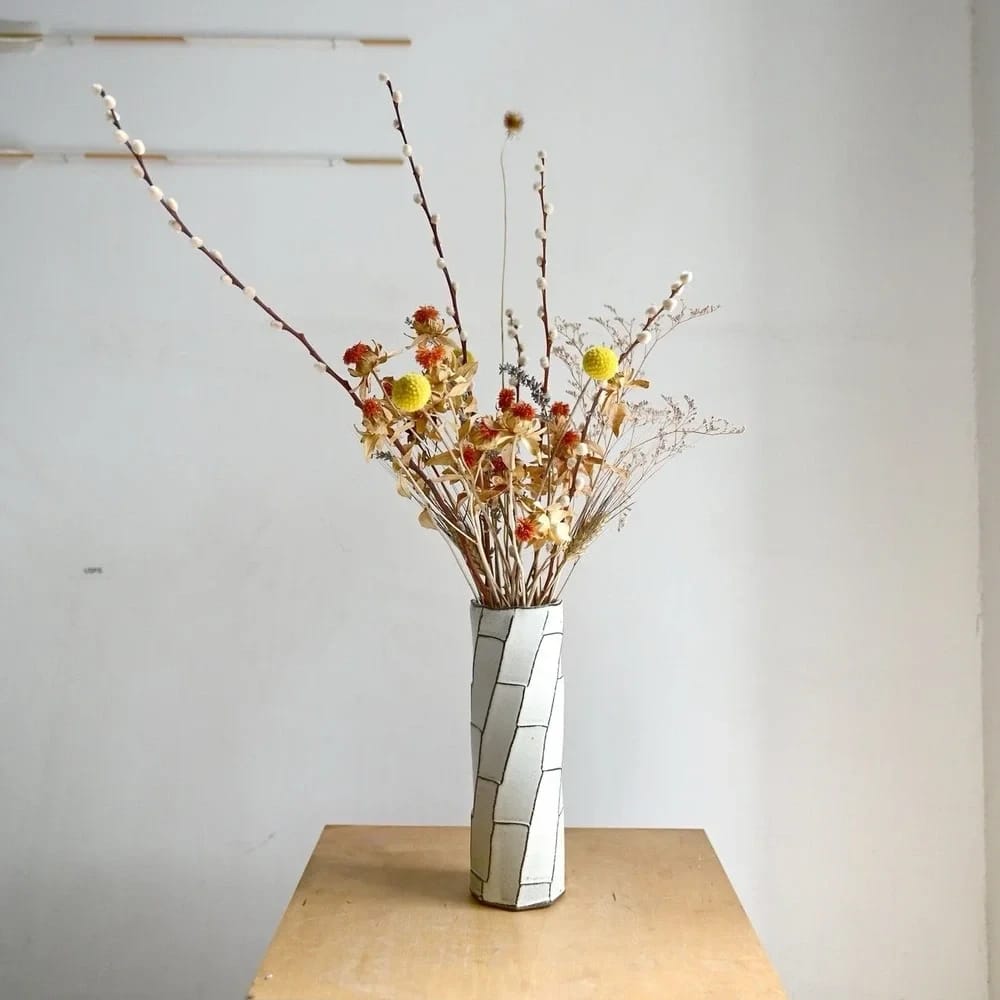

Flower Vase Studio Scene: Before and After
See home decor before-and-after photos with Studio Photography. Explore the workflow, find inspiration and create similar visuals with your own product.
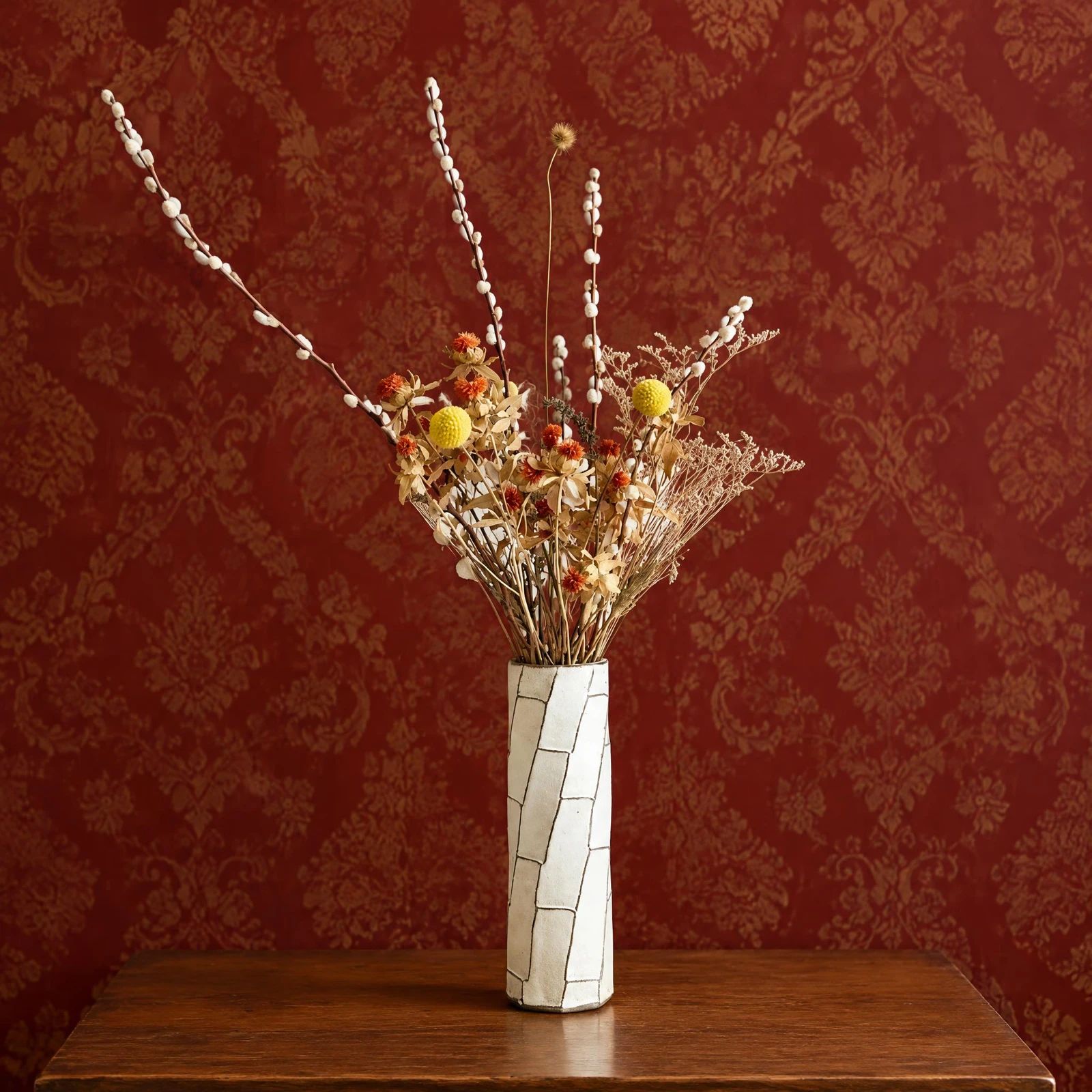
OriginalSnappyit result
How to try Studio Photography workflow
01
Prepare your vase photo
- Open the Studio Photography with your own vase photo.
- Include the complete vase and flower arrangement, with fine stems visible against the background.
02
Set the output size and studio direction
- Choose Output Size.
- Use the optional Additional Information field to describe the presentation you want, such as a clean product shot or a styled scene.
- Select Generate to create a studio-style image from your uploaded product photo.
- For a result in the direction of this vase example: Describe a studio scene that separates the vase silhouette and stems from surrounding props.
03
Review the vase result
- Compare vase geometry, surface pattern, flower arrangement and individual stems.
- Download when it accurately represents your item; adjust the source or settings and generate another version if important details differ.
Start with a photo you already have
Explore Snappyit’s photography tools or create product images on your phone.