



Quick Answer
- Choose a clear photo of a model wearing your garment.
- Open Image to Video in Snappyit and upload the photo.
- Select a motion in Template, or describe one in Prompt.
- Check the settings and credit amount, then tap Generate.
- Watch the full clip, check the garment, and save the result to your phone.
Use AI video as supplementary product content. Real footage is still needed to demonstrate how fabric actually drapes, stretches, or moves when worn.
Before You Start
Install Snappyit from the App Store or Google Play, then sign in. Keep the source photo and real detail photos of the same garment in your phone library for comparison.
- Start with an on-model photo. Choose a clear photo of a model wearing the garment, with the important details visible.
- Check your credits. Review the amount on the Generate button before starting. Consult Pricing for current plans.
- Choose a destination. Decide whether you need a product-page presentation or a short social clip before choosing movement.
Only have a flat lay or hanger photo?
Prepare an on-model image first. You can photograph the garment on a person or use Fashion Model to create one. Check the still image against the real garment before animating it.
How to Make a Video on Your Phone
Use Snappyit to upload your photo, set the movement, and save a clip. The screens below show where to find the main controls.
1. Upload your clothing photo
Open Image to Video, choose the prepared on-model photo from your library, and wait for processing to finish. Check that the preview shows the correct garment, color and view.
Upload / Review
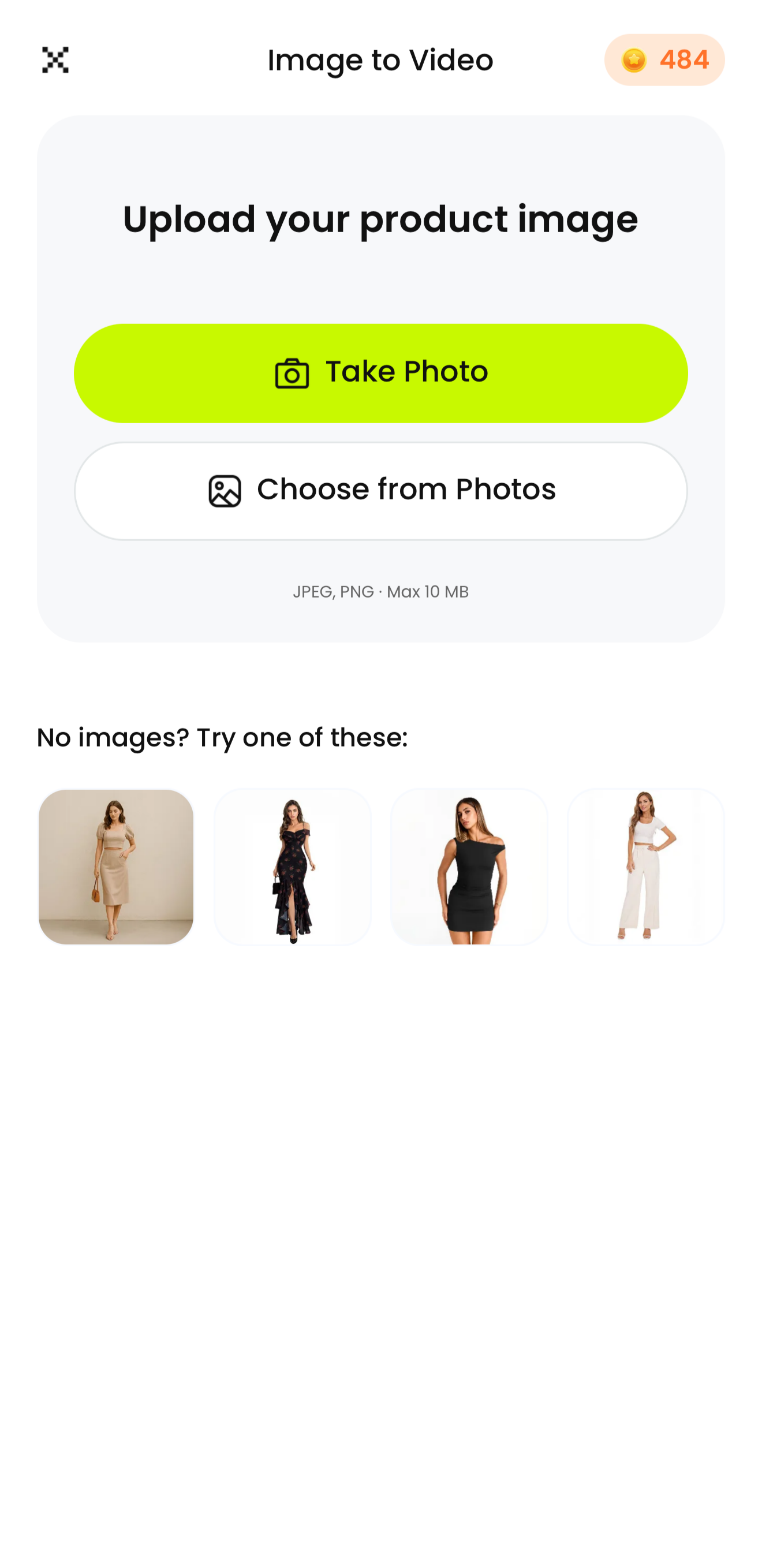
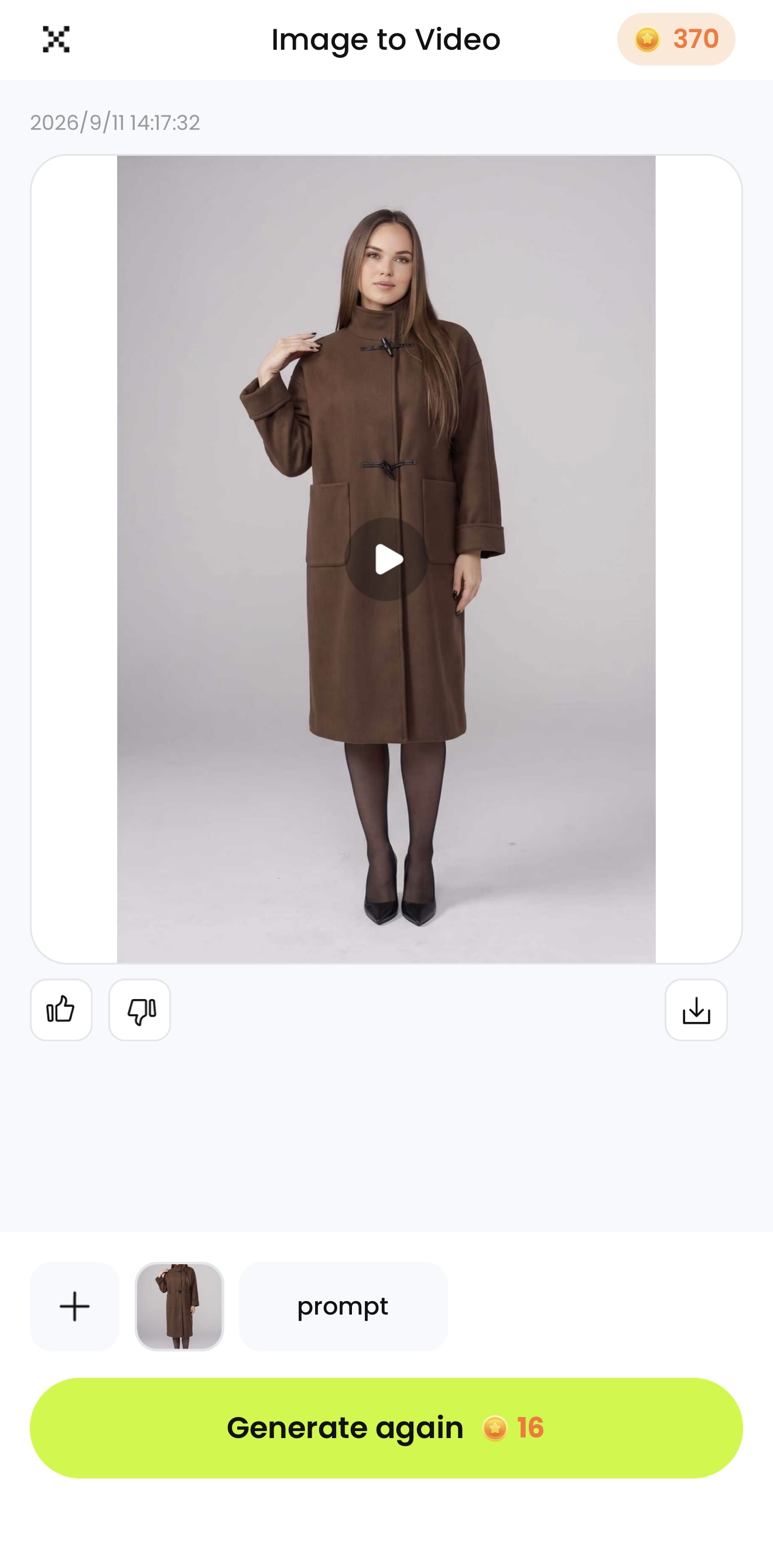
Upload your source, then review and save the result. Tap a screenshot to enlarge it.
2. Choose Prompt or Template
Prompt: describe the movement you want and whether the camera should stay fixed or move. Use Suggested prompts as a starting point, then adapt the wording to your garment and the movement you want.
Template: open Choose Template, preview an available motion, and select one that suits the source pose. Avoid actions that hide key details or reveal an unseen back design.
Prompt / Template
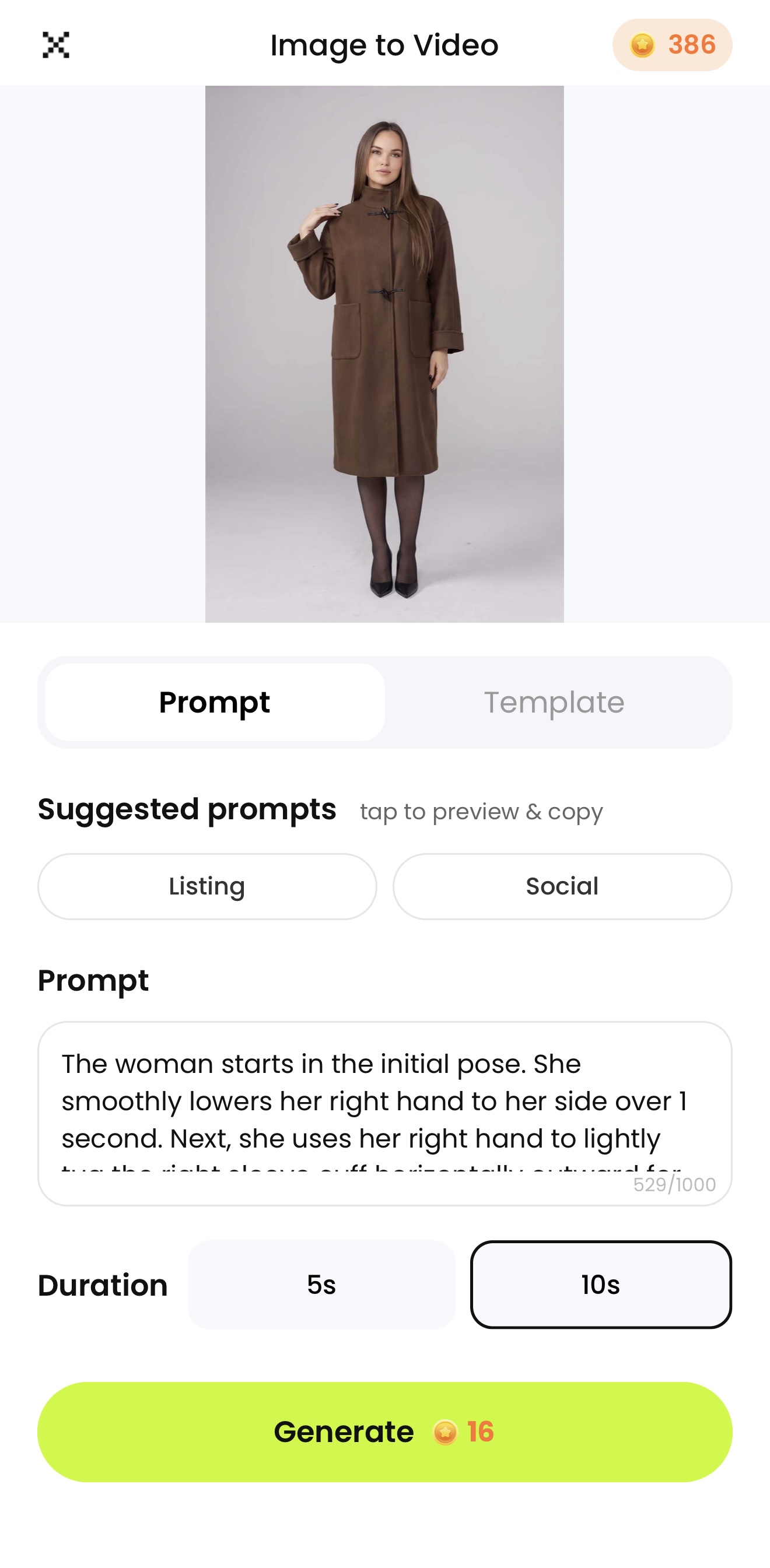
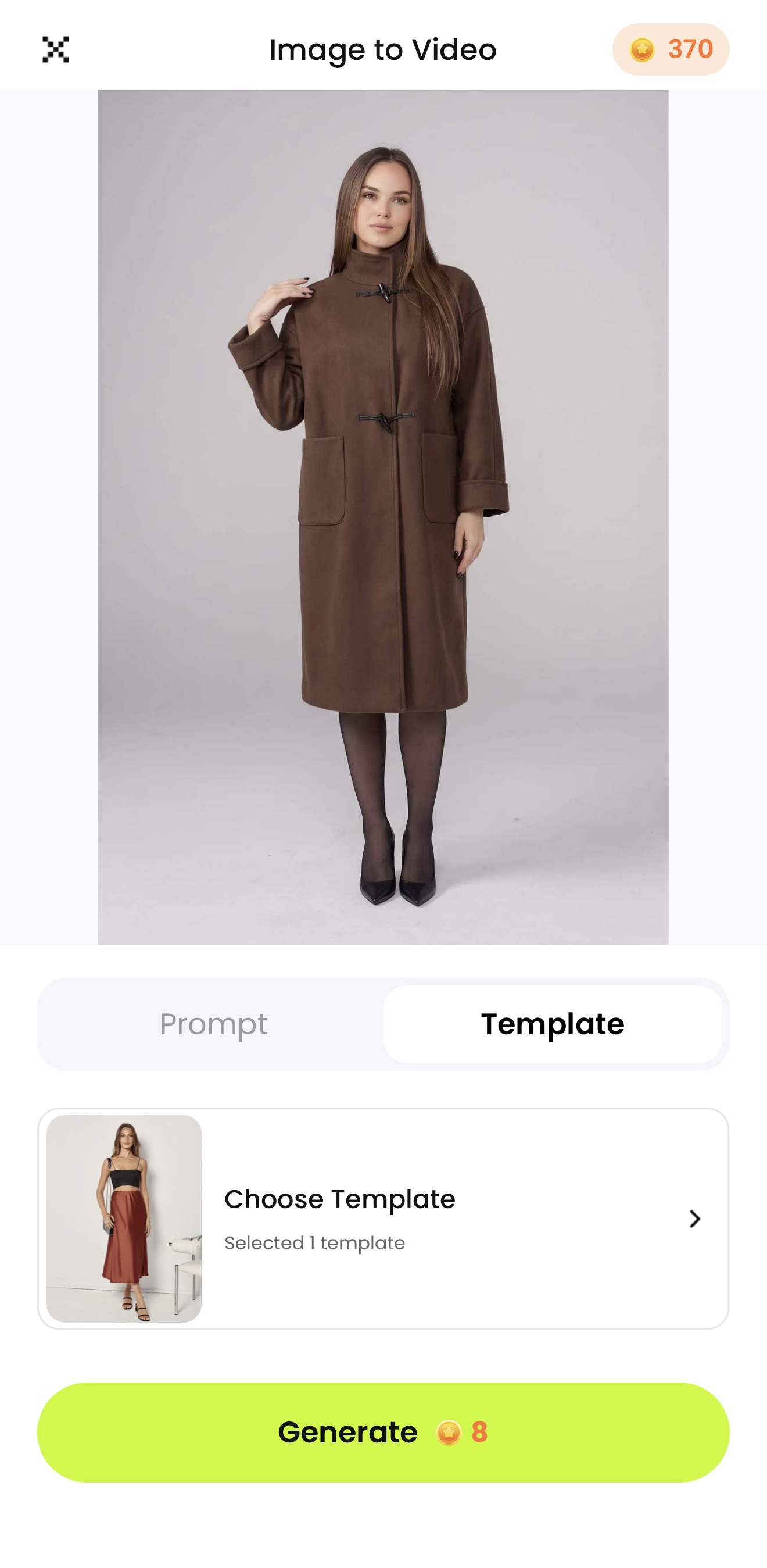
Prompt uses written motion direction; Template uses a selected preset. Tap either screenshot to enlarge it.
3. Check settings and generate
In Prompt mode, choose a duration that gives your movement enough time to read clearly. In Template mode, review the selected motion. Check the credit amount shown on Generate, then start creating the clip.
4. Review and save
Watch the result from beginning to end. Pause around turns, hand movements and changes in overlap, and compare the garment with your source and real detail photos. If the clip passes these checks, use the result’s save/download control, then play the saved file in your phone library.
If the photo is still being processed, wait for it to finish. If generation fails, follow the message in the app and check the task status before retrying.
Two Ways to Present the Same Coat
A clean studio setting keeps attention on the coat’s outline and details. An outdoor setting adds context for a social post. The examples below illustrate these two presentation ideas; use them to decide how you want to show your own garment.
Listing source / Lifestyle source
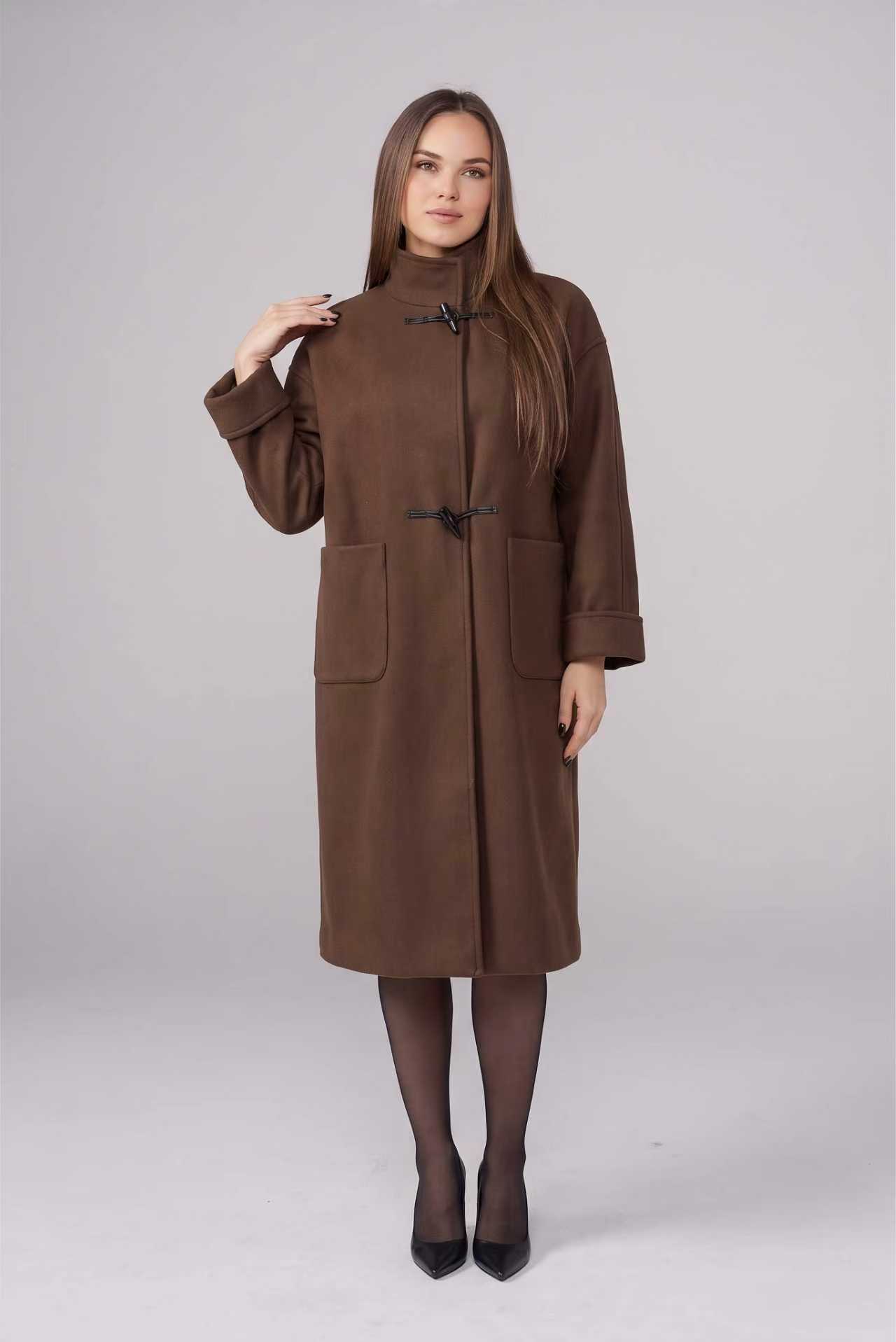
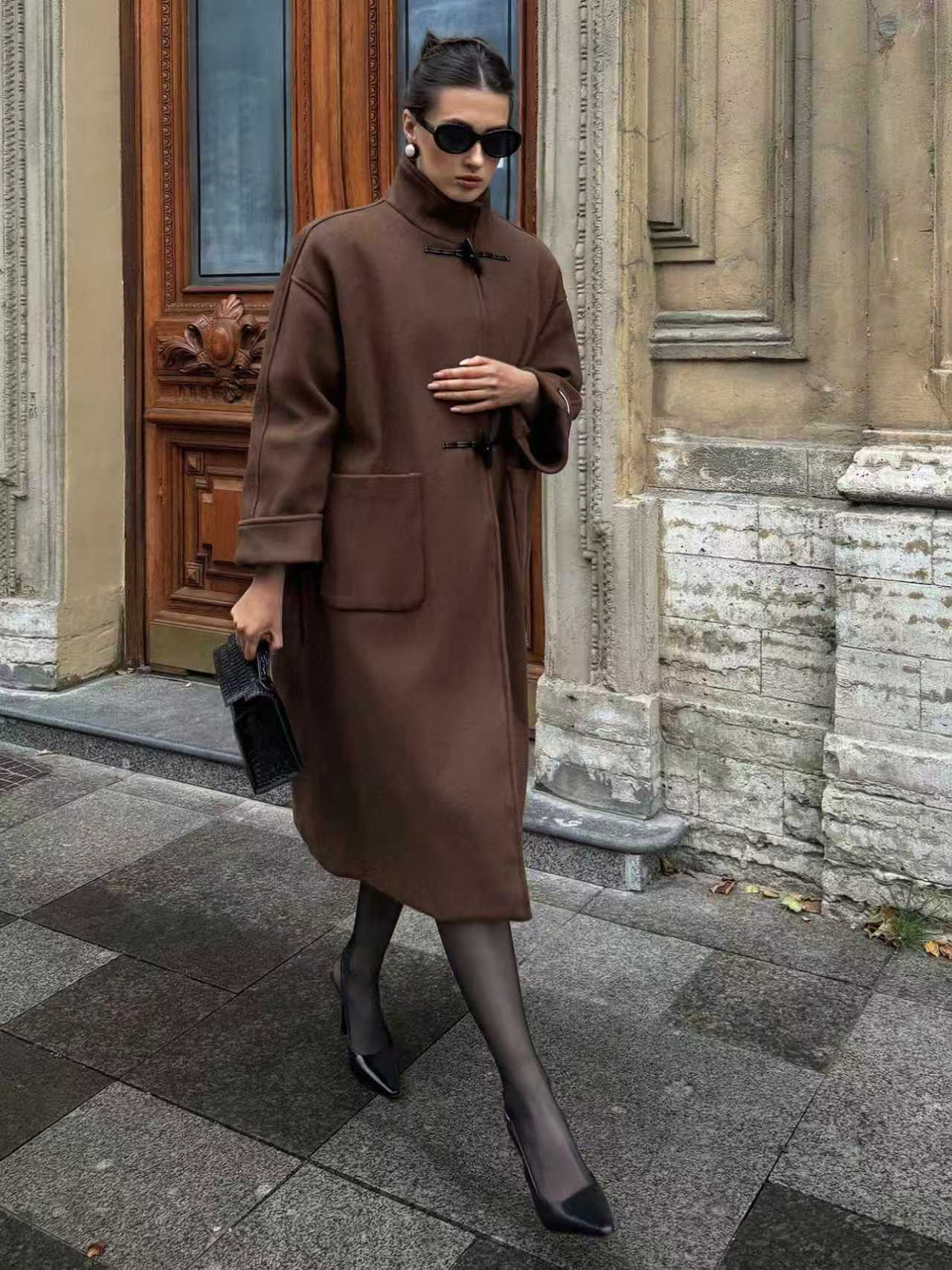
The studio view isolates the coat for detail checks, while the lifestyle view shows how the same design reads in a real setting.
The listing clip uses the studio source for direct garment review; the social clip uses the lifestyle source to add environmental context.
For a product page: keep the garment easy to inspect
Use a simple background and gentle movement so shoppers have time to see the collar, closures and hem. Keep the whole garment in view.
For a social post: add context and a clear opening
Choose a setting that fits your brand and keep the product recognizable from the first moment. A short caption added during editing can introduce the item or highlight one visible detail.
Choose Motion for Your Product
Decide what shoppers should notice first, then choose one main movement. A small pose adjustment or a slow camera move is easier to review than a turn, walk and camera orbit combined.
Swipe horizontally to see motion ideas and checks.
| Intended use | Motion to try | What to check |
|---|---|---|
| Overall product-page presentation | A fixed camera with a gentle shift in the model's weight | Stable garment outline, length, and proportions |
| A front print or neckline | A mostly still model with a slow, slight camera push-in | No print distortion or unwanted cropping |
| A short social-post opening | One small pose adjustment followed by a brief pause | The movement keeps attention on the product without hiding details |
For a custom motion, describe what the model does, how the camera behaves, and which product details should stay visible.
Example prompt to adapt: use this as a starting point for a small, front-facing movement.
The model stands facing the camera and gently shifts her weight once. Keep the camera fixed and the full coat visible. Preserve the collar, sleeves, toggle closures, pockets, hem, and color. No turn or scene change.
Build motion around details already visible in the source. A front-facing photo cannot establish the real design on the back of the garment.
Choose a Clear Source Photo
Good source photos make product changes easier to spot. Before generating, check the collar, sleeves, closures, pockets and hem.
- Keep the garment complete. Leave space around sleeves and the hem for the intended movement.
- Keep details visible. Avoid hair, arms or props covering lettering, prints or fastenings.
- Use a clear original. Avoid blurry screenshots, heavy compression and filters that alter the item.
- Use believable light and color. Avoid clipped highlights, deep shadows and strong color casts.
- Use a simple pose. Clearly separated arms and a natural stance reduce overlapping details.
Keep real detail photos of the same variant available for comparison. Shopify’s clothing photography guide covers lighting and white balance; Google’s product-image guidance emphasizes the correct color, pattern and material. Use these principles to prepare an accurate, easy-to-read source image.
Check Product Details and Fix Problems
Watch the whole clip, then inspect the beginning, the strongest movement and the ending. Look closely around turns, hand movements and camera changes; three sampled stills are not a substitute for playback.
Swipe horizontally to see “What to adjust next”.
| Problem | What to compare | What to adjust next |
|---|---|---|
| Distorted logos, prints, or lettering | Position, shape, and spelling against the real item | Use a clearer source and reduce movement; reject a result with inaccurate lettering |
| Changing cuffs, buttons, or hems | Counts, construction, and length across frames | Reduce turns and overlapping limbs; try one small action with a fixed camera |
| Unnatural hands or arms | Distortion at overlaps or limbs passing through clothing | Choose a source with clear hand outlines and avoid complex gestures |
| Flickering color or texture | Brightness changes or drifting patterns on the same area | Use an evenly lit source and reduce requested lighting or scene changes |
| Product edges leave the frame | Cropped necklines, sleeves, or hems during camera movement | Reduce the push-in or choose a source with more space around the garment |
| Too much movement to see the item | Whether shoppers have time to notice the intended feature | Reduce the clip to one main action with a short pause |
Change one factor at a time: for example, keep the source and simplify the movement. Compare the next result with the previous one. If the source already has incorrect lettering or buttons, fix the source first—the real product remains the final reference.
Save and Prepare for Publishing
Saving a generated clip is the start of preparing the final asset. Use these checks before uploading it to a product page or social channel.
- Check the saved file. Play it through and inspect its dimensions, duration, clarity and audio. Listen for audio as well as checking the picture.
- Match the placement. Check the destination’s current aspect ratio, duration and file-size rules. If you need a 9:16 version, use an editor to crop carefully or place the full clip on a 9:16 canvas; keep the collar, sleeves and hem visible.
- Add only useful finishing touches. A social version may need a short opening caption, licensed audio or a product CTA. Use your phone’s video editor or another editing app for these finishing touches.
- Preview the upload. Check the thumbnail, text placement and crop on the actual destination. For a product page, make sure the video complements the still photos of the same variant.
- Keep versions easy to identify. Use a name such as
coat-brown-social-v1.mp4and keep the source photo alongside it.
For Shorts, consult YouTube’s current guidance. Shopify’s product-video guide also explains clear messaging and calls to action. Choose edits that make the garment easier to understand.
Image-to-Video App FAQs
Can I use a flat lay instead of an on-model photo?
Start by preparing an on-model photo. Photograph the garment on a person or create an on-model image with Fashion Model, then check that still against the real item before animating it.
Should I choose Template or Prompt?
Choose Template when an available motion preview suits your source. Choose Prompt when you want to describe a particular movement. Begin with one main action and review the result in either mode.
How many credits does a video use?
The credit amount is shown on Generate for your selected settings. Check it before starting, especially when you change the motion mode or duration.
Can I use Snappyit on iPhone and Android?
The official Snappyit mobile-app page provides downloads for both platforms. Sign in to your account and check the options available in your installed version.
What if the upload or generation fails?
Wait for photo processing to finish before starting generation. If a task fails, follow the message in the app and check its status before retrying. Contact support if the problem continues.
Will the saved video include music?
Play the saved file to check its audio. If you want to add music or a voiceover, use appropriately licensed audio in a video editor.
Can AI show the real fit, drape or back of the garment?
Generated movement is not evidence of real fabric performance, and a front photo does not establish an unseen back design. Use corresponding real photos or footage for those claims.
Can I publish immediately after saving?
First review the garment throughout the clip, then check the saved file and the destination’s format requirements. Preview the actual upload before publishing.
More Resources for Clothing Sellers
References
- Snappyit — Image to Video. Official on-model input guidance, template workflow, and product-detail review advice.
- Snappyit — Mobile App. Official iPhone and Android download links and mobile feature overview.
- Shopify — Clothing Photography: How To Photograph Clothes. Source-photo preparation, lighting, white balance, and color accuracy.
- Shopify — Product Videos: 10 Best Practices and Examples. Product-video purposes, clear messaging, and useful product information. Its marketing statistics are not used as performance promises here.
- Google Merchant Center Help — Image link [image_link]. Accurate product variants, image quality, and product-image presentation. This source concerns images, not AI video eligibility.
- YouTube Help — Understand three-minute YouTube Shorts. Aspect-ratio and duration guidance for Shorts; consult the current page before preparing a clip for that destination.
- Snappyit — Pricing. Current plan and credit information; check the amount displayed for your selected settings in the app.