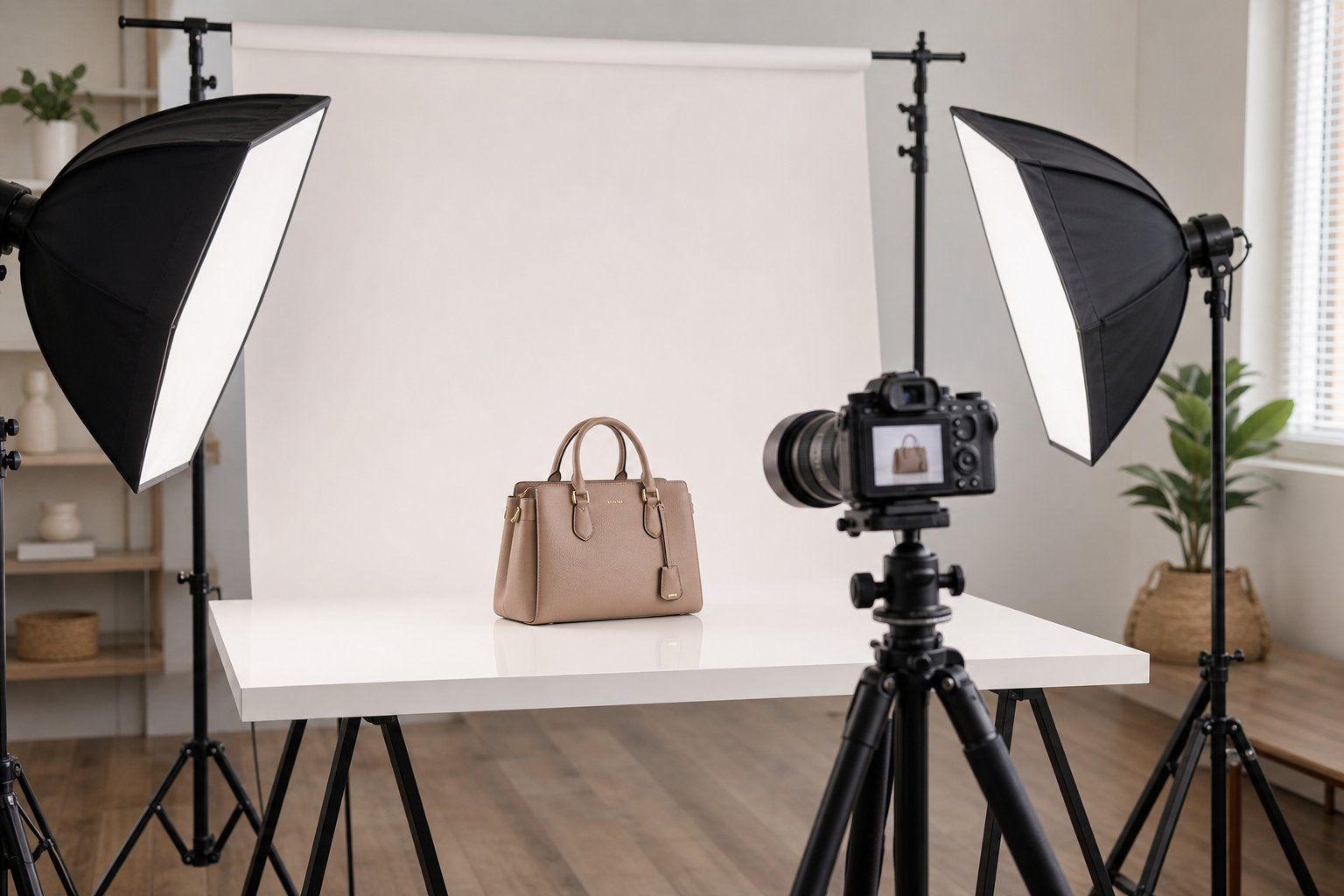

Why Ecommerce Product Photos Look Low-Resolution
Ecommerce teams often work with supplier JPEGs, marketplace downloads, phone crops, and secondary SKU images rather than one master file. A photo may look fine in a product grid but show pixelation around labels, seams, prints, textures, and product edges when a shopper zooms.
Quality can also fall when the same export is shared through chat, cropped for one channel, and reused elsewhere. Check the actual pixel dimensions and inspect the file at 100% before choosing a fix: a focused, low-resolution source is a better upscaling candidate than an out-of-focus or heavily compressed image.
Is the Product Photo Low-Resolution, Blurry, or Compressed?
The symptoms can overlap, but the fixes differ. Use the largest available source and diagnose the visible problem before spending time or credits on an upscale.
| Visible symptom | Likely cause | Practical next step |
|---|---|---|
| Looks acceptable as a thumbnail but pixelates on zoom | Too few pixels | Upscale the largest original once to the destination target, then inspect it at 100%. |
| Edges and text remain soft at 100% | Missed focus or lens blur | Request a sharper source or reshoot; sharpening cannot recover reliable detail. |
| Edges are streaked or doubled | Camera or subject motion | Use a sharper frame or reshoot. AI cannot determine the exact shape that moved. |
| Blocks, halos, or coarse grain are visible | JPEG compression, chat-app processing, or high ISO | Find the least-compressed original and clean it lightly before deciding whether to upscale. |
| Important detail is dark, clipped, wrongly colored, or hidden | Lighting, exposure, white balance, or obstruction | Correct the source if usable data remains; otherwise, reshoot. Resolution tools cannot restore hidden or clipped detail. |
Product Image Resolution Requirements by Marketplace
Minimum upload sizes, zoom preferences, and recommended dimensions serve different purposes. Check the current rule for the exact marketplace and product category before export; the figures below are reference points, not one cross-platform standard.
| Marketplace | Official guidance or practical approach | Measurement |
|---|---|---|
| Amazon | Accepted range: 500–10,000 px on the longest side. Amazon prefers more than 1,000 px on each side for zoom [1] | Longest side for the accepted range; both sides for the zoom preference |
| Etsy | Recommends 2,000 px or more for listing images [2] | Shortest side |
| eBay | Minimum 500 px; recommends 1,600 px [3] | Longest side |
| Shopify | The cited guidance does not set one universal pixel target; size the export for the store theme, crop, and zoom behavior [4] | Storefront and theme dependent |
Keep the highest-resolution master and create channel-specific copies when aspect ratio, background, or category rules differ. For a broader sizing workflow, see the marketplace image size guide; Amazon sellers should also check the current Amazon product image requirements.
Marketplace Pixels vs Print-on-Demand DPI
Online listings mainly use pixel dimensions. Print-on-demand files also need enough pixels for the physical print size: required pixels equal the print width and height in inches multiplied by the provider's target PPI. A 10 × 12-inch design at 300 PPI, for example, needs 3000 × 3600 pixels [5].
Changing only the metadata from 72 DPI to 300 DPI does not add pixels or detail [5]. Keep print files separate from marketplace exports and follow the current print provider specification.
How AI Product Photo Upscaling Works
Standard Resizing Adds Pixels, Not Product Detail
A conventional resize uses interpolation to calculate new pixels from neighboring pixels [6]. It increases the file dimensions but does not recover information that the source never captured, so a small supplier image can remain soft at full size.
AI Upscaling Can Reconstruct—and Invent—Detail
AI super-resolution predicts edges and textures while increasing pixel dimensions. ESRGAN research describes more realistic textures, but also notes hallucinated detail and artifacts [7]. For merchants, a sharper-looking result is still an estimate: compare color, labels, logos, seams, and patterns with the source or physical product before publishing.


The dimensions confirm enlargement, not product accuracy. Compare the result with the source or physical product before publishing.
How to Make Product Photos Higher Resolution
Test one representative SKU before processing a catalog. These six steps help protect product accuracy and avoid spending time on unsuitable source files.
1. Find the Highest-Resolution Source
Download the original camera file or largest supplier file. Do not upscale a screenshot of a thumbnail when the source is still available.
2. Set the Marketplace Image Size
Choose the target from the destination's current pixel, crop, format, and file-size rules. Do not force every channel into the same square export.
3. Upscale the Original Once
Upload the source to an AI upscaler such as Snappyit's Product Photo Upscaler, select the intended output, and avoid repeatedly enlarging a generated result [8].
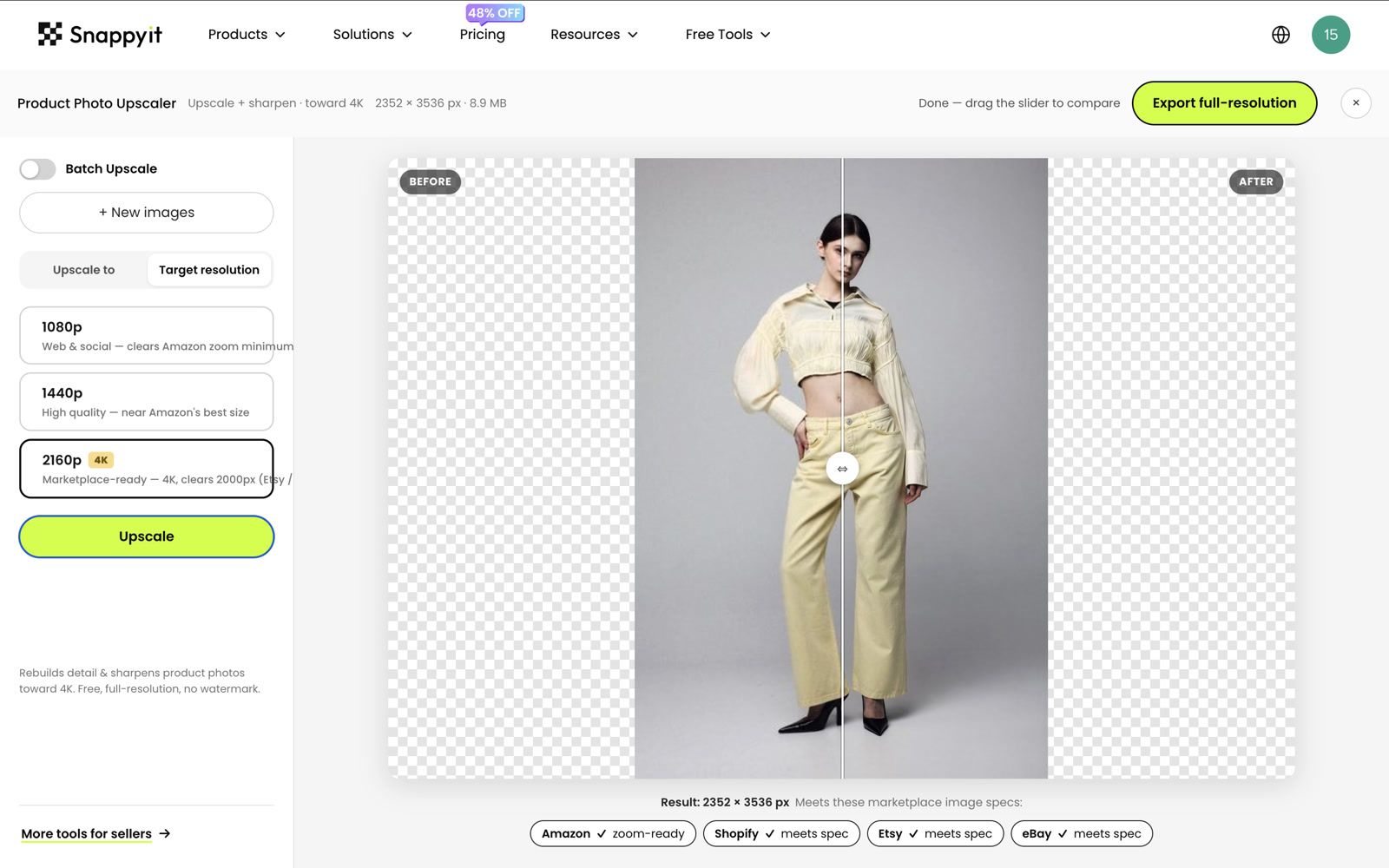
4. Check Product Accuracy at 100%
Compare the output with the source or physical product. Reject changes to the outline, color, print, seams, labels, text, logos, or other details shoppers use to identify the item.
5. Export a Marketplace-Ready Copy
Keep the master unchanged, then use a separate export for the destination's dimensions, aspect ratio, background, format, and file size. The Image Resizer can prepare channel-specific dimensions after the upscale is approved.
6. Batch-Upscale Similar SKUs
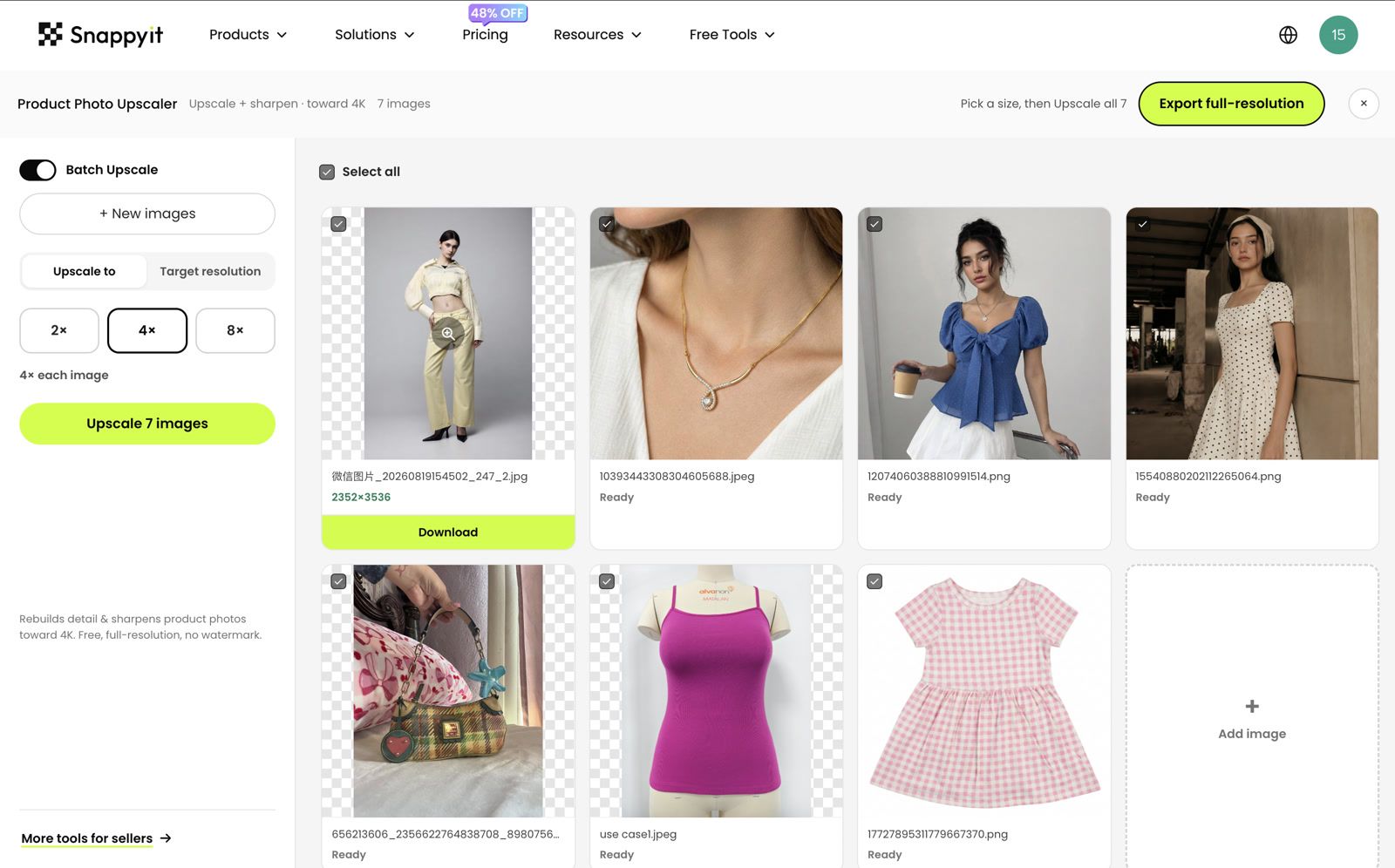
Test a small set that includes fine patterns, dark fabrics, reflective or transparent products, and small text or logos. Once those samples pass, process similar SKUs with the same settings and spot-check each product type before upload [8].
When Not to Upscale a Product Photo
Do not use a larger output to hide missing evidence. AI cannot restore exact text, serial numbers, brand marks, tight patterns, or fine weave that the source did not capture, and generative super-resolution can introduce plausible but incorrect detail or artifacts [7].
Upscale or Reshoot Ecommerce Product Images?
Upscale when the item is in focus, correctly exposed, color-accurate, and simply too small for its destination. Request a better file or reshoot when motion blur, missed focus, severe compression, inaccurate color, or hidden detail prevents verification. If the choice is unclear, test one image before processing the catalog.
Ecommerce Product Image Upload Checklist
- Confirm the destination. Check current dimensions, aspect ratio, background, format, and file-size rules.
- Preserve the master. Keep the original camera or supplier file unchanged.
- Inspect the output. Compare edges, color, text, logos, patterns, and texture at 100%.
- Export a separate copy. Create the marketplace file only after the upscale is approved.
- Pilot before batching. Test difficult product types, then spot-check each processed group.
Choose the Right Fix for Low-Resolution Product Photos
Upscale a focused, faithful product photo that is simply too small. Request a better source or reshoot when invented text, texture, color, or shape could mislead shoppers, and keep channel-specific exports instead of overwriting the master.
Frequently Asked Questions
How do I make a product photo higher resolution?
Start with the largest original, check its pixel dimensions, upscale once to the destination size, inspect at 100%, and export a separate marketplace copy. Use a better source or reshoot if the original is out of focus.
Can AI upscale a blurry product photo?
It can help when a reasonably focused image looks soft because it has too few pixels or mild compression. It cannot reliably recover detail lost to missed focus, motion, severe compression, poor exposure, inaccurate color, or an obscured product.
Can I increase image resolution without losing quality?
No method can guarantee zero quality loss or recover detail that was never captured. Use the highest-quality original, avoid repeated resizing and compression, and compare the output with the source or physical product before publishing.
What resolution should ecommerce product photos be?
There is no universal size. Amazon accepts 500–10,000 px on the longest side and prefers more than 1,000 px on each side for zoom; Etsy recommends at least 2,000 px on the shortest side; eBay requires at least 500 px and recommends 1,600 px on the longest side. Check current category and channel rules before export.
Does changing a product image from 72 DPI to 300 DPI increase its resolution?
No. Editing DPI or PPI metadata without resampling does not change the pixel count or add detail. Print files need enough pixels for their physical size, while marketplace listings follow platform-specific pixel and aspect-ratio rules.
Is standard resizing the same as AI product photo upscaling?
No. Standard resizing calculates new pixels from neighboring pixels. AI super-resolution predicts edges and textures, which can produce a sharper-looking enlargement but can also introduce incorrect detail.
Can AI recover missing text or fine product detail?
Not reliably. If the source did not capture the information, AI can produce a plausible but incorrect version. Compare labels, logos, prints, seams, and textures with the source or physical product.
Can I batch-upscale product photos for an ecommerce catalog?
Yes. Test difficult representative images first, then batch similar SKUs with the same target settings. Review representative outputs from each product type before marketplace upload.
References
Marketplace guidance can change by region, category, and interface. The access dates below identify the review snapshot; recheck the destination platform before export.
- Amazon. How to take product photos. Accessed August 20, 2026. See also Amazon Seller Central, Product image requirements; seller sign-in may be required.
- Etsy Help. Requirements and best practices for images in your Etsy shop. Accessed August 19, 2026.
- eBay. Tips for taking photos. Accessed August 19, 2026.
- Shopify Help Center. Product image types. Accessed August 19, 2026.
- Adobe. Set image size and resolution in Photoshop. Accessed August 19, 2026.
- OpenCV. Geometric image transformations and interpolation. Accessed August 19, 2026.
- Wang et al. ESRGAN: Enhanced Super-Resolution Generative Adversarial Networks. arXiv, 2018.
- Snappyit. Product Photo Upscaler. Accessed August 20, 2026.