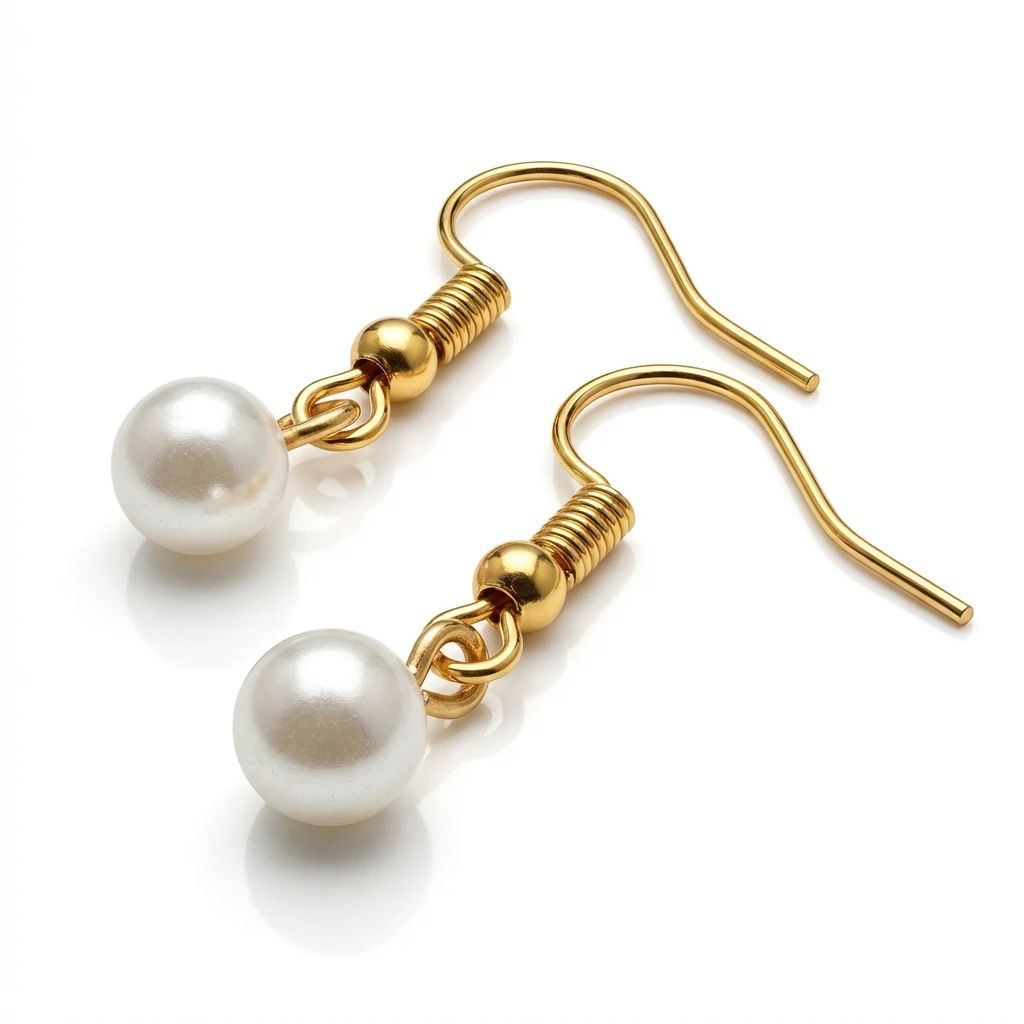
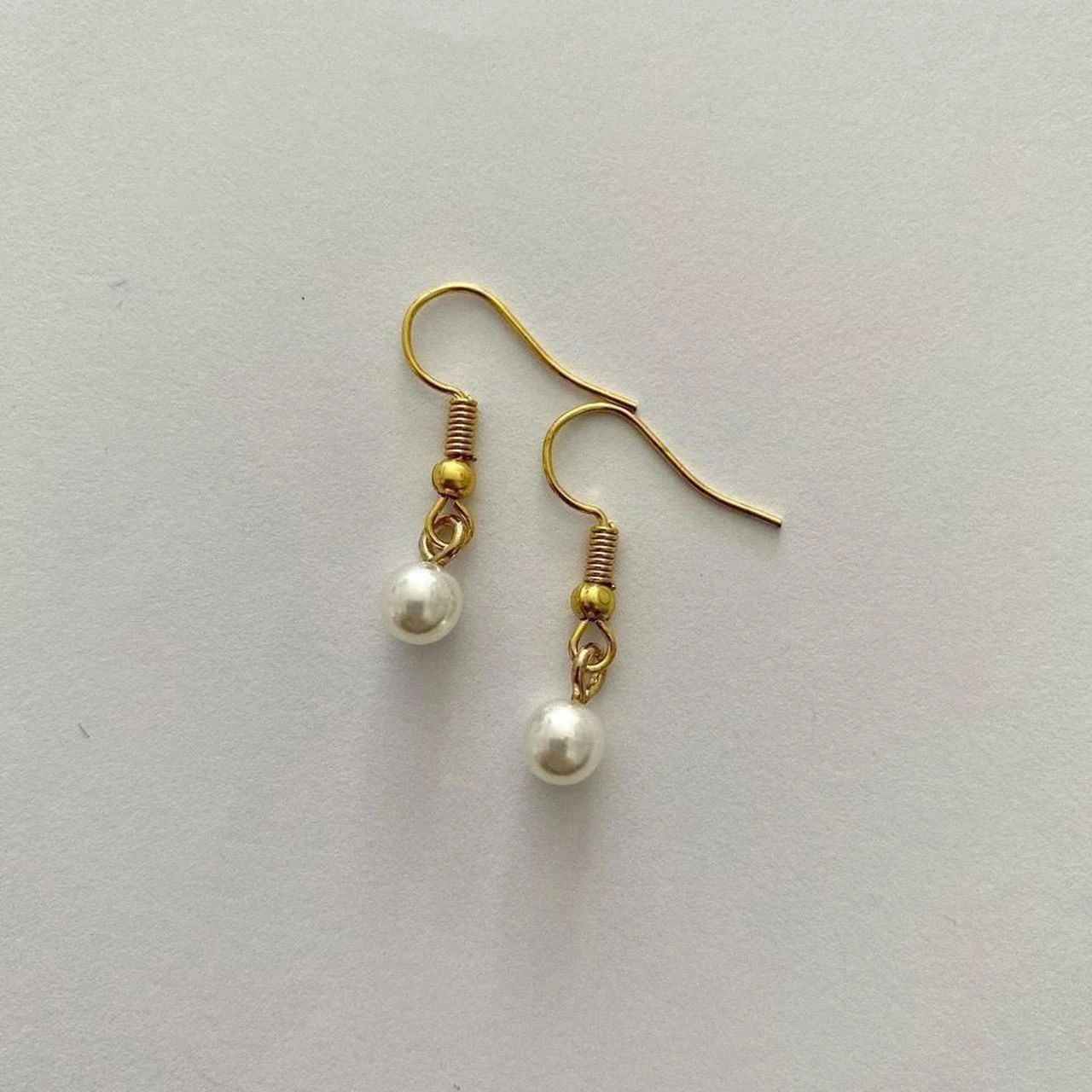

Earrings — Jewelry Model Examples
See earrings before-and-after examples with Jewelry Model. Compare inputs, results and practical tips, then create similar product visuals.
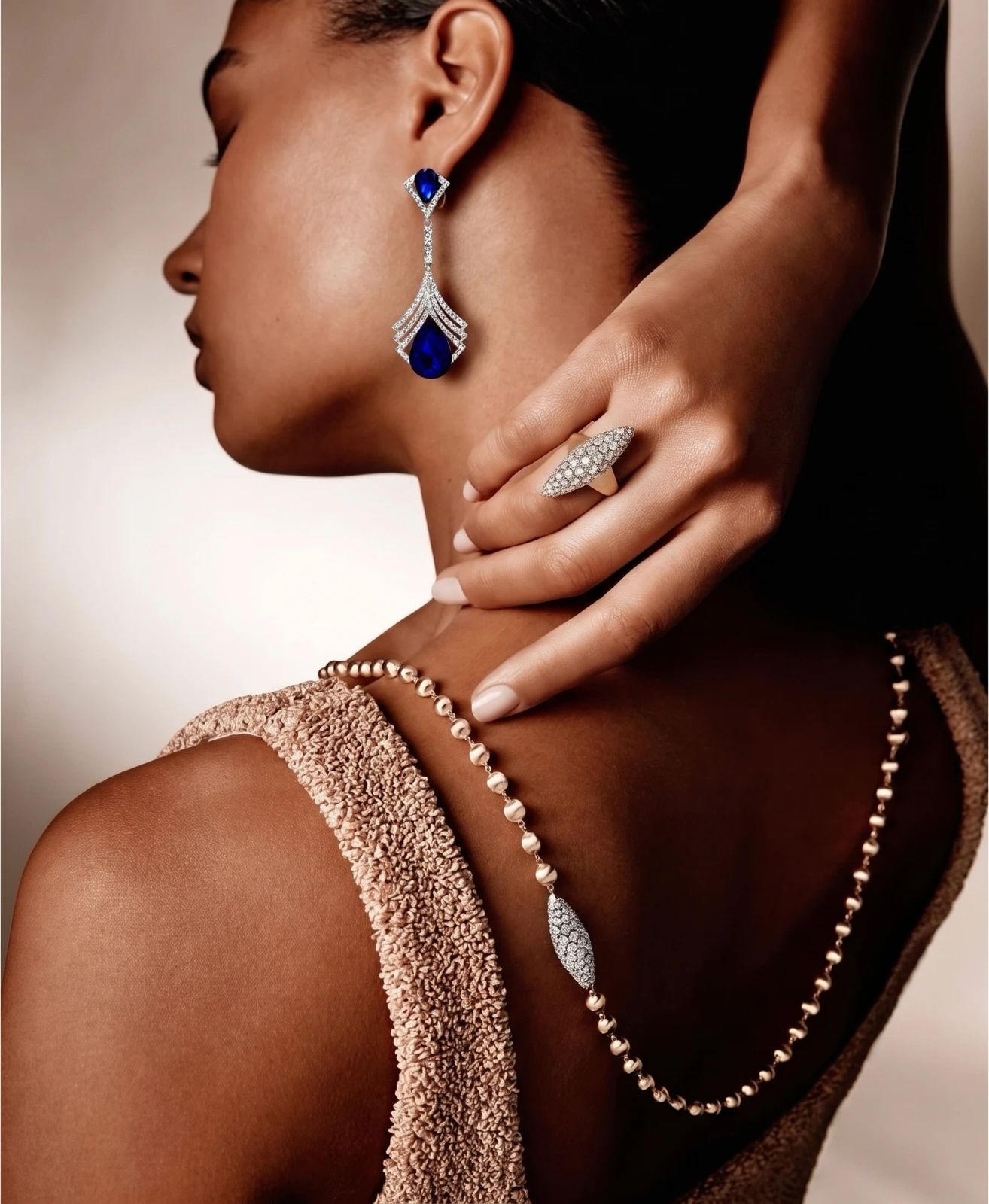
OriginalSnappyit result
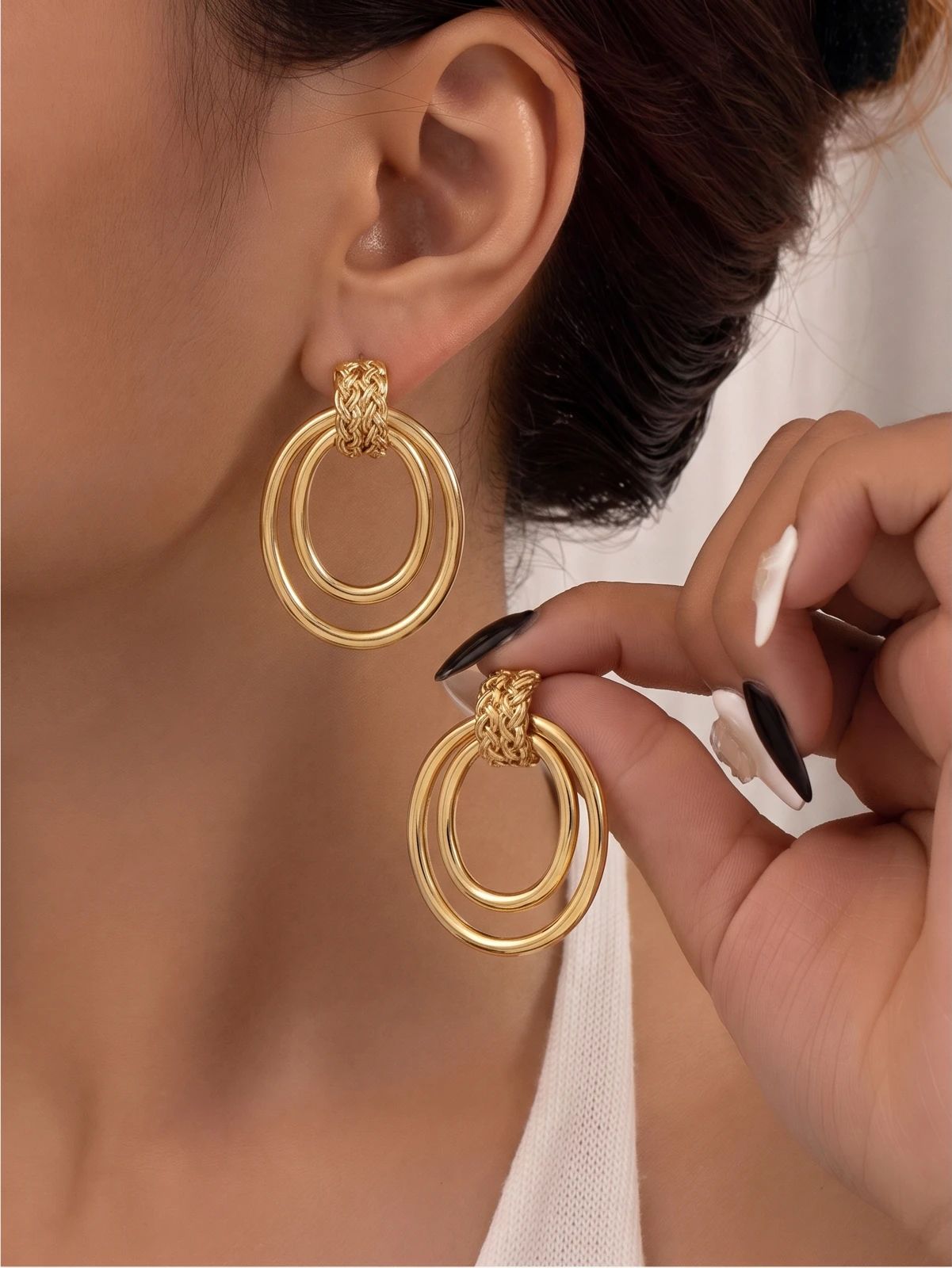
How to try Jewelry Model workflow
01
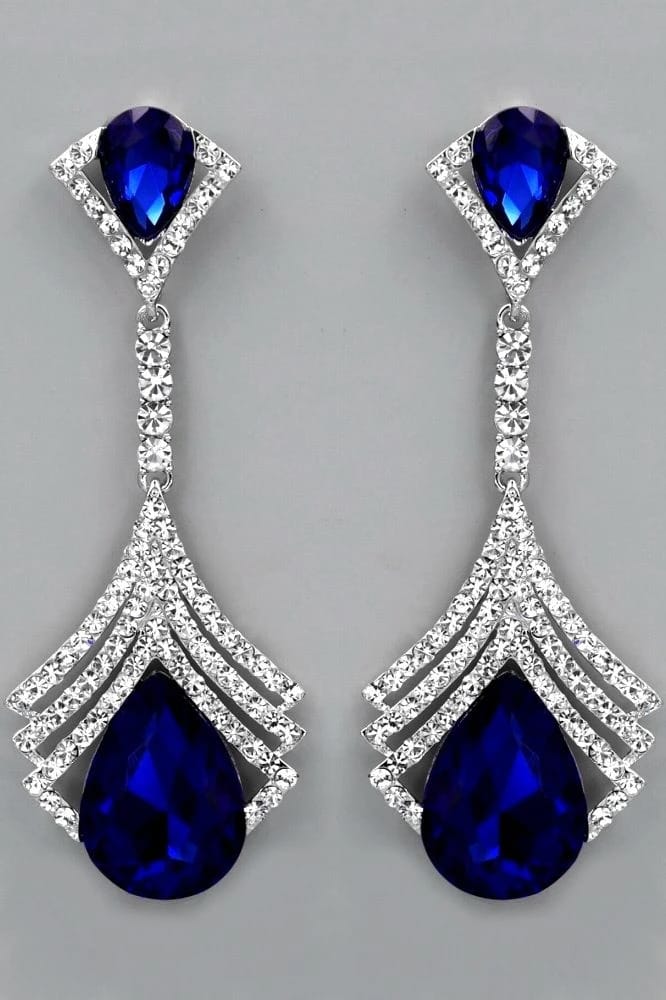
Prepare your drop earrings photo
- Open the Jewelry Model with your own drop earrings photo.
- Capture both drop earrings and their stone details without cropping the hanging ends.
02
Select a model template or upload your own
- Choose an available jewelry model template, or upload a custom template to match your visual direction.
- Select a view that shows how the piece is worn without covering key details, then select Generate.
- For a result in the direction of this drop earrings example: Choose a model angle with the ears visible and hair away from the earrings.
03
Review the drop earrings result
- Inspect stone shape, drop length, settings and the relationship between both earrings.
- Download when it accurately represents your item; adjust the source or settings and generate another version if important details differ.
01
Prepare your drop earrings photo
- Open the Jewelry Model with your own drop earrings photo.
- Capture both drop earrings and their stone details without cropping the hanging ends.
02
Select a model template or upload your own
- Choose an available jewelry model template, or upload a custom template to match your visual direction.
- Select a view that shows how the piece is worn without covering key details, then select Generate.
- For a result in the direction of this drop earrings example: Choose a model angle with the ears visible and hair away from the earrings.
03
Review the drop earrings result
- Inspect stone shape, drop length, settings and the relationship between both earrings.
- Download when it accurately represents your item; adjust the source or settings and generate another version if important details differ.
01
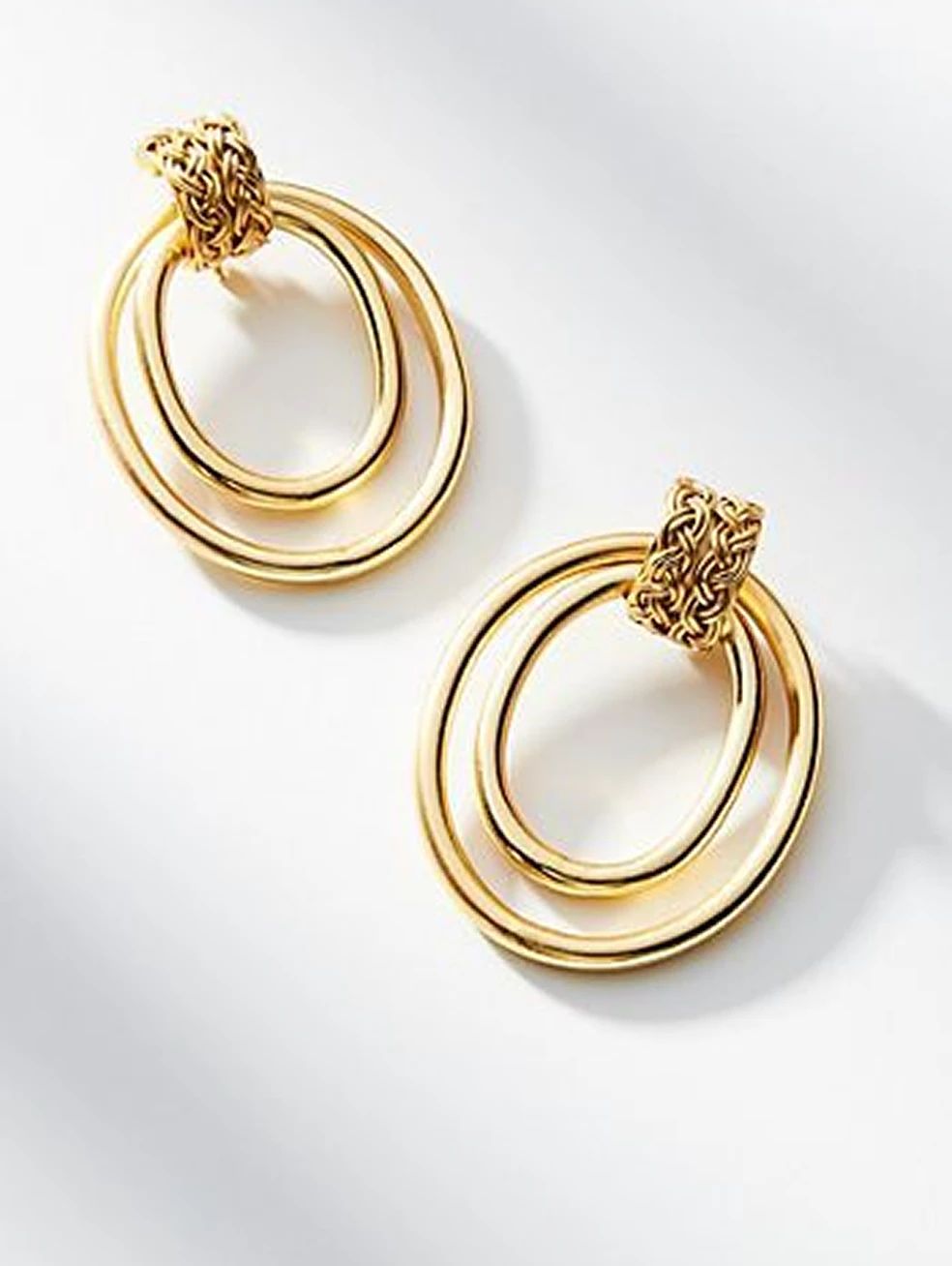
Prepare your hoop earrings photo
- Open the Jewelry Model with your own hoop earrings photo.
- Show the hoops, closures and metal finish in the product photo.
02
Select a model template or upload your own
- Choose an available jewelry model template, or upload a custom template to match your visual direction.
- Select a view that shows how the piece is worn without covering key details, then select Generate.
- For a result in the direction of this hoop earrings example: Select a model view with a clear ear outline so the hoop shape remains visible.
03
Review the hoop earrings result
- Compare hoop thickness, outline, closures and placement on the ears.
- Download when it accurately represents your item; adjust the source or settings and generate another version if important details differ.
Start with a photo you already have
Explore Snappyit’s photography tools or create product images on your phone.