




 Cheese Yuan
A new collection does not always need a separate video shoot. If you already have clear on-model product photos, an AI image-to-video app can help you turn them into short clips for new-arrival posts, social ads or a product-page gallery.
The useful question for a clothing seller is simple: does the clip still show the item you sell? A closer crop may work for a T-shirt post but hide the hem of a dress. A template may change the model or accessories as well as add movement.
We tried Snappyit, Photoroom and Kling AI with two clothing photos and share six example clips below. Vmake Labs and Pixelcut round out the list using official feature information. These experiences can help you choose a starting point; they do not establish an overall quality ranking. This guide is published by Snappyit.
AI Image-to-Video Apps at a Glance
| App | When to consider it | Examples in this guide | Video access and billing |
|---|---|---|---|
| Snappyit | Animating an existing on-model clothing photo | Two clips | A 5-second video costs 8 credits. Plans and app billing [1] |
| Photoroom | Adding video to a product-photo workflow | Two clips | Video Generator is available in Max and Ultra Spaces and uses AI credits. Mobile guides and plans [2] |
| Kling AI | Directing a pose, turn or camera move | Two clips | Check generation costs and watermark terms before choosing a plan. App and membership [3] |
| Vmake Labs | Turning product photos into social-video concepts | Official feature overview | Check the mobile subscription for the templates and exports you need. Mobile features and plans [4] |
| Pixelcut | Preparing a product photo and exploring video models | Official feature overview | Video model and aspect-ratio options vary. Confirm image upload and the credit cost before generating. Video guide and plans [5] |
Check the price shown in your app, including billing period, credits and renewal terms. A web offer may differ from mobile checkout. Credit counts are not comparable across apps.
Our Experience Turning Clothing Photos into Video
We used a studio outfit photo and an outdoor dress photo to explore everyday seller needs: showing the whole outfit and adding movement to a social post. The six clips are about five seconds each. Treat them as individual examples that can help you decide what to try with your own product photos.
What to look for in the example clips
Compare each video with its source photo. Look at the garment outline, small logos, stripes, accessories and crop—not just how smoothly the model moves. For a product page, keep your original photos alongside the clip: generated movement does not verify real fit, stretch or fabric drape.
Videos start muted. Use the player controls to play or unmute a clip.
Snappyit: Clothing Photos to Short Videos
How to animate a product photo
- Open Image to Video and upload an on-model photo.
- In Prompt mode, tap Listing or Social to preview and copy a suggested prompt, then edit the movement. You can also explore Template mode.
- Choose 5s or 10s, check the displayed credits and tap Generate. Review the result before downloading it.
What we noticed in these clips
Both examples are 5-second videos.
The T-shirt clip adds a small pose change and a brief pull at the hem while keeping the outfit in view. That is a useful direction for a post where shoppers should see both the top and jeans.
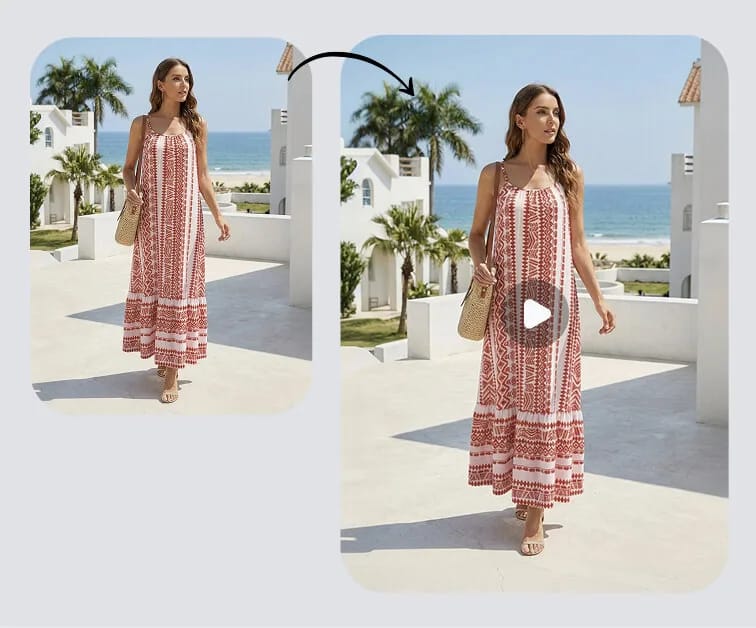
In the dress clip, the original model and head scarf remain recognizable. As she walks closer, the lower hem and shoes leave the frame. We would choose a wider ending if the purpose were to show the full dress.
When it may fit your store
The Listing and Social suggestions are useful when you know where the clip will go but want help starting the prompt. Prompt and Template modes, Listing and Social suggestions, and 5- or 10-second durations are available across iOS, Android and the web. Your plan and credits carry across web and app; Apple or Google manages subscriptions purchased through its store. Plans and billing [1]
- A export
- 1248 × 1656
- B export
- 1268 × 1632
Photoroom: Video Alongside Product-Photo Editing
How to animate a product photo
- In a Max or Ultra Space, open AI Tools → Video Generator. iOS and Android instructions [2]
- Choose a template and upload your photo, or select Skip template to work from a prompt. Add instructions in Describe anything if needed.
- Choose Portrait (9:16), Landscape (16:9) or Square (1:1), generate the video and save it.
What we noticed in these clips
The T-shirt example moves closer to the top and waist. That crop could work for a top-focused social post, although it no longer shows the complete outfit.
The dress clip changes the model, removes the head scarf and alters the belt and buckle. We would reject this version for a listing that needs to match the original styling.
When it may fit your store
Consider Photoroom if you already prepare product photos there and want to add short videos. If a template changes more than you want, try Skip template and describe the movement yourself. Photoroom guidance [2]
- A export
- 704 × 1280
- B export
- 720 × 1264
Kling AI: More Direction over Video Movement
How to animate a product photo
- Open AI Video → Frames and add your product photo as the start image.
- Describe the movement you want, keeping the action simple enough to show the garment clearly.
- Choose the model, resolution and duration, check the credit cost, then generate and download a result you want to keep.
What we noticed in these clips
The T-shirt clip keeps the outfit visible through small steps and pose changes, adding variety to a familiar product shot.
The dress clip turns the model and ends on a closer crop. Inspect the leg movement during the turn, and compare any newly generated back view with real product photos. Both supplied Kling clips carry a watermark; check your chosen plan’s export terms before making campaign assets.
When it may fit your store
Kling may suit you when the brief calls for a particular pose or camera move and you are happy to refine the instructions. Start with a small action and decide whether the result still presents the garment clearly. Kling membership [3]
- A export
- 832 × 1104
- B export
- 844 × 1088
Vmake Labs: Product Photos for Social Videos
Feature overview from official sources; no clothing-video example from Vmake is included here.
Vmake turns product photos into videos with creative templates. Social formats include Unboxing, Before & After and Product in Hand, alongside subtitle editing, video cleanup and thumbnails. Mobile features [4]
When to consider it for ecommerce content
It is worth exploring when you need a new-arrival reel or a product-led social ad with a clear idea behind it. Choose a format that matches what you can honestly show about the item: a generated unboxing or person holding a product should not be presented as footage from a real customer.
Before subscribing, open the intended template in the app and check its credit cost, crop and export conditions.
Pixelcut: Photo Editing and AI Video Options
Feature overview from official sources; no clothing-video example from Pixelcut is included here.
Pixelcut supports video creation from an image or text. For a product photo, choose a video model that accepts image uploads and offers the aspect ratio you need. Video features [5]
When it may fit a product-photo workflow
Consider it if you already edit catalog images in Pixelcut and want to explore animation in the same workspace. Pixelcut Pro can be used on iPhone, Android and the web. Plans and access [5]
Start with one clear photo and a small movement, then judge the selected model’s result against your actual product.
Which Video App Should Your Store Try First?
For an existing on-model clothing photo, Snappyit is a reasonable starting point if its Listing and Social prompt suggestions match how you work. If your team already uses Photoroom, try its video workflow before adding another subscription. Kling is worth exploring when you want to give more specific movement instructions.
Vmake and Pixelcut offer two other directions: social-video formats and photo editing with multiple video-model options. Their inclusion here is based on published features, so try your own product before choosing either for regular use.
Whatever you choose, review the whole clip at full size. Check the logo, pattern, belt, hem, model and crop, then ask whether the video suits a product page or a social post. Keep the version that represents the item clearly, and include the cost of retries when planning your content budget.
Explore Snappyit’s image-to-video tool with a photo from your next collection.
Frequently Asked Questions About Image-to-Video Apps
Which photos work best for AI clothing videos?
Start with a sharp, well-lit on-model photo that shows the whole garment. Keep logos, straps, sleeves and the hem visible, and leave room around the person for movement. The examples in this guide use on-model photos; they do not show flat-lay garments being put on a model.
Can I turn product photos into videos on iPhone or Android?
Snappyit offers the same Image to Video modes, prompt suggestions and duration options across iOS, Android and the web. Photoroom also supports photo-to-video creation on iOS and Android. Check that your chosen app and subscription include the video tools you need.
Will an AI video keep the same model and clothing?
It may change the person, accessories or garment details. Our Photoroom dress clip changes the model and belt, while the Snappyit dress clip crops out the hem near the end. Compare your own clip with the source photo before publishing.
What prompt should I use for an ecommerce product video?
Start with one small action and a fixed camera: “The model makes a small pose change. Keep the full outfit in frame and preserve the clothing, logo, accessories and background.” Treat this as a starting prompt, not a guarantee; simplify the movement if details change.
Are image-to-video apps free or watermark-free?
A free download does not guarantee free video generation or a watermark-free export. A 5-second Snappyit video costs 8 credits. Both Kling clips in this guide have watermarks. Check the export conditions of your chosen plan before subscribing.
Can I use AI-generated clothing videos on a product page?
Use a clip only after checking that it accurately represents the item and meets your selling platform’s current requirements. Keep real product photos available alongside it. AI movement cannot establish the garment’s actual fit, stretch or fabric drape; film the real item when those properties matter.
Sources and App Links
- Snappyit: App Store, Google Play, Image to Video, Snappyit pricing.
- Photoroom: App Store, Google Play, iOS video guide, Android video guide, Photoroom pricing.
- Kling AI: App Store, Google Play, Kling AI pricing.
- Vmake Labs: App Store, Google Play, mobile overview, Official pricing.
- Pixelcut: App Store, Google Play, AI Video Generator guide, official pricing.
Official feature and billing pages reviewed September 15, 2026. Screenshots and example clips are from September 11. Subscription offers and app availability vary by region; use the links above to check current terms.