Necklaces — Jewelry Model Examples
See necklaces before-and-after examples with Jewelry Model. Compare inputs, results and practical tips, then create similar product visuals.
OriginalSnappyit result
How to try Jewelry Model workflow
01
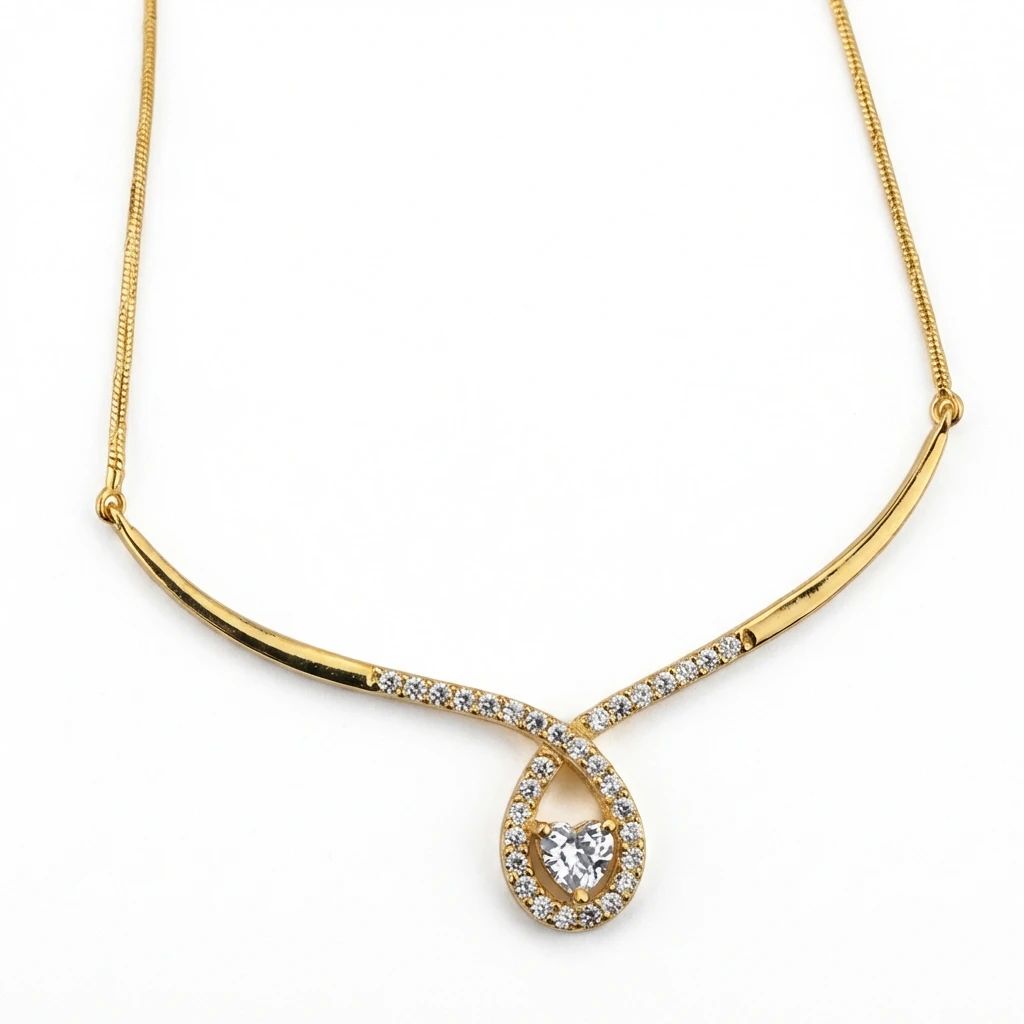
Prepare your heart necklace photo
- Open the Jewelry Model with your own heart necklace photo.
- Keep the heart pendant and chain fully visible in the product photo.
02
Select a model template or upload your own
- Choose an available jewelry model template, or upload a custom template to match your visual direction.
- Select a view that shows how the piece is worn without covering key details, then select Generate.
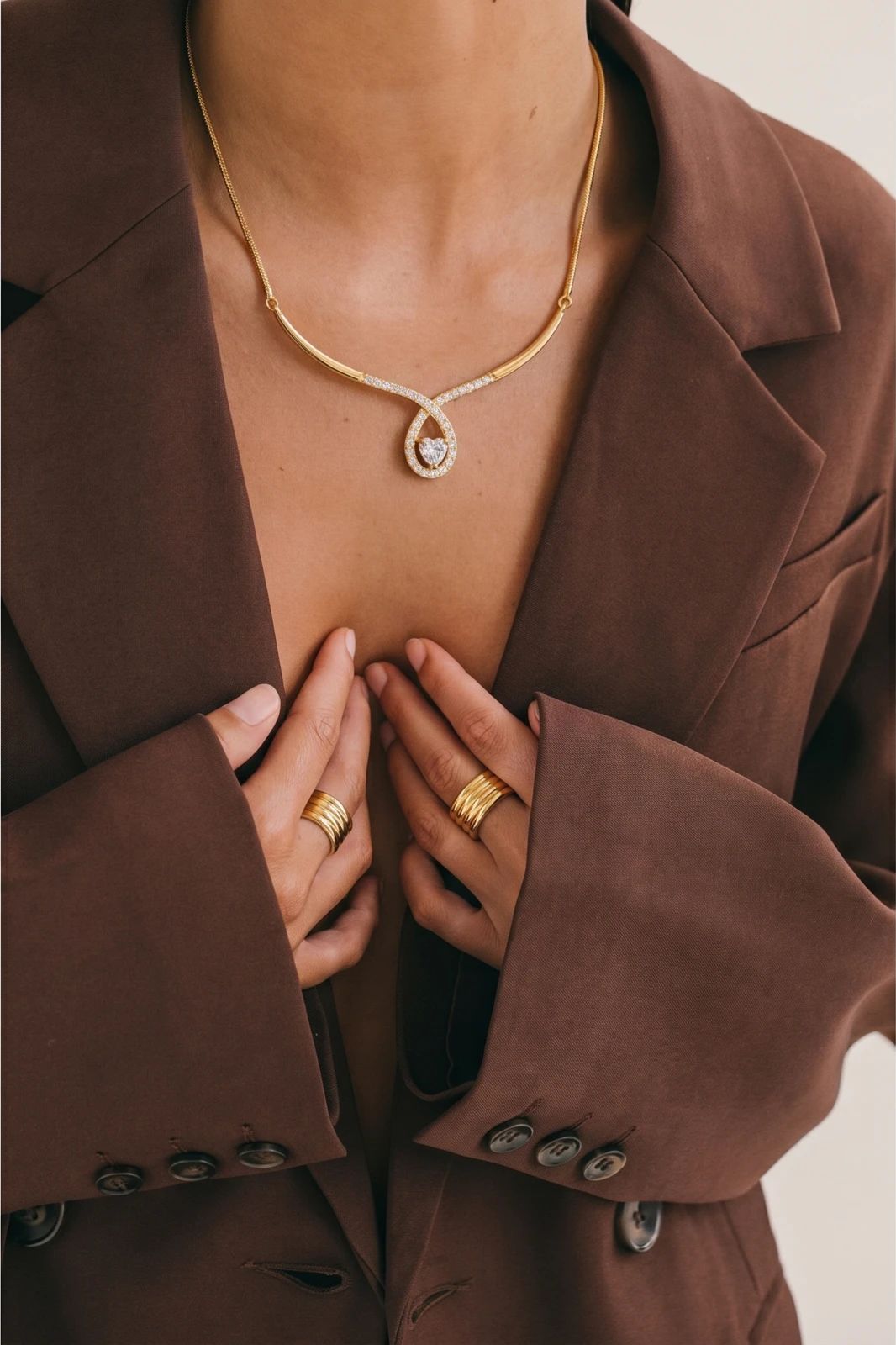
- For a result in the direction of this heart necklace example: Choose a neckline and model framing that leave the pendant clear of clothing and hair.
03
Review the heart necklace result
- Inspect the heart outline, chain placement, metal color and apparent pendant scale.
- Download when it accurately represents your item; adjust the source or settings and generate another version if important details differ.
01
Prepare your heart necklace photo
- Open the Jewelry Model with your own heart necklace photo.
- Keep the heart pendant and chain fully visible in the product photo.
02
Select a model template or upload your own
- Choose an available jewelry model template, or upload a custom template to match your visual direction.
- Select a view that shows how the piece is worn without covering key details, then select Generate.
- For a result in the direction of this heart necklace example: Choose a neckline and model framing that leave the pendant clear of clothing and hair.
03
Review the heart necklace result
- Inspect the heart outline, chain placement, metal color and apparent pendant scale.
- Download when it accurately represents your item; adjust the source or settings and generate another version if important details differ.
01
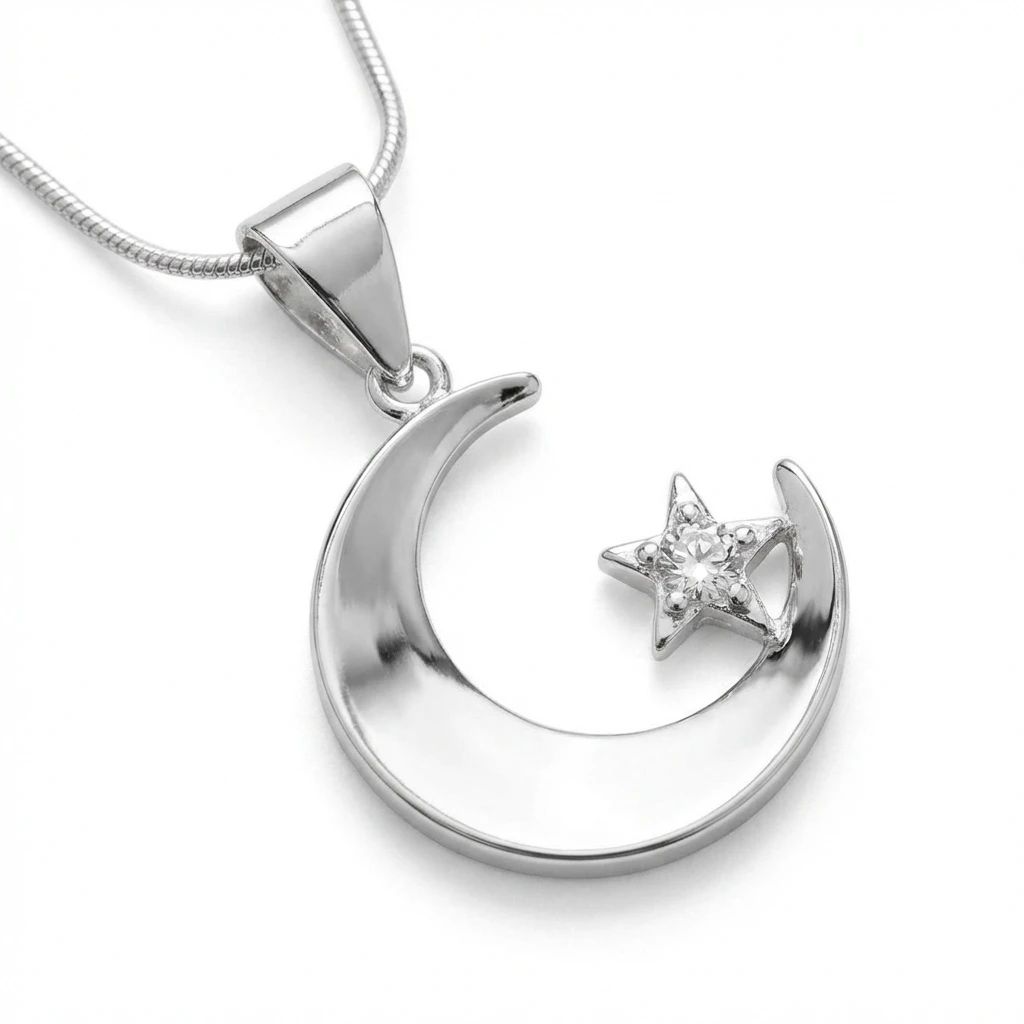
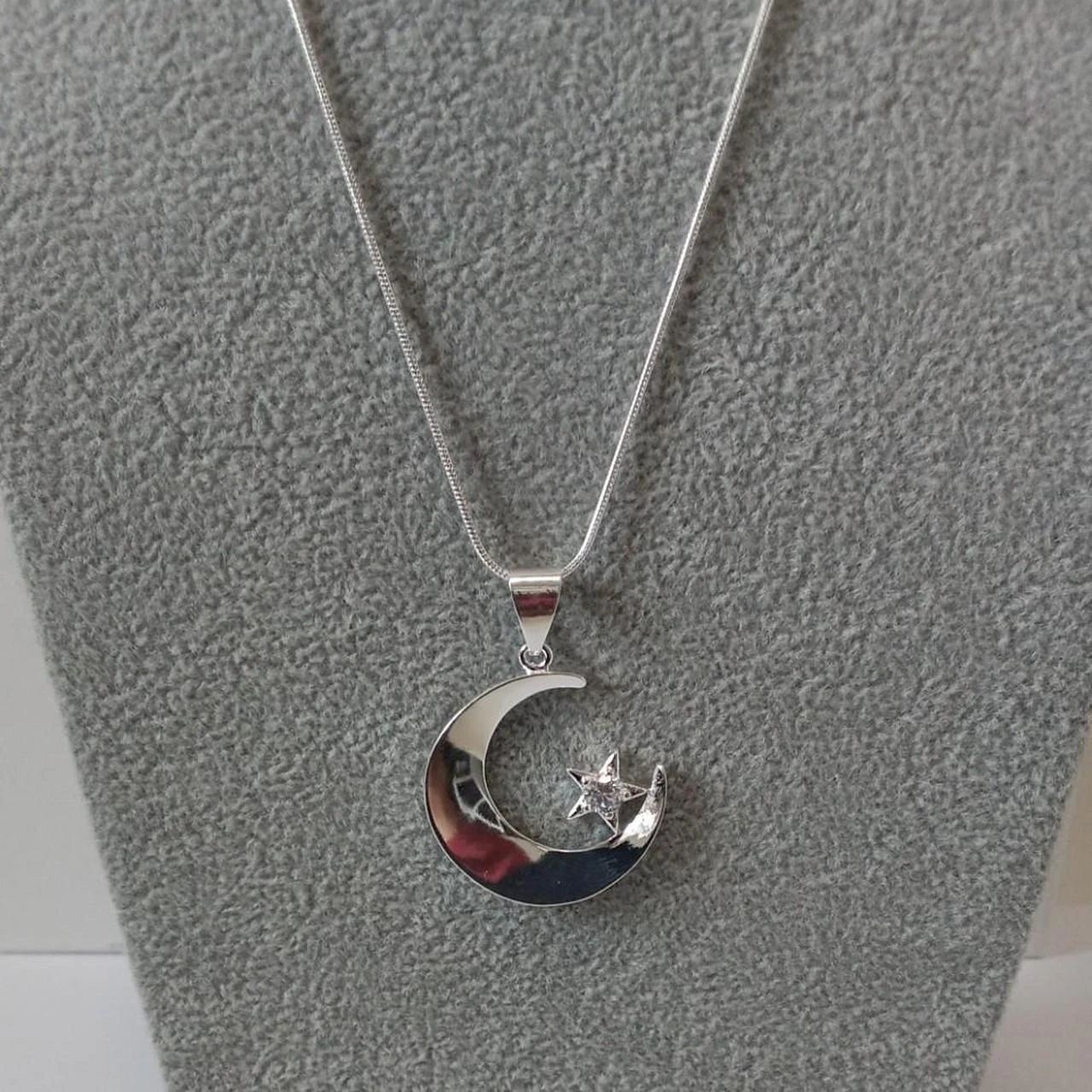
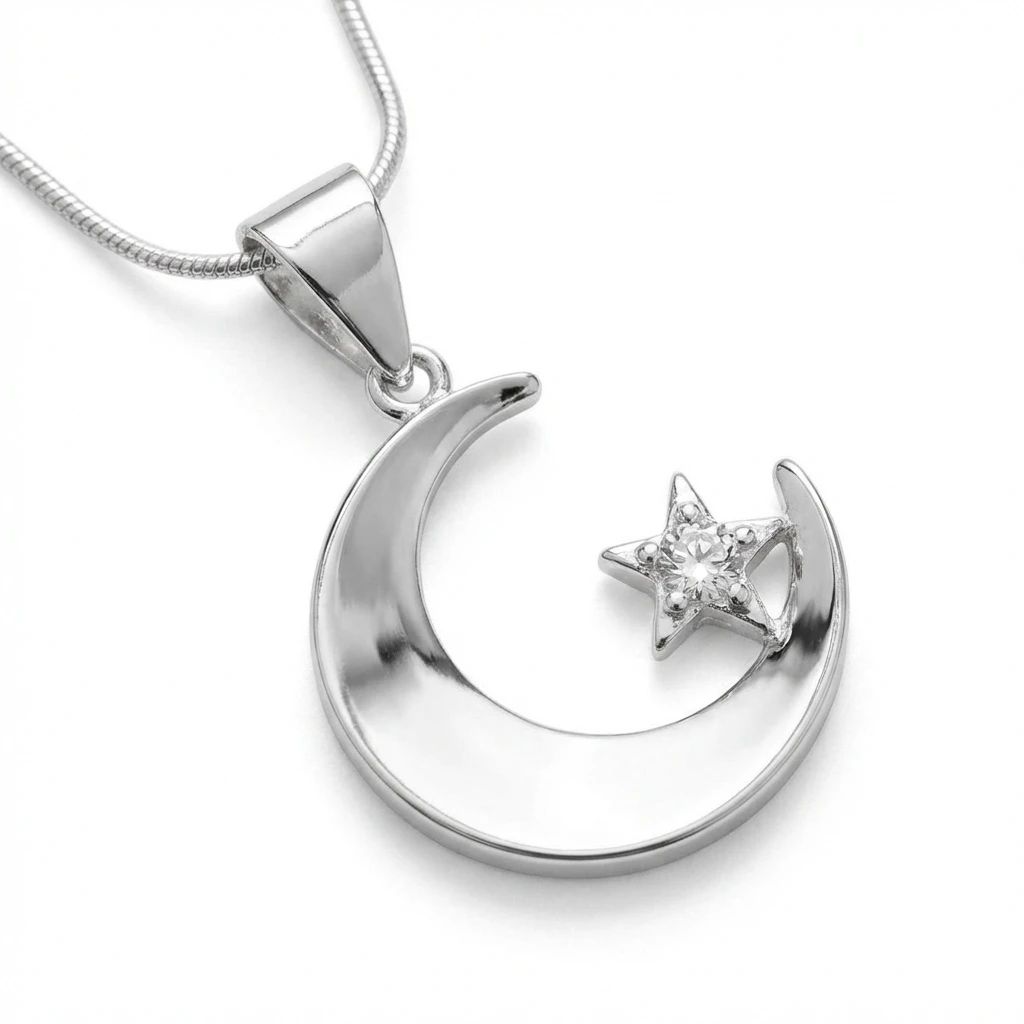
Prepare your moon necklace photo
- Open the Jewelry Model with your own moon necklace photo.
- Include the moon pendant, chain and attachment in the original product view.
02
Select a model template or upload your own
- Choose an available jewelry model template, or upload a custom template to match your visual direction.
- Select a view that shows how the piece is worn without covering key details, then select Generate.
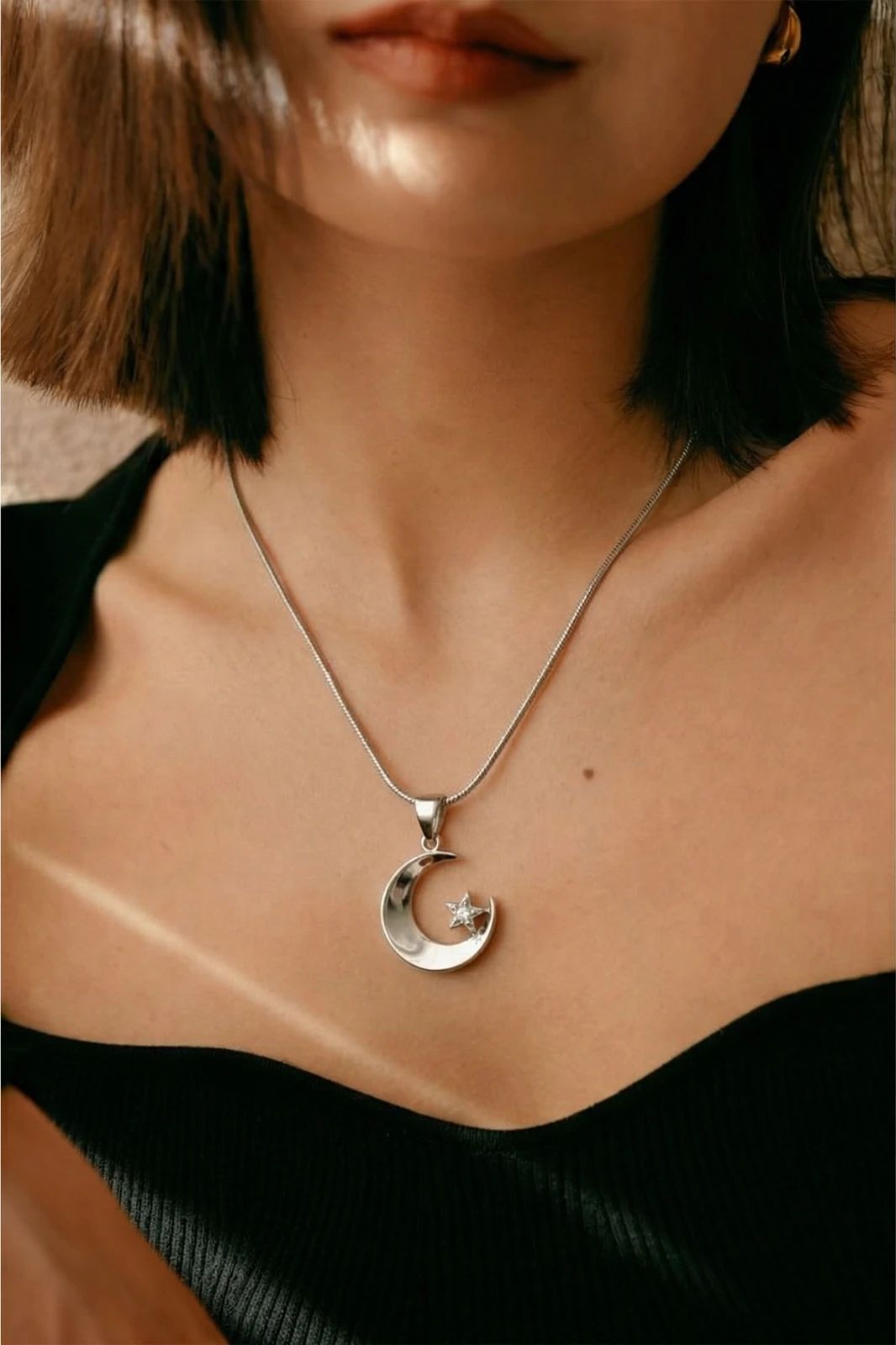
- For a result in the direction of this moon necklace example: Choose a model template where the pendant is not hidden by the neckline or hair.
03
Review the moon necklace result
- Review the crescent outline, pendant attachment, chain and apparent scale.
- Download when it accurately represents your item; adjust the source or settings and generate another version if important details differ.
01
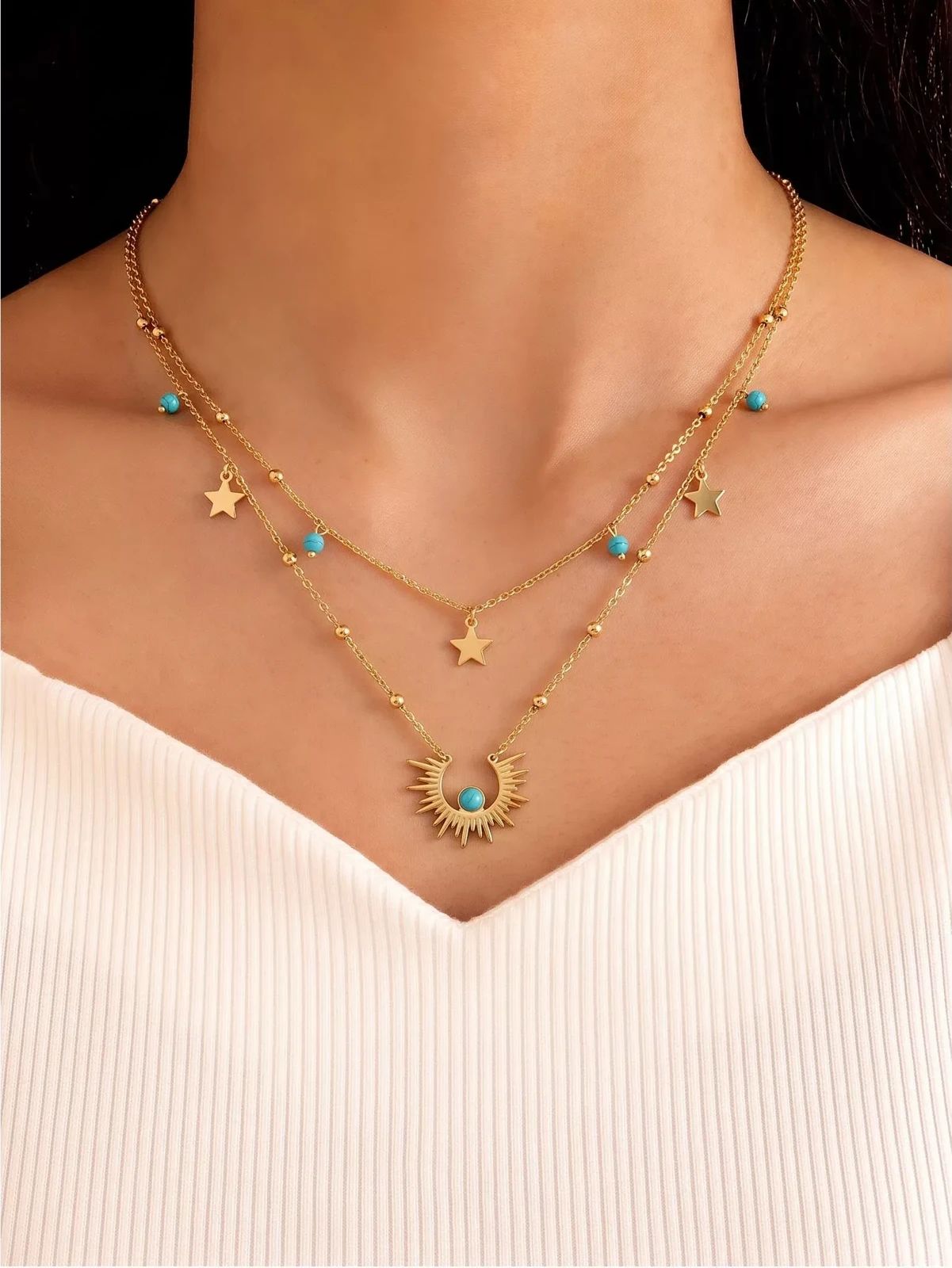
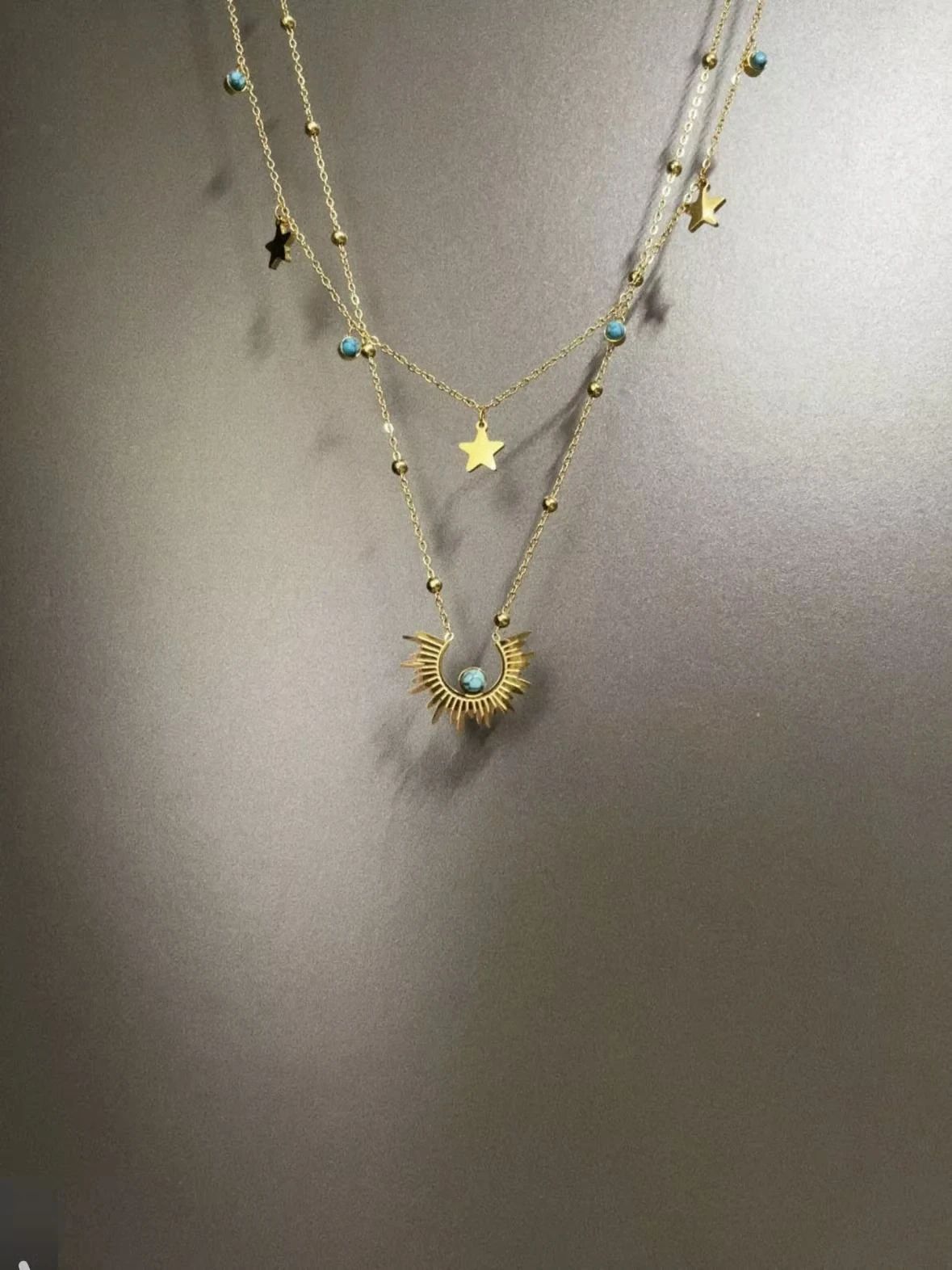
Prepare your layered necklace wearing view photo
- Open the Jewelry Model with your own jewelry image.
- Upload the same complete necklace source used in the retouch example.
- Make sure each layer and the pendant can be identified before choosing a model.
- Keep the jewelry fully in frame and use even lighting to preserve details in reflective surfaces.
- The supplied source in this example shows the information that your own photo should provide; clearer edges and component details make it easier to assess the result.
02
Choose the model presentation
- Use the available controls in the tool to choose a suitable presentation.
- Choose a neckline-focused model template with an open collar area, and avoid poses that place hands or hair across the chains.
- Consider crop, background and lighting together, keeping the jewelry itself as the main subject.
- Generate the image and compare the new presentation with the original; the gallery example provides a visual direction rather than a saved preset.
03
Review the layered necklace wearing view result
- Compare chain layers, pendant placement and charm details with the source.
- Treat the apparent length as a visual reference rather than a measurement.
- Inspect the original and result side by side at full size, including small links and reflective edges.
- Confirm that the generated presentation represents the actual product before downloading.
- If components are obscured or changed, adjust the source image or presentation and generate another version.
Start with a photo you already have
Explore Snappyit’s photography tools or create product images on your phone.