


What Is Ecommerce Product Photography?
Ecommerce product photography is the process of creating images that help online shoppers understand an item’s appearance, features, scale, and use. It includes the main listing image, additional views, close-ups, and any context needed to explain what the customer will receive.
A polished cover photo might attract attention, but it cannot answer every buying question. A shopper considering a handbag may also need to see the opening, lining, strap attachments, and size against a person. For a skincare bottle, the label, dispenser, packaging, and stated volume matter more than another decorative scene.
Start with those questions, then build the gallery around them. Snappyit brings studio-style images, apparel and jewelry presentations, and batch editing into that workflow, using your product photos as the starting point for a coordinated set of listing images.
What Product Photos Does an Ecommerce Listing Need?
An ecommerce listing needs enough images to identify the exact product and answer the questions a buyer cannot resolve from the main photo. The right mix depends on the item, its complexity, and the sales channel.
Use this table as a planning aid, not a required image count:
| Image role | Buyer’s question | What to show |
|---|---|---|
| Main image | What am I buying? | The actual item, clearly framed, with the correct quantity and variant. |
| Additional views | What does the rest look like? | Relevant sides, the back, openings, closures, or connections. |
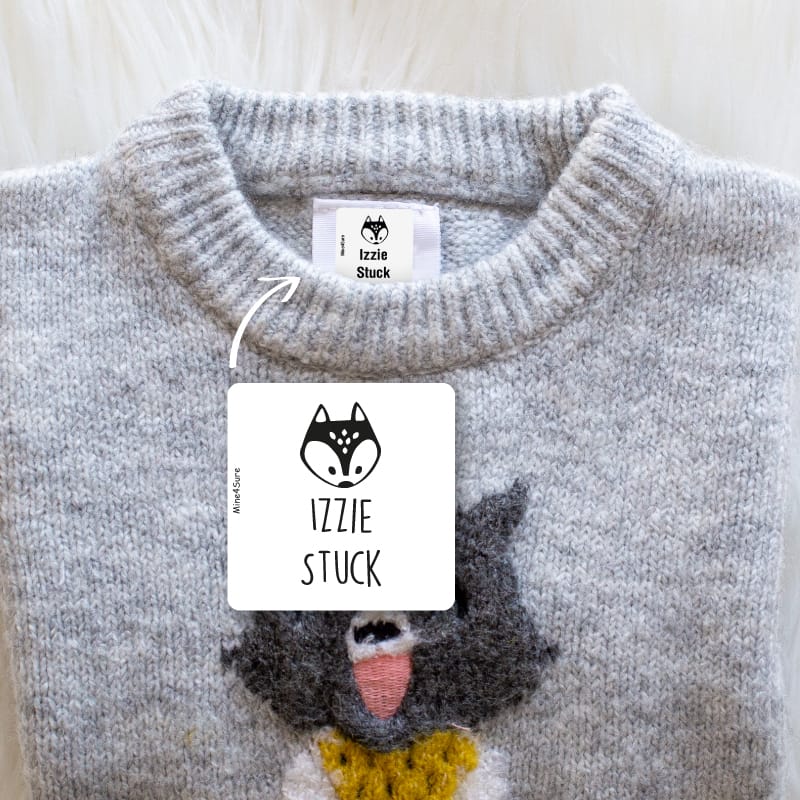
| Detail | What is the material or finish? | Texture, seams, hardware, label text, or other distinguishing features. |
| Scale or wearing context | How big is it, or how does it look in use? | A useful reference, a worn view, or a clear size illustration. |
| Lifestyle | Where or how would I use it? | A setting that explains the product without obscuring it. |
| Variant, contents, or condition | Which version and accessories are included? | The chosen color, package contents, labels, or condition details. |
Some images can do more than one job. A well-composed side view of a bag might show both its depth and its strap hardware. Conversely, a complex item may need several detail photos.
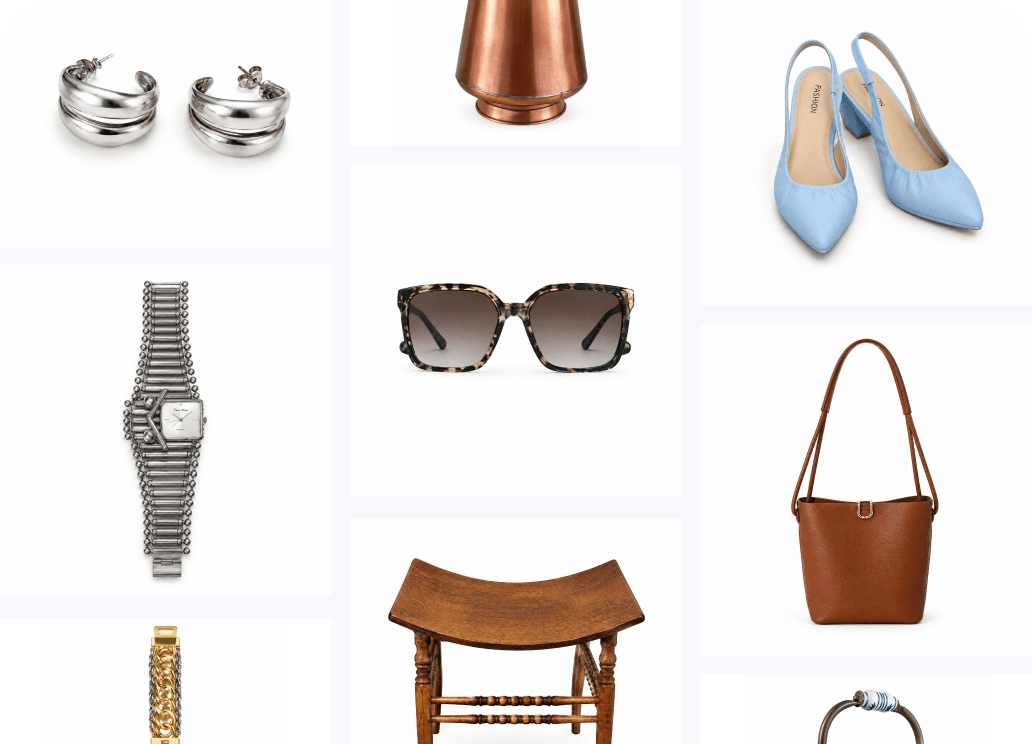
White backgrounds are useful for a clean catalog, while lifestyle images add context. Neither is automatically the right choice for every slot. A prop that makes an ad more appealing could confuse a shopper if it looks like an included accessory.
Before commissioning extra imagery, check the current gallery. The missing photo may be a clear view of the clasp rather than another front-facing model image.
Plan and Shoot Your Product Photos
A product photography shot list connects each SKU with the views, details, and variations needed for its listing. It prevents a shoot from ending with attractive images that leave basic product questions unanswered.
Prepare the item before preparing the set
Remove lint, dust, loose packaging, and fingerprints where appropriate. Fasten closures and arrange straps so the intended shape is visible. Follow the care instructions before steaming or pressing fabric.
For resale items, photograph wear and damage before making presentation edits. A stain or worn edge may be something the buyer needs to see, not something to remove from the listing.
Make a short record for each product
Keep the SKU beside the source files and record:
- The exact variant and the items included in the sale.
- The views and details still needed.
- The intended main image and supporting images.
- Any color, logo, text, or construction detail that must stay unchanged.
Use file names that your team can follow, such as bag-214-tan-front.jpg and bag-214-tan-interior.jpg. Keep source photos and edited exports in separate folders so your team can reuse either version.
Agree on a catalog style
Choose the background, product position, viewing angle, and amount of space around the item. Keep these decisions consistent within a product category. A collection page feels uneven when similar products alternate between tight crops and large empty margins.
A workable product photography setup needs controlled light, a stable camera, and a simple background. Clear views of the product give Snappyit useful detail to work with, whether you are preparing a white-background image or an on-model presentation.
Use soft light and control reflections
A large, diffused light source is a practical starting point for many products. Window light can work if you can control direct sun and changes in brightness. A reflector or white board on the opposite side can reduce deep shadows.
Avoid mixing daylight with lamps that give the product a different color cast. For a reflective bottle or piece of jewelry, watch what appears in the surface: the room, the camera, and your clothing may all be reflected. Move the light, product, or surrounding cards before trying to repair every reflection later.
Set white balance and exposure before shooting so the product’s color and finish read clearly against the background.
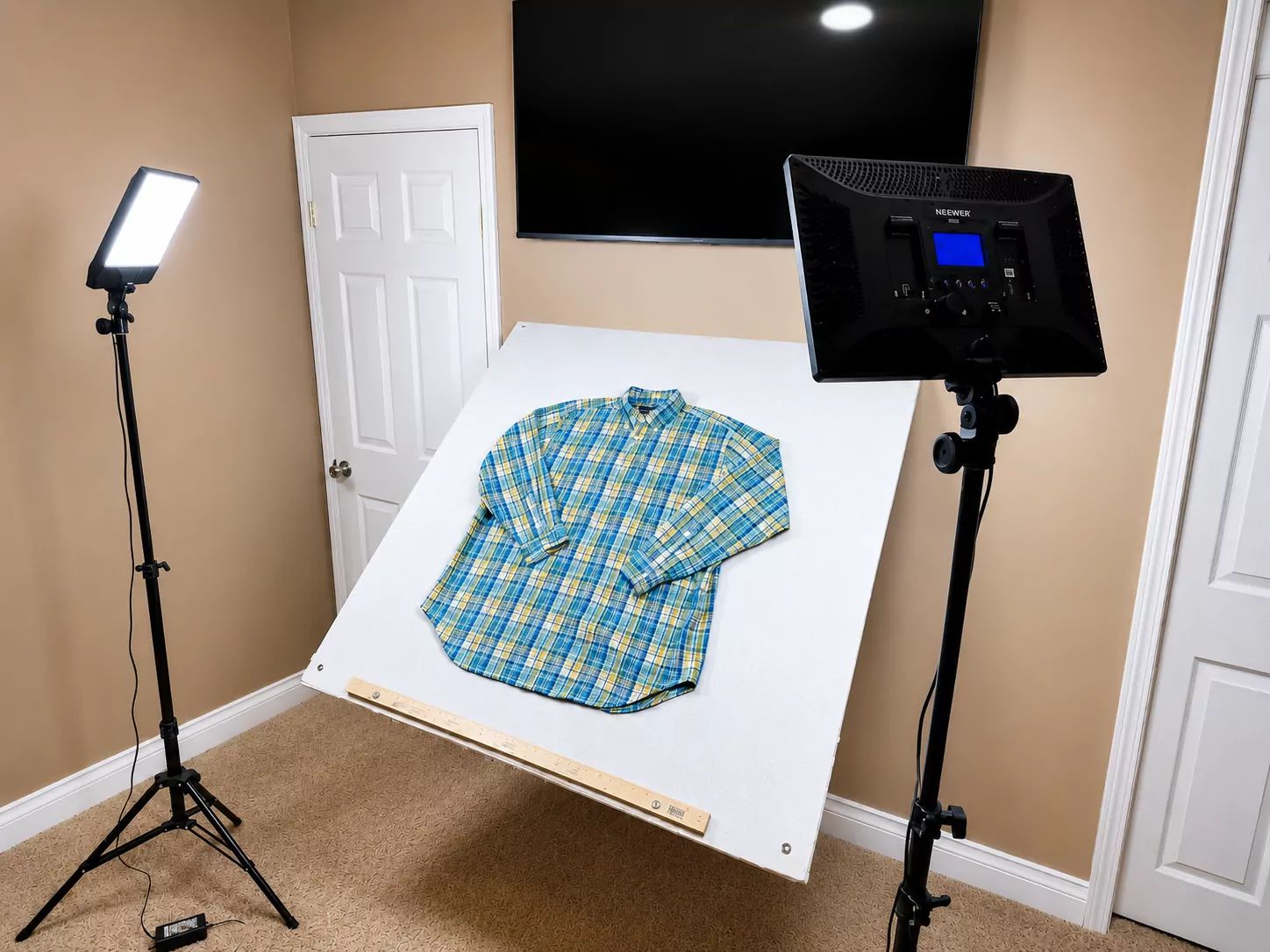
Setup illustration from Snappyit’s clothing photography guide. Adjust light position and diffusion for the material you are photographing.
Stabilize the camera and inspect focus
A phone can be a useful starting point when it records the required detail. Clean the lens, stabilize the device, and check focus on the product rather than the backdrop. Avoid relying on digital zoom for fine text or hardware; inspect the original file at a larger size.
A tripod also makes repeatable framing easier. Mark the product position and keep the camera at the same height for similar items. If you change the setup for a taller product, record the change instead of trying to recreate it from memory.
Choose angles that explain the item
A straight-on view can make packaging easier to read. An angled view can reveal depth, while a top-down view can show the arrangement of a clothing set. Capture the back or underside when it contains something important, such as a fastener, sole pattern, or connector.
Keep the whole product in the source frame. You can crop a derivative later; you cannot reliably recover a missing hem or strap from pixels that were never captured.
Check the files before putting products away
Open the images and inspect the label, outline, color, and smallest selling detail. If bright reflections hide a finish or a hand covers an attachment, take another photo while the setup is still available.
Capture any rear views, closures, or construction details needed to complete the listing while the product is on set.
Choose Between DIY, a Photography Studio, and AI Assistance
The best production method depends on the information you need to capture and the work already completed. A small seller may use all three methods across a catalog.
| Method | A useful choice when… | Allow time for… |
|---|---|---|
| DIY photography | You can handle the product, control the setup, and capture its necessary details. | Preparation, lighting adjustments, file organization, and editing. |
| Photographer or studio | The item is difficult to light, the brief needs precise styling, or you need original campaign photography. | Briefing, samples, production, usage permissions, and revisions. |
| AI-assisted production | Clear source photos exist and you need another presentation, background, or on-model visual. | Selecting source photos, choosing a presentation, and preparing final exports. |
These methods can share the workload. Photograph a garment’s real seams and labels, then use an AI model image to provide additional styling context. For an intricate watch, keep accurate close-ups even if you create a separate scene for marketing.
Prodoto’s ecommerce photography guide covers the studio side in more depth, including lighting, sets, styling, and production planning. Those considerations still matter when deciding what a generated image should communicate.
Budget for the Whole Job, Not Just the Shoot
The useful cost of product photography includes preparation, production, editing, review, and delivery. Comparing a photographer’s full project quote with a tool’s price per generation leaves out work on both sides.
For your own costing, use:
Cost per approved image = total production cost ÷ number of images approved for delivery.
Include your team’s time, samples and shipping where relevant, equipment or studio charges, model usage permissions, software or generation credits, and revisions. Comparing the complete workflow makes it easier to see where photography and AI editing each save work.
Track time per SKU and the number of finished images to understand your production capacity. For current software charges, consult Snappyit pricing and the selected tool’s credit cost rather than assuming every task costs the same.
When evaluating new listing photos, note changes to price, promotions, availability, and traffic sources. More sales after an image update do not by themselves establish that the image caused the increase.
Edit Product Photos Without Changing What You Sell
Product photo editing brings the item’s shape, material, and distinguishing details into focus. Snappyit’s task-specific tools let you work on the background, garment presentation, or color variant according to what the listing needs.
Separate cleanup from a new presentation
If a clear product photo only needs a clean background, a background remover may be sufficient. Creating different lighting, shadows, or a studio-style setting is a different task, suited to a generation workflow such as Product Studio.
Use exposure and white-balance controls for precise tonal adjustments; use Product Studio when you want a studio-style presentation of the item.
| Problem | First action | Details to preserve |
|---|---|---|
| Distracting background | Remove or simplify it. | Fine edges, transparent parts, handles, and gaps. |
| Creased clothing | Prepare the garment or apply targeted wrinkle removal. | Seams, pleats, texture, and intentional folds. |
| Uneven color | Compare with the product and correct the source where possible. | The SKU’s color, stitching, and hardware. |
| Soft or small image | Find the original file; consider upscaling only if useful detail exists. | Readable lettering and natural-looking texture. |
| Inconsistent framing | Apply a common canvas and product position. | Cropped edges and uneven visual scale. |
| Missing or hidden feature | Photograph that feature. | Whether the listing now explains the real item. |
Retouch with the material in mind
Use Remove Wrinkles to tidy creases that distract from a garment’s presentation. The aim is a prepared, natural-looking item, with its seams, pleats, and fabric texture still visible.
For jewelry, focus the edit on a clean background and well-defined metal and stones. Clear reflections and visible engraving help shoppers understand the finish and craftsmanship.
Keep color variants tied to real products
Use Color Change to create coordinated images for the color variants you sell. Working from the same composition helps keep framing and product placement consistent across the gallery; specify the intended shade and the parts you want recolored.
For more specific editing decisions, see our product photography editing guide.
Build an Ecommerce Image Set with Snappyit
Snappyit builds on the product you have already photographed. Its workflows are designed to carry the item’s appearance into a cleaner background, a structured apparel view, or a styled wearing image, so you can present the same SKU in several useful ways.
Create a studio-style image for a packaged or everyday product
For beauty products, bags, shoes, homeware, and electronics, Product Studio turns an existing product photo into a white-background studio image by default. Upload your photo, choose the output size, and generate—no prompt is needed.
If you want a specific setting, add instructions in Additional Information. For example, you could ask to place a ceramic plate on a light oak dining table with soft window light. Leave this field blank when you want the default white-background result.
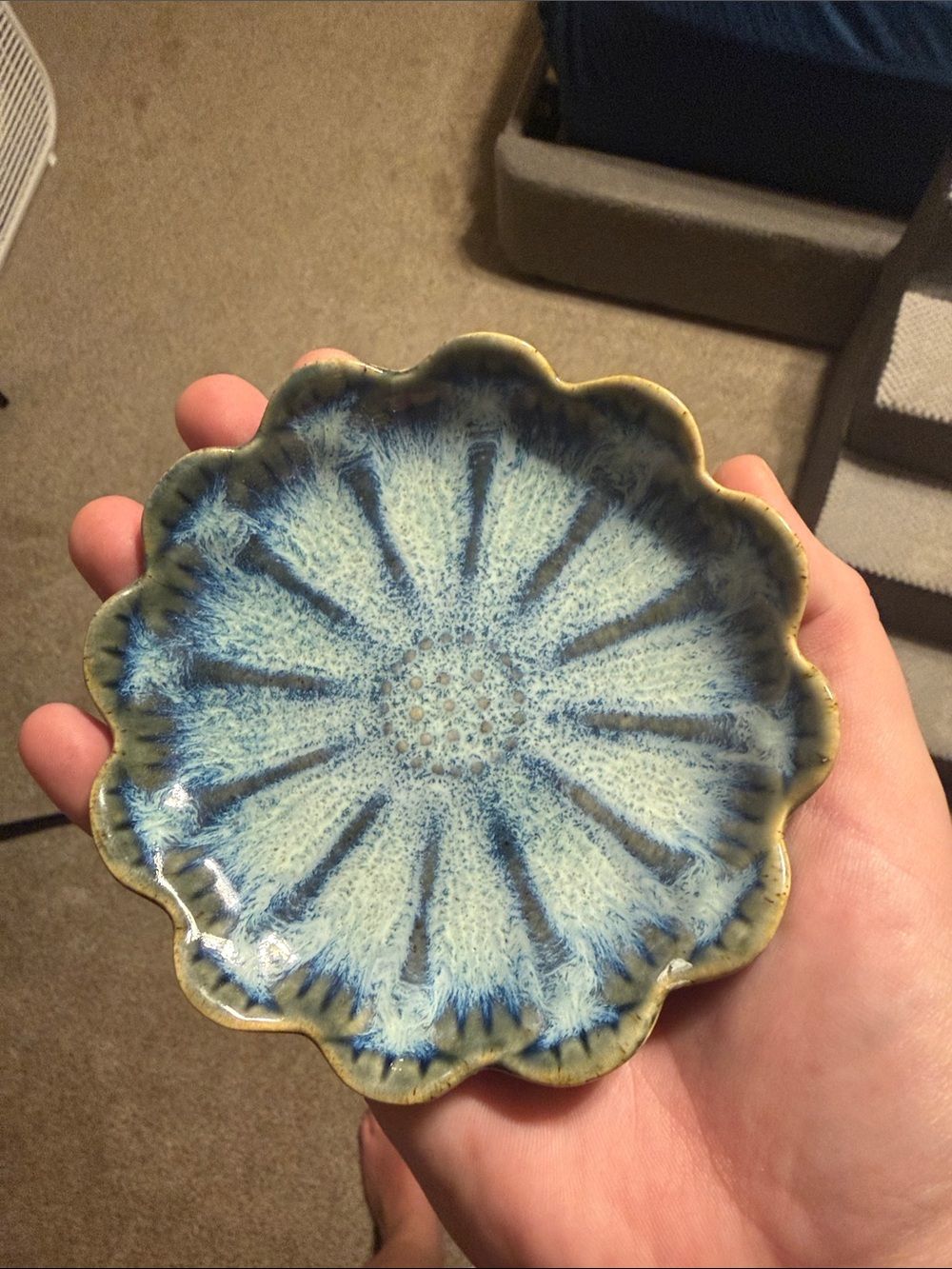
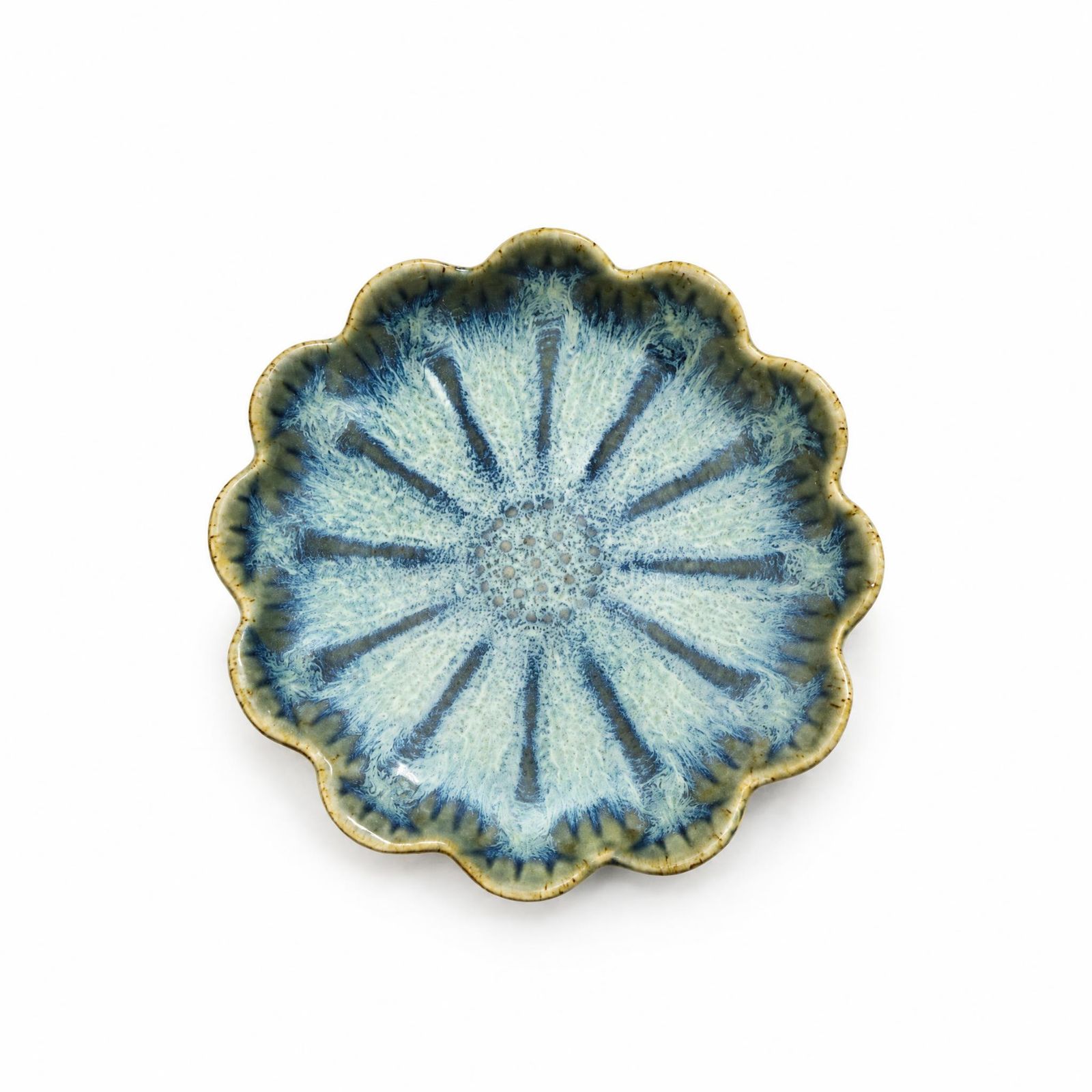
Ceramic plate example: the source photo and the white-background result.
In the example above, the plate’s scalloped outline, blue-green glaze, and radial pattern remain recognizable in the white-background presentation. Removing the hand and surrounding room puts the design at the center of the image, making it easier to see in a product grid.
Have a product photo ready? Give it a clean studio presentation with Snappyit.
Give clothing the presentation it needs
A garment may benefit from a flat lay, a ghost-mannequin view, or an on-model image, but you do not need every format for every listing.
Flat Lay provides a product-only presentation. Ghost Mannequin adds a view of the garment’s shape without a visible wearer. Fashion Model adds wearing context. Select the view that explains something the current gallery does not.
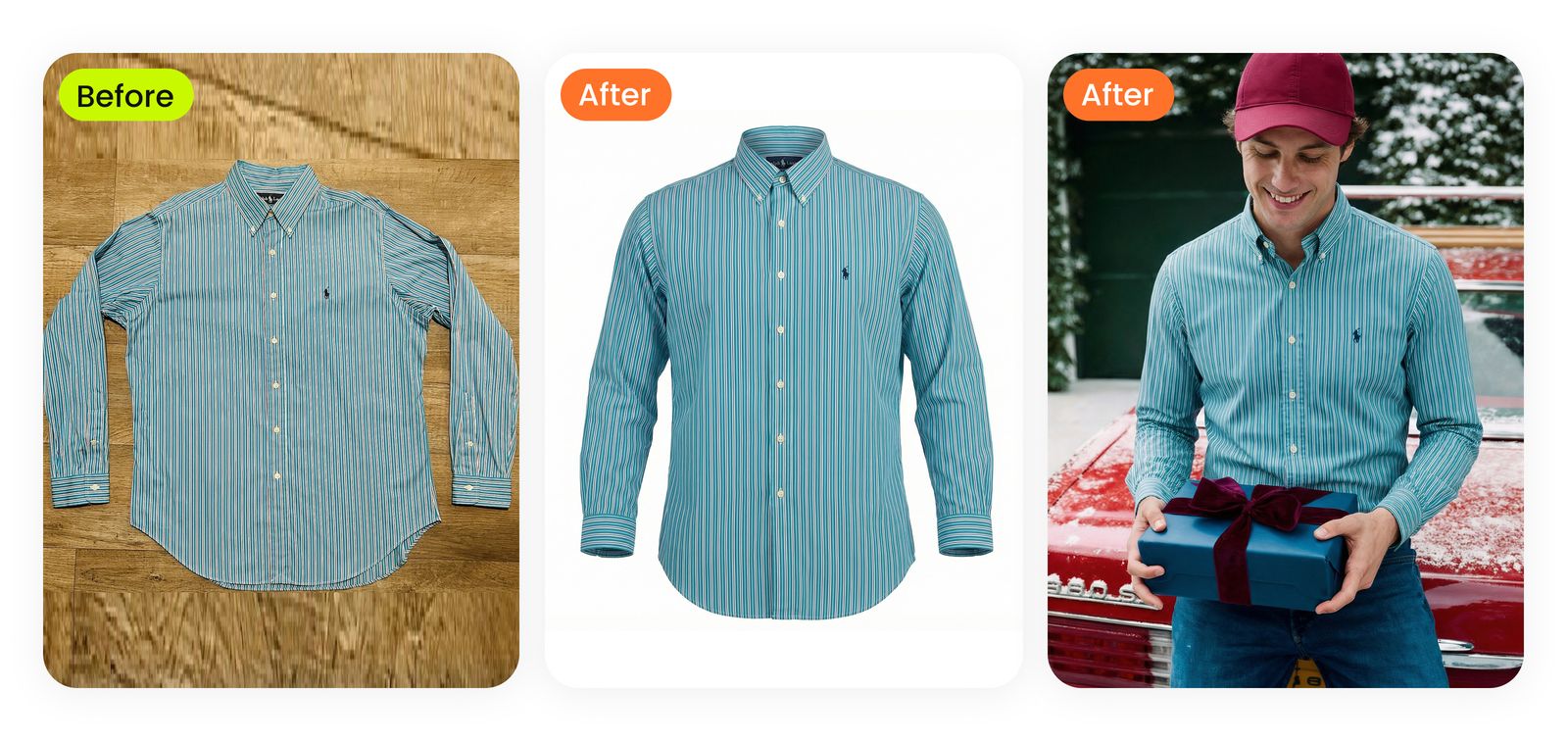
One garment, several gallery roles: a direct product view, a ghost-mannequin presentation, and an on-model image.
Use the flat lay to show the overall design, the ghost-mannequin view to emphasize structure, and the model image to show styling. For a complete look built from an outfit reference, use the AI outfit generator.
Our AI product photography guide for fashion ecommerce explains the apparel workflow in more detail.
Add wearing context for jewelry and accessories
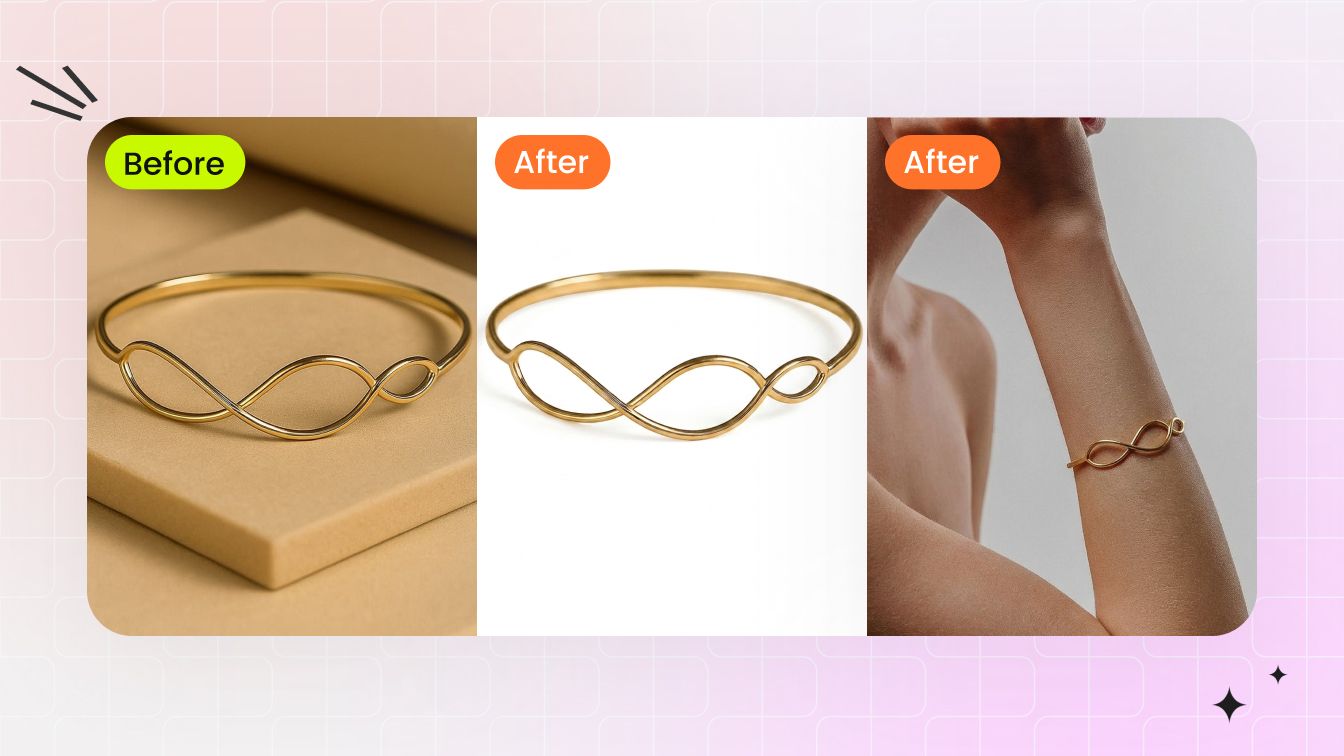
Use Jewelry Retouching for a clear product image and Jewelry Model to show how the piece looks when worn. Pair these views with the dimensions in your listing to cover both style and size.
Shoe try-on and glasses try-on add wearing context for accessories. Use them alongside product close-ups and size information to give shoppers a fuller view of the item.
Prepare Images for Your Store and Marketplaces
Product images need to meet the requirements of their destination and display well in the actual listing. A file that uploads successfully may still be poorly cropped, too small for useful inspection, or unsuitable for its image slot.
Match the canvas to the destination
Check the platform’s current guidance for main images, additional images, and promotional content separately. Use an image resizer to prepare the required canvas, then check product position and available detail.
Shopify’s product media guidance explains how image versions are used across a store’s theme. Preview the collection card as well as the product page: a crop that looks good in one can cut off an important feature in the other.
Keep an accurate master and check the export
Retain the best approved file, then make the versions needed for each channel. Select the format and compression according to the destination and image content. Inspect the exported file rather than judging only the editor preview.
A product photo upscaler can help prepare larger images for the space available in your store. Start with the highest-quality file you have, especially when customers need to zoom in on lettering or texture.
For Google Shopping ads and free listings, the image link specification requires an accurate product image and addresses promotional overlays and AI-generated image metadata. Apply the requirements for the channel and image slot you are preparing.
Review the page as a customer would
Before publishing, review the product grid, zoom view, and mobile gallery. Confirm the SKU color, readable labels, included contents, and any small details that matter to the purchase. Add descriptive alt text identifying the item and view. This final listing check applies to photographed and edited images alike.
Scale Product Photography Across Your Catalog
A repeatable catalog workflow gives each product category a shared background, framing style, and export format. Set those choices once, then organize the image groups by SKU and intended use.
Start with a few representative products to establish the look: for example, a reflective item, a packaged product, and a textured material. Use that selection to settle the presentation before extending it across the catalog.
Use Snappyit’s batch product photo editor to work through suitable image groups. Separate jobs by product type and required presentation, rather than applying one instruction to every item in a mixed catalog.
Keep the source, selected presentation, export version, and approval status beside the SKU. A shared record makes it easier for the next person to prepare another size, add a variant, or reuse the image in a campaign.
Reuse Approved Images for Campaigns and Video
Approved product photos can provide the starting material for campaign variations and short videos. Finish the product representation first, then adapt its setting, crop, or motion to the channel.
Use Image to Video and Fashion Video to turn selected product or model images into short motion content. Choose movement and pacing that keep the item easy to see in a social feed or campaign placement.
Use generated motion for presentation and styling. For a 360-degree inspection or a demonstration of a working mechanism, record the physical product so customers can examine its construction and operation.
Ecommerce Product Photography FAQs
Can I take ecommerce product photos with my phone?
Yes. A phone, controlled light, and steady framing can produce useful product photos for an online store. Keep the whole item visible and focus on its important details. You can then use Snappyit to create a white-background image or another listing presentation from that photo.
How many photos should a product listing have?
Use enough images to explain the item’s appearance, important features, scale, and included contents. The number depends on the product and the platform; a simple item and a product with several hidden features will need different coverage. Follow the destination’s current limits and requirements.
Do all ecommerce product photos need a white background?
No. Background choice depends on the channel and image slot. A plain background can keep the main product view clear, while a lifestyle image can explain use or styling. Check the destination’s rules instead of applying one background rule to every image.
Can AI create product photos from an existing image?
Yes. Snappyit Product Studio uses your product photo to create a studio-style image, with a white background by default and no prompt required. The workflow is designed to retain the item’s recognizable appearance while improving its presentation. Add instructions if you want a particular scene or setting.
How much does ecommerce product photography cost?
Cost depends on the number and complexity of products, required views, styling, production method, and review work. Compare quotes or workflows using the same deliverables and usage requirements. Include preparation, editing, and delivery when estimating the cost of each finished image.
Can I use AI product photos on Amazon, Shopify, or Etsy?
AI-assisted images can be part of a product listing where the platform permits their intended use. Follow the current requirements for the marketplace, category, and image slot, including product accuracy, backgrounds, and promotional overlays. Snappyit’s white-background and lifestyle workflows let you prepare different presentations for those needs.
Start with the Product Photos You Already Have
Start with a product photo and choose the view your listing needs: a clean white background, a structured garment presentation, or an image that shows the item being worn. Snappyit helps you turn that starting photo into a more complete gallery, then reuse the same workflow as your catalog grows.
References
- Prodoto: Ecommerce Product Photography — Expert Guide. Reference for photography styles, lighting, styling, and production planning.
- Shopify Help Center: Product media types. Reference for product media and storefront display considerations.
- Google Merchant Center: Image link specification. Reference for Shopping ads and free-listing image requirements.
External references checked September 21, 2026.